A:AnswerIt can be done, but you would need to use an HDMI cable and a separate device like a video capture card that would allow for your computer to process the HDMI signal coming from the GoPro.
A:AnswerYes, but you'll need to use a mic adapter made by GoPro. For the HERO8 Black, you can use the GoPro Pro Mic Adapter or the new Media Mod to connect an external mic.
A:AnswerGoPro products are covered by the GoPro Warranty. Details on our warranty can be found at https://gopro.com/help/articles/block/Warranty-Information
A:AnswerYes, you should be able to do that by streaming through your smartphone with the camera connected to the GoPro app on your phone. Note that you will need to be able to connect to a wifi network or be able to use your phone as a hotspot in order to send the feed out. The GoPro site has full info on how to set up and start your live stream.
A:AnswerIt does not come with any type of cover. It says it is waterproof to 33 feet, however I don't use mine under water so you should look into that further. Also check out the Hero 9, I would have got that over the 8 because they are about the same price.
A:AnswerThe open-box description can be found when you click the open-box price below the item details. Also, open-box items are categorized into 3. Open-box excellent, open- box satisfactory and open-box fair. Kindly refer to the attached screenshot.
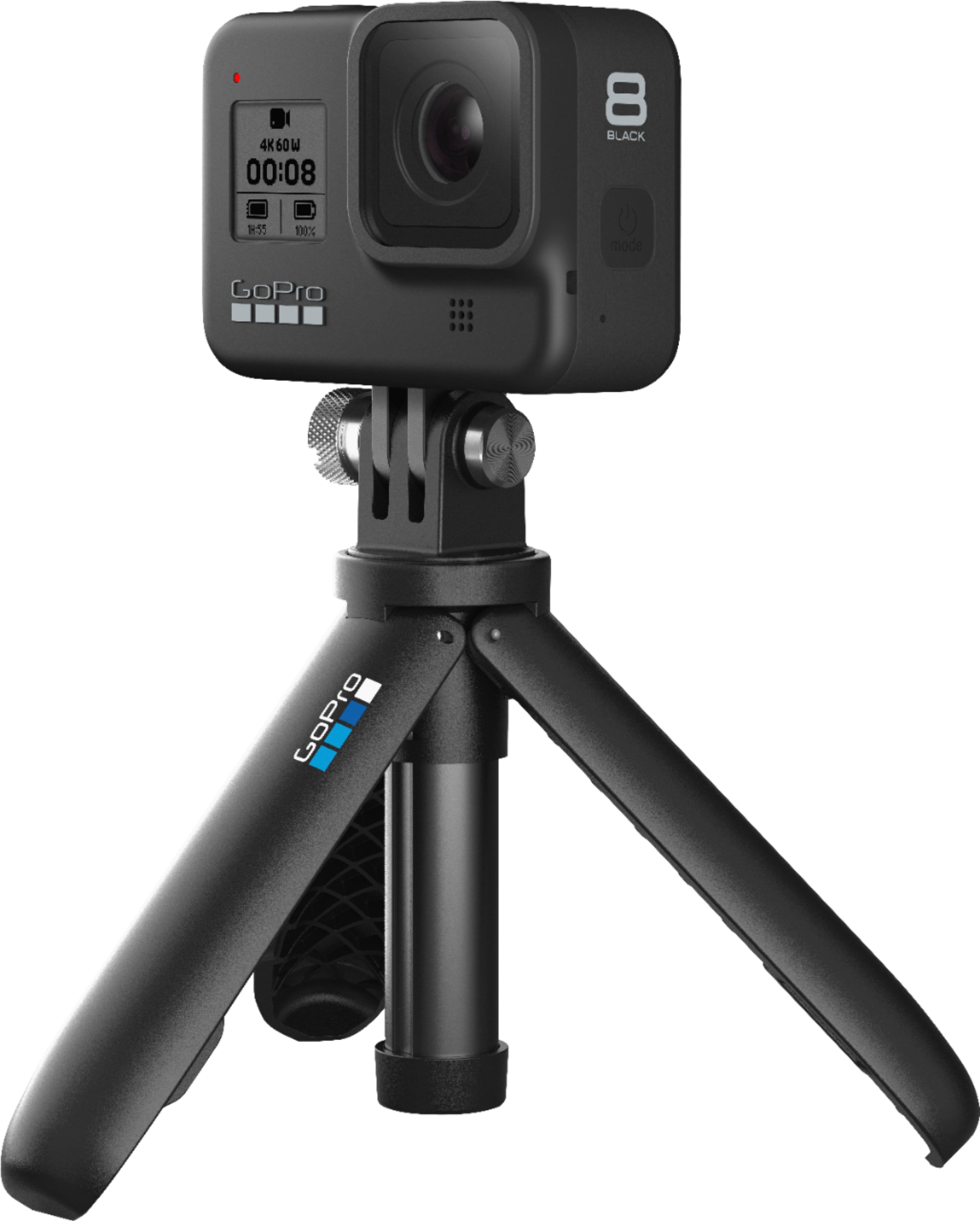
A:AnswerIf you're asking about using the HERO8 Black as a webcam, it will connect to your computer using the USB-C cable that comes with the camera. As for mounting it, that's up to you and your setup. Many people use a tripod like the GoPro Shorty, but you can also set the GoPro up on a bookshelf or on anything else that's nearby.
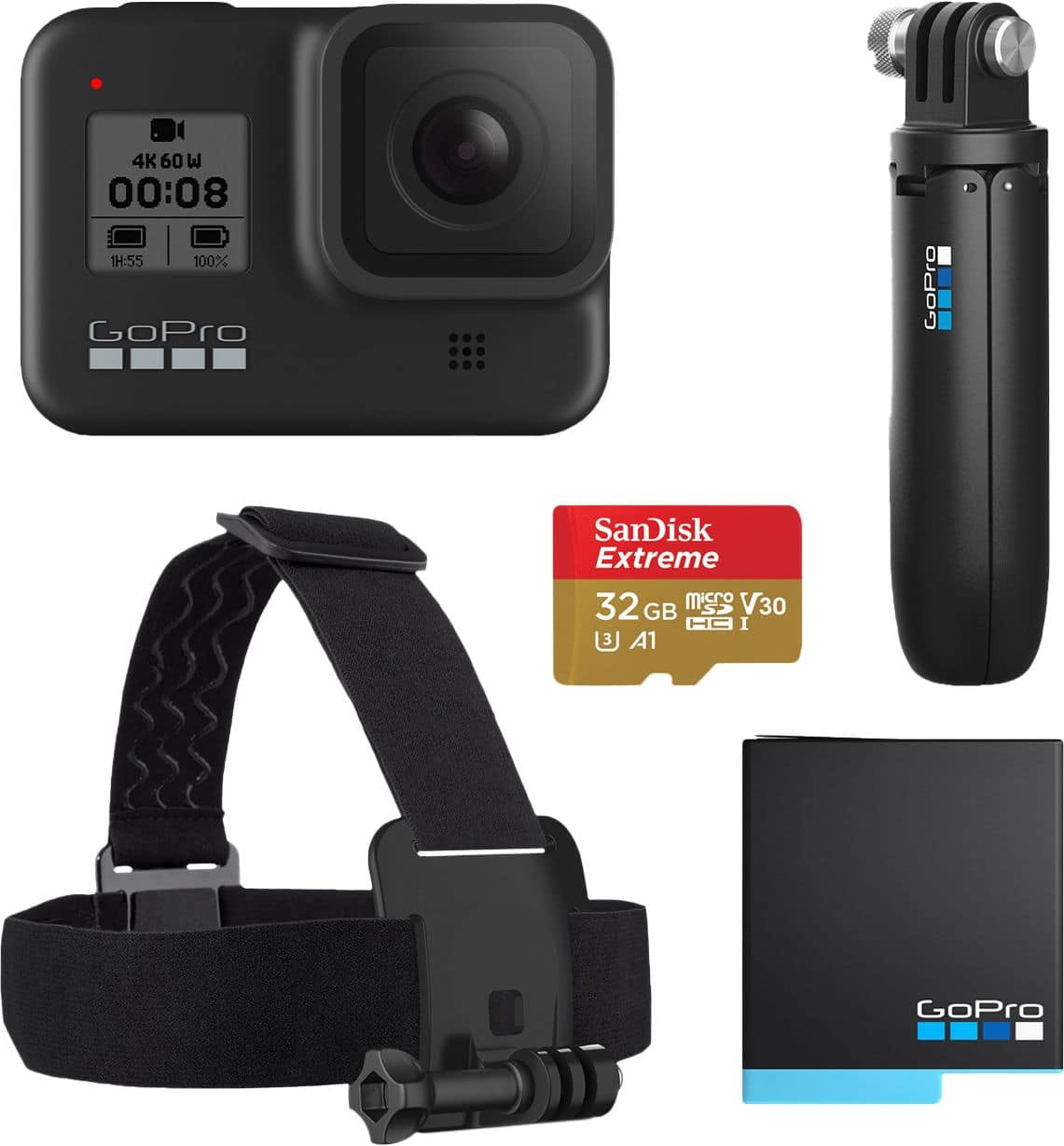
A:AnswerYes. An adhesive mount works great on most helmets, and GoPr makes a handlebar mount that works great on most handlebars. If your handlebars are thicker, there's a tube mount that is also available.