A:AnswerHello, you can delete the temporary files by going into the Settings, then Storage Management, then click delete next to Offline Files, finally you click to confirm the deletion. Thank you for being an HP customer!
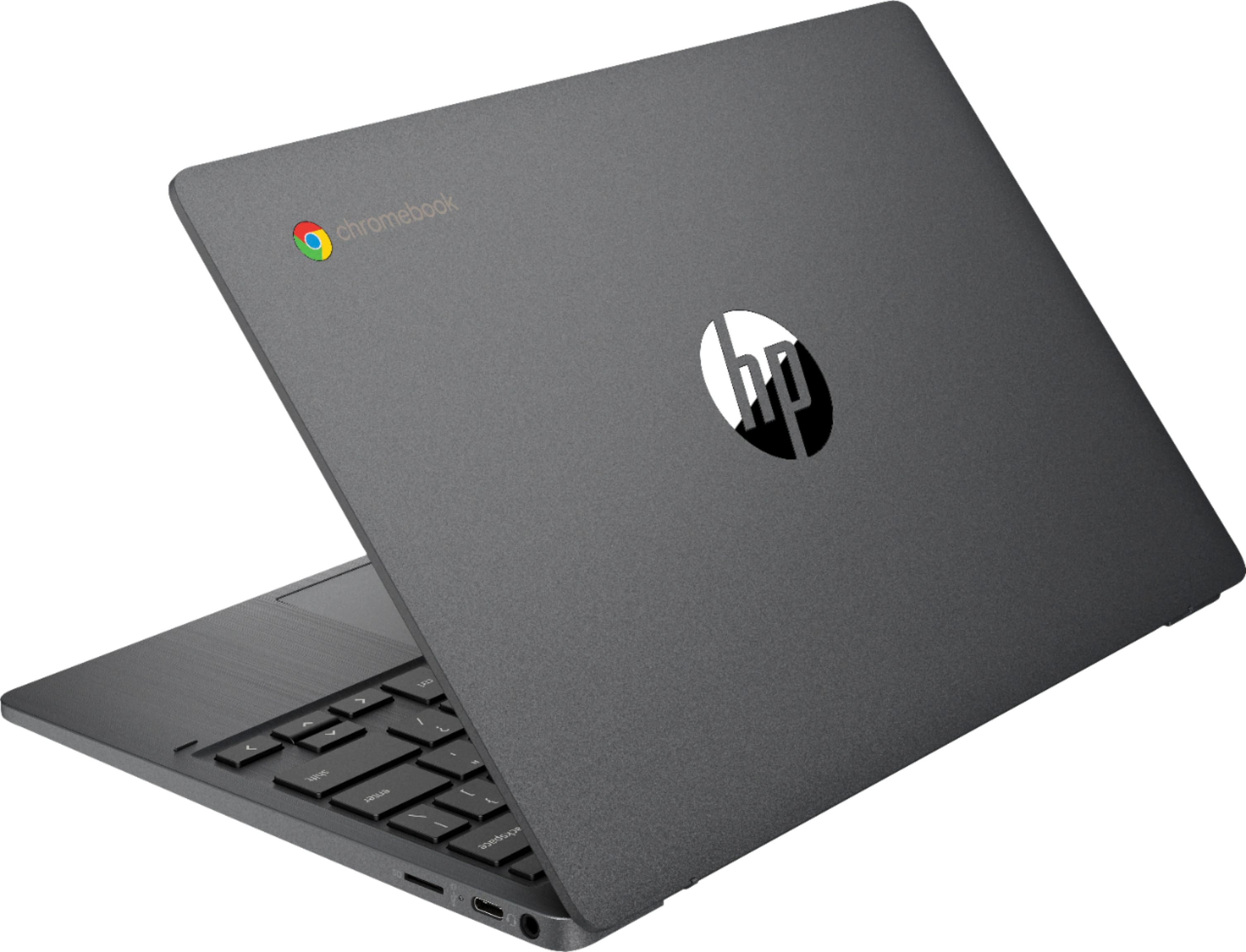
A:AnswerHi Griffin and thanks for your question! The HP 11.6" Chromebook has up to 15 hours of battery life. Of course that will vary depending on your usage demands and the life of the machine.
A:AnswerThank you for the question. Yes, you can load your software of choice (also known as an APP) and use as you would with any computer. You can even use Microsoft 365.
A:AnswerHi Mike. The Chromebook is a good, simple, secure choice. Use (or get) a google account and you're off and running. An economical printer for home use is the DeskJet 3755. See it here: https://www.bestbuy.com/site/hp-deskjet-3755-wireless-all-in-one-instant-ink-ready-inkjet-printer-stone/5234375.p?skuId=5234375. Bonus - you can buy replacement cartridges the traditional way, or subscribe to Instant Ink to ensure that you never run out of ink.
A:AnswerThanks for your question. Yes you can use a VPN with this Chromebook. There is a Norton VPN version available for Android that should be available from the Google Play store. There are many other VPNs available as well.
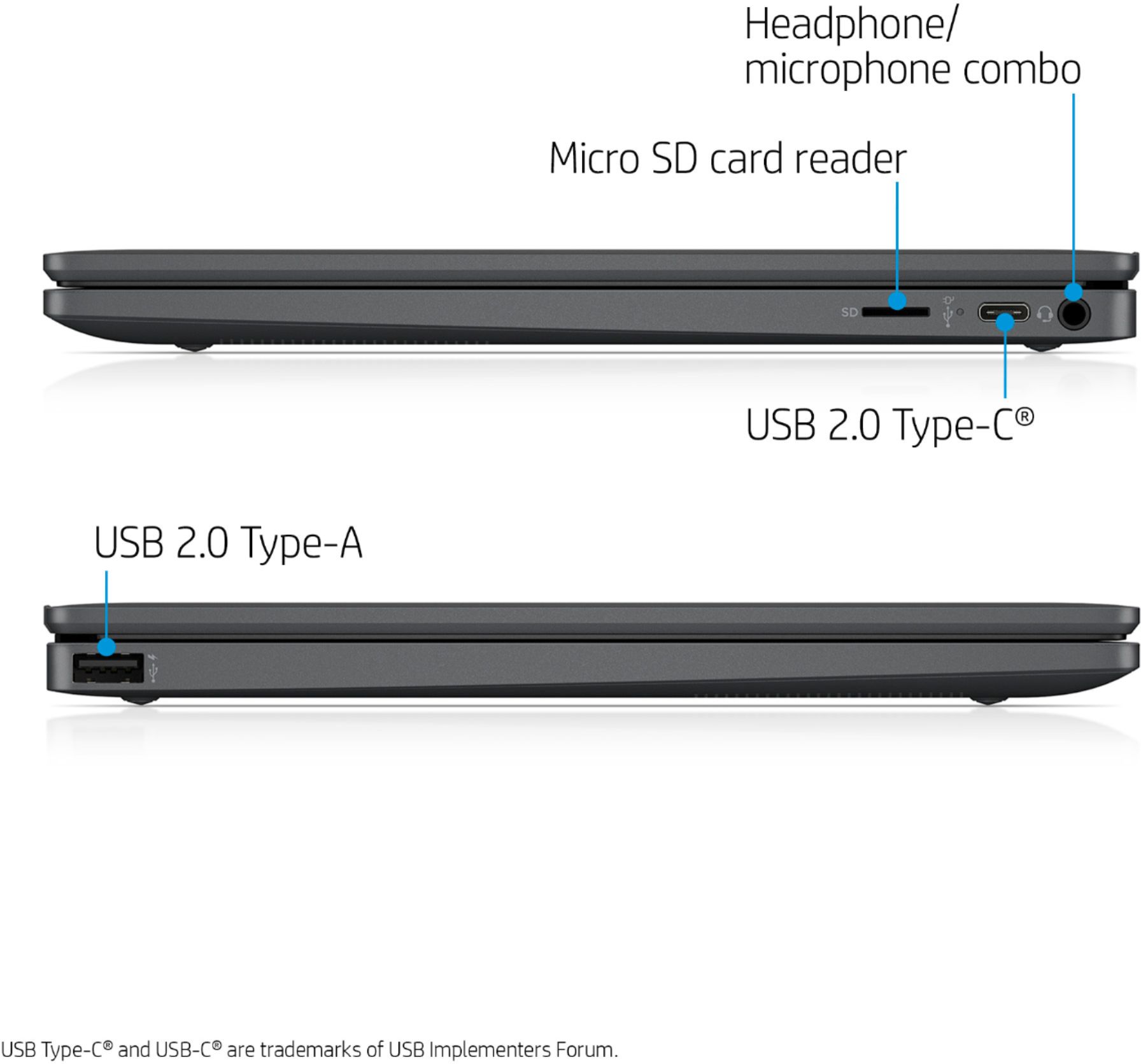
A:AnswerThank you for the question regarding the HP 11a-na0010nr Chromebook. 32GB eMMC is the amount of storage only. The memory is separate, in this case, 4GB. You can use an external drive (such as an SD card or flash drive) of any capacity to increase your storage if need be. You can also save files to the cloud.
A:AnswerThanks for your question! Microsoft Word will not be preinstalled on this HP 11.6" Chromebook. It can be downloaded from the Google Play store at an additional cost.
A:AnswerHi Bob! Yes, you can use an external display with this Chromebook! The USB Type-C port supports DisplayPort 1.1. You can find any adapters you'll need (HDMI, VGA, etc.) here at Best Buy as well.
A:AnswerThanks for your question! Google says all Chrome OS devices now receive regular upgrades for a minimum of six and a half years from when their chipset first appeared on the platform — which usually ends up meaning any given device will be updated for at least five years from its initial sale date. At the bottom of the left navigation panel (you may need to click the three bars at the top left to open the panel), you'll see About Chrome OS. Click that, and then on "Additional details." That's where you'll find your AUE date.