Everything for Back to School — and then someShop now
User rating, 4.1 out of 5 stars with 1758 reviews.
Show only Answered Questions
Include AI Generated Q&A
Asked 7 months ago by Nightmare.
Answered 1 month ago by PATRICIAM
Asked 8 months ago by berk.
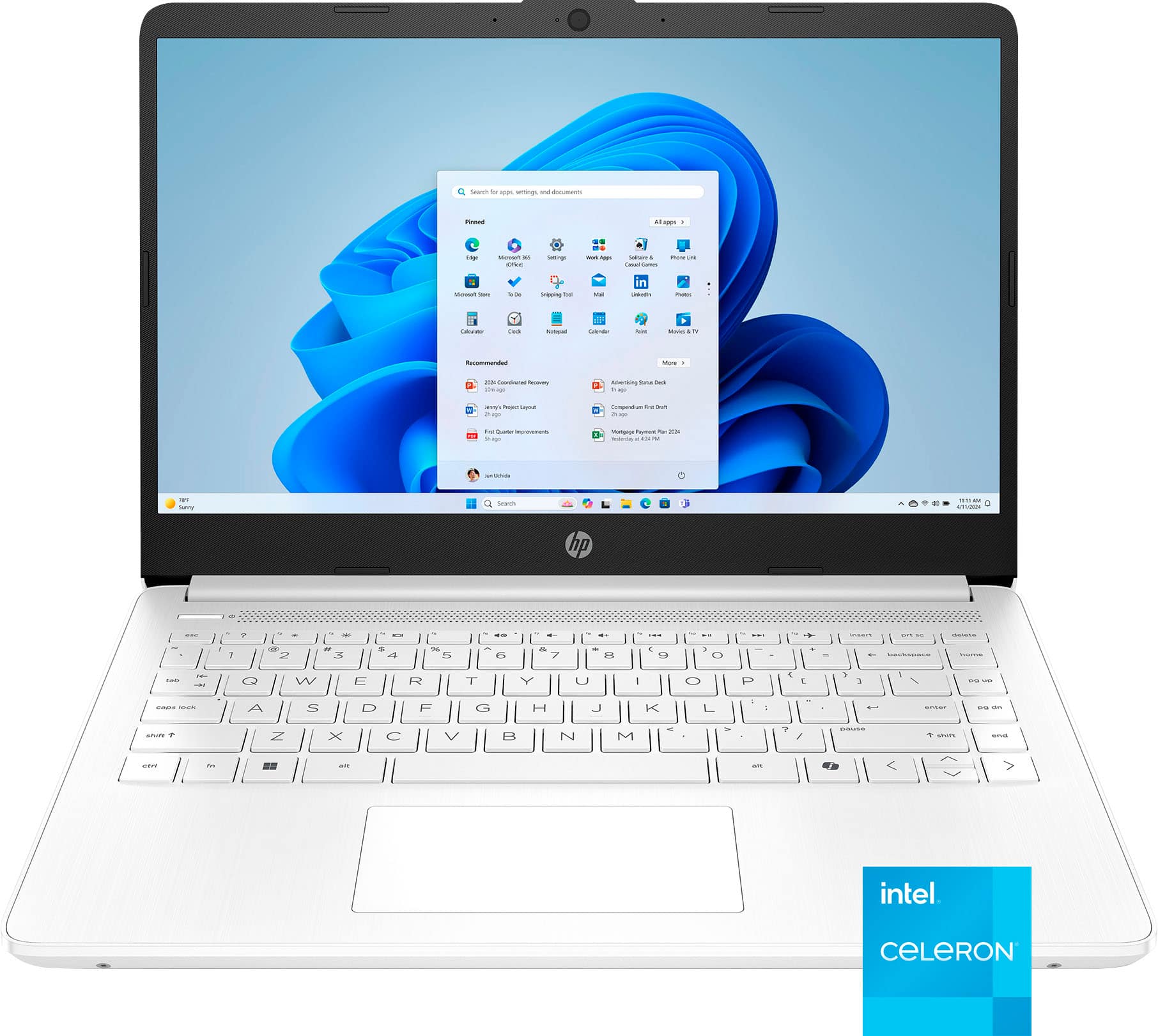
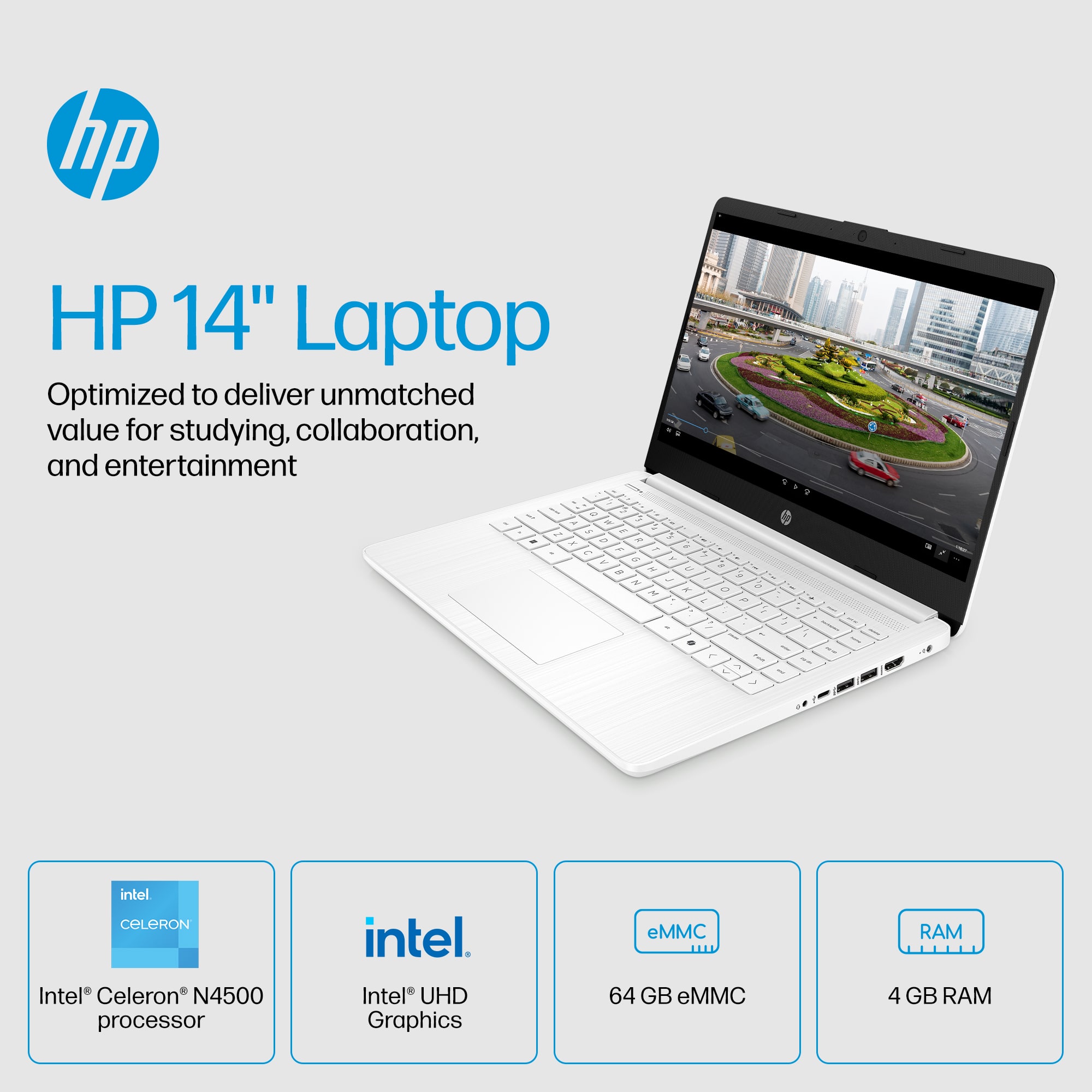
This question was asked about the related product: HP - 14" Laptop - Intel Celeron N4500 2021 - 4GB Memory - 64GB eMMC - Snowflake White
Asked 8 months ago by EDO.
Asked 8 months ago by 96Mama.
Answered 8 months ago by GenesisV
Asked 8 months ago by nkm007.
This question was asked about the related product: HP - 14" Laptop - Intel Celeron N4500 2021 - 4GB Memory - 64GB eMMC - Pale Rose Gold
Asked 8 months ago by Joe.
Asked 8 months ago by Flower.
Answered 8 months ago by ShaheemHVerified Purchase
Asked 8 months ago by angel.
Asked 8 months ago by ganeshnc.
Asked 8 months ago by Rikku.
Asked 8 months ago by Maria.
Answered 7 months ago by MaddieSVerified Purchase
Asked 9 months ago by Anonymous.
Asked 9 months ago by THJR.
Answered 9 months ago by DavidVVerified Purchase
Asked 10 months ago by Mitchell.
Asked 10 months ago by LA757.
Answered 10 months ago by Anonymous
Asked 10 months ago by 00.
Answered 10 months ago by ShelbyPVerified Purchase
Asked 10 months ago by MVP.
Asked 11 months ago by Valerie.
Answered 10 months ago by MaddonVerified Purchase
Asked 11 months ago by Matty.
Answered 9 months ago by DavidV