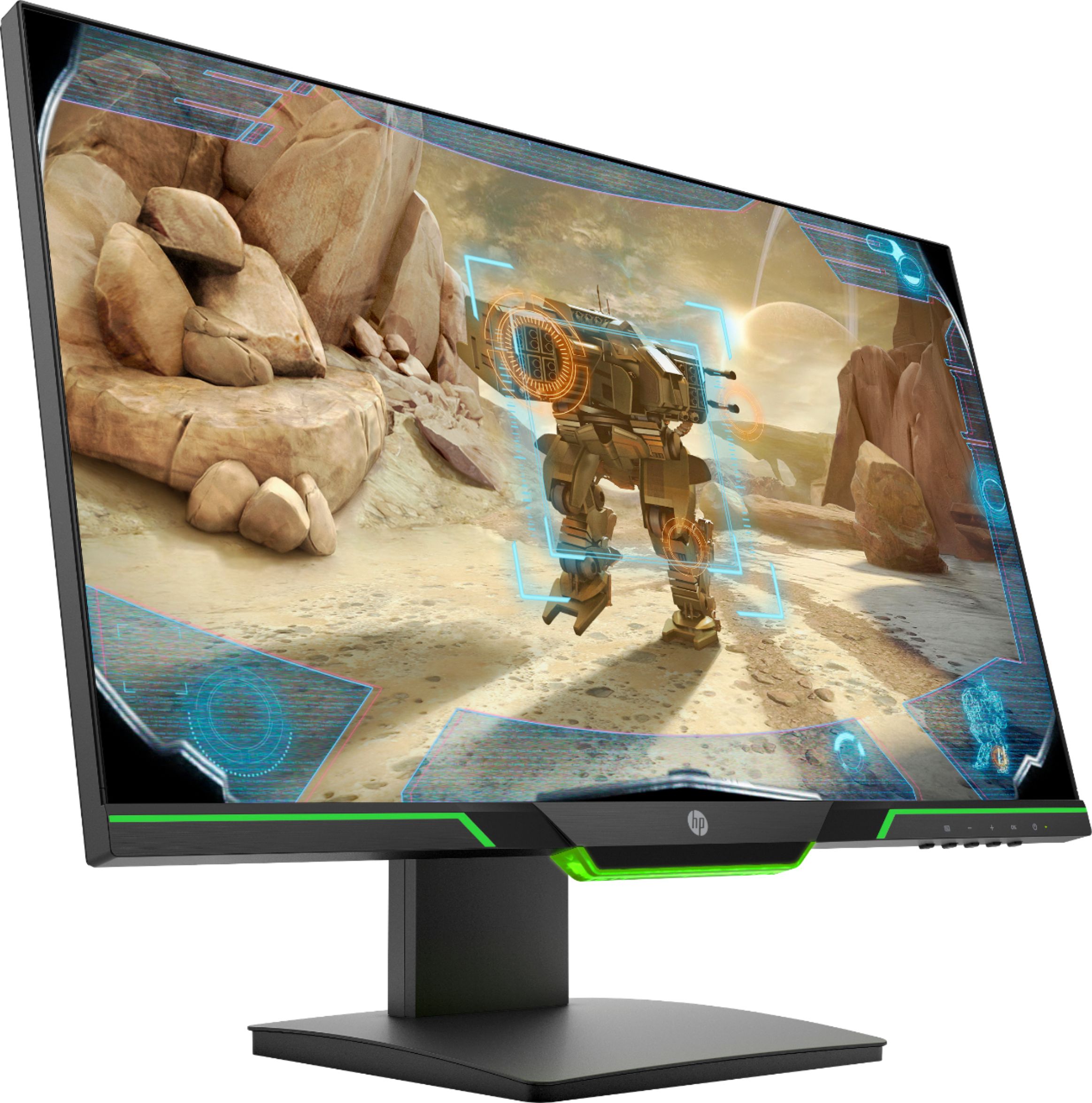
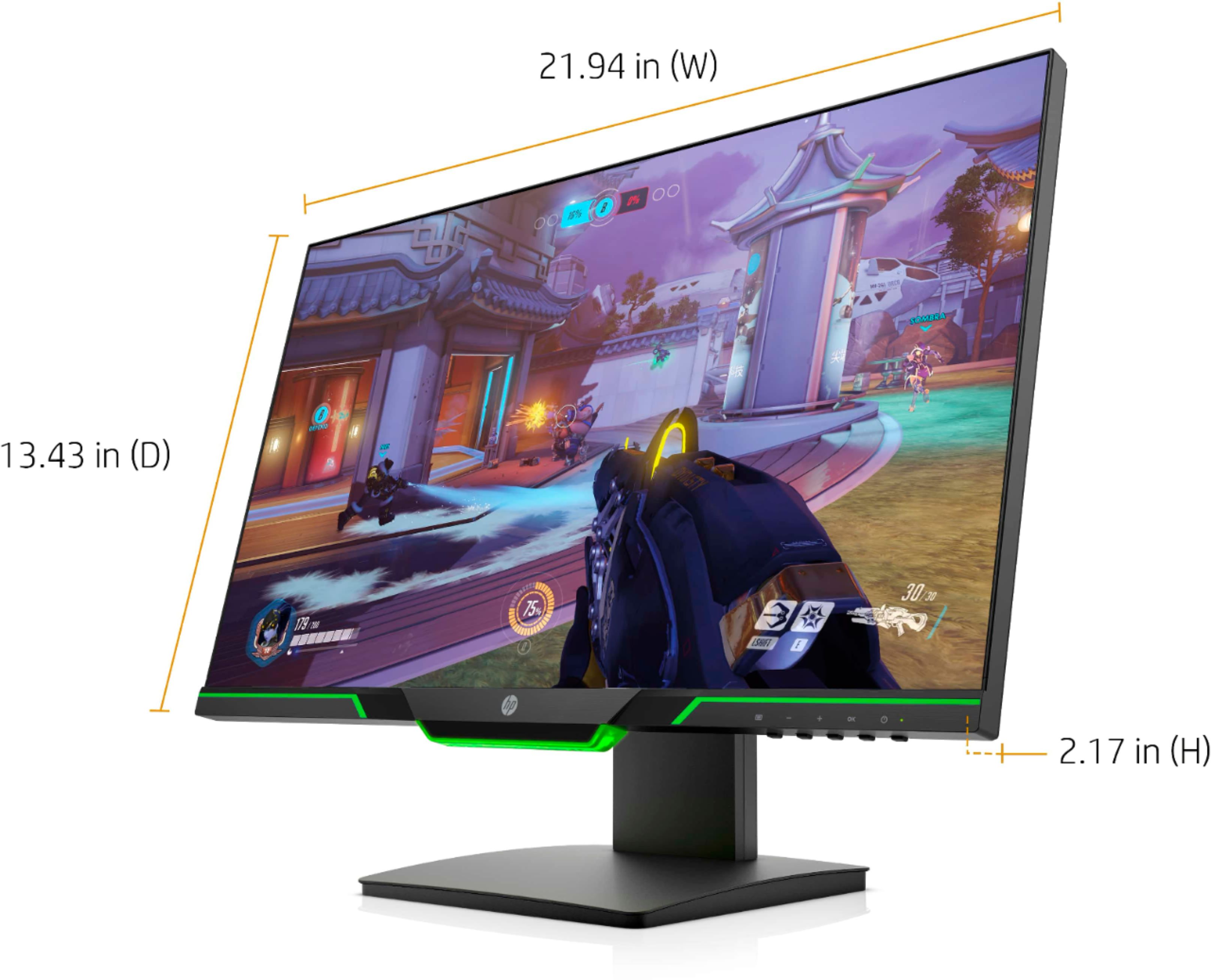
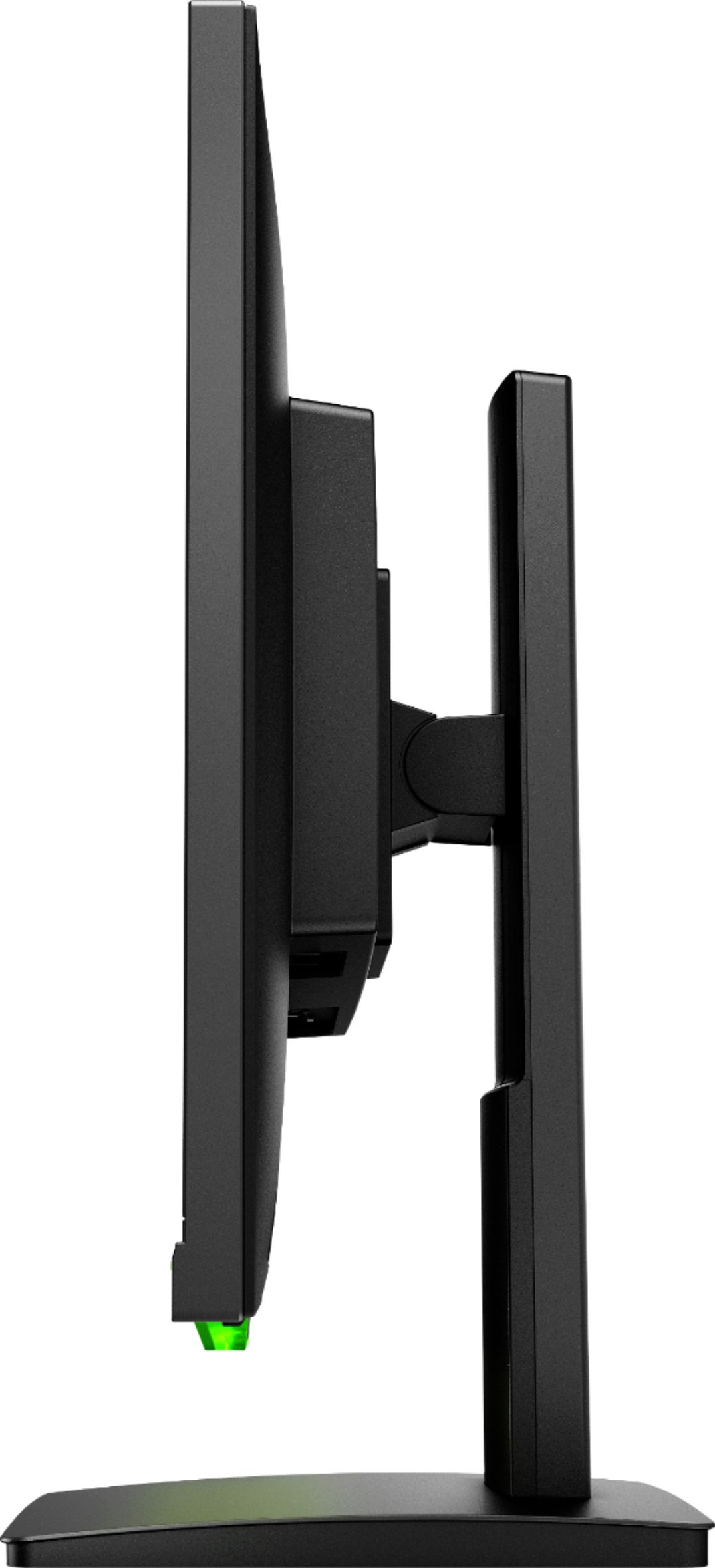
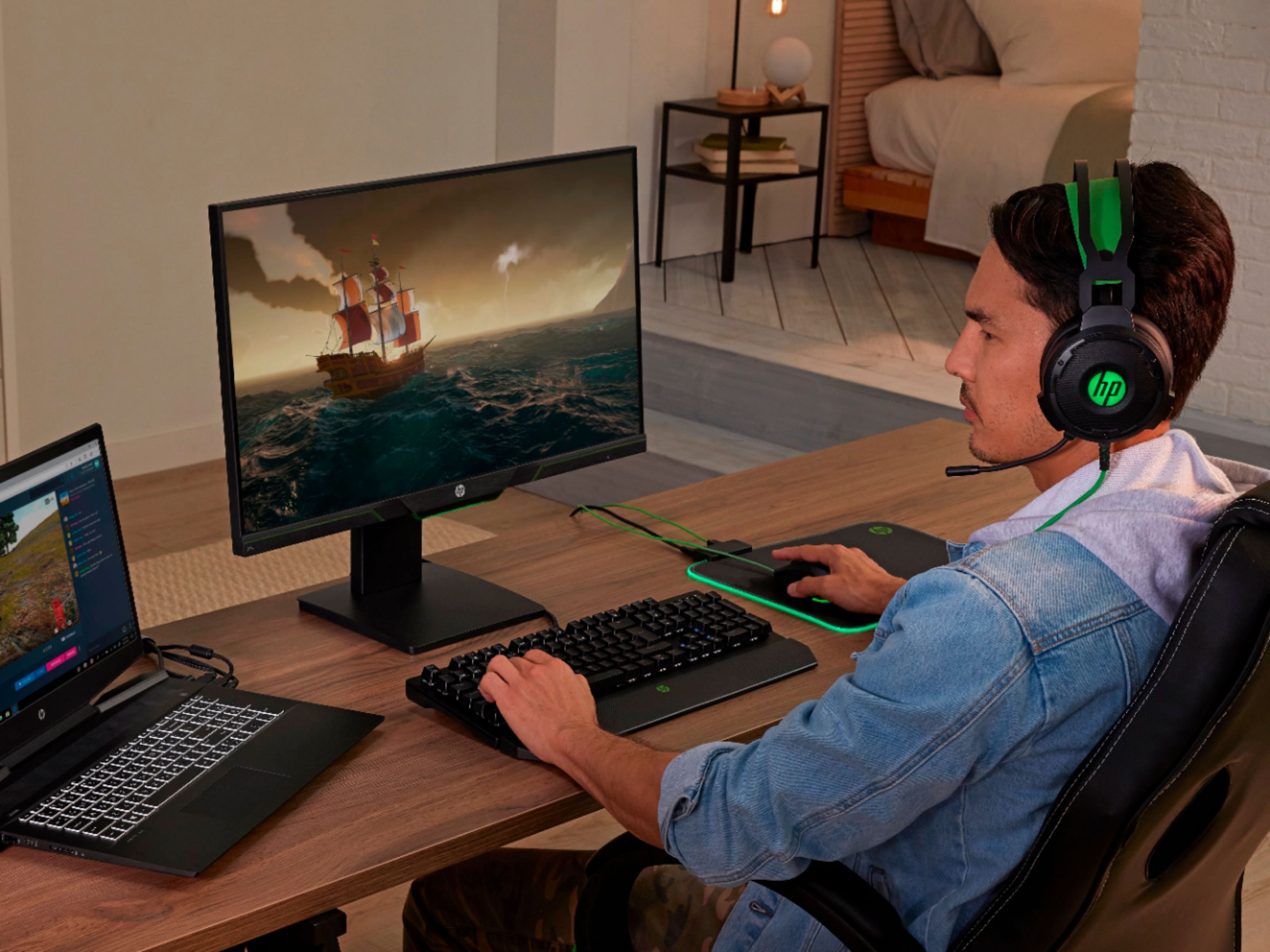
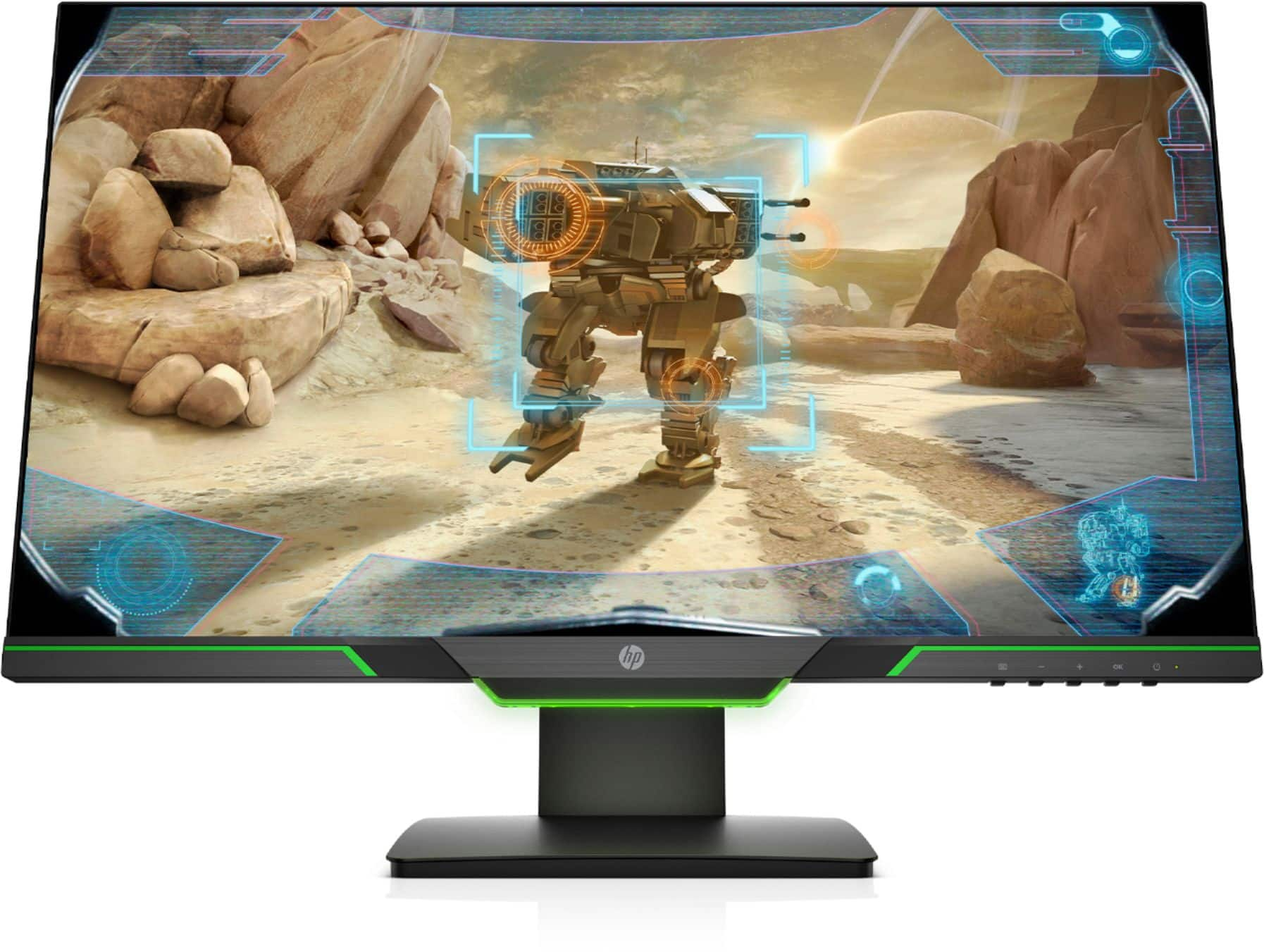
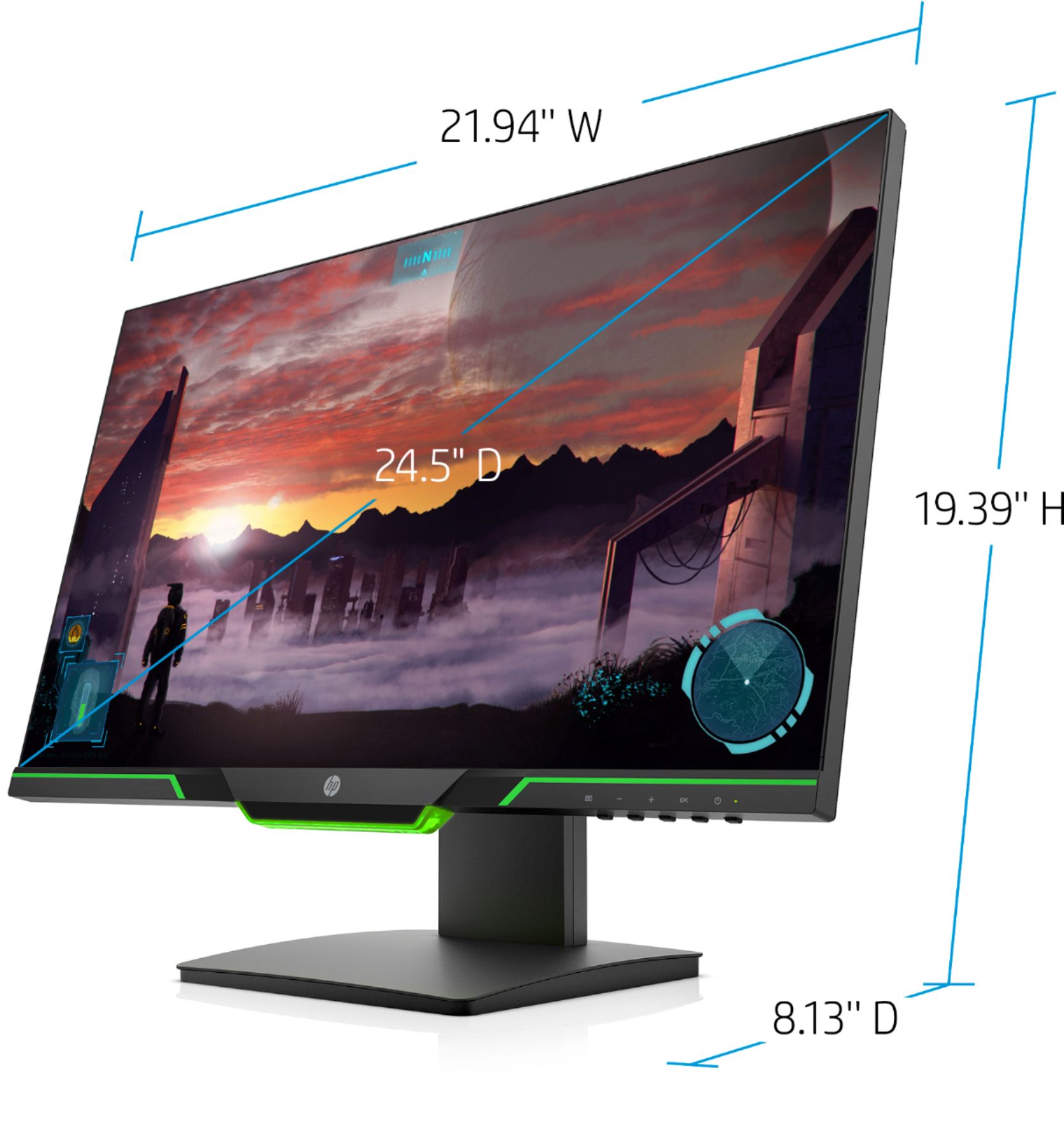
A:AnswerTypically gaming PC motherboards and GPUs support display ports as well as HDMI. To connect to your Xbox (One, One S, One X, 360) it would be easier to use the included HDMI cable between the monitor and your console. You could potentially buy a display port to HDMI adapter from websites like Amazon or Newegg, but you already have a solution out of the box.
A:AnswerYes, you can hook up all the Xbox platforms (One, One S, One X, 360) to this monitor using HDMI. There are no built in speakers, so you will have to connect a pair of headphones / headset to the display or your controller.
A:AnswerThis is just a video monitor it does not have audio. If you are connected via HDMI, you will to have some speakers connected to your computer for audio.
A:AnswerHere is a link to the user guide for this monitor. It talks about how to use the On Screen Display. http://h10032.www1.hp.com/ctg/Manual/c06081133
A:AnswerThere are a few different things you need to do to get the 144hz refresh rate. First in the monitor's menu go down to Image Control, open Response Time and choose Level 5 (Fastest). After that you need to go into the Windows Display Settings in your operating system, at the bottom it should have Advanced Display Settings, opening this will allow you to see the properties of the monitor, click on Display Adapter properties for Display 1, in the second tab marked Monitor, it should say Screen Refresh Rate, click on the drop down and the option for 144 should be available. Going into the monitor's settings and adjusting everything from; color to sync options, different video modes, settings for different ports, etc. I found going through all the settings to get my preferred viewing options, as well as orienting myself with the PDF manual available from the HP website as well proved highly beneficial. Good luck to you! I love this monitor, it's perfect for a casual gamer :)
A:Answeri personally use gaming because photo and movie are too bright and the other modes have weird shades of colors, if its really late and i want to sleep though ill turn off blue light.
A:AnswerFor the monitor with ATM141 Firmware: Open the main menu of the monitor and select Image Control, then Adaptive Sync. Turn Adaptive Sync on to enable Freesync.
A:AnswerIpicked this up a couple weeks ago. Works with both without any issues, I have my desktop + work laptop connected at the same time, and just swap the input as needed.
A:AnswerYes it has the following:
Low blue light
Using the Low Blue Light mode subtly shifts your display’s colors to a warmer spectrum, while making whites more natural and putting less strain on your eyes.
Ambient lighting
Diffused lighting to reduce eye fatigue during late-night gaming sessions.
A:AnswerMine have never lit up either. A quick search provided me this result: https://www.bestbuy.com/site/questions/hp-25x-24-5-led-fhd-monitor-gray-green/6280605/question/3580ef40-6e38-3353-8eec-181da6f17a46
Also confirms that these lights do not light up.
A:AnswerTo enable G-Sync, make sure your HDMI / display port cable is connected to your computers graphics card (not to the motherboard’s HDMI / display port). Assuming you are running Windows, right click on your desktop and open the NVIDIA control panel. The option to enable G-Sync is in one of the display options menus.