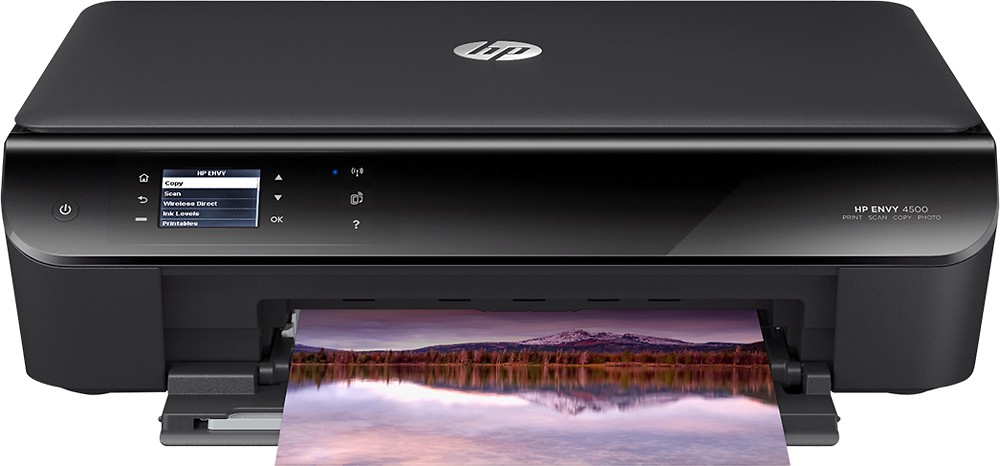
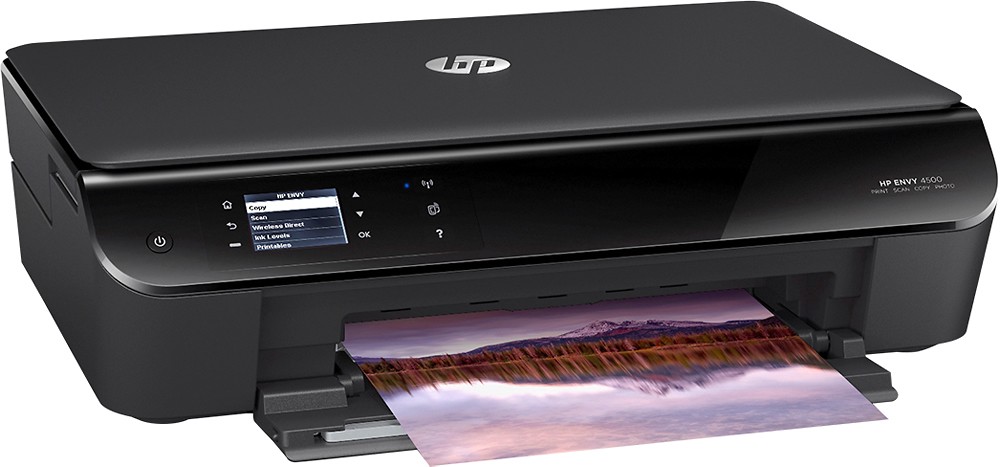
A:AnswerI just set the computer up by following the directions on the printer screen and my products (MAC, iPad and iPhone) and I was able to print. I did not install any software to computer.
A:AnswerYou should be able to locate this information in your manual that came with your printer. You can also access that information on the web or call customer service and ask for tech support.
A:AnswerLook for the menu button in the printer and using the arrows move down until you find "WIRELESS" once you are there click OK and the printer shall start searching for a Wireless signal just like your mobile phone usually does, once the wireless signals are shown on the printer look for your WiFi and click Ok it will ask you for the password and you can enter this using the menu and arrows on the printer. Once you have type it in click OK again and you shall get a message saying its connected. also once connected your printer will show a steady blue light.