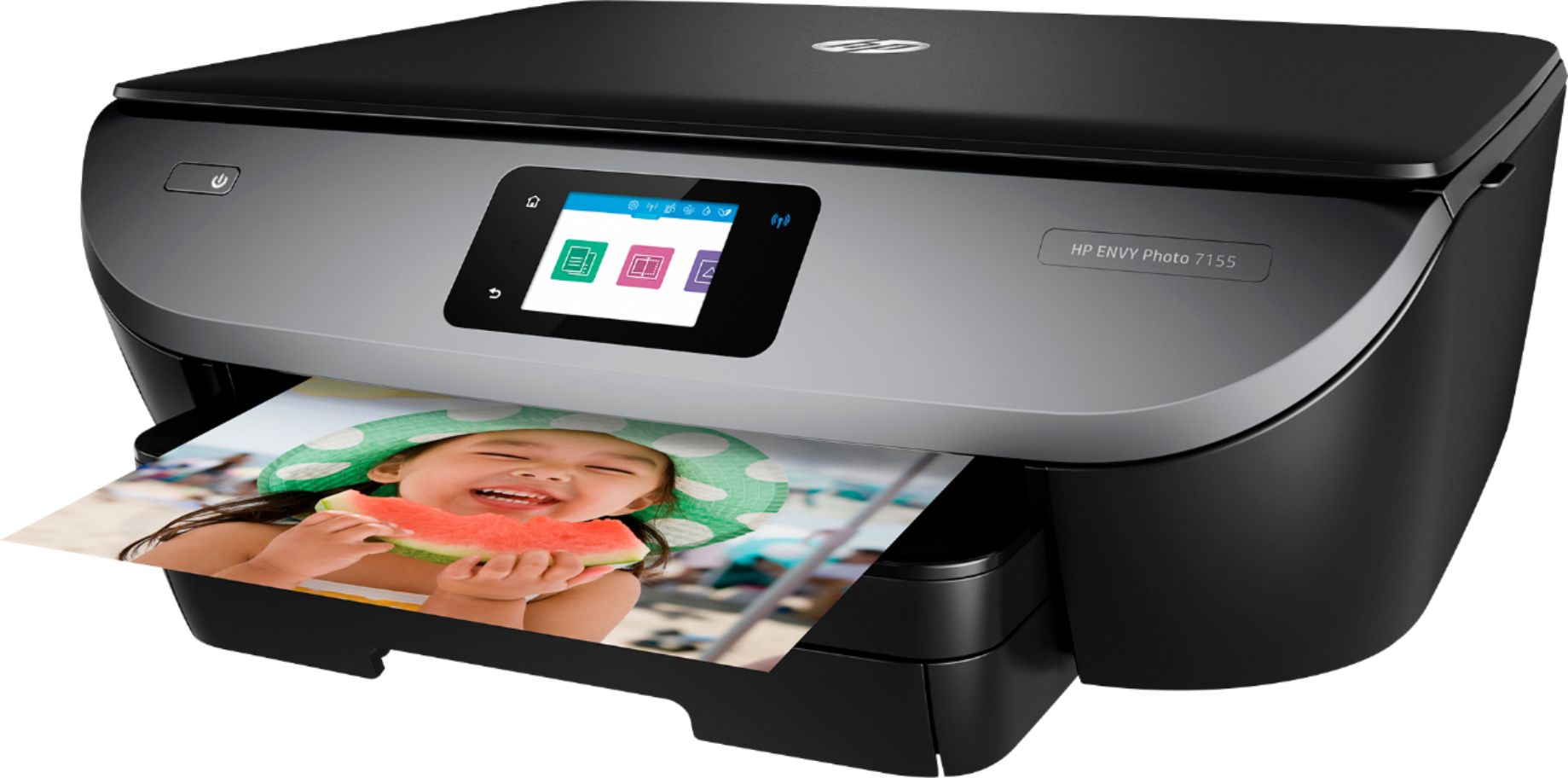
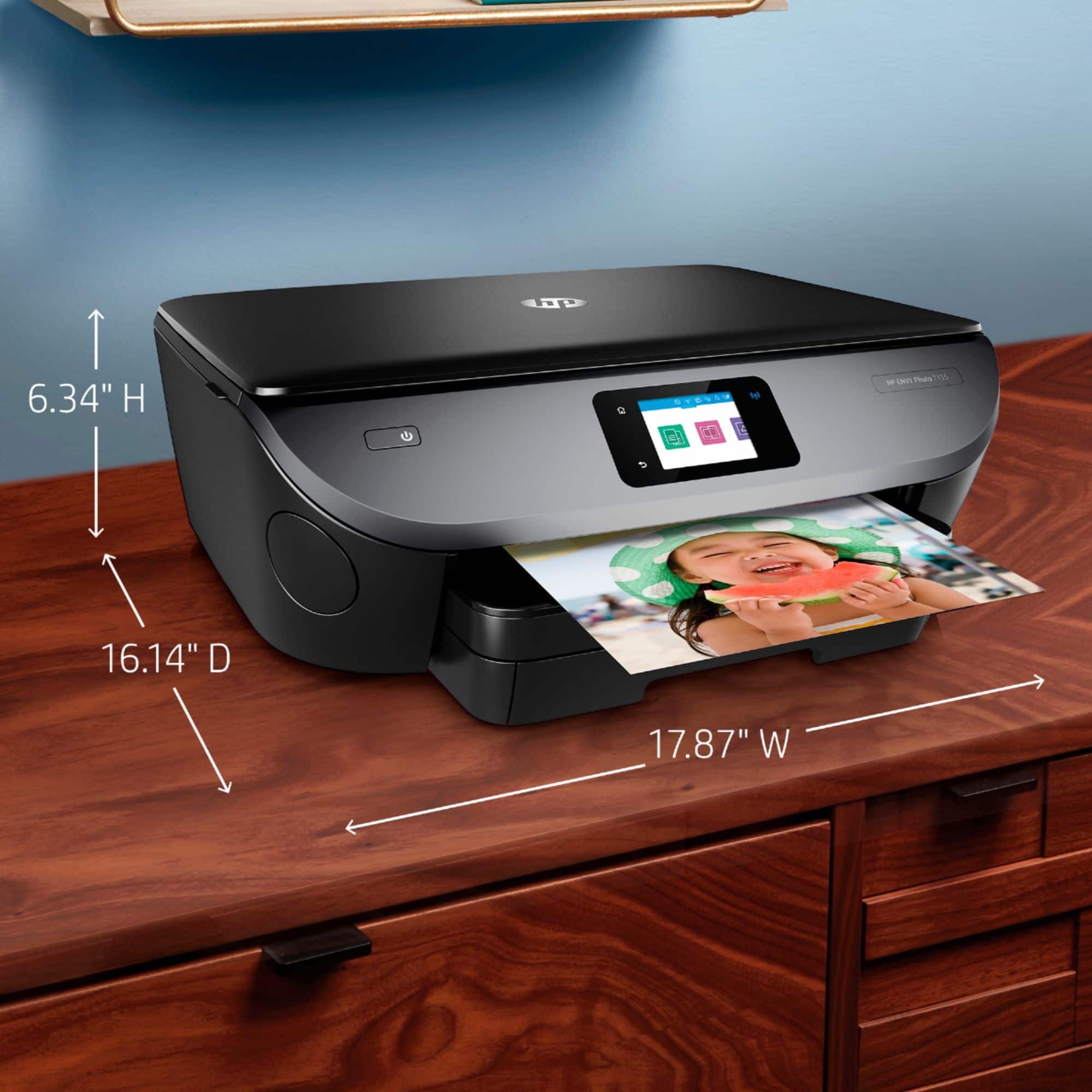
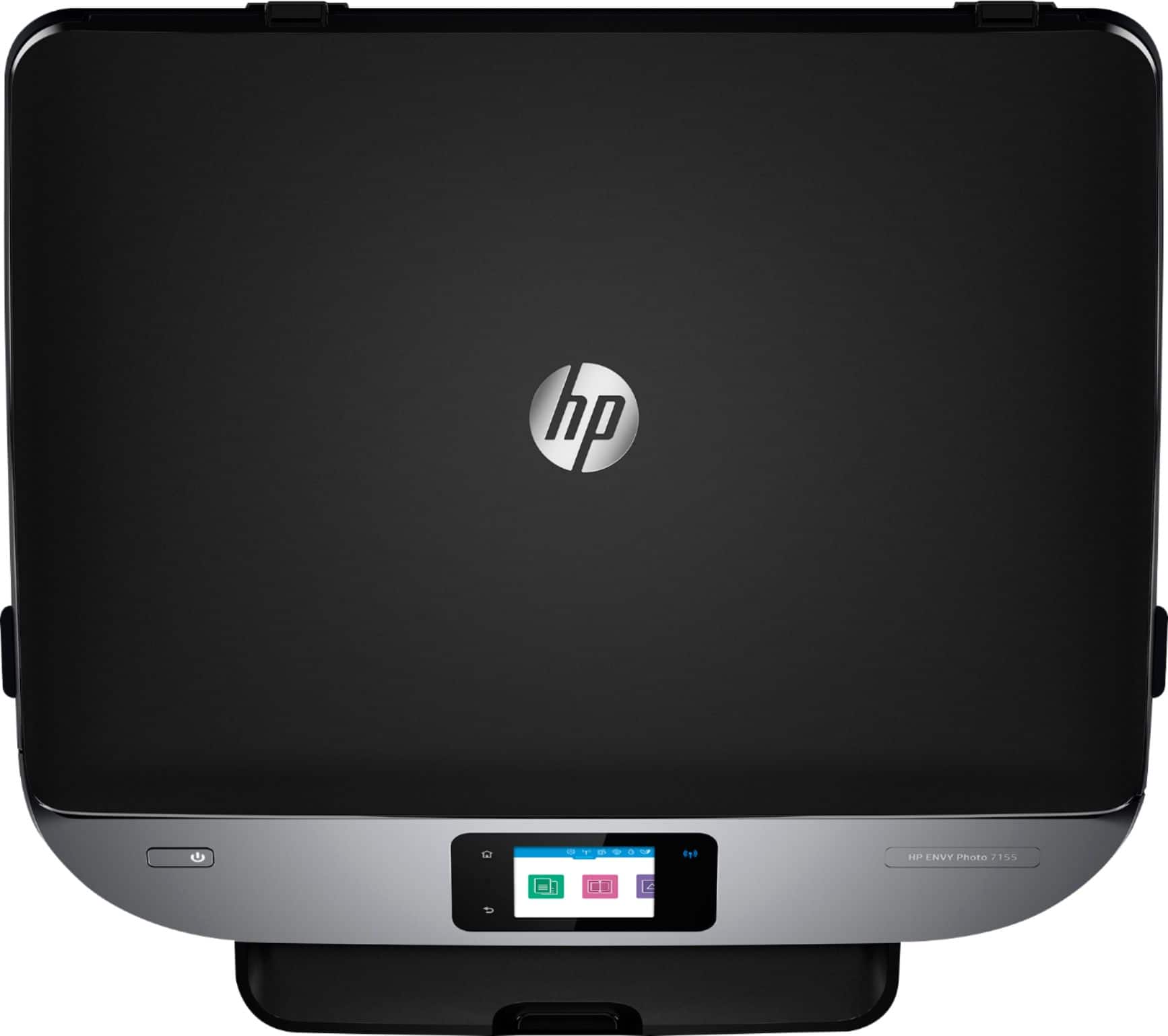
A:AnswerYeh, there are only diagrams, not words but I managed to pull the old one out & insert the new one. It’s the insert at an upward angle that was tricky for me. Musta of done it right though cuz it’s working! So much for self-explanatory!
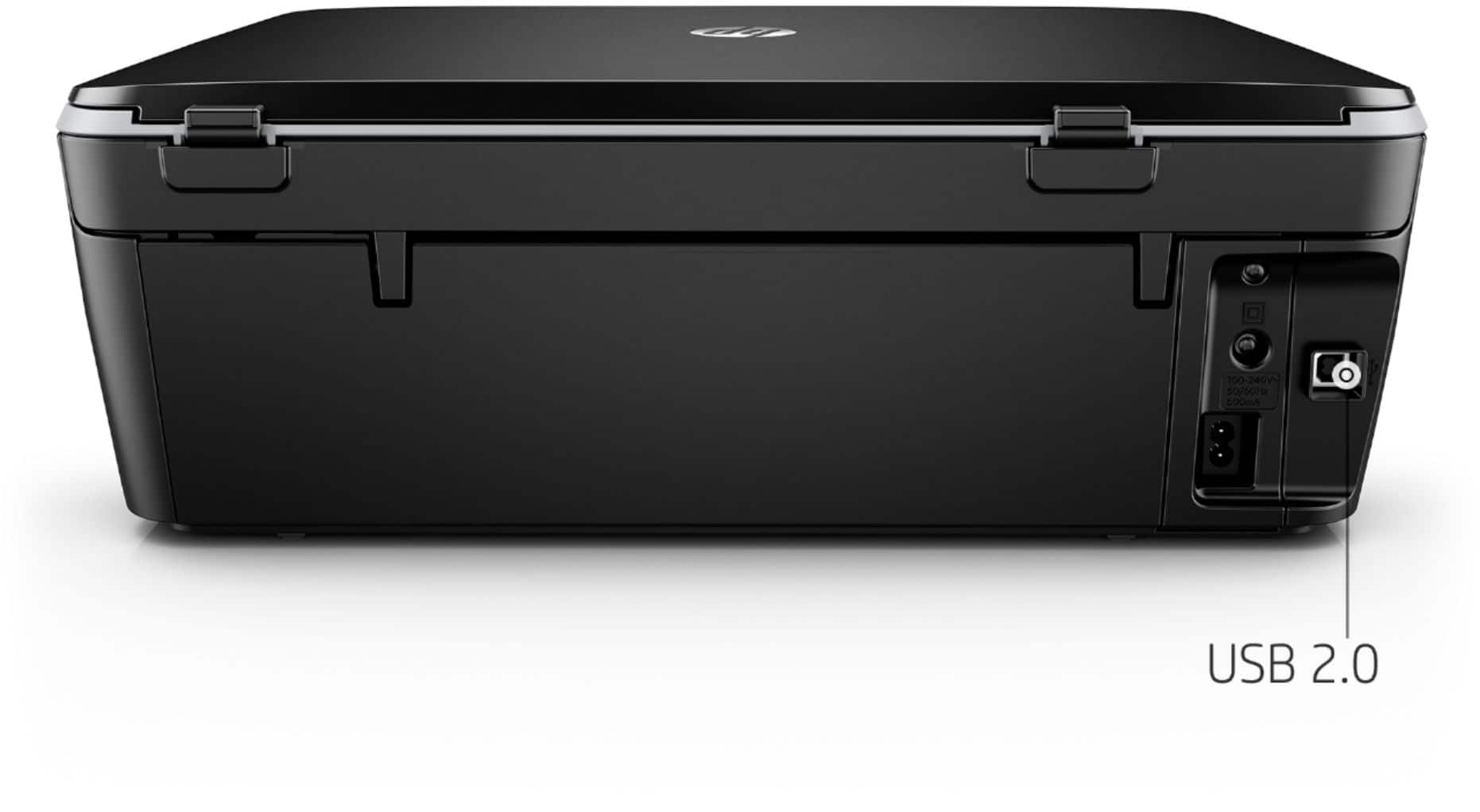
A:AnswerYes, you can have the printer connected to the wireless network so you can print from your mobile devices and other computers. And you can connect via USB to the one computer.
A:AnswerMake sure you have printer set up wirelessly. It should have its own network name which you would use to connect to. Beyond that, I don't know as I haven't tried it on anything but my desktop computer.
A:AnswerThe 2 sided copying function would require you to turn the paper over manually. For 2 sided copying: Place the original on the Flatbed Glass or auto document feeder while selecting a 2-sided copy, then you will be prompt to reload the other side of the original and it will be printed on both sides. If you want to be able to copy or scan double-sided documents automatically, we recommend looking at the HP Officejet Pro 9015 or 9025 printers.
A:AnswerWith the HP Envy Photo 7155 printer, you can choose to take the low ink cartridge out and continue to print with one ink cartridge. The printer will automatically into the single-cartridge mode. When you put in a new ink cartridge into the empty ink cartridge spot, the printer will go back into the normal printing mode.
A:AnswerThe HP Envy 7155 will work with a Chromebook. You do not need a USB printer cable unless you wish to use a wired connection instead of a wireless connection.
A:AnswerBecause it doesn't have a document feeder, you'll need to do them one page at a time. After you scan each page, the printer will ask if you have addition pages. If you tell it yes, all of the pages you scan will be combined into one document.
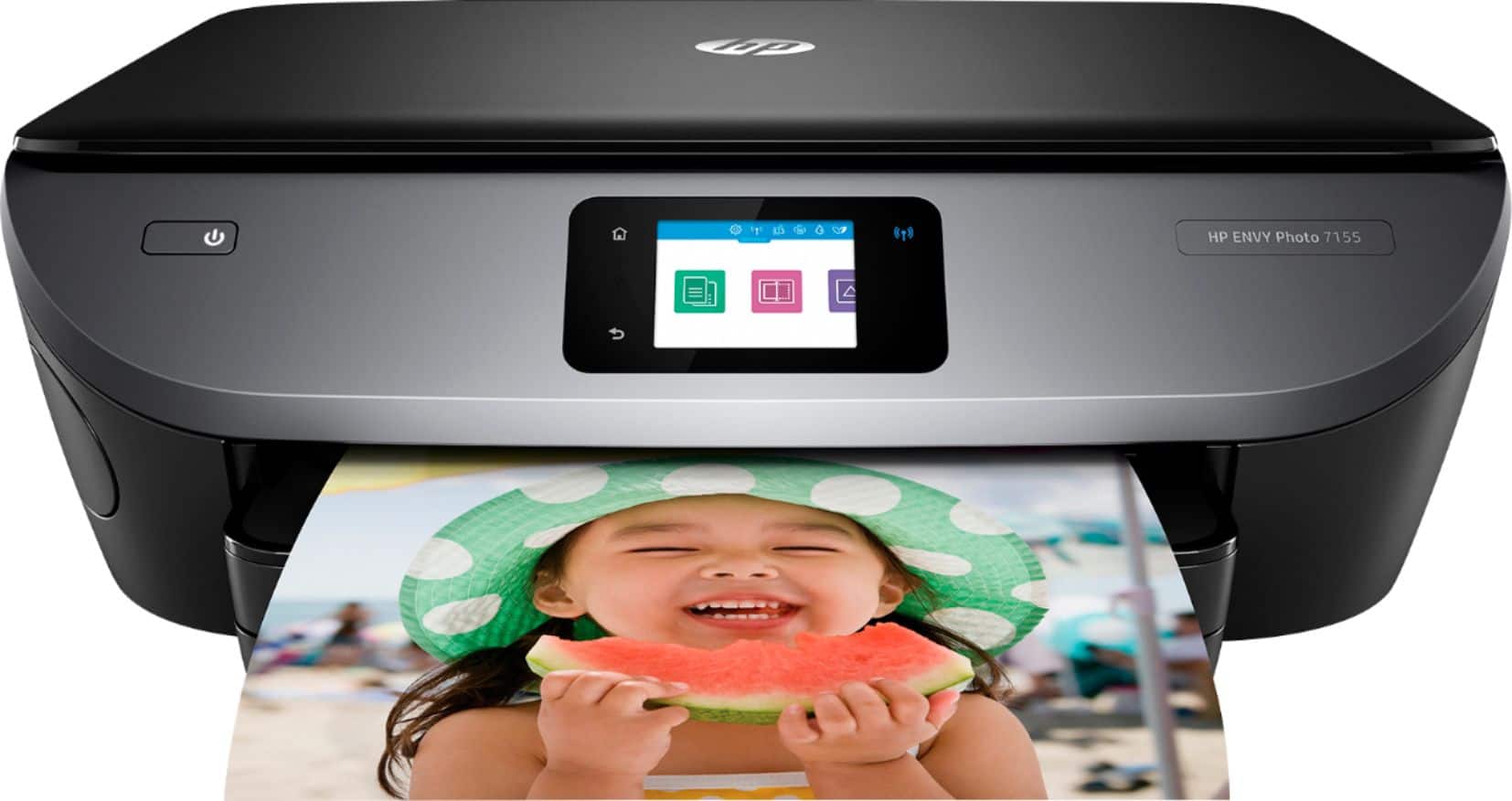
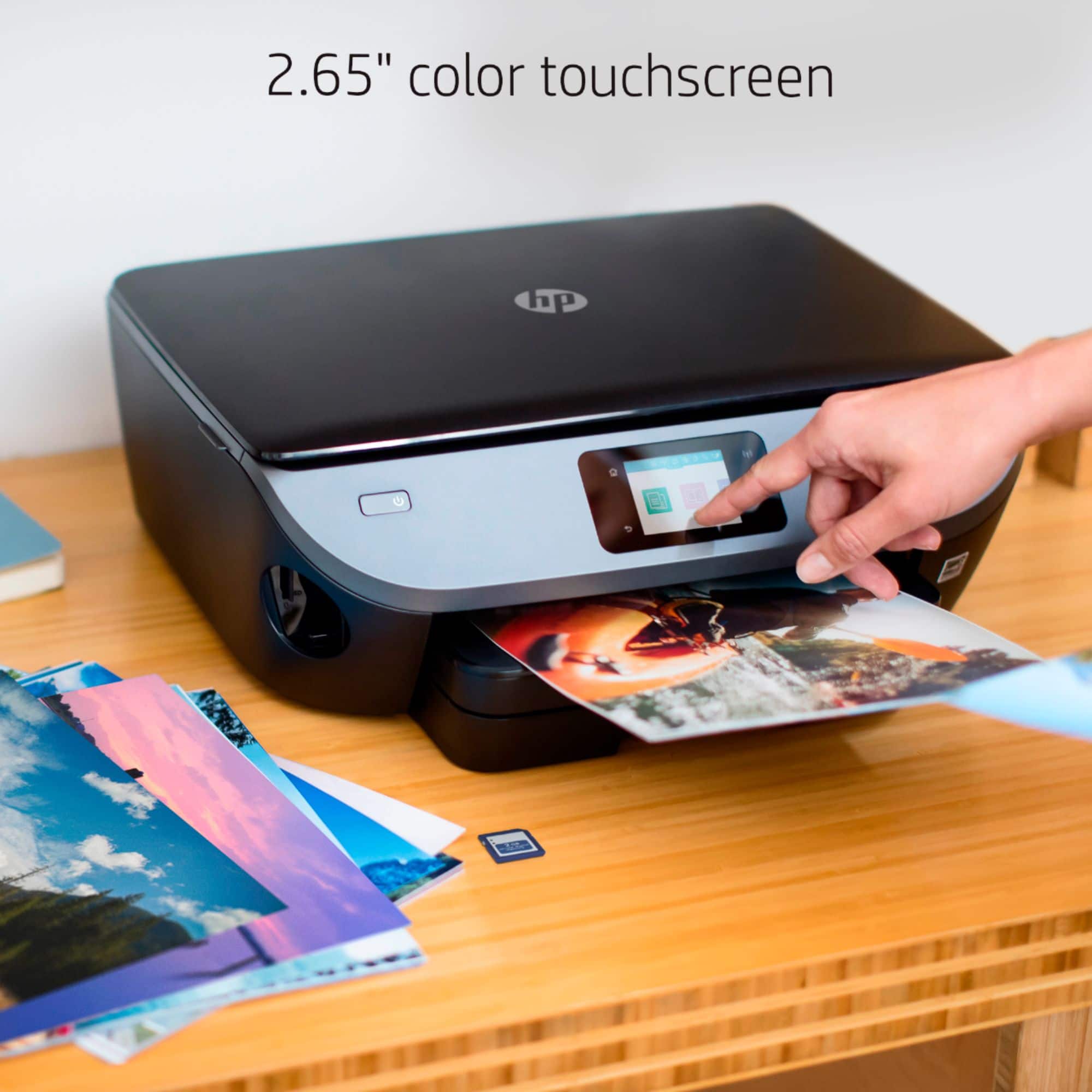
A:AnswerThis model has an SD card slot but no USB flash drive port. You would need to look at the HP ENVY Photo 7855 to be able to print from a flash drive.