A:AnswerThank you for the question. You can find your printer's IP address by printing a network configuration page. Open the HP Smart app or go to hpsmart.com. Click Printer Settings. Click Printer Reports under Tools. Click Network Configuration. The printer will print a network configuration page containing information that should include your IP address. It will be located under the IPv4 category.
A:AnswerIt's going to depend on exactly where the jam is. If you go to page 113 of the user manual at http://h10032.www1.hp.com/ctg/Manual/c06550225.pdf it has directions for clearing jams in different parts of the printer.
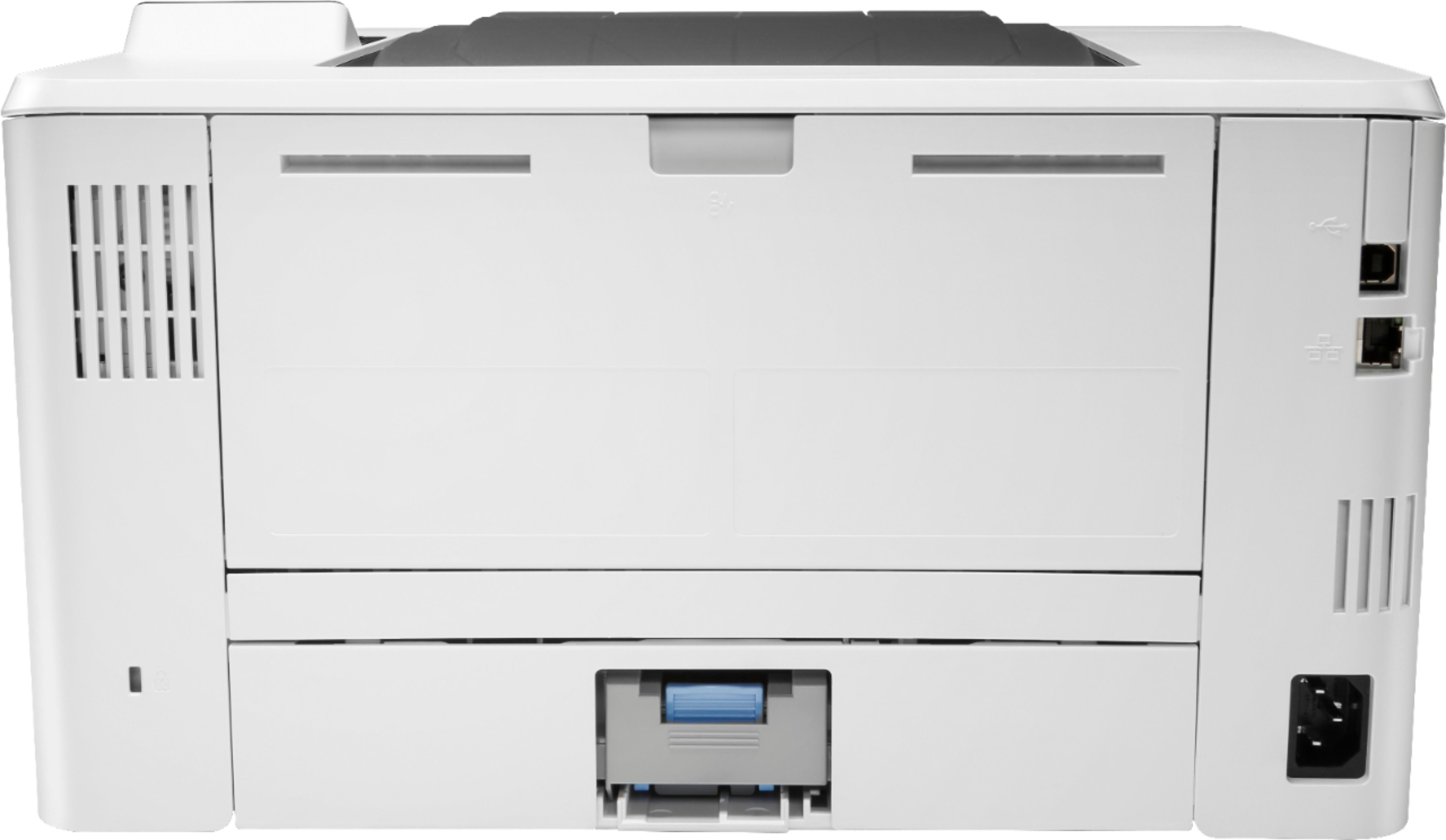
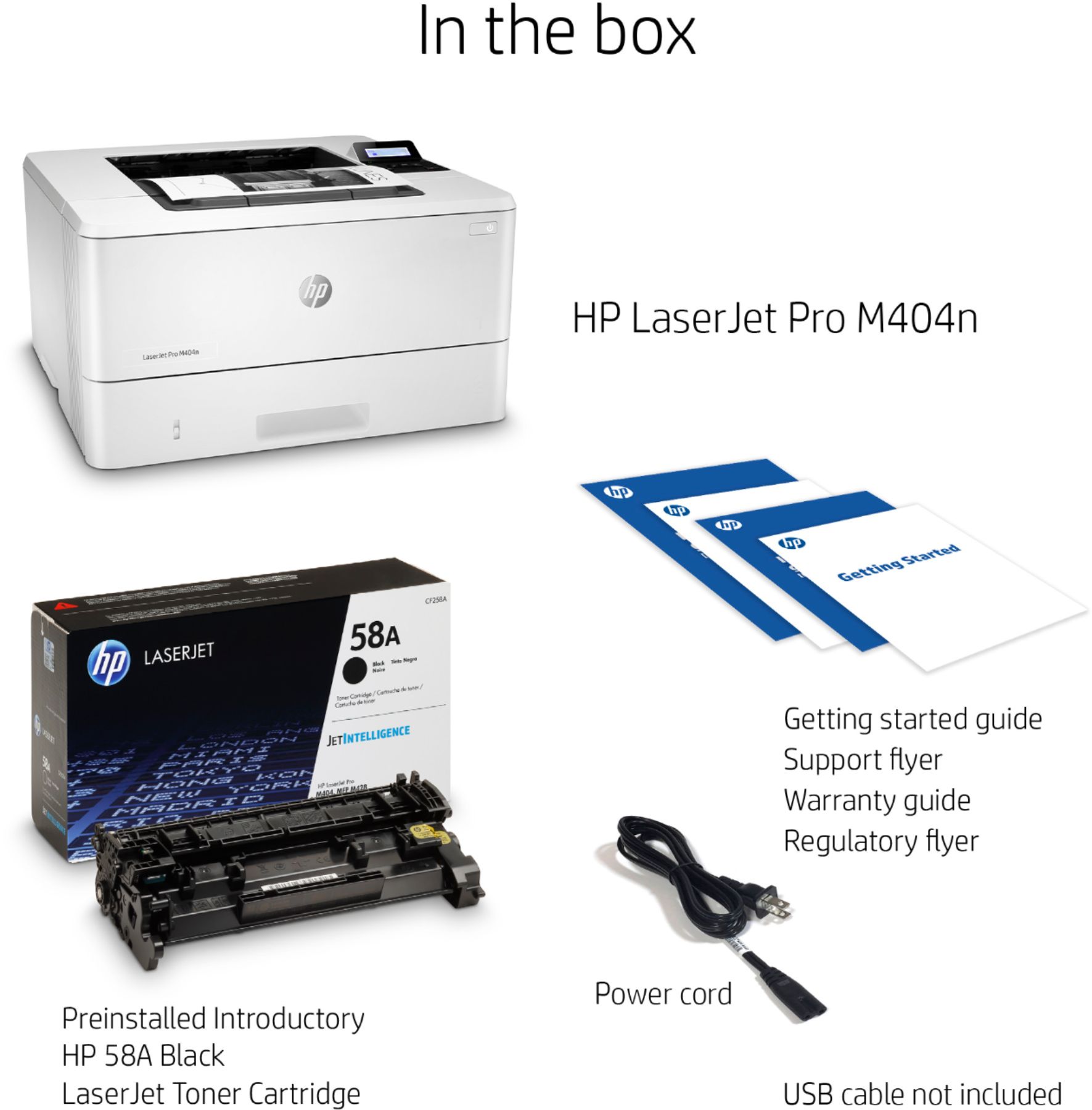
A:AnswerYes. You'll need a USB printer cable to do that. If you're replacing a printer that was connected that way, your current cable will work with the M404n.
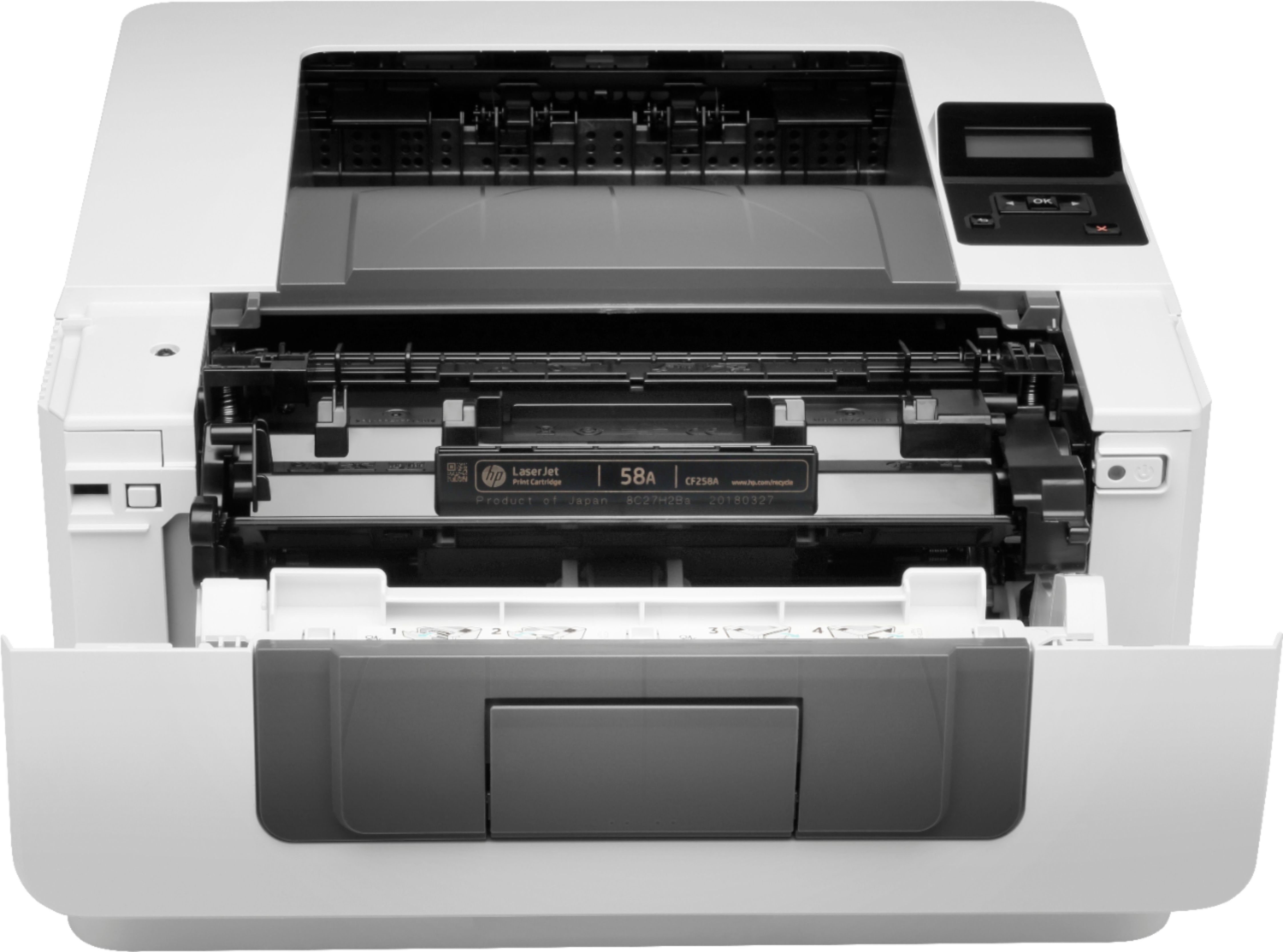
A:AnswerHello. Thanks for your question. Yes, the HP Laserjet m404n printer does allow for an additional paper tray to be added. The part number for the paper tray is D9P29A.
A:AnswerWhen you are ready to print a document, the print setup screen should give you the option to select the tray you want to print from. If you're going to do most of your printing from Tray 2, you can select "printer properties" from the print screen and specify Tray 2 as the default.