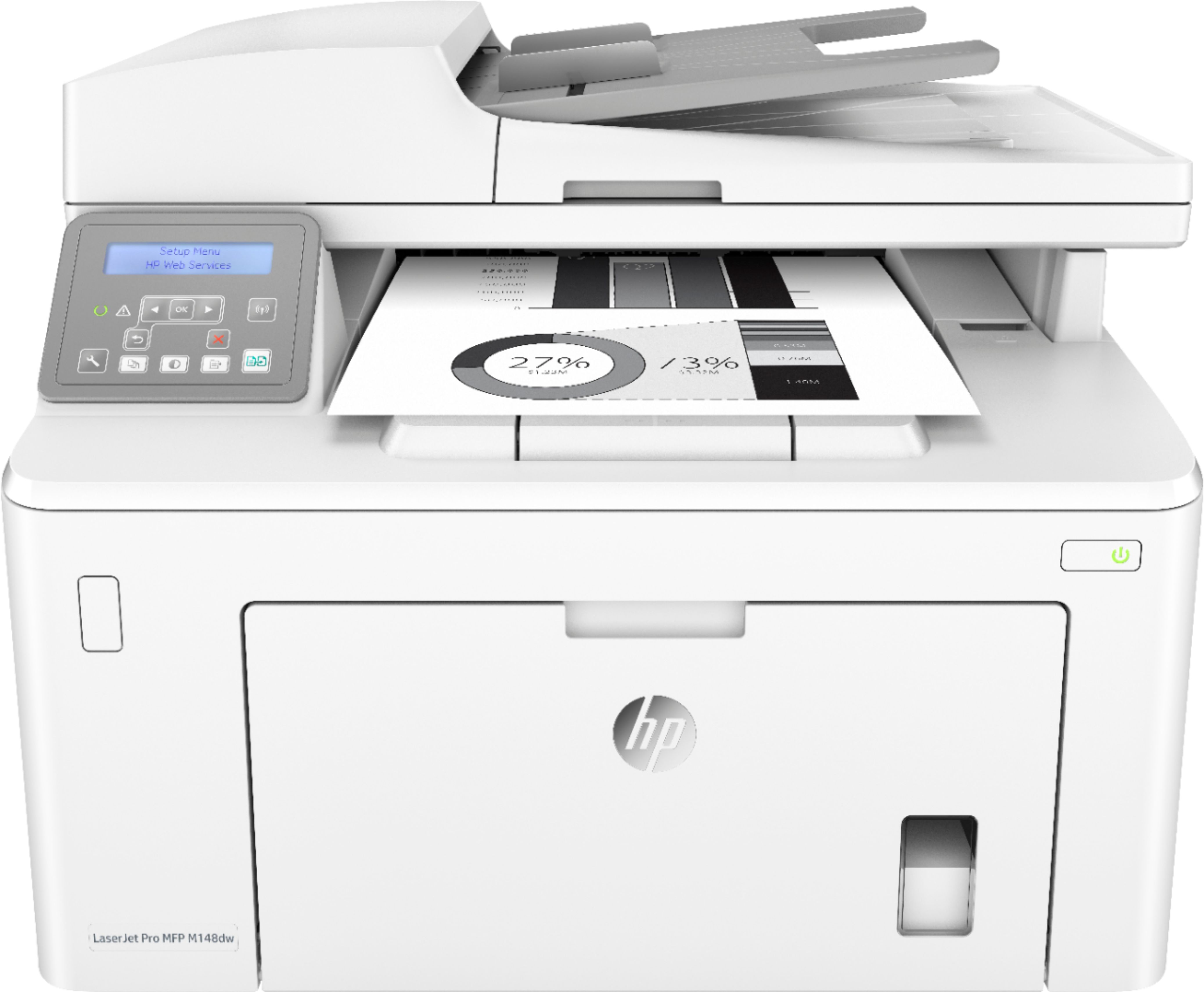
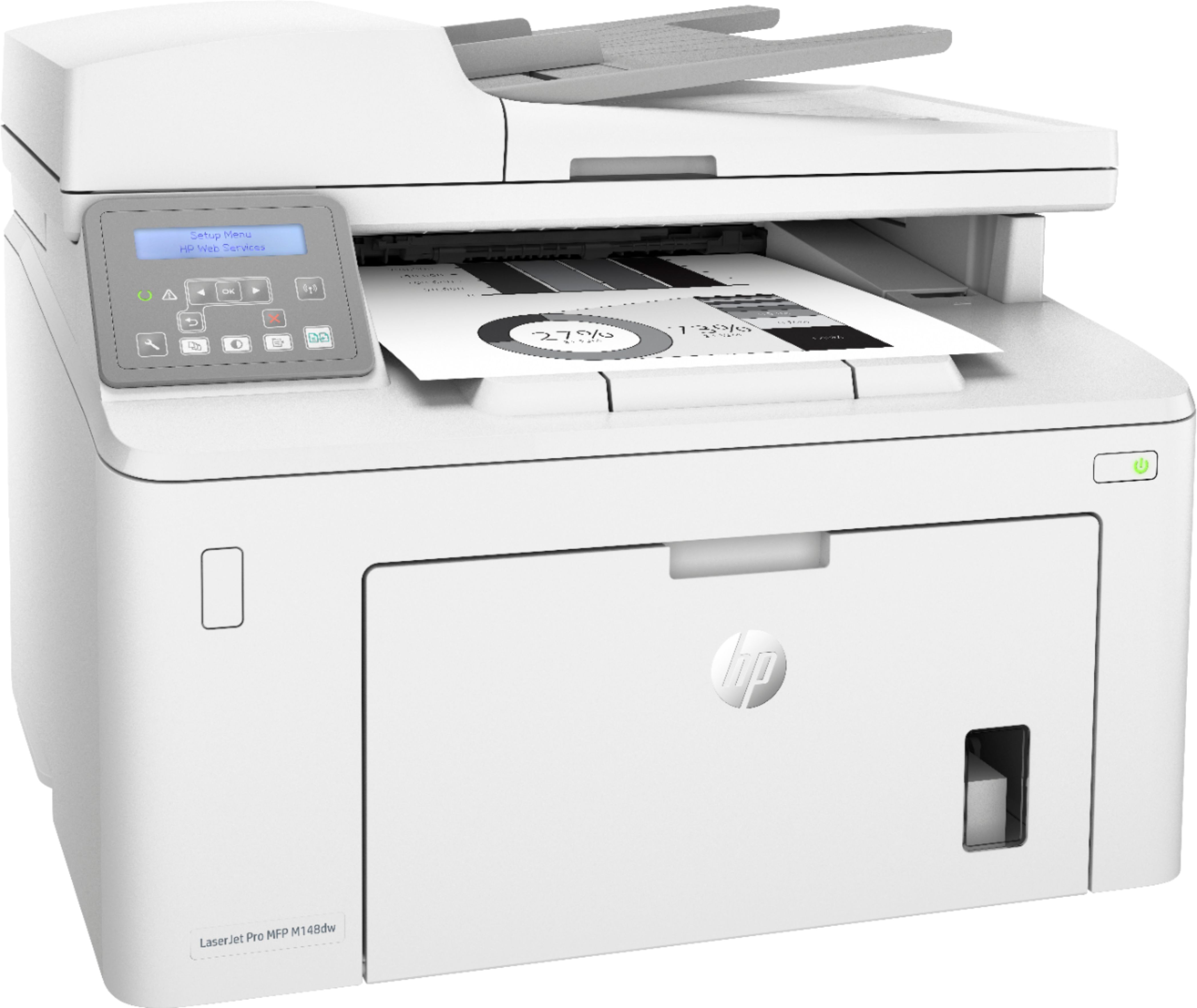
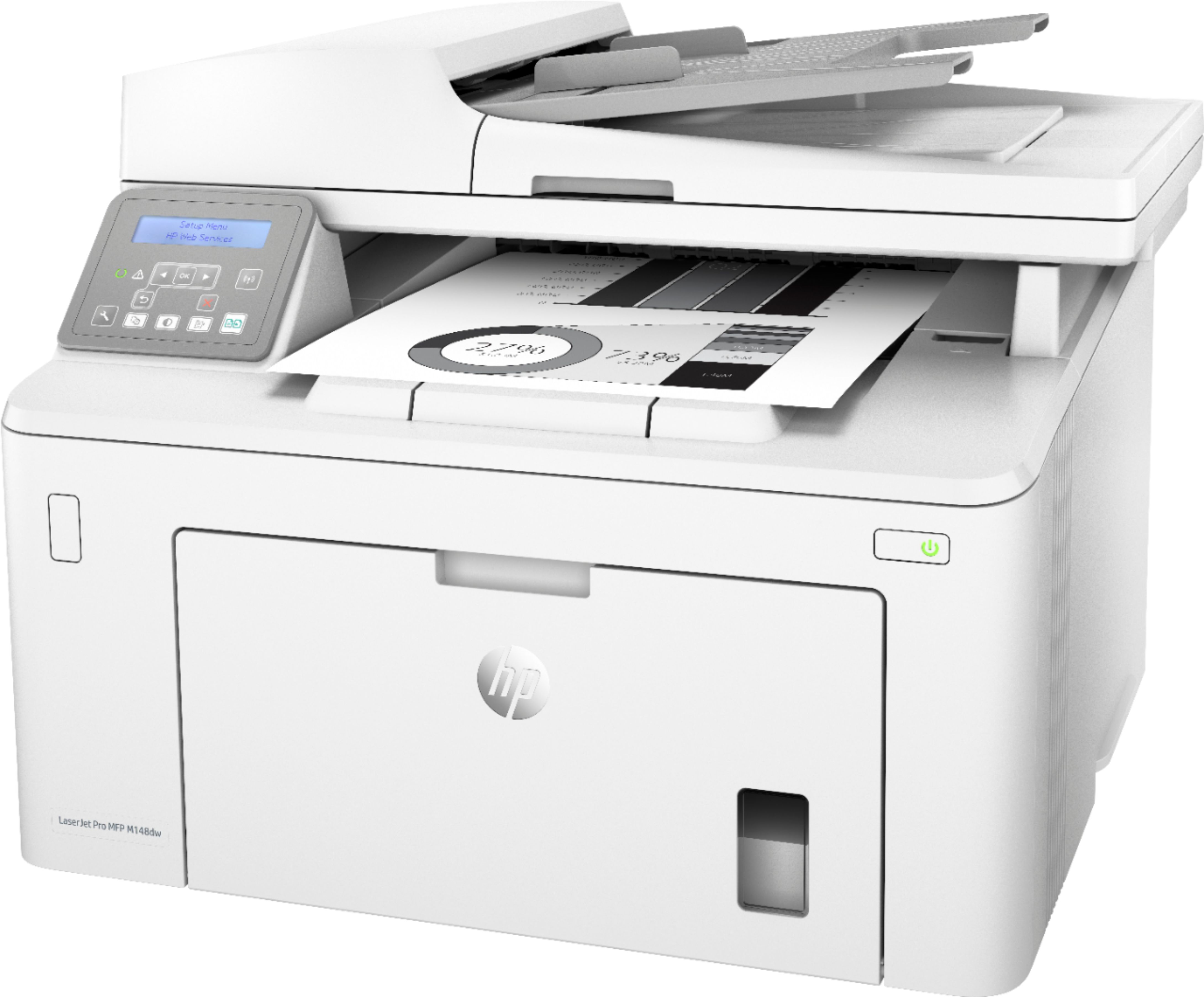
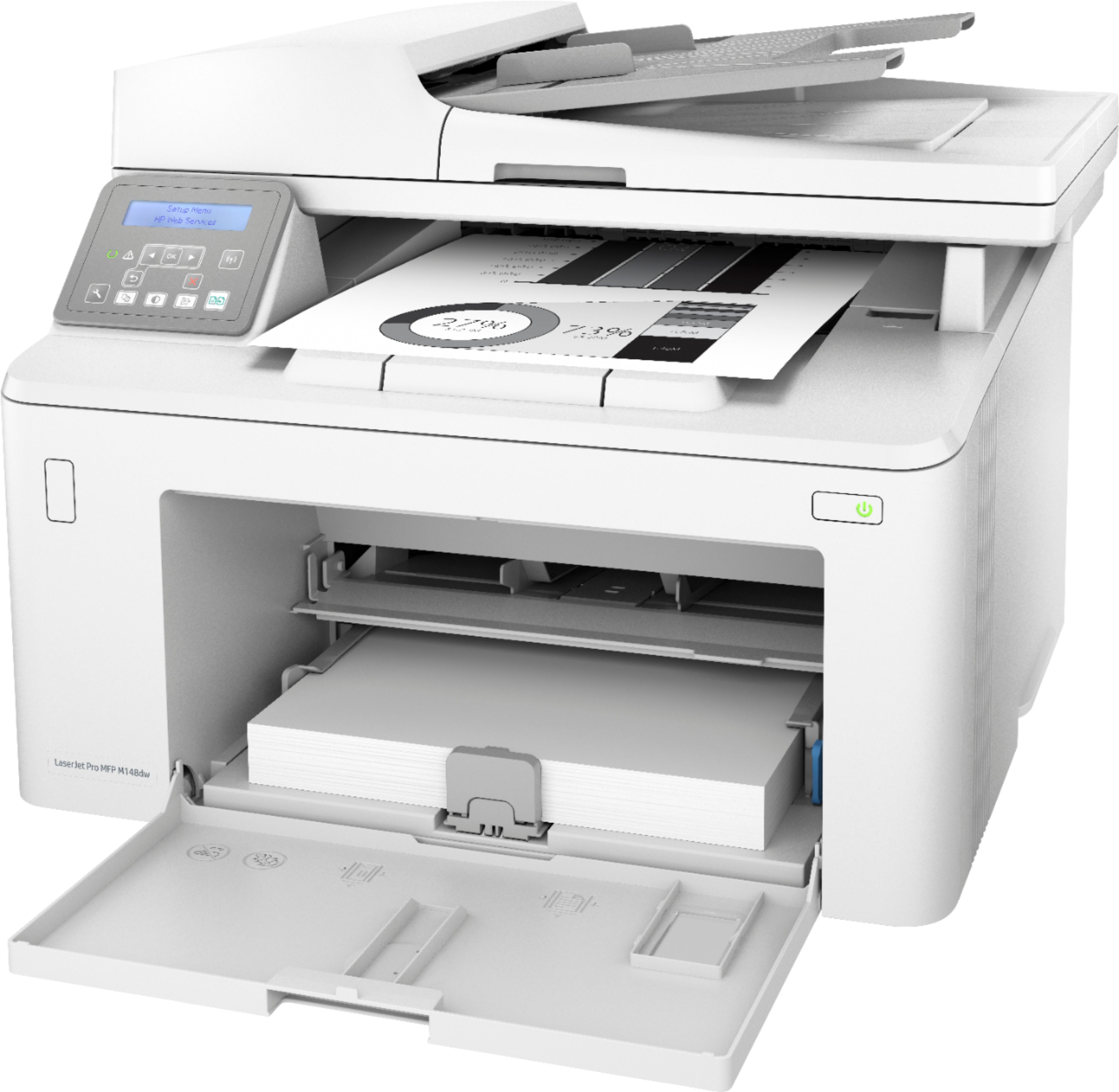
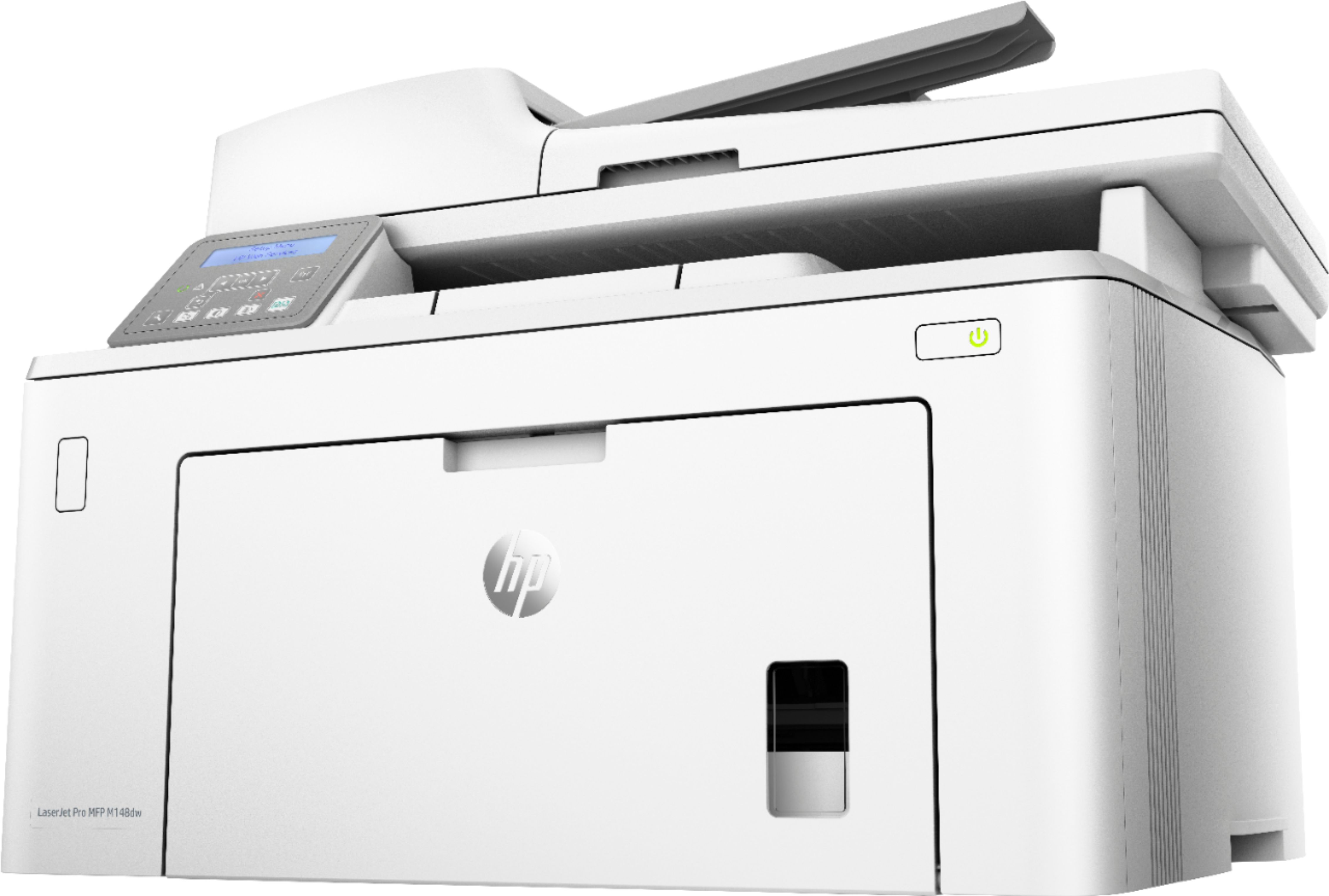
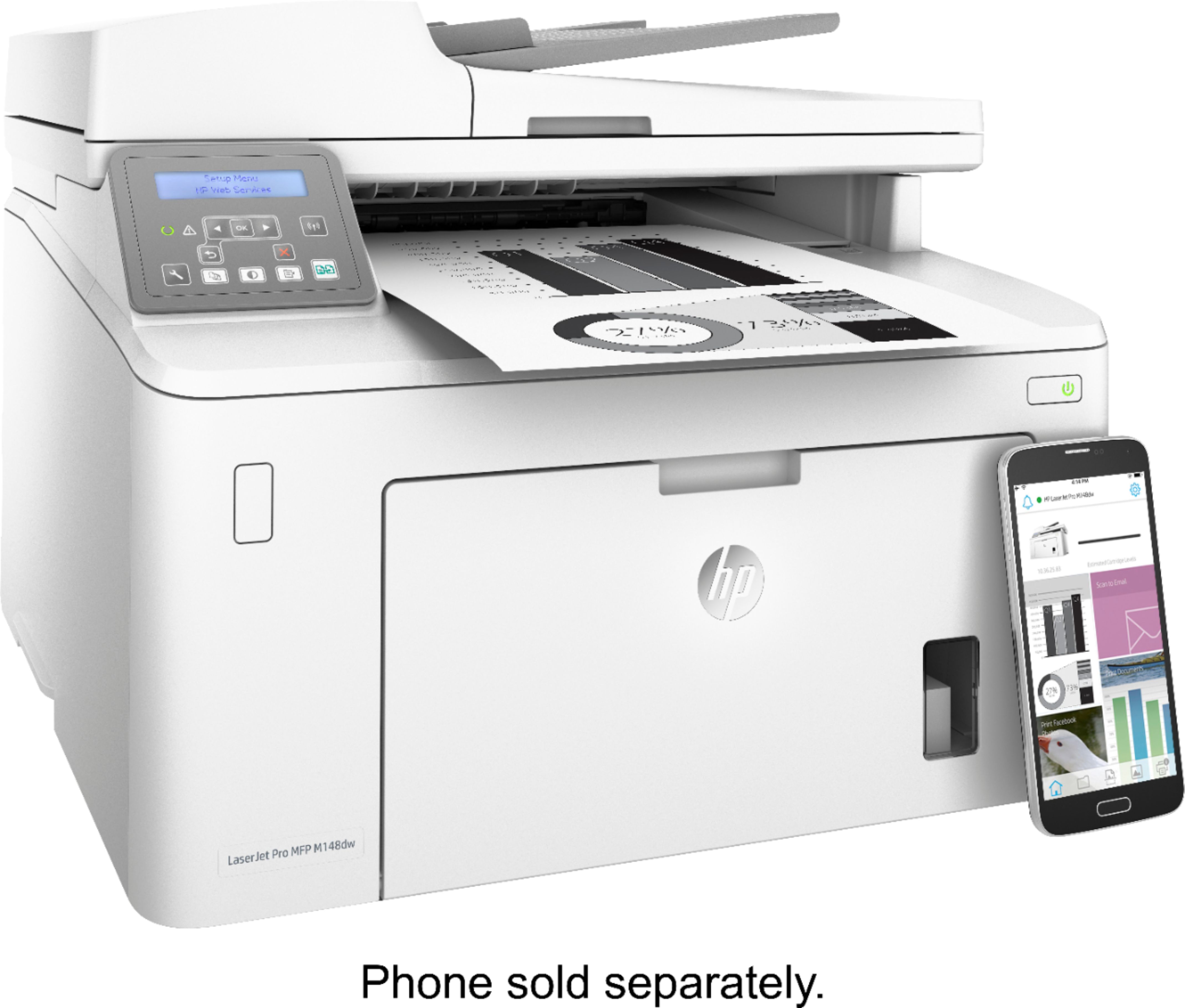
A:AnswerYou do not need a landline for scanning with this printer. You can connect this printer either to your wireless network or to a computer with the USB A to B cable. Then, you will be able to print and scan.
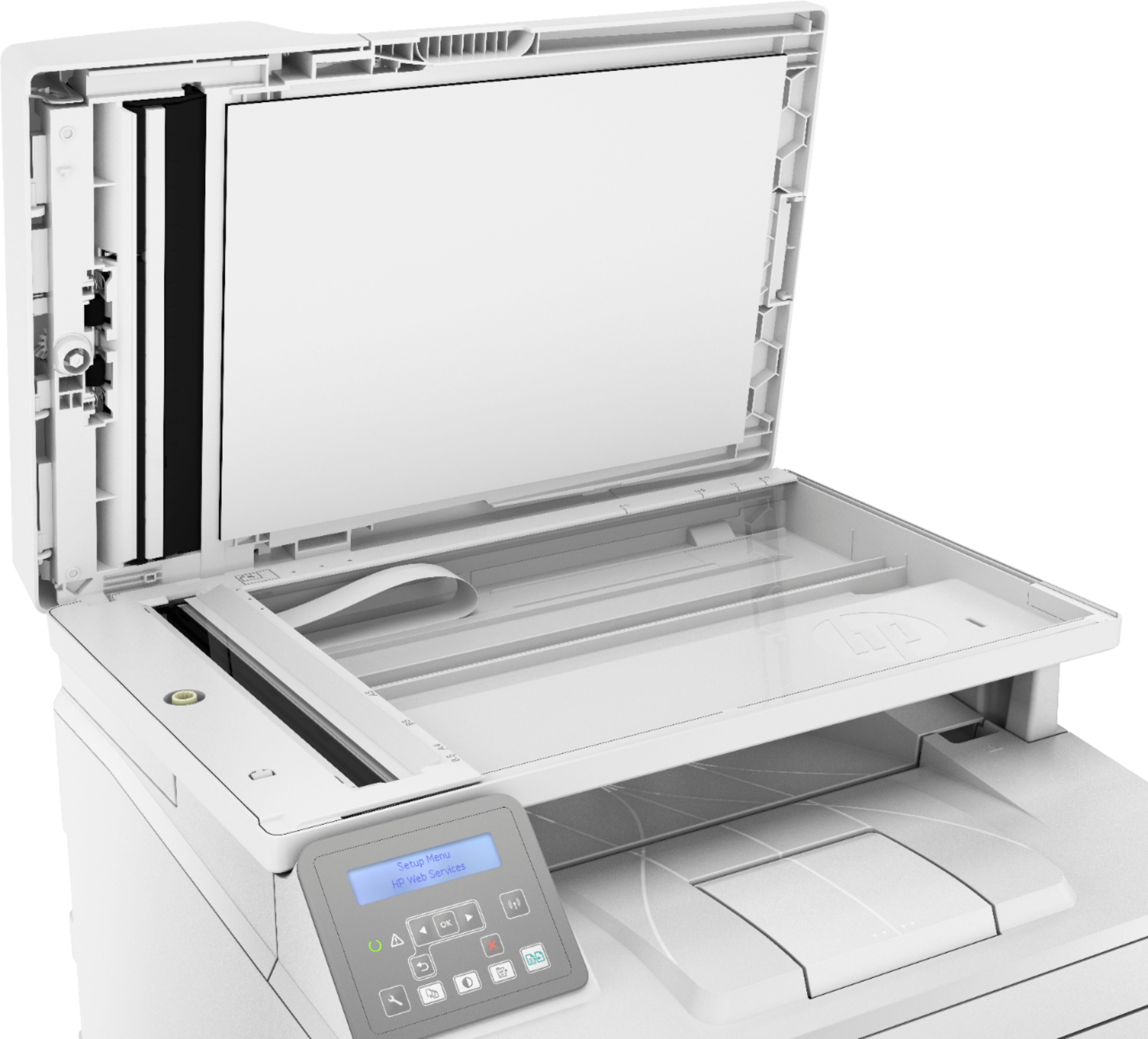
A:AnswerThank you for the question. The LaserJet Pro MFP M148dw does not have automatic two-sided copying. It will copy one page; the page needs to be manually reversed to copy or scan the second side.
A:AnswerYes, you can use this printer with a Chromebook. There is a different setup process. Here are some instructions on how to set up the printer on the Chromebook: https://support.hp.com/us-en/document/c04122530 and a YouTube video: https://youtu.be/Mf6LUKTMw9c
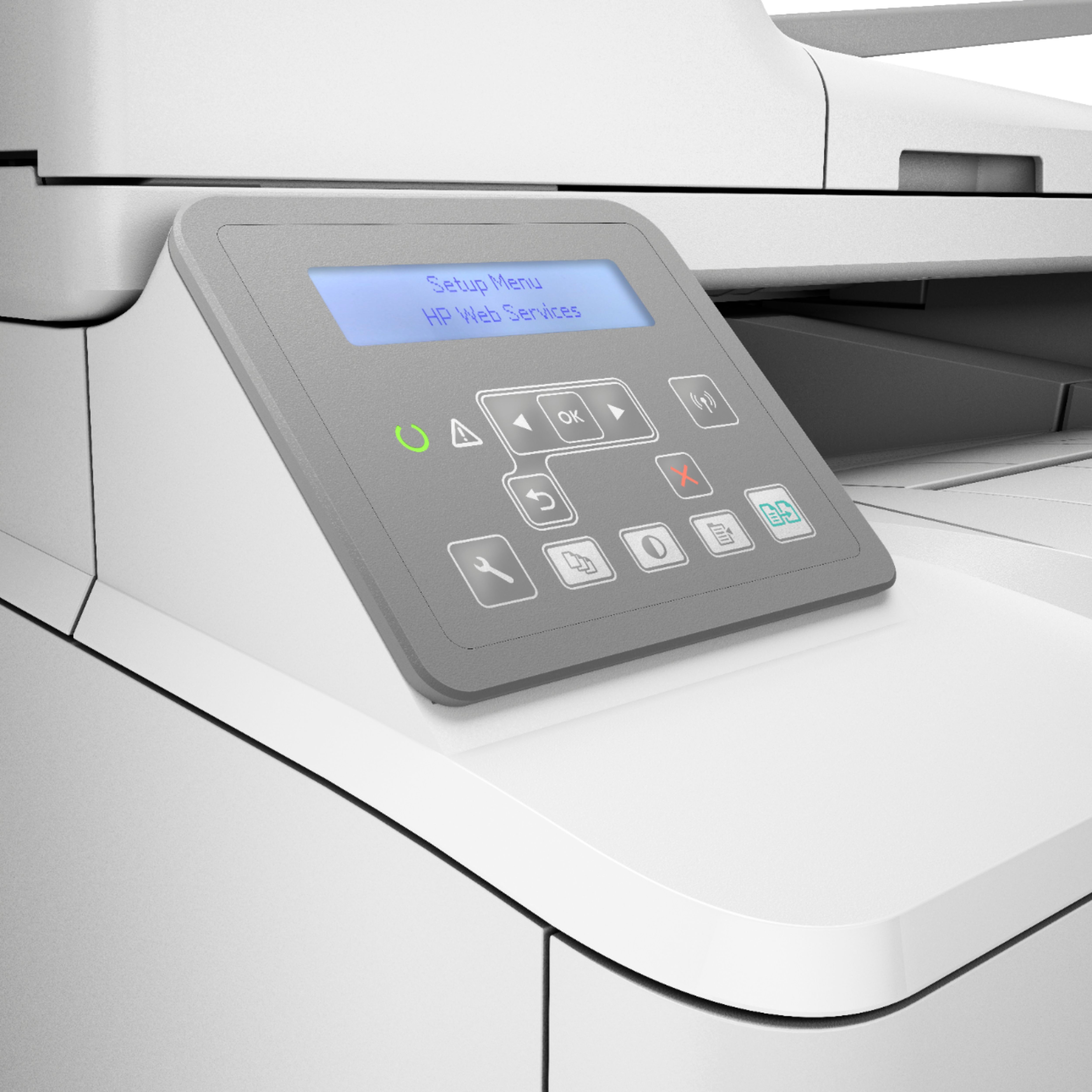
A:AnswerTo scan to email you have to start the scan from the HP full printer software on your computer or the HP Smart app on a smartphone, tablet, or computer.
A:AnswerI would look though the user guide for this printer. It explains how to use all the functions on the printer. Here is a link. http://h10032.www1.hp.com/ctg/Manual/c06165778
A:AnswerI looked up the ink cartridges before purchasing. They run about $85 each, however you will get 6 times more print jobs from this machine than an inkjet.
I used to have an inkjet and had to always be buying ink at $60 each. This has already saved me money.
A:AnswerI have not found how I can automatically scan a 2-sided document. However, it does scan multiple pages into one scan using the sheet feeder. I does appear that you can Share a scan through HP Smart but I have not tried it yet. I also have not used the copy feature yet.