A:AnswerYou should have no problem. I have my iPad and iPhone connected via wifi. Once you have wifi set up it should work with any wifi enabled device. Just search for printers or hit print and it will search for printers for you. You must be connected to same wifi server.
A:AnswerMost of the time, if you turn the printer off for about 15 seconds and then turn it back on, this will solve the problem. If that doesn't work try unplugging the printer from the socket for about 30 seconds; plug back in and turn the printer back on.
A:AnswerI do not have this printer yet, but i would assume that it does after Reading the Instructions. Specs state "Maximum document length printer can accept 23.4in" and "Maximum document width printer can accept 16.5in." If it does not then this is misleading and I would have to return it once it comes in.
A:Answerbasic sheet feeder in front, don't know about photo paper, don't use it, go online to their website and check it out and call their 800# if you need more info.
A:AnswerMake sure it is connected to a secure network (wifi with a password), then you can control the wifi, therefore access to the printer. If you can't control the wifi, then either create your own intranet wifi signal (which isn't connected to outside access), or just turn it off when not in use
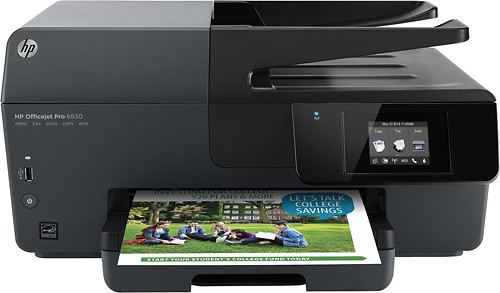
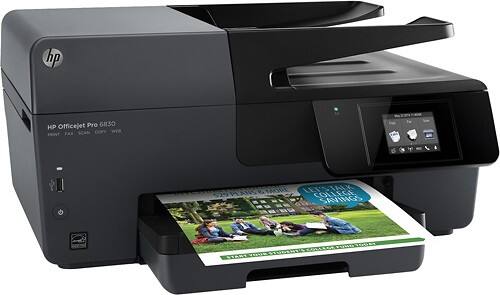
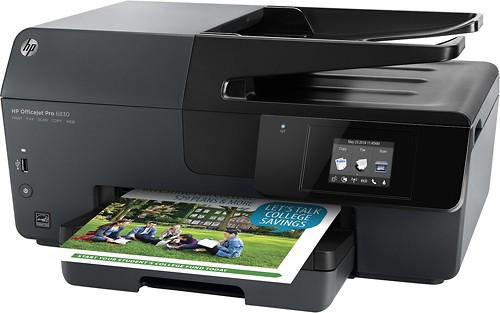
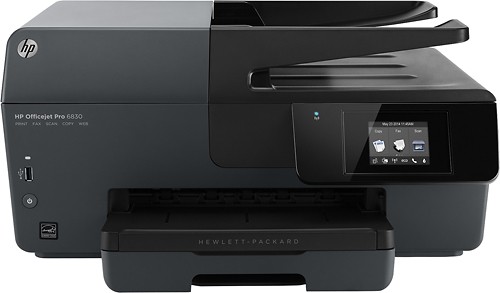
A:AnswerThere is a front facing USB, however it looks like only images can be printed directly from a thumb drive. The printer seems to only search for image files & didn't recognize Word, Excel, or PDF files were on the drive. There don't appear to be settings which might adjust this.