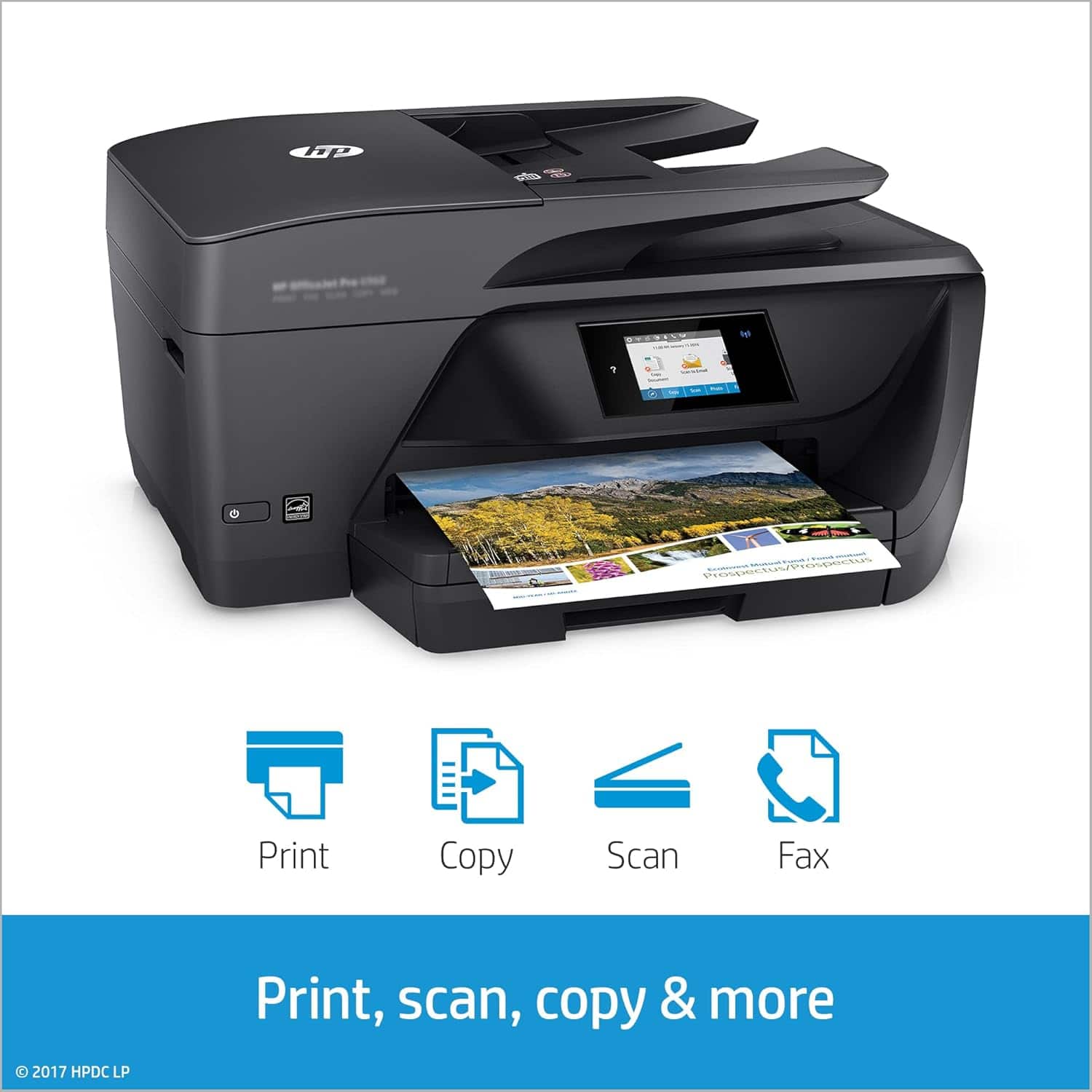
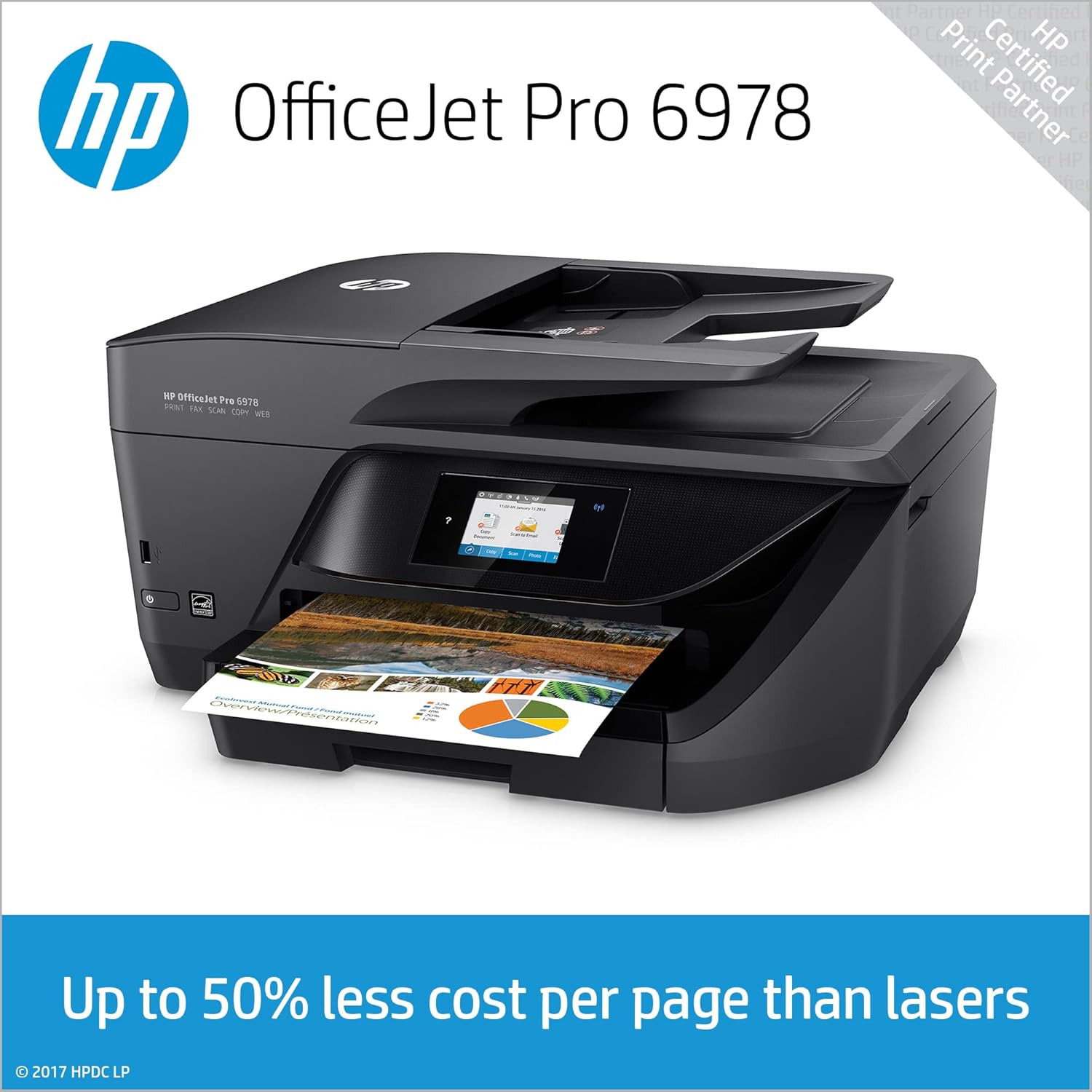
A:AnswerThere are two ways you can put in paper that you want to scan. You can either lift the lid and place the document face down on the scanner glass. If you've got multiple pages to scan, you can put them face up in the document feeder at the very top of the machine. It will feed and scan the pages one at a time.
A:AnswerIt depends on what size cartridges you purchase. Standard 902 ink prints over 300 pages and 902XL ink prints over 800 pages, while 906XL black prints 1500 pages.
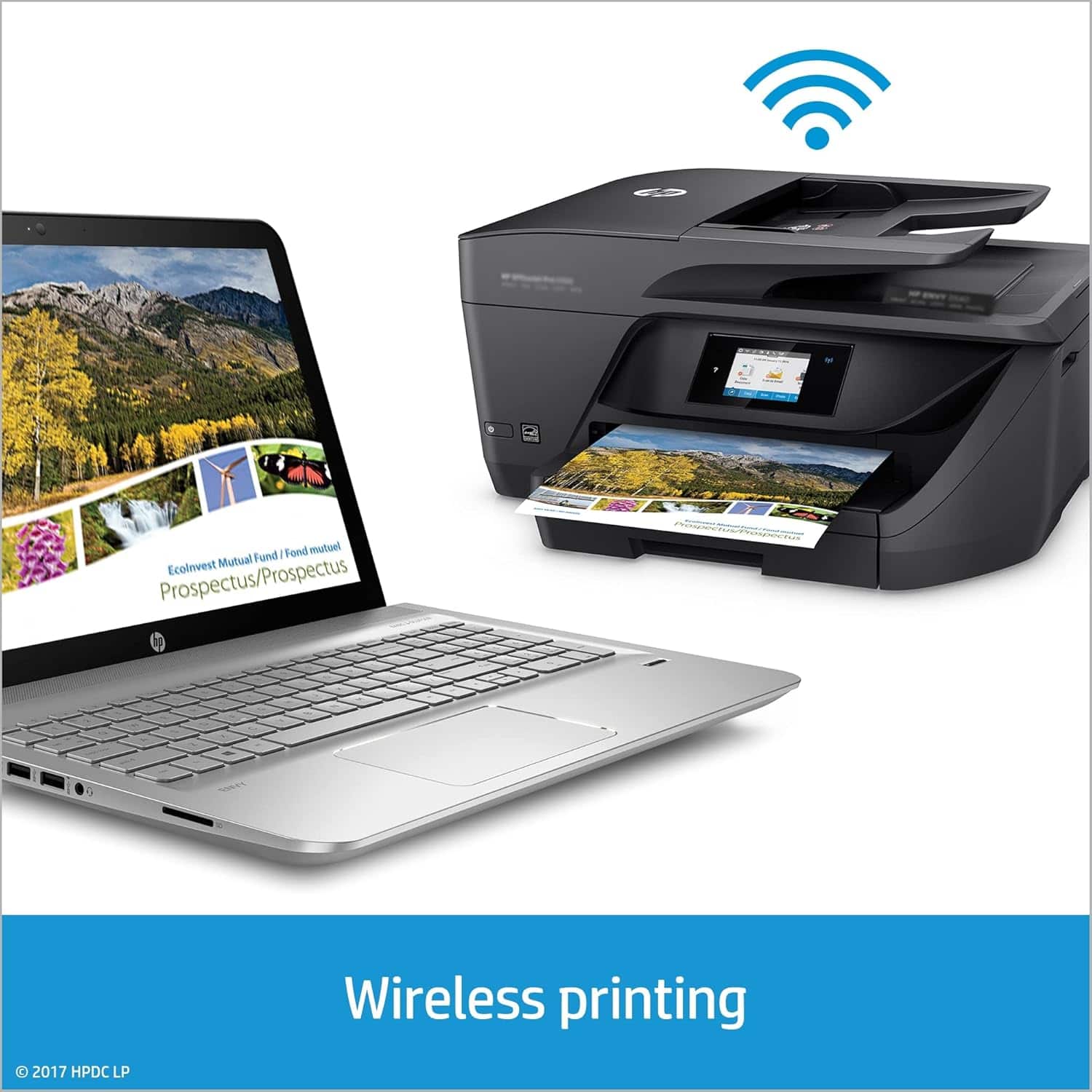
A:AnswerThis printer does not include the USB cord. It is designed to be used wirelessly. Even if you have an older computer it can still print wirelessly to this printer as long as it is connected to your network (internet). If you have an existing printer, it would use the same cable.
A:AnswerOh, no!! We're so sorry to hear about this! Did you make sure to buy the correct cartridges for your printer (the HP 902 Cyan, Yellow, Magenta, or the 902XL high yield variations)? We also recommend doing any system/firmware updates; if that doesn't work, please reach out to us at http://support.hp.com/us-en click "Contact HP" at the bottom left of the page.
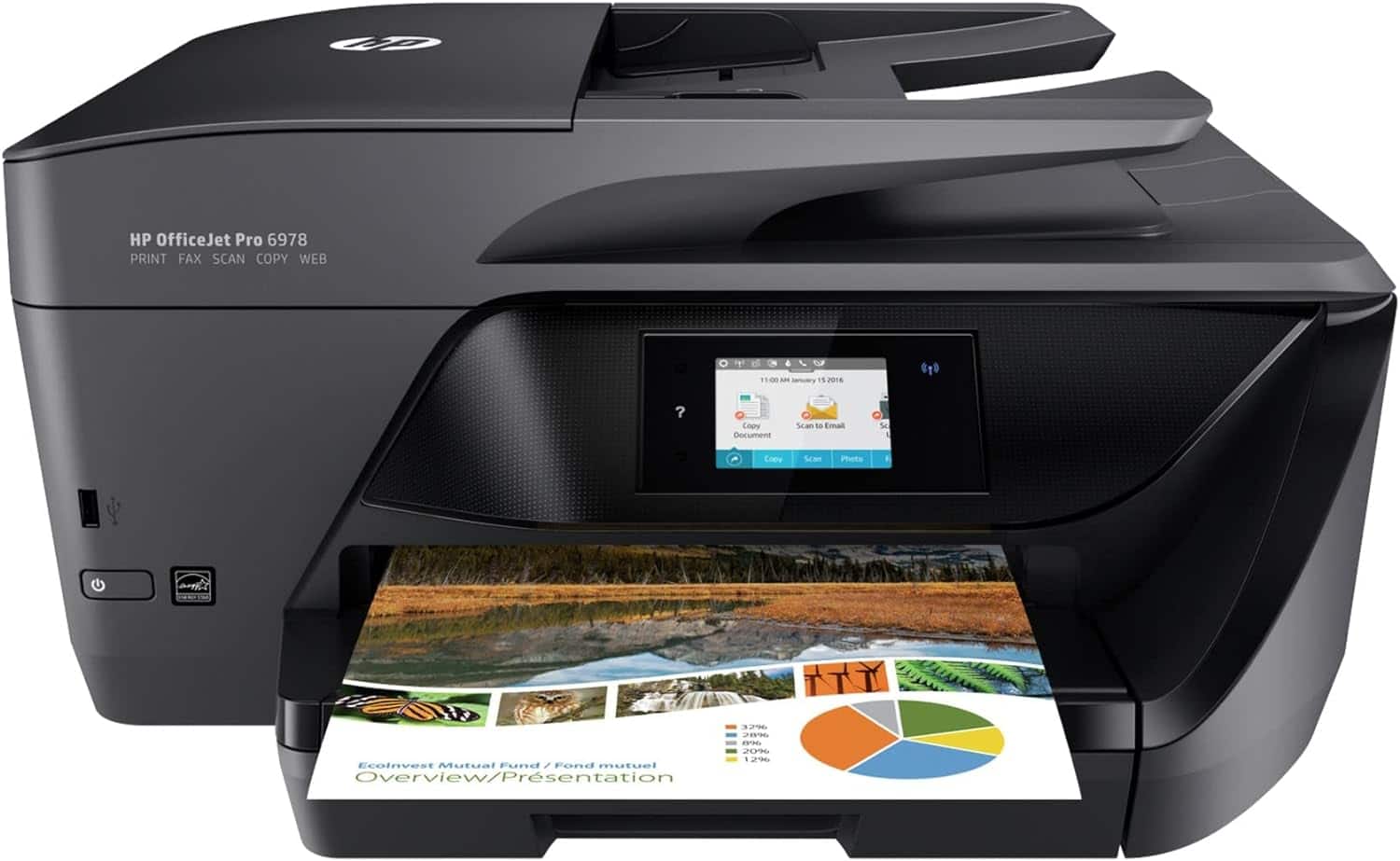
A:AnswerYou can definitely connect the printer via USB to your desktop! As far as printer maintenance is concerned, the printer will do most of it on its own. You should only have to clean/align the printheads if print quality is not meeting your standards!
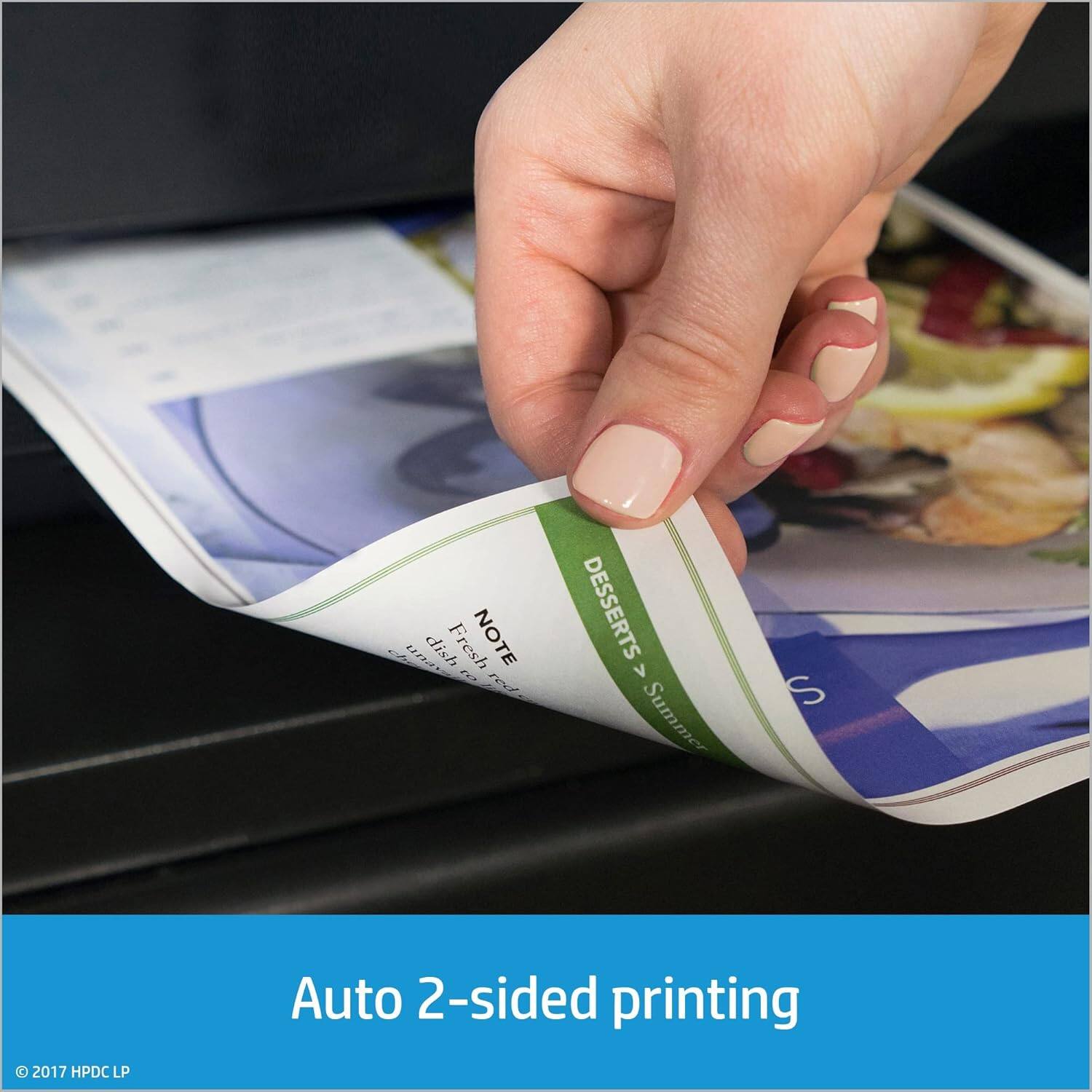
A:AnswerIt has auto 2sided printing, not refurbished, great ink usage, Prints up to 20 ISO ppm* in black, up to 11 ISO ppm* in color, what that means is it prints up to 20 pages per minute in black and 11 pages per minute in color.
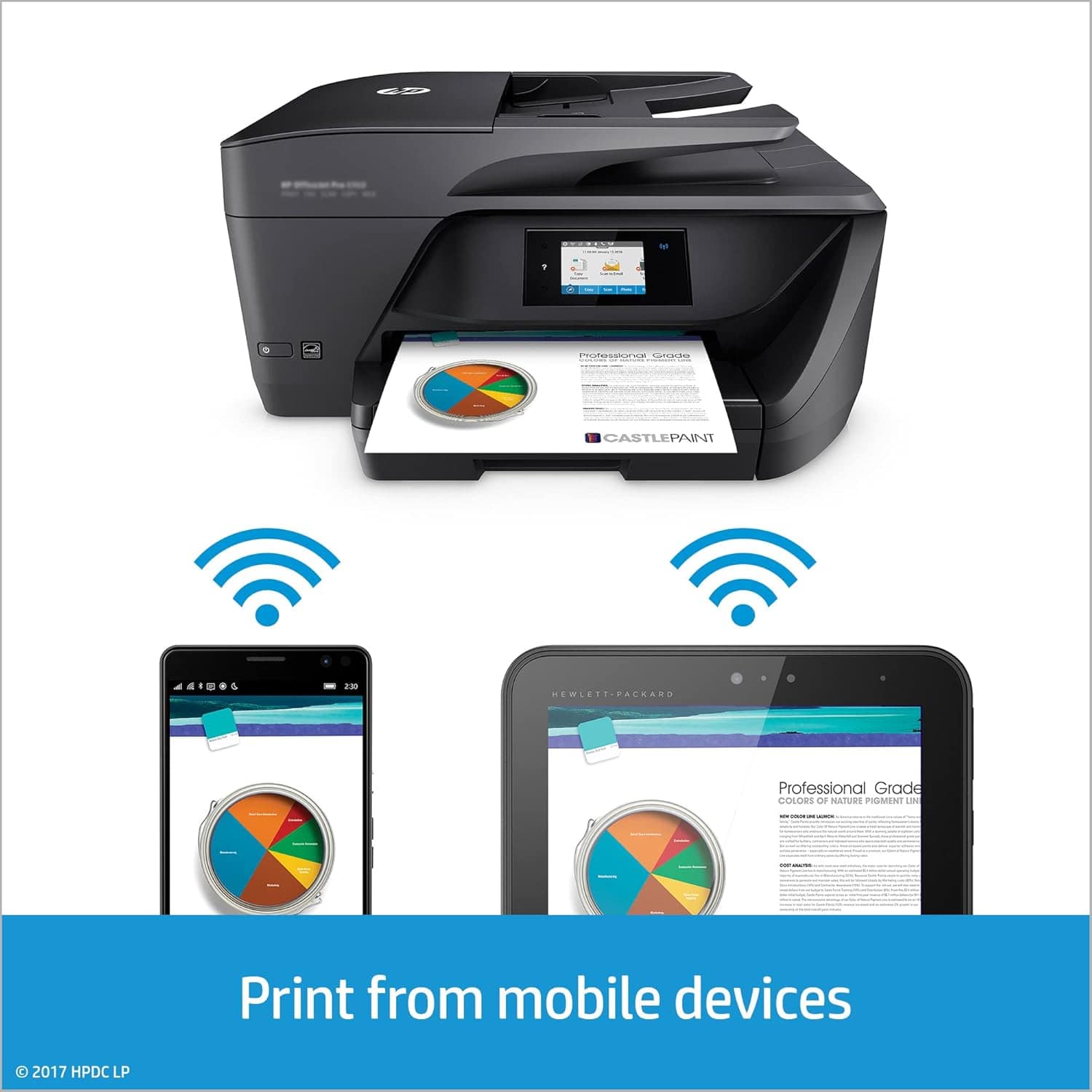
A:AnswerYes. I can print from my Chromebook. I went to the HP website they gave me with the printer. It didn’t have the option for google at first but then you click where it gives you the option for OS not shown. Then google popped up. Simple after that. I believe the website was 123.hp.com