A:AnswerGood morning if you go to the HP web site type in towers go to specs on your model # and it will give you the specs on your model including the motherboard.
hope that helps
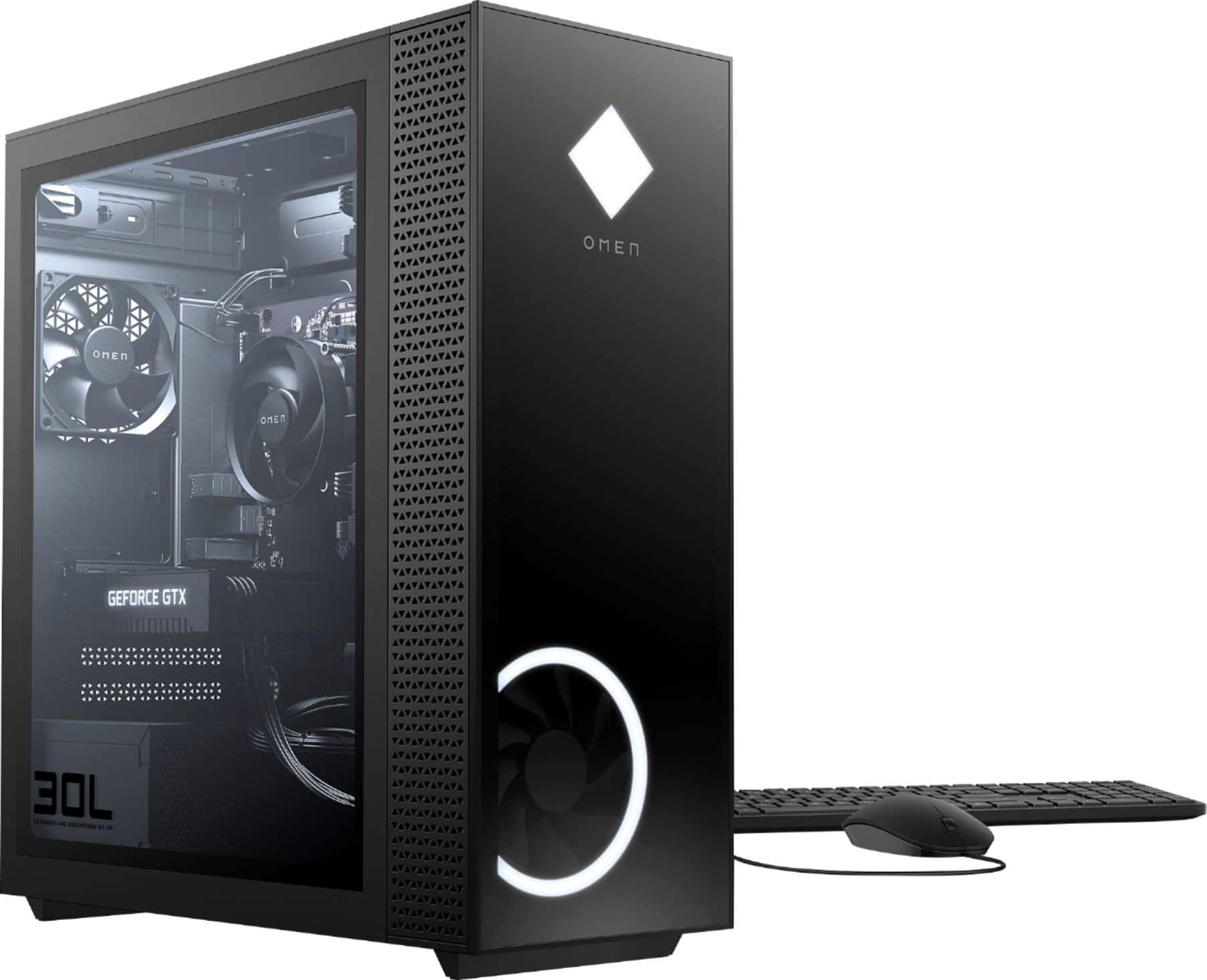
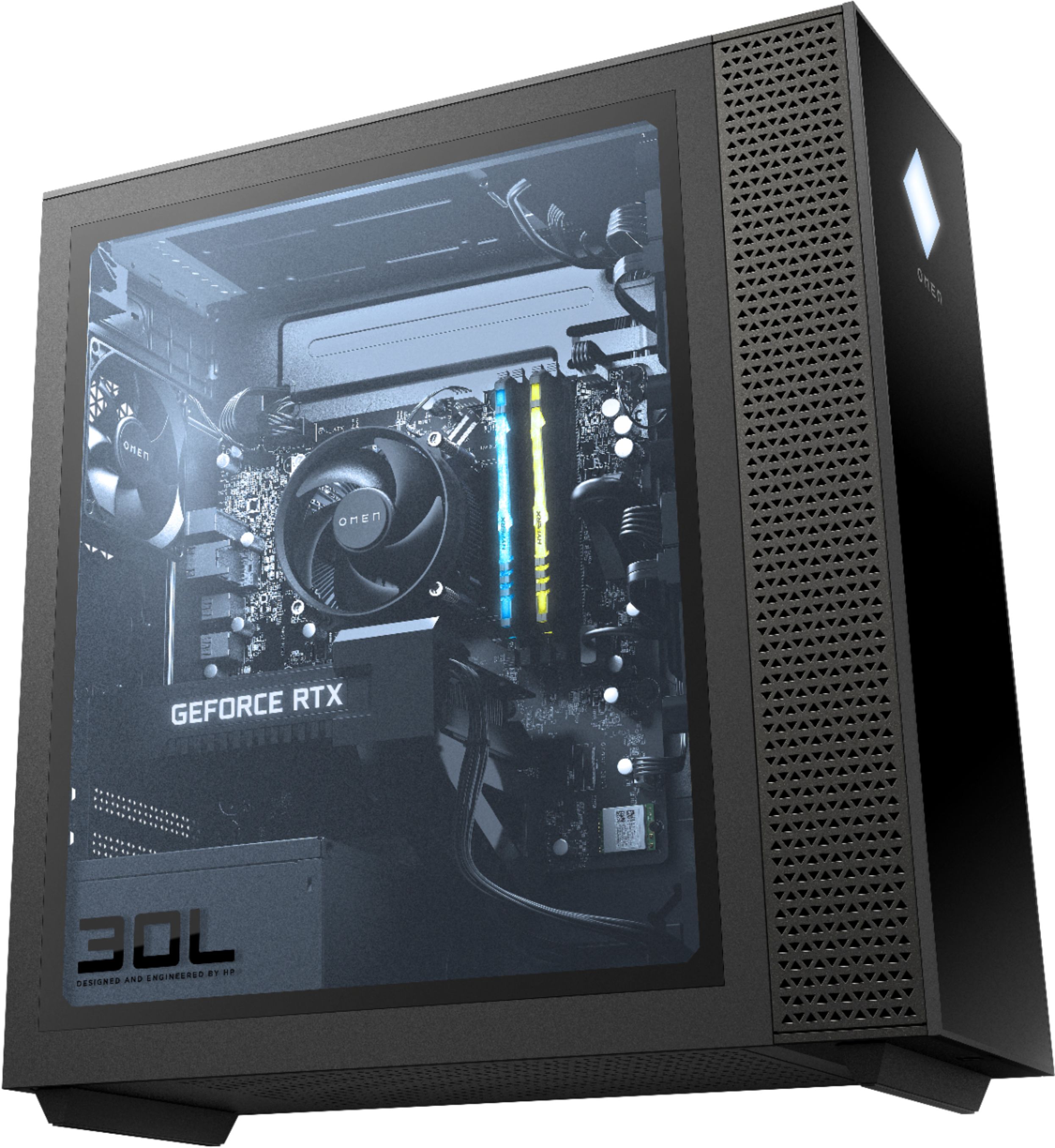
A:AnswerYou can add 1 x 120mm fan on top using the fan mounting bracket thats screwed on top. You have to pop out the 4 squares on the bracket to get the airflow. Screw the fan on the bottom of the bracket and put the bracket back in.
I put a liquid cooler in mine, it was not easy. The only way I found was to switch the backplate of the motherboard with one provided with the liquid cooler to fit the heatsink on the cpu.
You can add the radiator below the fan bracket and put the fan below the radiator
I got a CoolerMaster MasterLiquid ML120L RGB V2. It works really good so far!
Hope that helps!
A:AnswerThis laptop does have Bluetooth, it might need to be turned on. Here's how to turn Bluetooth on or off in Windows 10: Select the Start button, then select Settings > Devices > Bluetooth & other devices. Select the Bluetooth switch to turn it On or Off as desired.
A:AnswerThe computer more than meets the specs to play the game. It's impossible to tell you how many fps you'll get, because it depends on how you've configured the game, what other software you have installed, and other factors.