Questions & Answers
- Model:
- NS-HAWHP2
- |
- SKU:
- 6281625
Q: QuestionAre these Bluetooth?
Asked by Jboy.
- A:Answer Thank you for your inquiry! No, the Insignia™ RF Wireless Over-the-Ear Headphones are not Bluetooth-enabled. Instead, they use RF (Radio Frequency) wireless technology, which requires a dedicated base transmitter that connects to your audio source, typically through a 3.5mm headphone jack or RCA cables. Unlike Bluetooth headphones, these do not pair directly with smartphones, tablets, or laptops. RF headphones generally offer a longer wireless range and lower latency, but they are limited to use with the included transmitter. If you're looking for headphones that connect directly to Bluetooth devices, you may want to consider a different model specifically designed with Bluetooth support. Keith | Insignia Support
Answered by InsigniaCustomerSupport

Q: QuestionI am having difficulty reducing the volume. It just turns off. Am I doing something wrong? Is there a manual.?
Asked by Anonymous.
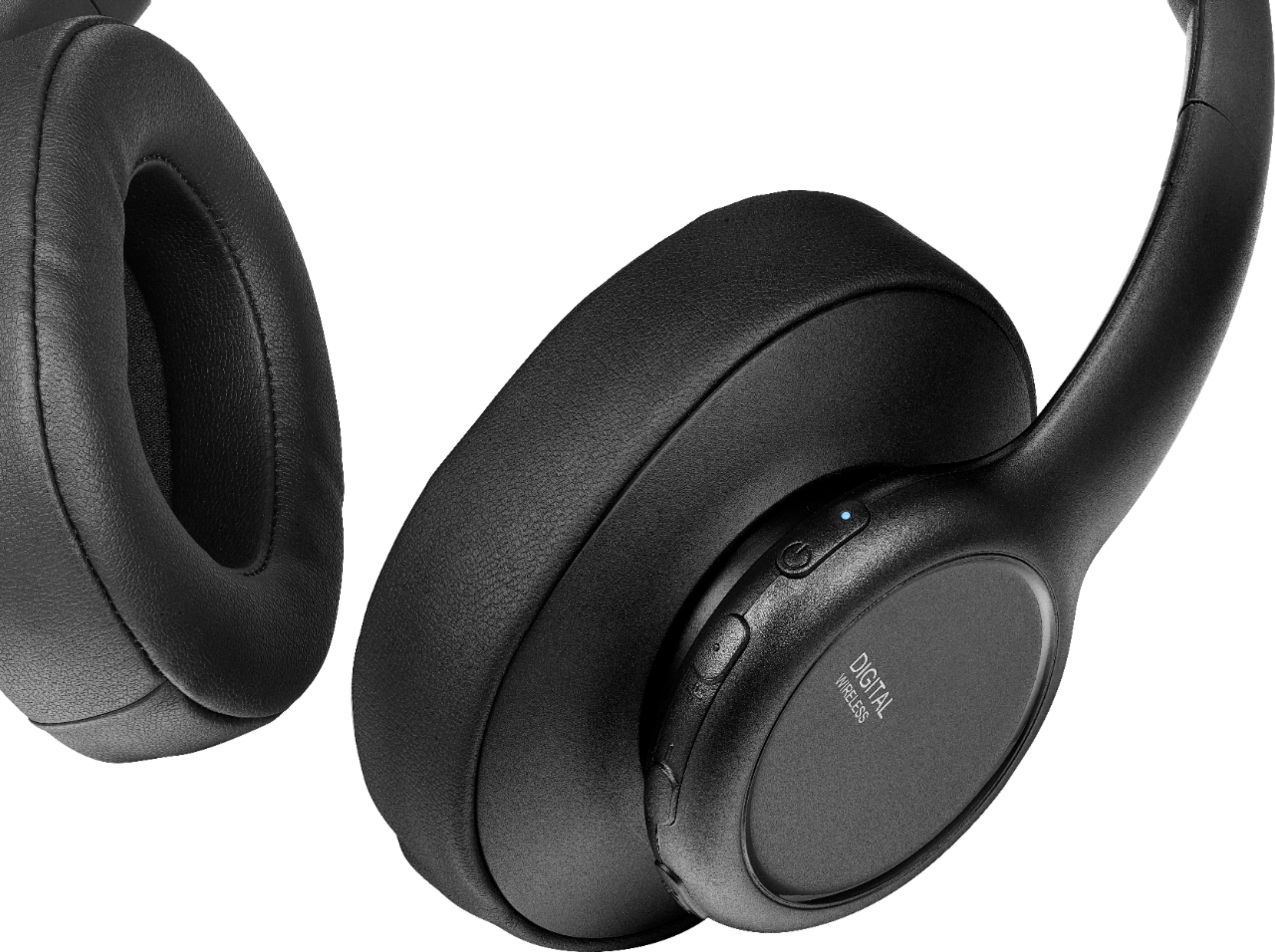
- A:Answer Thank you for your inquiry! If your Insignia™ RF Wireless Over-the-Ear Headphones are turning off when you try to lower the volume, you might be pressing the wrong button or holding it too long, which could be triggering the power-off function instead. Some models have multifunction buttons where a short press adjusts volume, but a long press powers the device off. Another possibility is that the battery is low, and the headphones are shutting down when you try to use certain features. Make sure the headphones are fully charged and try again. If the issue continues, it could be a hardware glitch, and resetting or re-pairing the headphones might help. For detailed instructions, you can refer to the user manual, which is usually available on the product page at Best Buy. Keith | Insignia Support
Answered by InsigniaCustomerSupport

Q: QuestionMy headphones won’t hold a charge
Asked by Anonymous.
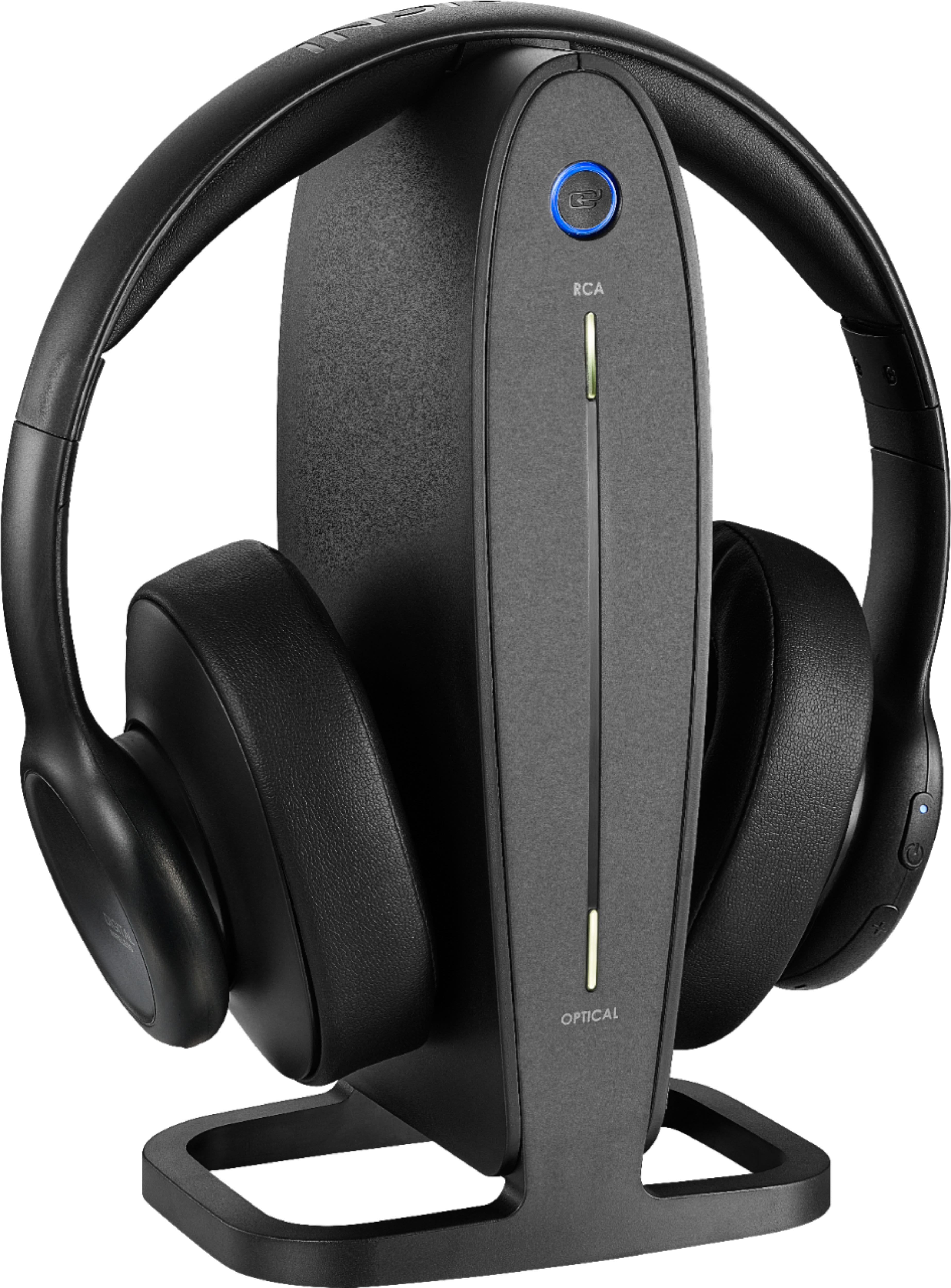
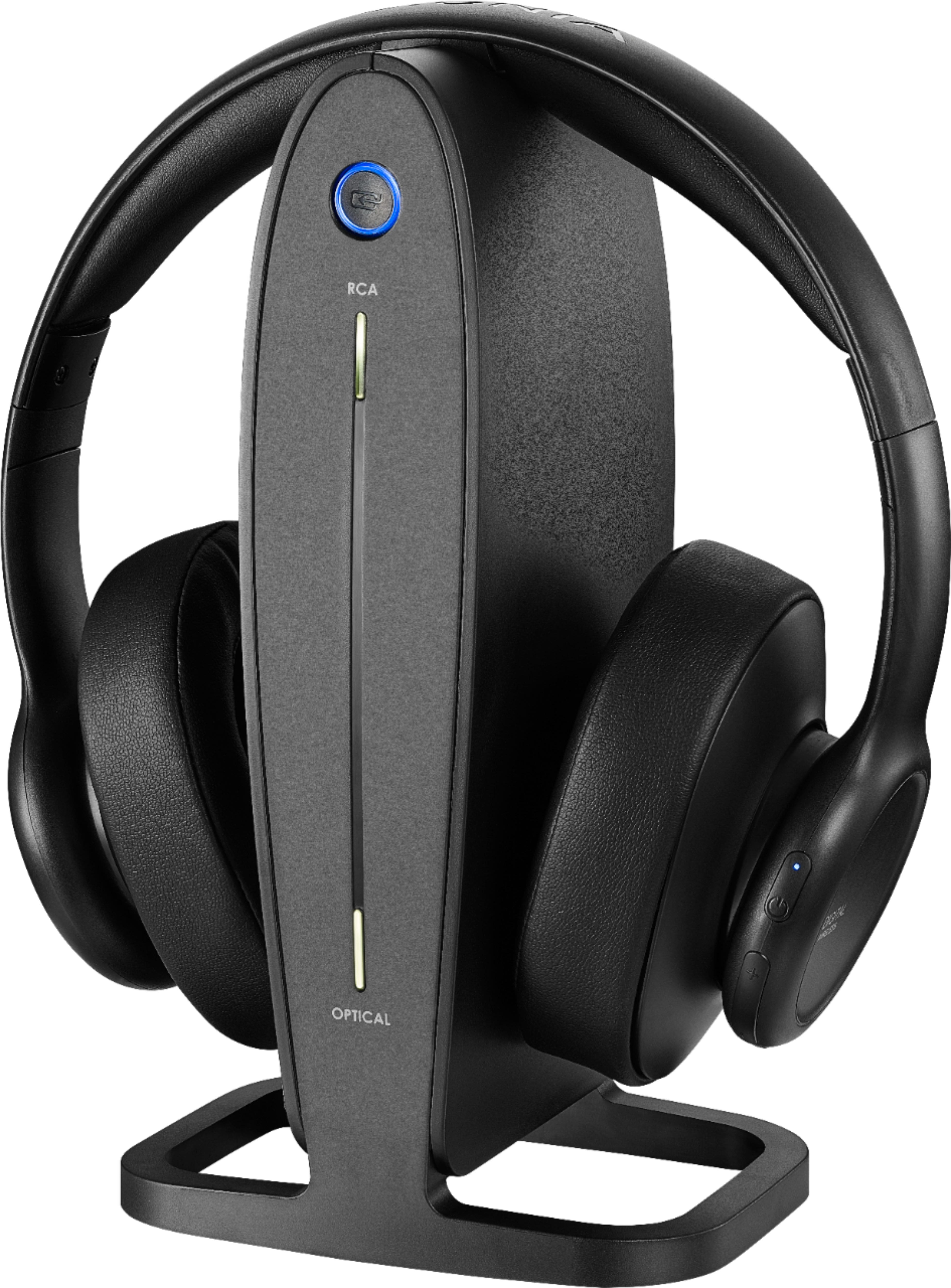
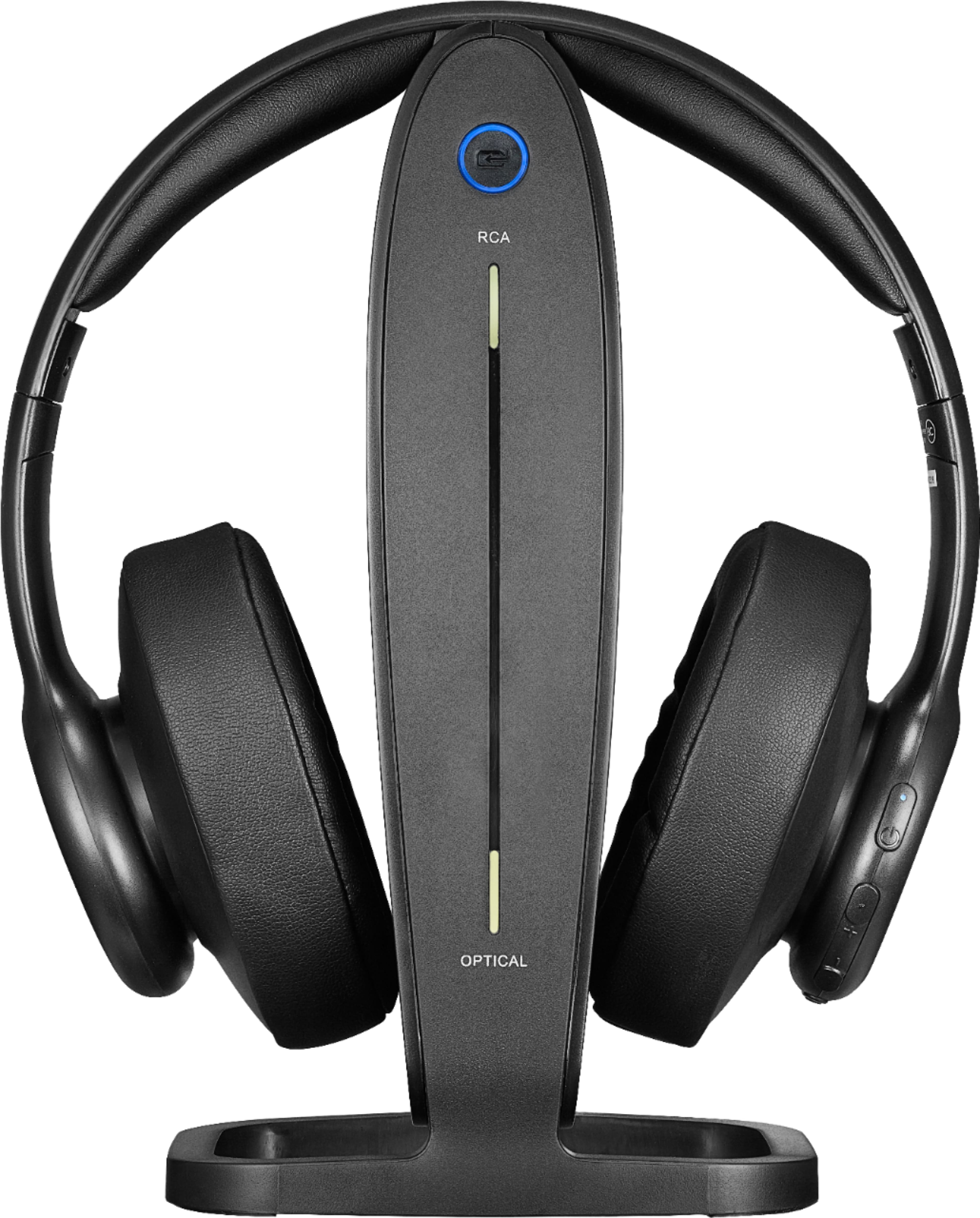
- A:Answer Thank you for your inquiry! If your Insignia™ RF Wireless Over-the-Ear Headphones are not holding a charge, start by checking the charging contacts on both the headphones and the docking station to ensure they are clean and making proper contact. You might need to rock the headphones back and forth to establish a good connection. Pay attention to the indicator lights; the blue light should be steady when the headphones are on the docking station, and the red light should come on to indicate charging. Make sure the headphones are turned on when placing them on the docking station, with the blue light steady. Additionally, verify that the docking station is properly connected to a power source and that the AC adapter is functioning correctly. If these steps don't resolve the issue, consulting the user manual or contacting Insignia customer support for further assistance might be necessary. Keith | Insignia Support
Answered by InsigniaCustomerSupport

Q: QuestionNeed a head set replacement, battery not working. Insignia model NS-HAWHP2. Where can i get a replacement
Asked by Ed.
- A:Answer Thank you for reaching out. Unfortunately, we do not sell replacement headphones for the Insignia™ NS-HAWHP2 RF Wireless Over-the-Ear Headphones individually. We only offer them as a complete set. If you need further assistance or have any other questions, please let me know! Ivy | Insignis Support
Answered by InsigniaCustomerSupport

Q: QuestionHow can I cut up head set louder. It used to go louder? Can I reset ?
Asked by Gina.
- A:Answer To increase the volume on your Insignia™ RF Wireless Over-the-Ear Headphones, first ensure that the volume control buttons on the headphones are turned up to the desired level. Additionally, check the volume settings on your audio source, such as your TV or computer, to make sure they are not limiting the output. If the volume issue persists, you can try a basic reset by turning off the headphones, disconnecting them from any device, and then turning them back on after a few seconds. This simple reset can often resolve minor issues and restore the headphones to their optimal performance. Patricia | Insignia Support
Answered by InsigniaCustomerSupport

Q: QuestionAre there replacement covers for the headphones?
Asked by Peg.
- A:Answer Thank you for your question about replacement covers for your Insignia RF Wireless Over-the-Ear Headphones. If your headphones are still within the 1-year manufacturer's warranty period from the date of purchase, please contact our support team directly for assistance. If your headphones are outside of the warranty period, we do not typically sell replacement covers directly. However, you may be able to find aftermarket replacement ear pads online from various third-party retailers that are compatible with your model of Insignia headphones. If you have any other questions or need further assistance, feel free to ask! - Mae | Insignia Support
Answered by InsigniaCustomerSupport

Q: QuestionDo your headphones work with TCL smart TVs?
Asked by qb.
- A:Answer Yes, Insignia™ RF Wireless Over-the-Ear Headphones can work with TCL smart TVs. These headphones can connect to your TCL smart TV using optical, RCA, or 3.5 mm audio outputs. Simply connect the transmitter to the TV using one of these methods, ensuring a proper connection. Patricia | Insignia Support
Answered by InsigniaCustomerSupport

Q: QuestionAre their any headphones that will work with my receiver out optical?
Asked by Headphonelooker.
- A:Answer Usually Optical jacks are inputs only unless it's a VERY old AVR.
Answered by labman
Q: QuestionI had a LG tv before and the headphones worked well now I have a ruku TV when you go into settings the audio then audio out put you only have two choices (Earc (HDMI 1 or optical it must be optical as I cant get them to work with Earc
Asked by Anonymous.
- A:Answer Thank you, for sharing your experience. We're sorry to hear you're having trouble with your Insignia™ RF Wireless Over-the-Ear Headphones on your new Roku TV. Since the headphones worked well with your LG TV, it sounds like there might be a compatibility issue with the audio output settings on your Roku TV. To use the optical audio output, please follow these steps: Connect the optical cable securely from your Roku TV's optical output to the docking station of your headphones. In your Roku TV settings, navigate to Settings > Audio > Audio Output and select Optical. Make sure your headphones are set to receive the optical signal. Refer to the user manual for specific instructions on how to switch to optical input. If these steps don't resolve the issue, please reach out to our support team for further assistance. We're here to help!
Answered by InsigniaCustomerSupport

Q: Questionis this made in China
Asked by Tvwonderatisle.
- A:Answer Hi Tvwonderatisle. Thank you for your inquiry! The Insignia™ RF Wireless Over-the-Ear Headphones are indeed manufactured in China. This is quite common for many electronic products. If you have any other questions about these headphones or need information on another product, feel free to ask! Keith | Insignia Support
Answered by InsigniaCustomerSupport

Q: QuestionMy headphones are not clear when right on my ears. They are clear if I hole them a short distance (1") away. What is this all about?
Asked by carole.
- A:Answer It sounds like you're experiencing an issue with the sound quality of your Insignia™ RF Wireless Over-the-Ear Headphones. Here are a few potential reasons and solutions: 1. Fit and Positioning: Sometimes, the positioning of the headphones on your ears can affect sound quality. Ensure the ear cups are properly aligned with your ears and that they form a good seal. Adjust the headband for a snug fit. 2. Interference: Wireless headphones can sometimes experience interference from other electronic devices. Try moving away from other wireless devices or sources of interference to see if the sound quality improves. 3. Volume Levels: Check the volume levels on both the headphones and the connected device. Sometimes, mismatched volume settings can cause distortion or unclear sound. 4. Battery Level: Ensure the headphones are fully charged. Low battery levels can sometimes affect performance. 5. Audio Source: The quality of the audio source can also impact sound clarity. Try playing different audio files or streaming from different sources to see if the issue persists. 6. Reset and Re-pair: Try resetting the headphones and re-pairing them with your device. This can sometimes resolve connectivity issues that affect sound quality. If these steps don't resolve the issue, it might be worth consulting the user manual or reaching out to Insignia customer support for further assistance. Let me know if there's anything else I can help with!
Answered by InsigniaCustomerSupport

Q: QuestionCan the Insignia -RF Wireless Over the ear headphones be used with ps5?
Asked by KeithannS.
- A:Answer Hello! Thank you for reaching out. Yes, our RF wireless headphones are compatible with the PS5 console. I hope this information is helpful. Please don't hesitate to ask if you have any further questions. - Carl | Insignia Support
Answered by InsigniaCustomerSupport

Q: QuestionMy headphones didn’t come with an instruction manual. Is there one I can download?
Asked by InstructionGuide.
- A:Answer Yes, you can download the instruction manual for your Insignia™ RF Wireless Over-the-Ear Headphones from the Best Buy website. Just search for your headphone's model number and check the features tab. If you need help with any specific part of the manual, feel free to ask! - Mae | Insignia Support | https://www.bestbuy.com/site/brands/best-buy-brands/pcmcat1596746025285.c?id=pcmcat1596746025285
Answered by InsigniaCustomerSupport

Q: QuestionWhere and I buy replacement ear pads for Insignia Digital Wireless Headphones NS-HAWHP2.
Asked by sandrock.
- A:Answer I was on the phone with Insignia for the same reason. They were unable to help but gave me part store by imcomposs. 855-975-6831 I tried calling them but no answer.
Answered by Anonymous
Q: QuestionIs there anyway to turn off headphones and listen to tv without unplugging headphones from the tv?
Asked by Chris.
- A:Answer Yes, you can turn off the Insignia™ RF Wireless Over-the-Ear Headphones without unplugging them from the TV. Simply turn off the headphones using the power button on the headphones themselves. This will stop the audio from being transmitted to the headphones, allowing you to listen to the TV through its built-in speakers. Patricia | Insignia Support
Answered by InsigniaCustomerSupport

Q: QuestionDownload manual
Asked by Judy.
- A:Answer Hello, You can find our user manual on the Best Buy website. Simply enter your SKU or model number in the search bar, click on your item, and then scroll down to the "Features" section where you will find the user manual available for viewing. - Carl | Insignia Support
Answered by InsigniaCustomerSupport

Q: QuestionGot 2 sets of headphones, attaching 1 set to TV via Optical. Connected RCA cables to the output & connected the other end to the RCA input on the other transmitter. Each transmitter is connected to their own power supply. Only get sound from set #1. HELP!
Asked by RonM.
- A:Answer It sounds like you're experiencing a common issue with multiple audio outputs. Here are a few steps to troubleshoot: 1. Ensure your TV's audio output settings are correctly configured. Go to the TV's audio settings and make sure the output is set to PCM (Pulse Code Modulation) instead of Dolby Digital or other formats. 2. Double-check all connections to ensure they are secure. Make sure the RCA cables are properly connected to both the TV and the second transmitter. 3. On the second set of headphones, try switching the input source. There might be a button on the headphones or the transmitter to change between optical and RCA inputs. 4. Turn off both transmitters and the TV, then turn them back on. This can sometimes reset the connection and resolve any issues. 5. Test each set of headphones individually to ensure both are working correctly. Connect each transmitter one at a time to see if they both receive audio when connected separately. If these steps don't resolve the issue, there might be a compatibility problem or a fault with one of the transmitters. In that case, contacting Insignia customer support for further assistance would be a good next step. If you need more help, feel free to ask!
Answered by InsigniaCustomerSupport

Most-viewed items
- $219.99Your price for this item is $219.99$249.99The comparable value for this item is $249.99
- $84.99Your price for this item is $84.99$129.99The comparable value for this item is $129.99
- Black Friday Deal$429.99Your price for this item is $429.99
- $139.99Your price for this item is $139.99$179.99The comparable value for this item is $179.99
- Doorbuster$159.99Your price for this item is $159.99
- $187.00Your price for this item is $187.00$249.99The comparable value for this item is $249.99
- Black Friday Deal$169.99Your price for this item is $169.99
- Black Friday Deal$179.99Your price for this item is $179.99
- Black Friday Deal$398.00Your price for this item is $398.00
- Black Friday Deal$199.00Your price for this item is $199.00
- Black Friday Deal$39.95Your price for this item is $39.95
- Black Friday Deal$159.99Your price for this item is $159.99
- Black Friday Deal$199.99Your price for this item is $199.99
- Black Friday Deal$216.00Your price for this item is $216.00
- Black Friday Deal$248.00Your price for this item is $248.00
- Black Friday Deal$129.99Your price for this item is $129.99
- $298.99Your price for this item is $298.99$429.00The comparable value for this item is $429.00
- Black Friday Deal$129.00Your price for this item is $129.00
- Black Friday Deal$199.00Your price for this item is $199.00
- Black Friday Deal$399.00Your price for this item is $399.00