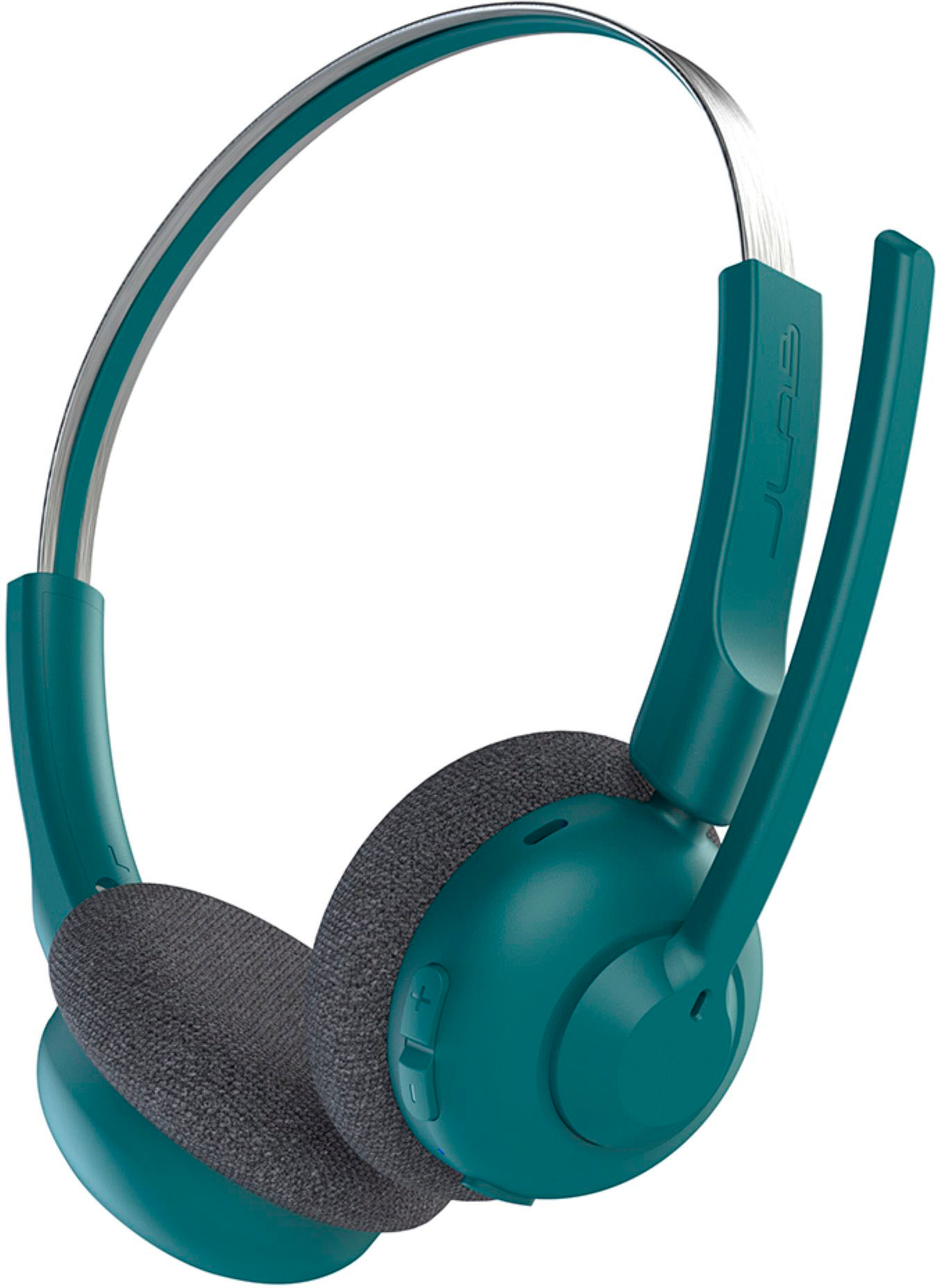
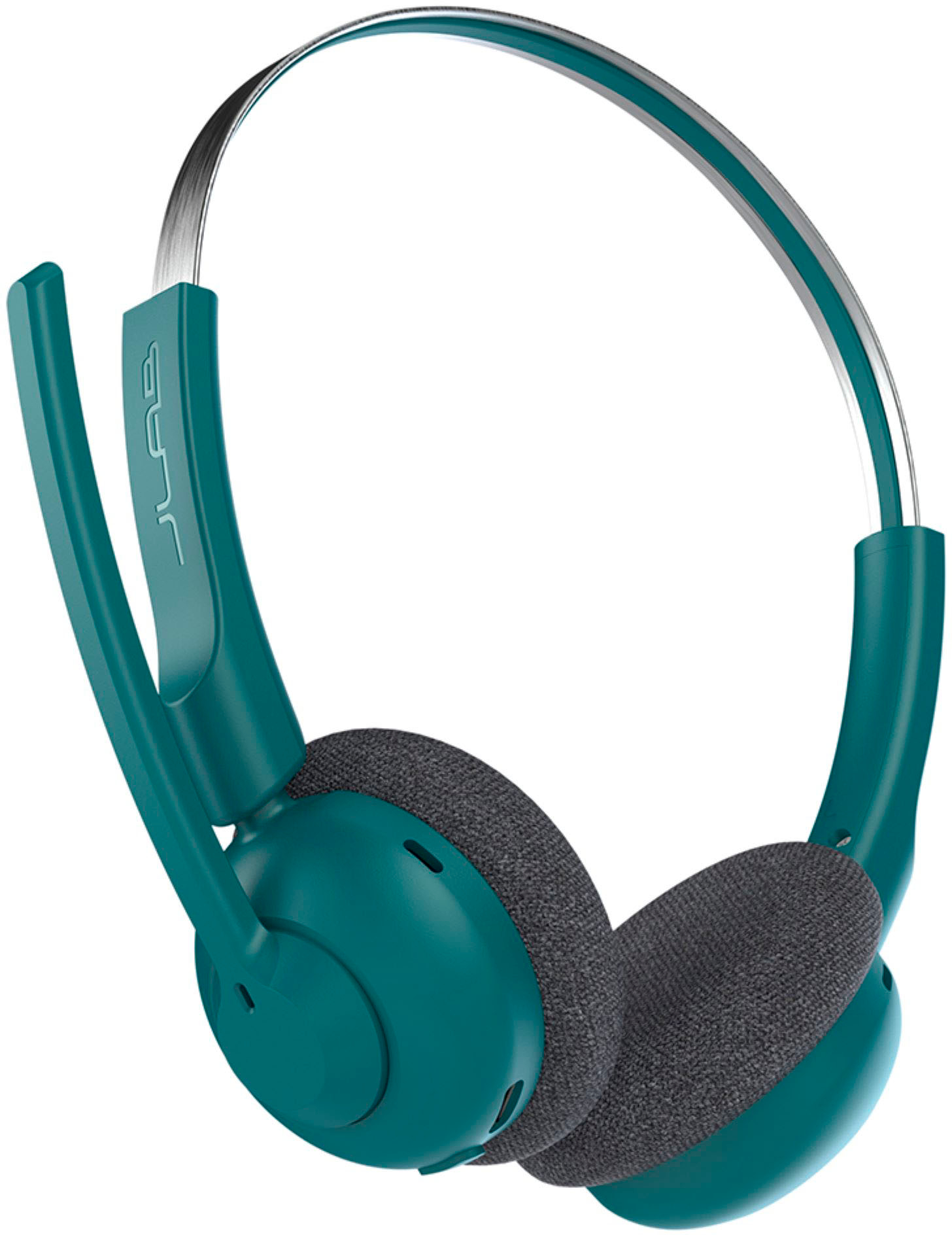
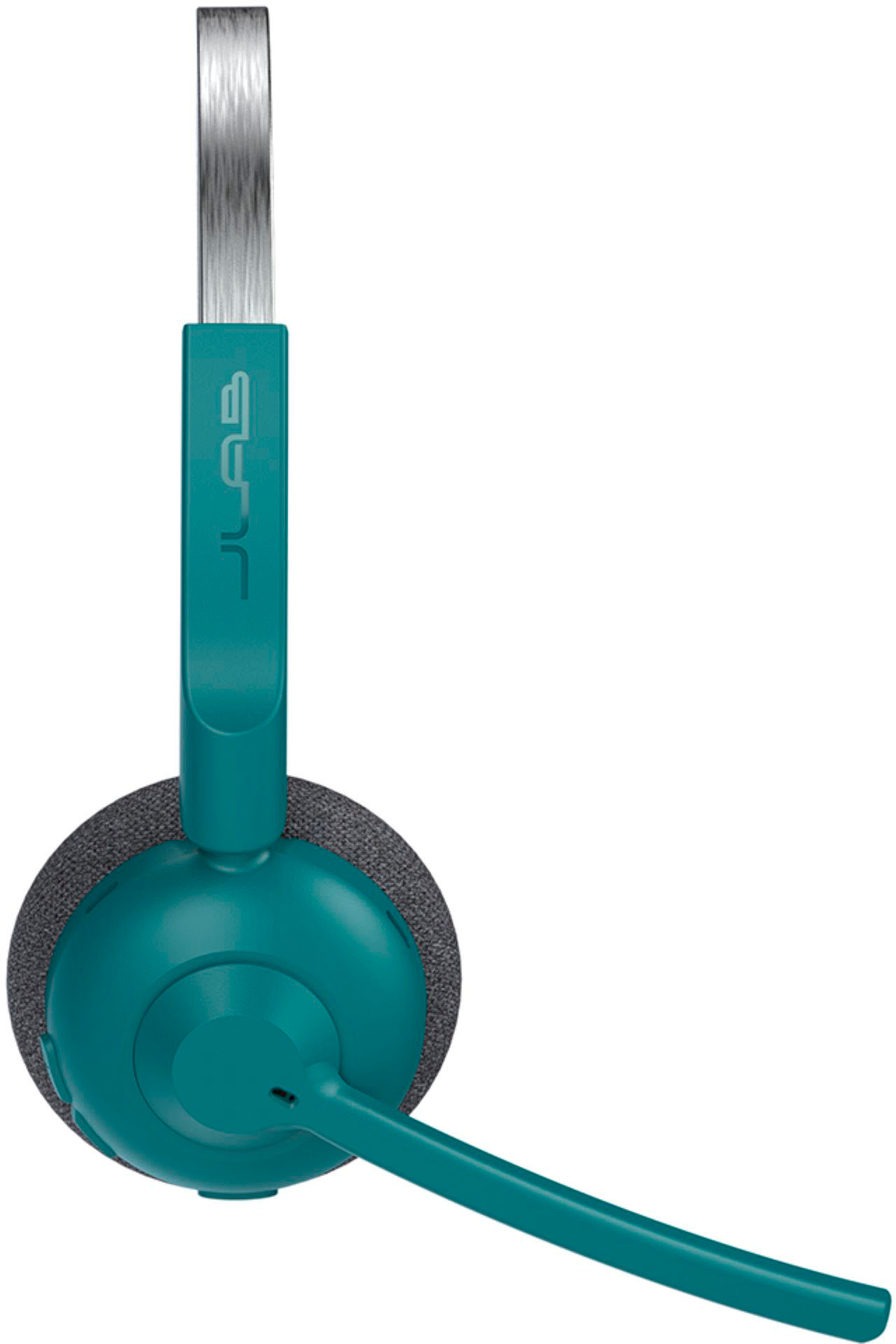
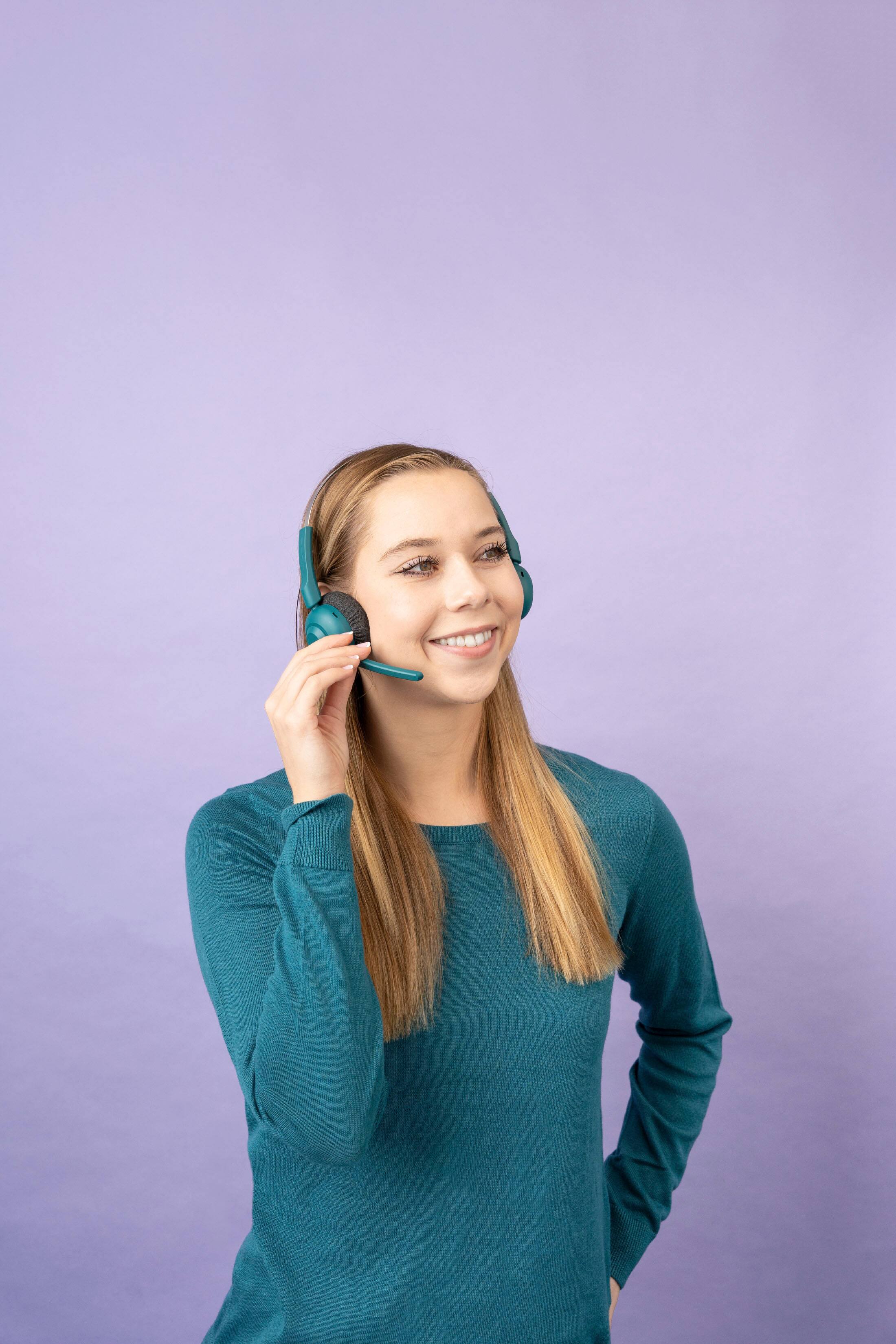
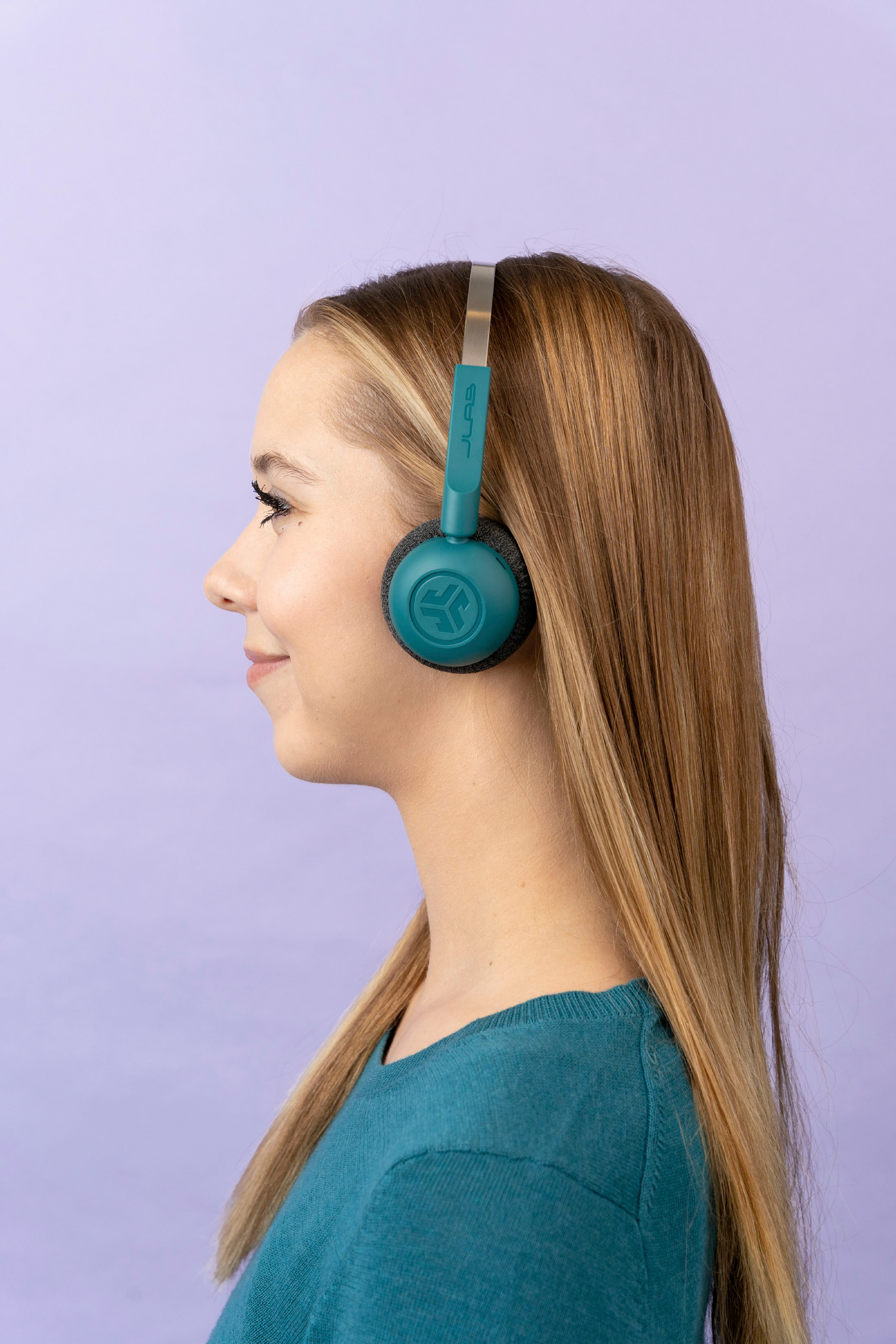
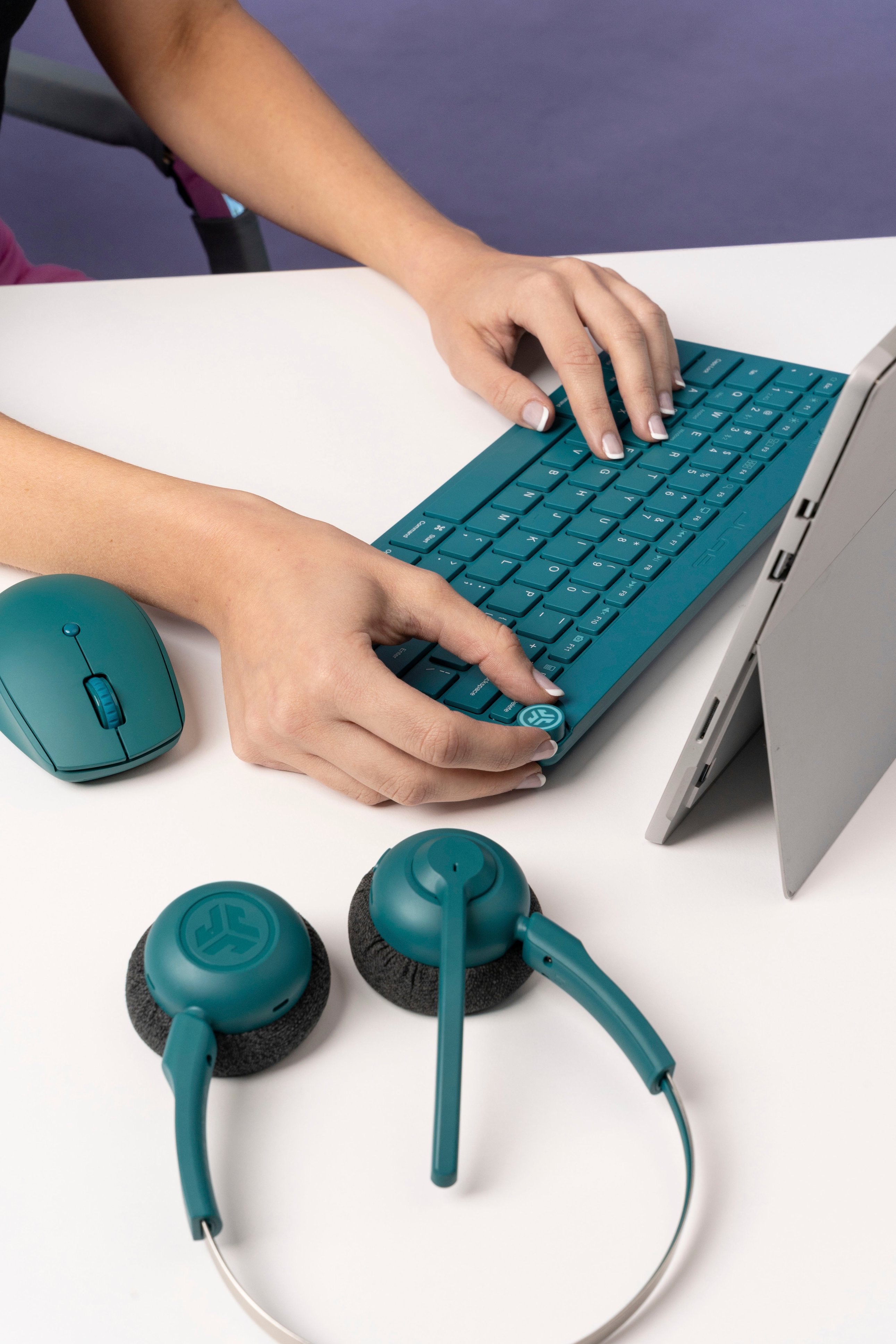
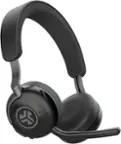
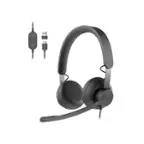
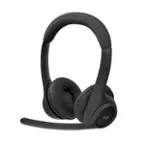
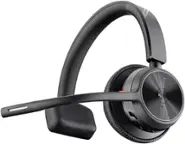
A:AnswerWhile JLab doesn't explicitly list Cisco Jabber compatibility for the GO Work Pop Wireless headset, there's a good chance it could work. Here's why:
Reasons for potential compatibility:
Bluetooth Connectivity: The GO Work Pop Wireless connects via Bluetooth, which is widely supported by softphones like Cisco Jabber.
Microphone and Audio Playback: JLab headsets generally boast clear microphones and decent audio quality, essential for softphone calls.
User Reports: Some online reports indicate successful use of the GO Work Pop Wireless with Cisco Jabber, though experiences may vary.
A:AnswerHi,
Yes, you can connect to your iPhone for calls and videochat as well. You can use either earbud independently or use both together as each bud has its own microphone!
A:AnswerThis headset is Bluetooth only. Cannot be connected using USB cable. The USB-mini cable that comes with the headset is. Charging cable only. It’s too short for any other use.
A:AnswerOur products are primarily designed for mobile devices, PCs, and Macs; therefore, you might encounter issues when connecting the buds to a Smart TV. They can connect to any device that supports Bluetooth. However, due to the vast number of Smart TVs available, we cannot guarantee compatibility with all models.
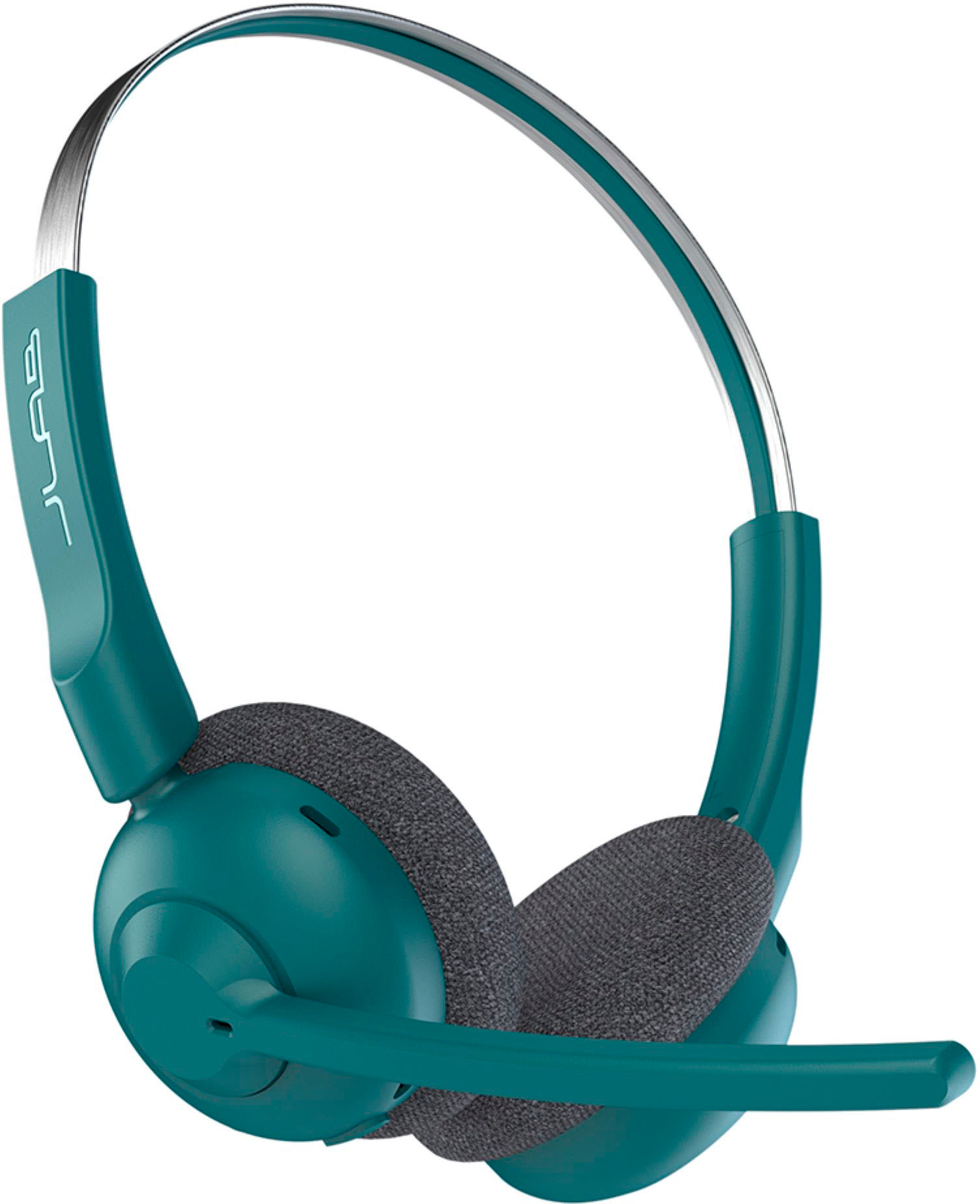
A:AnswerYes, the JLab GO Work Pop Wireless On-Ear Headset is designed to be used for both work calls on a PC or laptop and mobile phone calls. It features a noise-canceling MEMS microphone that filters out background noise to ensure your voice is clear during calls.
A:AnswerNo. At least that I’ve been able to determine and haven’t seen much on them other than how to connect them with Bluetooth.
If using a third party audio booster/equalizer, you may be able to use that to adjust individual L/R channel volume levels.
Hope this is of some help.
I bought two headphones mostly for the long use time. When one is low on power, I switch tobthe other headset. The low powered one is then fully charged again before the one currently in use is low on piwere and I repeat the swith when it is low on piwr. Am always able to continue listening to music or videos and live feeds with only a short interruption when swapping out headsets.
Haven’t used the boom mic yet. Don’t do much if any dictation or audio notes on even any video chats as yetto see how well they work.
A:AnswerIf wanting to mute what you are listening to, the same button used to turn the headset on can be used to mute the audio. If listening to music it stops the playback on the music app in use. Same for muting video…it stops playback of the video, more or less merely pausing video, or music play.
It also answers and disconnects phone calls using short oresses of the On/Off button.
A:AnswerIf your Gen 5 iPad has Bluetooth capability, which I’m sure it has; if you can use ear pods or the Airpods with your iPad, you should have no problems using this headset. Just connect it to Bluetooth and select it as your speaker output and microphone input and enjoy.