A:AnswerWe recommend you start with the game software publisher and check their minimum/recommended requirements for playing there game, then compare those requirements to this system's configuration.
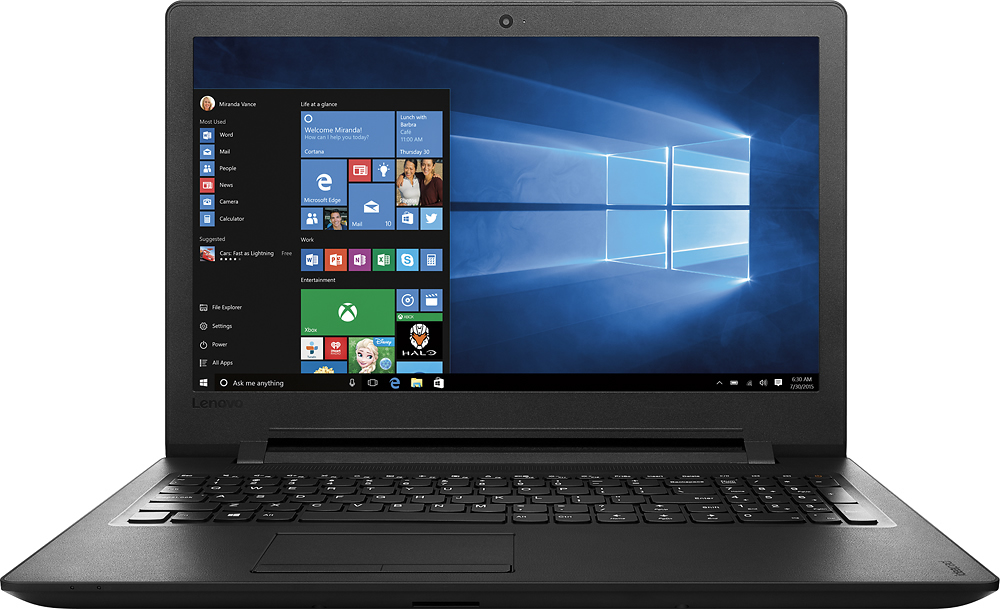
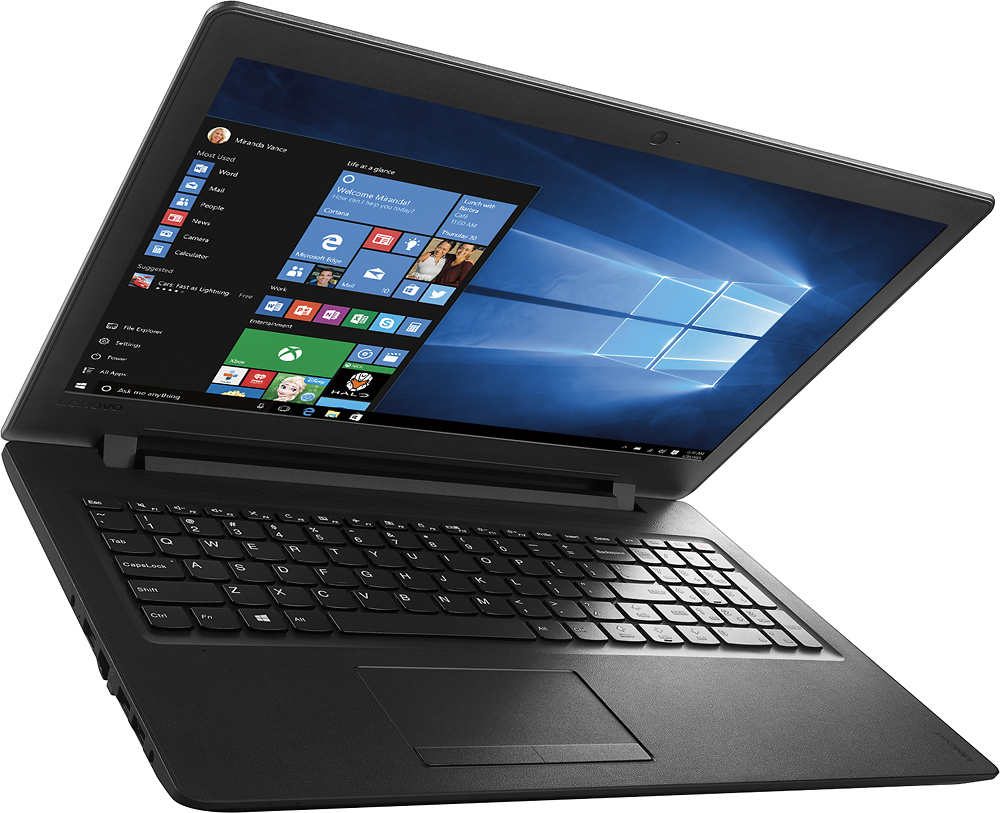
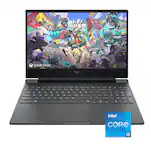
A:AnswerThis system uses an Intel Celeron Processor. The RAM on this system is 4GB. The hard drive is 500GB. The diagonal viewing size of the screen is 15.6".
A:AnswerWe recommend you contact the game's publisher for their minimum/recommended requirements to play their game, then compare those requirements to this system's configuration.
A:AnswerThis system is equipped with OneKey Recovery System. The "Novo Button" is located on the left side of the device, near the HDMI port. It is a very small pin hole. You will need a straight pin or paperclip to push the button. Plug your system in. Let the battery charge for a short time. Then push the Novo Button with a straight pin. This will boot the system to a screen where you can choose to "normal boot" to your desktop or restore to factory default settings. Try normal boot to desktop first. Turn off sleep mode for now. Create a restore point on your system before you make any changes or download new software. Then you can follow the link below to Lenovo.com support-drivers to look for BIOS updates for your specific system. If this is more than you want to get in to yourself, contact the Best Buy Store nearest you and make an appointment with the Geek Squad. They can do this for you for a fee. Here is the link to the driver update page:
http://support.lenovo.com/us/en/products/Laptops-and-netbooks/100-series/110-15IBR/80T7/000HUS?linkTrack=GPS%253ABody_Search%2BProducts&tabName=downloads&beta=false
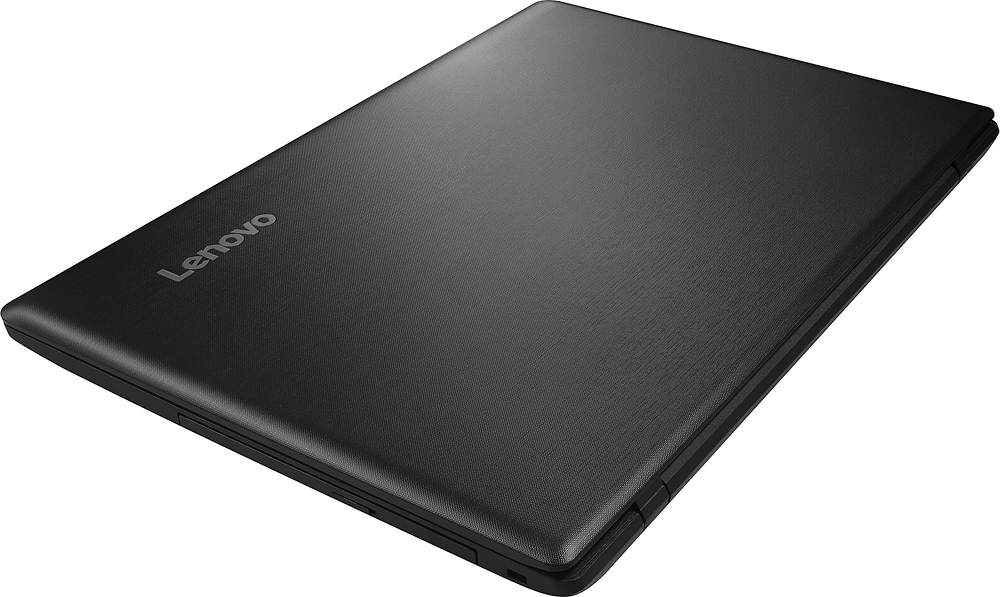
A:AnswerThis system does have a CD/DVD reader-writer. You can play music CDs and create CDs and DVDs. You will need to install additional software to play commercial DVD movies.