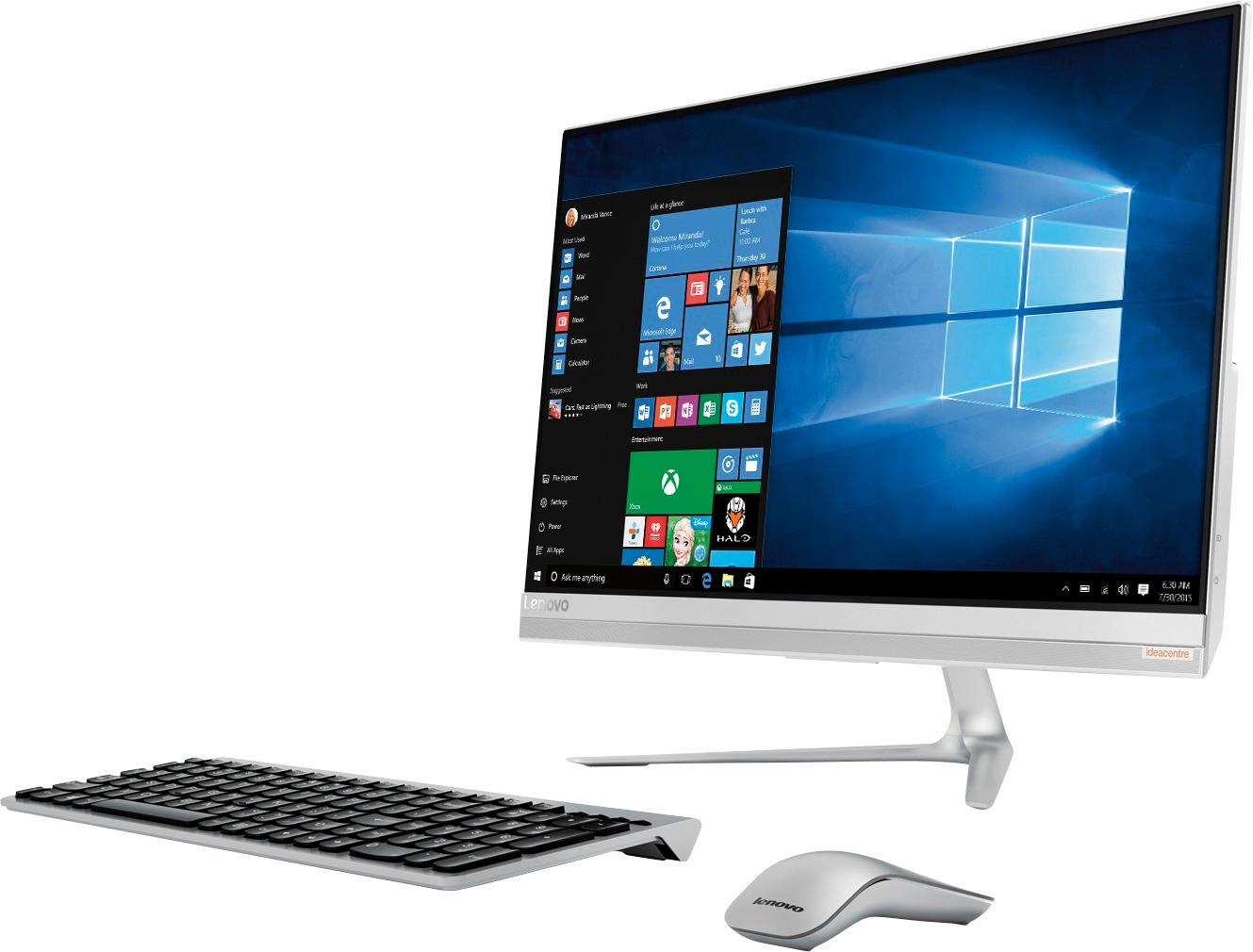
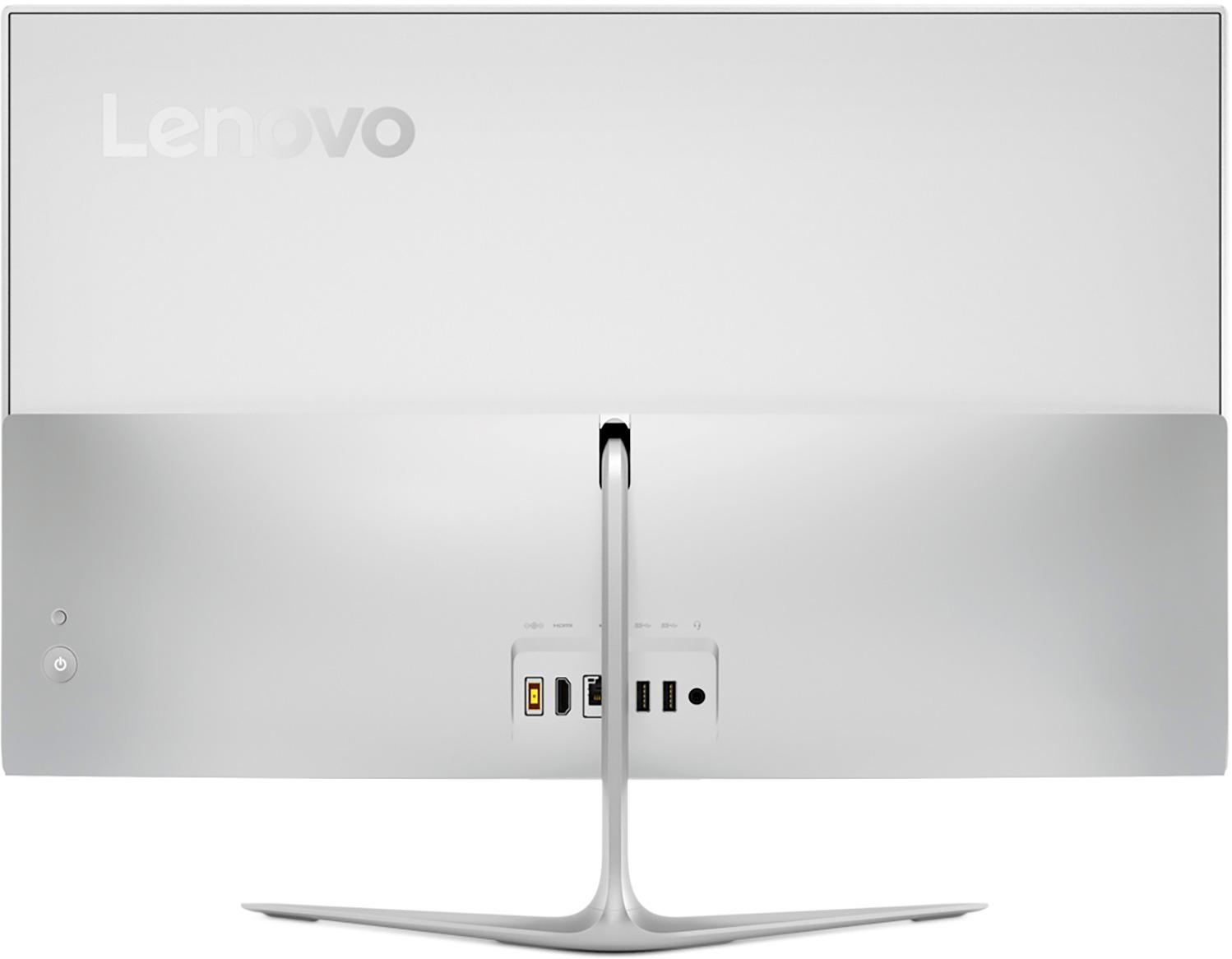
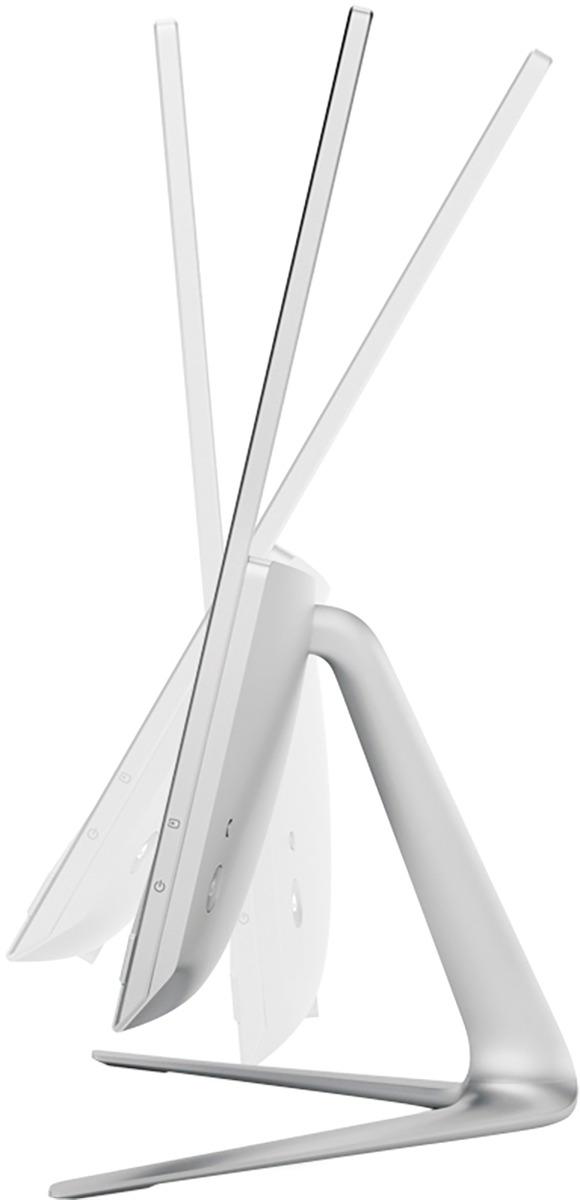
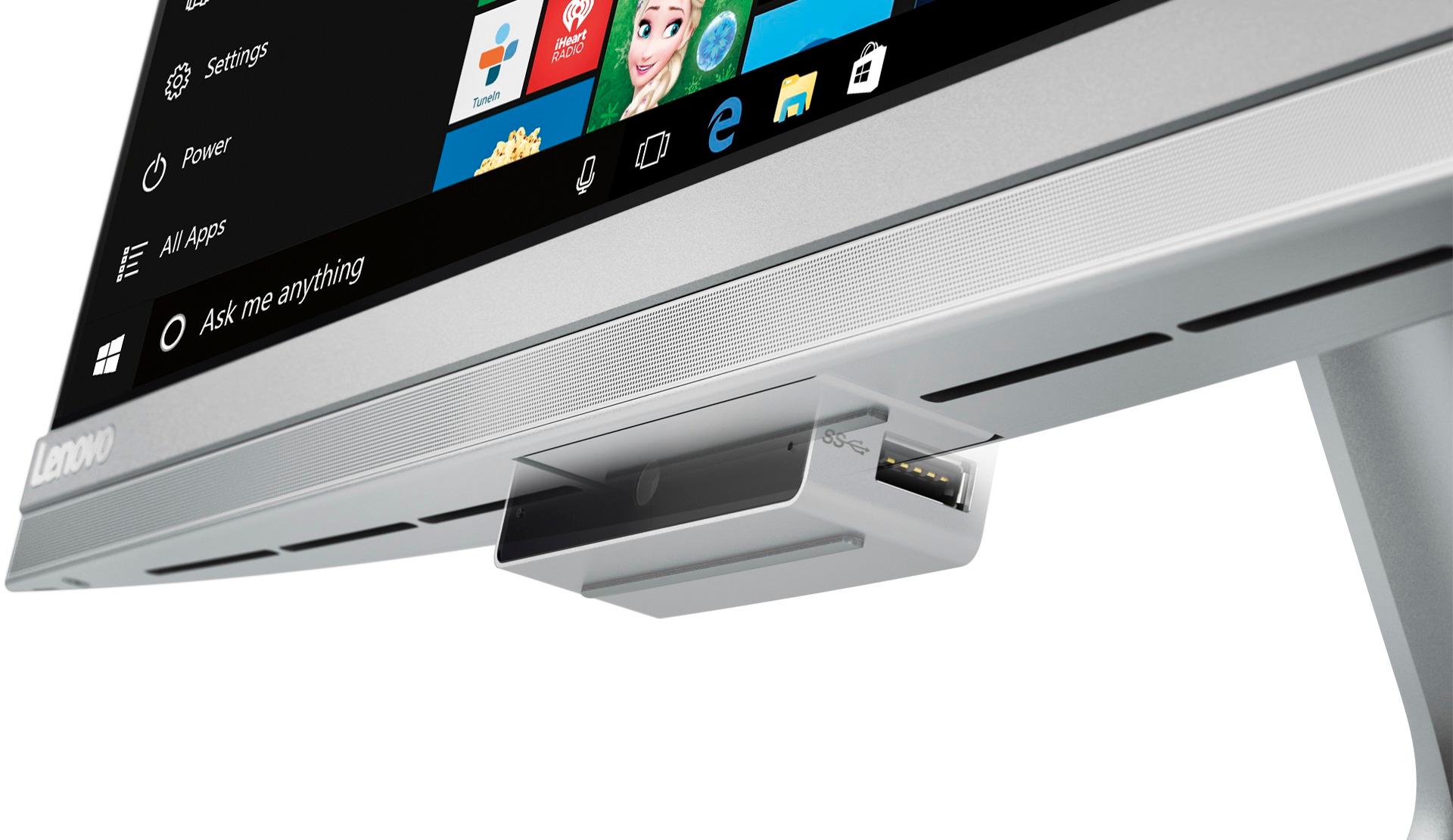
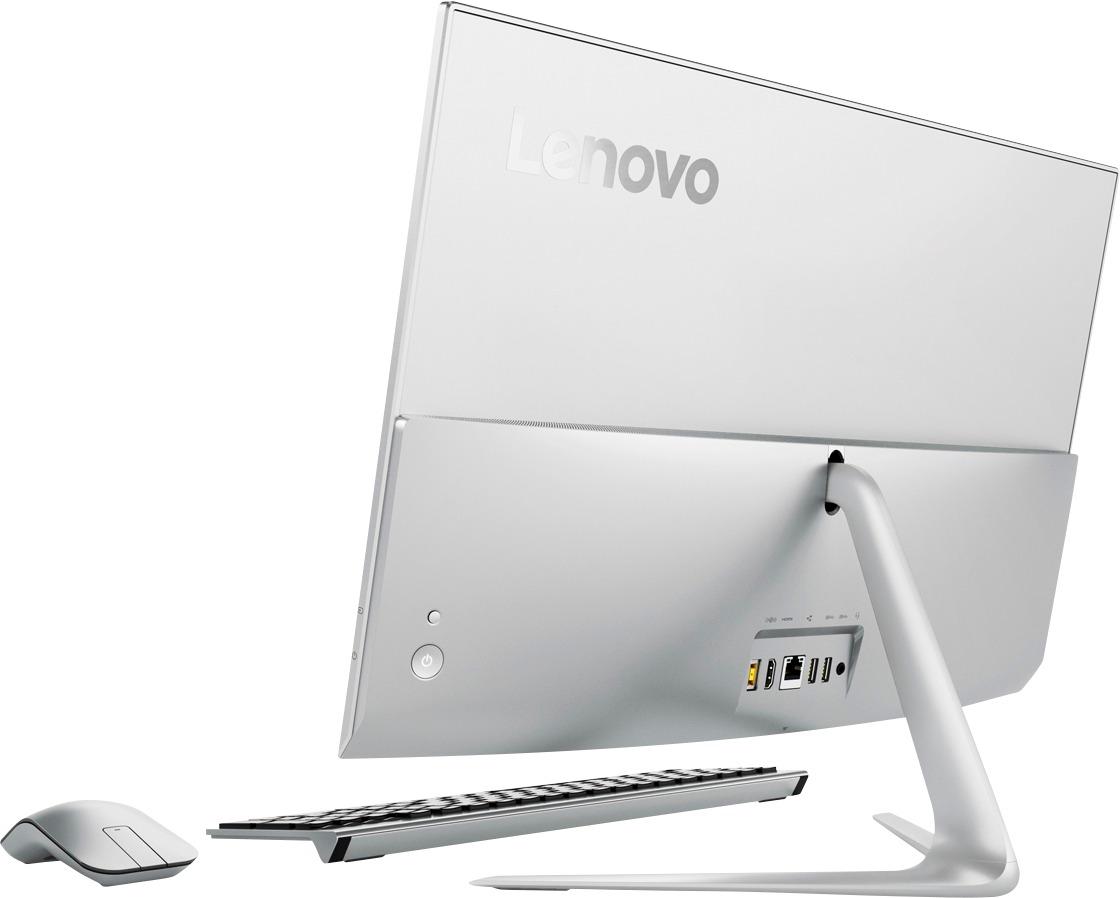
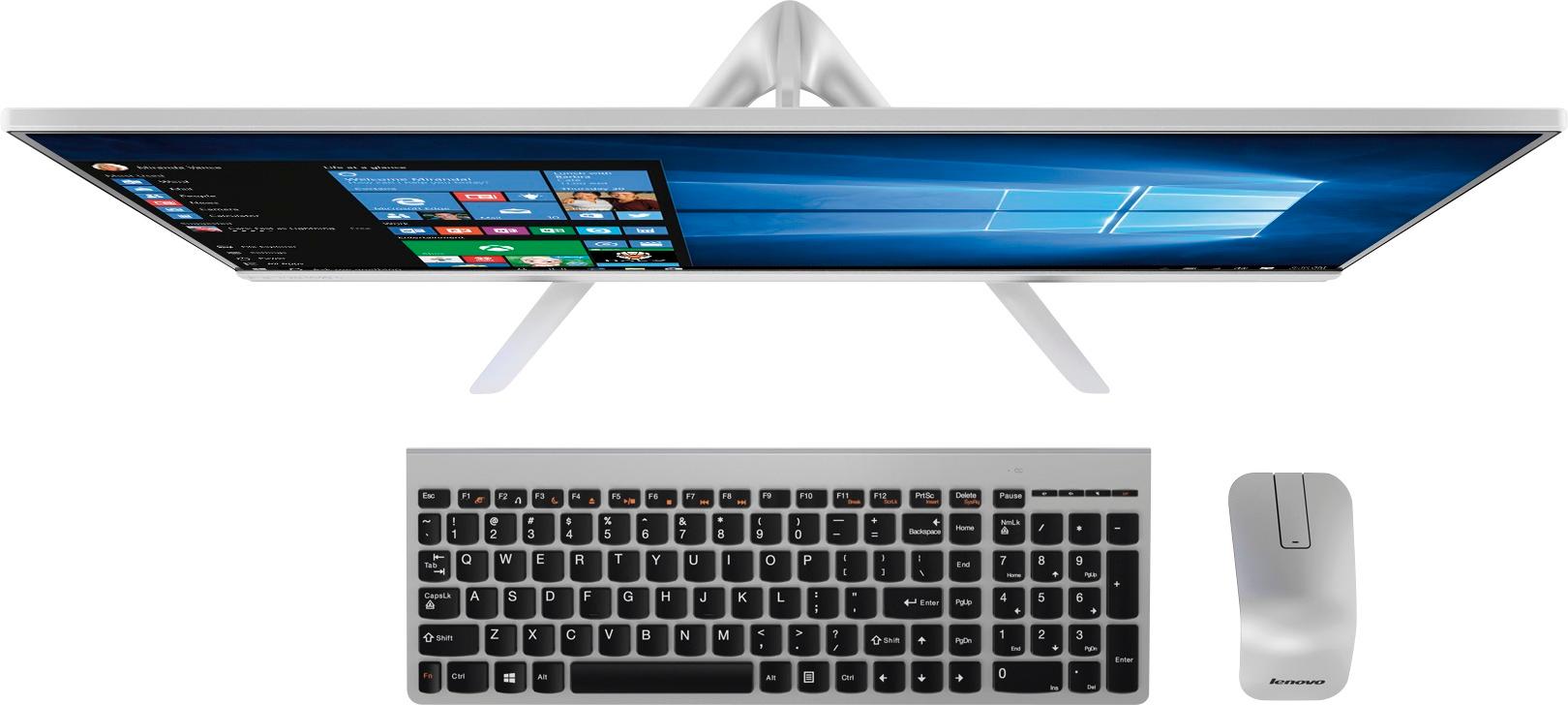
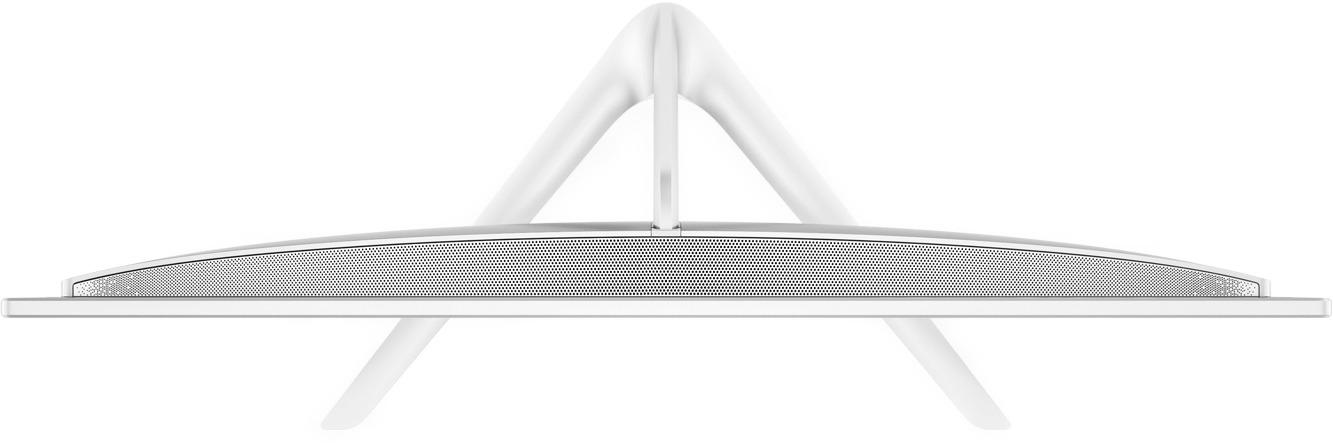
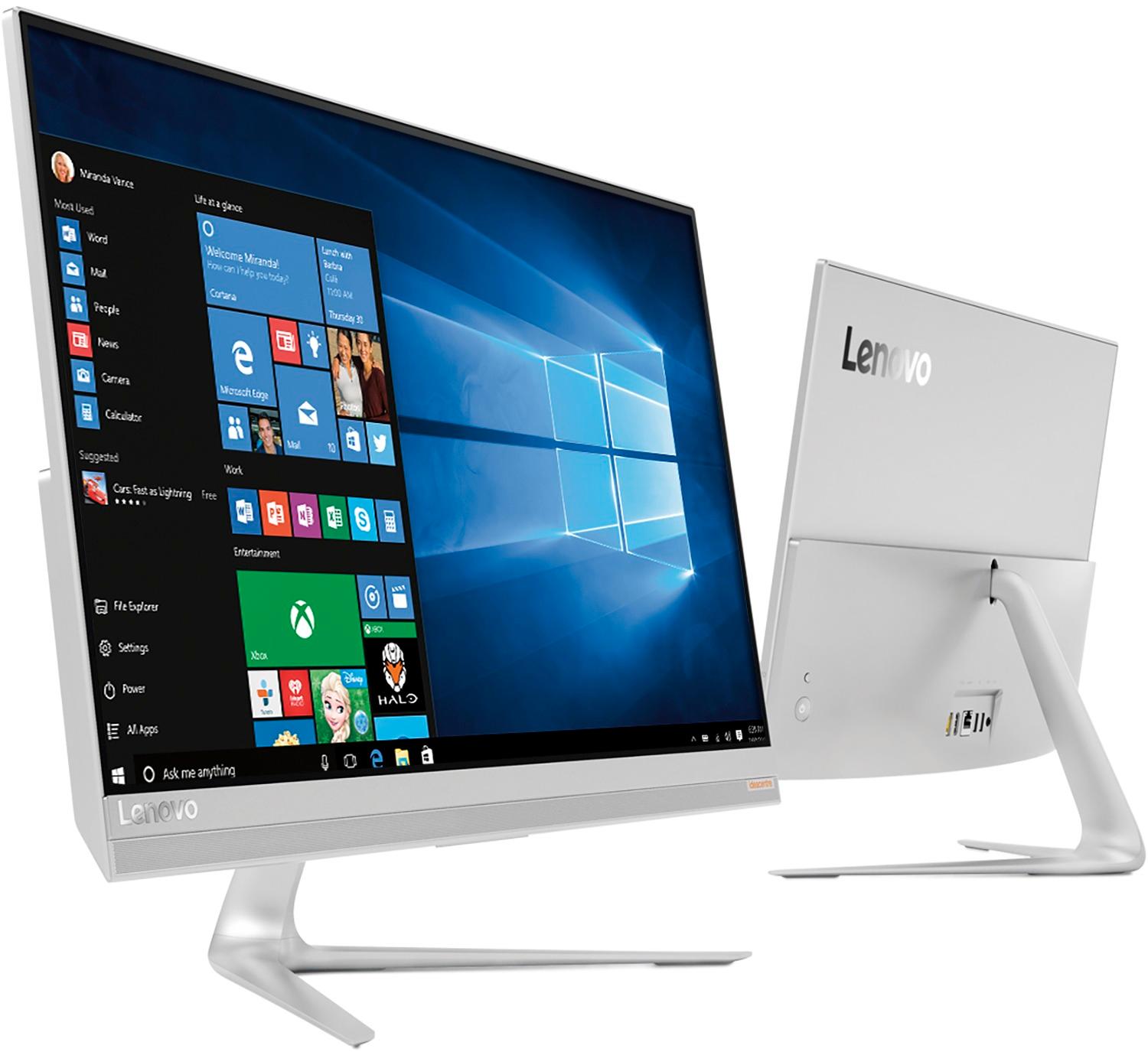
A:AnswerThere is an external CD/DVD drive included in the box. The connections are on the back. There are two additional USB ports on the dropdown web cam at the bottom of the screen.
A:AnswerAll documentation for this device is now online. Here is the link: http://pcsupport.lenovo.com/us/en/products/desktops-and-all-in-ones/500-series/aio-520s-23iku/f0cu/f0cu0022us/documentation
A:AnswerYou will be able to select how the external monitor will function. Open the "display settings" in your computer and activate output to the external monitor. You can either mirror content of your computer on the external monitor or extend the display just like a dual monitor screen.
A:AnswerIt really depends on the requirements of the software. We recommend you check with the software publisher's web site for their compatibility with Windows 10 Home 64-bit operating system and the minimum/recommended hardware requirements (Is a Graphics card required, the processor speed and the minimum required system RAM and the minimum available hard drive space) to run their program, then compare those requirements to this system's configuration.
A:AnswerThe mouse will work while the touchscreen is working. You can only use one or the other at a time. This device will work with any printer that is compatible with Windows 10. We recommend you contact the printer manufacturer for compatibility with Windows 10 and the availability of drivers to download.
A:AnswerNo, There is a 30-day trial of Microsoft Office 365 included as part of the Windows 10 operating system. In order to keep the program active after the trial period, you will need to use the product key for the software your company gives you. You will not need to download any additional software.
A:AnswerThis model is not user upgradable. A certified technician must do all of the work, so as to not void the warranty. Your certified technician can replace the existing hard drive with a compatible replacement. Check with your certified technician for options.
A:AnswerThat really will depend on the software you will be using and its specific requirements and compatibility. We recommend you check with the software publisher's web site for their compatibility with Windows 10 Home 64-bit operating system and the minimum/recommended hardware requirements (Is a Graphics card required, the processor speed and the minimum required system RAM and the minimum available hard drive space) to run their program, then compare those requirements to this system's configuration.