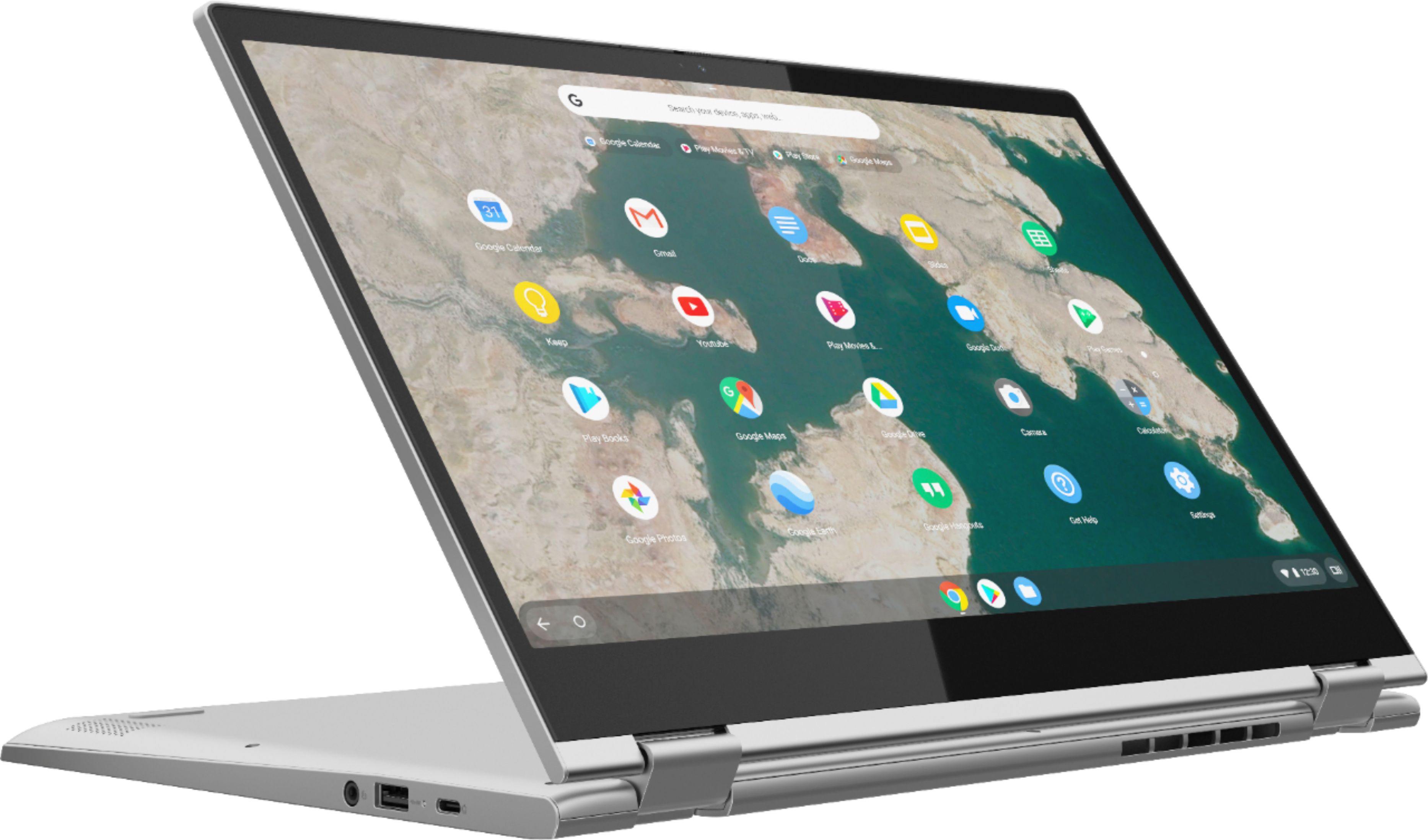
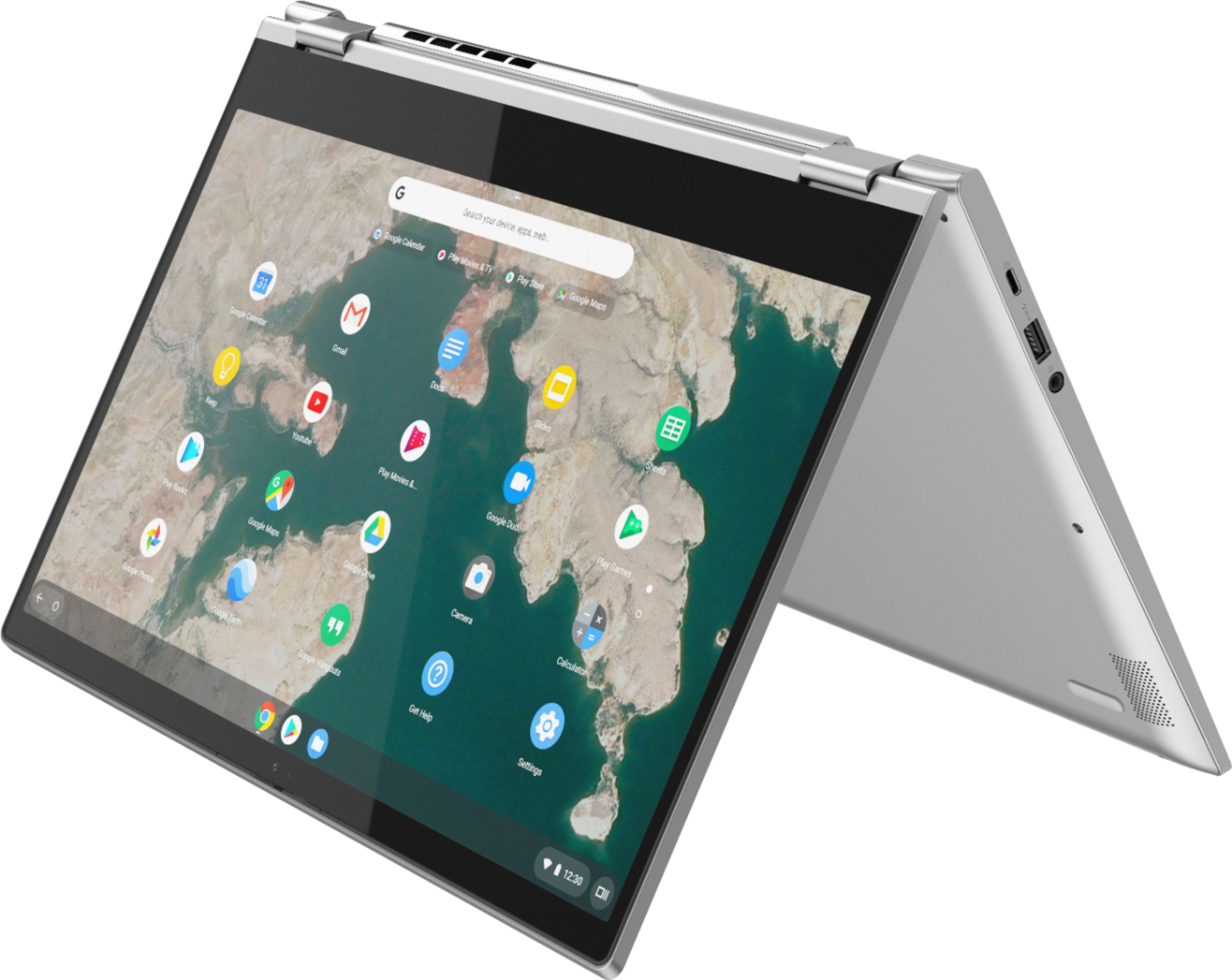
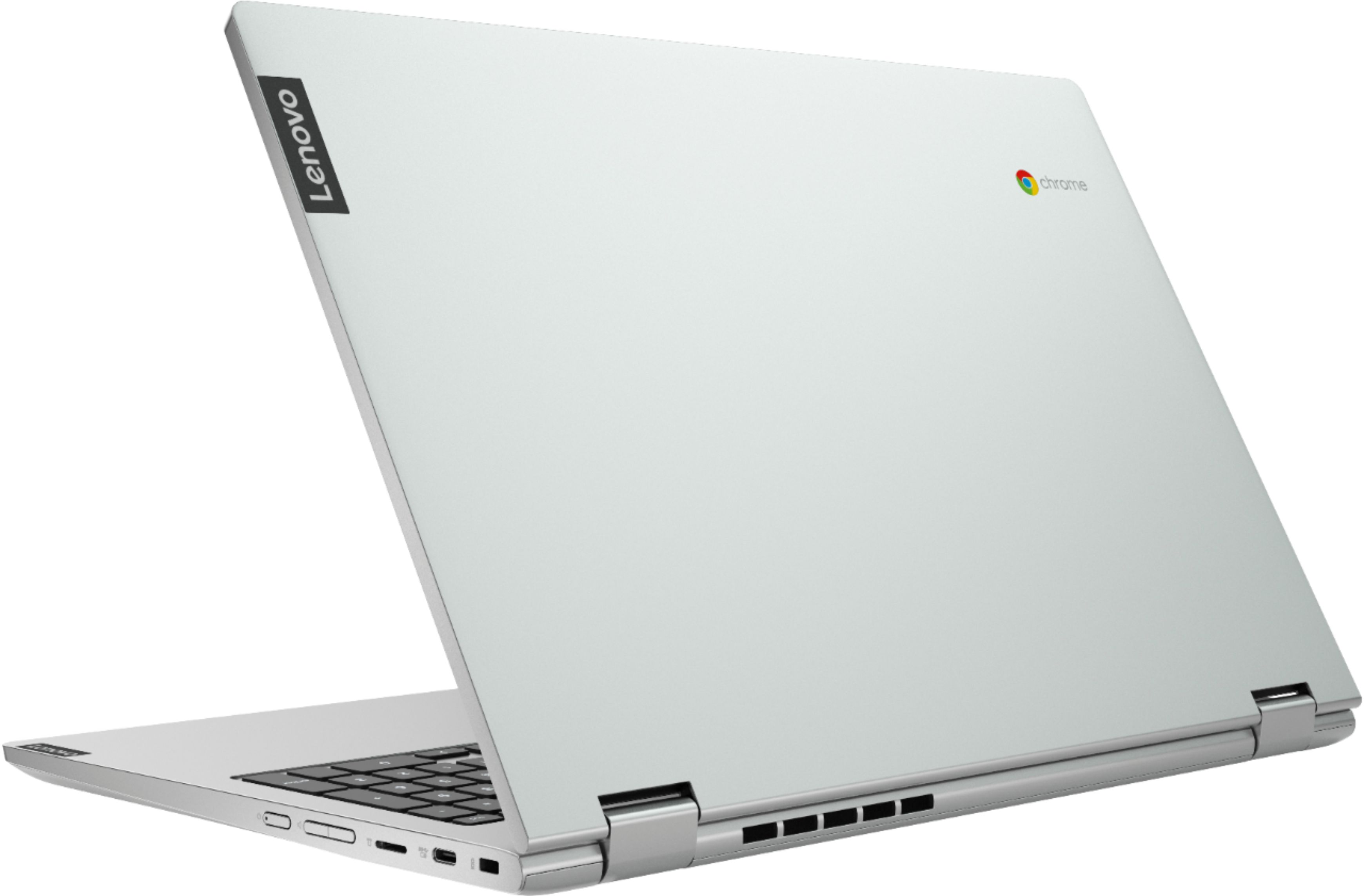
A:AnswerThat really will depend on the requirements and compatibility of the APP you want to run. The Lenovo CV340-15 Chromebook ships with the Chrome Operating System and is compatible with Google Play Store APPs. We recommend you check with the specific APPs software publisher's web site for their compatibility with the Chrome operating system and the minimum/recommended hardware requirements (Is a Graphics card required, the processor speed and the minimum required system RAM and the minimum available hard drive space) to run their program, then compare those requirements to this system's configuration.
A:AnswerThat will depend on the requirements and compatibility of the specific APP you want to run. The Lenovo CV340-15 Chromebook ships with the Chrome Operating System and is compatible with Google Play Store APPs. We recommend you check with the specific APPs software publisher's web site, of the APP you want to run, for their compatibility with the Chrome operating system and the minimum/recommended hardware requirements (Is a Graphics card required, the processor speed and the minimum required system RAM and the minimum available hard drive space) to run their program, then compare those requirements to this system's configuration.
A:AnswerHello Alan. Unfortunately, this model is not recommended for running Fortnite or similar games with high graphic profile. For most of the actual games is better to use devices with an 8th Generation Intel® Core™ i5 Processors or above and a dedicated graphics card. You can view an example that can work for you here: *** https://www.bestbuy.com/site/lenovo-15-6-laptop-intel-core-i5-8gb-memory-nvidia-geforce-gtx-1650-256gb-ssd-onyx-black/6406872.p?skuId=6406872.*** Thank you for choosing Intel.
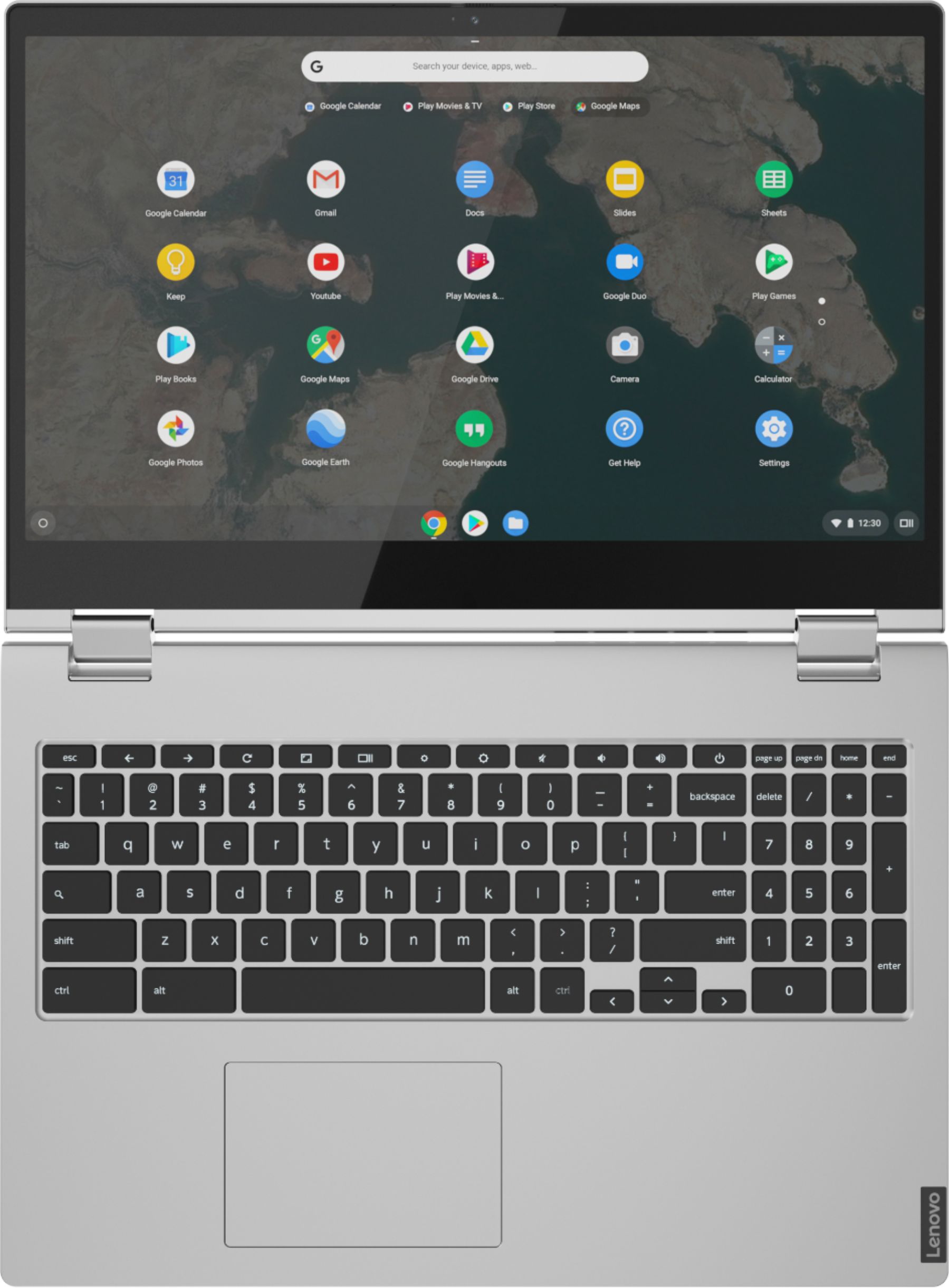
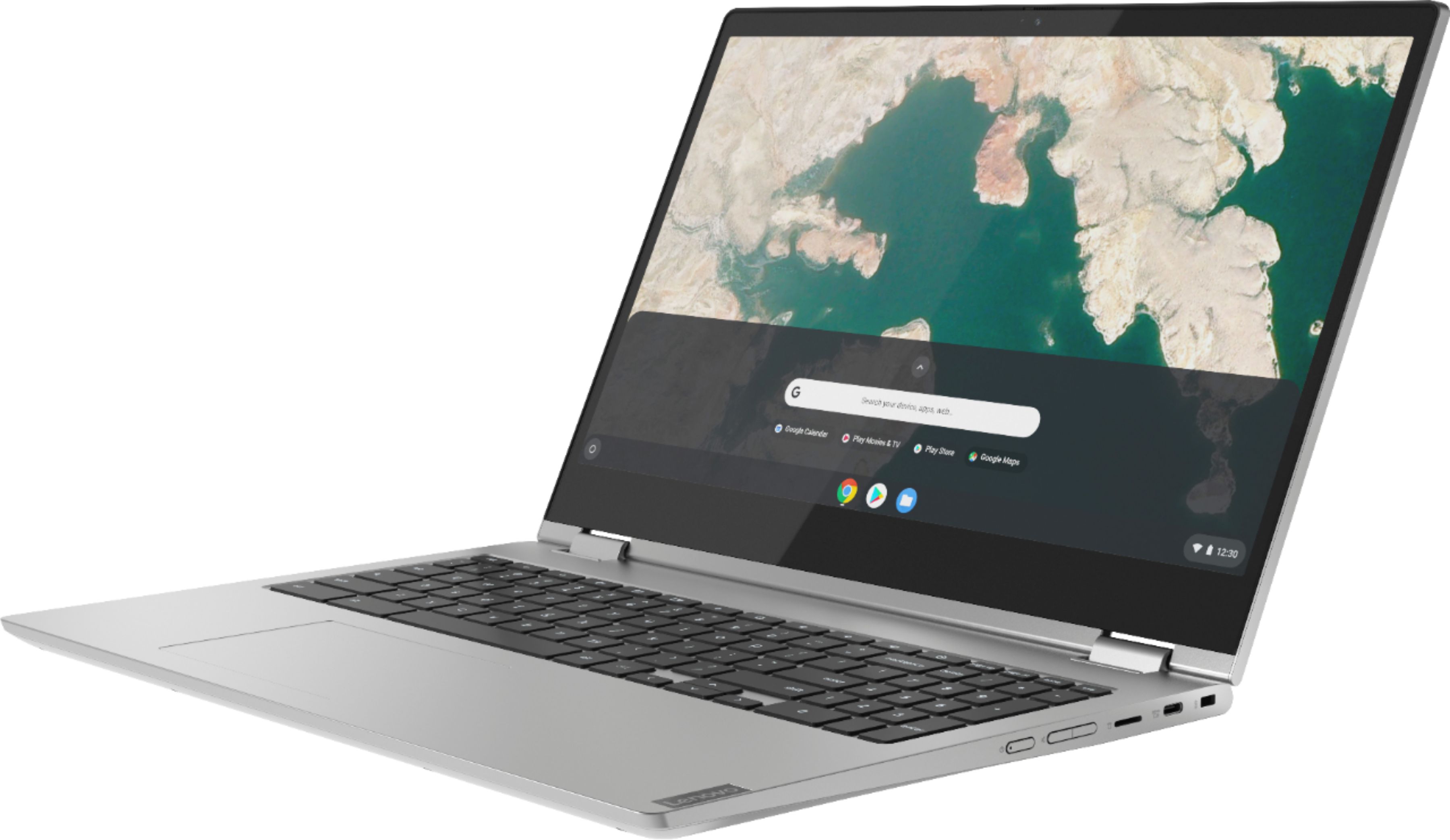
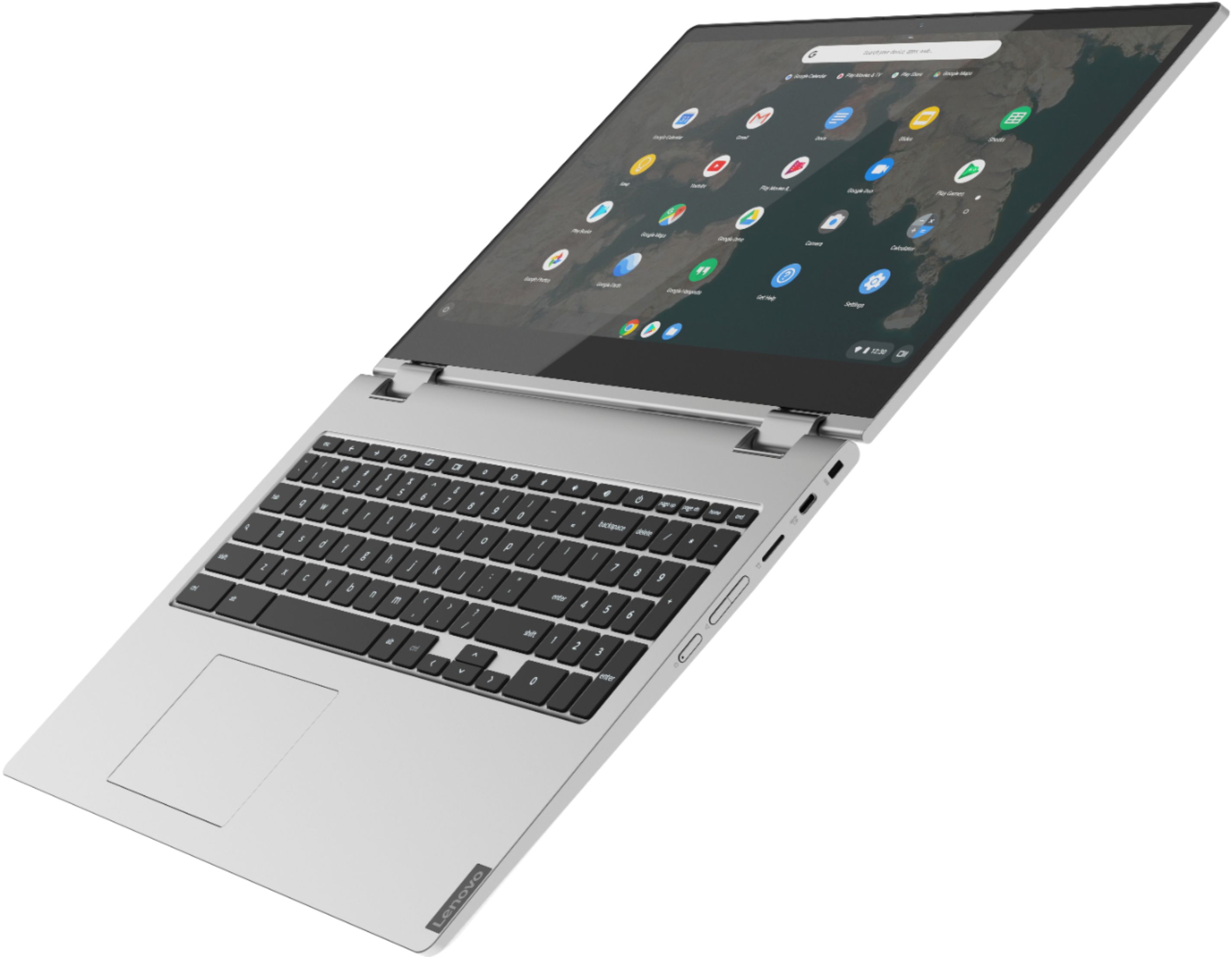
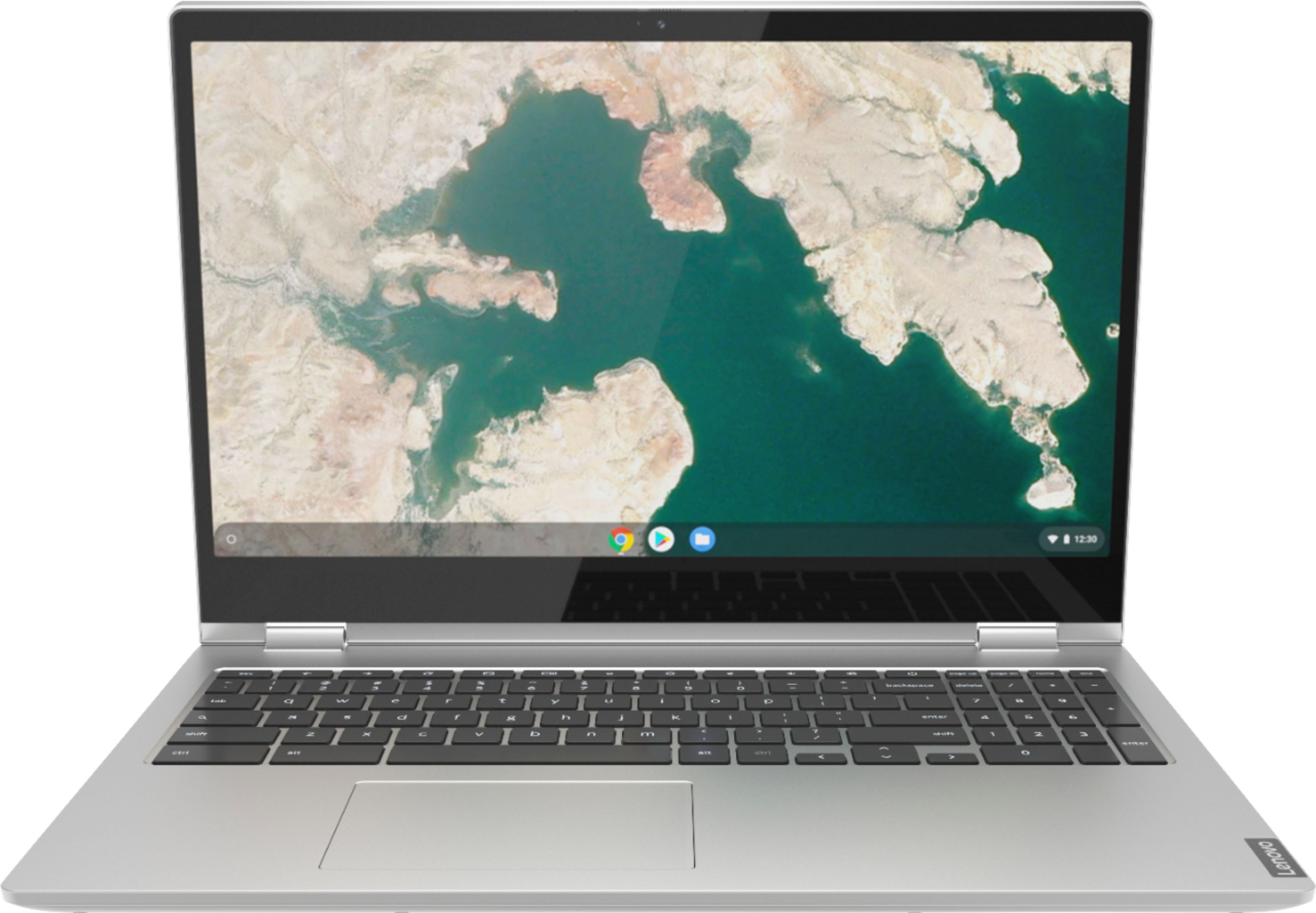
A:AnswerTypically, the trackpad is centered under the "G" and "H" keys. On this Chromebook there is also a 10-key number pad on the right of the main keyboard. That shifts the "G" and "H" to the left, as well as the track pad.
A:AnswerThe Lenovo C340-15 Chromebook ships with a 720p (HD) webcam with manual Privacy Shutter. If your webcam is not working, first, be sure the Privacy Shutter is completely open before trying to use the webcam or the webcam will not operate. There is a small slider, directly above the webcam lens. Move the tab to the right to open the Privacy Shutter. There is a red dot over the webcam lens that will disappear when the Privacy Shutter is fully open. This will indicate that the webcam is really to use. You can close the Privacy Shutter when you are done with the webcam for your security, by sliding the tab to the left to close the Privacy Shutter. The Red Dot will appear over the webcam lens when the Privacy Shutter is closed. If the issue continues, we recommend you call Lenovo Tech Support for Chromebooks at: 800-426-7378.
A:AnswerLook to the web page chromebook unboxed. The folks who review chromebooms are sure to have an answer. I am surprised the Geek squad was of no help. As well as the other sales people on the floor.
A:AnswerHere is a link to instructions for increasing the font size on a Chromebook: https://www.howtogeek.com/288986/how-to-increase-the-size-of-text-on-a-chromebook/