A:AnswerThat will depend on the APPs you will be using. The Lenovo S345-14 Chromebook ships with the Chrome Operating System and is compatible with Google Play Store APPs. We recommend you check with the specific APPs software publisher's web site for their compatibility with the Chrome operating system and the minimum/recommended hardware requirements (Is a Graphics card required, the processor speed and the minimum required system RAM and the minimum available hard drive space) to run their program, then compare those requirements to this system's configuration.
A:AnswerYou can use any wired or wireless printer that is compatible with the Chrome Operating System, with the Lenovo S345-14 Chromebook. We recommend you check with your printer's manufacturer website for the compatibility of your specific model and the pairing instructions for pairing your specific printer model to a new Chromebook.
A:AnswerWe recommend you find out what software you will need to use to do your work from home first. Find out what computer Operating System your work software will require. This Lenovo S345-14, model number 81WX0000UX, is a Chromebook. It uses the Chrome Operating System and is compatible with Google Play Store APPs. We recommend you first check with your work management to confirm the Operating System your work uses. Then be sure the computer you select is compatible with the Operating System your workplace uses and that the specific configuration of the computer you select can support the software you will need to use to do your work. Your workplace management should be able to give you general guidelines for selecting a work from home computer.
A:AnswerThat will depend on the requirements and compatibility of the device you want to connect to the Lenovo S345-14 Chromebook. This Chromebook ships with the Chrome Operating System and is compatible with Google Play Store APPs. We recommend you check with the hardware manufacturer's web site for their compatibility with the Chrome operating system and the minimum/recommended hardware requirements (Is a Graphics card required, the processor speed and the minimum required system RAM and the minimum available hard drive space) to run their program, then compare those requirements to this system's configuration.
A:AnswerIf your touchscreen isn't working on your Chromebook, try these steps. ... Wipe off any dust or dirt on your touchscreen. Reset your Chromebook hardware. Reset your Chromebook to factory settings. Here is a link to instructions for resetting your Chromebook: https://support.google.com/chromebook/answer/183084?hl=en. If the issue continues, we recommend you contact Lenovo Tech Support for Chromebooks at: 800-426-7378.
A:AnswerThe Lenovo S345-14 is a Chromebook. It uses Google Docs for office type programs. Google Docs is completely compatible with Microsoft Office Programs and this is a free service through the Google Server. If you must have the actual Microsoft Office Programs, you can purchase Microsoft Office 365 for this Chromebook at the Google Play Store.
A:AnswerYou can use a compatible USB-based external hard drive with the Lenovo S345-14 Chromebook to move files from this device. There is also a MicroSD card slot within the S345-14 Chromebook for removable storage use. As long as the photo file format is compatible with the Chrome Operating system, the external hard drives you use are formatted for the Chrome Operating System and the online websites you want to upload photos to are compatible with the Chrome Operating System, you will be able to move files to that location. The S340-14 Chromebook is compatible with Google Play Store APPs.
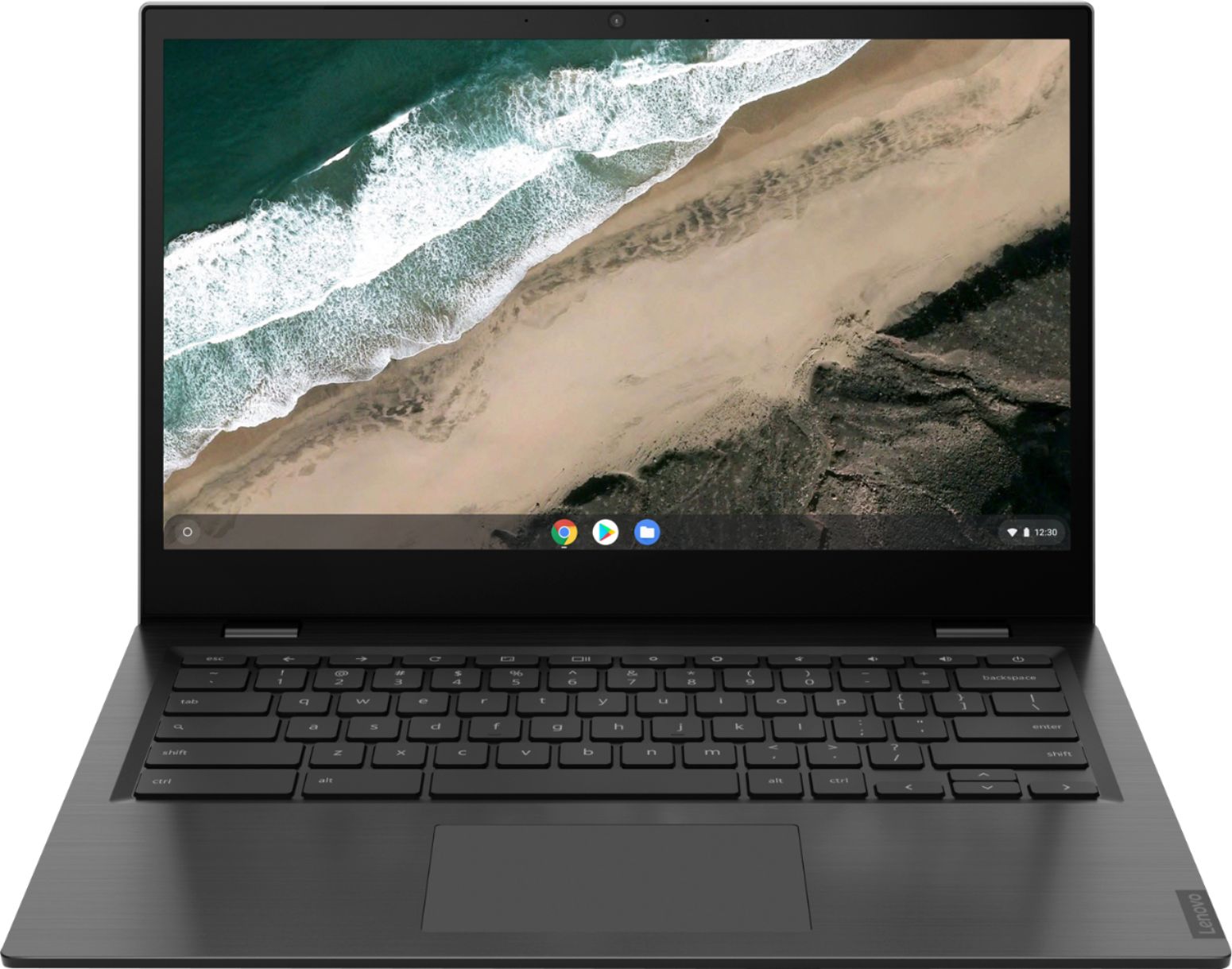
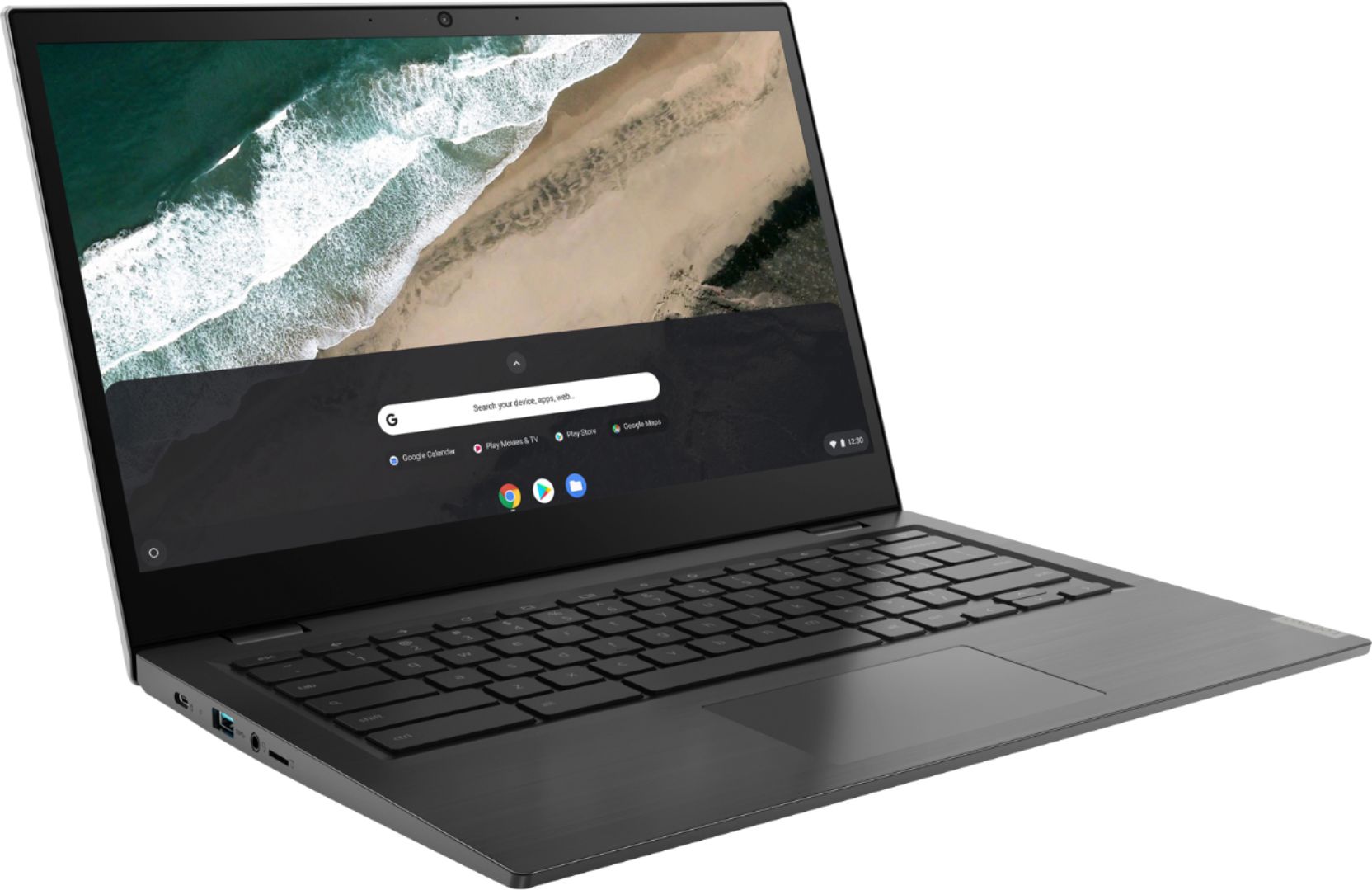
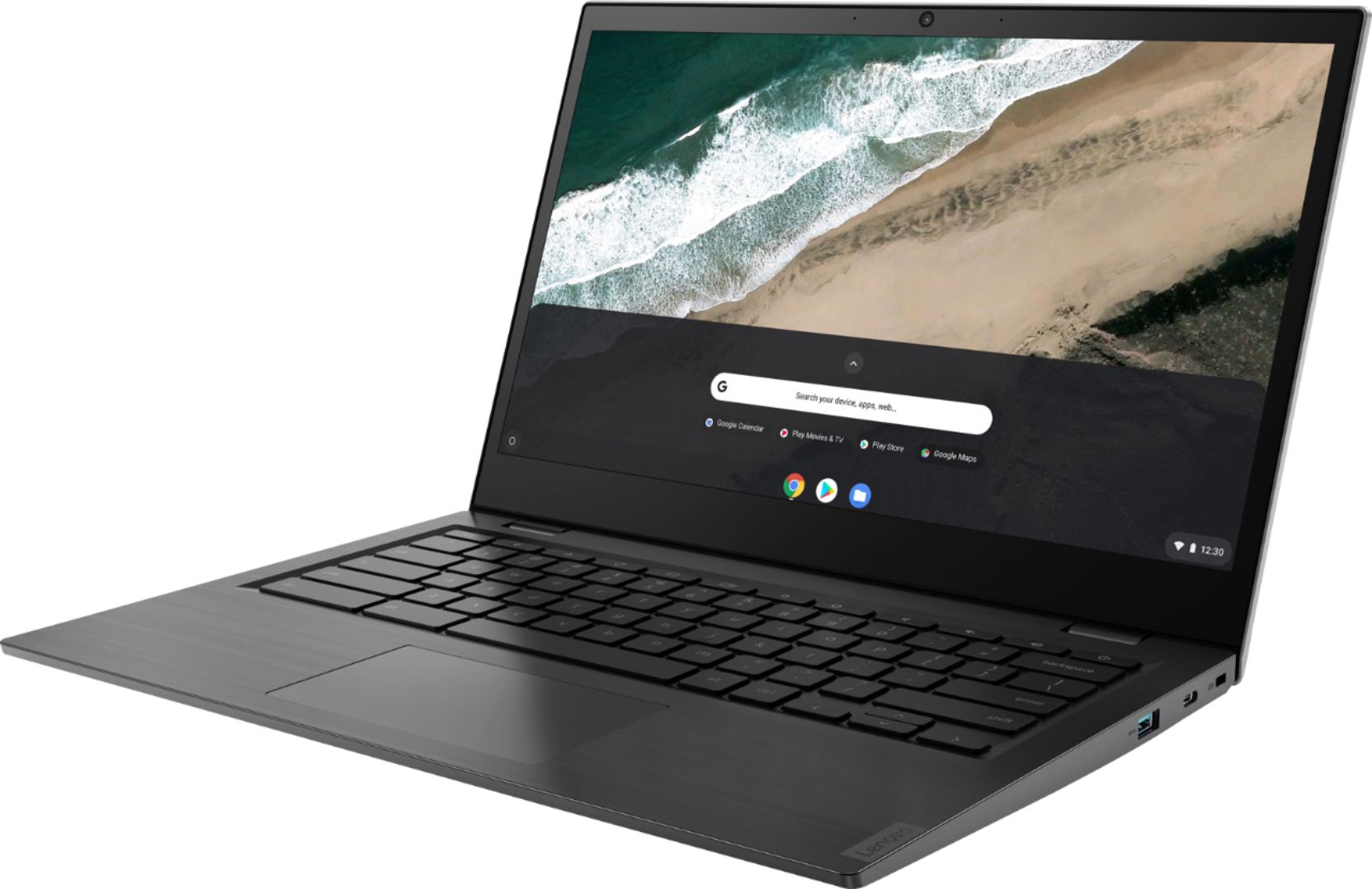
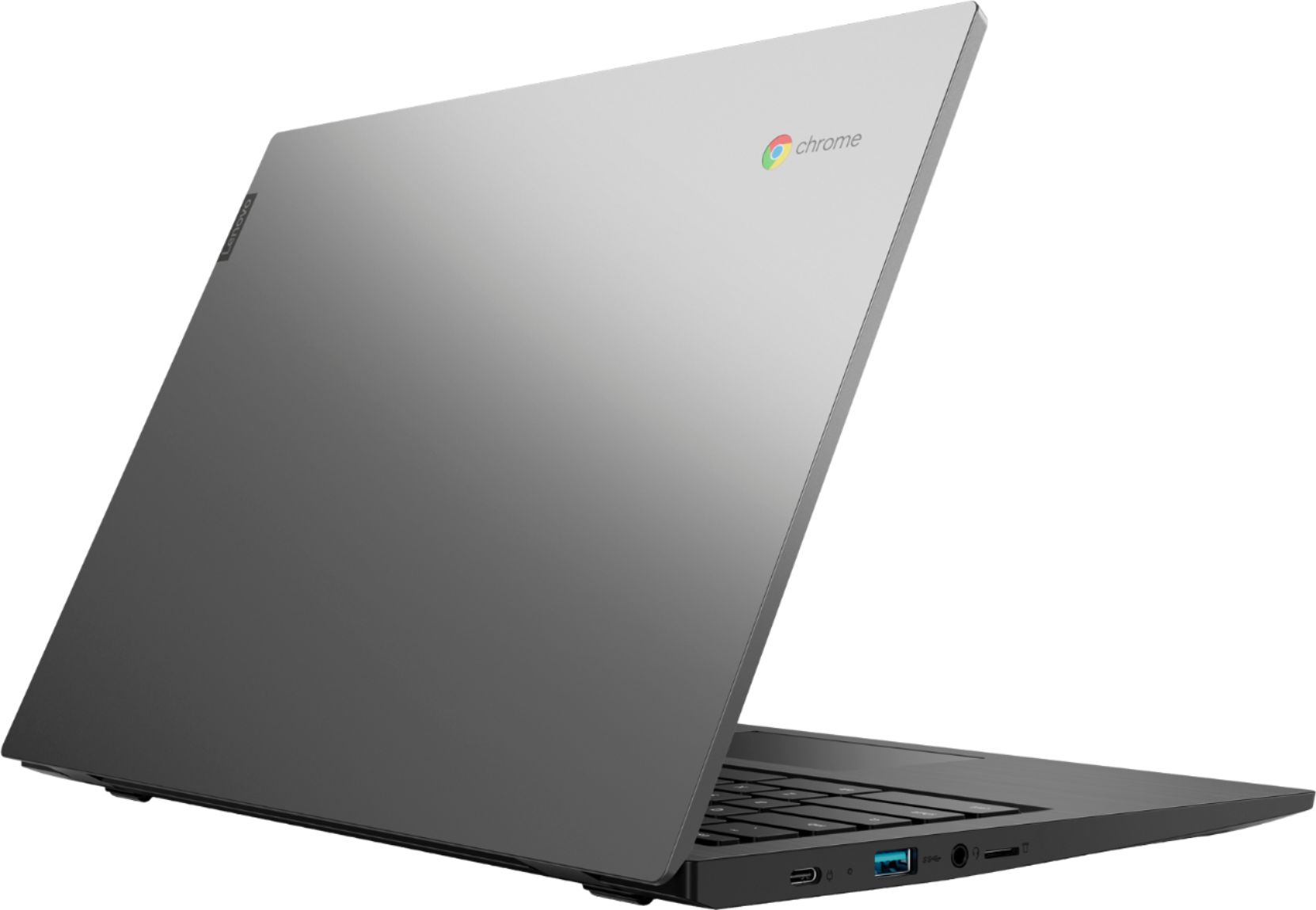
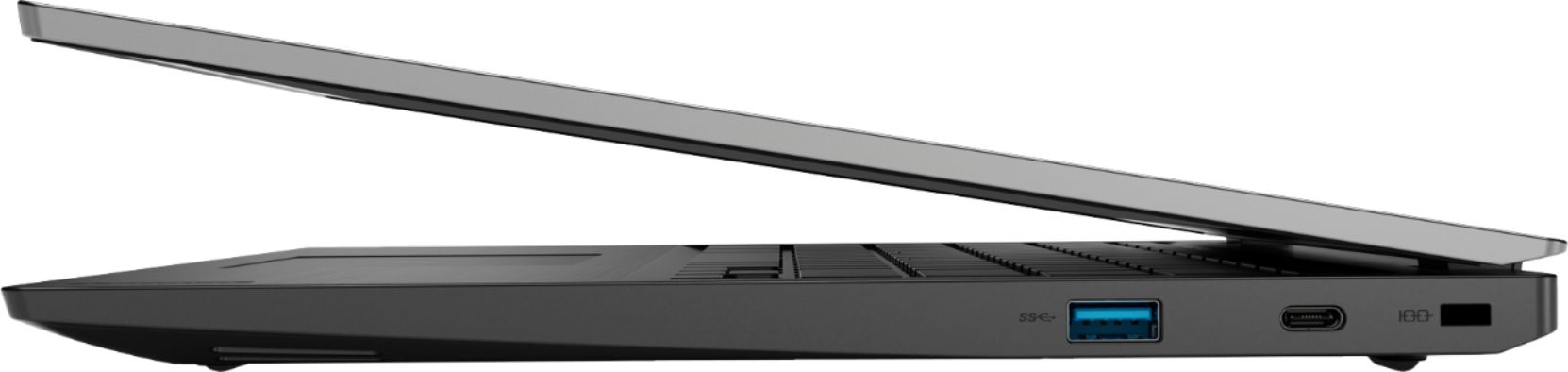
A:AnswerThe Lenovo S345-14 Chromebook, model number 81WX0000UX, ships with these ports: 2x USB-C 3.1 Gen 1 (support data transfer, Power Delivery and DisplayPort), 2x USB 3.1 Gen 1, 1x headphone / microphone combo jack (3.5mm), 1x microSD card reader.
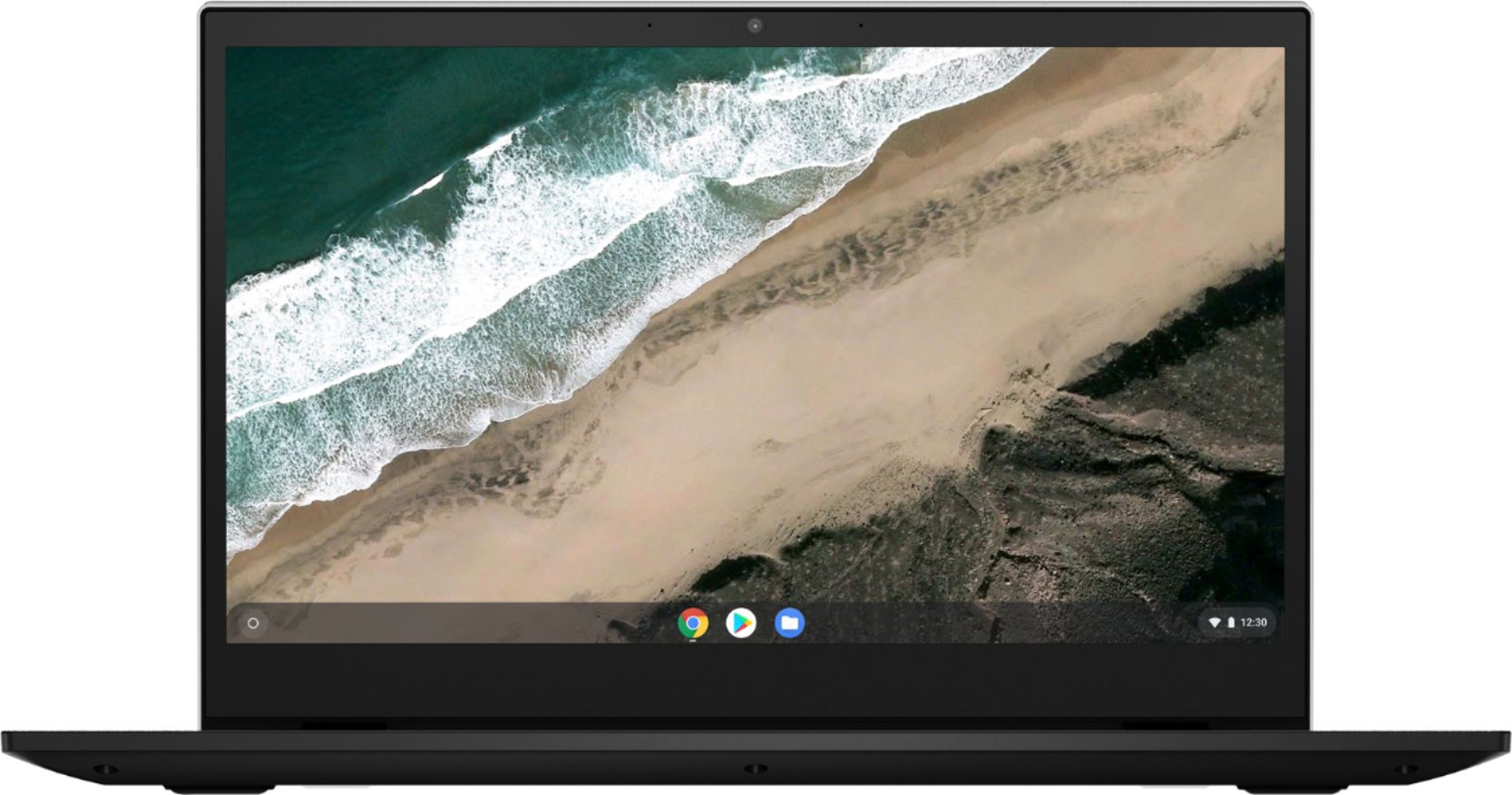
A:AnswerThe Lenovo S345 14" model # 81WX0000UX is a Chromebook and runs off of Chrome OS. This means any Apps must be downloaded from the Google Play Store.
A:AnswerThe Lenovo S345-14 Chromebook ships with a 720p webcam. Check the APP you are trying to use the webcam in for the maximum resolution the APP provides. You can check the webcam offline. Here is a link to instructions for accessing your webcam offline: https://support.google.com/chromebook/answer/4487486?hl=en. If you are still having issues with the webcam, we recommend you call Lenovo Tech Support for Chromebooks at: 800-426-7378.
A:Answermost people prefer a 100% new product, so the box being opened already can be a pretty strong deterrent. also, companies can no longer absolutely guarantee the state of a product if the packaging has been tampered with.
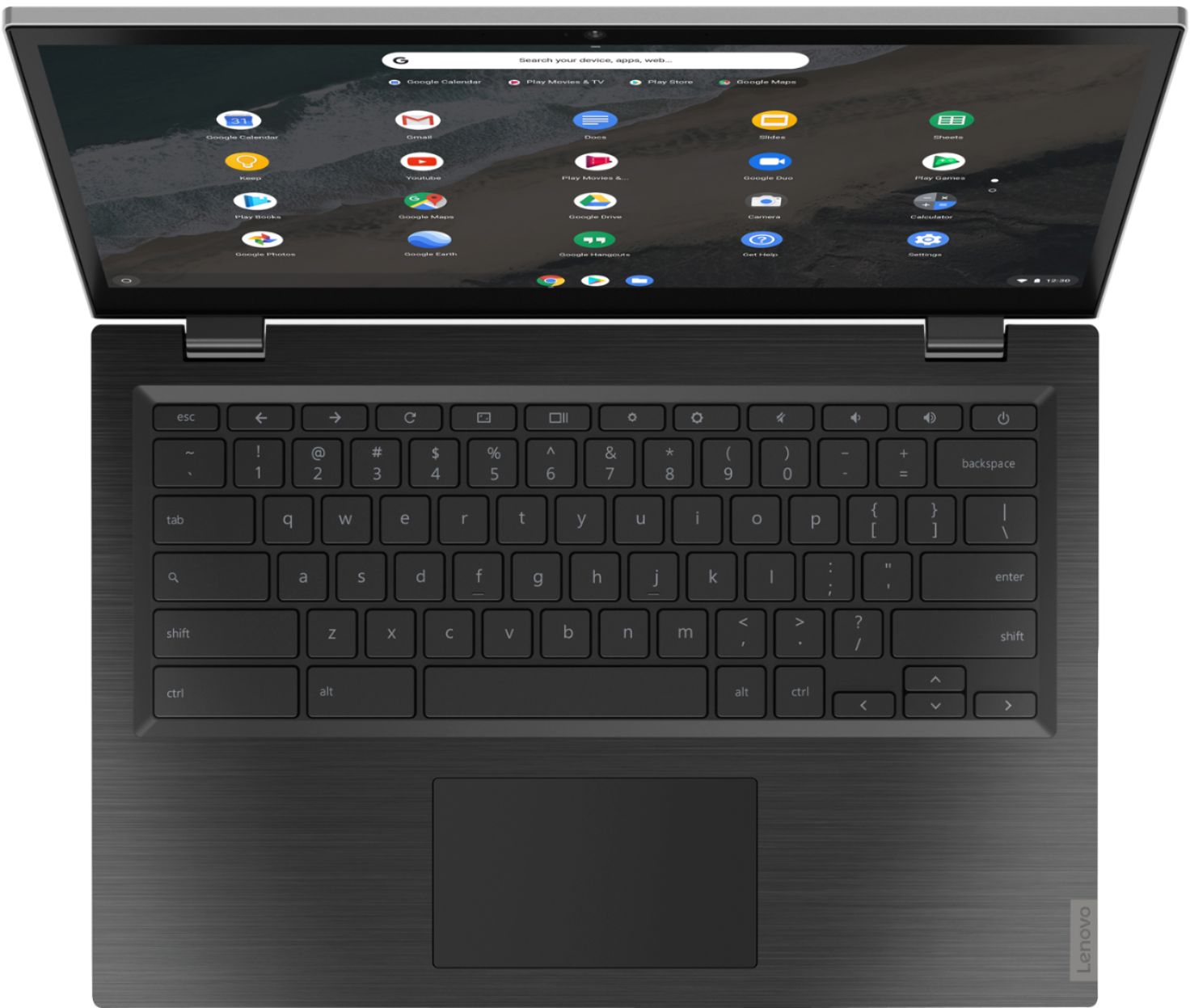
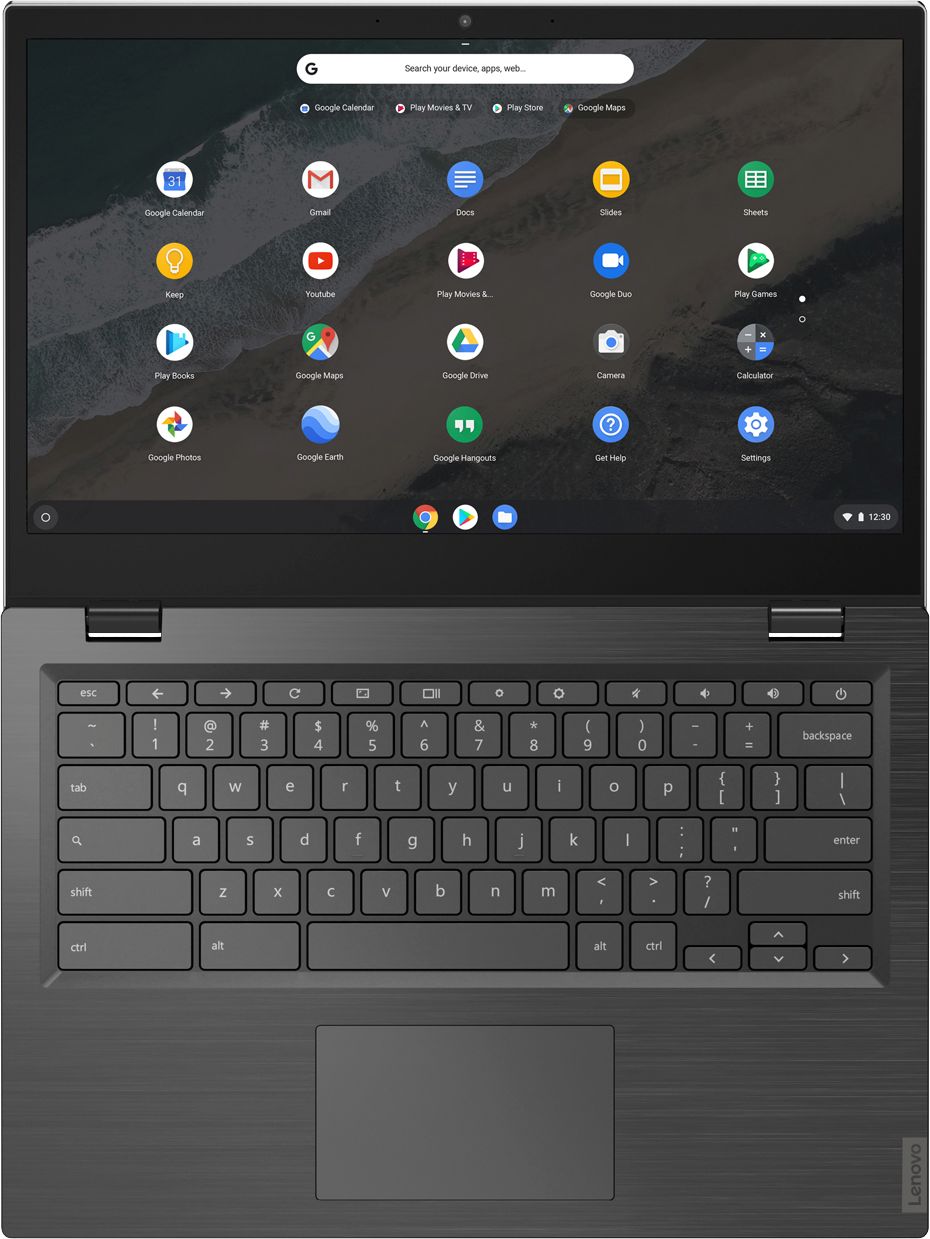
A:AnswerBe sure the system audio is turned on. There is a HotKey with a speaker with a slash through it at the top right of your keyboard. This toggles the system audio on/off. There are also audio volume up and audio down HotKeys right next to this on/off key. Be sure the volume is up on the audio as well. If this does not fix the issue, here is a link to some troubleshooting tips for fixing Chromebook issues, including no sound: https://support.google.com/chromebook/answer/6309225?hl=en. Finally, if the issue continues, we recommend you call Lenovo Tech Support at: 877-453-6686.