A:AnswerUnlimited photos available because you are only limited by the number of albums Google Photos will let you make, but you can only do a slide show of 500 at a time. Here's why:
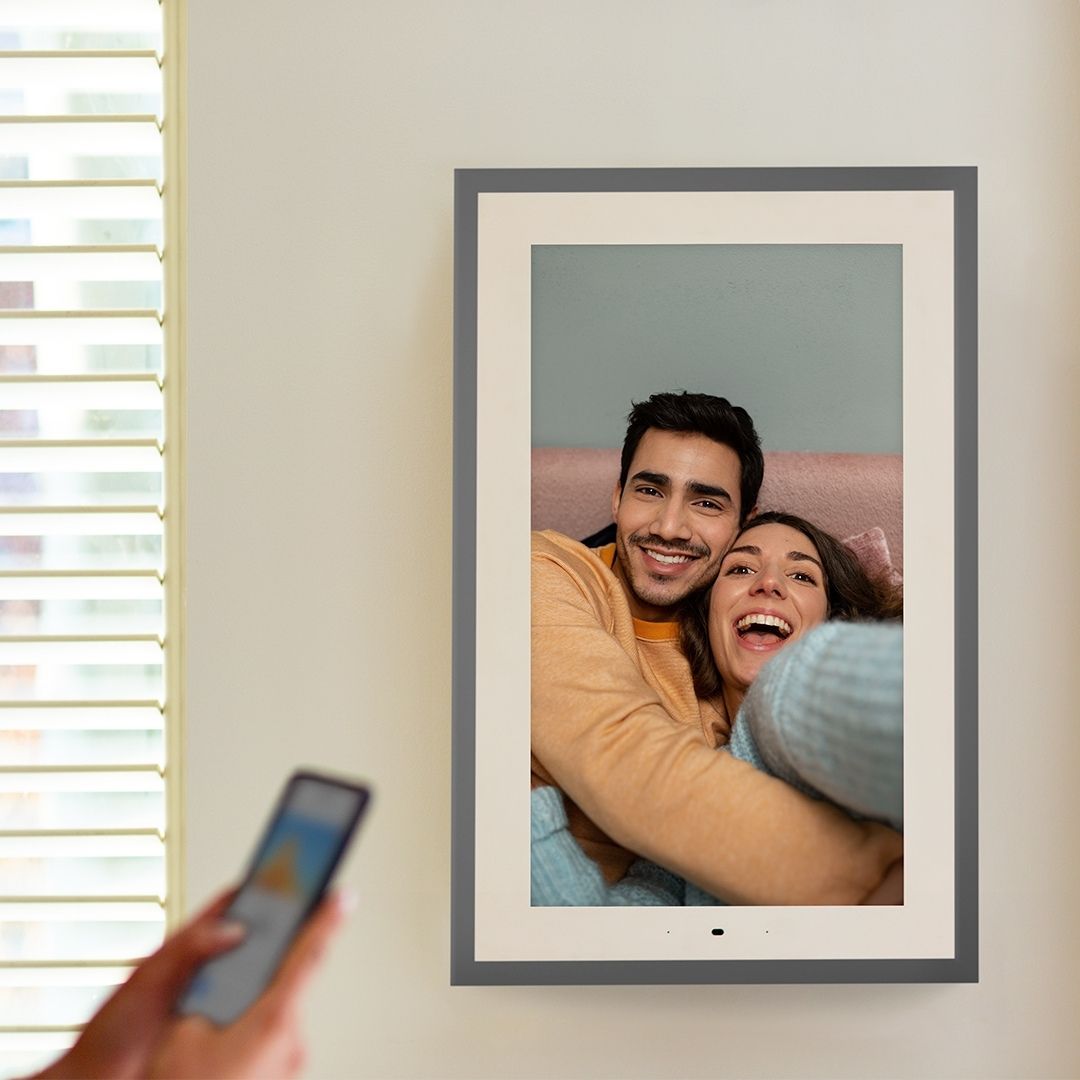
This works through your Internet network and your Google Photos account. When you use the app for the Lenovo Smart Frame, you enter your Google account email and password. Then, whenever you look on your Lenovo app, it shows you all of your Google Photo Albums. So the best way to make this work is to make albums on Google Photos. Lenovo lets you show up to 5 albums in a Slide Show. Even though Google Photos lets you put up to 27,000 photos in each album, Google will only stream the first 100 photos of each album to other devices, including this frame. So I am making all of my albums with exactly 100 photos or less in each album with up to 5 albums or less per subject matter, and labeled them accordingly. So for example, our trip to Italy has 5 albums and 100 photos in each album. I labeled the albums Italy 01, Italy 02, etc. I also have an album labeled Italy All because it has all of 1250 of my vacation photos from that trip in it.
I made sure to arrange the photos in each album so that it didn't matter the order in which the albums appeared. (I didn't have Venice photos at the end of one album and continue with more Venice photos at the beginning of another album because Lenovo shows the albums in random order.)
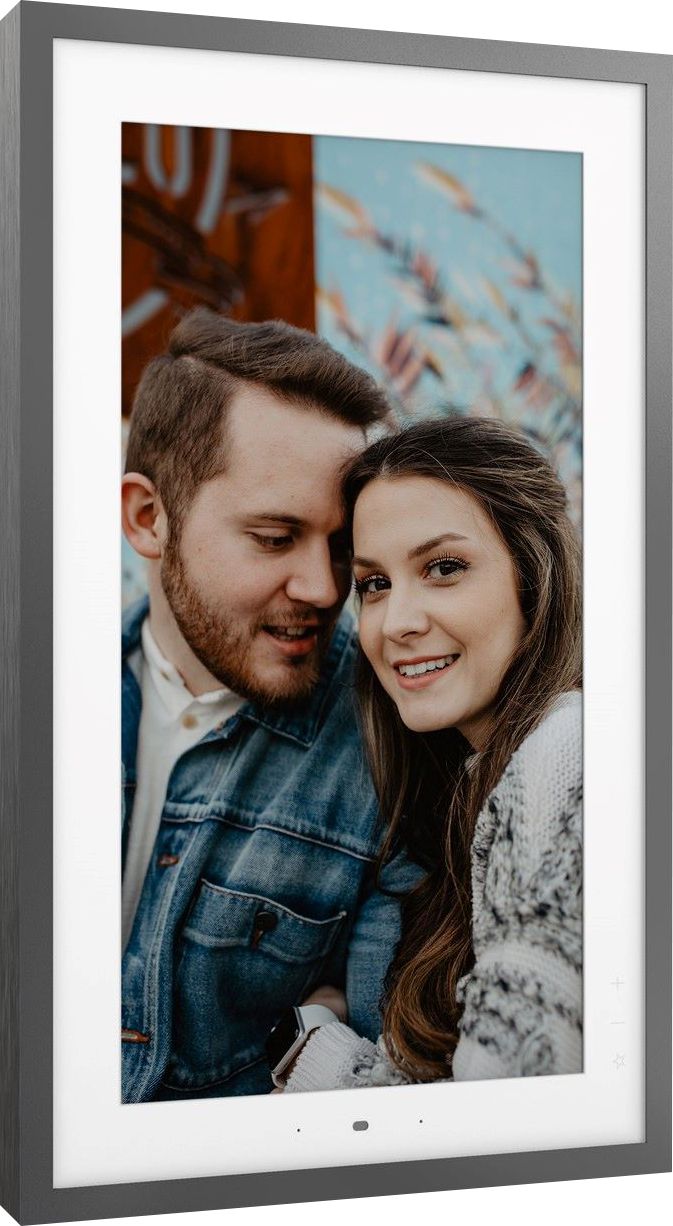
I did notice that Lenovo is making updates to their software that will help make it a better product. For example, the last update lets you either automatically crop your photos or not. It used to crop them automatically which could cut off the tops of people's heads. Now you can turn that off and it shows the entire photo with a nice gausse effect on either side.
The next thing I hope they fix in their software update is the limit of 5 albums per slideshow. Also I wish I could choose the order that it shows the albums. They can't fix things that are Google's fault, such as only streaming the first 100 photos of each album.
A:AnswerThe Lenovo Smart Frame model number ZA6G0006US, does not have an internal battery. It will need to be plugged in to a wall electrical socket to function.
A:AnswerQ1: I don't know why Lenovo posted that you can't add local photos as I am not using Google Photos to stream to the display. On the Levono Smart-Frame app, you can edit the channels to display (3 at a time) one of them being local photos. I don't know how many pictures you can store but it seems like it is 4GB as the device settings show 4G for photos and 4G for videos. Screenshot attached.
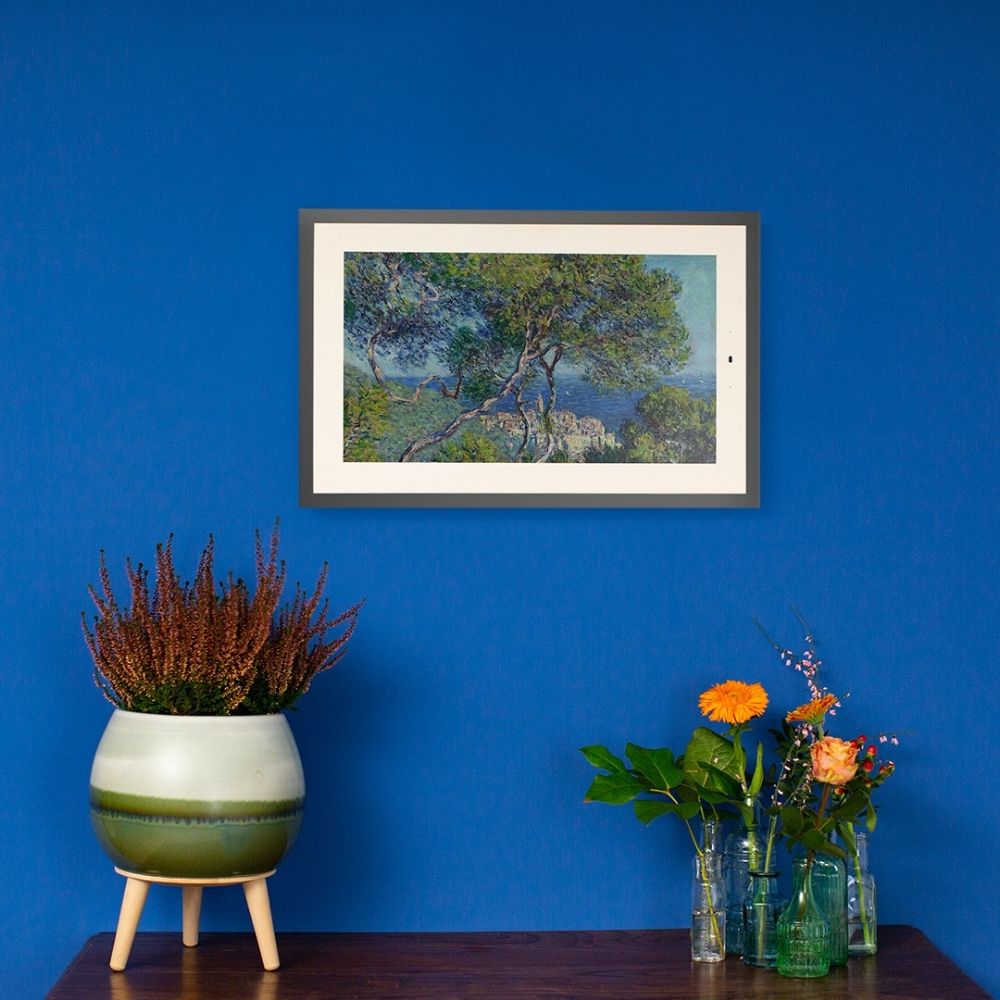
Q2: It depends on the ratio as I have mine set up as a 16x9 screen and 4x3 photos show up side by side and anything wider shows up as a single picture with a blurred version of the picture in the background filling the rest of the screen.
A:AnswerThe hardware reset buttons do not work. I had this frame for a while and when I had to switch the wifi, the frame got unresponsive as well. I tried resetting the device and it did not work. There is no support from the company as well.
To fix this, I took the frame back to the place I initially setup, once it connected to the old wifi, I reset it and brought it to a new place and was able to set the wifi up again.
Since you are now in UK, this might not be an option.
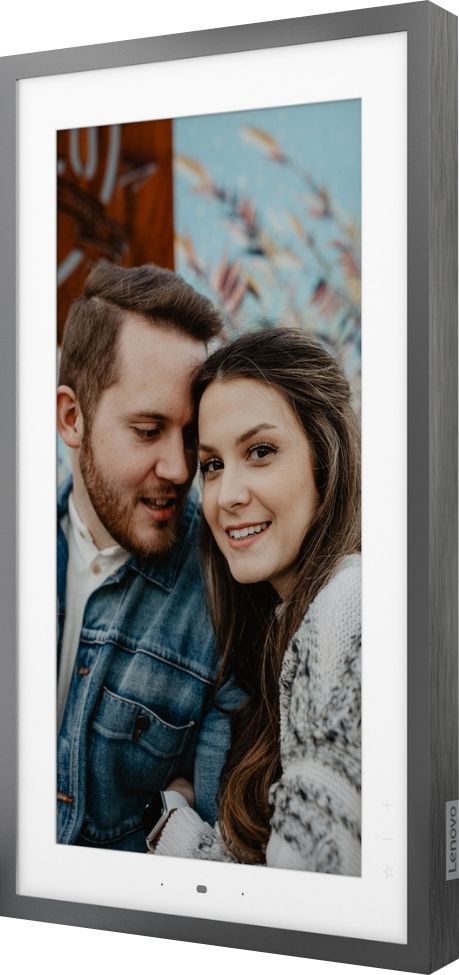
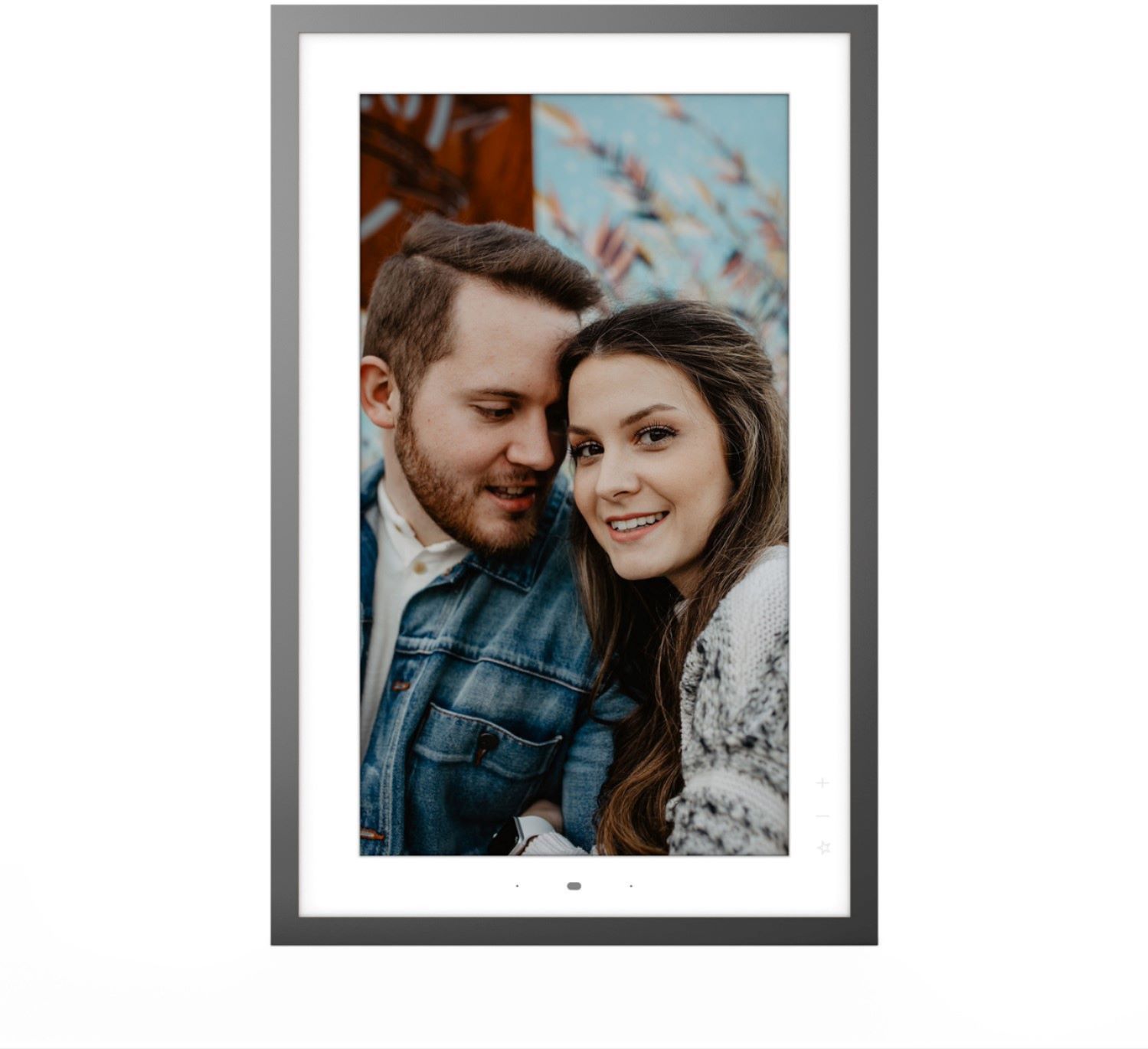
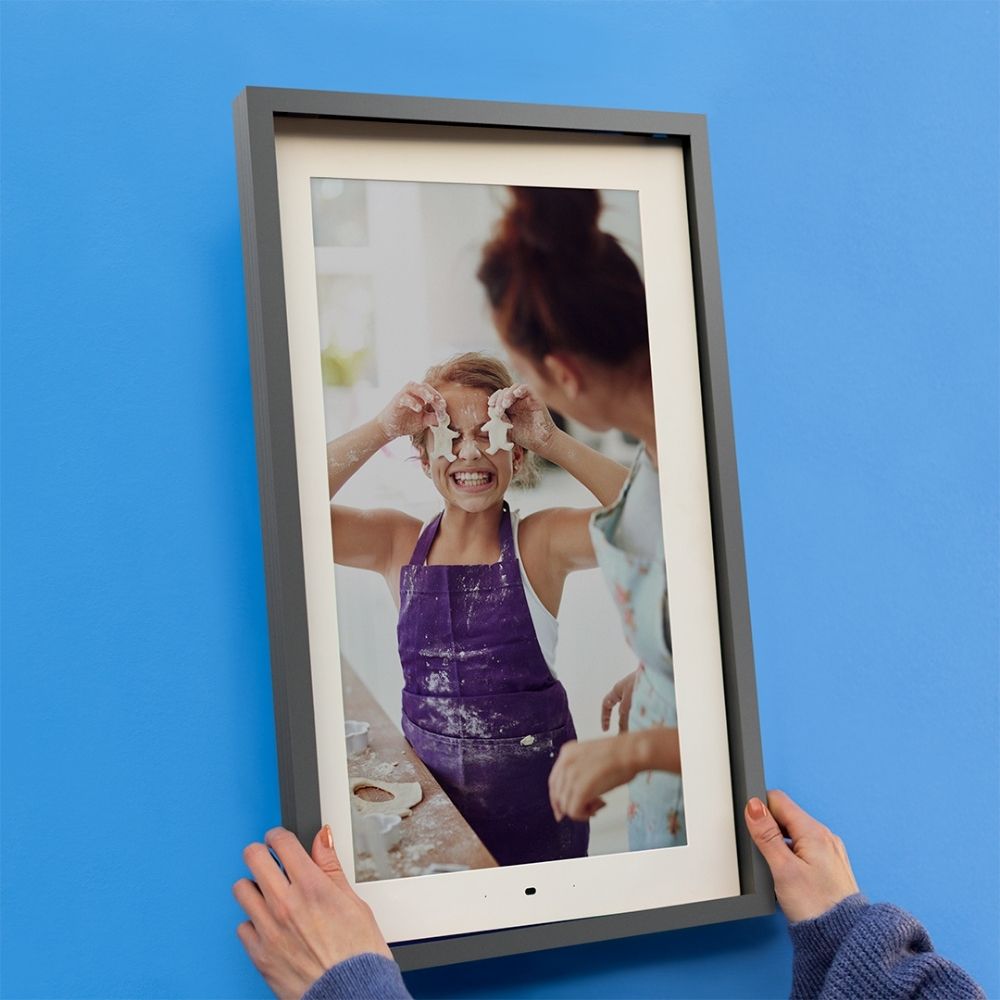
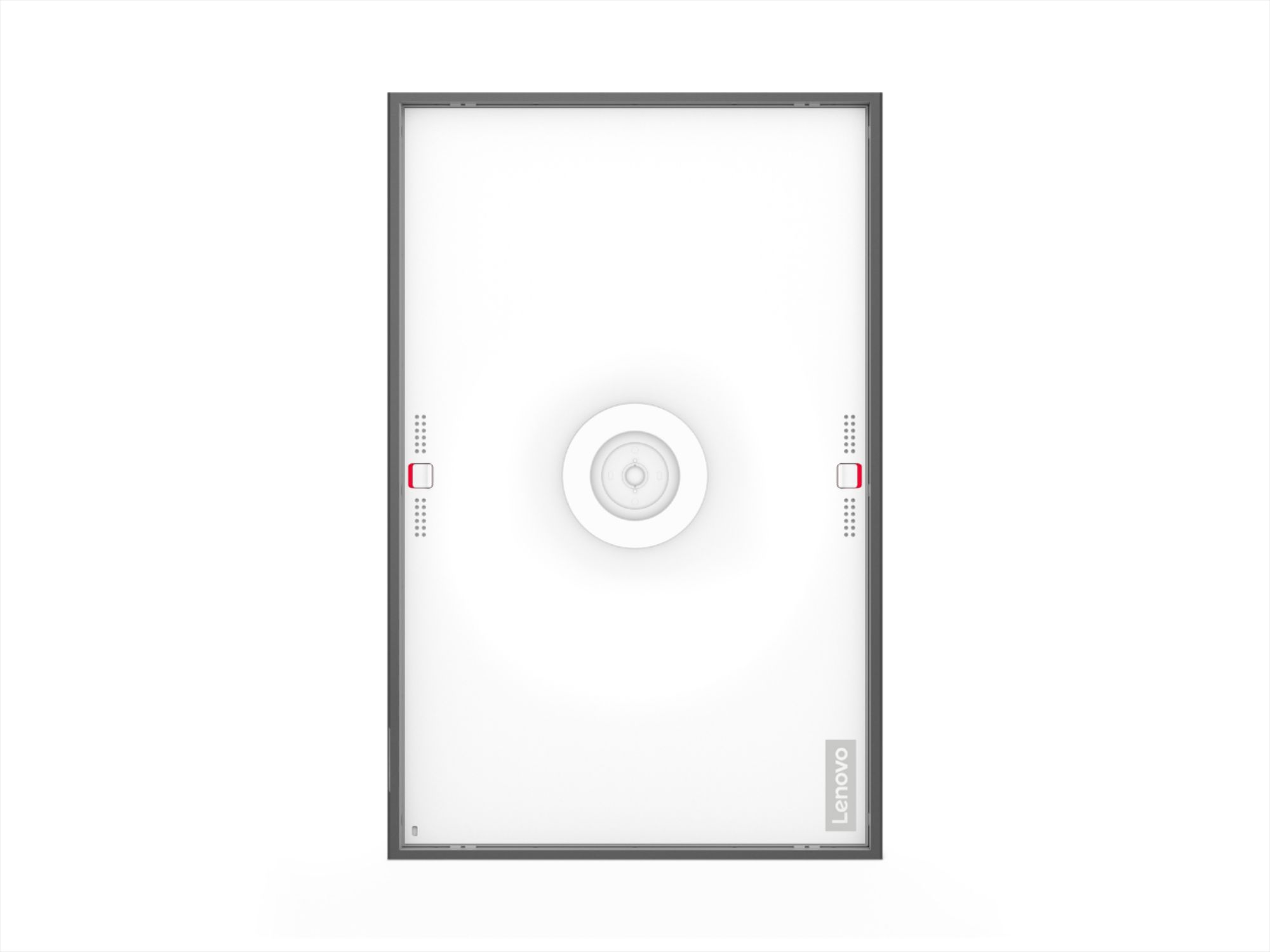
A:AnswerThe Lenovo Smart Frame model number ZA6G0006US, ships with a 21.5 inch (screen size measured diagonally) viewable screen. Total Smart Frame Dimensions (W x H x T) - With frame: 376.3mm x 584.56mm x 36.5mm / 14.8 inches x 23.01 inches x 1.43 inches. Without frame: 353.15mm x 561.43mm x 28.6mm / 13.9 inches x 22.1 inches x 1.12 inches.
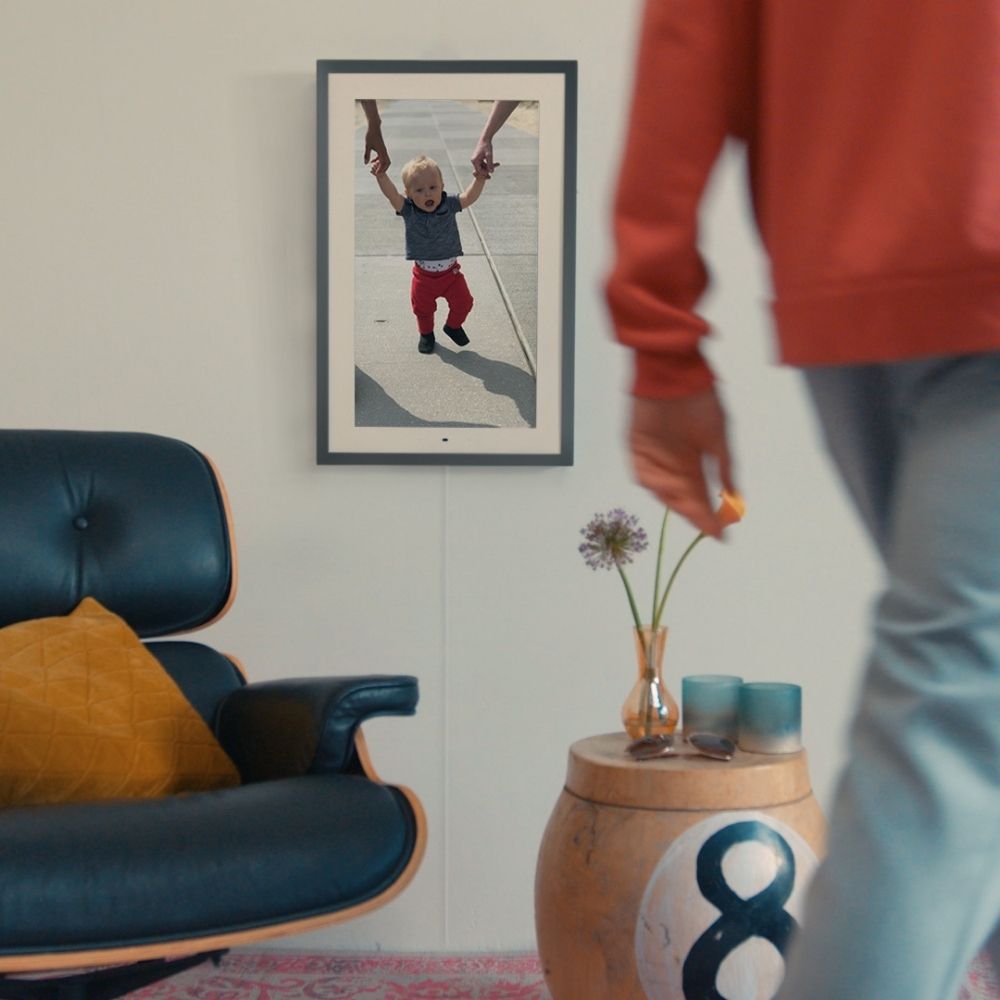
A:AnswerThe frame does have a motion sensor that can be used for changing photos and navigating the channels. When wall mounted, you can rotate the frame and the orientation will adjust accordingly.
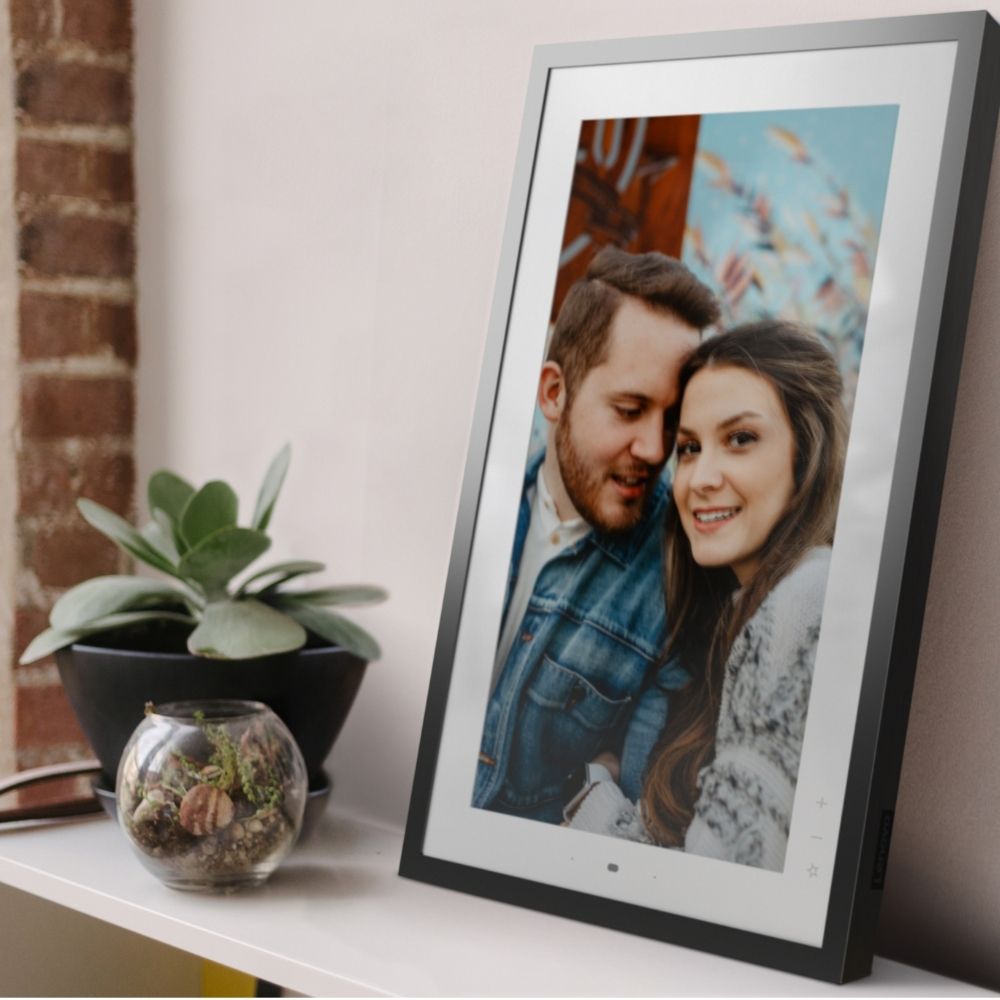
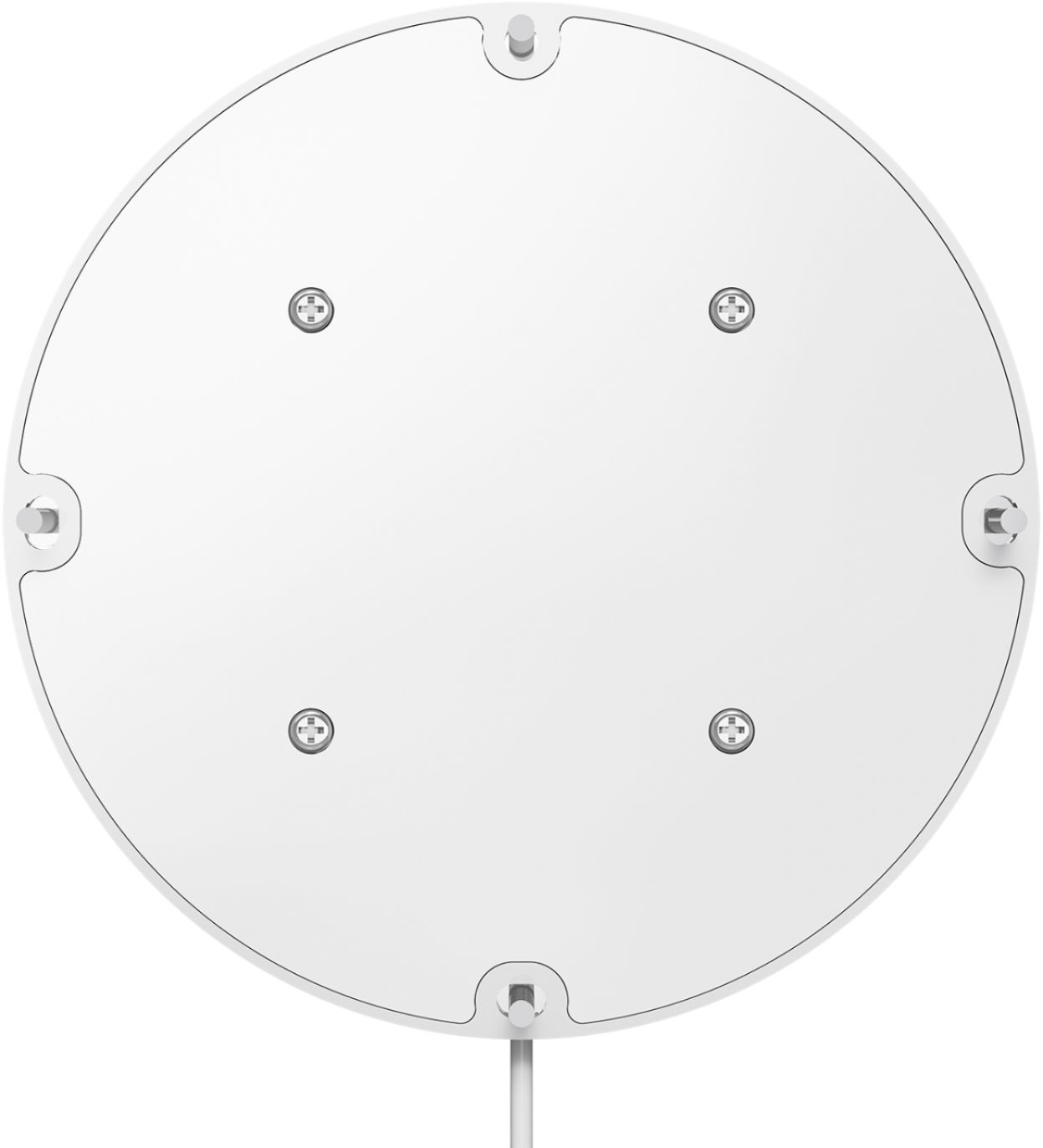
A:AnswerYou can mount this to either a wall or a stand. If you mount it to a stand just make sure it is stable, secure, and has a way for the wire to plug into the bracket.
A:AnswerYes. You can display your Google Photos on the Lenovo Smart Frame, model number ZA6G0006US, that are part of the Google Account you use to setup this Smart Frame. Here is a link to a YouTube video that demonstrates the setup, features and functions of the Lenovo Smart Frame: https://www.youtube.com/watch?v=jKn9aHccCHs&t=184s
A:AnswerYes. There is no battery backup. The Lenovo Smart Frame must be plugged in to a wall outlet to function. The Smart Frame is a 110V device. It does ship with a Dual Voltage AC adapter, with a USA compatible wall side plug. To use the Smart Frame outside the USA, you will need to add a compatible wall side plug adapter, compatible with the country that the Smart Frame will be used in. This wall side adapter is sold separately.
A:AnswerYes. You can go to Settings - Voice control within the Lenovo Smart Frame Application to enable/disable voice commands. By default, voice command is disabled.
A:AnswerIt has to connected to WiFi in order to connect to your Google Photos. Once it is connected, it downloads a bunch of photos and can then be disconnected from WiFi. It will display the downloaded photos (along with an occasional warning that you are not connected).