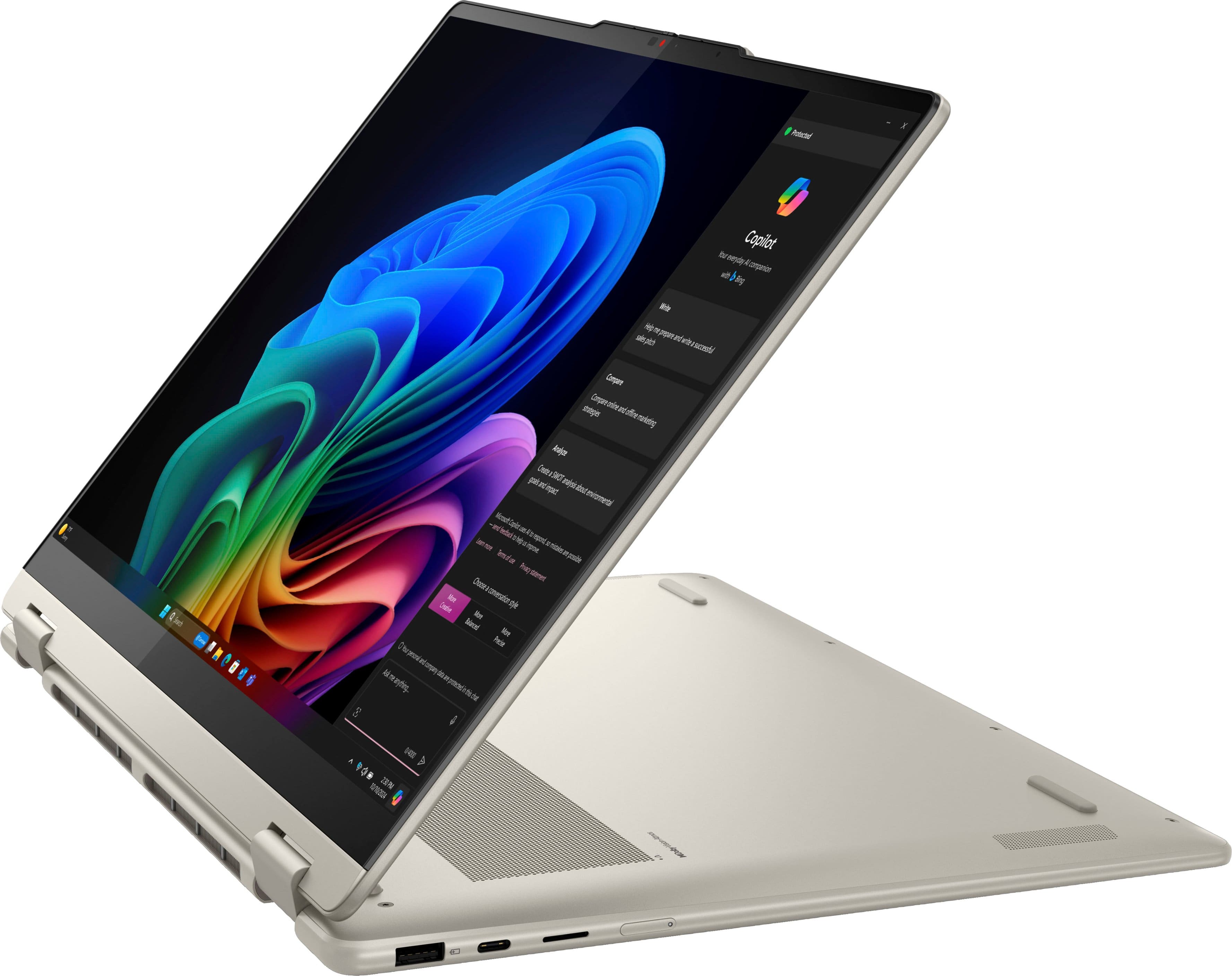
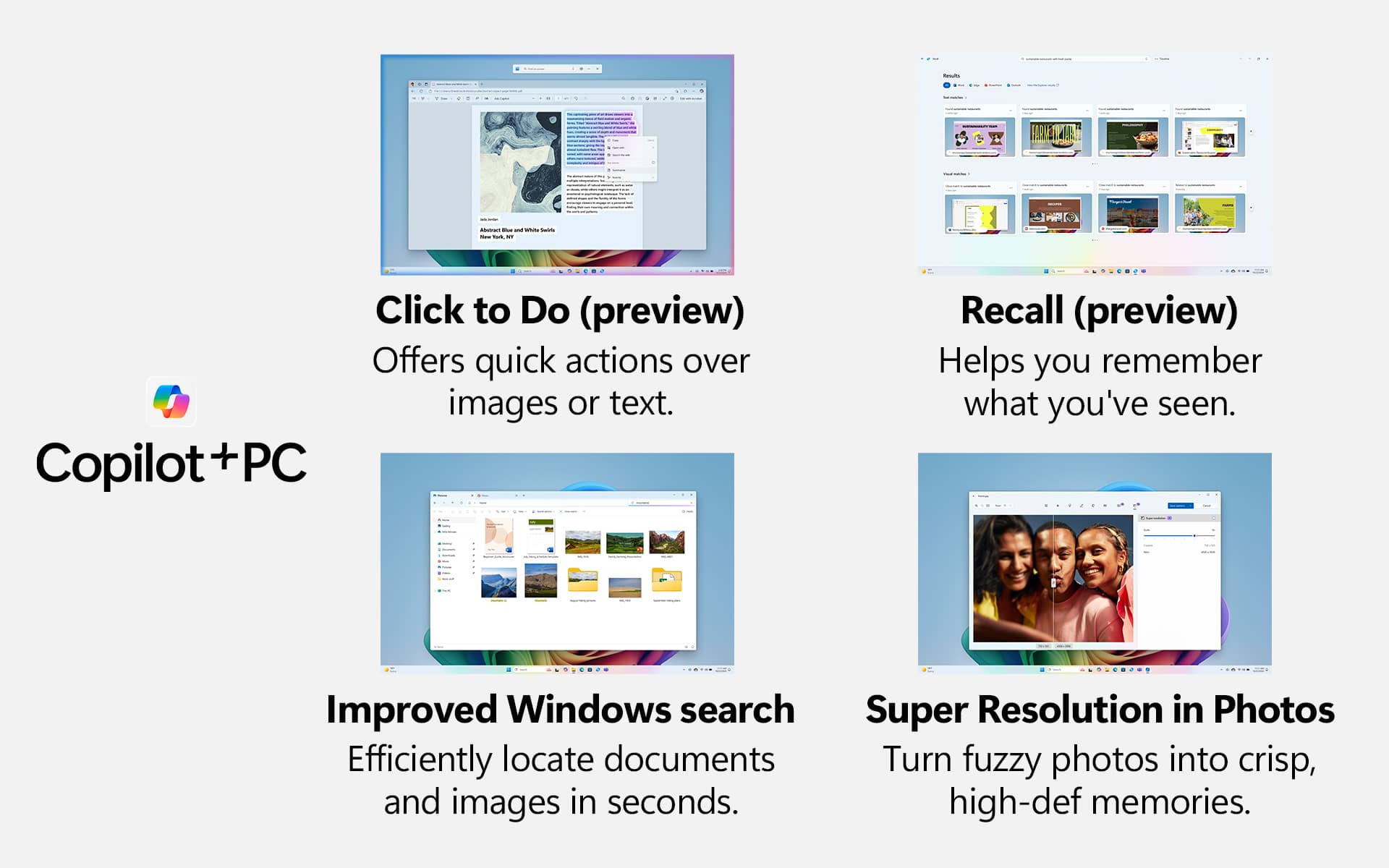
A:AnswerYou have to set copilot up. You can decline it. I did and set it up later. Copilot doesn't interrupt you when searching it's a separate application you have to open or click on in web browser
A:AnswerHey there,
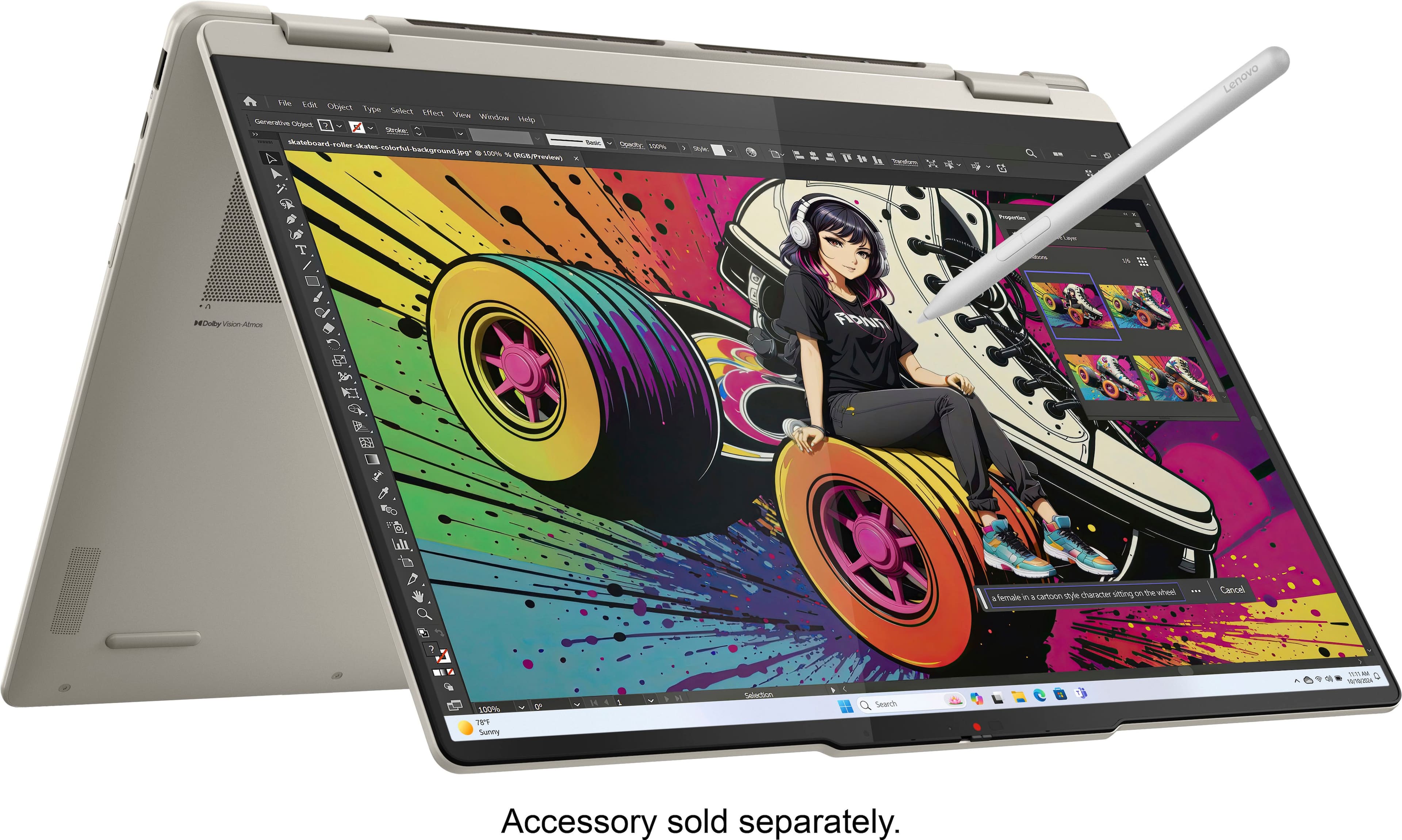
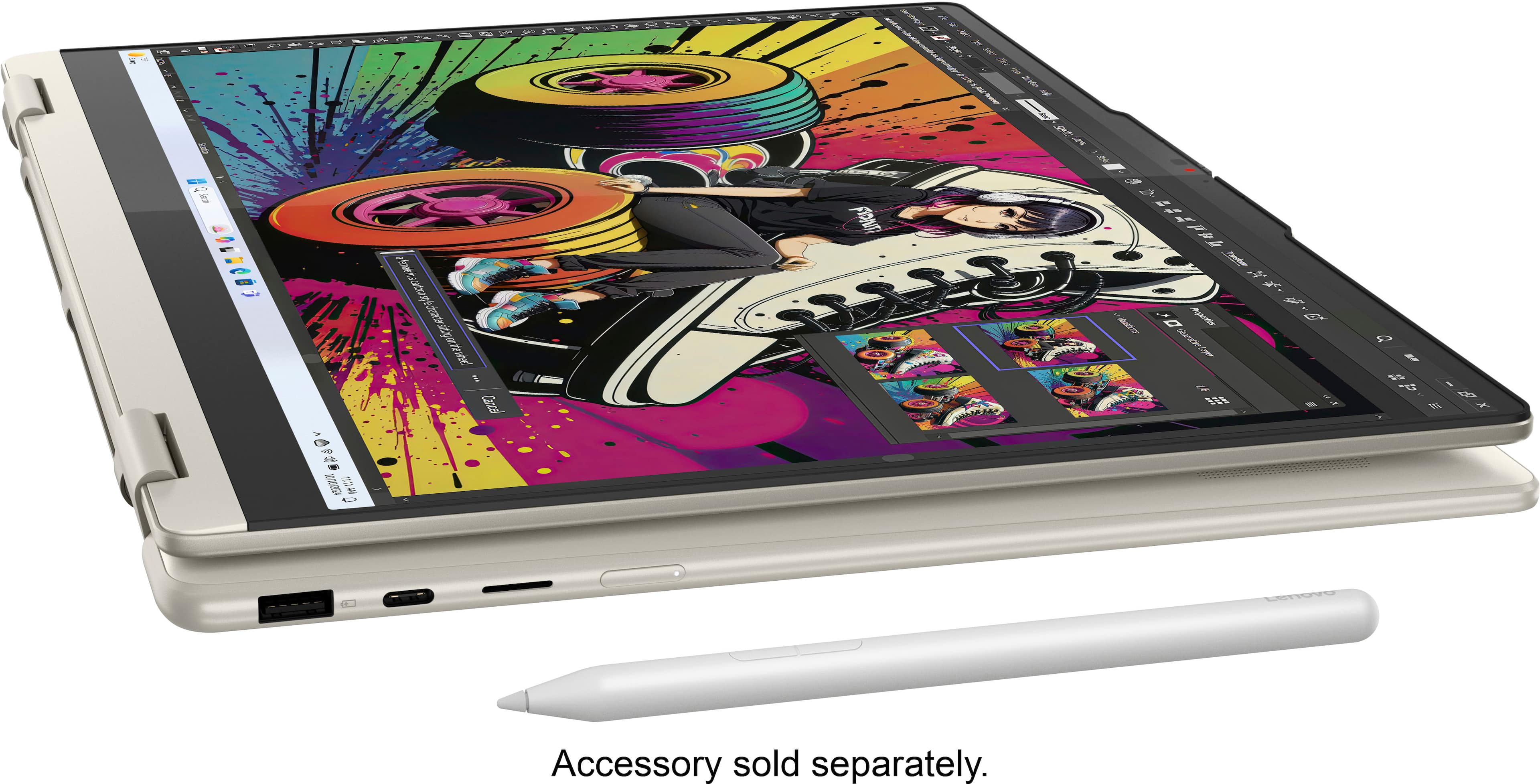
You can use various pen options including the Lenovo Digital Pen 2 offered on Best Buy's site: https://www.bestbuy.com/site/lenovo-digital-pen-2-grey/6580719.p?skuId=6580719, but if you'd like a color-matching pen that designed for the Yoga 7 2-in-1, the Lenovo Yoga Pen, you may order one from the Lenovo Support Parts website: https://pcsupport.lenovo.com/us/en/products/laptops-and-netbooks/yoga-series/yoga-7-2-in-1-16akp10/83ju/parts/display/compatible, searching for the pen using its Part No: 5T71Q51961, and finalizing your order.
Please feel free to reach out to us with any other questions!
A:AnswerHey Cupid,
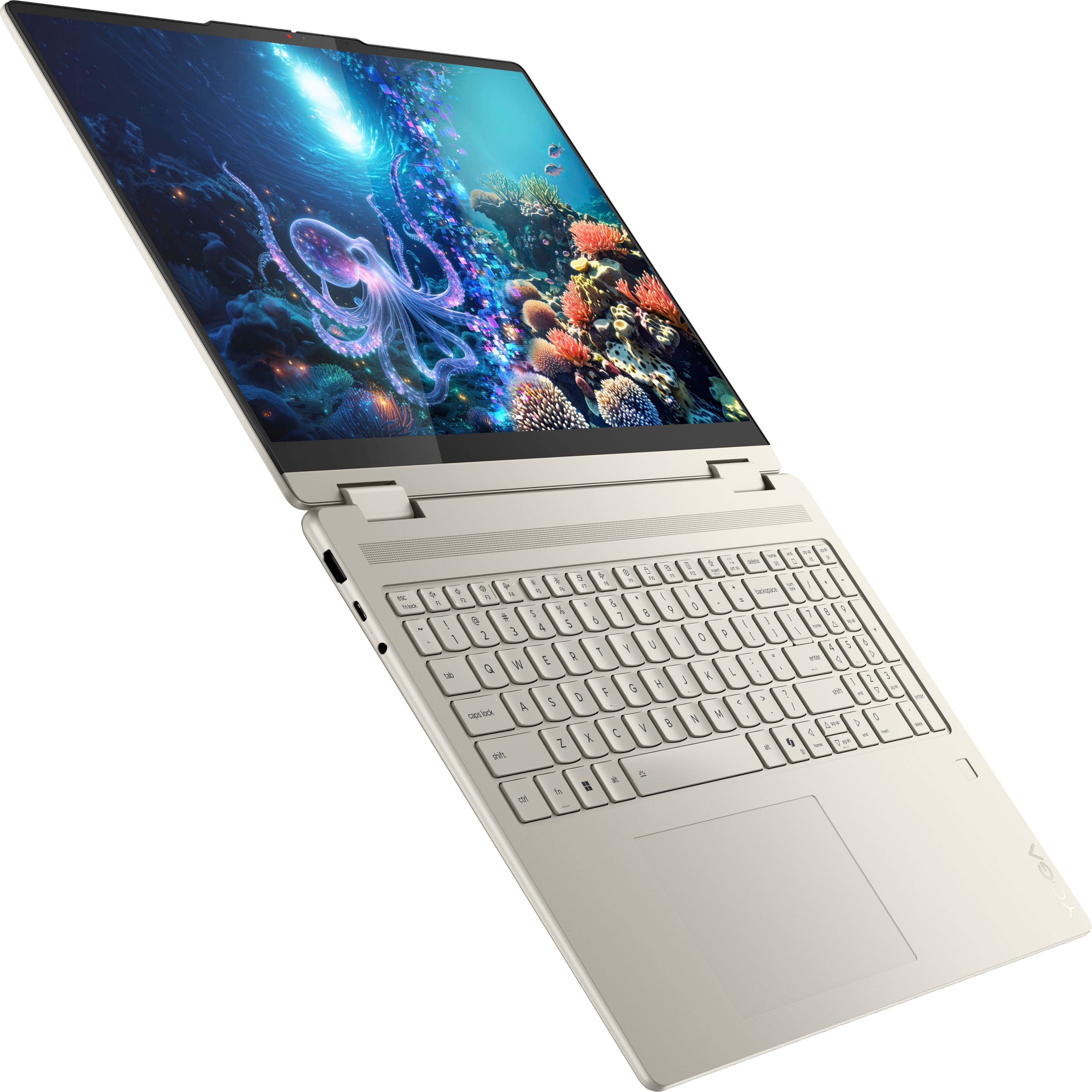
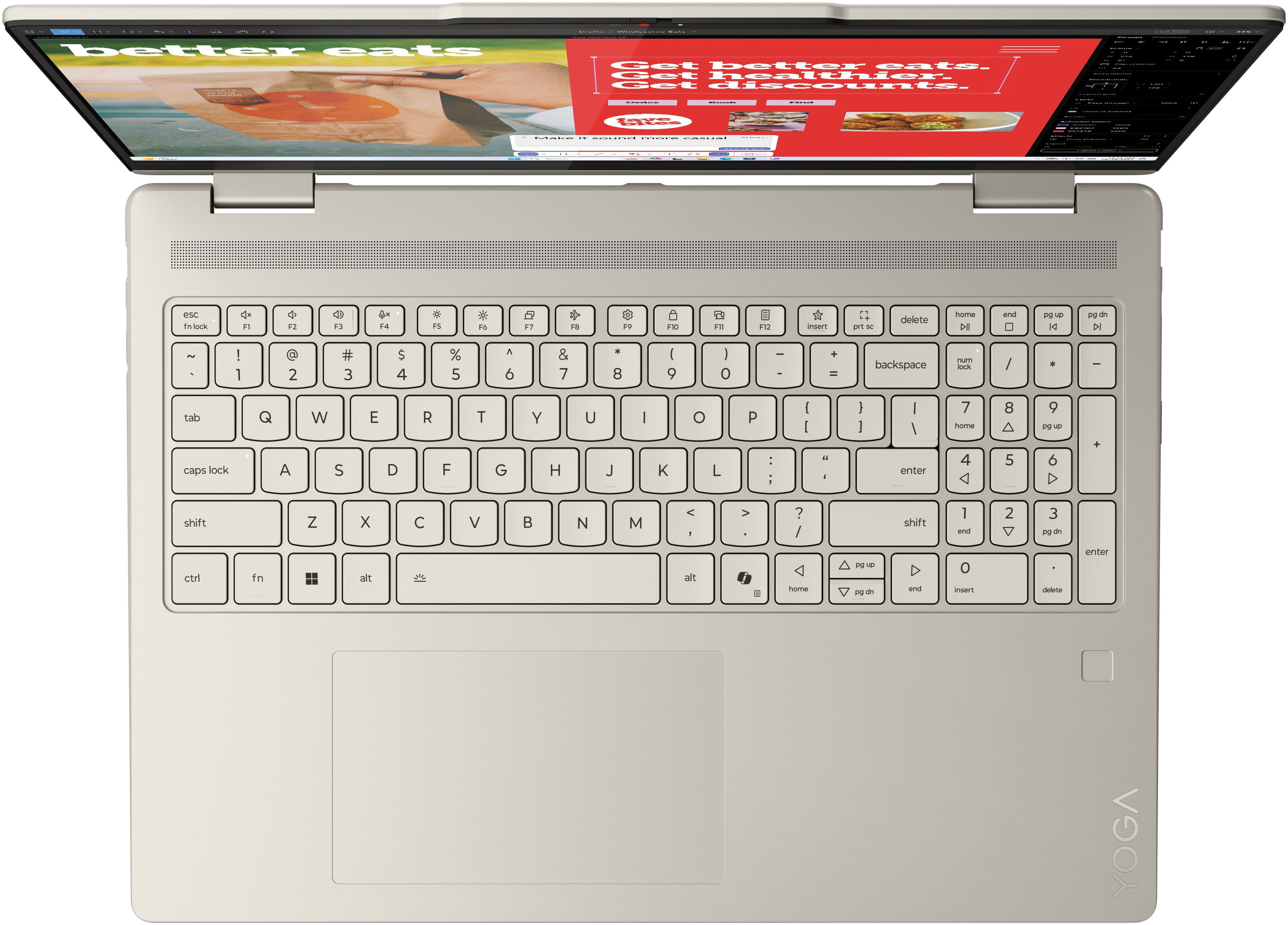
Yes, the Yoga 7 2-in-1 features a backlit keyboard. You can enable the backlighting in the Lenovo Vantage app under device settings, or by using the keyboard shortcut Fn + Space.
Please feel free to reach out to us with any other questions!
A:AnswerHey Tenley,
So long as you don't anticipate the college courses requiring high-performance, unique system specifications for software like AutoCAD or high-resolution video editing, this Yoga 7 2-in-1 should be a great fit for a new college student. Feel free to look at the various published reviews with some students using the same laptop for schoolwork and are quite satisfied.
Please feel free to reach out to us with any other questions!
A:Answer15 days from purchase you can. I advise opening it in store so you can check for any defects it's hard to return items if they had a deficiency and you went home and came back later
A:AnswerHey,
We are sorry to hear that you're experiencing issues with your Yoga 7 2-in-1. We'd like to work with you to try to resolve this issue.
To start, we recommend trying to download the Wi-Fi drivers. You can visit this Lenovo Support webpage for your model Yoga from the Lenovo Support site here: https://pcsupport.lenovo.com/us/en/products/laptops-and-netbooks/yoga-series/yoga-7-2-in-1-16akp10/83ju/83ju0001us/downloads/driver-list/component?name=Networking%3A%20Wireless%20LAN&id=E3519D23-890E-4DE1-9064-DE6E7DA2515B
If you can't maintain a wireless connection, you can download the drivers from the site onto an external drive and transfer them to your Yoga, or you can have Windows search for the drivers for you. For the latter process, here is a link to a Microsoft Support webpage that details how to do so: https://support.microsoft.com/en-us/windows/update-drivers-manually-in-windows-ec62f46c-ff14-c91d-eead-d7126dc1f7b6.
ALT
Is the Wireless Adapter still showing in Device Manager? To check:
1) Right-click Start and select Device Manager
2) Expand the Network Adapters
3) Look for a Wireless LAN Adapter, and if found, right-click on the Wireless LAN adapter and select Properties.
4) From the General tab, note the manufacturer name and model information
5) Next select the Driver tab, and note the driver date/version information. Please include information in your reply if you need further assistnace.
If the network drivers are not showing in Device Manager, go into the BIOS and navigate to Security >> I/O Port Access and make sure Wireless LAN is set to On.
If showing in Device Manager, you might run Lenovo Vantage and check for any updated Drivers. To do so, open the Vantage app > Select the check for updates button.
You can also run the Network Troubleshooter:
1) Type troubleshoot adapter in the taskbar search window.
2) Select Find and Fix problems with your network adapter from the search results.
3) Click Next to run the troubleshooter to discover the root of the issue and feel free to share the results.
Please let us know if you need further assistance, as we're happy to help. Your satisfaction is important to us.