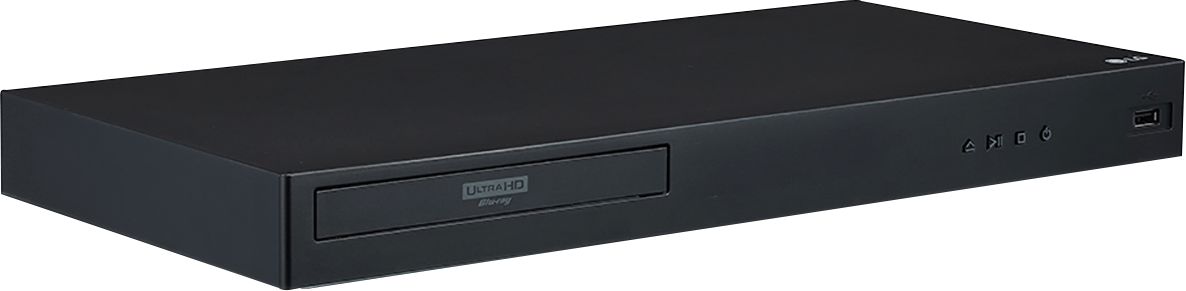
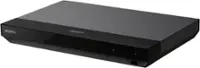
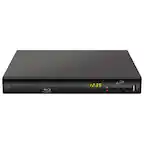
A:AnswerThe LG 4K Ultra-HD Blu-ray Disc™ Player, Model # UBK80 is HDR10 compatible, it is not Dolby Vision compatible so any Dolby Vision signals will be sent to a connected TV as HDR10...^IFV
A:AnswerIt does not support Dolby Vision - it is one of the key differences between the 80 and 90 models. While it might be possible to update via firmware (the 90 originally required a firmware update for the DV support), this has never been advertised as supporting DV so highly doubt LG would create an update even if technically possible to add DV support.
A:AnswerThis unit has a regional code printed on the rear of the unit. This unit can play only BD-ROM or DVD discs labelled same as the rear of the unit or “ALL”. ^CP
A:AnswerHello there, Ronnie. The LG UBK80 Ultra HD Blu-ray player is designed to work with both 4K UHD and non-4K TVs. However, to fully enjoy the benefits of 4K Ultra HD resolution, including enhanced picture quality and clarity, it's recommended to pair the UBK80 with a 4K UHD TV. If you currently have a non-4K TV, you can still use the UBK80 Blu-ray player with it, but you won't experience the full potential of 4K content. If you're considering upgrading your TV to a 4K UHD screen, it would certainly complement the capabilities of the UBK80 player and enhance your viewing experience.
^Jolly
A:AnswerHello there! Thank you for your inquiry about the UBK80 player. Yes, this player is compatible with DL (Dual Layer) discs, allowing you to enjoy your favorite movies and shows without any issues.
If you have any more questions or need further assistance, please don’t hesitate to reach out. You can also send us a private message on Social Media @LGUSSupport for more personalized support. We're here to help!
—Avril
A:AnswerThank you for your interest in the LG 4K Ultra-HD Blu-ray Disc™ Player (UBK80) model. The LG UBK80 Ultra HD Blu-ray Disc Player is capable of outputting audio through both optical and HDMI simultaneously. You can download its owner's manual through this link for more information: https://www.lg.com/us/support/product/lg-UBK80.DUSALLK. ^Cris
A:AnswerTurn on Blu-Ray and insert CD. On LG TV remote, press the settings button. Then go to Picture settings menu. Look for Picture Mode option and and select that. Select Cinema or Movie mode.
Or turn off the TV screen while playing the CD look for Screen Off or Display Off in the Picture Settings menu.
I asked this on LG.com support.
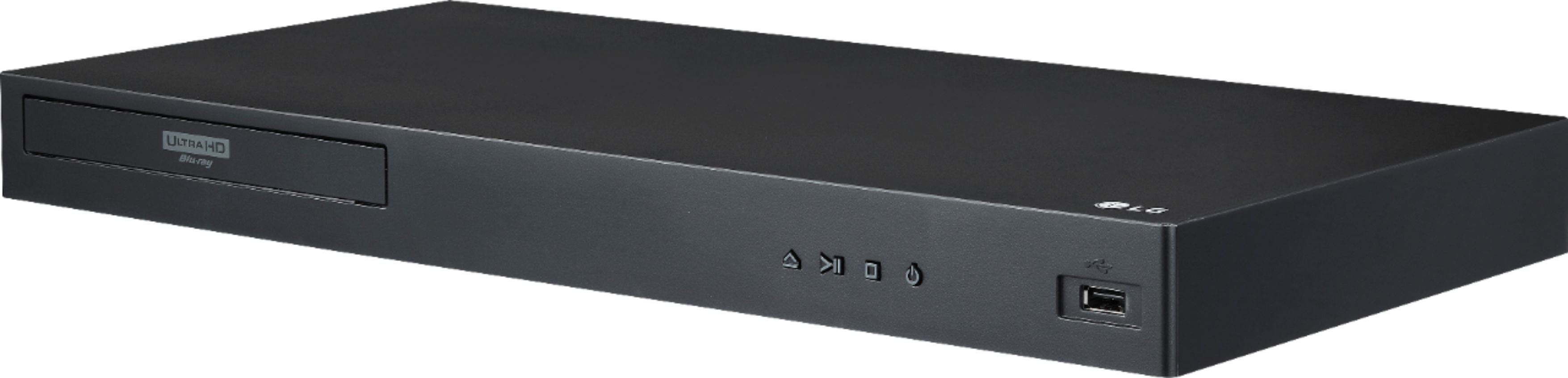
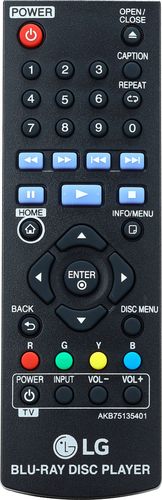
A:AnswerPower, Play/Pause, Stop and Eject are all available in small and very subtle buttons on the front, so yes basic functions can be controlled without the remote.
The remote adds fast forward and reverse as well as skip forward and back, closed captioning, repeat, home, chapter menus, and volume up/down.