A:AnswerIs the 'unknown resources option' a setting in a TV?
The LG 55” Class UT75 Series LED 4K UHD Smart webOS TV (2024), Model # 55UT7570PUB does not have an 'unknown resources option' in its settings menu, but if this is s feature in another brand of TV, it may have a different name in our TVs and we will need some clarification on what this option is to determine if this TV has a similar feature...^Ivan.
A:AnswerMost major streaming and social media platforms now favor the 16:9 aspect ratio. YouTube, Twitch, and Facebook Live all recommend 16:9 for optimal viewing, and these platforms are designed for widescreen displays. Netflix and other video-on-demand services also primarily use 16:9.
The 55” Class UT75 Series LED 4K UHD Smart webOS TV (2024), Model # 55UT7570PUB has a native 16:9 Aspect Ratio so you will not get the bars at the top and bottom while watching 16:9 aspect ratio content.
Changing the aspect ratio while streaming apps depends on the app you are streaming.
The TV will automatically set it based on the content format, but it does offer settings to adjust the aspect ratio.
It is recommended to check the app's picture settings for more options...^Ivan.
A:AnswerThe inputs on the LG 55” Class UT75 Series LED 4K UHD Smart webOS TV (2024), Model # 55UT7570PUB do not power On/Off.
The TV has a Power On Timer and a Power Off Timer.
The Power On Timer allows you to set the time at which to turn on the power, set any day of the week or if you set the option to None it will not repeat for the days of the week you set and will only operate once. You can set an external input to display when the power is turned on, set a channel to display (only when the Input is set to TV), or set the volume to use when the power is turned on.
The Power Off Timer when enabled allows you to set the time at which to turn off the power, or set the day of the week to repeat when the power turns off. If the option is set to None, the feature will only operate once.
If you do not press any button for 4 hours after the device is turned on using the Power On Timer, the TV will turn off automatically.
To ensure the TV does not automatically turn off, you can set Auto Power Off after 4 Hours to Off...^Ivan.
A:AnswerThe Xfinity Streaming app is compatible with the webOS 24 TV Platform (Operating System) that the LG - 55” Class UT75 Series LED 4K UHD Smart webOS TV (2024), Model # 55UT7570PUB runs on so it can be downloaded and installed on the TV through the LG Content Store (App Store) feature on the TV's home screen...^Ivan.
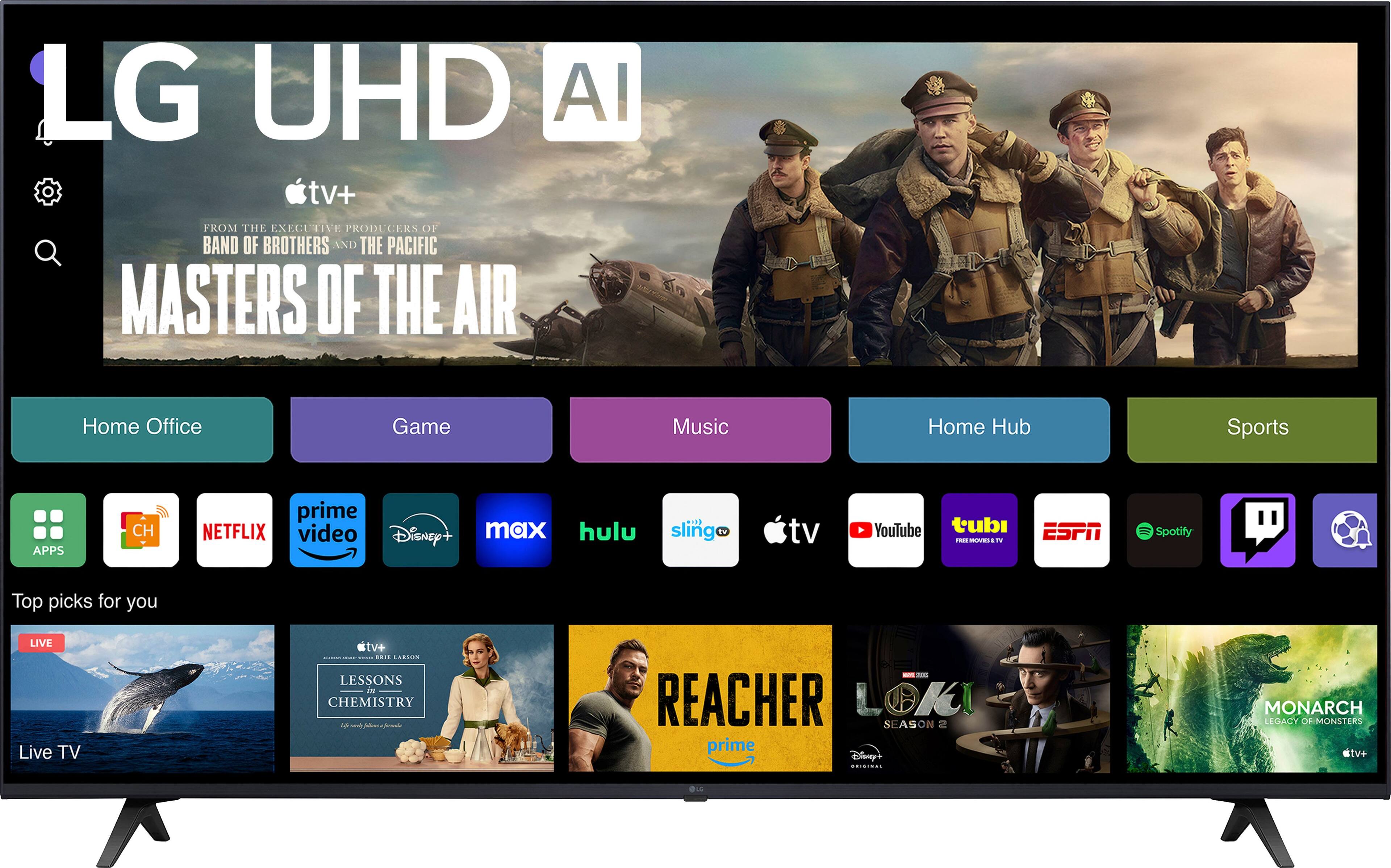
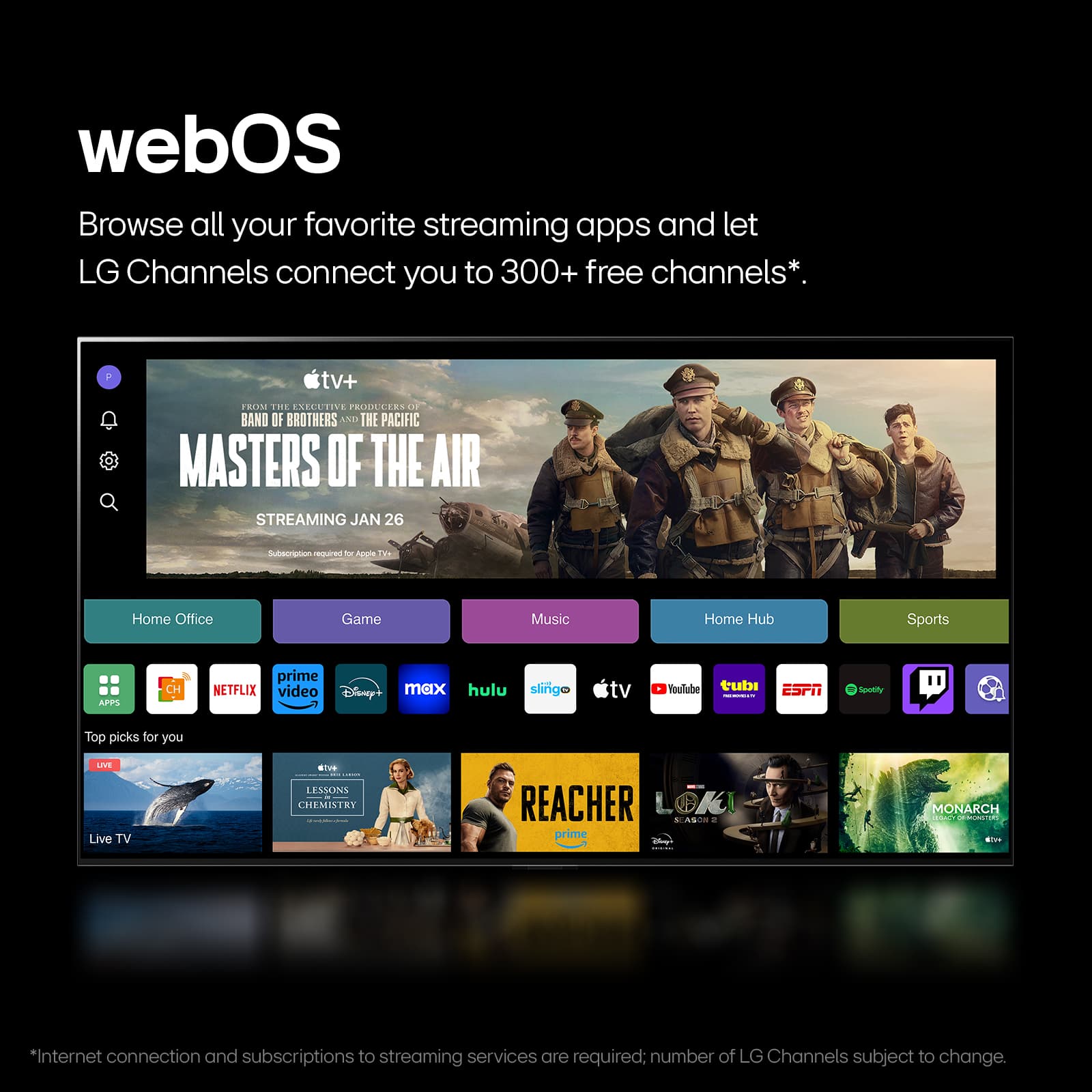
A:AnswerHi there. We understand your inquiry about the LG 55UT7570PUB 55″ Class UT75 Series LED 4K UHD Smart webOS TV. This model comes preloaded with a variety of popular streaming apps, including:
Netflix
Max
Disney+
YouTube
Prime Video
ESPN+
Apple TV+
Sling TV
In addition to these featured services, you can access the LG Content Store on the home screen to browse and download even more apps, games, and streaming channels.
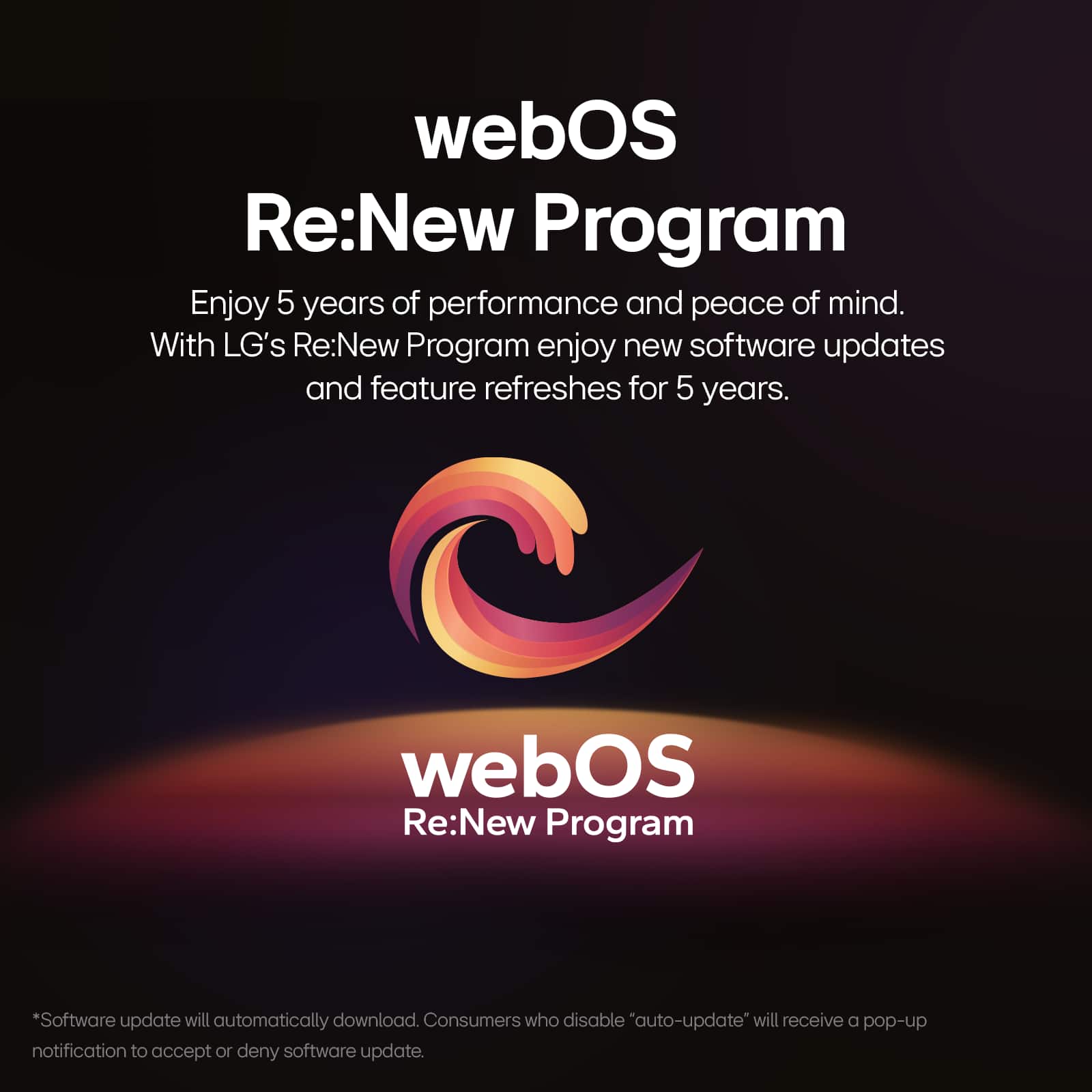
Troubleshooting Tip: If you don’t see a particular app you’re looking for, navigate to Settings > All Settings > General > About This TV and select Check for Updates. Installing the latest webOS update can refresh the app list and ensure you have access to the newest available titles.
https://www.bestbuy.com/site/lg-55-class-ut75-series-led-4k-uhd-smart-webos-tv-2024/6578186.p?skuId=6578186
If you have any trouble locating or downloading apps, please send us a private message on Social Media @LGUSSupport and our team will be more than happy to explore possible solutions with you. We appreciate your patience and look forward to helping you get the most out of your new TV. —Renzo
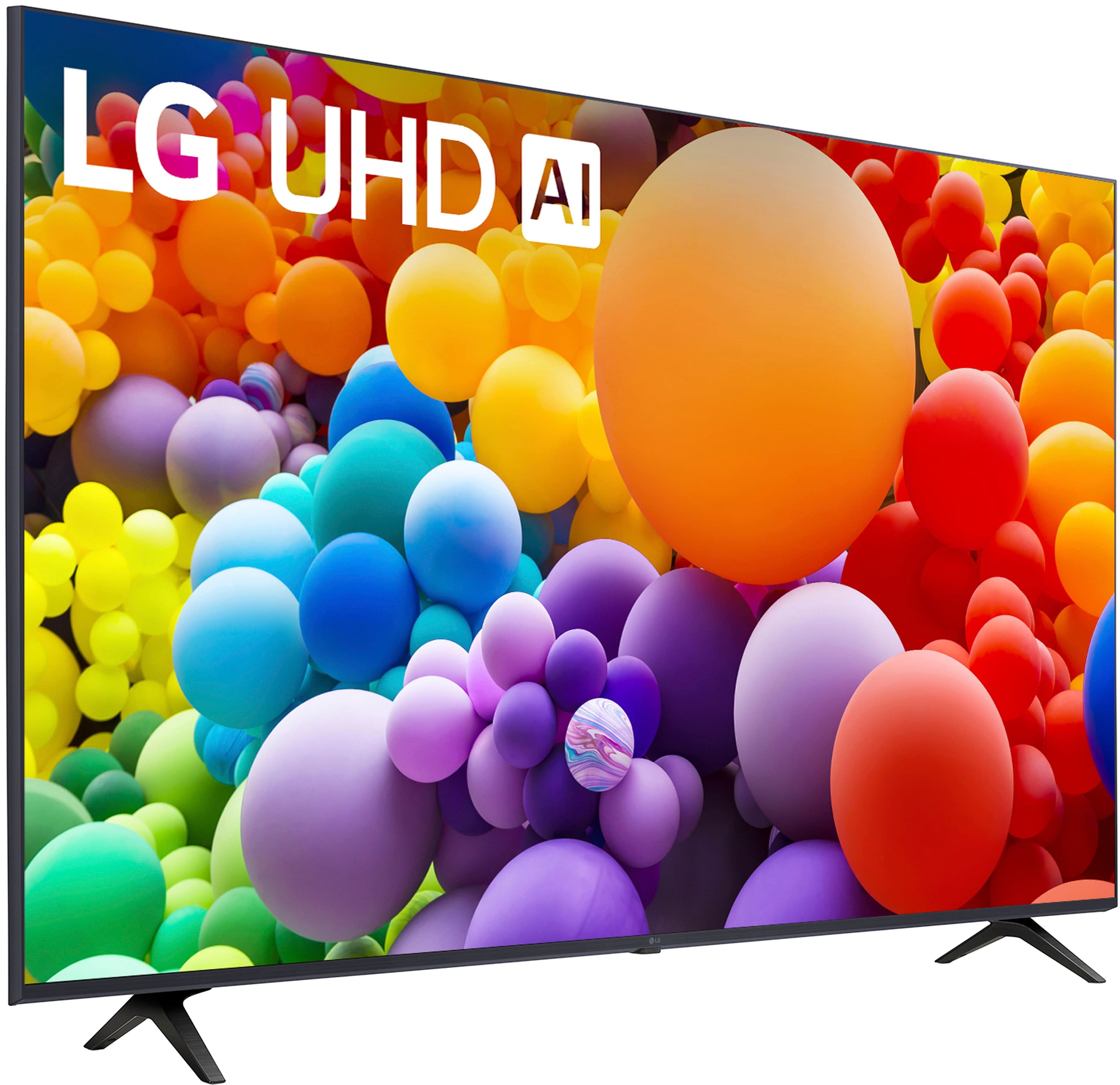
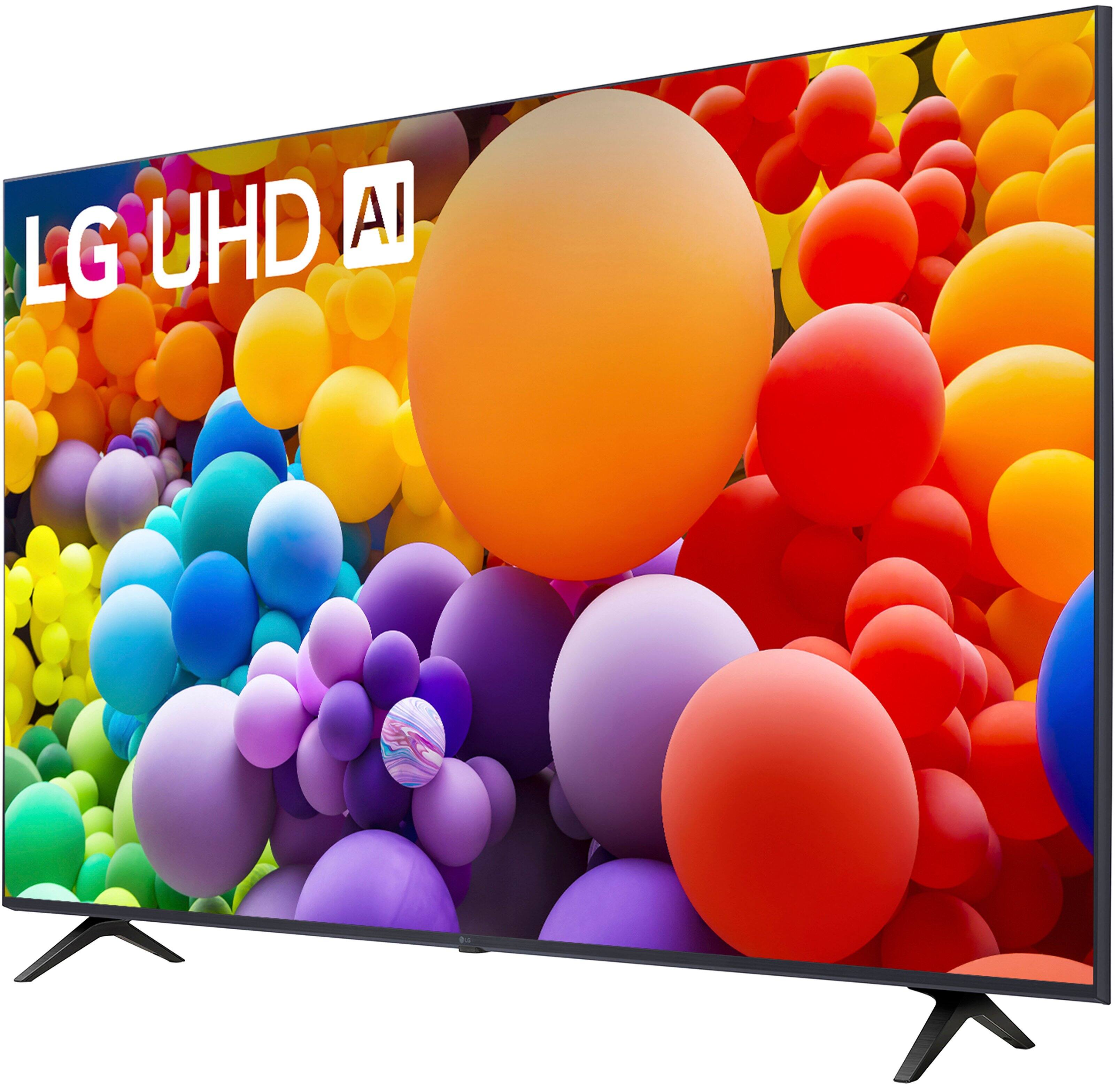
A:AnswerThe speakers for the LG 55” Class UT75 Series LED 4K UHD Smart webOS TV (2024), Model # 55UT7570PUB are down-firing speakers located under the panel on either side ...^Ivan.
A:AnswerHi there, Janis. Thank you for reaching out and sharing your experience with us. We understand your situation, and we want to help you get the most out of your LG 55UT7570PUB.
This model does include Bluetooth® 5.1 support, but to connect hearing aids, especially those using Bluetooth Low Energy (LE Audio) or ASHA (Audio Streaming for Hearing Aids), compatibility can vary based on your specific hearing aid brand and technology. Currently, not all LG TVs natively support direct hearing aid connectivity unless the hearing aid is recognized as a standard Bluetooth audio device.
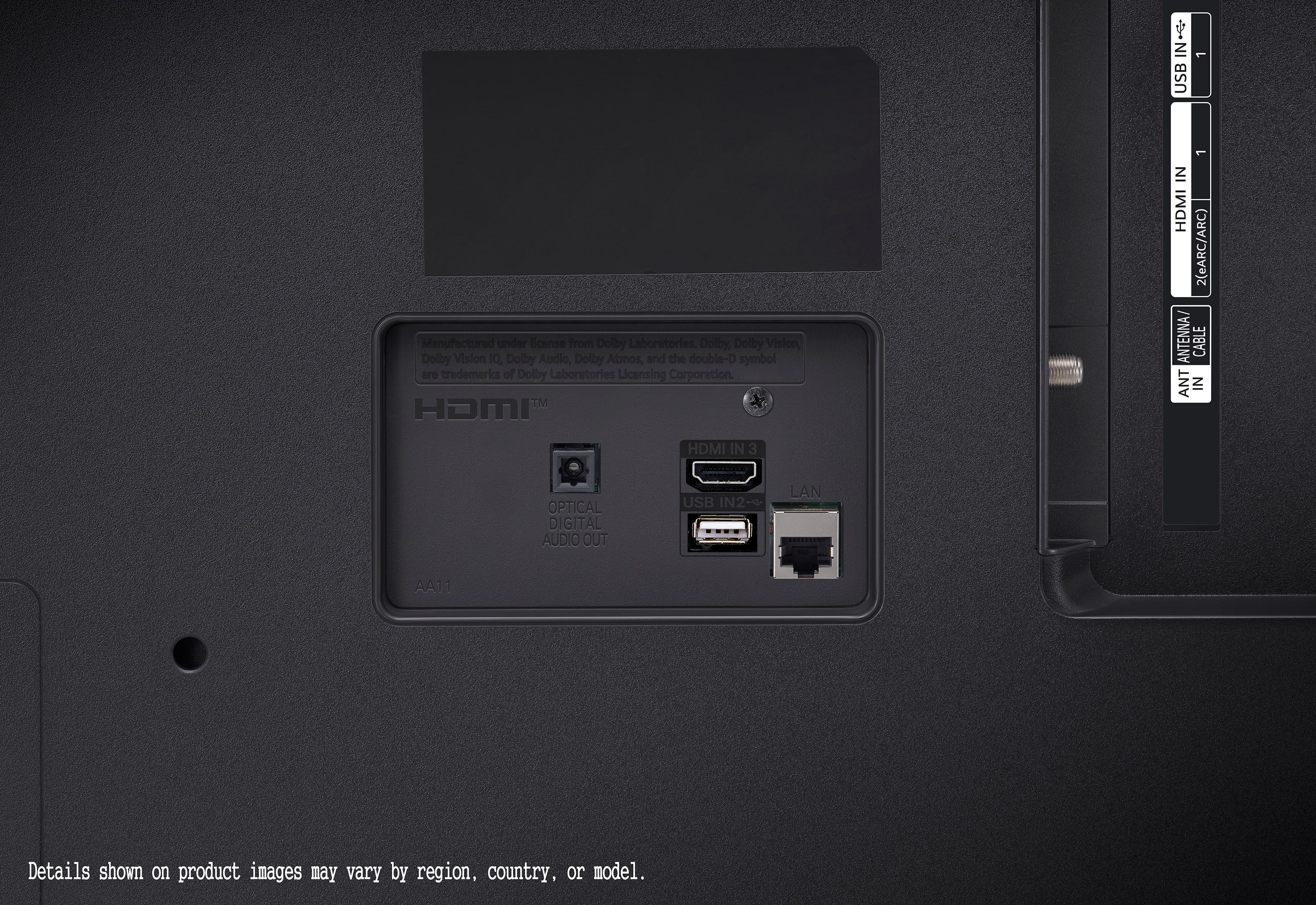
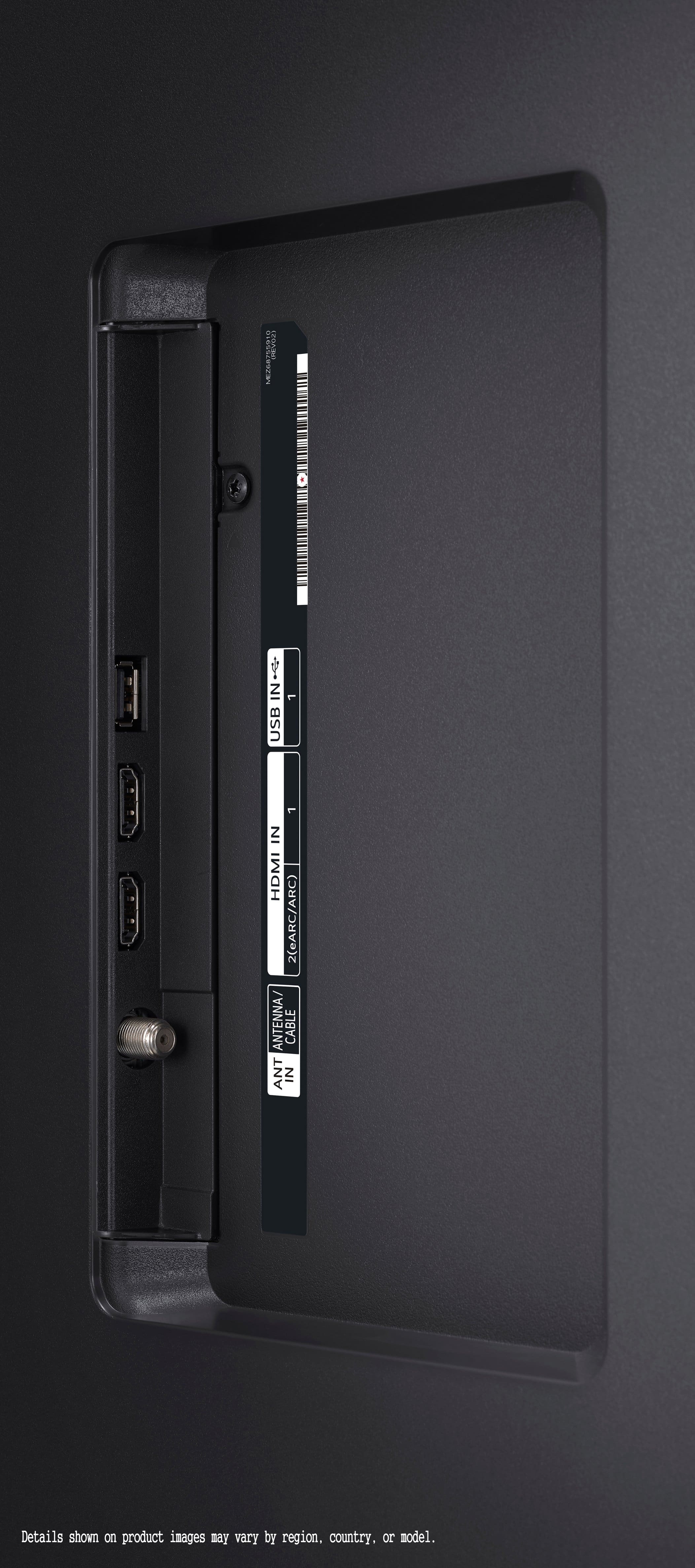
As a workaround, we recommend using a Bluetooth transmitter compatible with your hearing aid's profile, connected to the TV’s optical digital audio out or HDMI ARC/eARC port. Additionally, please ensure your TV is updated to the latest webOS version through Settings > Support > Software Update.
https://www.lg.com/us/tvs/lg-55ut7570pub-4k-uhd-tv#pdp_specs
We’d love to explore the best solution for your setup. Please send us a private message on social media @LGUSSupport, and our team will gladly assist you further with your specific hearing aid model. We appreciate your patience and thank you for choosing LG.
—Renzo
A:AnswerJust identify which HDMI port you have your cable box hooked up to. When I first setup my new TV, it did not "see" my HDMI input. Be sure to turn-on your cable box first so your TV can find it. Also, I think it was just slow response time you get with a lot of digital devices. Give it time. See my photo which shows what I get now when I turn on my LG TV. Use the TV remote to select the HDMI port.
A:AnswerHello there, Rek. Thanks for your interest in the LG 55UT7570PUB 4K UHD TV! We understand you’re asking whether it can work with a 4 Mbps Wi-Fi connection. While this TV does support Wi-Fi 5 (802.11ac), which can handle high-definition streaming and smart features smoothly, the overall performance on a 4 Mbps connection may vary depending on usage.
For optimal performance—especially for streaming in 4K from apps like Netflix or YouTube—we recommend at least 15 Mbps or higher. That said, if you're using lower resolutions or single-device streaming, 4 Mbps may still function for basic apps and services, just with potential buffering or reduced video quality.
To help improve performance, we suggest placing your router closer to the TV or connecting via Ethernet for a more stable connection.
https://www.lg.com/us/tvs/lg-55ut7570pub-4k-uhd-tv#pdp_specs
If you'd like us to help assess your setup or connection further, please send us a private message on Social Media @LGUSSupport so we can assist you directly. We're here to ensure you get the best viewing experience possible.
—Renzo
A:AnswerHi there, Lefty. Thank you for reaching out. The dimensions of the LG 55UT7570PUB are as follows:
With Stand: 48.3" (W) x 30.0" (H) x 10.1" (D)
Without Stand: 48.3" (W) x 28.0" (H) x 2.7" (D)
The stand width is 44.3". These measurements will help you ensure a good fit for your space.
https://www.lg.com/us/tvs/lg-55ut7570pub-4k-uhd-tv#pdp_specs
We understand your situation and are here to assist you further. Please feel free to send us a private message on Social Media @LGUSSupport, and our team will be happy to help with any other questions you may have.
—Renzo
A:AnswerHello, Bob.
The LG 55” Class UT75 Series LED 4K UHD Smart webOS TV (2024), Model # 55UT7570PUB does not have audio outputs for connecting to wired headphones.
It supports Bluetooth® (ver. 5.1) so you can only pair it with Bluetooth Headsets/earbuds.
Pairing it with Bluetooth Headsets/earbuds is as easy as paring them with your smartphone or Bluetooth-enabled PC/Laptop...^Ivan
A:AnswerHi there. Thank you for reaching out with your question about our TVs. We understand your situation and appreciate your interest in understanding the differences between the UT70 series and the UT75 TVs, such as your 55UT7570PUB and 55UT7000PUA models.
Our UT75 series is designed to offer a more premium viewing experience with a few key enhancements. For instance, these models feature a direct backlight design that helps deliver improved brightness and contrast, paired with the advanced α5 AI Processor 4K Gen7 for optimized picture quality and 4K upscaling. They also include enhanced features like ALLM (Auto Low Latency Mode), Game Optimizer, and HGIG Mode, which together provide an immersive and responsive performance for gaming and dynamic content. Additionally, the UT75 series incorporates a broader suite of smart connectivity features and audio enhancements that elevate the overall user experience.
In comparison, the UT70 series is engineered to deliver excellent 4K Ultra HD picture quality along with essential smart features at a more accessible price point. While both series share core functionalities—like HDR support, webOS capabilities, and integrated smart home options—the UT75 series typically offers extra enhancements that cater to users seeking a more robust and feature-rich experience.
As a troubleshooting step, if you ever notice any performance differences or connectivity issues with your UT75 models, we recommend verifying that your TV's firmware is up-to-date and ensuring that all cable connections are secure. This simple check can often resolve minor issues and help maintain optimal performance.
https://www.bestbuy.com/site/lg-55-class-ut75-series-led-4k-uhd-smart-webos-tv-2024/6578186.p?skuId=6578186
Please send us a private message on Social Media @LGUSSupport so our team can further assist you and explore possible solutions. We appreciate your patience and are here to help.
—Renzo
A:AnswerHello there. Thank you for sharing your inquiry with us. We understand your situation regarding screen mirroring on your LG 55UT7570PUB TV. This model is equipped with both Apple AirPlay2 and Google Cast built-in, which allow you to mirror your smartphone screen directly onto your TV.
For example, if you're using an iPhone, you can swipe down from the top-right corner of your screen to access the Control Center, select the Screen Mirroring option, and then choose your LG TV from the available devices. If you're using an Android device, you can look for the cast option either in the Quick Settings menu or within supported apps to start mirroring your screen.
Additionally, as a troubleshooting step, please ensure that both your TV and smartphone are connected to the same Wi-Fi network, as this is essential for a smooth screen mirroring experience. If you experience any issues during the setup, restarting both devices can often help establish a proper connection.
https://www.lg.com/us/tvs/lg-55ut7570pub-4k-uhd-tv#pdp_specs
Please send us a private message on Social Media @LGUSSupport, and our team will be more than happy to explore further solutions with you. We appreciate your patience and look forward to assisting you further.
—Renzo
A:AnswerHello there, Harrison. Thank you for reaching out with your inquiry about the base size of your LG 55UT7570PUB TV. We understand your situation and appreciate your interest in confirming the dimensions for your setup.
Based on the official specifications, the stand width—or base size—of this 55" TV is 44.3 inches. Additionally, when the TV is set up with its stand, the overall dimensions are 48.3 inches in width, 30.0 inches in height, and 10.1 inches in depth. These measurements are designed to ensure stability while complementing your display space.
https://www.lg.com/us/tvs/lg-55ut7570pub-4k-uhd-tv#pdp_specs
As a troubleshooting step, we recommend verifying these dimensions with a tape measure at your installation site to ensure a perfect fit, especially if your space has specific requirements. Please send us a private message on Social Media @LGUSSupport, and our team will be more than happy to explore further solutions with you.
We appreciate your patience and are here to support you every step of the way.
—Renzo