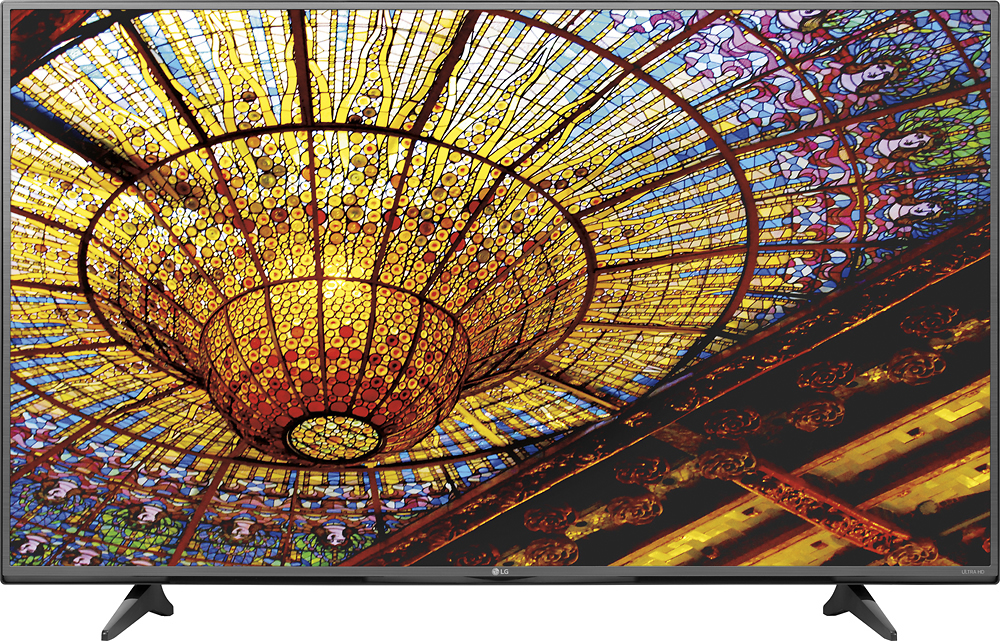
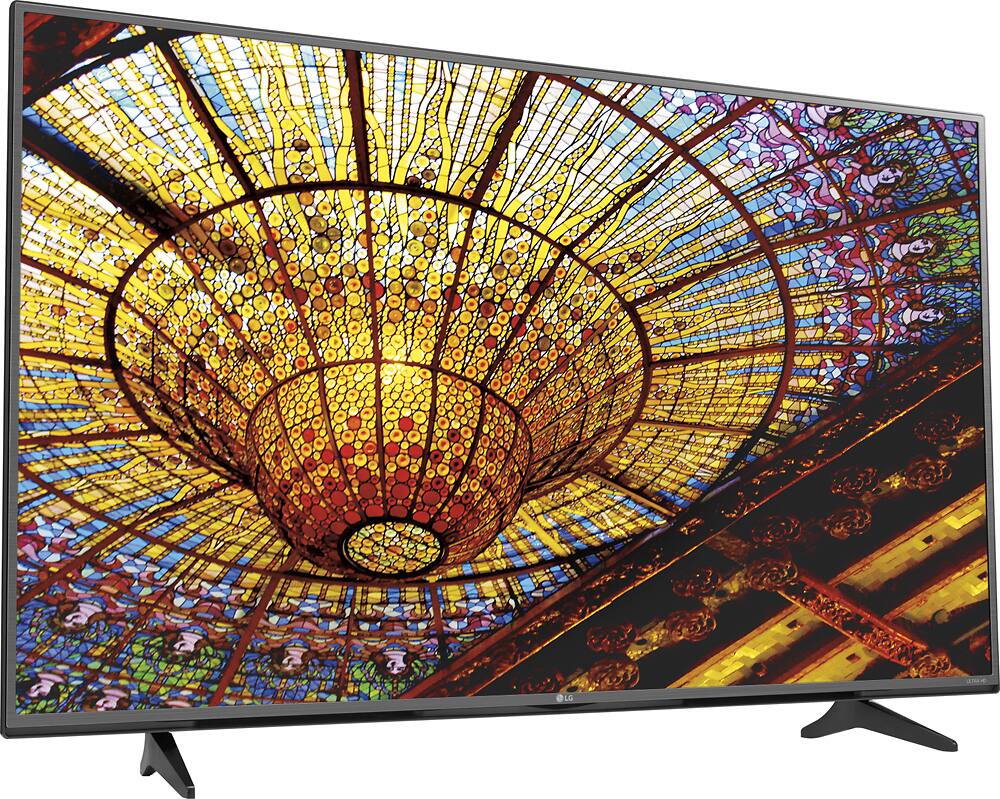
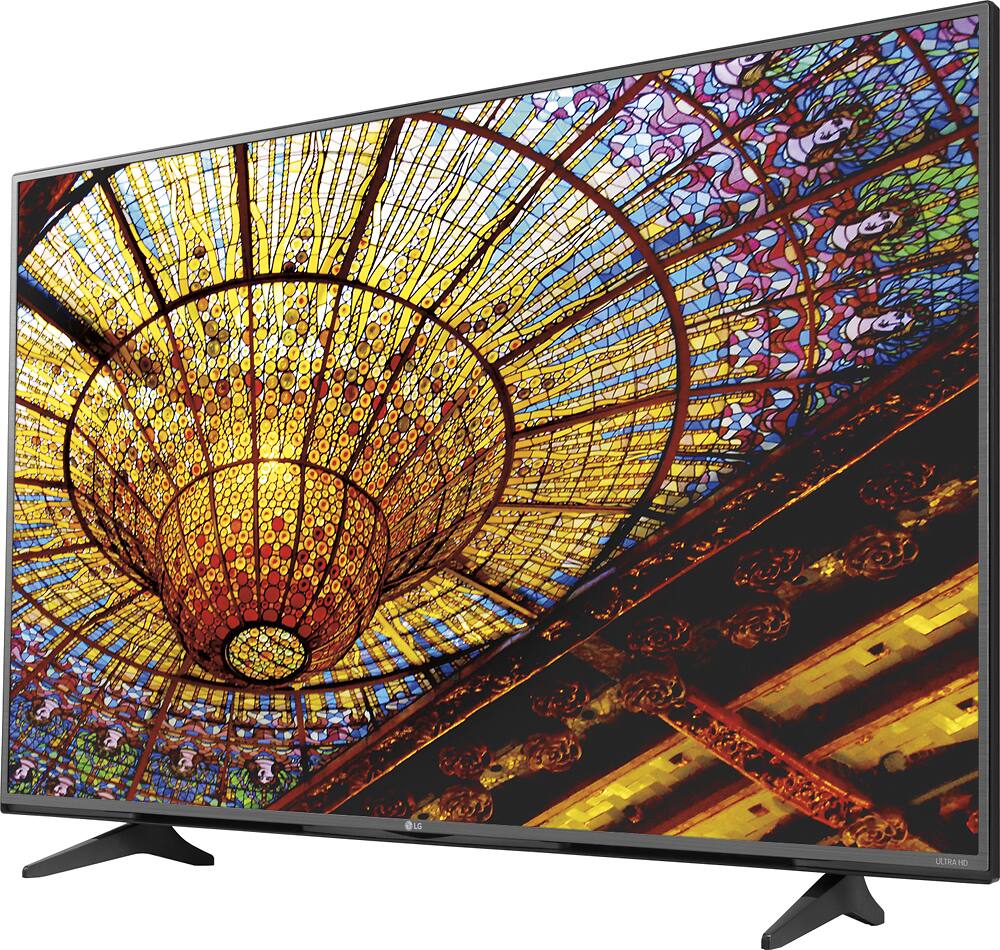
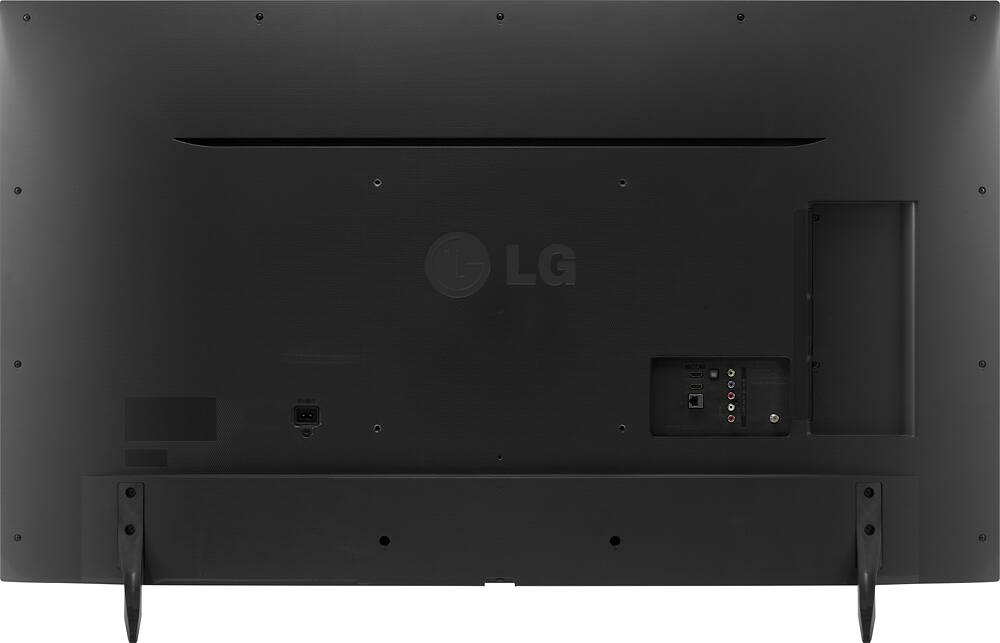
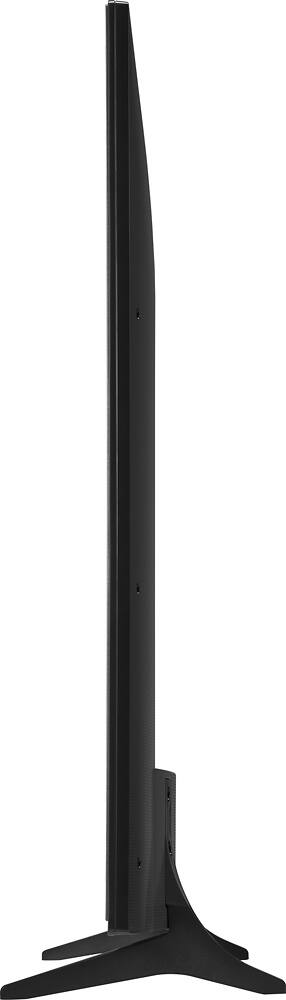
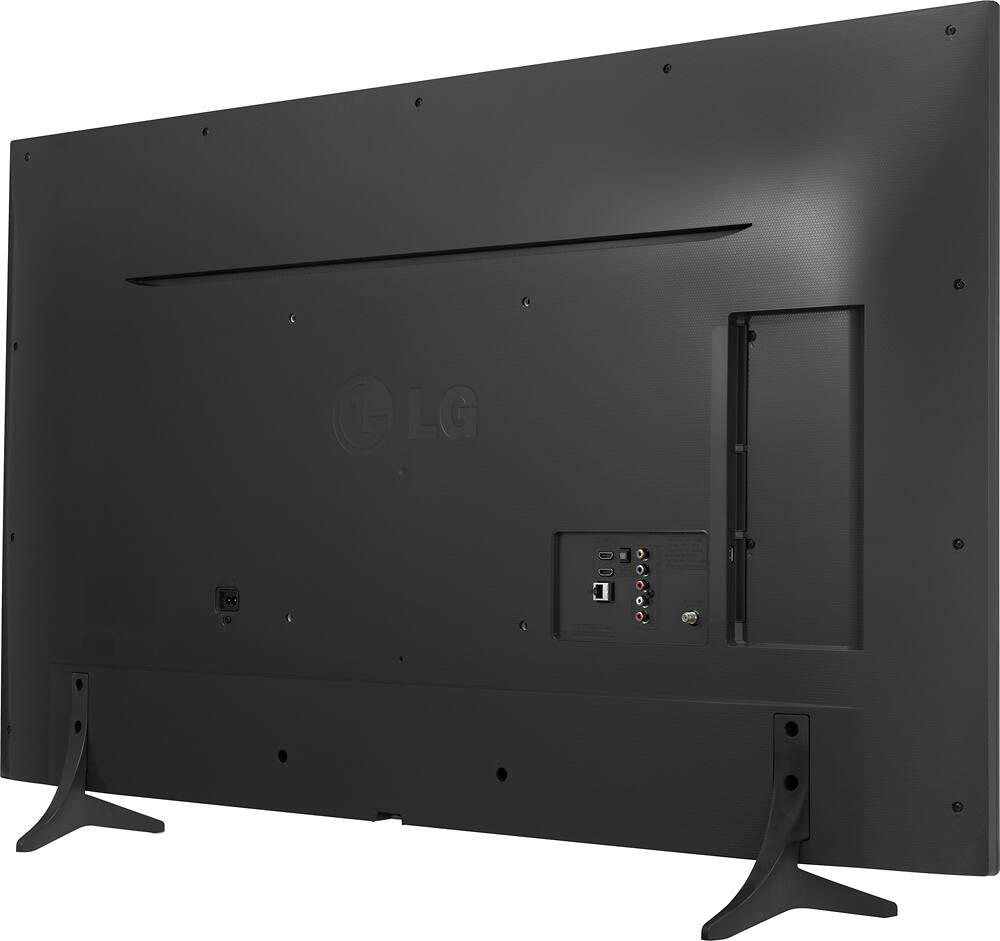
A:AnswerThe LG - 65" Class (64.5" Diag.) - LED - 2160p - Smart - 4K Ultra HD TV - Black, Model # 65UF6800 only has an Optical Digital Output for connecting the TV to external Sound Systems and receivers. You may want to ask the Sales associates at Best Buy about digital to analog converters that you might be able to use that will allow you to connect to your RCA ports after the converter converts the signal from digital to analog. You will also find such converters on the Best Buy online site...^IFV
A:AnswerThe best setting for picture quality will be unique to your environment and to you since no two individuals see the same thing. If you want the best picture quality that this LG - 65" Class (64.5" Diag.) - LED - 2160p - Smart - 4K Ultra HD TV - Black, Model # 65UF6800 and any connected video device can give you, you should get the TV calibrated. You can inquire from the Best Buy Geek Squad about TV calibrations. Calibrators will calibrate the TV for the environment it's in, each room in your house will require a different calibration since it will vary from room to room and they can also calibrate each input for optimal picture quality for the device connected to that input...^IFV
A:AnswerThe ENERGY STAR® Qualified LG 65" Class (64.5" Diagonal) 4K UHD Smart LED TV w/ webOS 2.0, Model # 65UF6800 comes with a standard remote. The UF6800 series TVs are not compatible with the Magic Remote. Magic Remote compatibility on the US 'UF' models begins with the UF7600 series and up...^IFV
A:AnswerThere are several ways to enjoy videos, music and photos saved on your PC on the ENERGY STAR® Qualified LG 65" Class (64.5" Diagonal) Prime 4K UHD Smart LED TV w/ webOS 2.0, Model # 65UF6800 bundles Screen Share and Content Share functionality under the advertised SmartShare feature. SmartShare is LG's name for DLNA. Content Share allows you to enjoy videos, music and photos saved on your PC and if the computer operating system is Windows 7 or Windows 8, you can play music, video, or photos on your TV without installing an additional program. Configure the TV and PC on the same network. Also configure the network on the PC installed with Windows 7 or Windows 8. Right-click the desired music, video, or photo file, and select the model using the Play To function provided in Windows 7 or Windows 8 to play what is selected. To play on other devices like your mobile phone, refer to the relevant user guide. If your PC supports Intel® WiDi and it supports connections over the Intel® WiDi 3.5 version, you can start the Screen Share app on the TV then start Intel® WiDi on the device you want to connect. Your TV will be displayed in the list of available devices and you can select your TV to request a connection, and a message asking you to enter an 8-digit PIN will appear on the TV screen. Enter the PIN and select Connect. After the connection is established, the TV will display the screen of the connected device. Intel® WiDi allows connections without a wireless router. For the best possible performance, connect your device to a 5 GHz router. You can also use SmartShare PC Software or Smartphone to connect the music/videos/photos saved on the PC to your home network and play them on your TV. Configure the TV and device (e.g., smartphone) installed with SmartShare on the same network. The SmartShare service is only available when the TV and all the devices are connected to a single router. If you are using a PC, download and install SmartShare PC Software from the website. Before installation, exit all programs running on the PC, such as a firewall or an anti-virus software. The server should be running in order to watch the shared file on your TV. To watch the 1080p video through Content Share function, a router that uses 5 GHz frequency is required. If a 2.4 GHz router is used, the video may not play properly. The Content Share function may not be supported for a router that does not support multi-cast. For more information, refer to the user guide that came with your router or contact the manufacturer. DRM files in the connected device will not play and there are too many folders or files in a folder, it may not work properly. Depending upon the encoding, some streams may not play in content sharing mode and information on the file imported from the connected device may not be displayed correctly...^IFV
A:AnswerYou should be getting a great picture. Just make sure all size for video are set up correctly on cable/satellite box as well. Sometimes things go to the default setting and mess up your picture. Also make sure you are viewing on true HD channels. Some companies still have standard and HD seperate. Some pictures also just depend on the carrier of your service. This was a new TV for my parents and they have even changed from Time Warner to AT&T. Both companies have shown equally great picture. Sometimes it nearly looks like a live show vs recorded their is so much clear detail. The customer service number for the TV is very helpful. Let them take you through the setup if needed. If still having problems see if you can have it exchanged for a new TV in case it just turned out to be a bad set.
A:AnswerThe Smart Remote is very different then earlier models the " on screen cursor" moves in direct lines ( up or down or left to right ) the earlier models worked more like a Wii which moved all over the place. You will get the hang of it quickly , but as is the case with all "Smart Remotes sometimes called Magic Remotes " practice makes perfect. Lastly and important PATENCE is going to be key since moving across the pop up keyboard it tedious but functional.
A:AnswerYes it does, I used mine to connect it to the POLK sound bar that I purchased with the TV. Works great. Also if you have a Windows 8.1 or better PC, you can wirelessly use this TV as a monitor.