A:AnswerDisable Gsync on your monitor. On your Xbox series x go to General & display settings. Under video & fidelity overscan make sure is set to Auto.
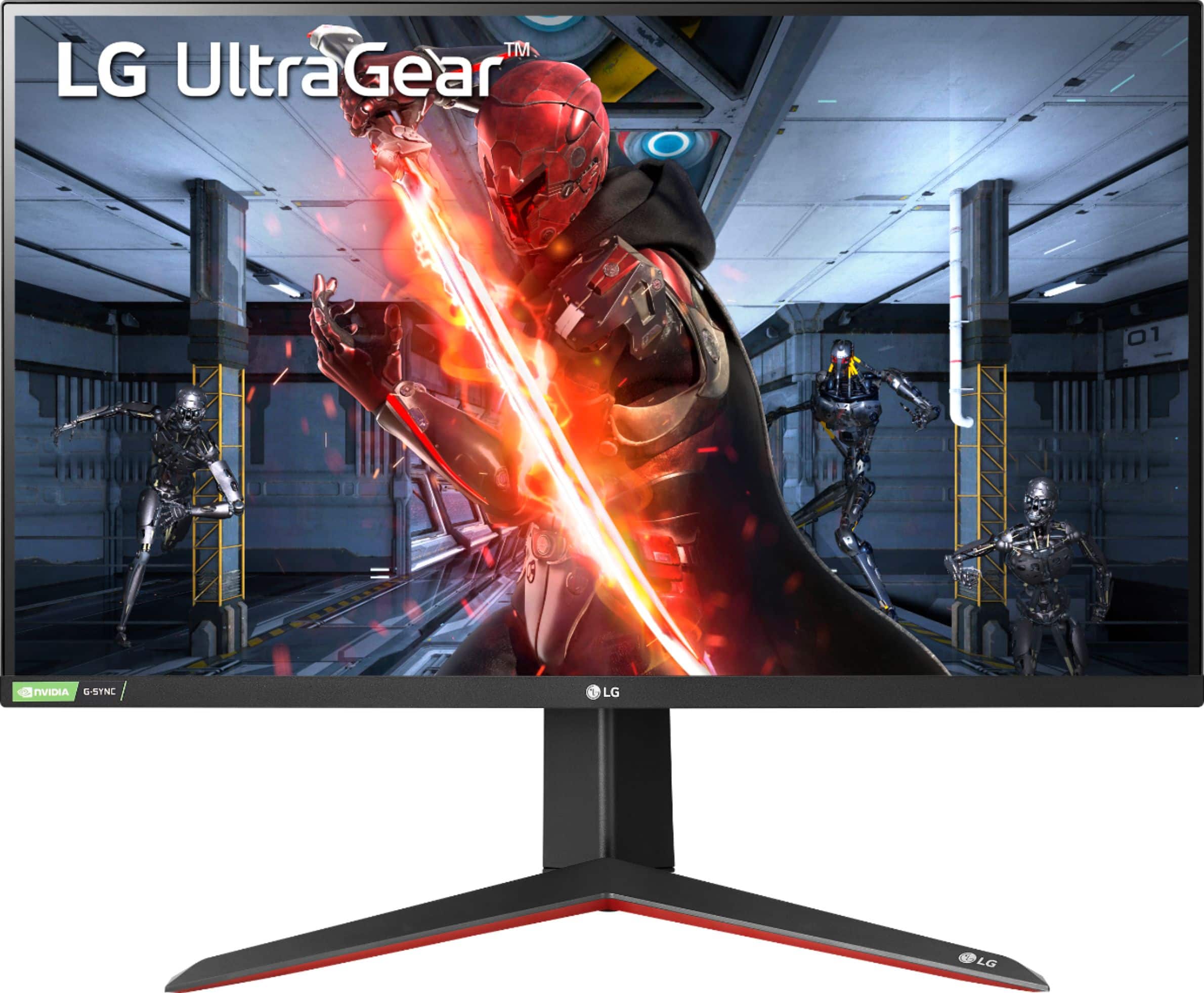
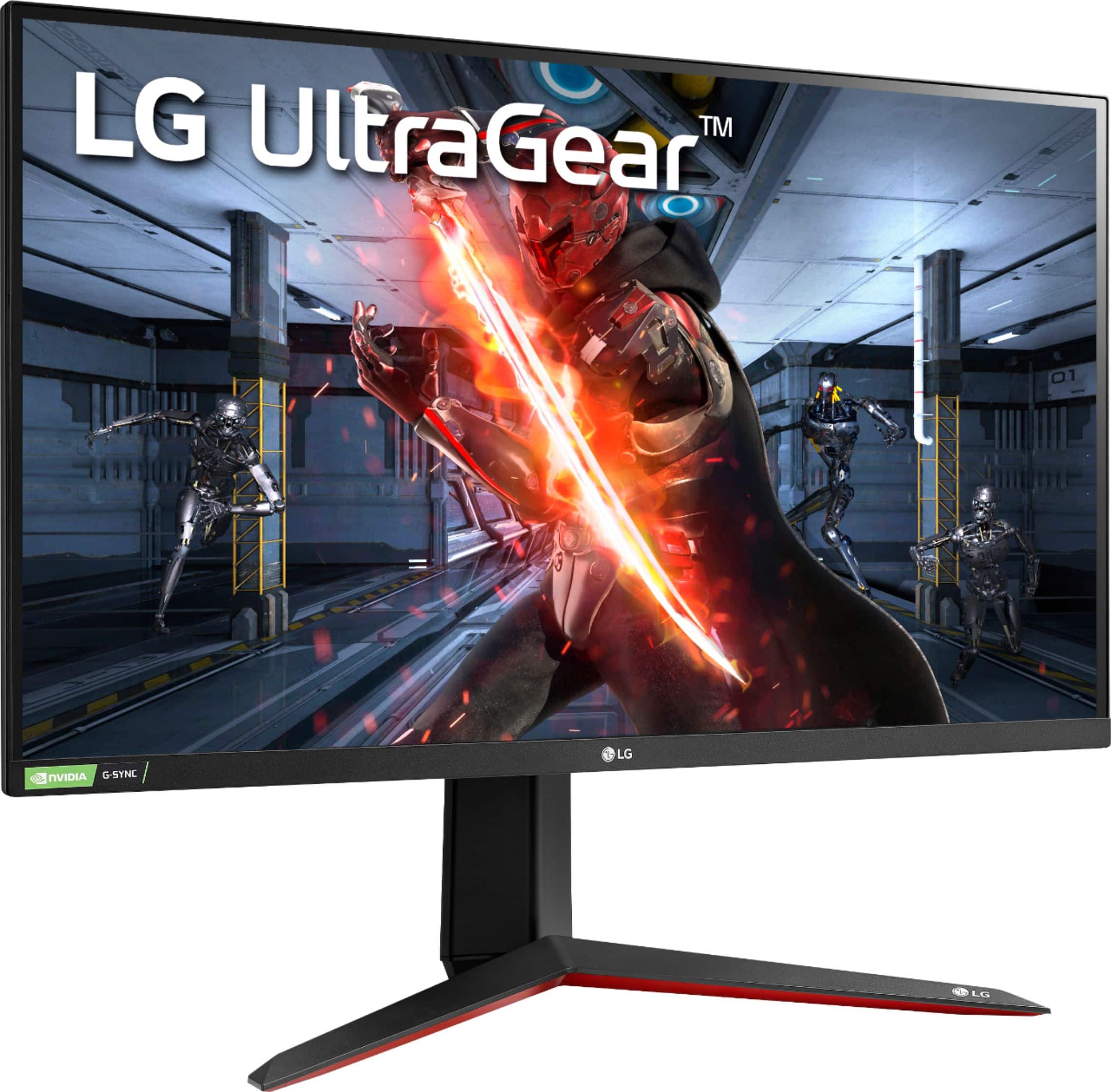
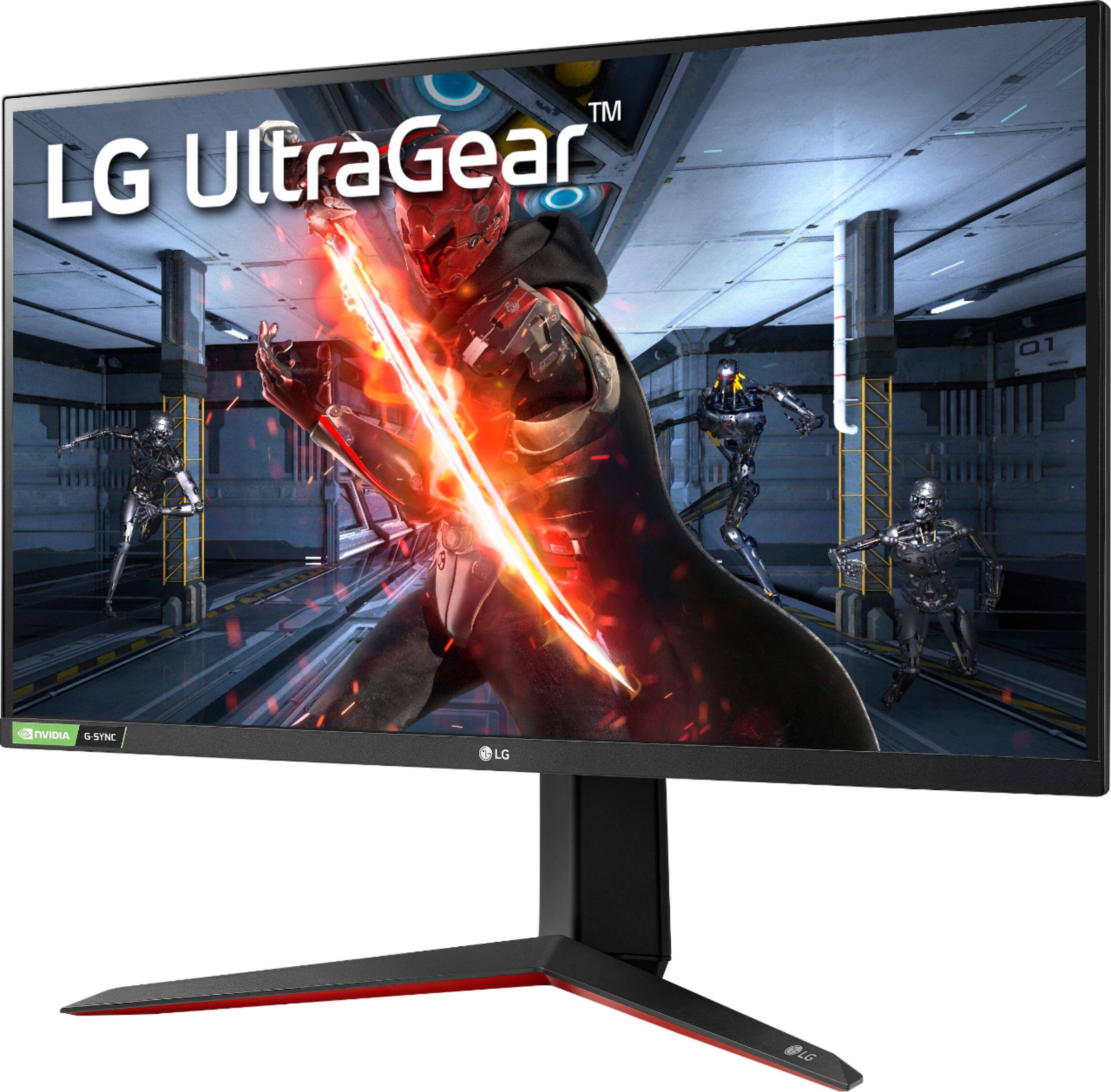
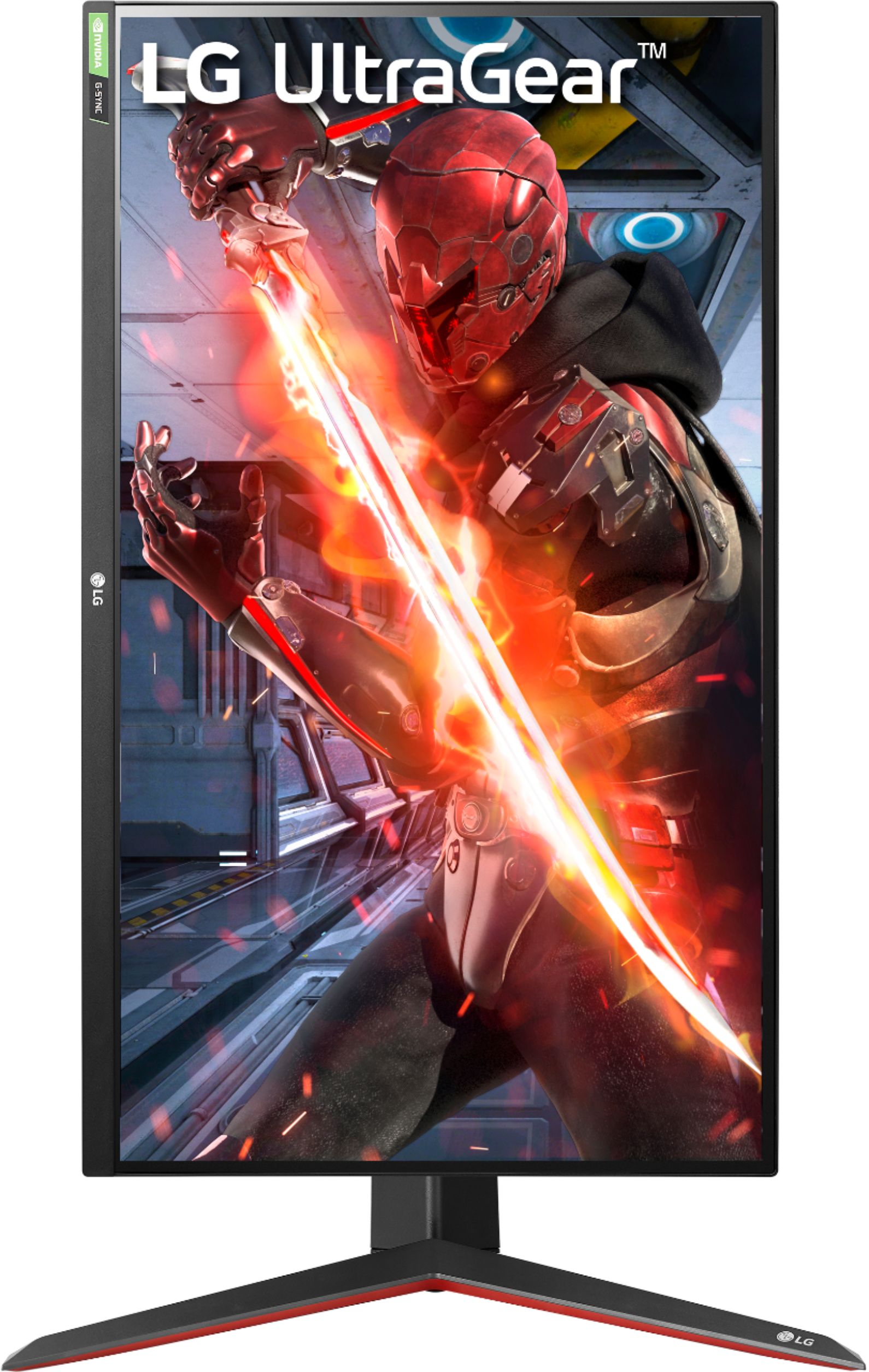
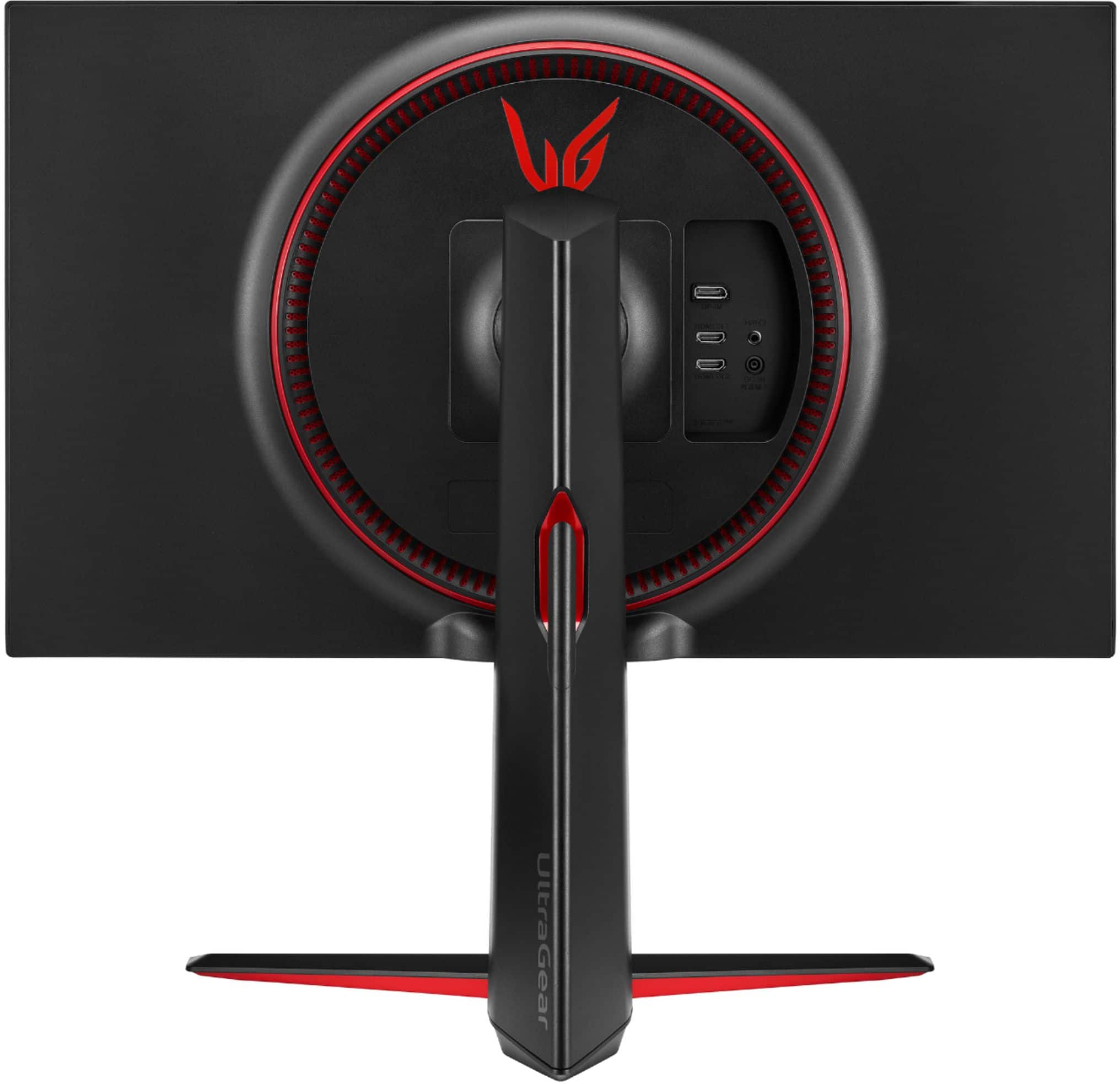
A:AnswerAs implied in the title, the LG UltraGear™ 27" IPS LED QHD FreeSync and G-SYNC Compatible Monitor with HDR - Black, Model # 27GN850-B will work with NVIDIA G-SYNC cards and FreeSync™ which virtually eliminate screen tearing and stuttering. The monitor has a VRR FreeSync™ range 40-61 via DisplayPort™ and 40-61 via HDMI® and a VRR G-Sync range of 48-144Hz via DisplayPort™...^IFV
A:AnswerDo not buy this monitor for ps4/ps4 pro if you care at all about input lag. Over Display Port at 144hz, it has very low input lag. 60hz (max on ps4 pro), the input lag is terrible. You might as well just keep gaming on a TV.
A:AnswerPlease reach out to our support team via direct message Twitter or Facebook @LGUSSupport or call at 800-243-0000. Please be sure to provide your contact information, model/serial numbers and date of purchase. ^Daphane
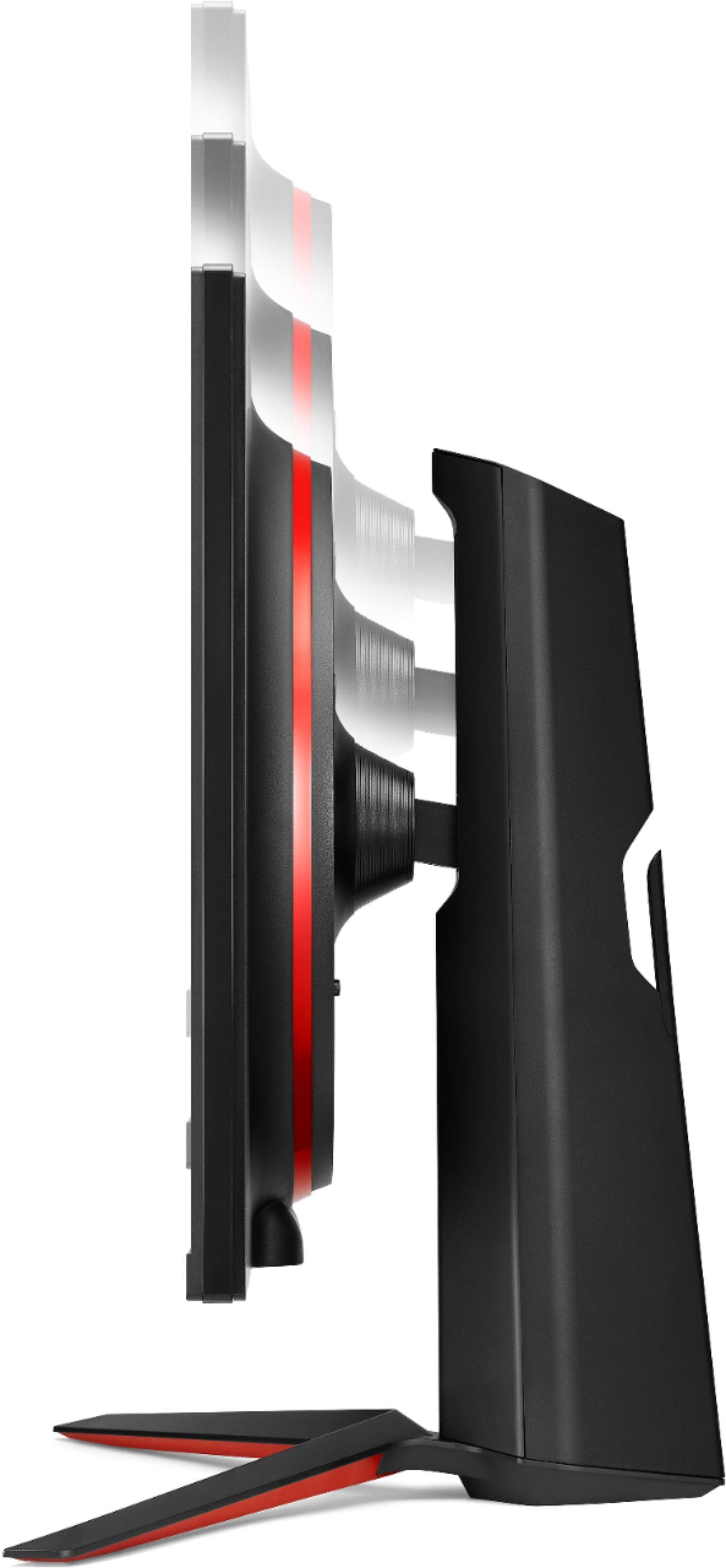
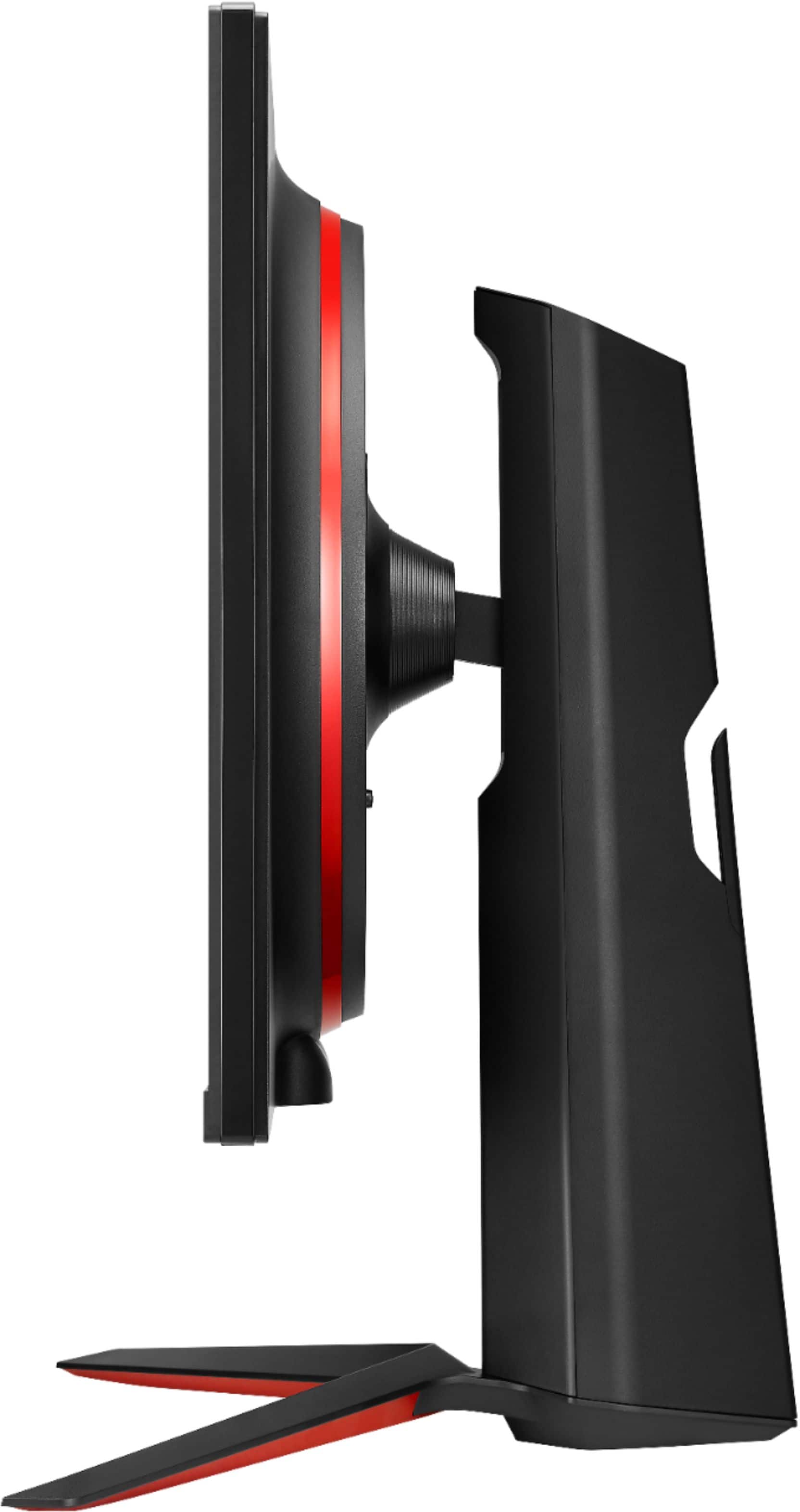
A:AnswerI am sorry, the factory did not provide a specification for the depth or width of the stand. Please seek help in the LG Community Forum, https://lgcommunity.us.com. The LG Community Forum is a great resource for getting help from other LG customers. ^Daphane
A:AnswerHi Browntrout57. Please contact our Support Center at (800) 243-0000 for a full detailing of LG's policy for dead pixels and bleed on the LG 27'' UltraGear™ QHD Nano IPS 1ms 144Hz G-SYNC Compatible Gaming Monitor, Model # 27GN850-B...^IFV
A:AnswerFirmware updates are released to resolve issues or improve the functionality of a monitor and some monitors do not receive firmware updates. If there are any firmware updates available for the LG 27'' UltraGear™ QHD Nano IPS 1ms 144Hz G-SYNC Compatible Gaming Monitor, Model # 27GN850-B, you can visit our site at https://www.lg.com/us/monitors/lg-27gn850-b-gaming-monitor and click on the 'Support' button to download any available updates to your computer that is connected to the monitor and follow the on-screen directions to install the updates on your computer...^IFV
A:AnswerIt should turn on even if it's not plugged into anything else besides the power. It would show a screen saying there is no input signal from your PC or whatever. Double check cables and power socket with another device, then return if it still doesn't turn on.