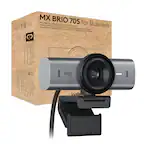
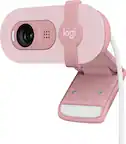
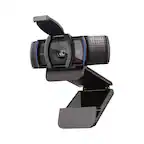
A:AnswerGave this webcam to my niece who uses Windows 10. Just connect to USB cable to the port. No download was required. Didn’t notice drivers downloaded in the background
A:AnswerThat's all you'll need -- though you may prefer to have a set of earbuds to help prevent audio feedback versus using your speakers. The webcam will plug into your USB port and your Inspiron should instantly recognize it. In your zoom set up (test) you'll have the choice of audio input sources - so if using earbuds with a mic you can choose that or go with the webcam's microphone. Play with the two and see which you prefer.
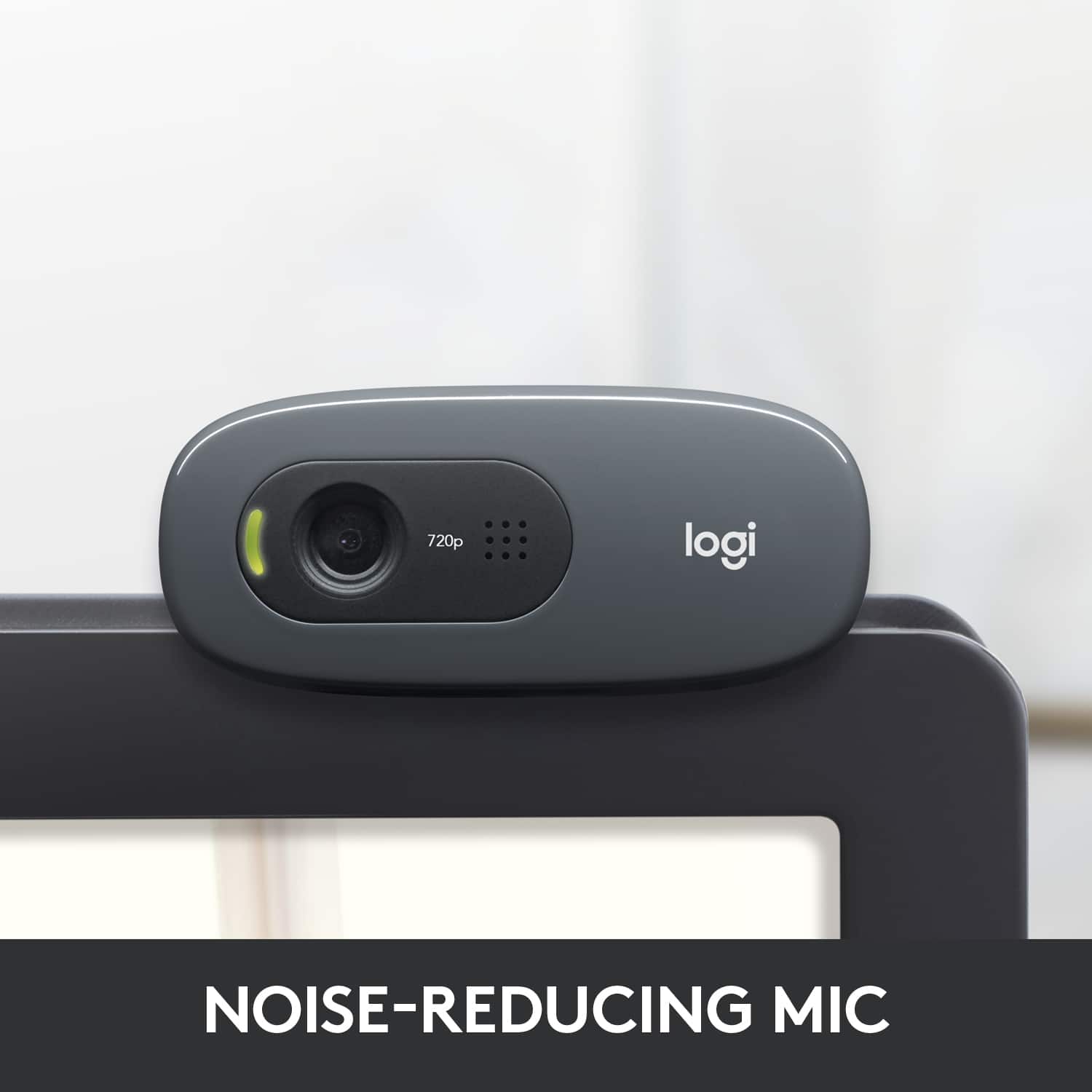
A:AnswerThat depends on the program/app you use. It’s a mic so the volume depends on how loud or soft you speak. You can adjust color, brightness, standard and widescreen. If you’re worried about the camera being on ,a light comes on to let you know it’s active.
A:AnswerThe monitor I’ve mounted it to is an HPw1907 if that helps.
Its a 13yr old monitor so it’s not as sleek as current monitors. You don’t need to clip it on anything , also sits on a flat service like a table or maybe stack of books.
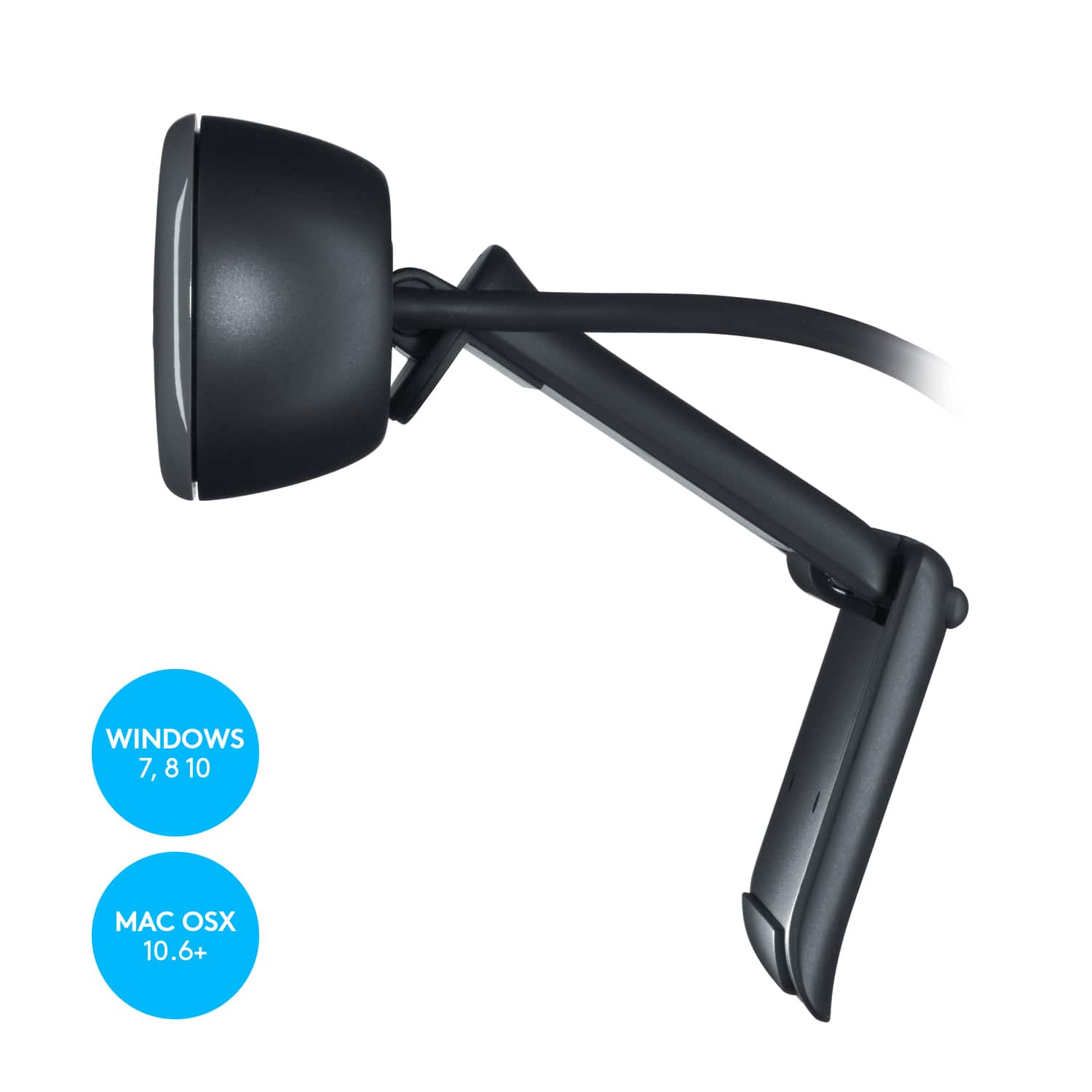
A:AnswerThe webcam is plug-and-play compatible with all versions of Windows after 7, including 8.1! You can download software if you want to further configure the webcam, but you can absolutely use it just by plug-and-play.
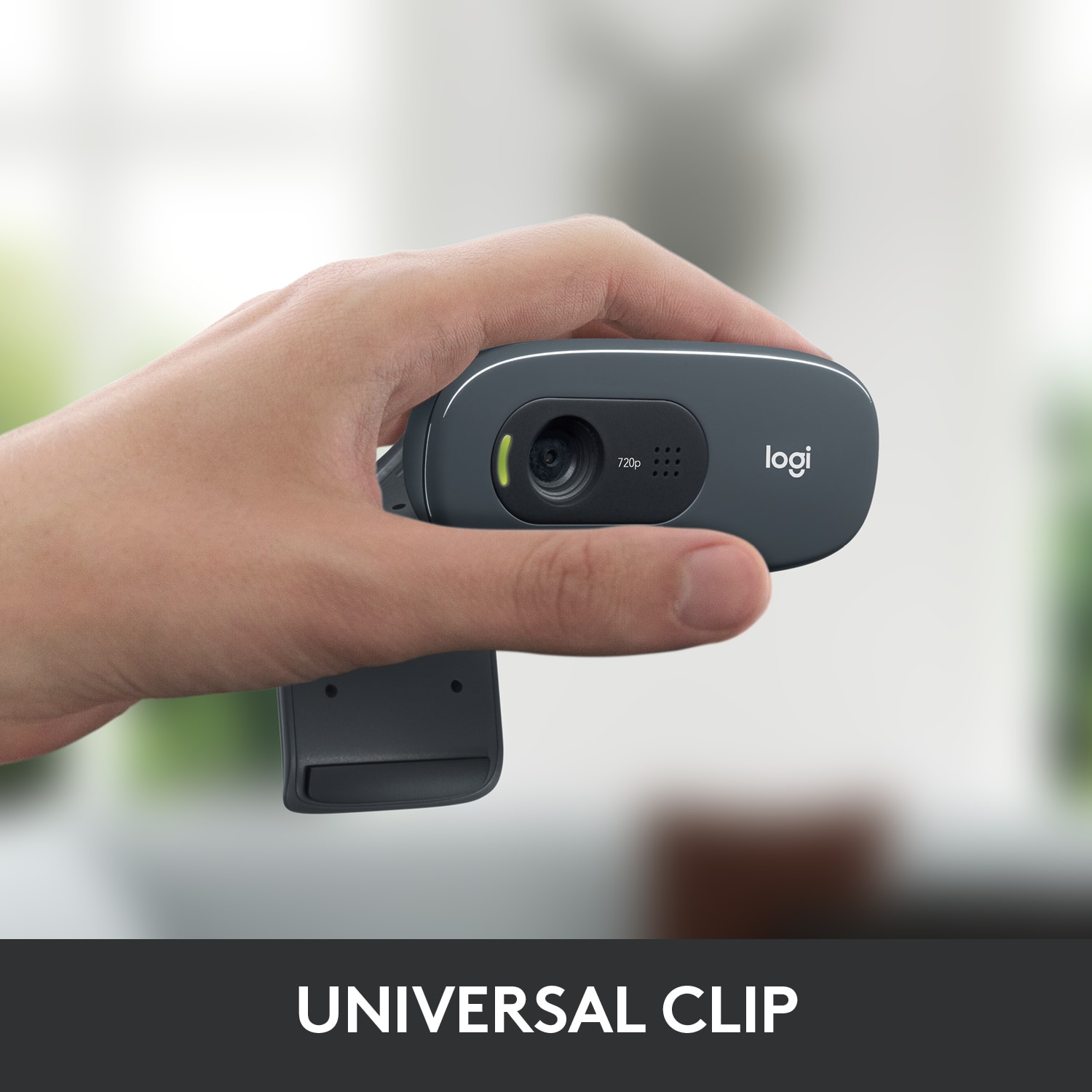
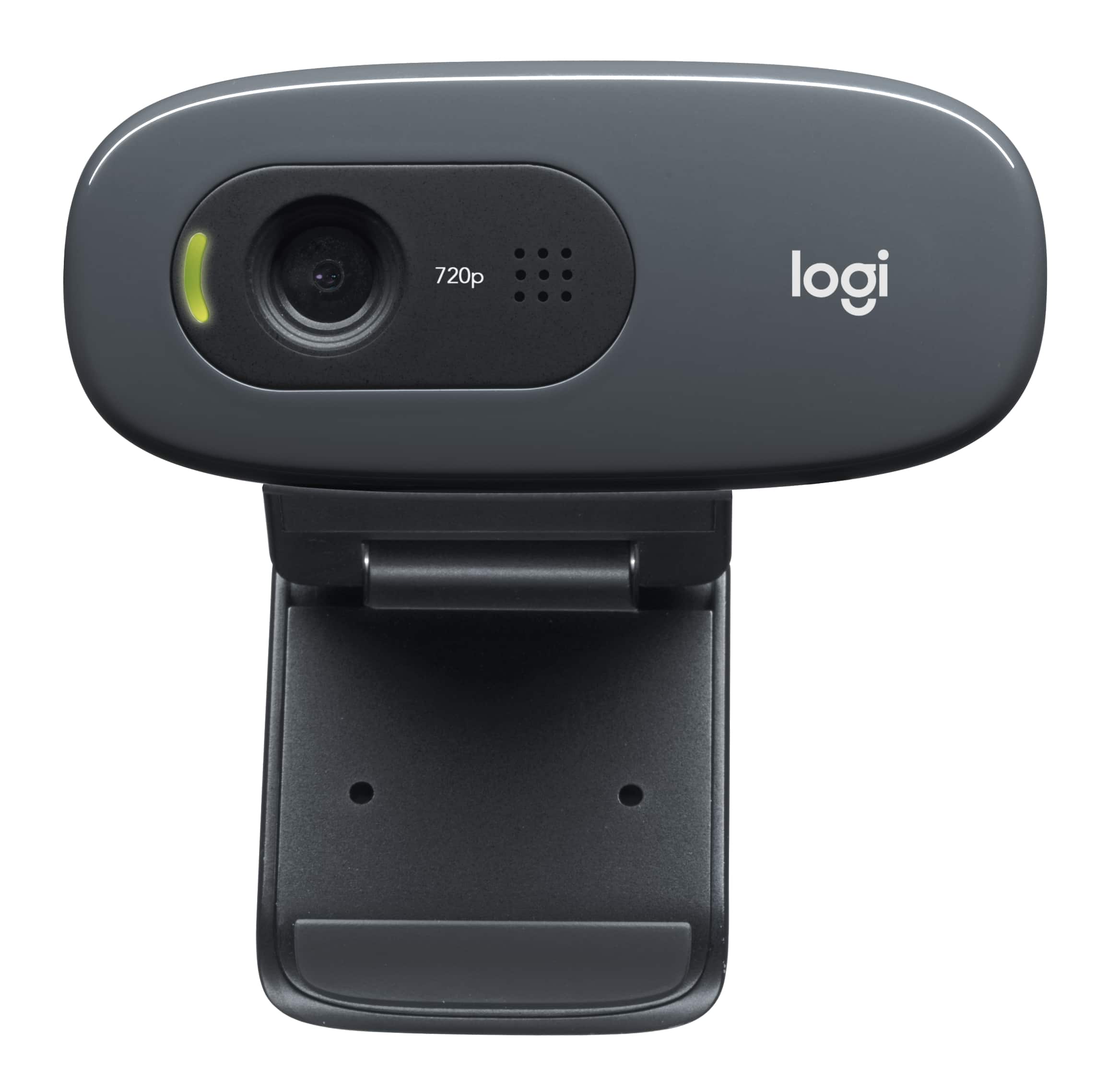
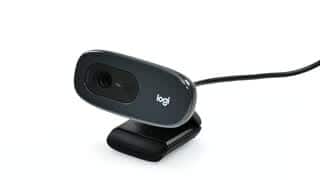
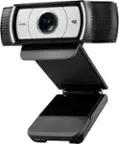
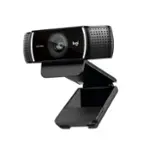
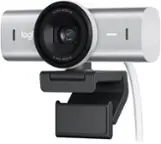
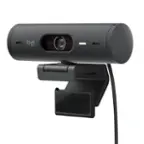
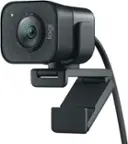
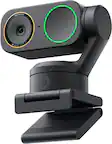
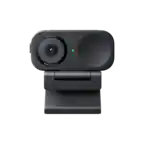
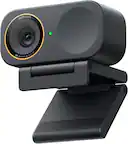
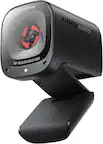
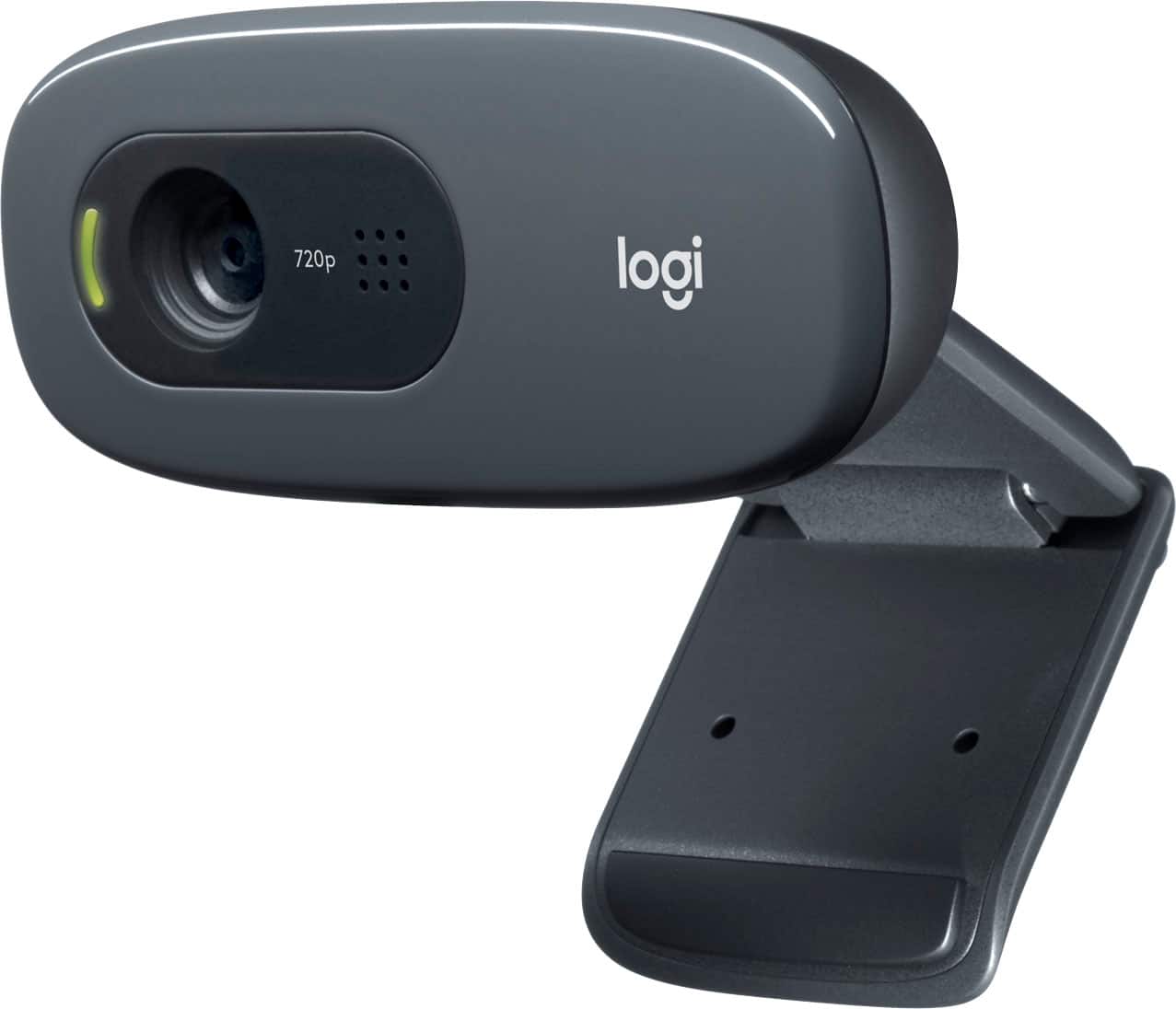
A:AnswerThe Logitech webcam can be positioned and is versatile. The camera/mic portion can be angle-adjusted up and down and it is attached to a support that acts as a clip or a stand. The adjustable support can be attached to the top of a screen or used in a free-standing manner.
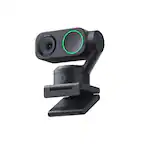
A:Answerthis model doesn't "clip"...it's got 2 rotational pieces/planes around a pin...1 for attaching to your screen and the other for the camera. So you'll just just "push/squeeze" the 2 pieces together till they make contact with your screen, then you can rotate/adjust the camera itself to the angle you want..it adjusts up and down on its own plane. It's pretty light and should be just fine for your laptop.. hope this helps