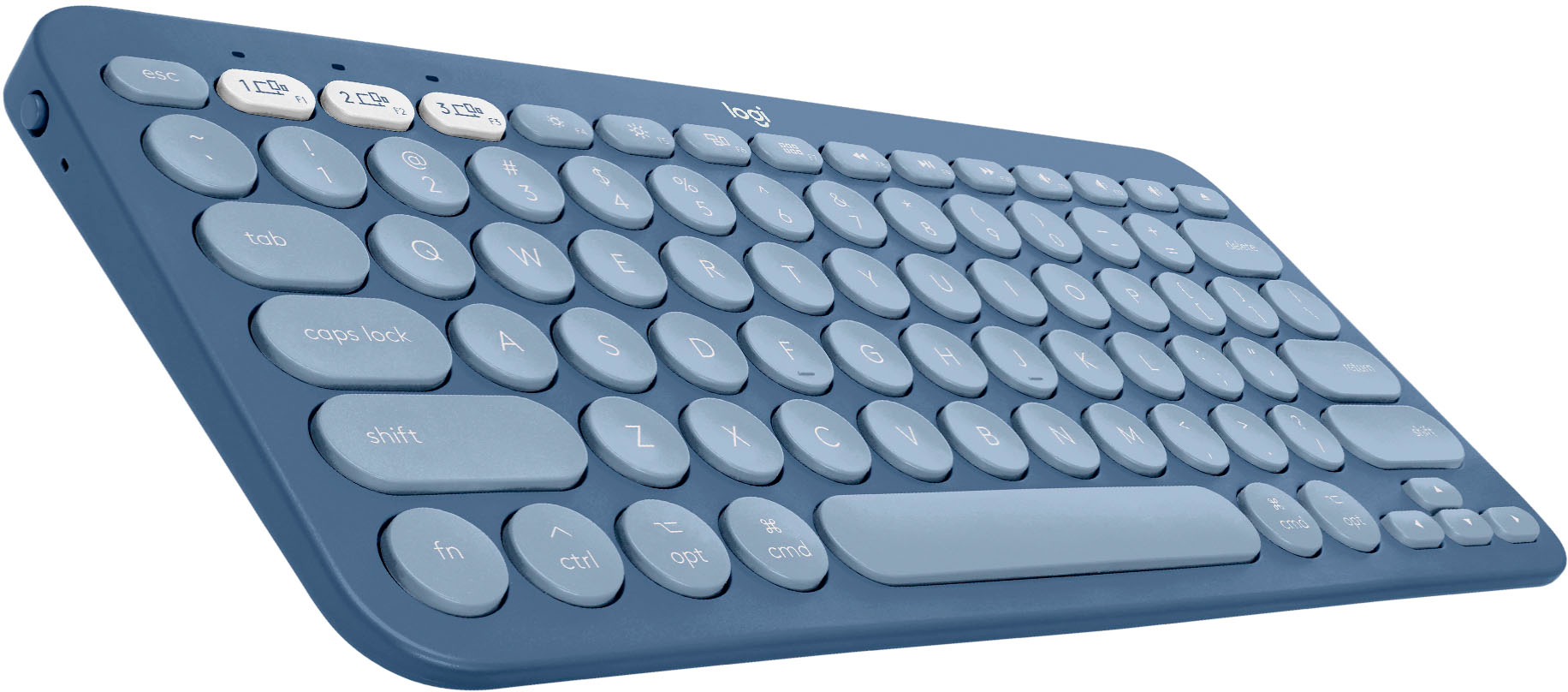
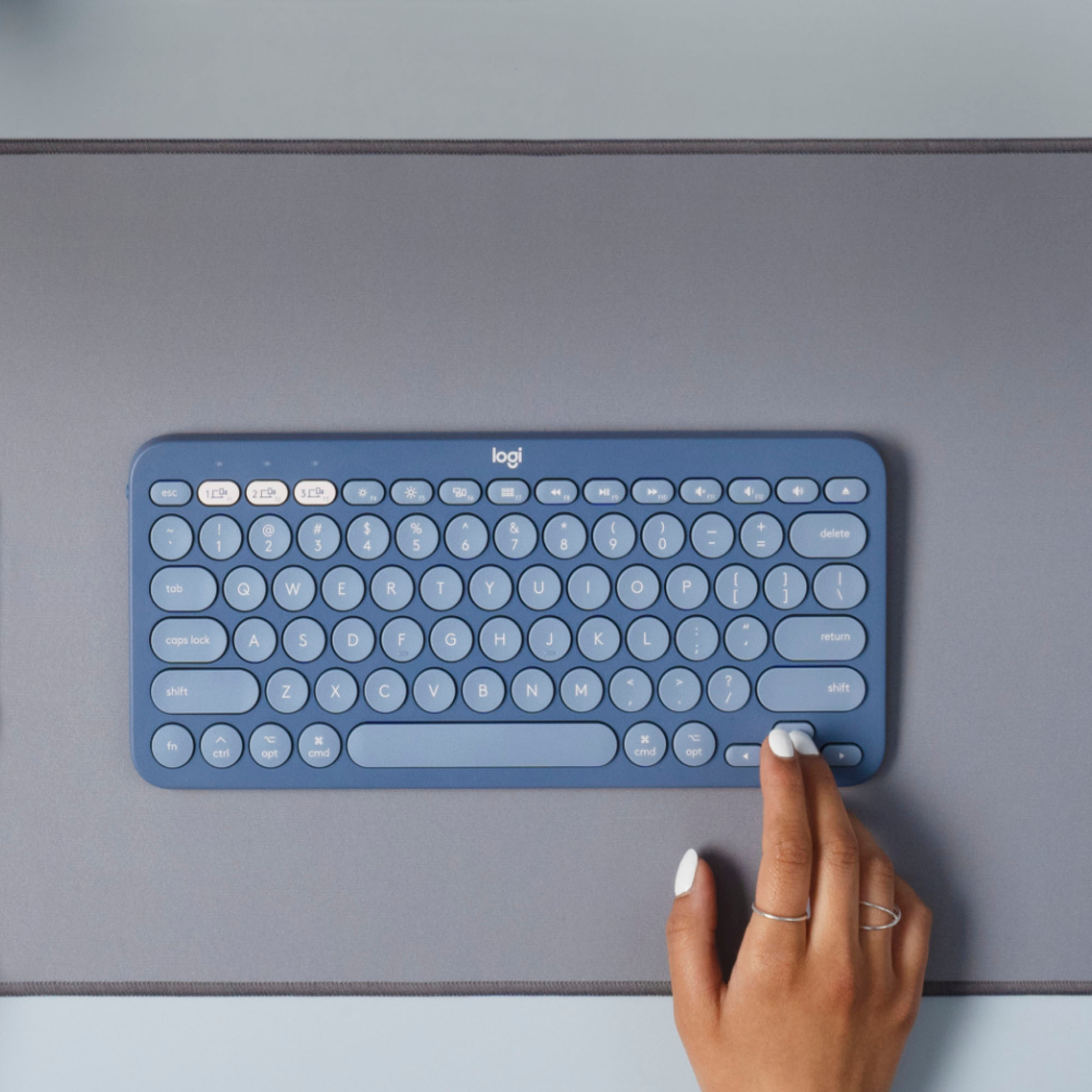
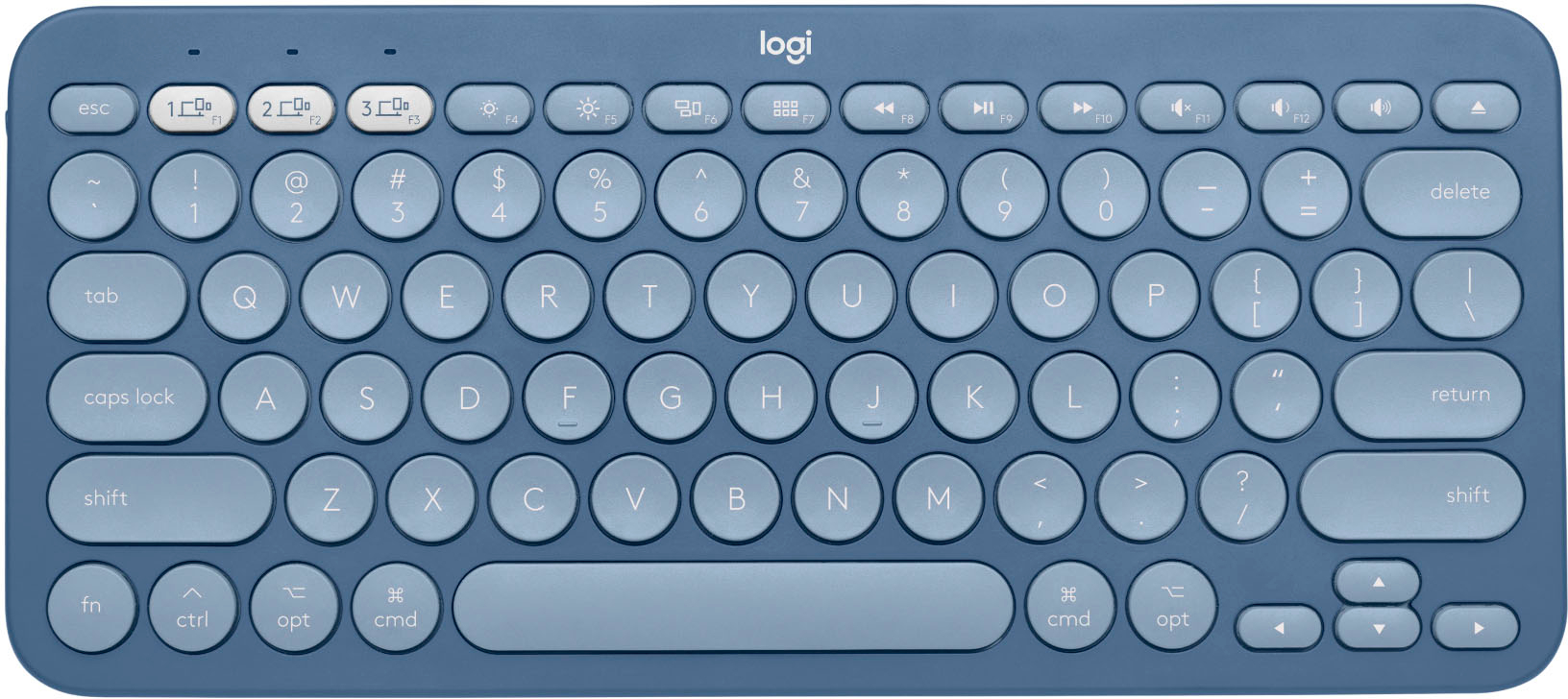
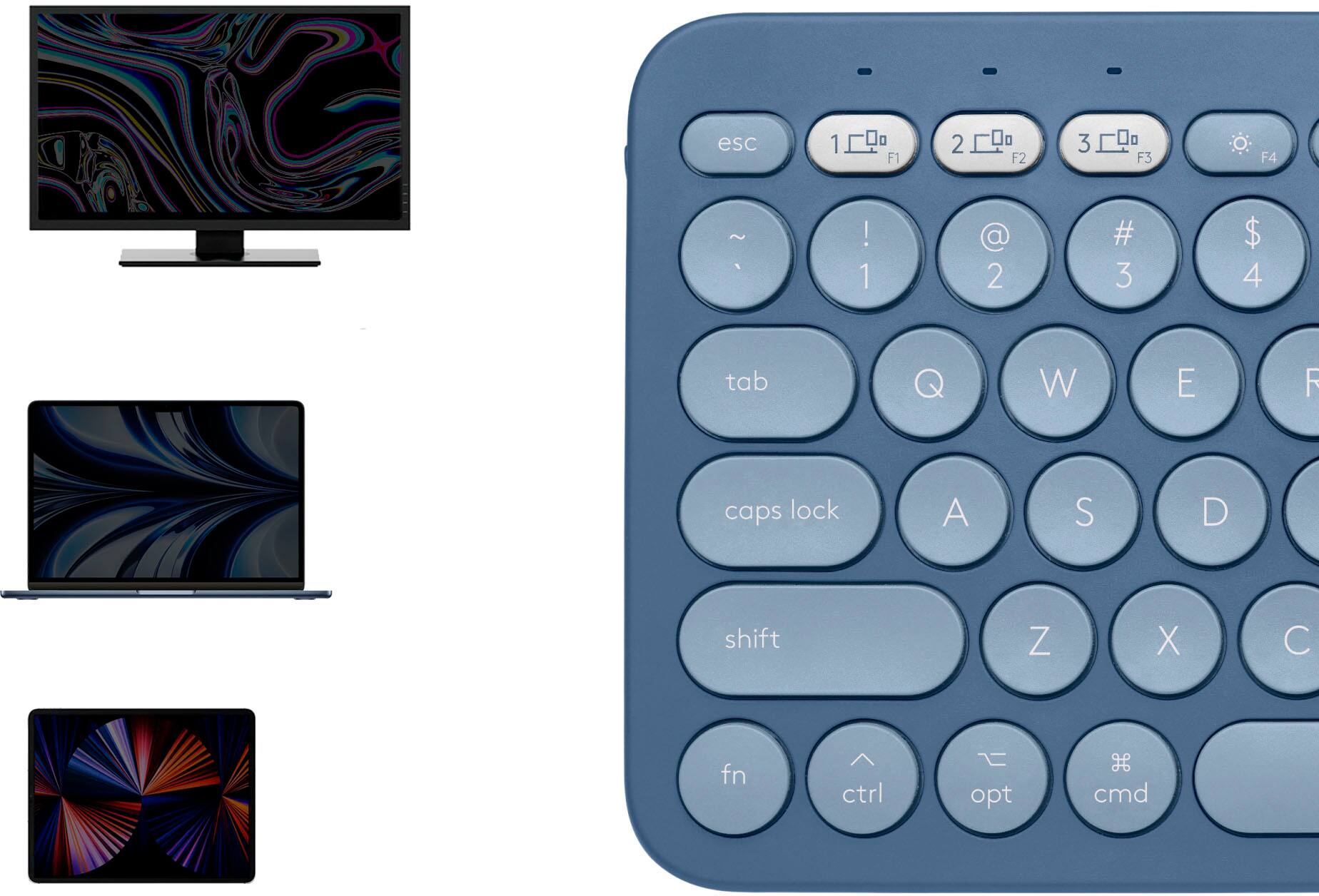
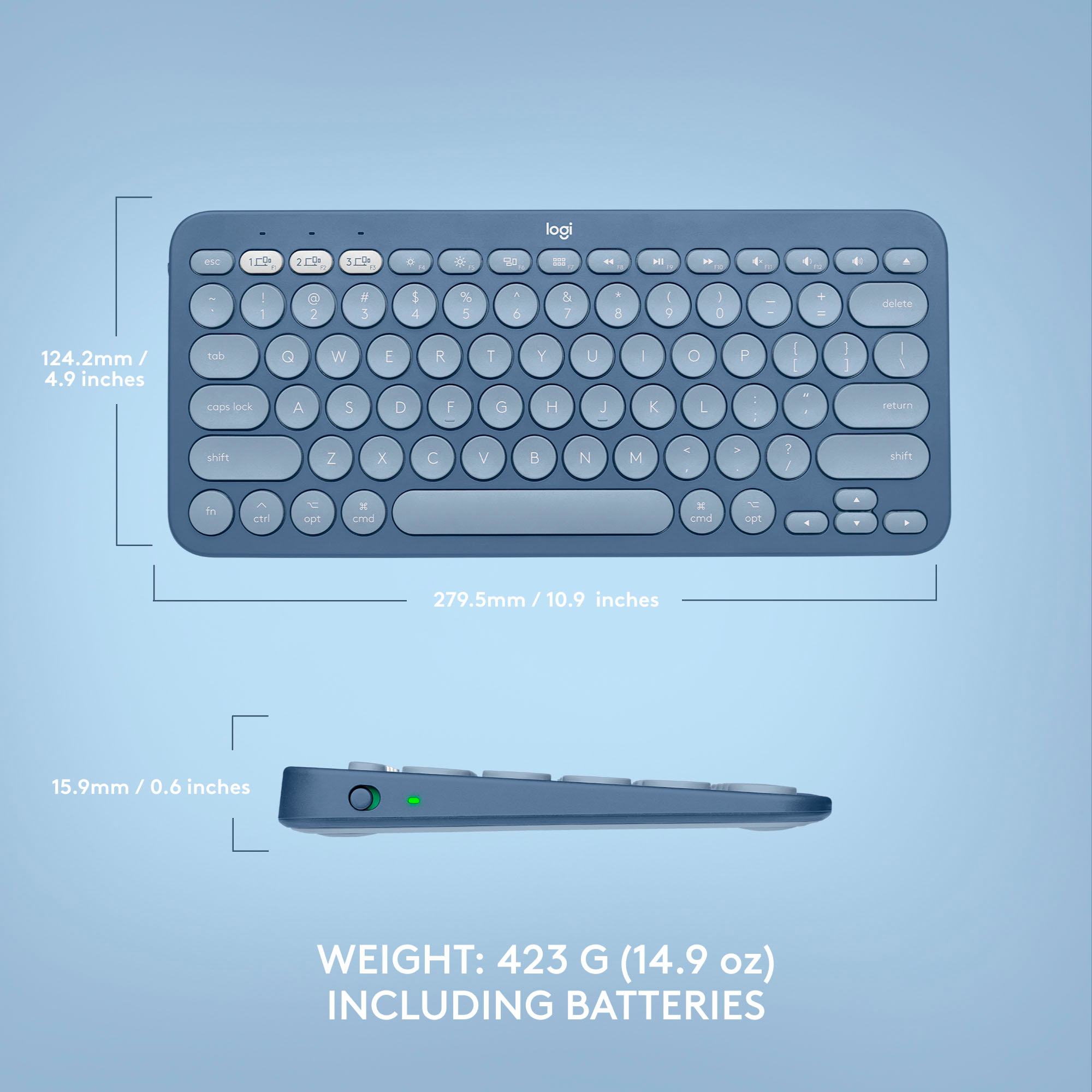
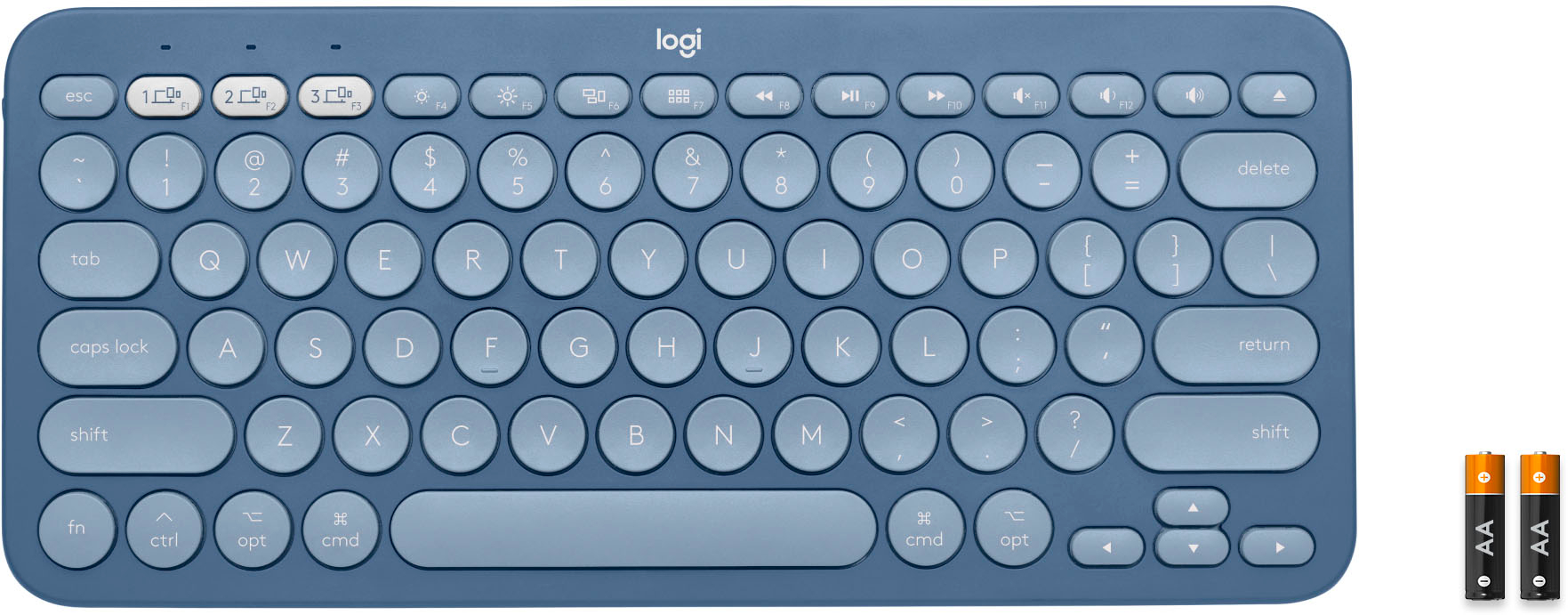
A:Answer With the Mac version of this keyboard, fn+delete will NOT delete to the right. Instead, ctrl+D does it. If you're using this keyboard with Microsoft Word, there is a way to assign this command to a more convenient key combination, such as shift+delete.
How to do it: In Word, 1. Go to Tools/Customize Keyboard. 2. In the Categories box, scroll down to All Commands and click it. 3. In the Commands search line, enter "backspace" (without quotes) and press Enter. 4. Click "TcidBackspace." 5. Click in the "Press new keyboard shortcut" line and press shift+delete.
While you're there, you might also search for "delete" and assign option+delete to the command DeleteBackWord, which deletes the word to the left of the cursor, and assign command+delete to DeleteWord, which deletes the word to the right of the cursor.