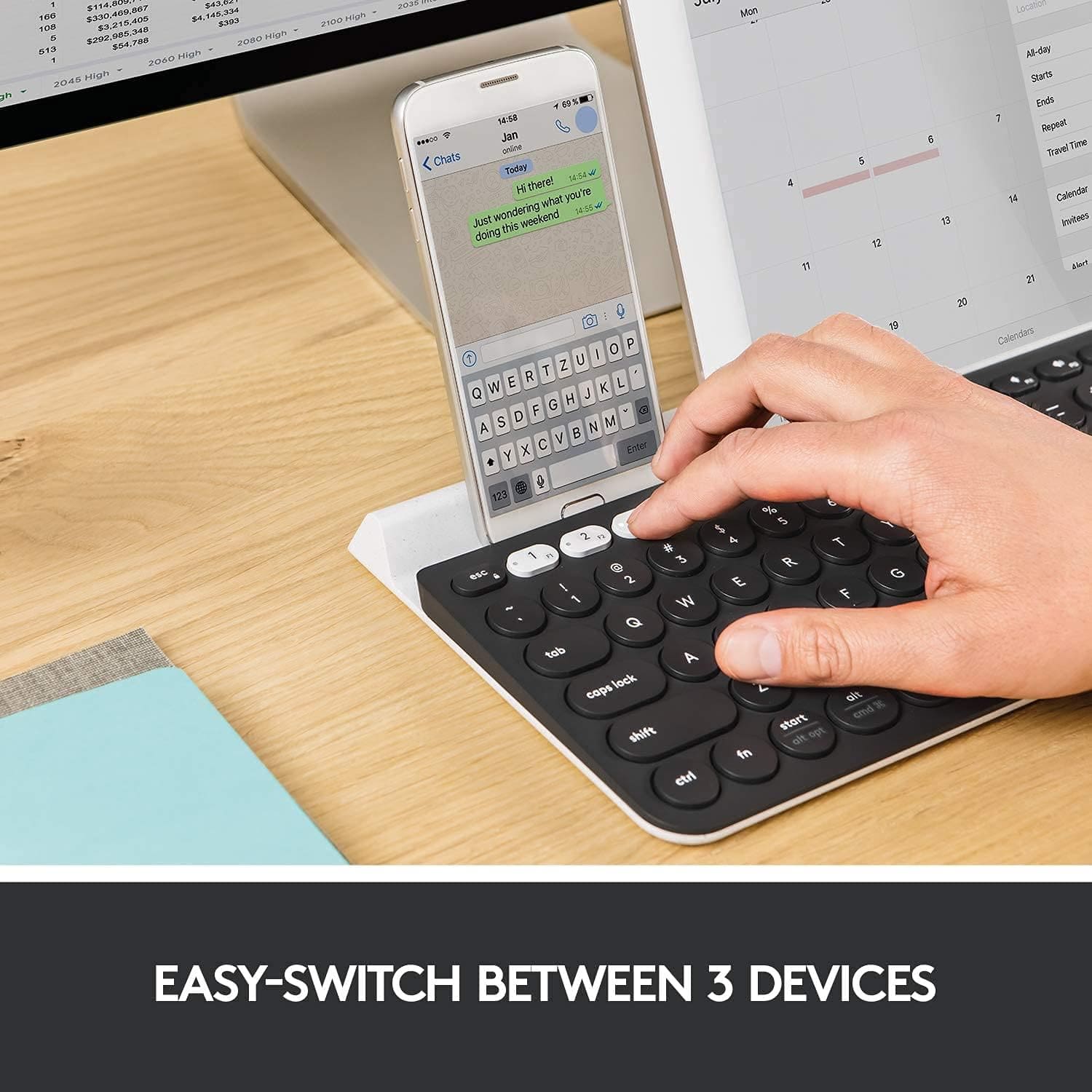
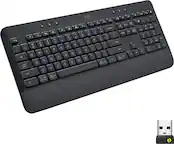
A:AnswerHave used it for two weeks and no signs of needing to replace batteries! Logitech keyboards are usually really good about this. I switch between work desktop, laptop and phone all day long.
A:AnswerKeyboard works well with an older HP laptop and my Pixel mobile. No problem with the quick setup. I can't tell you about Lenovo but cannot imagine it would not work with existing BT devices.
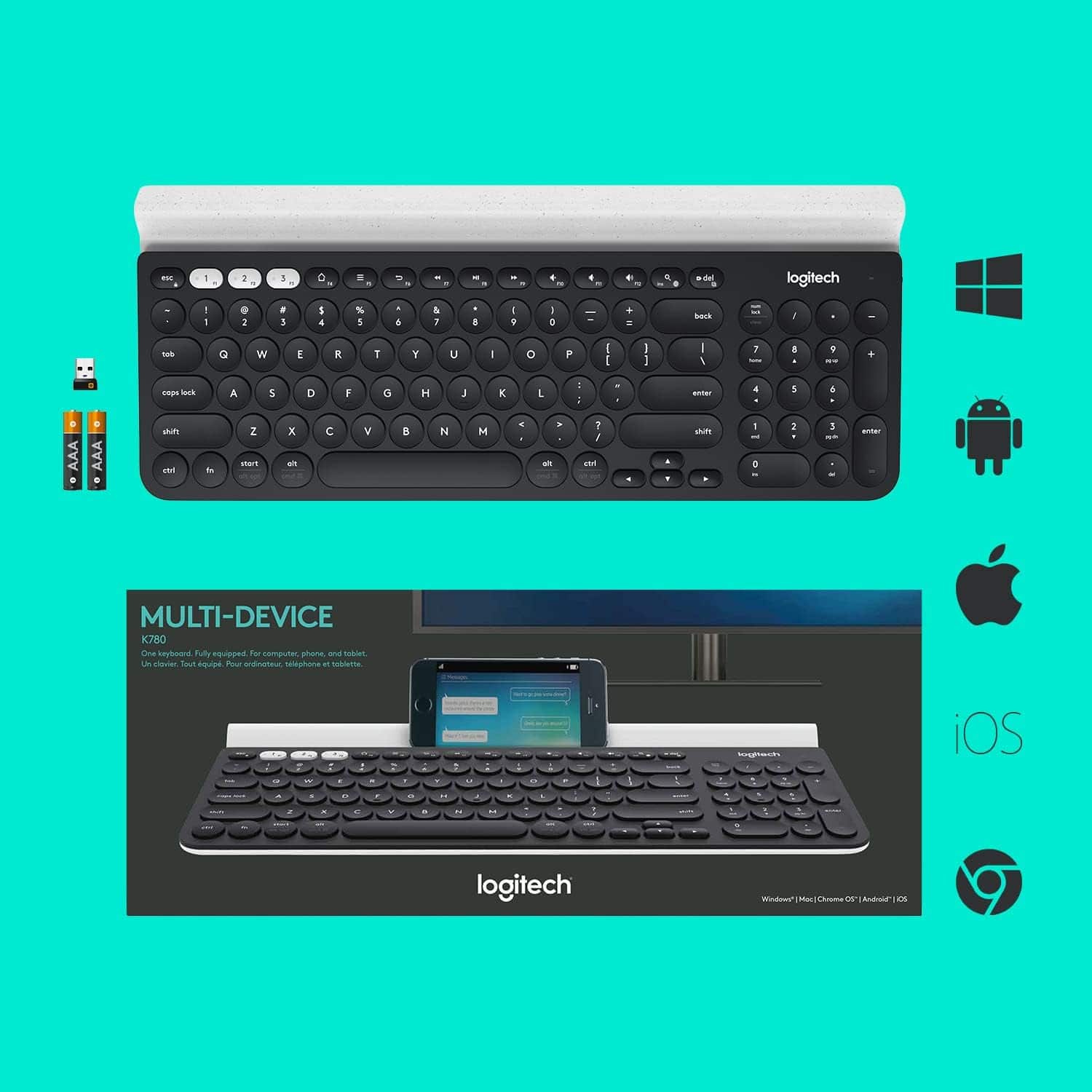
A:AnswerThe Logitech K780 keyboard is not compatible with the PlayStation 5. It is designed for use with ChromeOS, Windows 10 or later, and macOS 10.14 or later.
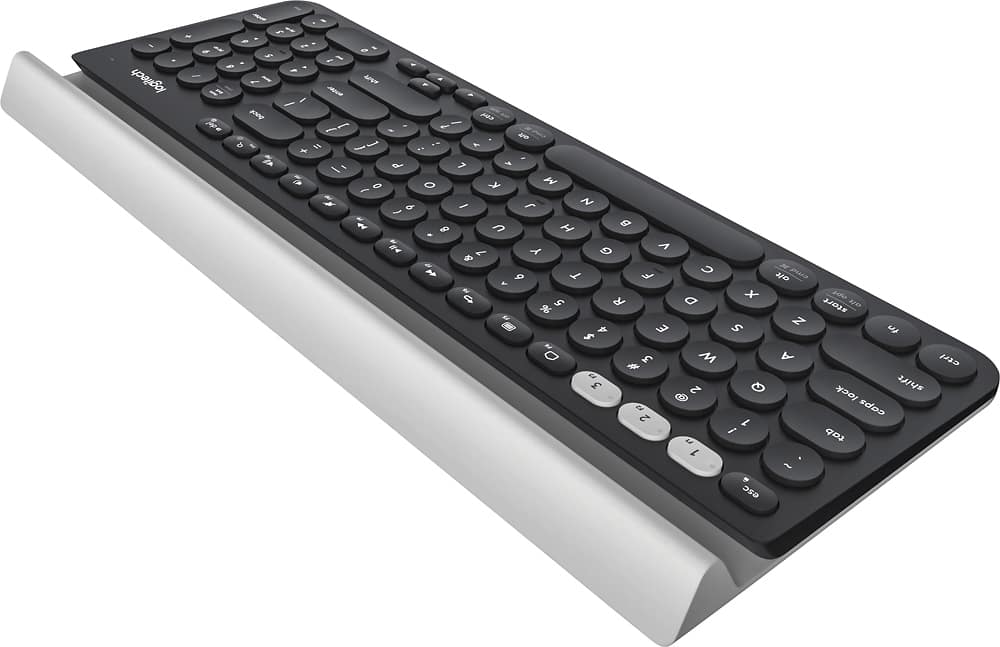
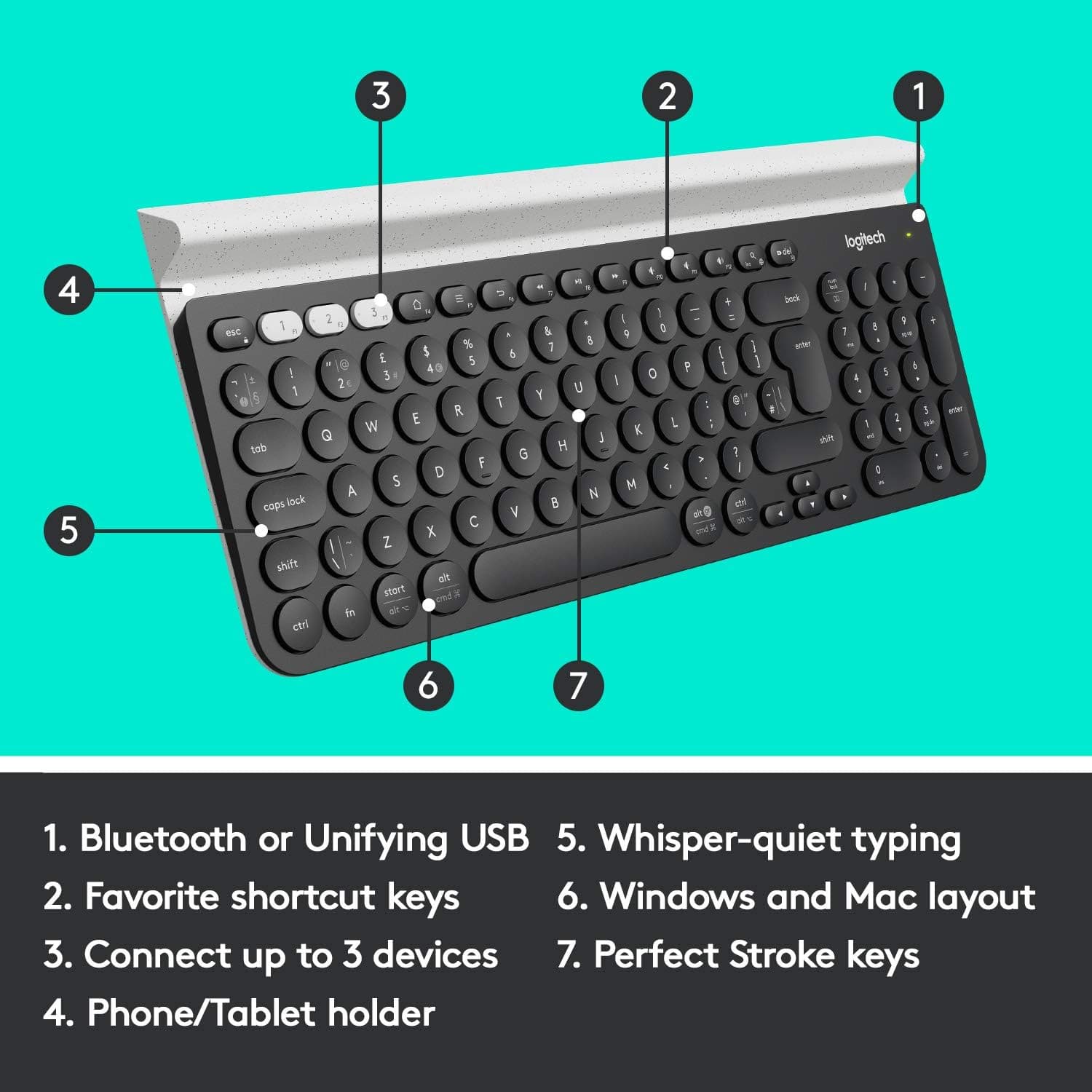
A:AnswerHey! The Insert button is present next to the F12 key. You can try Fn + Ins and see if this works. Incase if it doesn't, you can reach out to Logi support and the team will guide you.
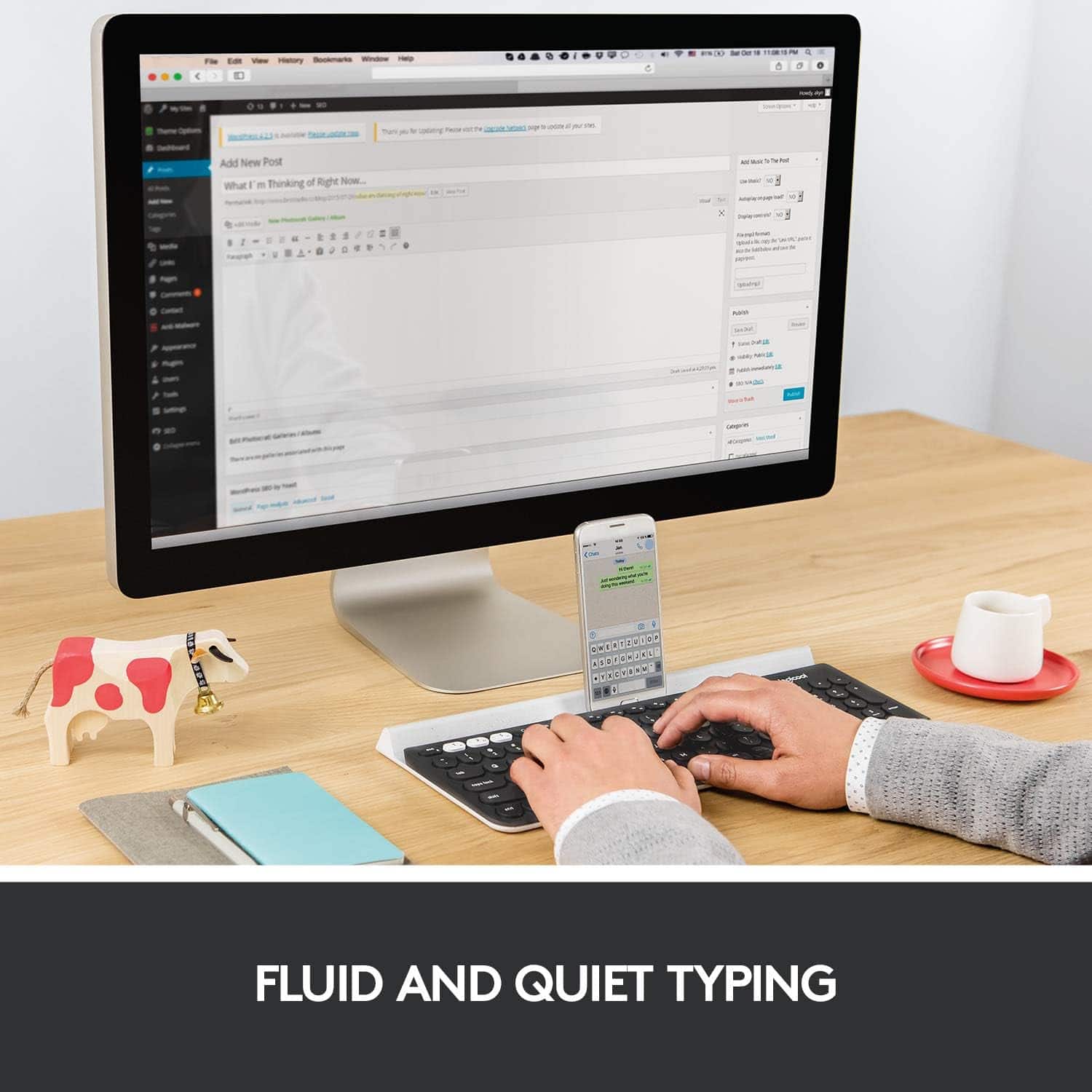
A:AnswerI am using it now with my iPhone. I can’t type text and press enter and it sends it without a problem. I don’t know all the limitations with it yet but it works seamlessly with my iPhone and Mac mini once I assign the controls. I haven’t used it yet with my Windows but the only drawbacks I do know is it doesn’t have a lighted keyboard, you don’t know if the cap locks and number lock are engaged until you type. I wish they would update the keyboard to include lighted keys and some indicator when the caps lock and numeric pad is on because this keyboard is quiet and very useful for me so far minus those drawbacks. And I turn off nightly to save energy and has lasted so far on first battery after one month of use.
A:AnswerSo far there is no option, you just have to start typing like I do to know if the caps lock or num lock is on. I don’t like that and the fact the keys are not lit so I have to use a light still at night.
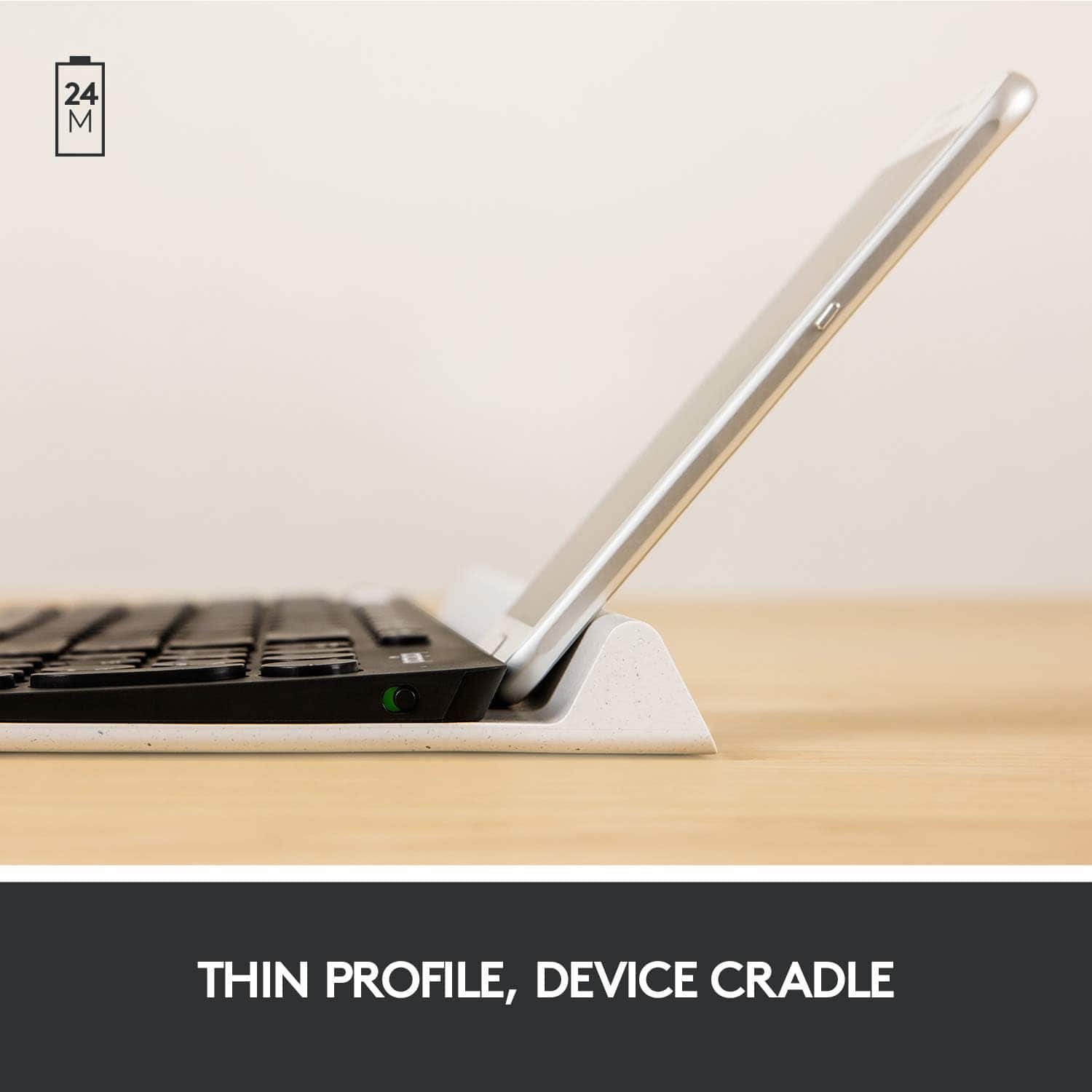
A:AnswerDid you remember to turn it on? The on/off button is inconspicuous on the side (right side) so it's easy to forget. Also, if you are connecting to a computer, remember to plug the USB receiver (found in the battery compartment) into the computer.
A:AnswerHi Technot, when pairing the K780 to an iPad or iPhone it will prompt you to enter a code after you've selected the keyboard for Bluetooth connection. You will enter that code on the keyboard and then press enter on the keyboard. This will pair the device to the keyboard allowing you to type. Please also make sure that you switch the 1-2-3 to the correct number if you have the K780 paired to multiple devices.
![esc 1 2 3 F F2 F3 F4 F5 U F6 44 F I F8 > F 0 11 F12 ins del logitech ~ ! 1 @ 2 # 3 $ 4 % 5 A 6 & 7 * 8 ( 9 ) 0 - - + = back num lock cleor / . - tab Q W E R T Y U I O P { [ } ] I I 7 home 8 A 9 g up + cops lock A S D F G H J K L : ; " enter 4 5 6 shift Z X V B N M < , > ? / shift 1 end 2 Y 3 PG pg dn enter ctrl fn start alt opt alt cmd x alt cmd x ctrl alt opt A Y 0 iins del](https://pisces.bbystatic.com/image2/BestBuy_US/images/products/5592/5592420_sd.jpg)