1-2 of 2 Answers
Did you enable bluetooth on the MacBook?
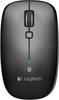
Sorry, there was a problem. Please try again later.To connect to a Mac device: 1. From the Apple menu, select System Preferences. 2. In System Preferences, click the Bluetooth icon. 3. In the Bluetooth pane, make sure On is selected, and then click the Add New Device icon — the "+" in the lower left. NOTE: If no Bluetooth devices have been connected to your Mac, then the "+" will not be visible. If this is the case, click Set Up New Device. The Bluetooth Setup Assistant should appear. 4. Turn on the mouse. 5. Press the Bluetooth CONNECT button. The light on the front of the mouse will blink blue. 6. Select the Bluetooth Mouse M557 from the Bluetooth Setup Assistant screen, and then click Continue. 7. Once the mouse is connected, the following message will be displayed. Click Quit to return to the Bluetooth preference pane. NOTE: If the mouse is already paired but having problems re-connecting, you can remove it (click the " -" in the lower left) from the device list and follow the instructions above to re-connect it.
Sorry, there was a problem. Please try again later.