A:AnswerIf your earbuds have a built-in volume control, you will be able to increase the volume using your earbuds. If they do not have a built-in volume control, then you can only adjust the volume by connecting them to your phone or tablet, increasing (or decreasing) the volume, and then reconnecting them back to the Bluetooth transmitter that's connected to your TV.
A:AnswerYes, you can connect this device to your TV (via the audio output jack, most likely on the back of your TV), and then pair it via Bluetooth with your Bose Bluetooth speaker. If you need assistance with this process once you purchase this device, please contact our support department at 626-965-1008 M-F 9AM-5PM PST and they will help you get everything set up!
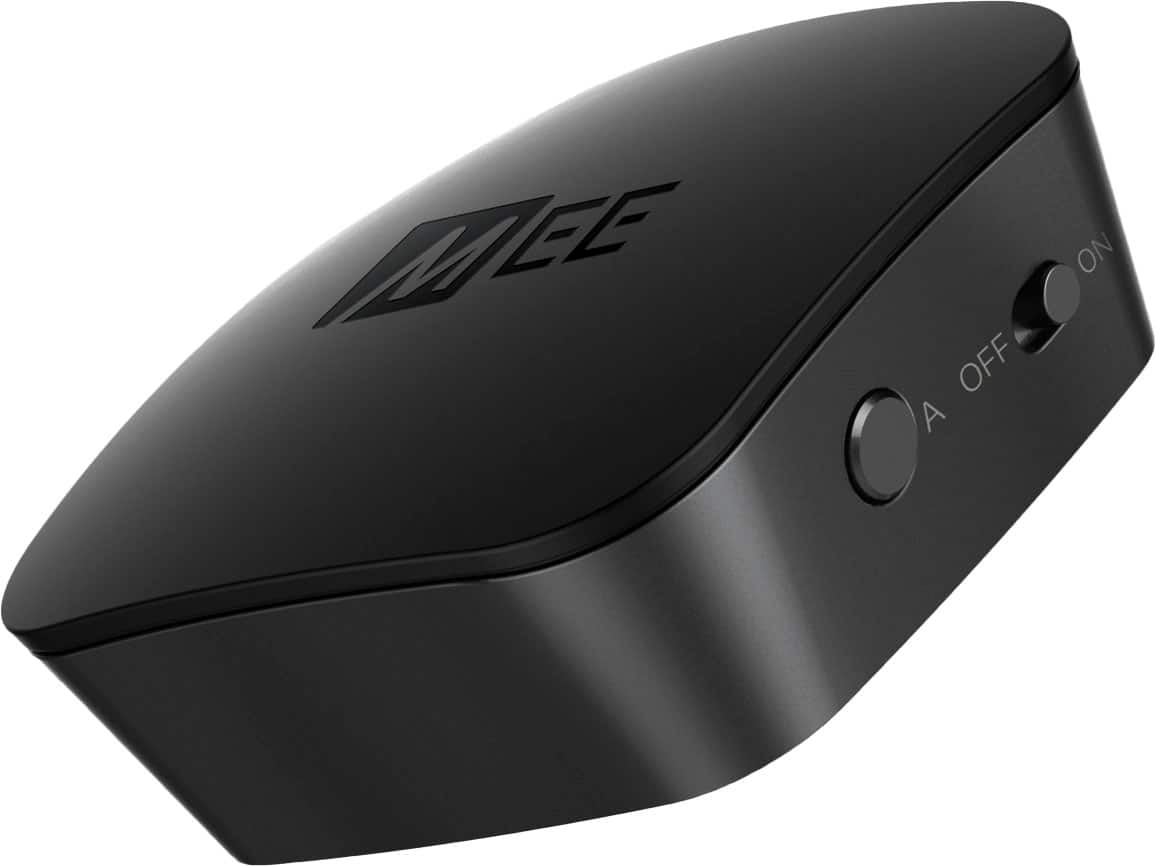
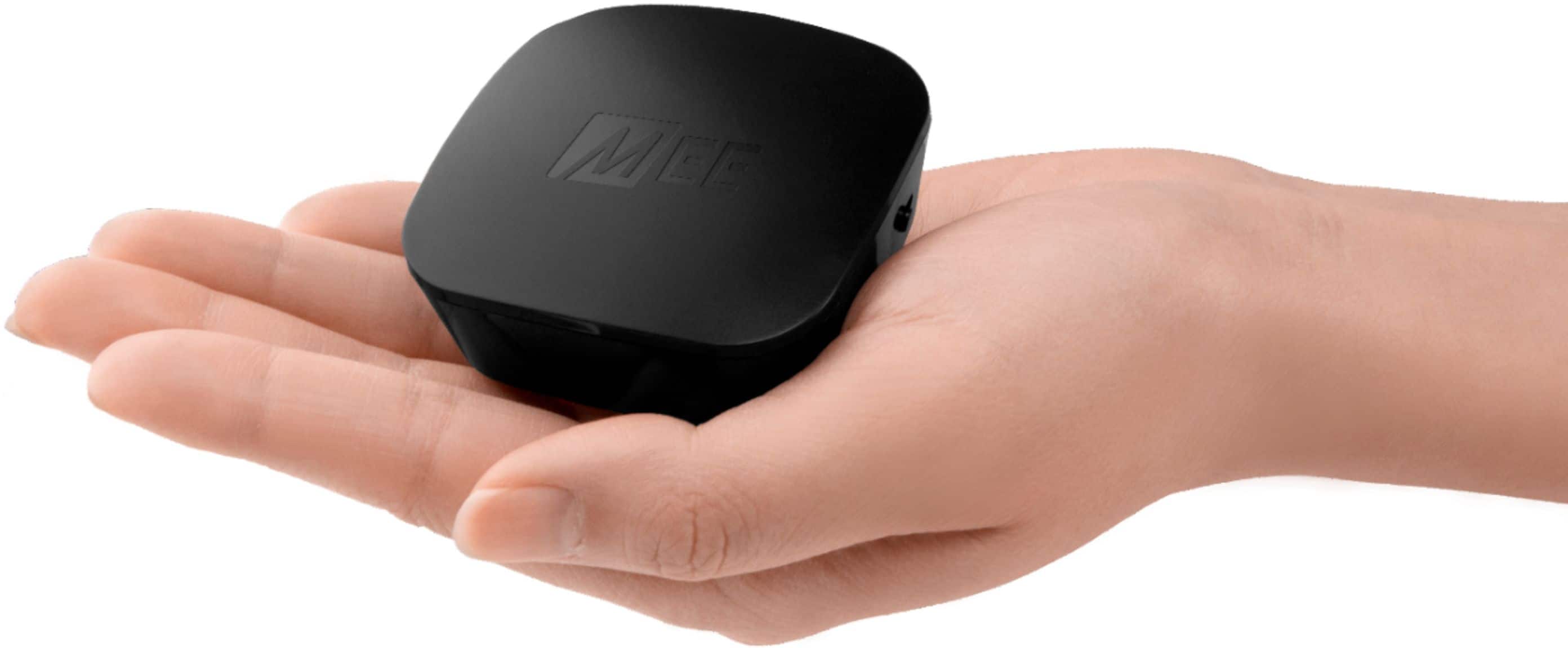
A:AnswerIf you have not changed any settings on your TV or unplugged any cables, the two most likely explanations are that the Bluetooth connection was lost, or that the TV settings were reset to defaults. You can check the former by making sure that a solid blue light appears on the top of your MEE audio Connect transmitter (the 2x2 inch black box) when your headphones are powered on. If a solid blue light does not appear, you will need to pair your headphones with the transmitter again by following the instructions in the user manual or calling our support line. If a blue light does appear on the Connect when you turn on your headphones, and the optical cable is still plugged in firmly, then please check the setting in your TV's audio menu under the "Expert/Advanced Settings" submenu. The setting for "Digital Audio Output Format" should be set to "PCM". This should resolve the issue, but if you have any additional questions, please contact our support line at 626 965 1008 Monday-Friday 9:00AM ~ 5:00PM PST or by emailing [email protected]
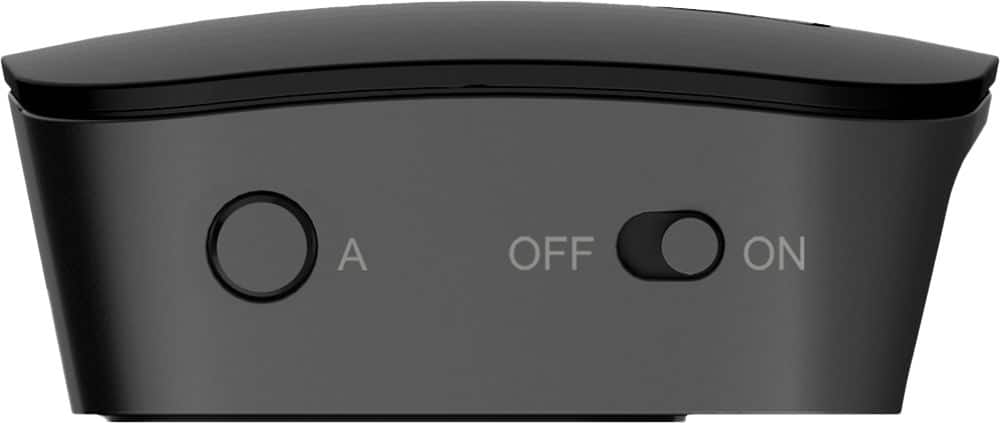
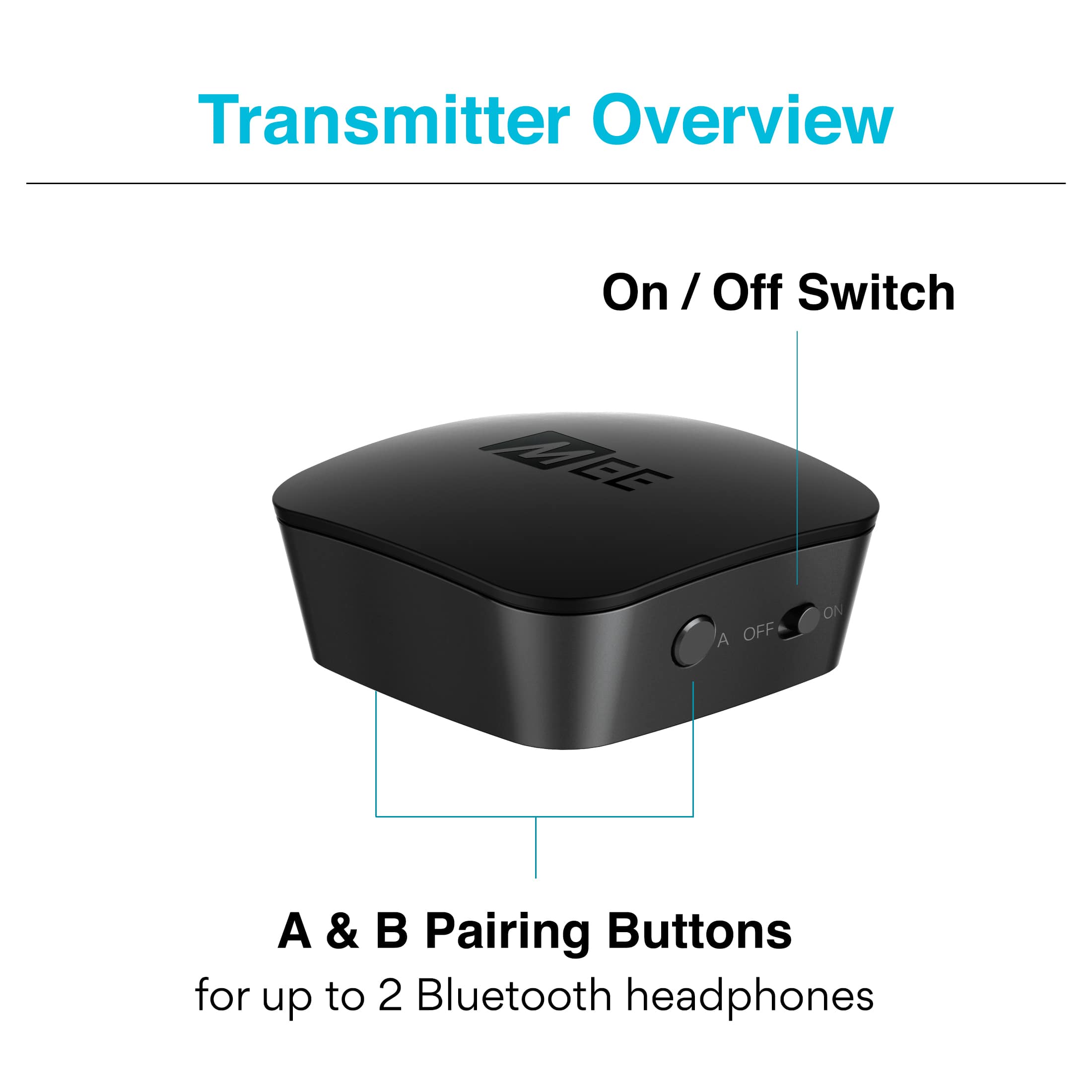
A:AnswerYes, you can do this. You will have to turn off the MEE audio transmitter that you are not using to ensure that your headphones reconnect to the desired MEE audio transmitter. If we call the two MEE audio Bluetooth transmitters "A" and "B", the sequence to set this up would be as follows: 1) Pair both headphones with transmitter "A". 2) Turn off transmitter "A" and pair both headphones with transmitter "B" 3) Turn off transmitter "B" and both headphones 4) If you want to use the TV with transmitter "A", turn on only transmitter "A", then turn on your headphones 5) To switch, turn off transmitter "A" and turn on transmitter "B", then turn both headphones off and back on to ensure they reconnect to the correct transmitter.
A:AnswerOne possible explanation is that the headphones and/or transmitter have been previously paired with another local Bluetooth device. It could be helpful to reset both the headphones and transmitter so that they have no other devices in memory, and then create a fresh pairing. To reset the Connect transmitter, make sure it is powered on, then press and hold the "A" button for about 7 seconds, until the blue light stops blinking. To reset the Sony headphones, make sure the headphones are powered off and then press and hold the power button and the volume down (-) button simultaneously for 7 seconds or more. The indicator light will flash blue 4 times to indicate that the headset has been reset. After this, follow the same process you initially did to connect the headphones with the transmitter and it should work better. If you have any additional questions, please contact our support line at 626 965 1008 Monday-Friday 9:00AM ~ 5:00PM PST.
A:AnswerNo. The MEE operates independently of any internet connection. It is simply plug-and-play. You should have no problems using this for anything offline.
A:AnswerIt sounds like the headphones and/or transmitter are seeking other devices to connect to. The best way to resolve this would be to reset both so that they have no other devices in memory, then create a fresh pairing. To reset the Connect transmitter, make sure it is powered on, then press and hold the "A" button for about 7 seconds, until the blue light stops blinking. To reset the Anker headphones, long press the power button and volume + button for 5 seconds until you see a pink light flash twice (this information is from google - you can double-check the Anker manual to be sure).
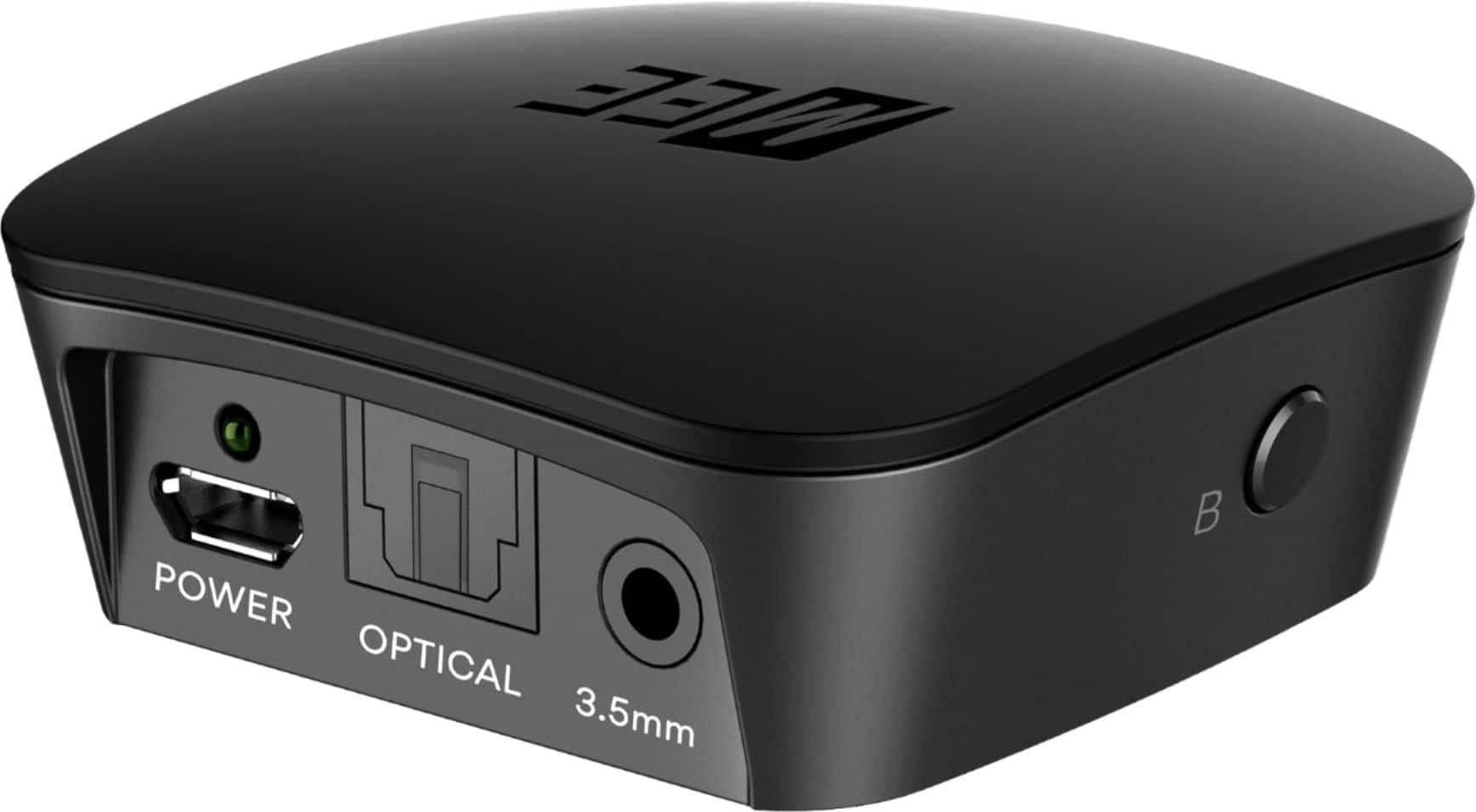
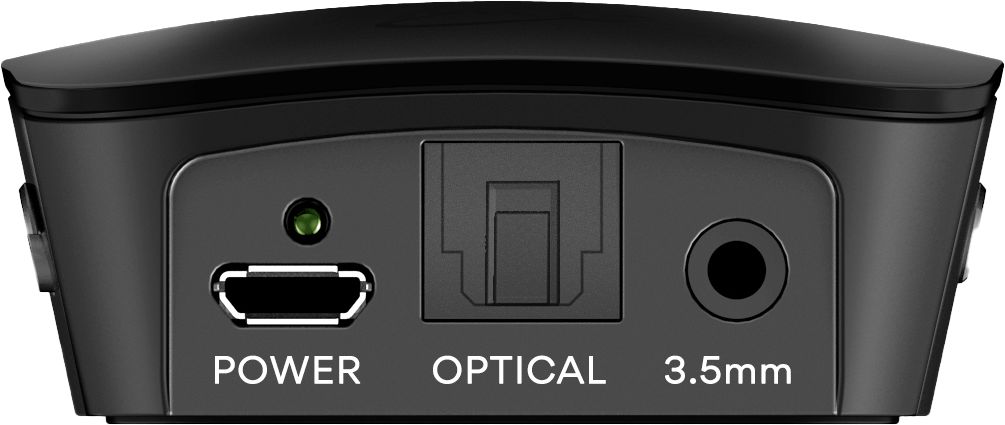
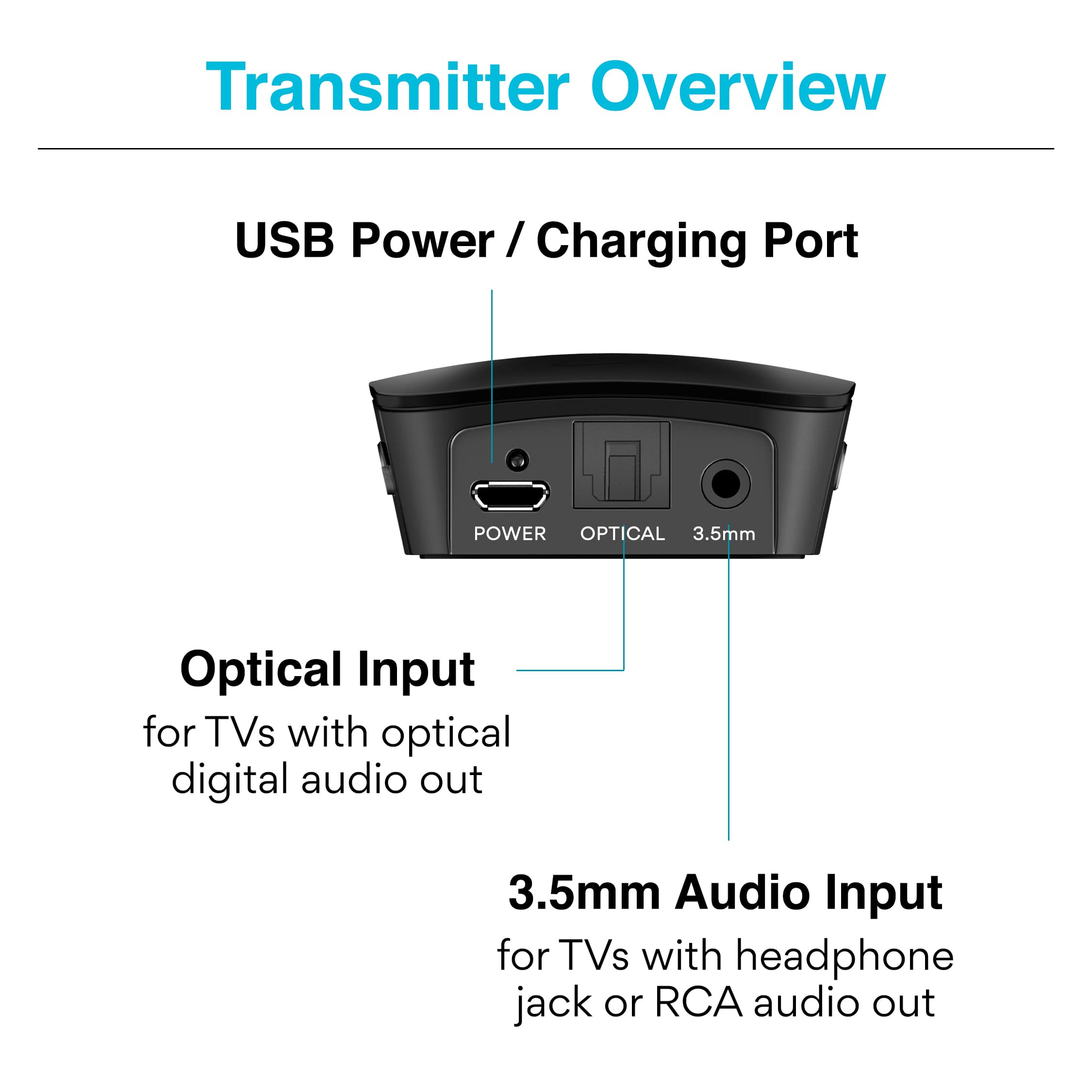
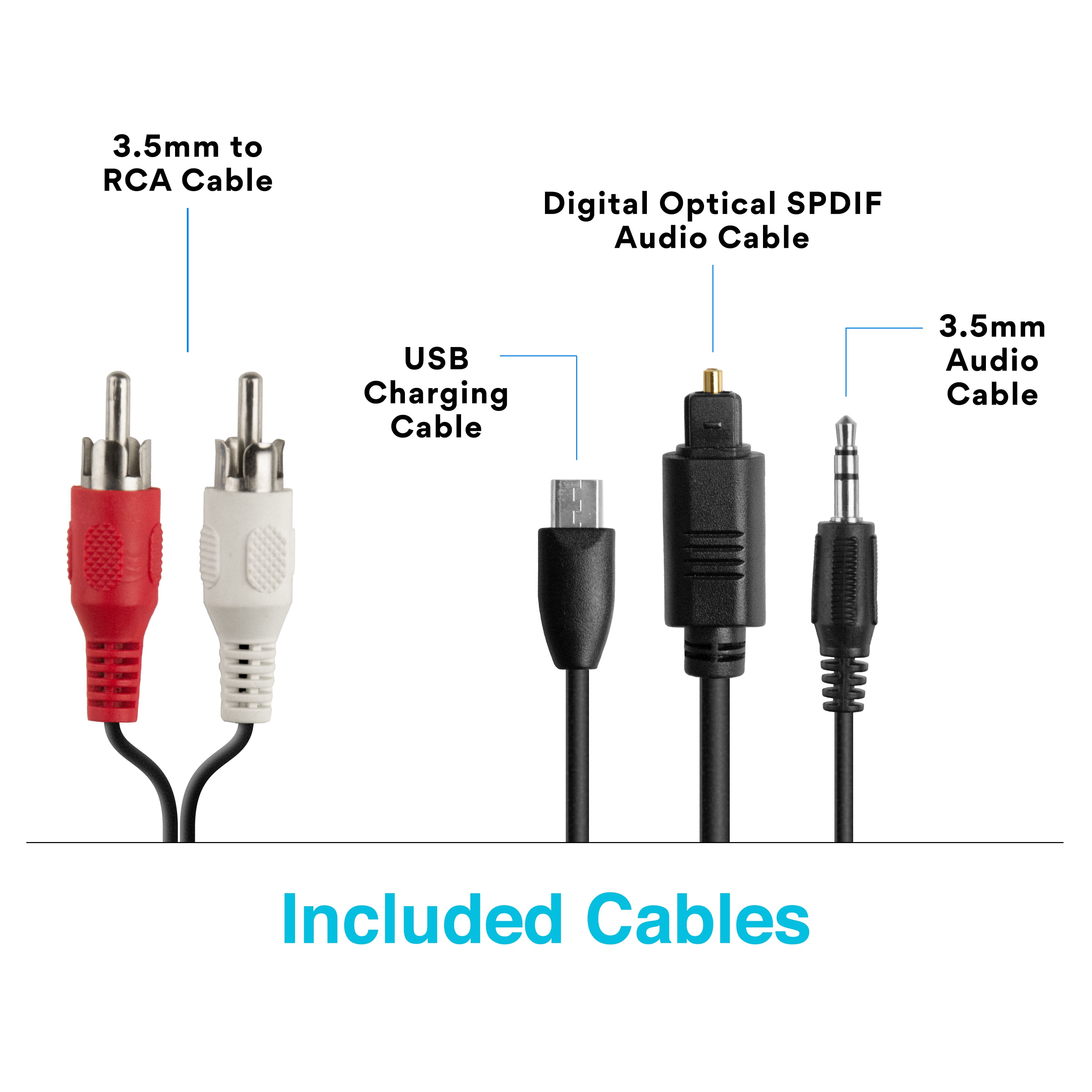
A:AnswerYes, as long as your television set has one of three audio output connectors (either a Digital Optical Audio Out connector, a 3.5mm "headphone" jack, or red and white RCA "audio out" connectors).
A:AnswerYou can definitely do this but it would be somewhat inconvenient as you would have to turn off one of the Connect transmitters in order to connect the headphones to the other one. You would almost be better off having two sets of cables (one at each TV) and plugging your existing Connect transmitter into whichever TV you plan to use.
A:AnswerYes, it will work using the optical connector. You will need to plug the optical cable from your TV into the optical input of this device. If you do not hear audio immediately after connecting your speakers to this device, you will just need to change a setting in your TV's "audio output" menu to make sure the optical output format is in "PCM" or "stereo" mode.
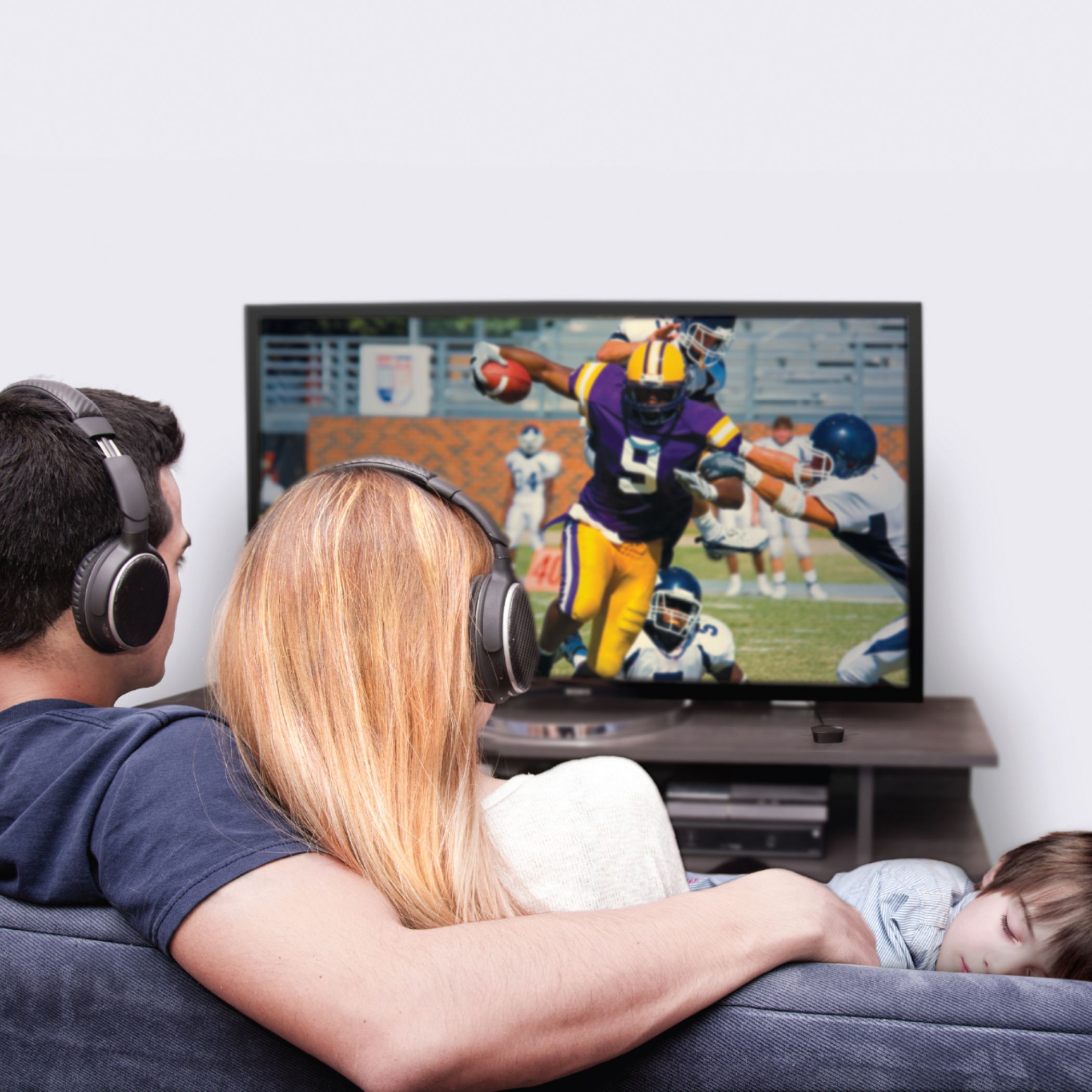
A:AnswerYes, you can. There are two ways to accomplish this - you can either connect this device to the TV via the optical connector and use the headphones yourself and keep the regular TV speakers on for your wife, or you can connect two different headphones to this device, mute the TV speakers, and use the volume controls on each set of headphones to adjust the volume to each listener's preferred level.
A:AnswerStarkey makes several different 2.4Ghz hearing aids, some of which may support Bluetooth. It is always best to consult the user manual of the specific hearing aid you are using to see if there is a procedure for pairing it with Bluetooth-compatible devices that are not a phone. Generally speaking, hearing aids that use MFI ("made for iPhone") technology, or that utilize an app to connect to phones/tablets, will not be compatible as there will be no way to connect them with a screen-less device. Only hearing aids that have an independent Bluetooth pairing mode (like a headphone has) will be able to be connected. There is a lot of variation between different brands and models, so it's better to check the operating instructions for the specific hearing aid you are using to get the most accurate information.
A:AnswerCheck which type of audio output your TV has. If your TV has a digital optical audio output (also known as a TOSLINK or Optical S/PDIF connection), you will be able to use this device with Bluetooth headphones AND the TV's built-in speakers simultaneously, so others can still listen to the TV without headphones. If your TV only has a headphone jack, then your TV will likely mute the built-in speakers when you plug this device in, which means other won't be able to listen. If your TV has red/white RCA "audio out" connectors, then it varies depending on TV make/model. Some TVs will have a setting in the audio menu that will allow you to enable the TV speakers while also using the RCA audio output.
A:AnswerThere are several possible causes. The most common are either 1) having an extra cable plugged into the device. There should only be two cables plugged in - one for audio (either analog or optical) and one for power (USB) or 2) using the optical connection and not switching the TV to "PCM" mode in the audio settings menu. If you have any additional questions, please contact our support department at 626-965-1008 and they will be able to help you get everything set up.
A:AnswerThere are several different Miracle Ear hearing aids that use Genius 3 technology - you would have to look up the Bluetooth connectivity for the specific model you are using to be sure.
Generally speaking, hearing aids that use MFI (made for iphone) technology, or that utilize an app to connect to phones/tablets, will not be compatible as there will be no way to pair them with a screen-less device.
There is a lot of variation between different brands and models, so it's better to check the operating instructions for the specific hearing aid you are using to get the most accurate information.
A:AnswerYou can connect two Bluetooth speakers to this device, but it does not support WiFi. You would need to connect your phone to this device using a cable (from your phone's headphone jack or equivalent adapter) and then stream the audio to your two Bluetooth speakers. In addition, Bluetooth has a range of around 30-50 feet, which gets lower when you add walls and other obstacles, so depending on your setup you may not have a stable connection when you connect speakers in different rooms to one Bluetooth transmitter. If you are looking to use WiFi to play music in different rooms, purchasing multiple WiFi-enabled smart speakers (or multiple smart adapters such as an Echo Dot each plugged into a speaker) may be a better option.