A:AnswerNot really or else you will not get the annual updates. of course if you want to stick with the version you may buy forever, then you do not need the internet.
A:AnswerYou can purchase fore life for over 300. You can buy a one year prescription For $65 a year. When a new advanced MS office comes out all you have to to do is renew your prescription for the following year. I prefer to own my own software but who wants to pay $350 and not be able to have newer versions unless you pay $350 again.
A:AnswerWe recommend that you reach out to Best Buy support here: https://www.bestbuy.com/site/customer-service/contact/pcmcat1511375025410.c?id=pcmcat1511375025410.
A:AnswerThere should be a link sent to you through your email from Best Buy. It should contain the passcode and security key with the instructions on how to install.
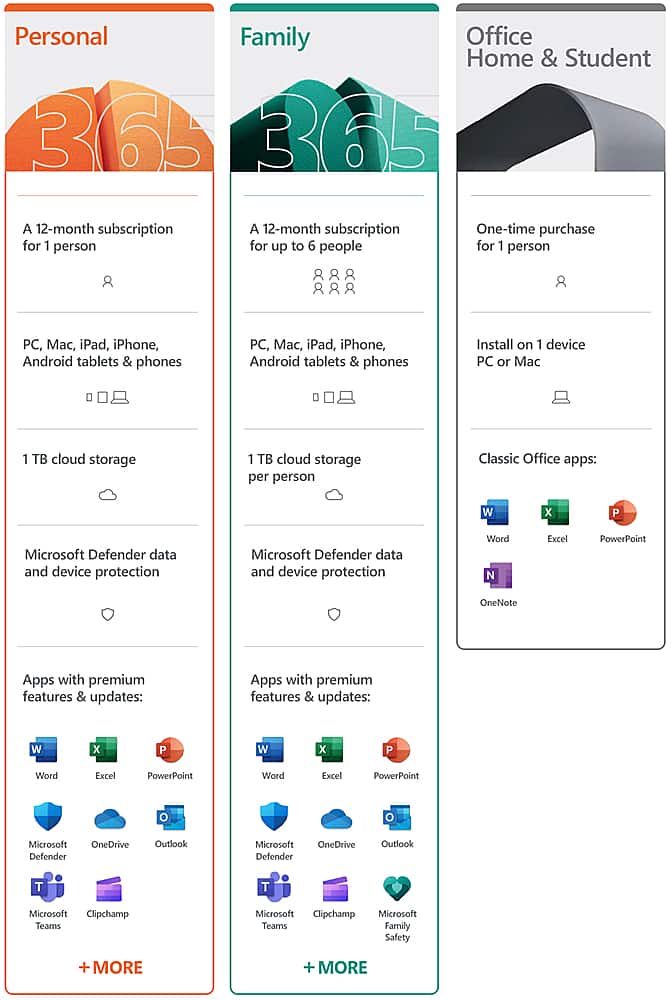
A:AnswerYou can have up to 6 people sharing your subscription. Each one gets all the benefits of the subscription including the ability to install Microsoft 365 across all their devices.
A:AnswerYou can install Microsoft 365 Personal on multiple devices. You will only need Microsoft 365 Family if you want to share your subscription with another person. To install Microsoft 365 Personal on another device you simply log into your Microsoft Account on the new devices and navigate to your subscriptions and Microsoft 365 Personal should have the option to install. Our help page here can walk you through the process: https://aka.ms/AA4rq32.
A:AnswerYes, each users gets their own 1TB of OneDrive Cloud Storage. If you purchase and redeem this it will upgrade your subscription to Microsoft 365 Family for the remainder of your existing subscripition and then add a year to it.