A:AnswerHi Kev,
If you are using an iPhone, please follow the instructions below to get things working again.
PLEASE NOTE:
Following this process means that videos saved in the "Library" tab within the MyNextbase Connect app WILL BE DELETED. Please ensure you saved these files to your computer or laptop before proceeding if you wish to retain any files. Ensure your Dash Cam is plugged into a power supply throughout this process.
Steps for Dash Cam:
Stop the Dash Cam from recording by tapping on the flashing recording icon at the bottom left of the screen.
Tap the settings (cogwheel) icon that appears in the top left of the screen.
Select "Setup" to enter the setup menu.
Swipe across and tap on "Keep User Settings" tap "OFF" and tap OK.
Locate, then tap on "Default Settings", tap "Yes" and tap “OK” (Your Dash Cam will restart).
Steps for iPhone
Open “Settings” on the phone.
Select “Bluetooth” to enter the Bluetooth settings
Locate your Nextbase Dash Cam in the “paired devices” list.
select the "i" button on the right-hand side and “forget the device”.
Delete the “MyNextbase Connect” App.
Restart your phone.
Reinstall “MyNextbase Connect” from the App store.
Your Dash Cam will restart from factory settings. Now follow the first-time setup process again to get connected, making sure you agree to all of the permissions requested by the app (Bluetooth, Wi-Fi, local network etc).
If you are using an Android, please follow the steps below:
PLEASE NOTE:
Following these steps will DELETE all files from the “Library” section of the app (but should not affect files saved to your SD card). Your Dash Cam must be plugged into a mains power supply throughout this process.
Steps for Dash Cam:
Stop the Dash Cam from recording by tapping on the flashing recording icon at the bottom left of the screen.
Tap the settings (cogwheel) icon that appears in the top left of the screen.
Select "Setup" to enter the setup menu.
Swipe across and tap on "Keep User Settings" tap "OFF" and tap “OK”.
Locate, then tap on "Default Settings", tap "Yes" and tap “OK” (Your Dash Cam will restart).
Steps for Phone:
Open the “Settings” app on your phone then select “Connections” then “Bluetooth” (some Android phones you can just select “Bluetooth”.
Locate your Nextbase Dash Cam in the “paired devices” list.
Press and hold on the Dash Cam and select “unpair device”,
Uninstall the “MyNextbase Connect” App.
Restart your phone.
Reinstall “MyNextbase Connect” from Play Store.
A:AnswerHello,
For a 522GW, when the 'Protect' function is activated a file containing 10 seconds prior to the incident and 20 seconds after is written to the Protected folder on the SD card. The Protected Files are recorded for three different reasons:
1. The G-Sensor on the camera automatically protects the footage when unusual G-force is detected. You can adjust how sensitive the G-Sensor is within the camera's settings:
A) Turn the Dash Cam on
B) Ensure it is not recording (by pressing the red circle if required)
C) Go into Settings (the button in the top left)
D) Go into Video settings
E) Scroll across to ‘G-Sensor’
F) Change this to Medium, or Low.
2. The Protect Button is pressed (the Nextbase button under the screen).
3. Parking Mode footage. All Parking Mode footage is Protected Footage.
If you have any other questions, please contact our Nextbase Live Chat, phone or email at support@nextbase.com and we can help further.
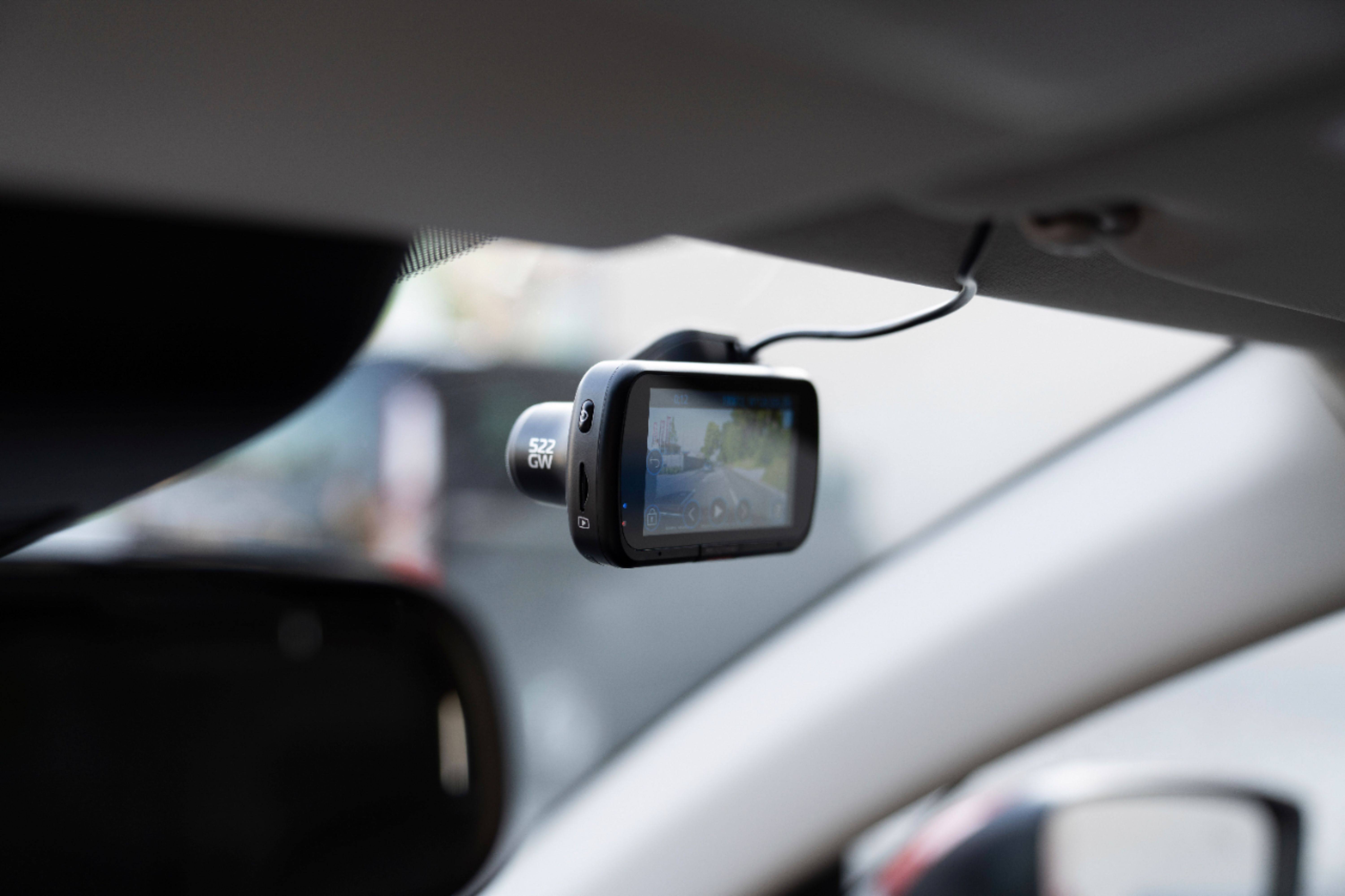
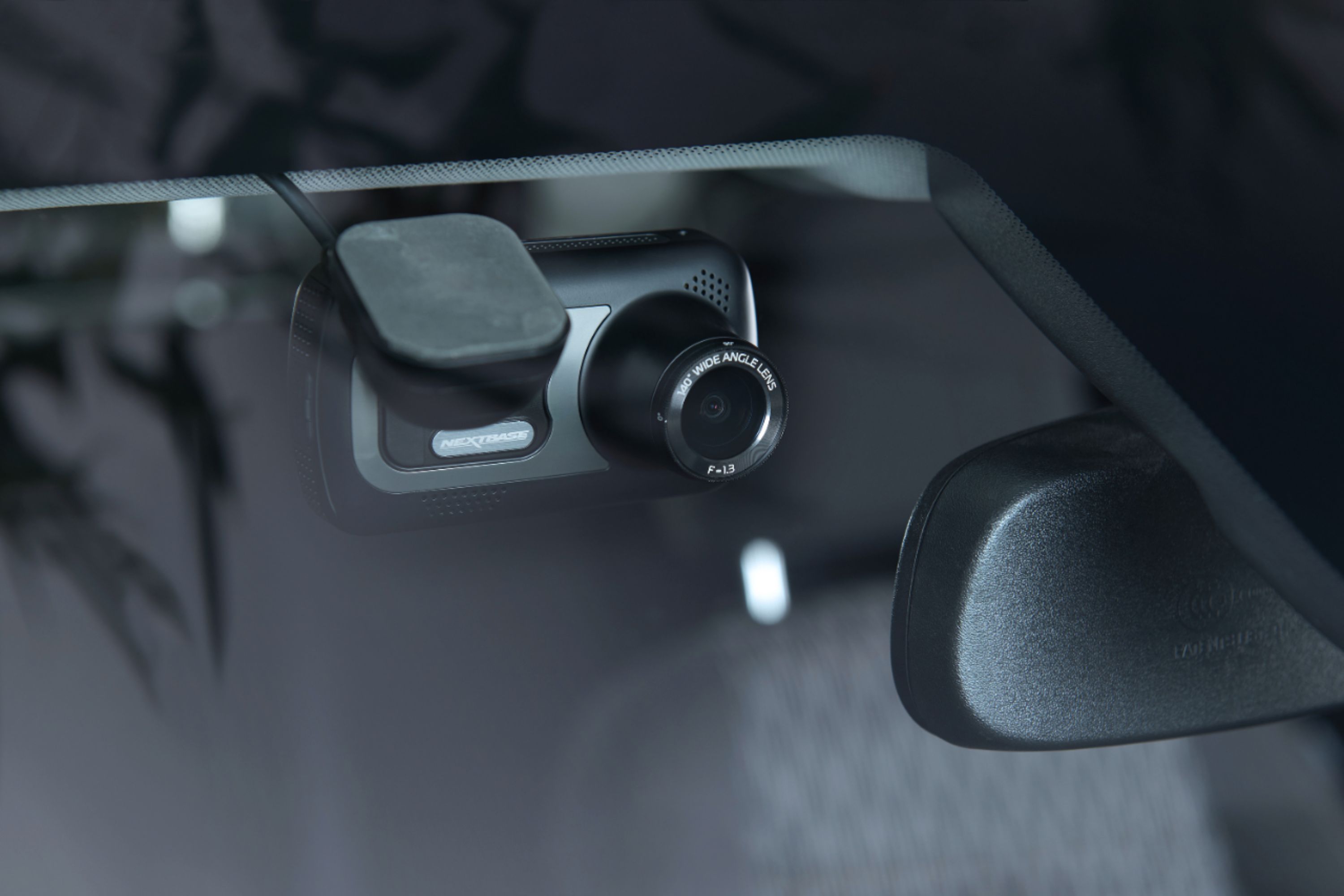
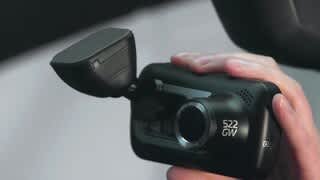
A:AnswerHello. The Nextbase 522GW is designed to be mounted to the front windscreen using the Click&Go Pro Mount. It can be powered using the supplied car power cable into the 12/24V power supply, or can be hardwired in. The 522GW has the option to add any one of three rear cam modules for all-round protection. Thanks, Nextbase
A:AnswerHello,
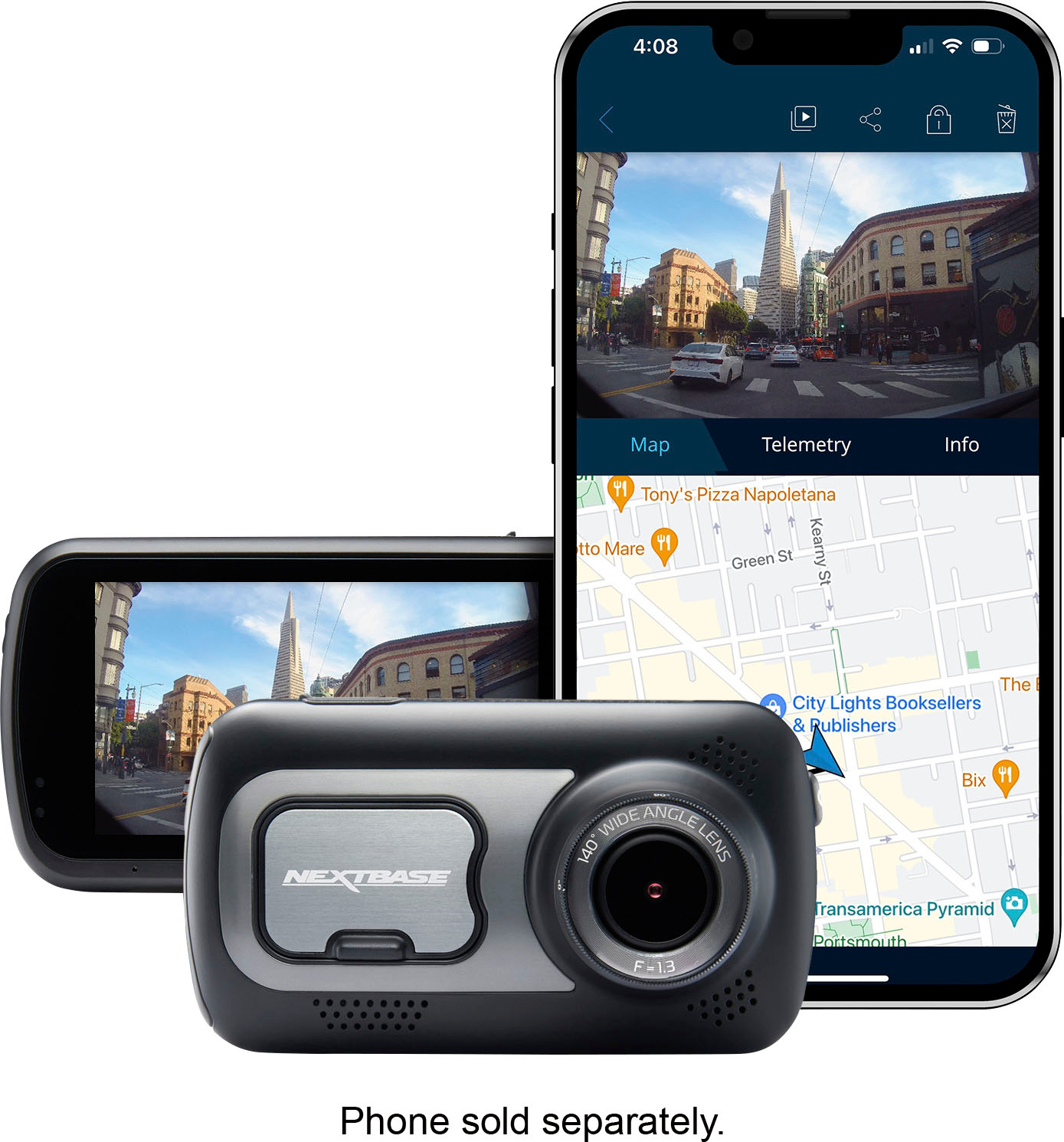
You need the Nextbase 'MyNextbase Player' app for the 522GW. Once the Wi-Fi is connected between the camera and phone, the Live View and 'Dash Cam' tab of the app should work correctly.
If you have any issues with connecting via Wi-Fi, please contact our Support Team at support@nextbase.com.
A:AnswerWhen mounted on the NextBase mount, there's connection points and a strong magnet that work to charge and hold the camera. Otherwise, it uses a Micro USB connection for charging away from the base.