A:AnswerZooming in is possible by changing the aspect ratio on the settings. This will ensure that the resizing of the image is fit to your preference.
A:AnswerThe 10GB Nixplay cloud storage is in addition to the 8GB storage on the Nixplay Frame. Users can also join the Nixplay Plus Membership to get 50GB Nixplay cloud storage along with other benefits.
A:AnswerUnfortunately, the Nixplay Frame does not support this feature.
Please refer to the following article to know which integrations we support: https://support.nixplay.com/hc/en-us/articles/360021379831-What-cloud-based-services-does-Nixplay-connect-to-
A:AnswerAll content uploaded into the Nixplay cloud is encrypted and owned by the respective user via their Nixplay user account.
Nixplay does not have access or owns/uses user content in any form. Only the respective users are in complete control of their content on both the Nixplay Cloud and Nixplay Frame.
For more information, please refer to the Nixplay Privacy Policy and Terms of Service
https://www.nixplay.com/pages/privacy-policy
https://www.nixplay.com/pages/terms-of-service
A:AnswerThere is a volume control which can be set to low. To raise the volume you can use the phone app or remote.
I will send my frame a video to check if it starts playing immediately. I will then reply.
A:AnswerThis scam of a company has now put Google photos album syncing behind a paywall. What used to be free is now a paid yearly subscription to use your frame. Buyer beware!
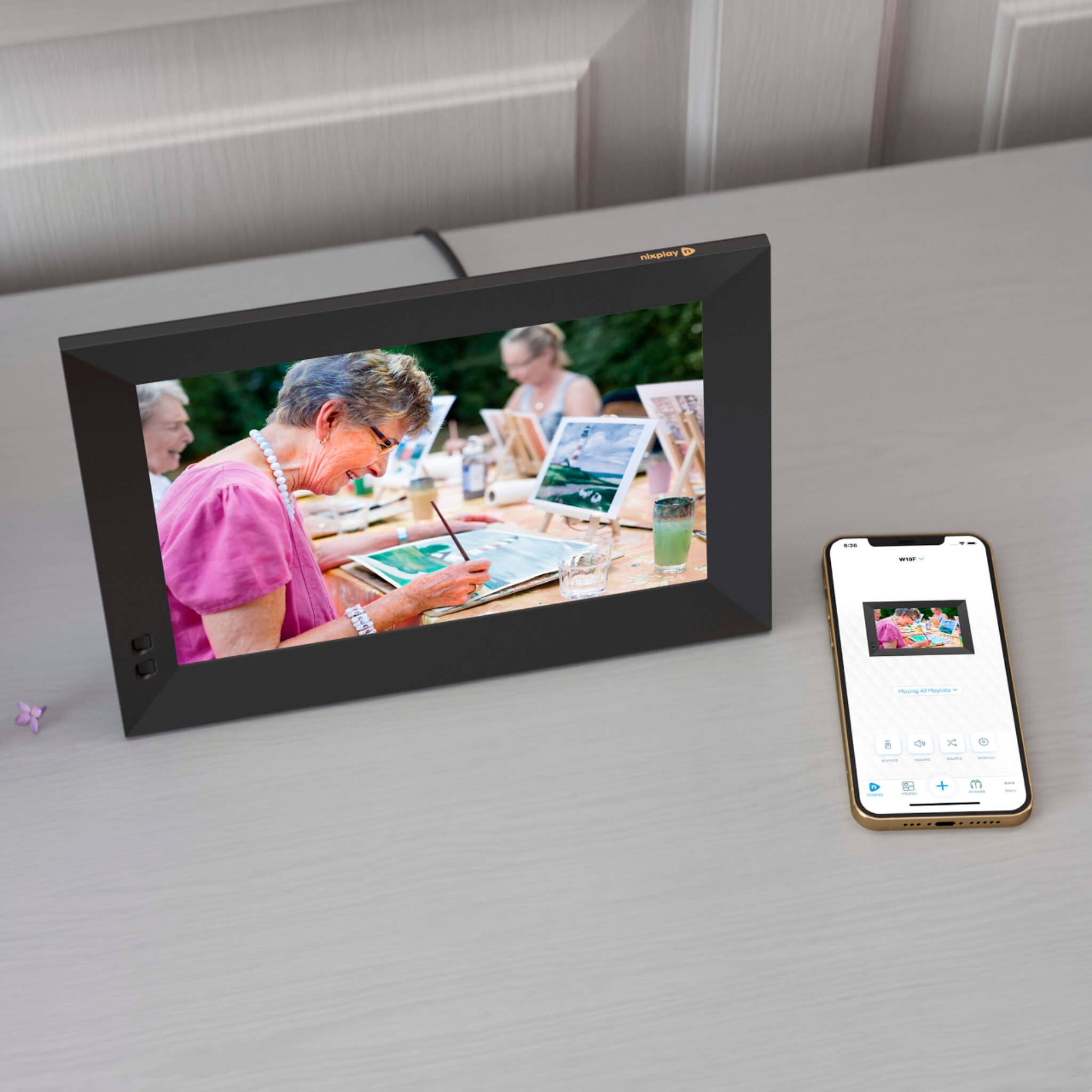
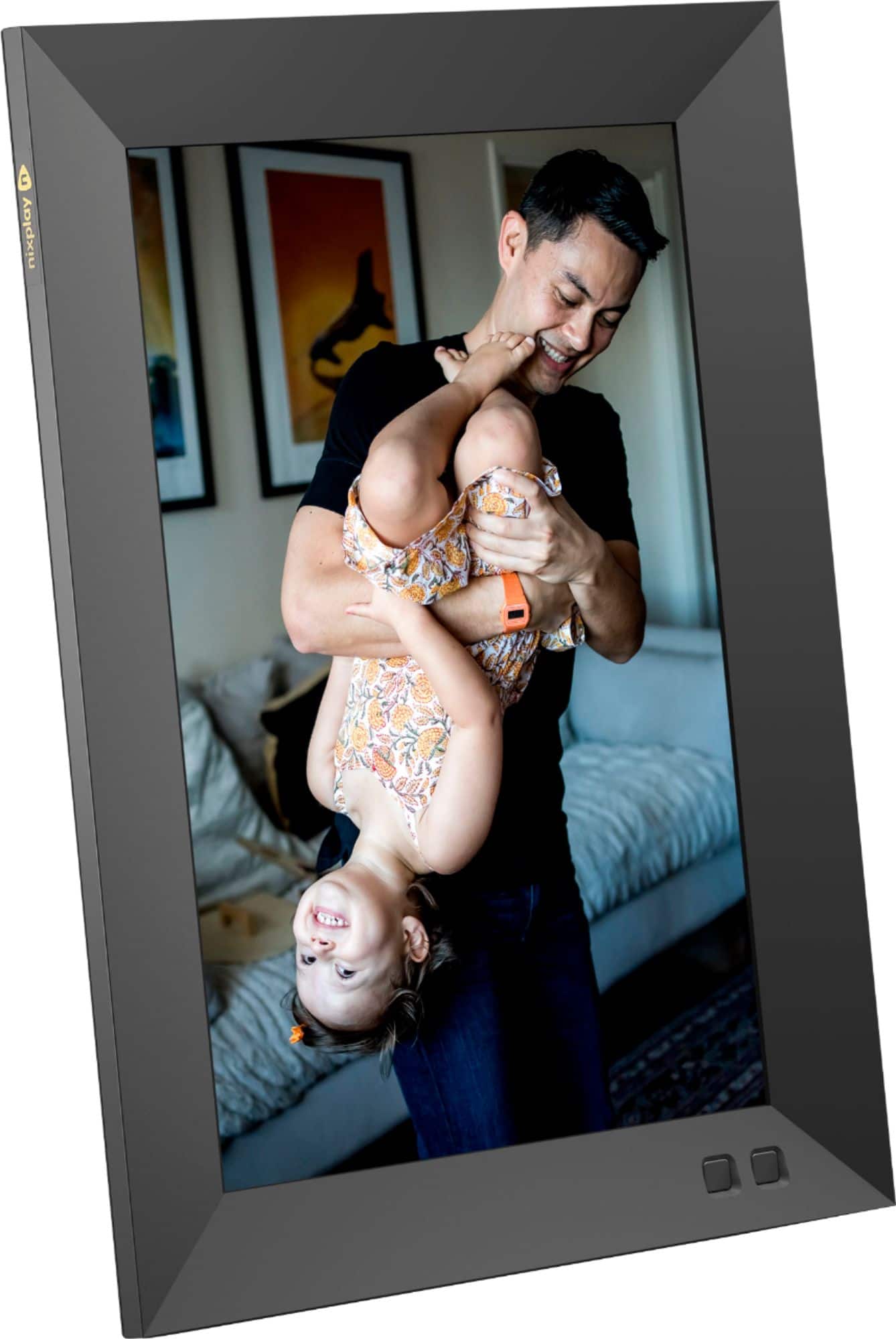
A:AnswerNixplay Smart Frames allow users to upload their content via the nixplay mobile app, web app.
Users can also upload content via email or import it from facebook, dropbox or google photos.
Nixplay Smart Frames do not support download from a thumb drive. You can open the Nixplay web app via a desktop PC and upload content using a thumb drive.
A:AnswerHi, please reach out to support@nixplay.com where our CS team will be happy to help you out with any issue you are facing.
You can also refer to the knowledge base articles here regarding the common questions our users ask: https://support.nixplay.com/hc/en-us
A:AnswerYou’ll be provided an email address to give to others. You’ll also be able to control this through settings. You can select auto accept or select the option to approve photos prior to download.
A:AnswerPlease make sure that all photos are added to the playlist that is running on your Nixplay frame. Also ensure your frame is connected to the WiFi so new content is updated. Finally please also check your frame settings for the playback mode to ensure is set to Play All Photos. If you still have any issues please reach out to support@nixplay.com or call us at +1 (855) 649 7529 Mon - Fri 9am - 5pm, Central Time. Our CS agents will be happy to assist you.