A:AnswerHi there,
We're glad to hear you're interested in our Meta Ray-Bans, and we're happy to help.
Currently, our Meta AI app (which is needed to use the Ray-Bans) is currently supported on iPhone devices with iOS 14.2 and above.
We hope this helps!
A:AnswerHi there, KitKat! Thanks for reaching out.
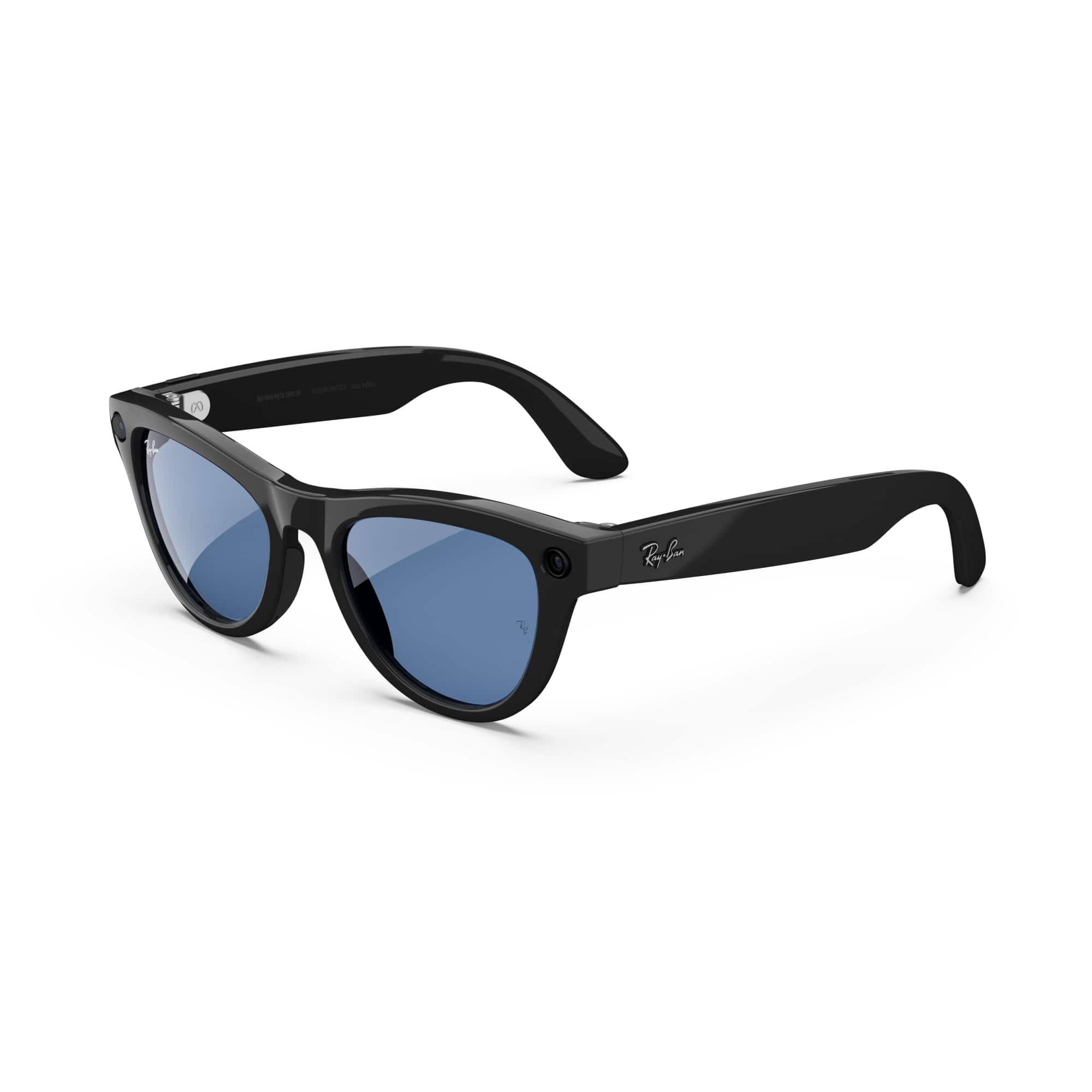
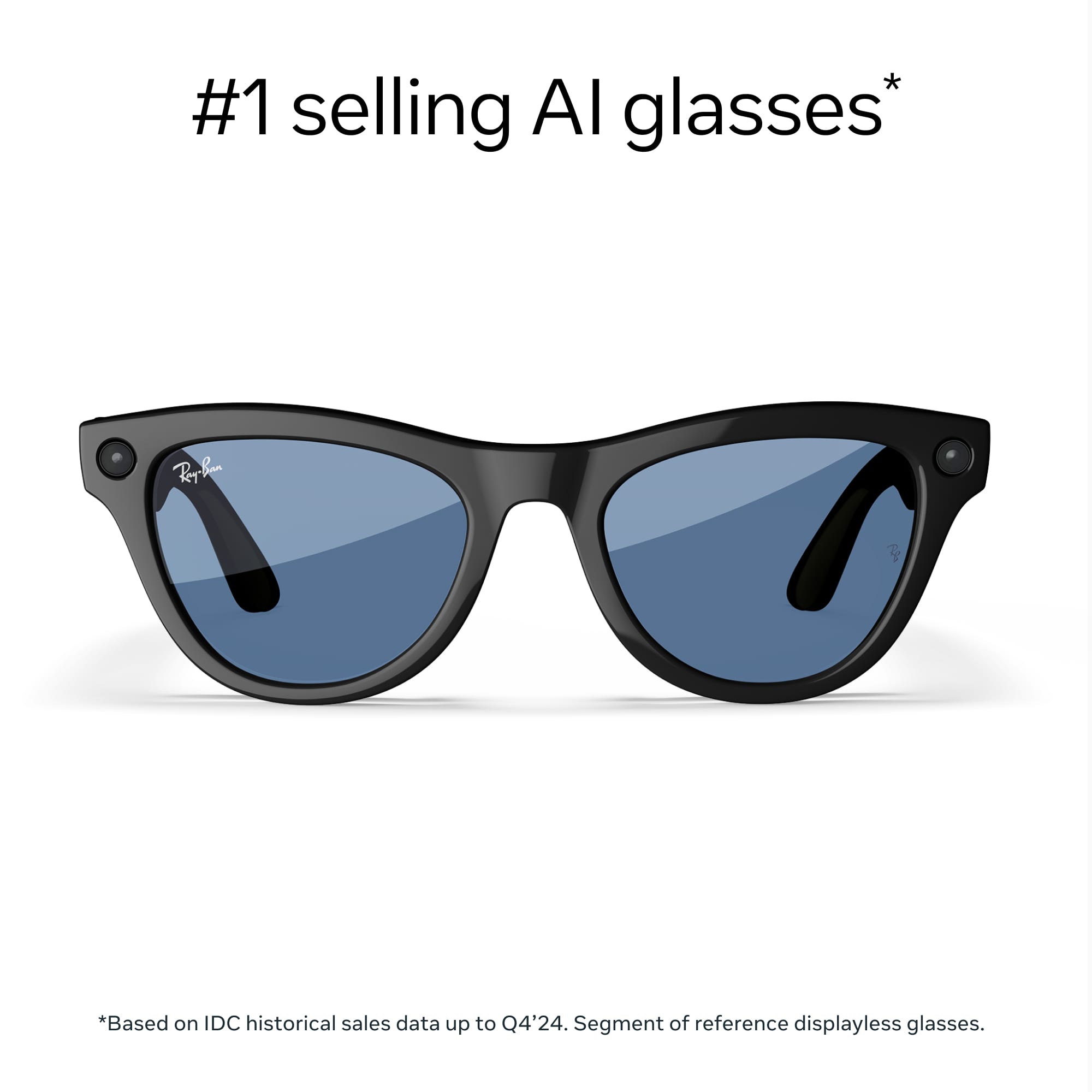
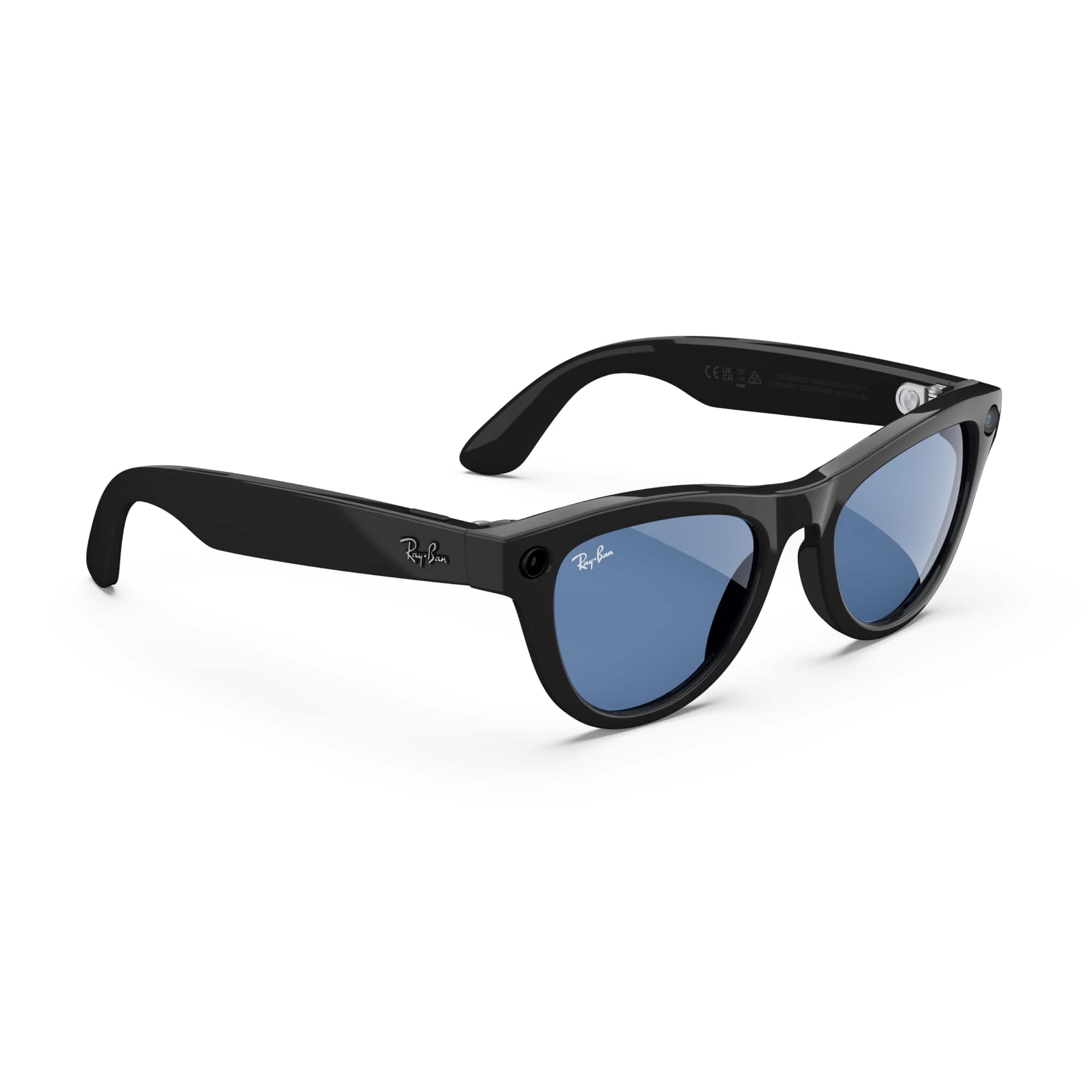
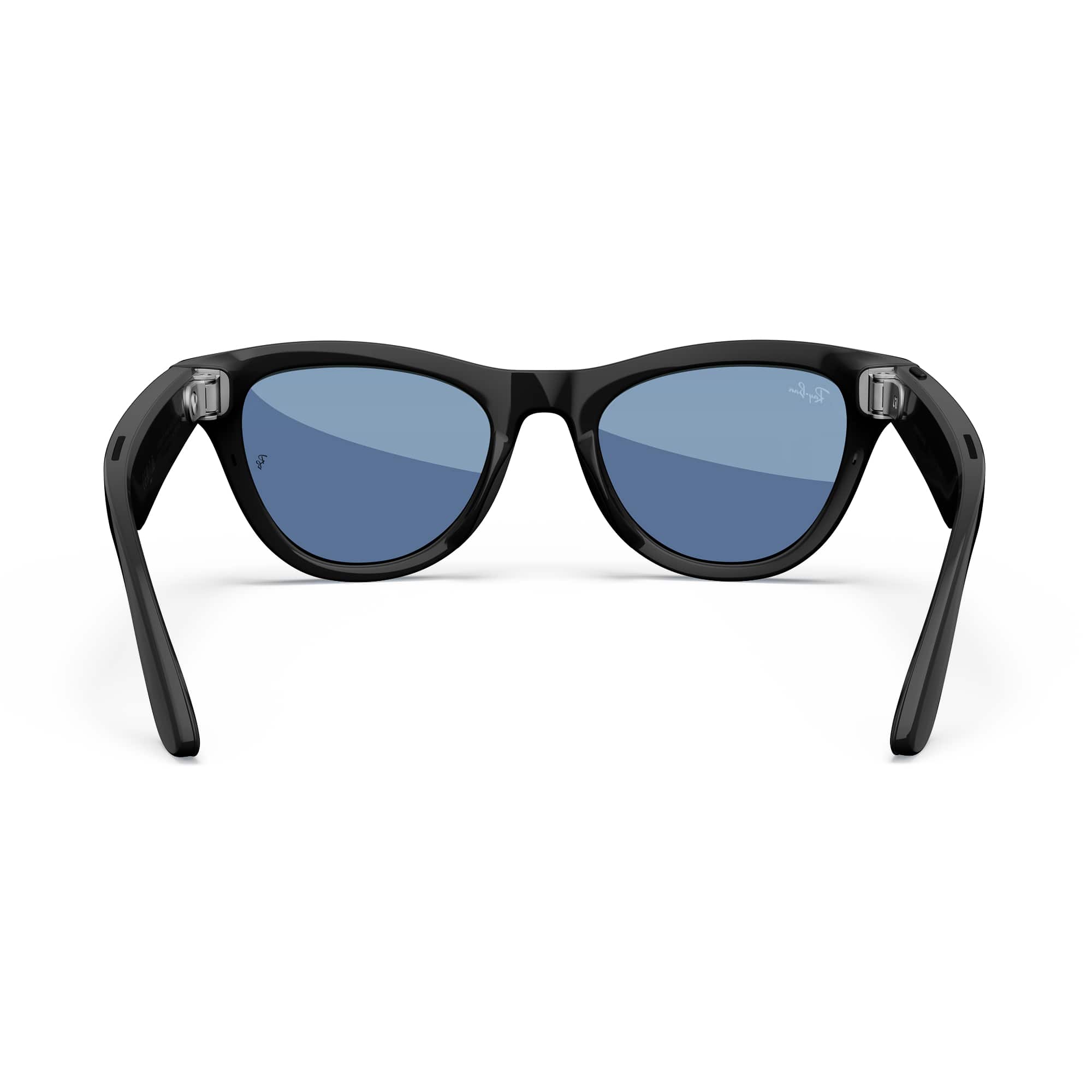
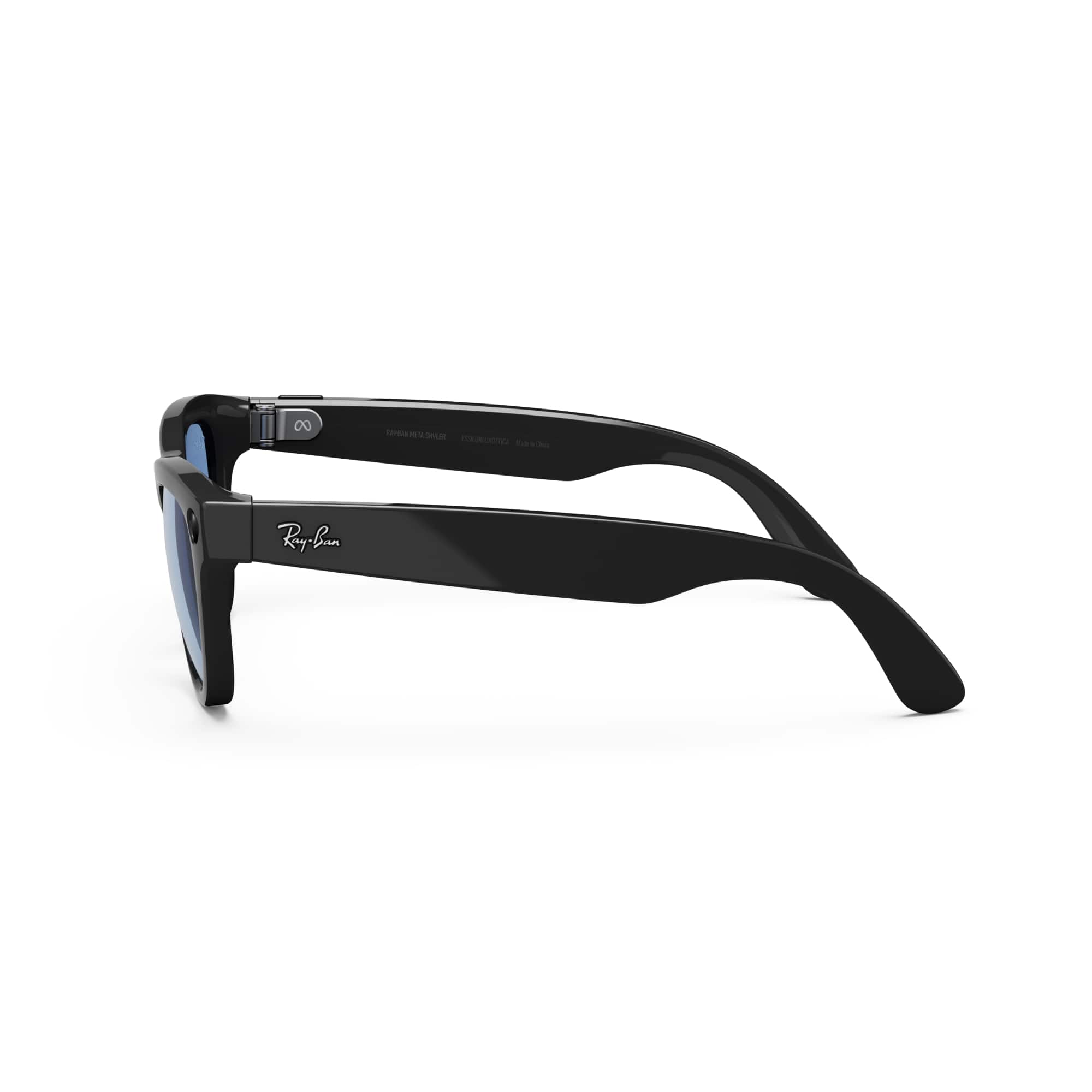
These are all of the current colors that are available in the Skyler glasses. However, there is a clear frame option on the Ray-ban Meta Wayfarer model which we recommend checking out!
A:AnswerHello there, thank you for your question.
The Samsung Galaxy 24 Ultra is on our list of compatible devices with the Ray-Ban Meta glasses, you can find the full list of compatible devices on our web article located on our Meta website.
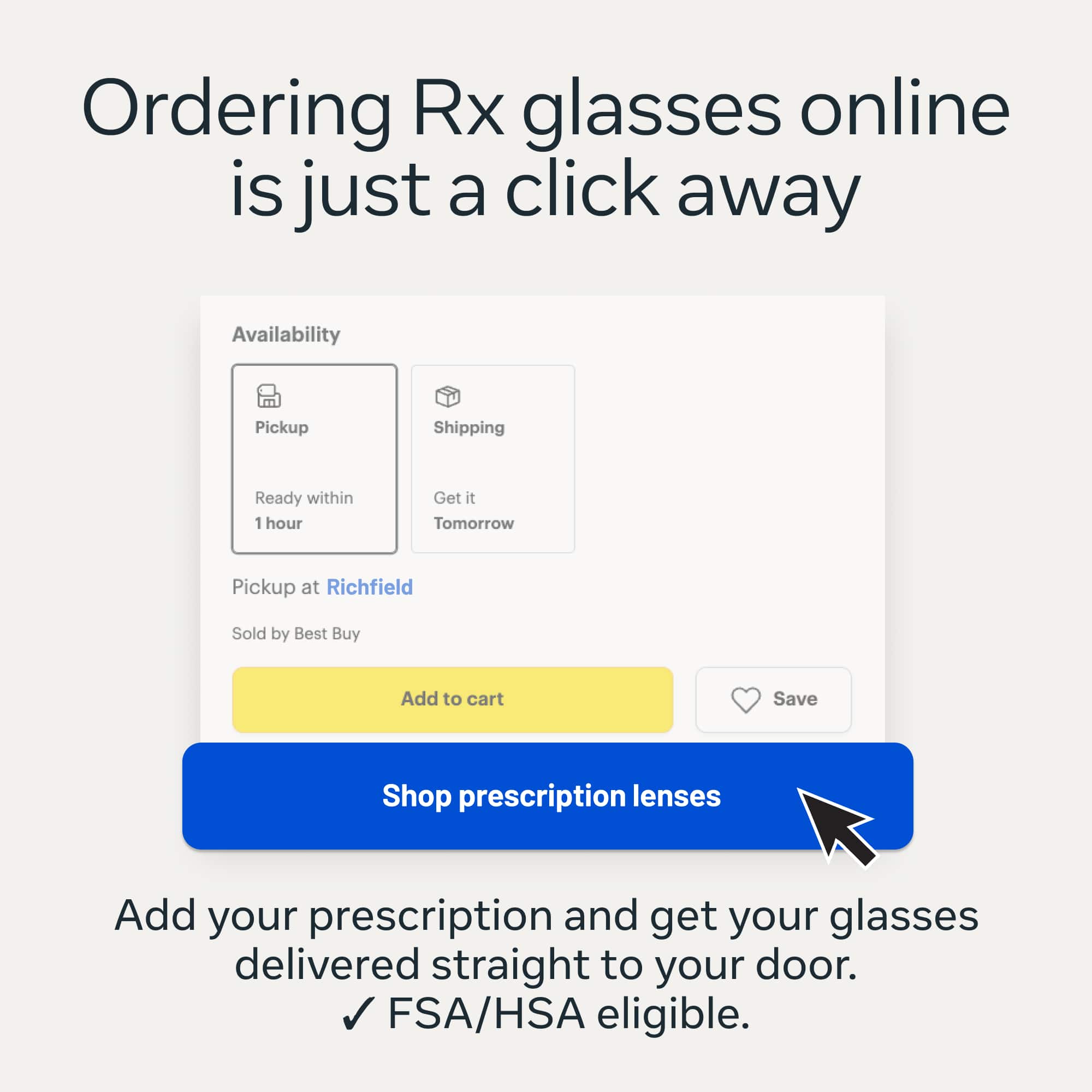
A:AnswerHey there! You can get Ray-Ban Meta smart glasses with prescription lenses at certain stores or by ordering a complete pair directly from Ray-Ban.com.
If you need any more help, you can contact our wonderful support team on our website.
A:Answer1. I have the ones with the pink tint. I do not recommend that color! 2. There is an app you install, then connect your glasses to the app. Then they are easy to use after that.
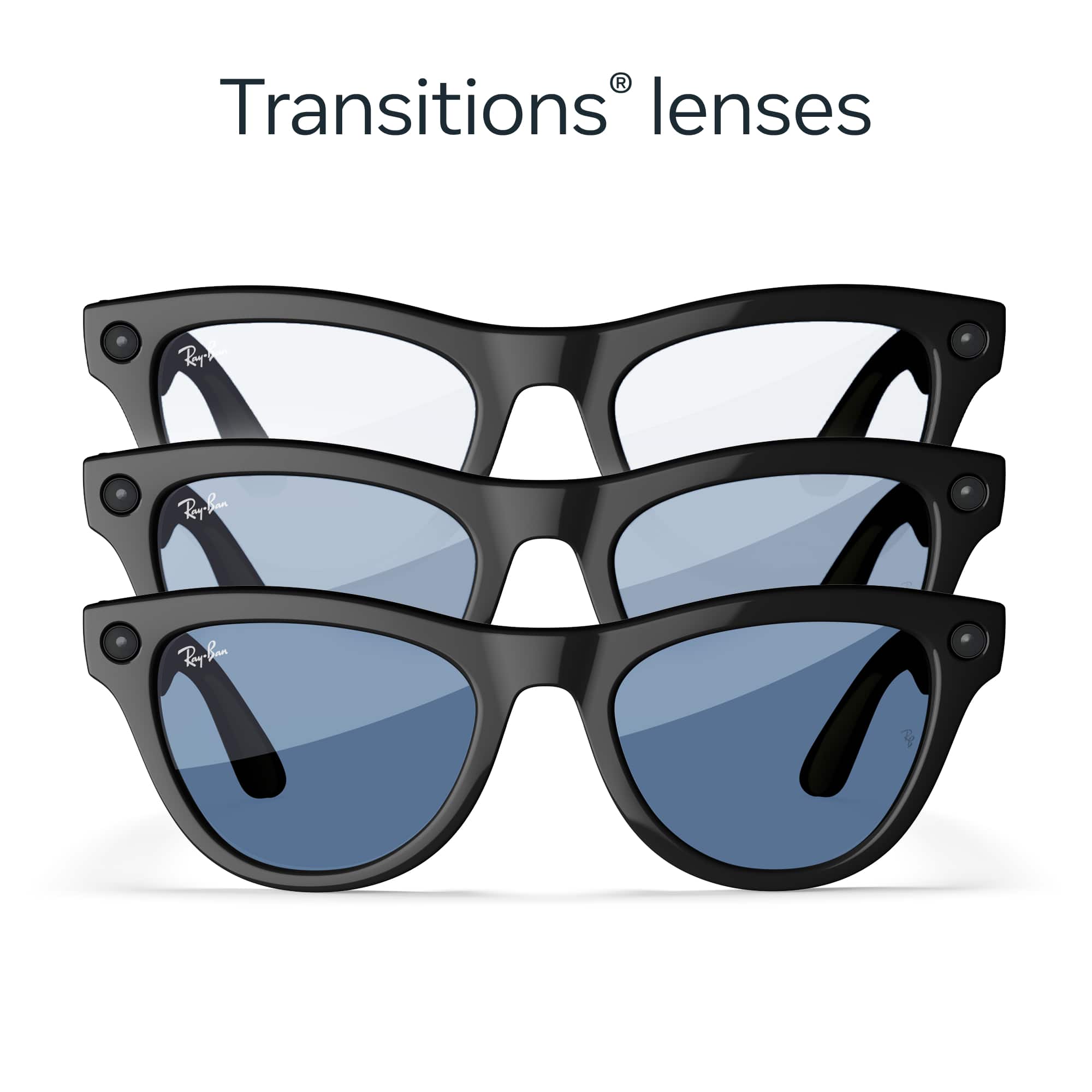
A:AnswerHey there Troy! The Ray-Ban Meta Skyler smart glasses in the Chalky Grey variant only have the option of Cinnamon Pink Gradient lenses. If you want Transitions® lenses, you'll have to go for the Shiny Black variant with the Clear / Cerulean Blue Transitions® lenses. If you need any extra help, don't be shy to contact our wonderful support team at meta.com/help/support/, we'll be glad to give you a hand!
A:AnswerHey there,
Thank you for bringing this to our attention! We appreciate you reaching out.
If you are having trouble connecting your glasses to your phone, we have a few things we would like you to double check. Please make sure that:
1. The glasses are charged and turned on:
Slide and hold the power switch towards the lens until the notification LED starts blinking white, then release it. The white LED will blink while the glasses turn on. When it turns solid green, it is ready to continue.
2. Bluetooth is enabled on the phone.
3. The glasses are unpaired on the phone. If on iOS, go to the phone's Bluetooth settings. Tap the info icon next to the glasses from the list of devices. Tap Forget This Device. This step isn't necessary on Android devices.
4. The device is in pairing mode:
Slide and hold the power switch for 5 seconds and release when the light blinks blue. The glasses will appear in the app when they are in pairing mode, which can take up to 10 seconds.
If you find these steps do not help, we ask that you try the following:
1. Turn the glasses off and back on again
2. Try quitting the Meta View app and reopening it.
If you are still facing issues after these steps, we encourage you to reach out to our amazing support team for further assistance, as we are always happy to help!
You can reach them via Meta Community Forums, the Meta Quest Support page, or the Ray-Ban support page.
We hope this helps, and hope you have a great day!
All the best!