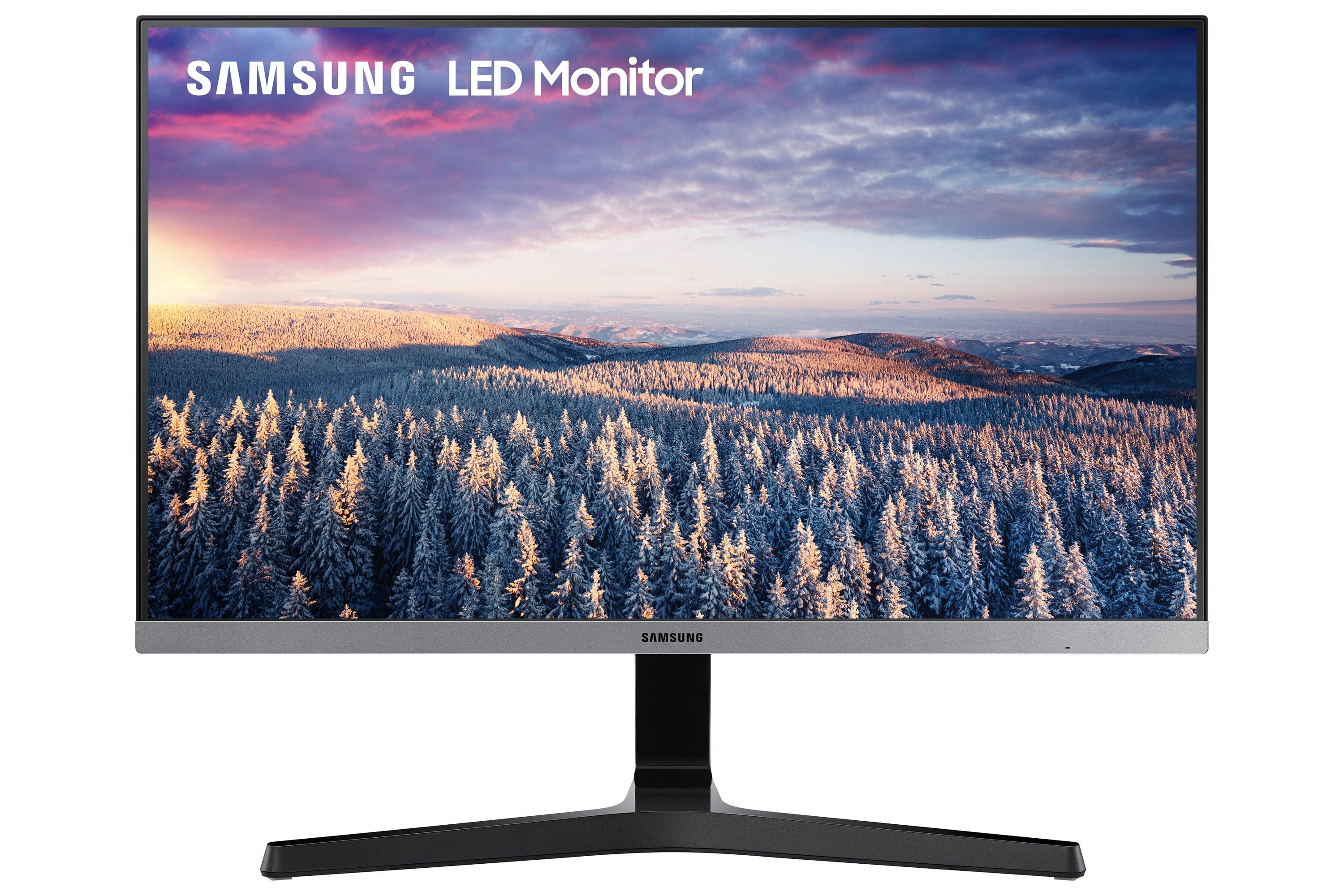
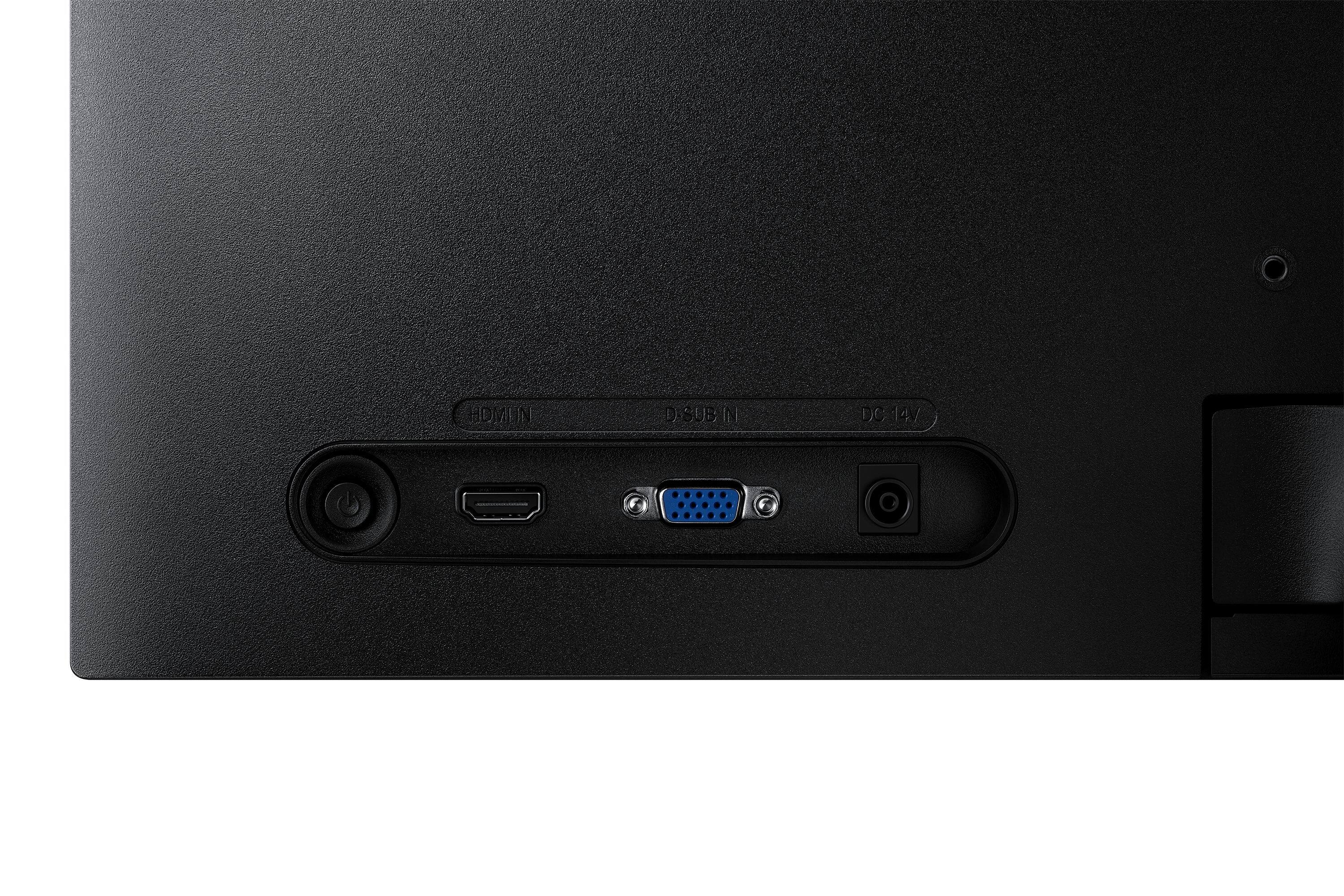
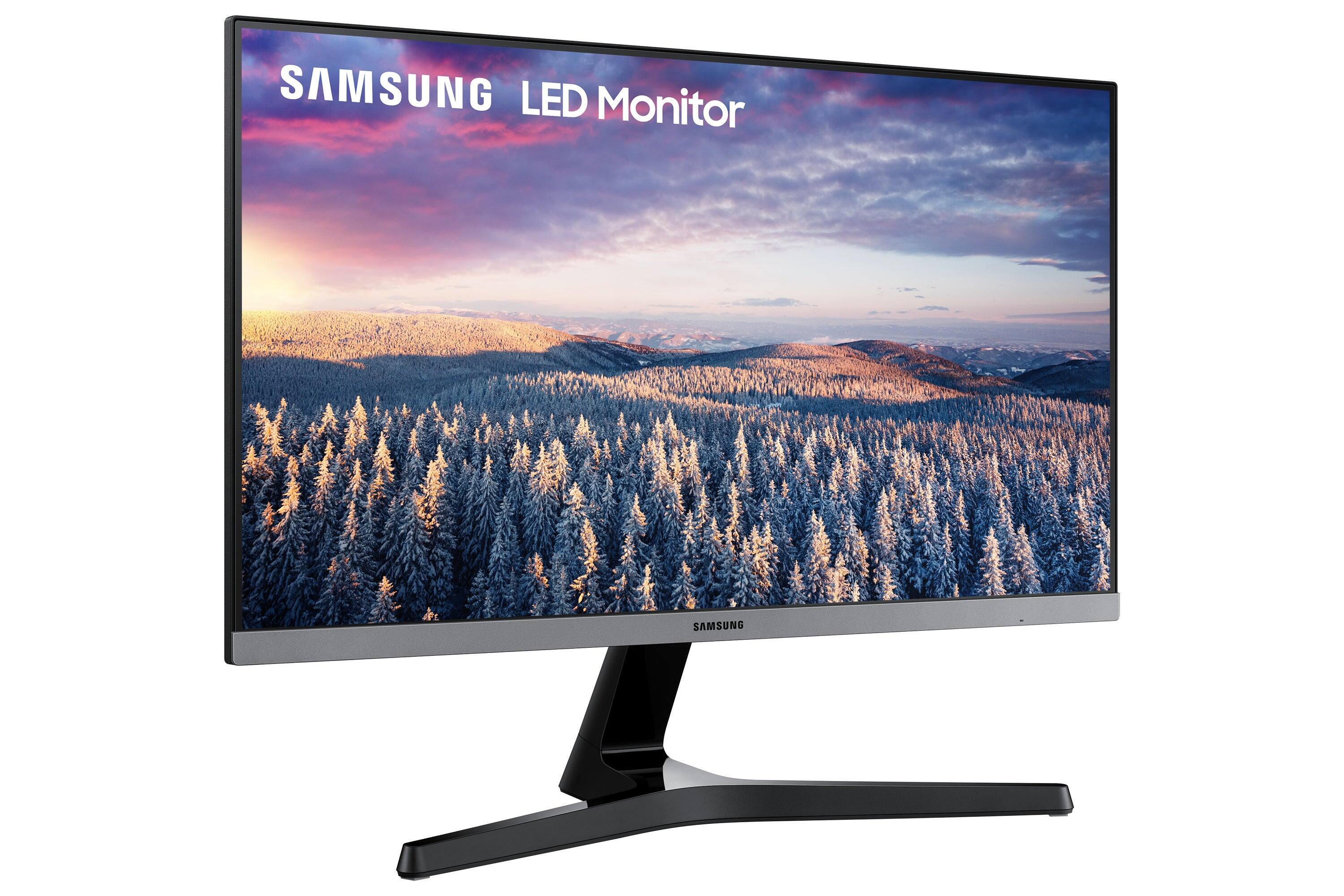
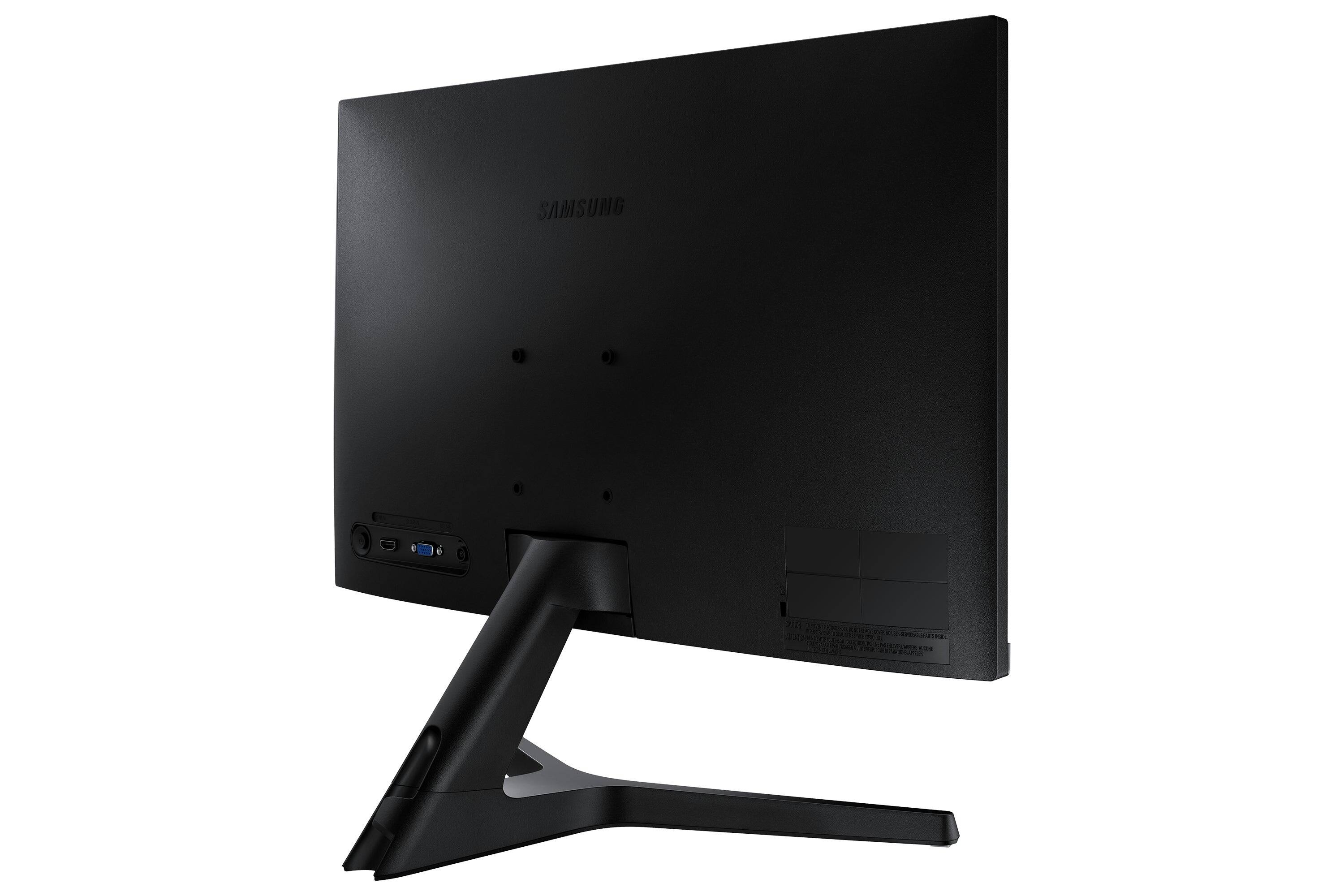
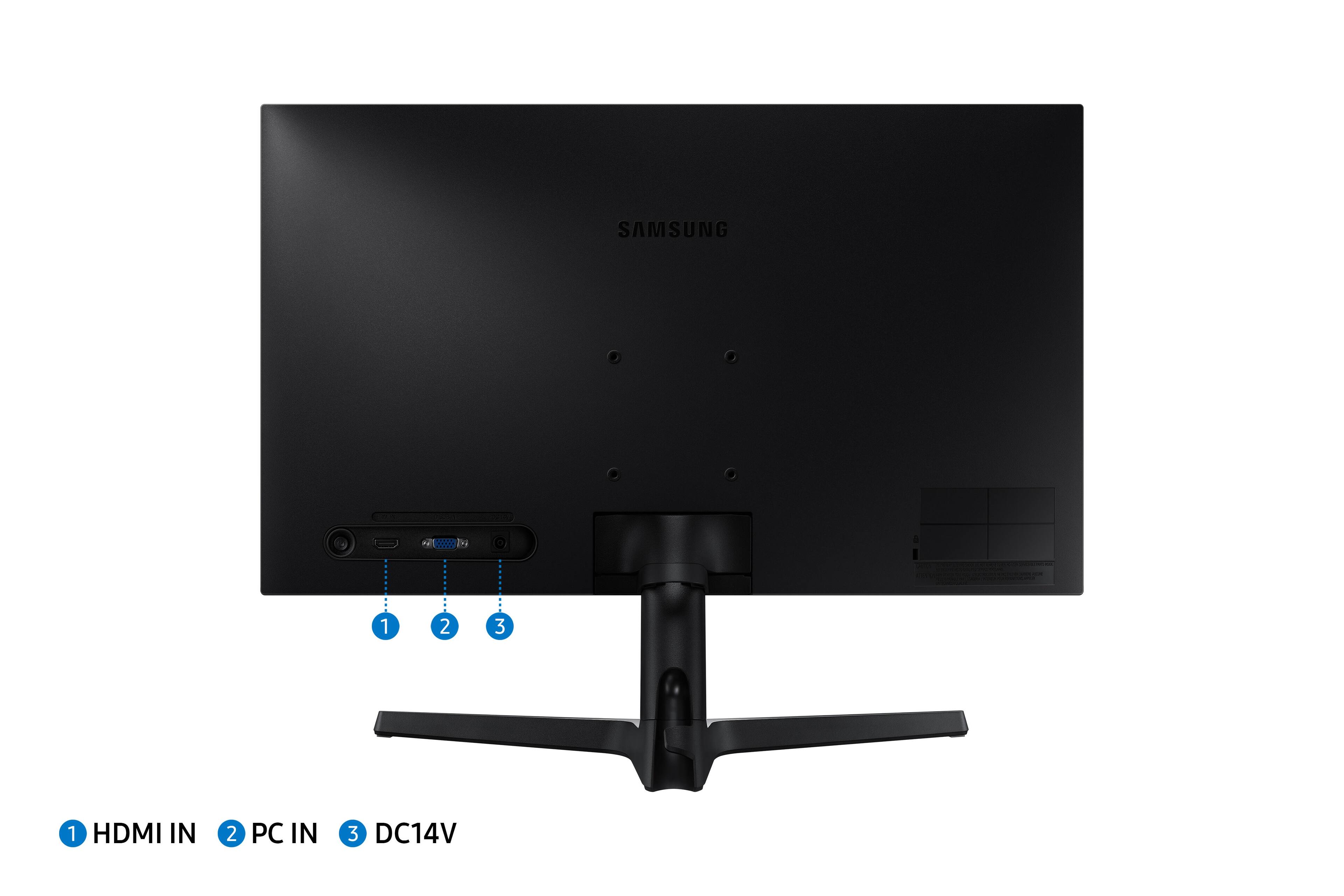
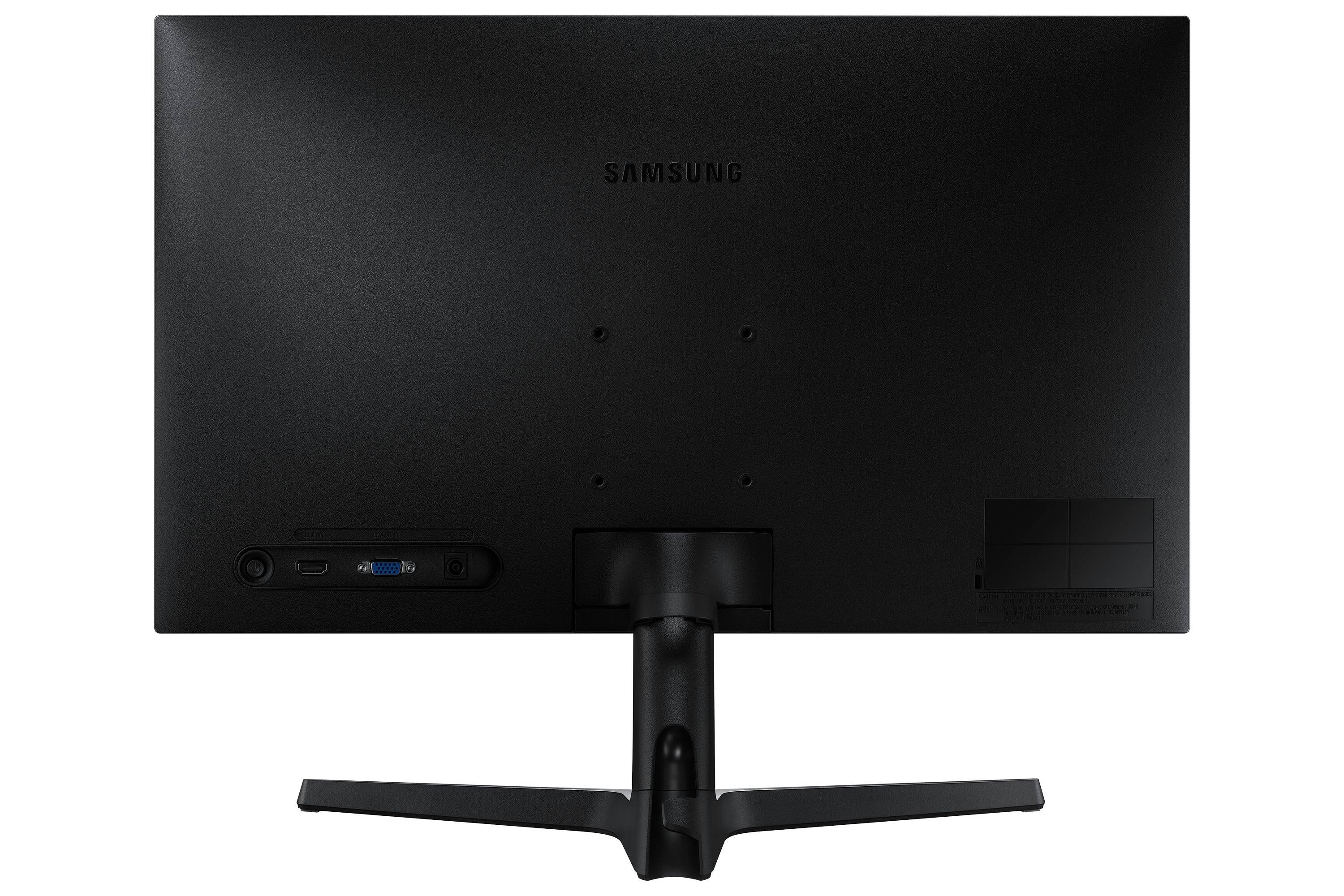
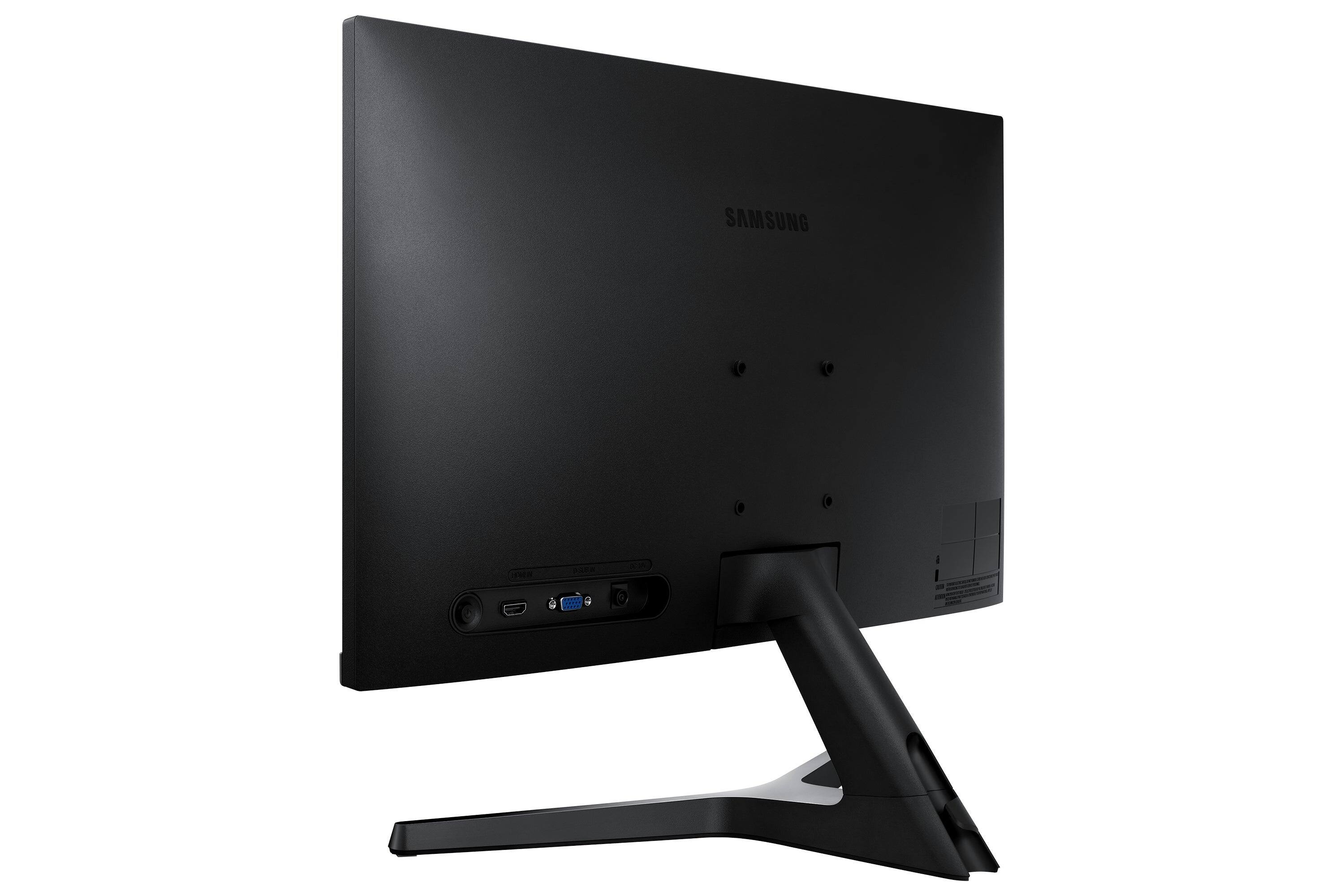
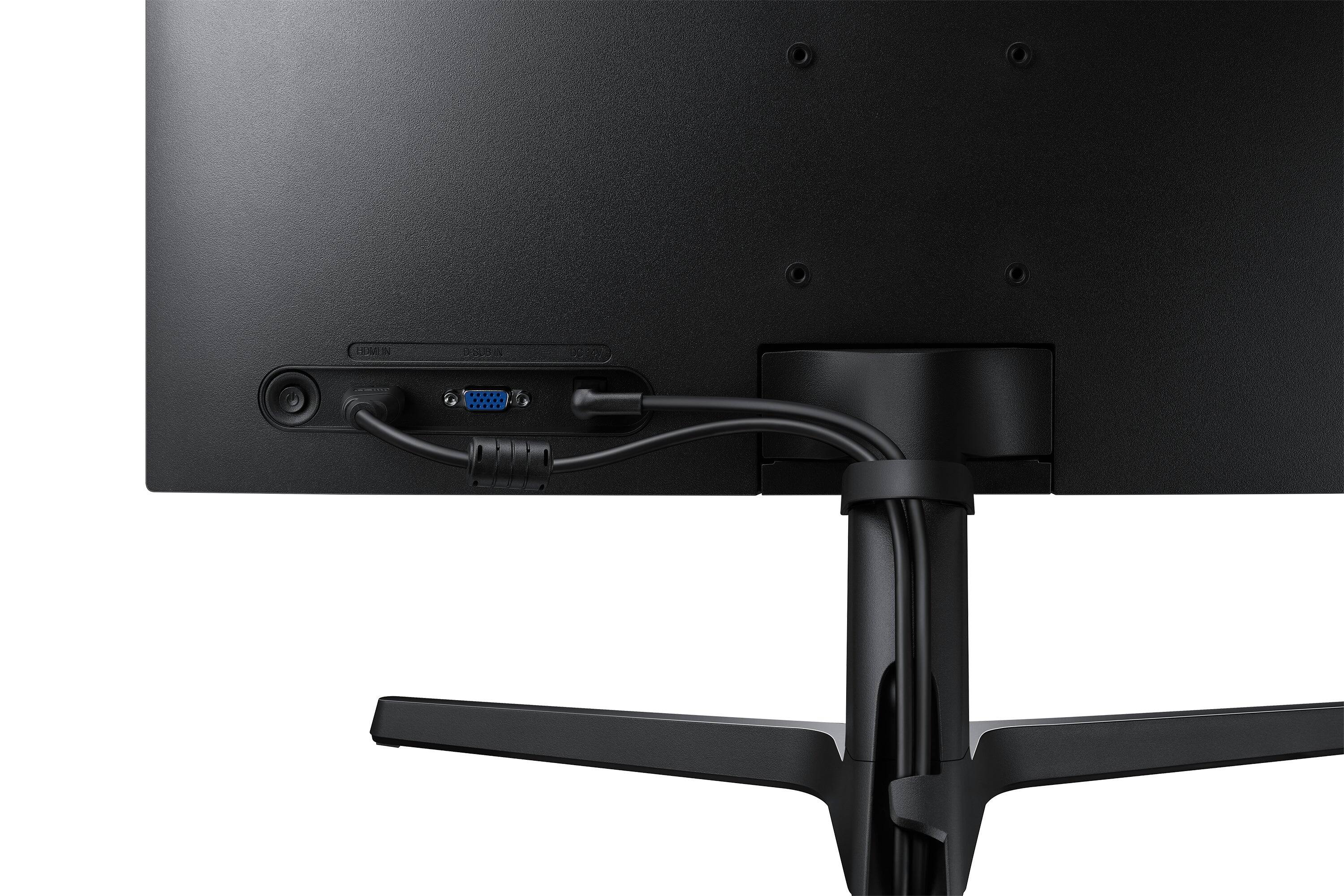
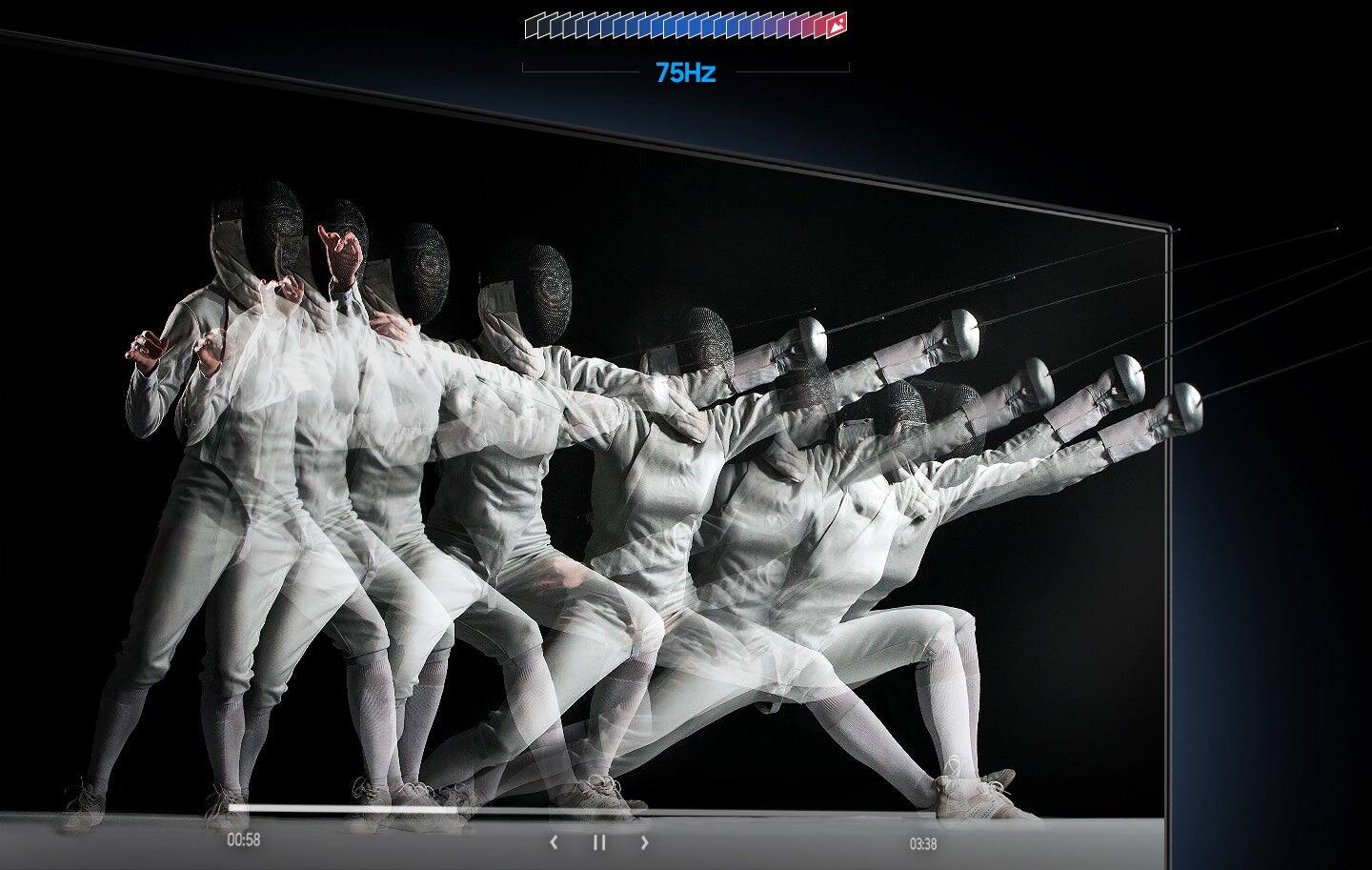
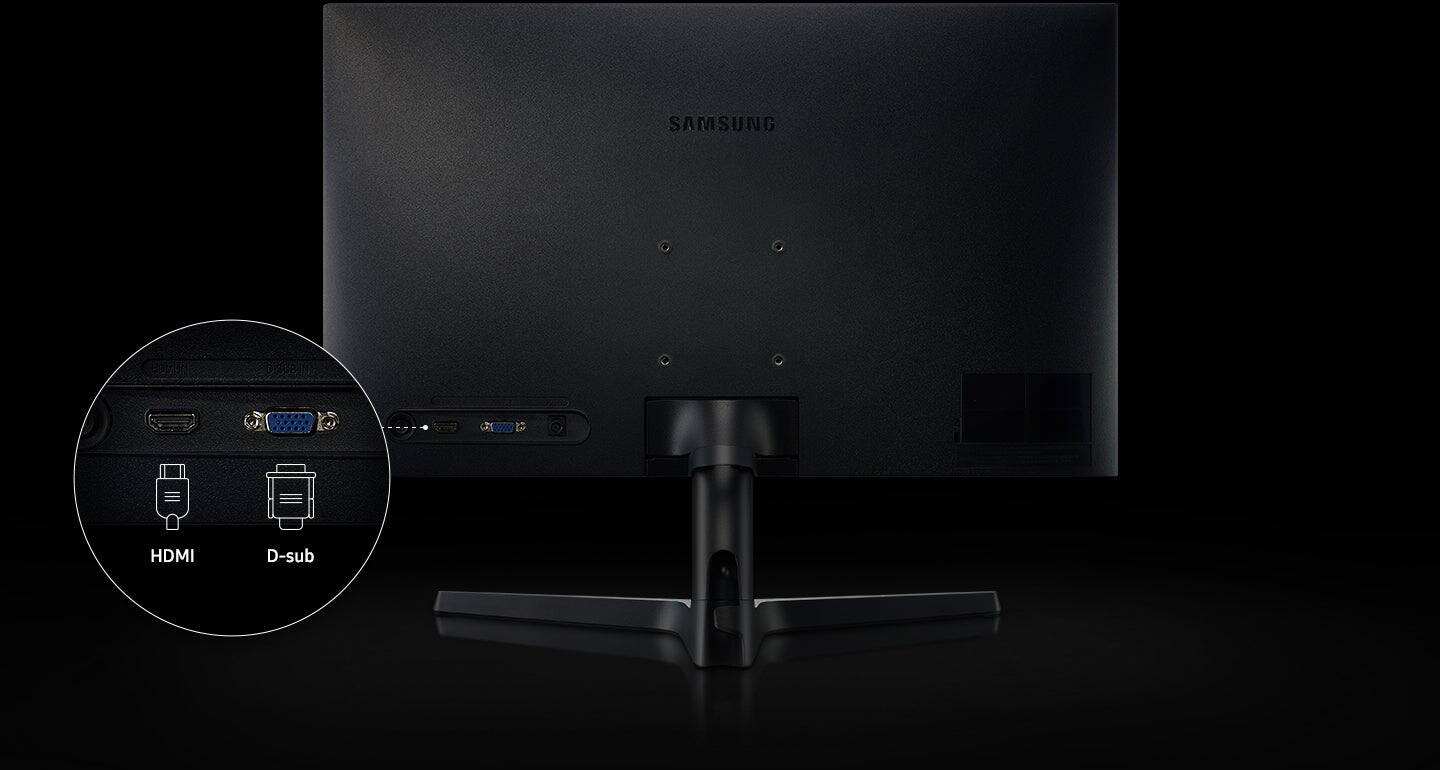
A:AnswerThe monitor can be connected to a gaming PC via the single HDMI port. The highest resolution would be at 1920 x 1080P at around 72 Hz, even though the specification specified 75 Hz. Avid gamers may prefer 144 or 165 Hz. The monitor also comes with the 15 pins VGA input.
A:AnswerProp 65 is a California Regulation that covers over 1000 chemicals and substances. It's original intent was to protect the drinking water for the citizens of California but it has blossomed into a behemoth of a regulation that burdens virtually every manufactured product. If you are interested in learning more, you can go to https://oehha.ca.gov/proposition-65. Current regulations require manufacturers to warn if one of the listed chemicals or substances are included in the product. You could contact Samsung and ask them what substance may be present but suffice to say that most common materials that are used in the manufacturing of most electronic products today likely contain something that falls on the list.
A:AnswerAs long as your laptop has an HDMI port, I don't see why it wouldn't work. And yes, you can have video displaying on the monitor but have audio playing through the laptop speakers as long as you know how to configure it in Windows Audio Settings.
A:AnswerYou can do this readily if your laptop has 2 video output jacks. Older laptops have an HDMI output and a VGA output.
Nowadays most laptops only have a single HDMI or a single USB-C jack that is capable of outputting video. In this case, you could buy a USB to HDMI adapter to connect the second external monitor.
Some newer laptops have both a HDMI and USB-C jacks but you would have to make sure that the USB-C jack can output video (not all of them can). In addition, you would have to buy a USB-C to HDMI adapter or dock to make it work.
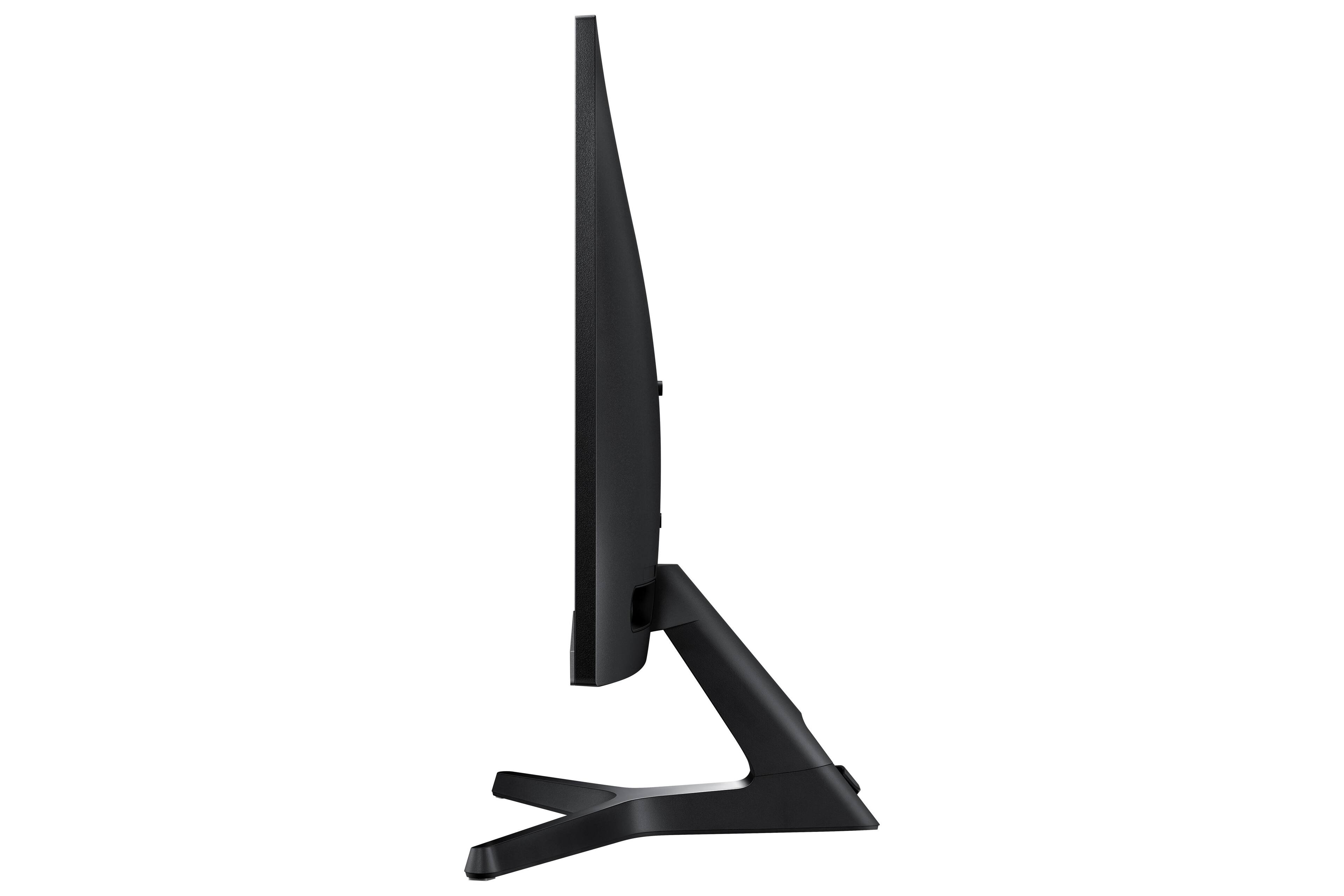
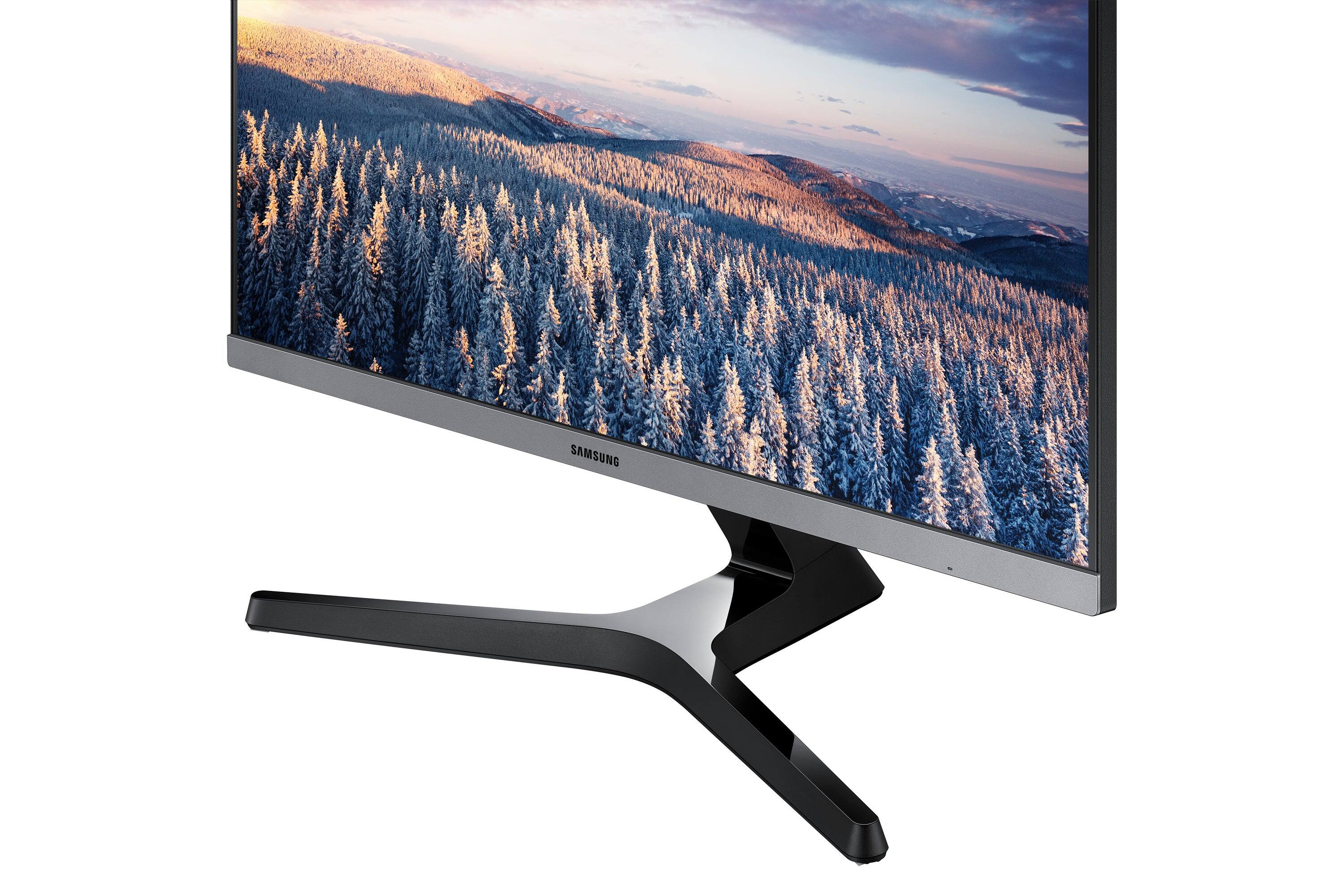
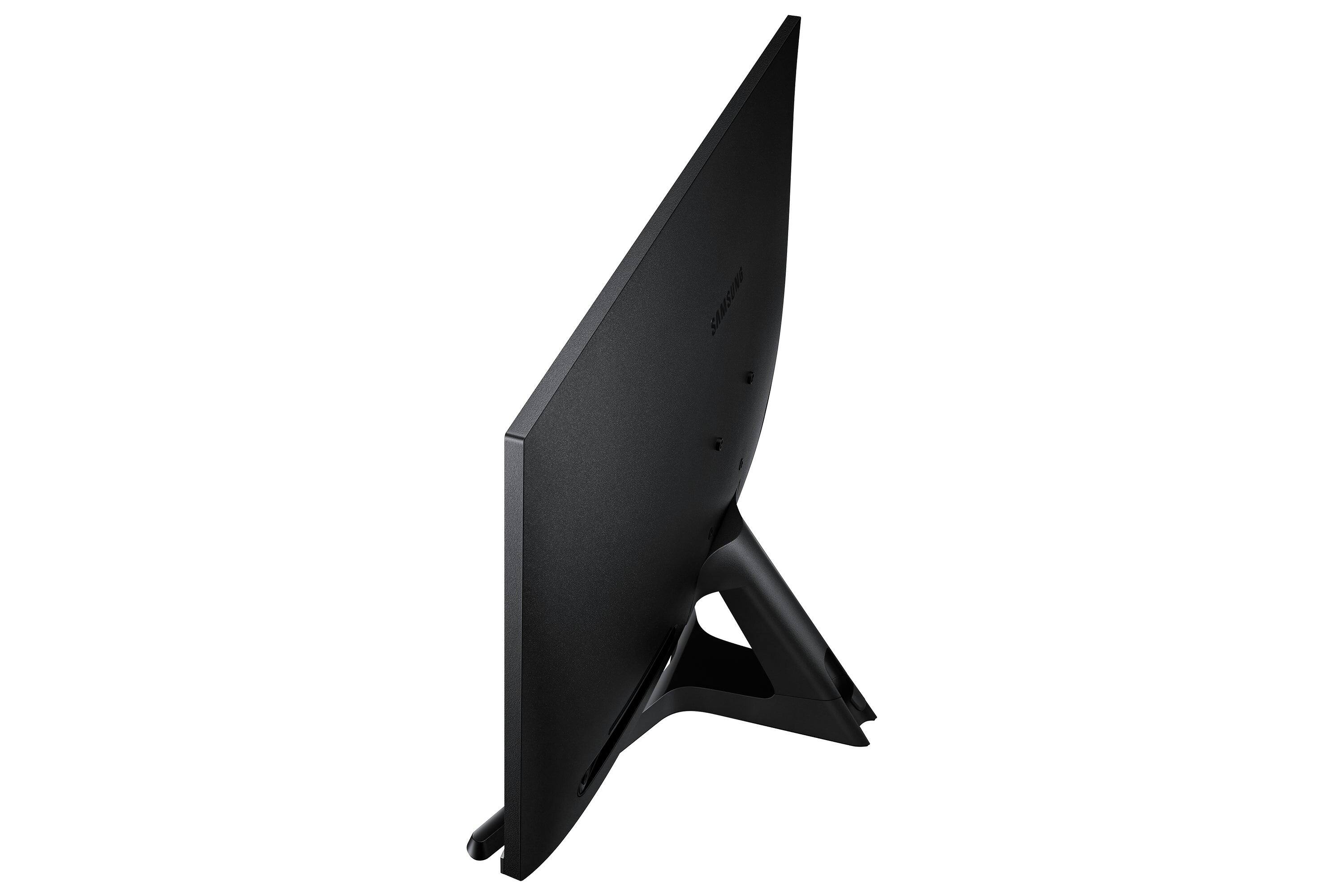
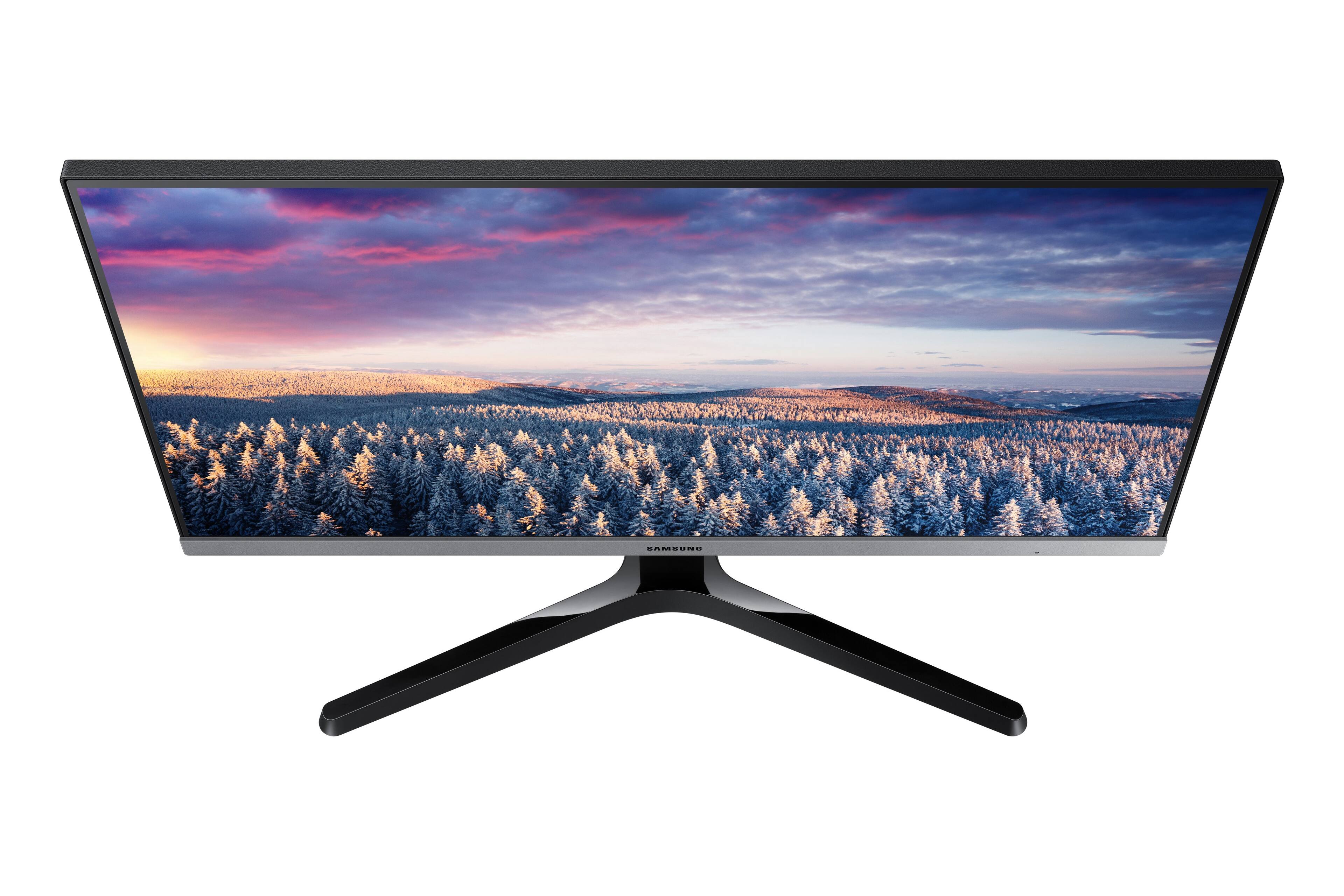
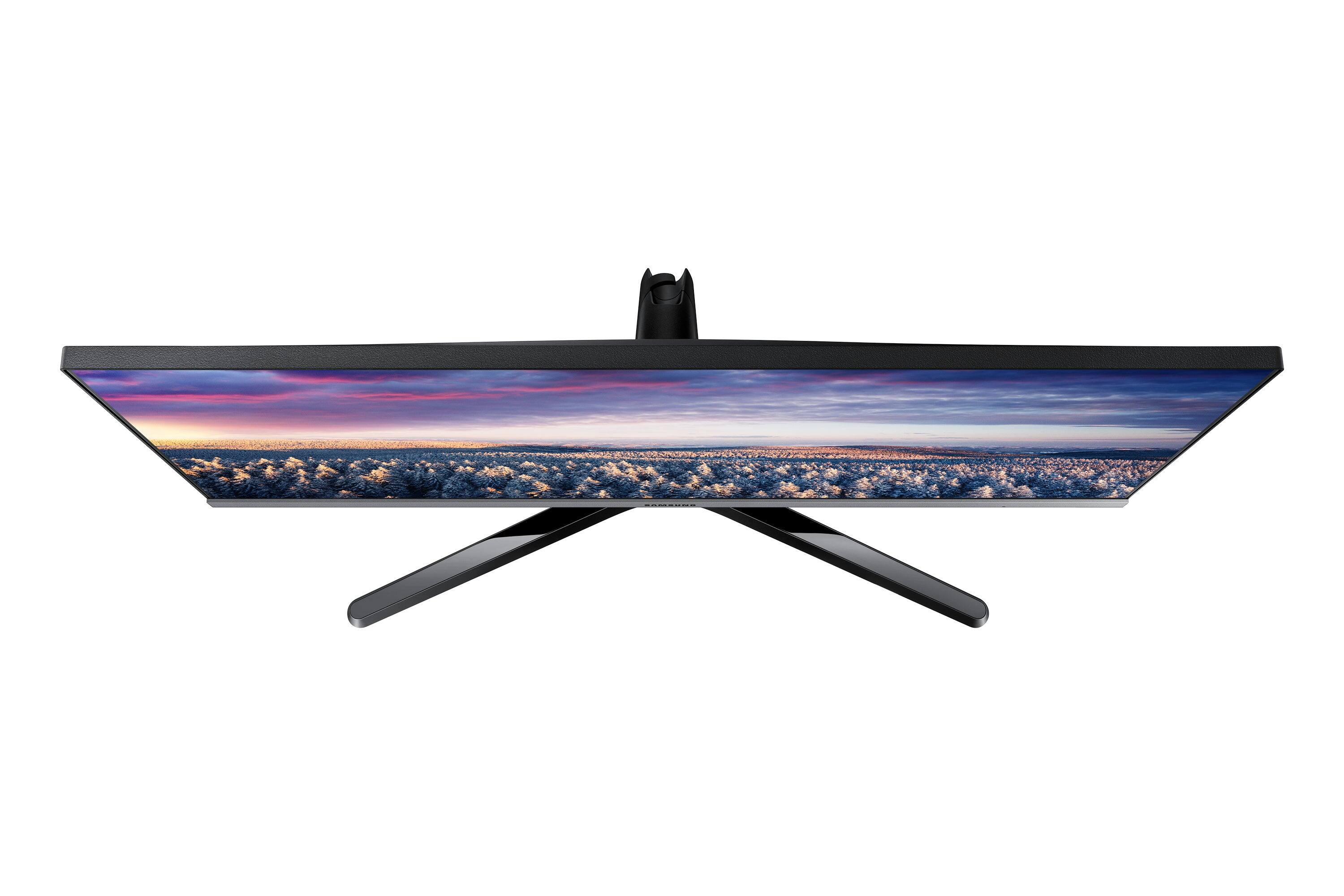
A:AnswerThe included stand only allows for landscape/horizontal view. If you need portrait/vertical view, you would have to by a monitor mount which you can attach to the VESA mounting holes on the back.