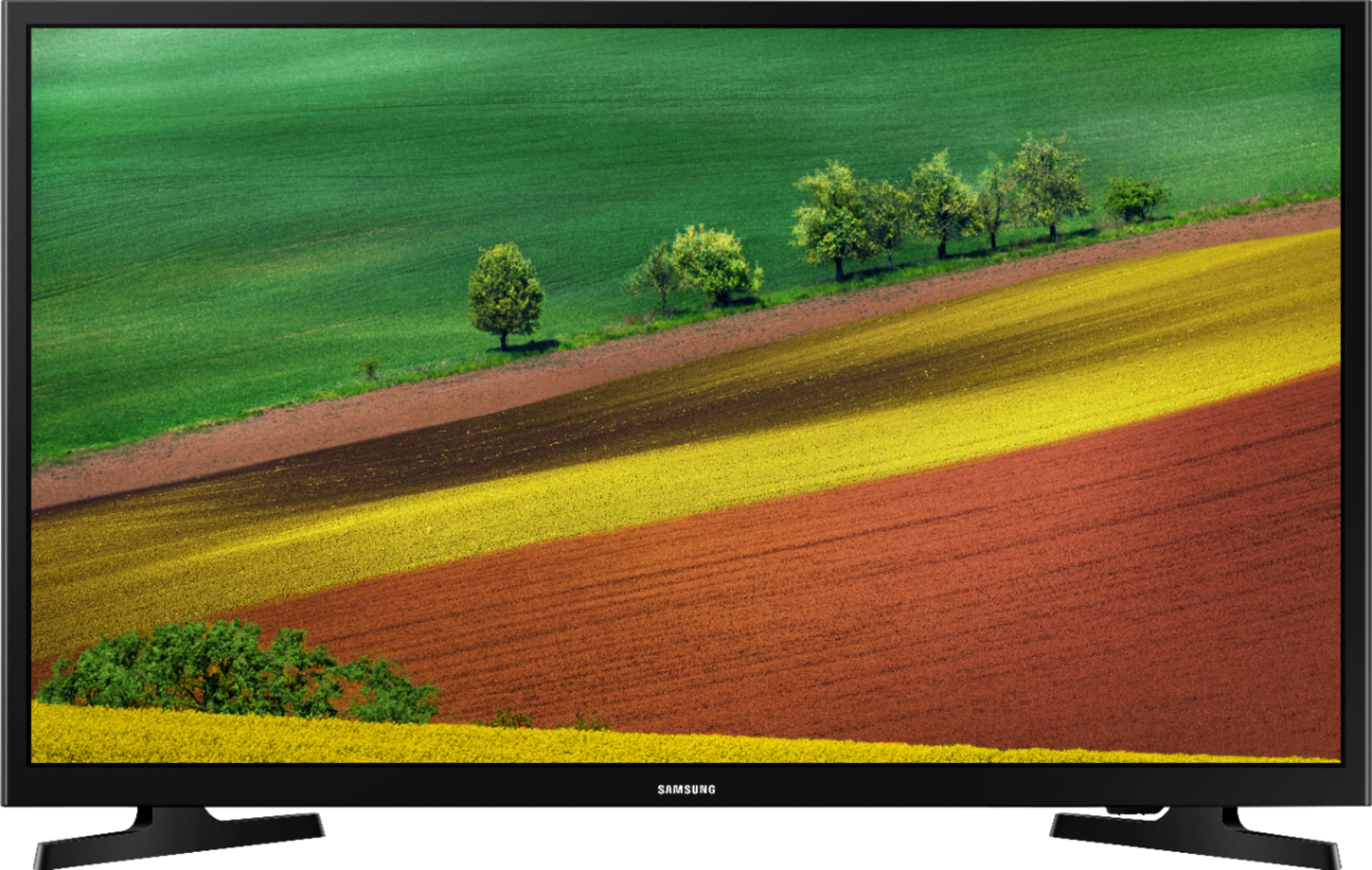
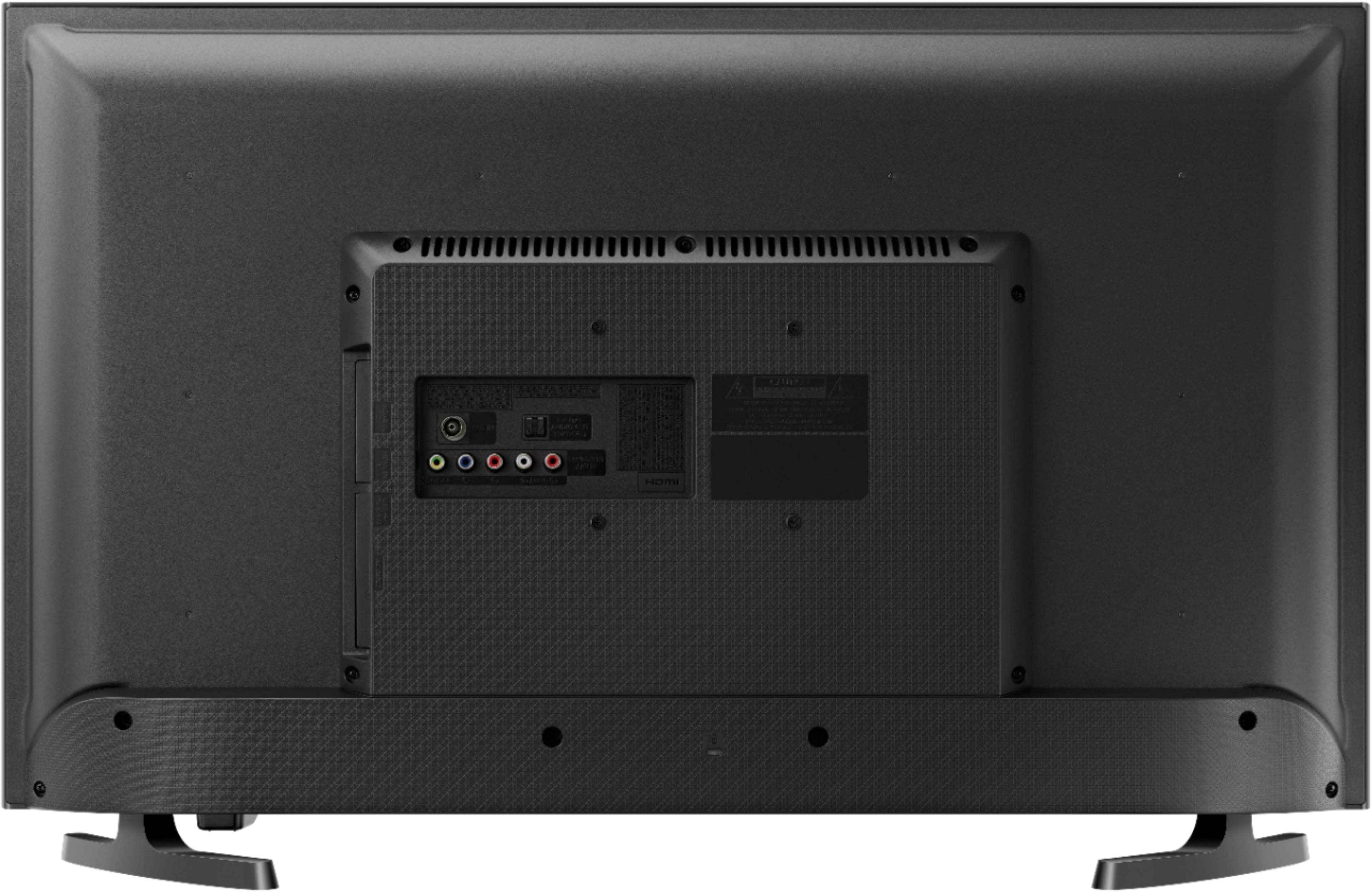
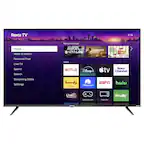
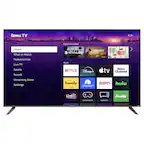
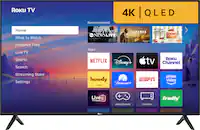
A:AnswerThe Apps menu comes up every time you turn the TV on. Just use your arrow keys to select which app you want to use - Netflix, Prime, Disney+, AppleTV, YouTube, Vudu, Gallery, Internet, Hulu ++.
A:AnswerThere are a couple things you can do -
If you just want to block your neighbor's wifi:
1. Go to Start > Control Panel > Network and Internet > Network and Sharing Center.
2. Choose Manage Wireless Networks from the options on the left.
3. Highlight the network from the list and choose Remove.
If you want to disable WIFI completely from the TV itself:
1. Press the Menu button on your Samsung remote and Open Settings.
2. Go to General and Select Network.
3. Select Network Status.
4. Select Disconnect then press OK.
A:AnswerYou can verify this by checking the Q&A section of Best Buy's site.
https://www.bestbuy.com/site/questions/samsung-32-class-m4500-series-led-hd-smart-tizen-tv/6202105
On the left side of this screen, you can see a list of (currently) 88 supported apps with this tv
A:AnswerYou can verify this by checking the Q&A section of Best Buy's site.
https://www.bestbuy.com/site/questions/samsung-32-class-m4500-series-led-hd-smart-tizen-tv/6202105
On the left side of this screen, you can see a list of (currently) 88 supported apps with this tv
A:AnswerYou can verify this by checking the Q&A section of Best Buy's site.
https://www.bestbuy.com/site/questions/samsung-32-class-m4500-series-led-hd-smart-tizen-tv/6202105
Scroll down to Specifications and click the down arrow to see the details
A:AnswerYou can verify this by checking the Q&A section of Best Buy's site.
https://www.bestbuy.com/site/questions/samsung-32-class-m4500-series-led-hd-smart-tizen-tv/6202105
On the left side of this screen, you can see a list of (currently) 88 supported apps with this tv