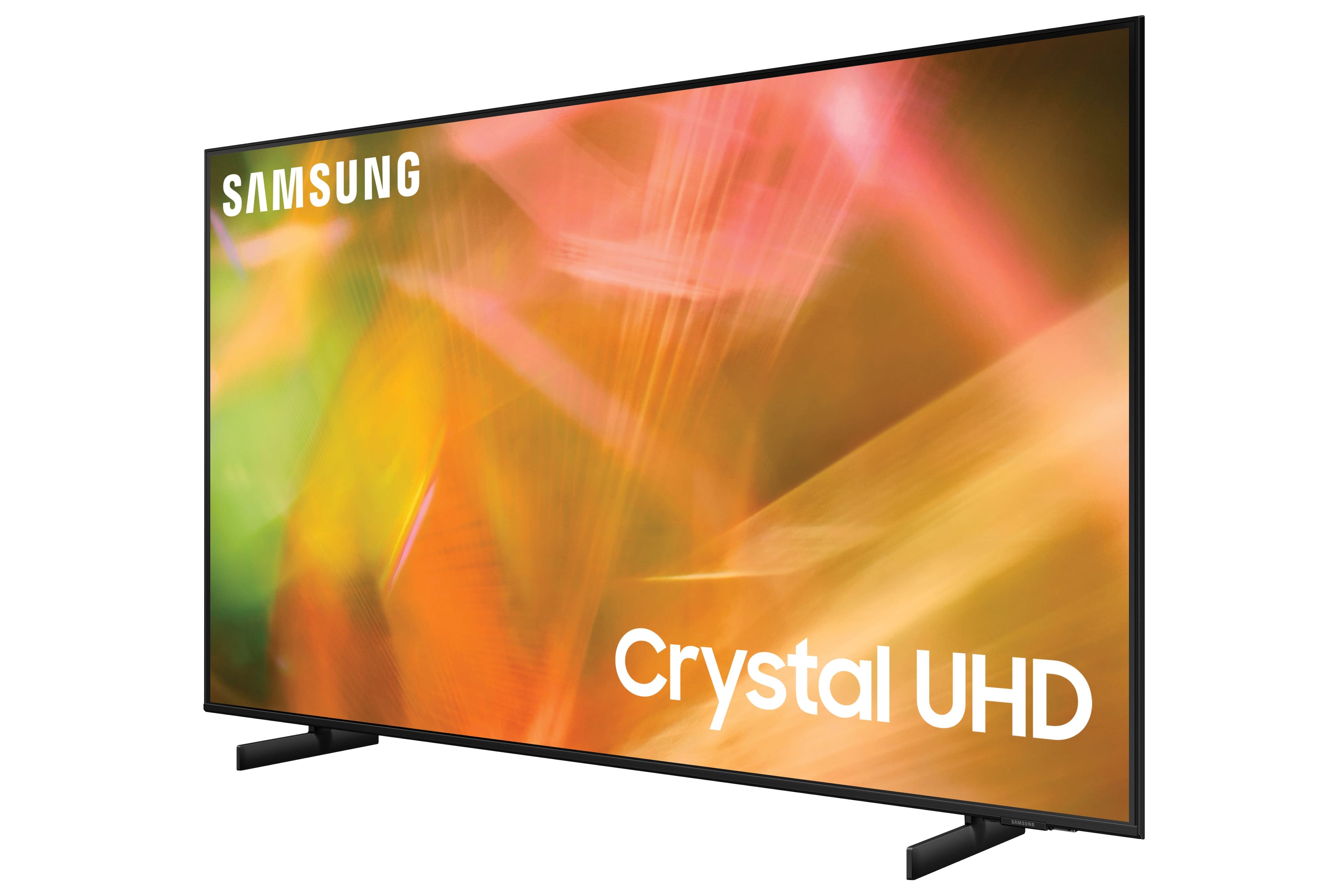
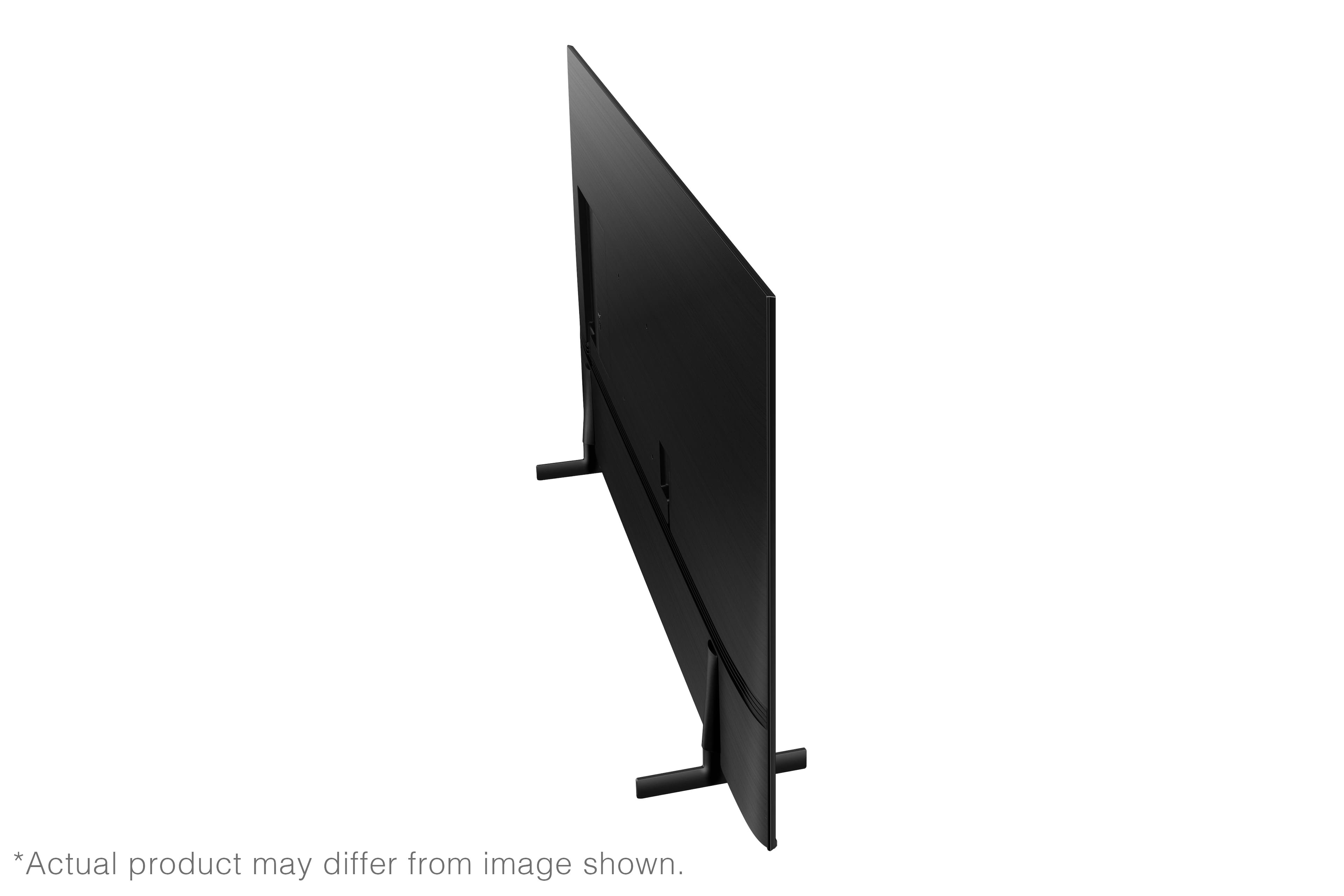
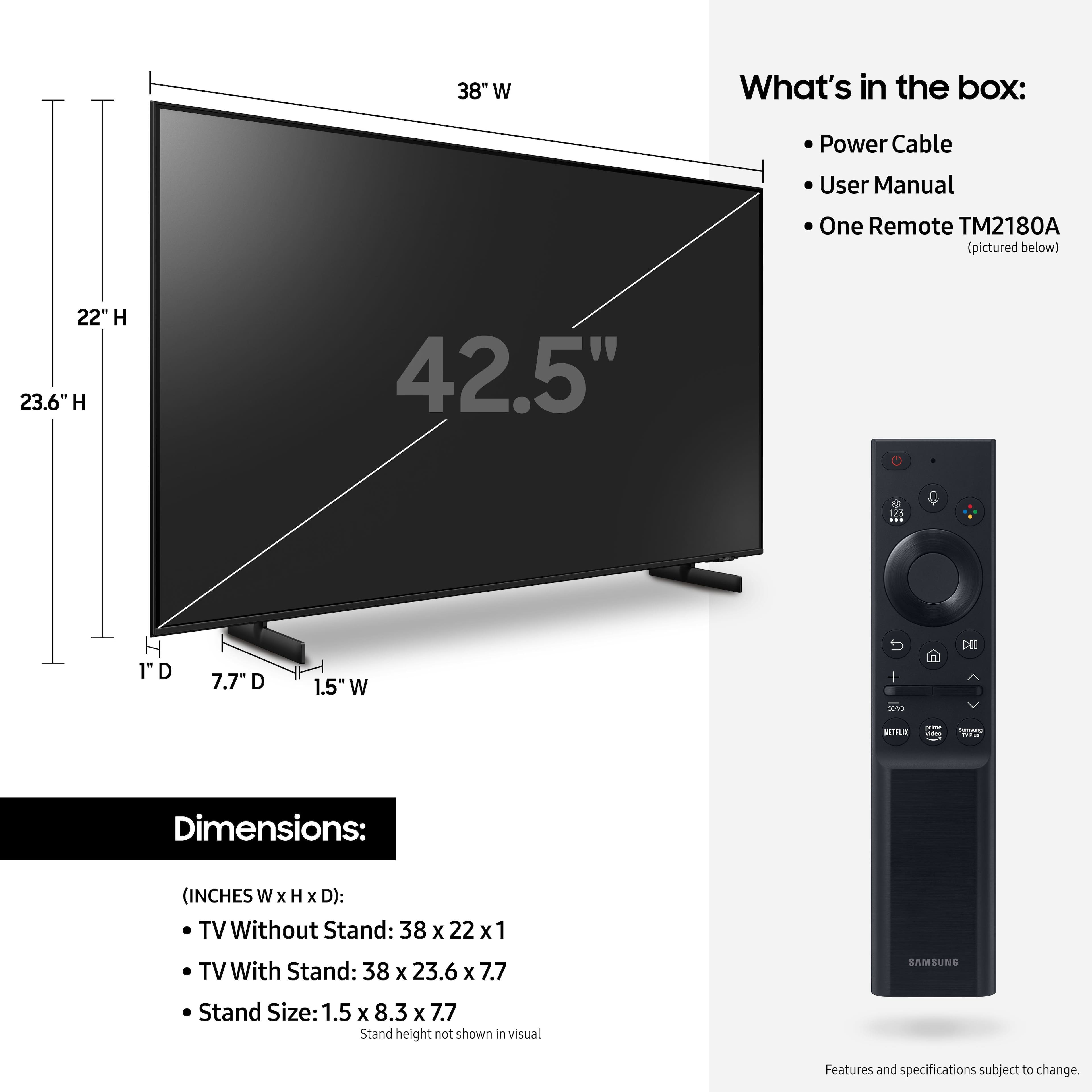
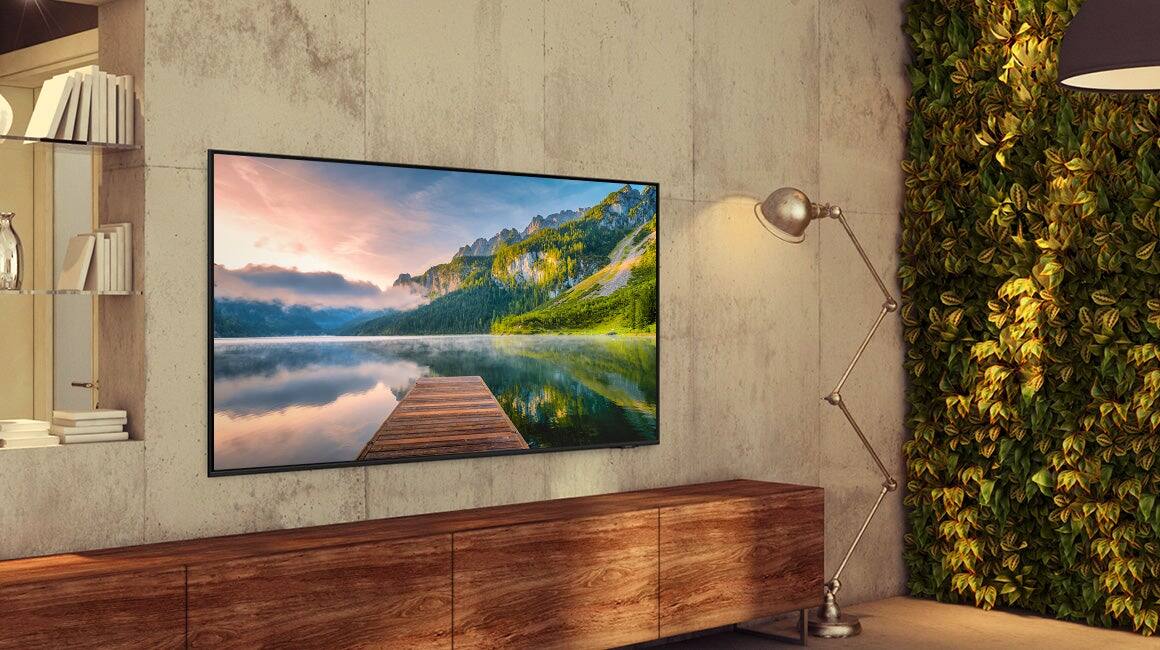
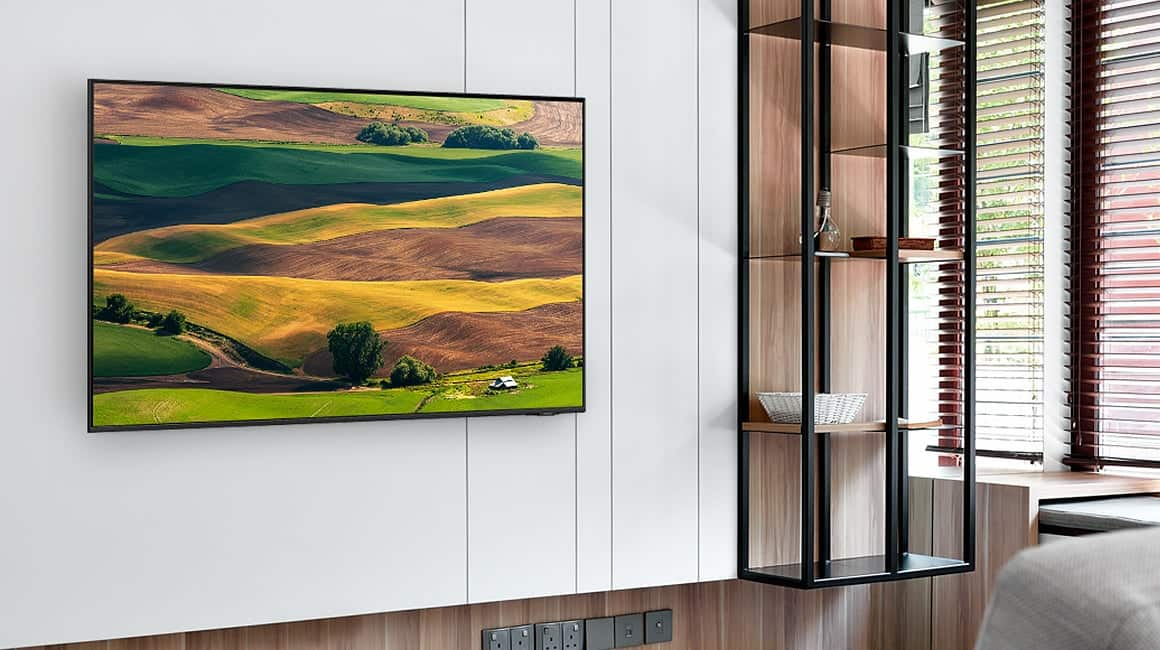
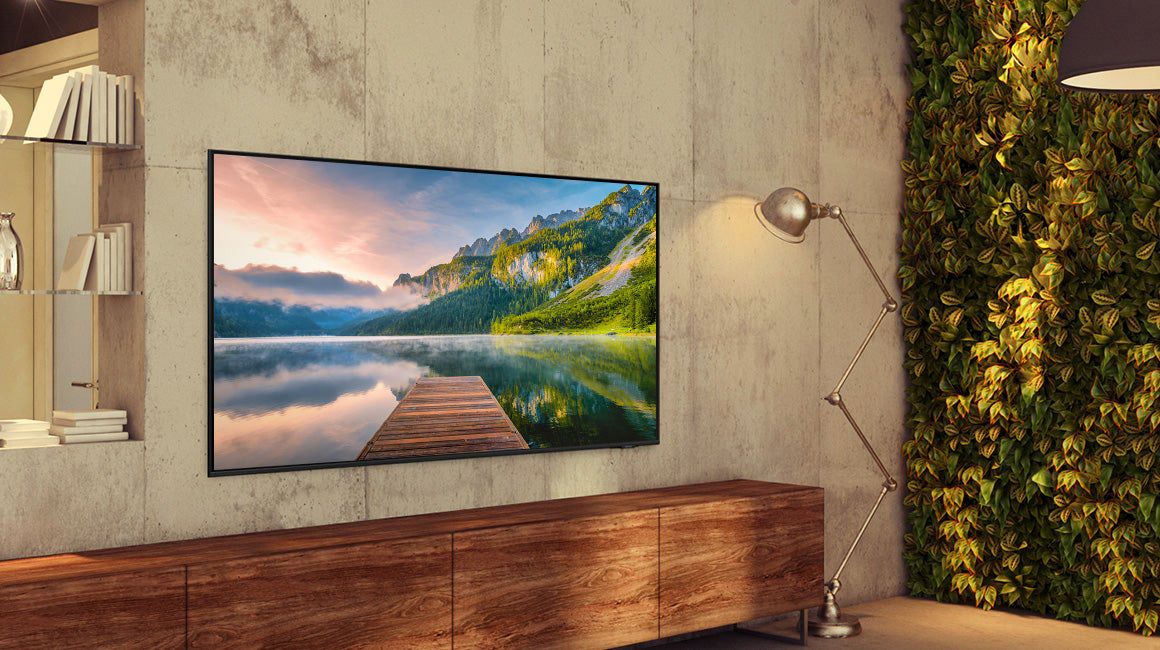
A:AnswerHi Dave! The 43" AU8000 is compatible with a wide range of universal mounting solutions and features a VESA mounting pattern of 200 x 200.
^Tim
A:AnswerHi! The size of the TV does not change how the signal will appear on your TV. The image on a 43" TV will display the same way as the image on a 65" TV.
^Tim
A:AnswerHi Stevies! Yes, the 43" AU8000 can play the MKV format through a USB storage device. You can find the full list of supported files through the full user manual of the AU8000.
^Tim
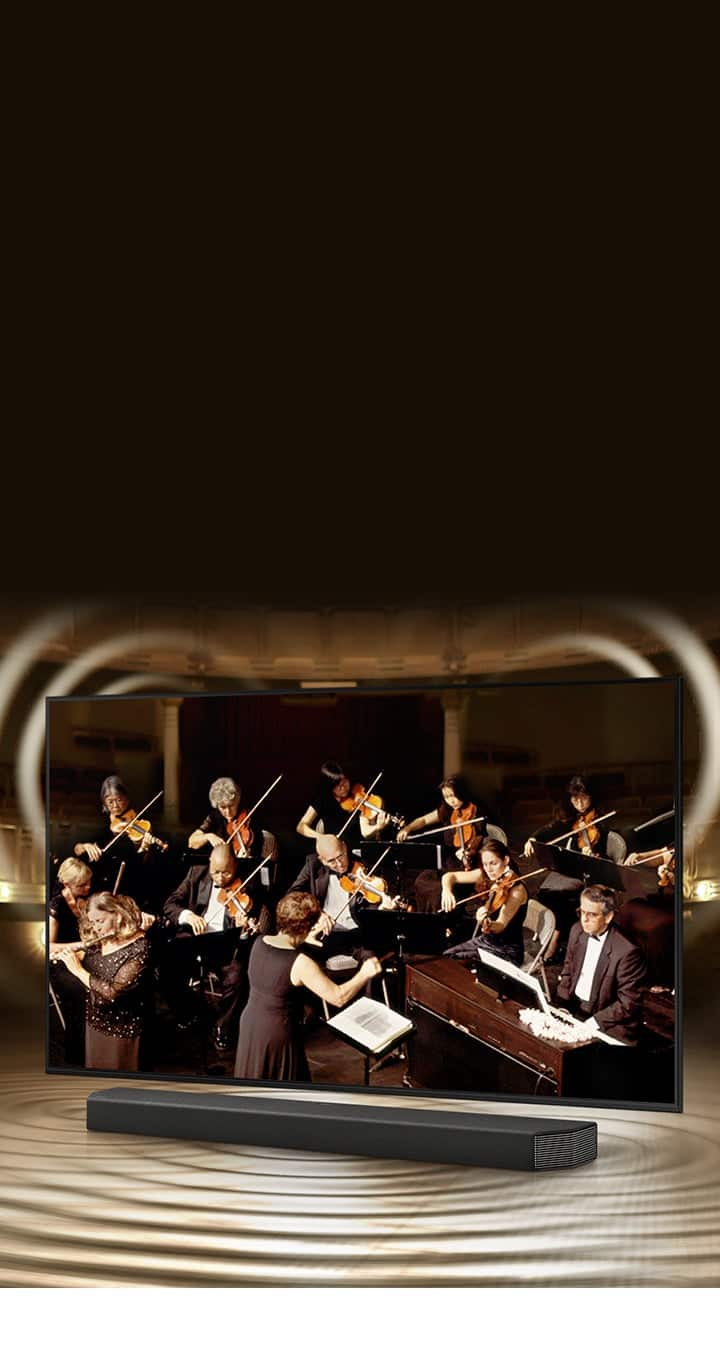
A:AnswerHi Marswood! The 43" AU8000 features Samsung's Object Tracking Sound Lite taking your audio experience to the next level by providing a more immersive 3D audio experience. The AU8000 features Auto Game Mode (ALLM) to give you the optimal gaming performance without the need to adjust settings.
^Tim
A:AnswerHi MIKE! The AU8000 does not feature composite (Yellow, White, Red) connections. This TV is only compatible with external devices that support HDMI.
^Tim
A:AnswerGo to settings, picture settings and turn off “last app used” it maybe worded differently but you’ll get the idea, just turn it off. Also, there will be a setting for “auto hub” turn that off also. This way you shouldn’t have any more problems with getting interrupted.
A:AnswerHi pete! The 43" AU8000 utilizes the Tizen Smart TV platform. This platform has a built-in App Store which allows you to choose from and download hundreds of apps such as discovery+, HBO Max, Disney+, The Roku Channel, and many more. We are continuously adding more premium content and new services to our Smart TV platform. It also comes with Samsung TV Plus which offers hundreds of free channels of news, sports, movies, and much more.
^Tim
A:AnswerHi - The AU8000 is powered by our Tizen Operating System which includes Smart features like a built-in App Store, allowing you to choose and download from hundreds of available apps. ^Gina
A:AnswerHi - you can set the Sleep Timer to turn off after a set period of time. Additionally, you can enable Auto Power Off to have the TV turn itself off if there has been no activity for a set period of time. This is one of your TV’s energy efficiency functions. ^Gina
A:AnswerHi sree! Yes, Samsung offers hundreds of apps in our App Store that you can download, and we are continuously adding more premium content and new services to our Smart TV platform. To access the App Store, press the Home button to open up the TV's Home screen menu. If the app you are looking for isn't listed on the Home menu, use the directional pad to navigate to and select APPS. From here, you can select the app you want.
^Tim