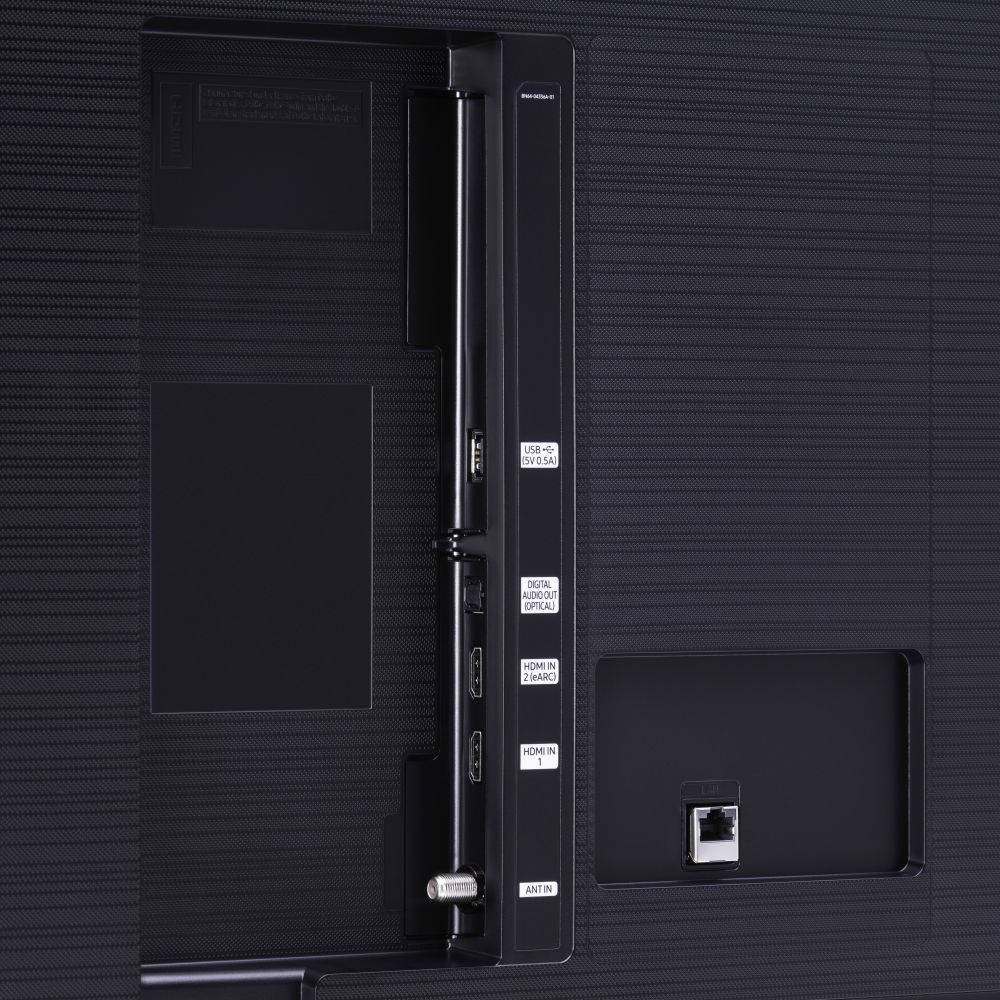
A:AnswerWe use a Roku with ours and have used a firestick with a smaller samsung model with no problems. Just remember to change the source to the HDMI.
A:AnswerMadams404 - The VUDU app will come preinstalled in your TV's App Launcher - you will just need to sign in to stream content from VUDU. You can also connect your DVD player to the TU7000 via HDMI cable. ^Gina
A:AnswerMike - You can adjust the brightness (previously named backlight) level of your TV by going to Home > Settings > Picture > Expert Settings. ^Gina
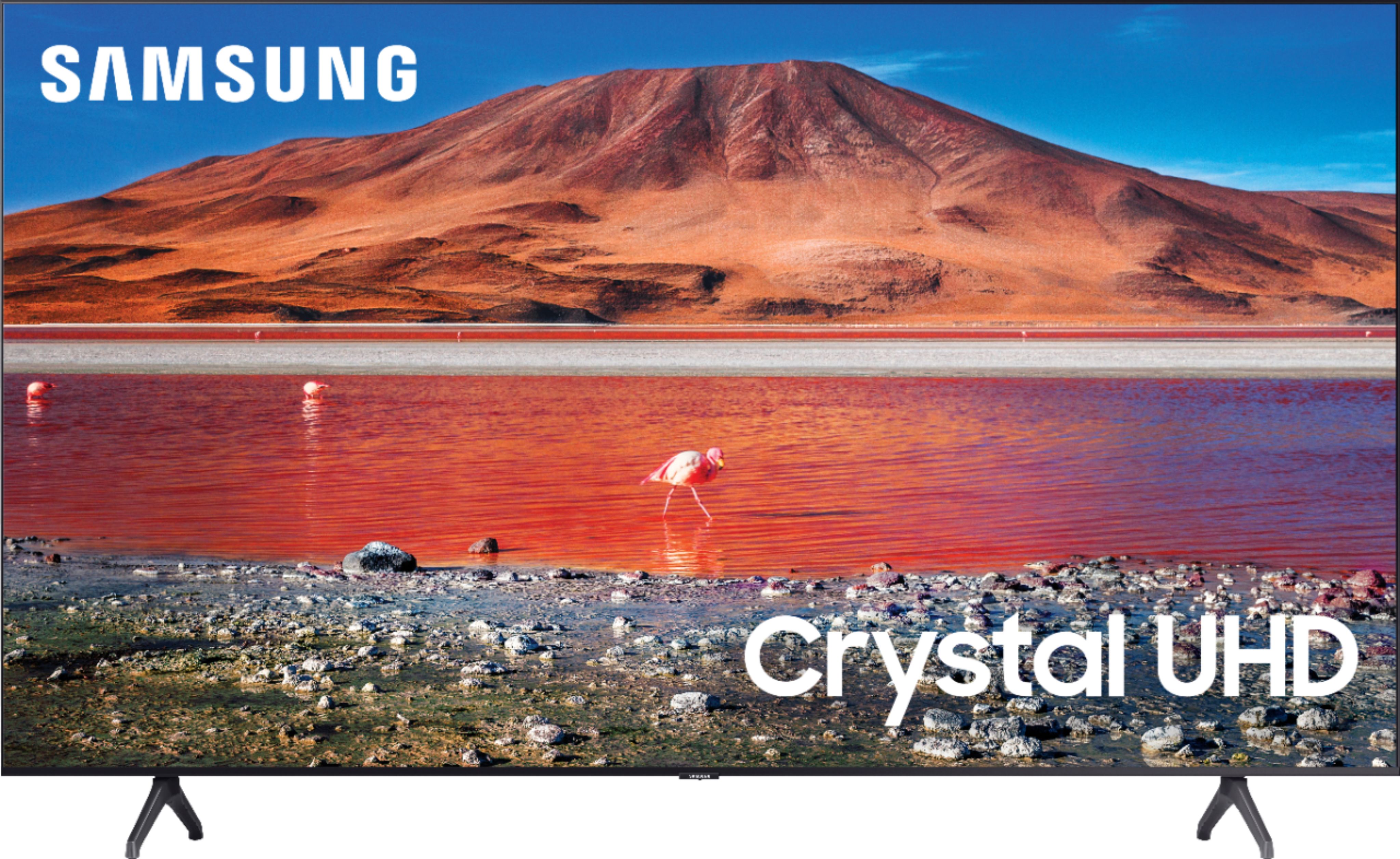
A:AnswerHi Evie - The TU7000 is a Bluetooth enabled TV. You can find this information under "Specifications" on the product page here: https://www.bestbuy.com/site/samsung-50-class-7-series-led-4k-uhd-smart-tizen-tv/6401738.p?skuId=6401738 ^Gina
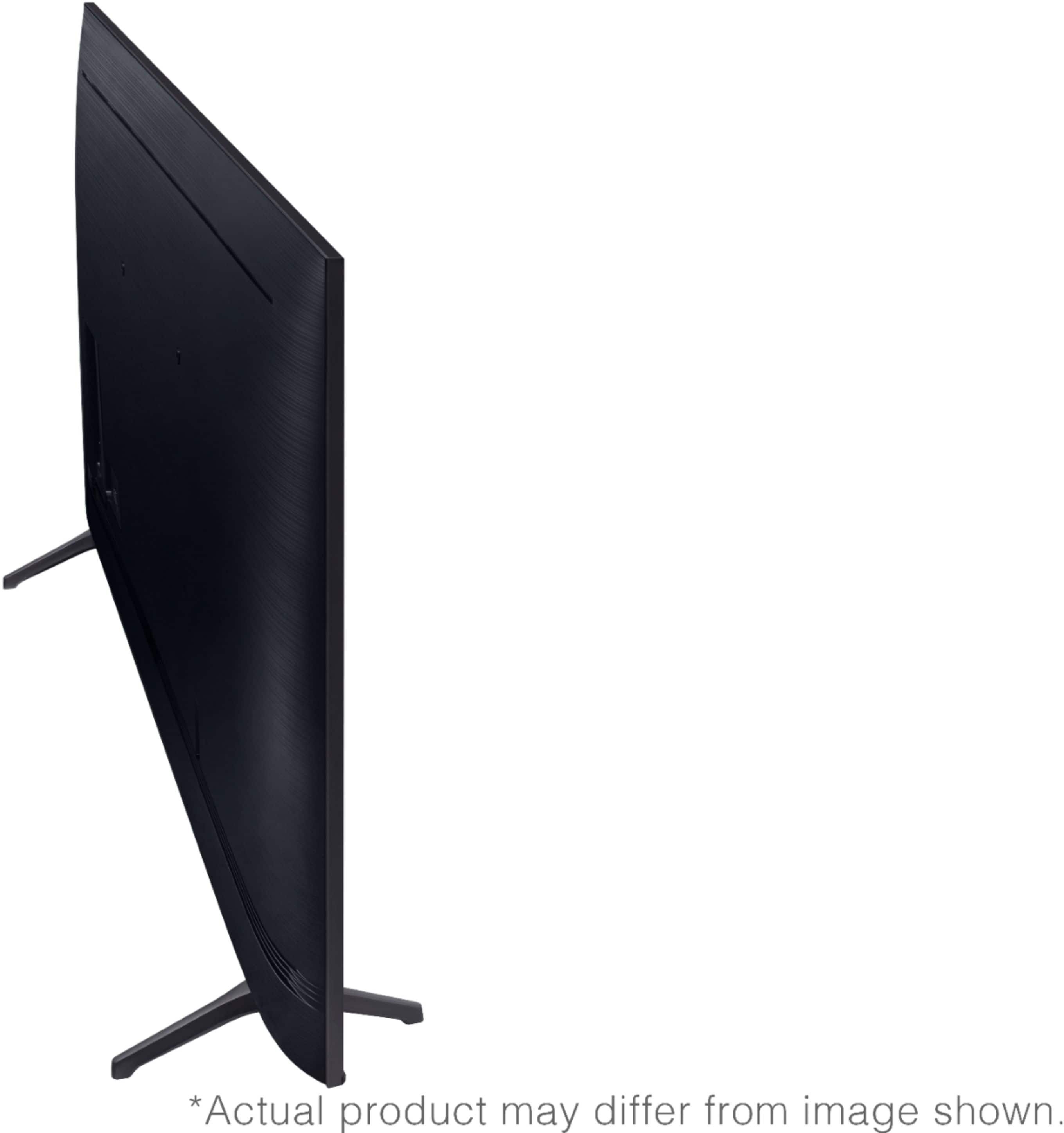
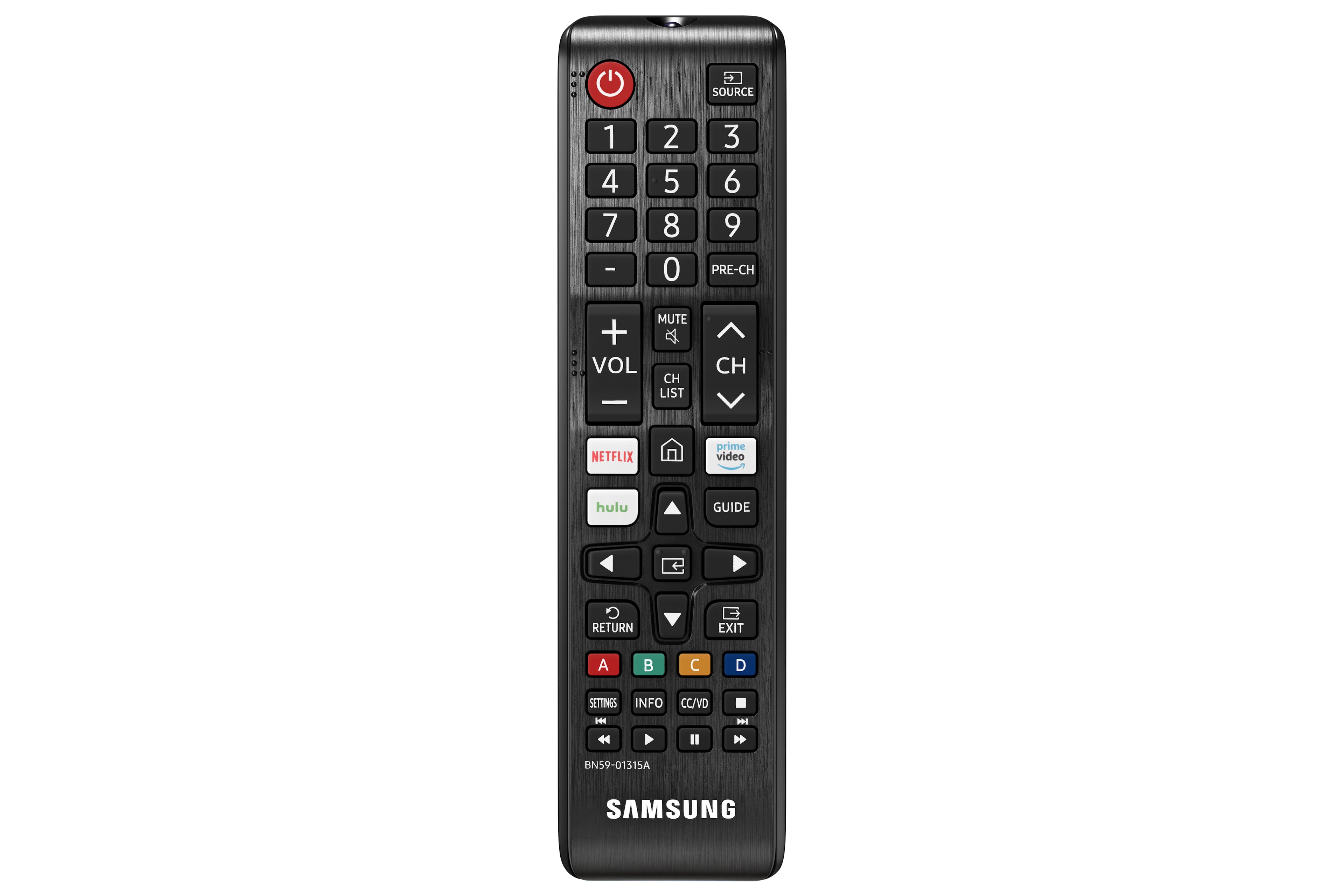
A:AnswerRob - You will first need to connect the antenna coax input to the ANT IN port on the back of your TV. When the antenna is connected: 1) Change the source on your TV to TV. 2) Use the directional pad or arrow buttons on your remote to select Settings. 3) Select Broadcasting, and then select Auto Program. 4) Select Start to begin auto-programming, and then select either Both, Air, or Cable.5) Your TV will begin to scan for channels. After it's done, select Close to finish. If you need further assistance with connecting an antenna, please contact us at 1-800-SAMSUNG. ^Gina
A:Answerrafael - When the connected USB drive is selected as your TV's Source, you will be able to choose from various functions such as looping or repeating content. ^Gina
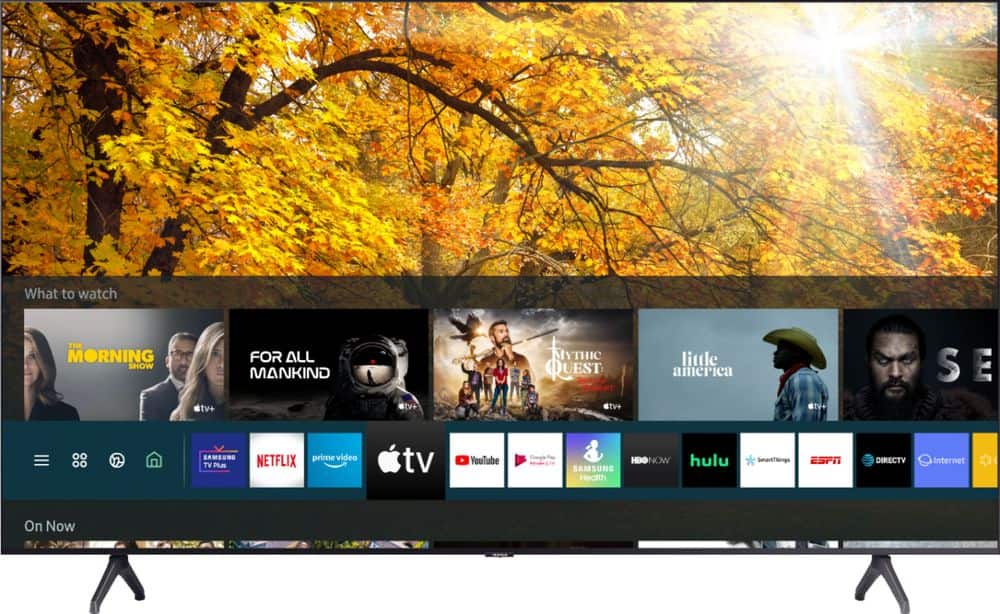
A:AnswerHi there! Roku is not built into Samsung TVs. Samsung utilize the Tizen Smart operating system, which includes a built-in App Store where you can choose from and download hundreds of apps. ^Gina