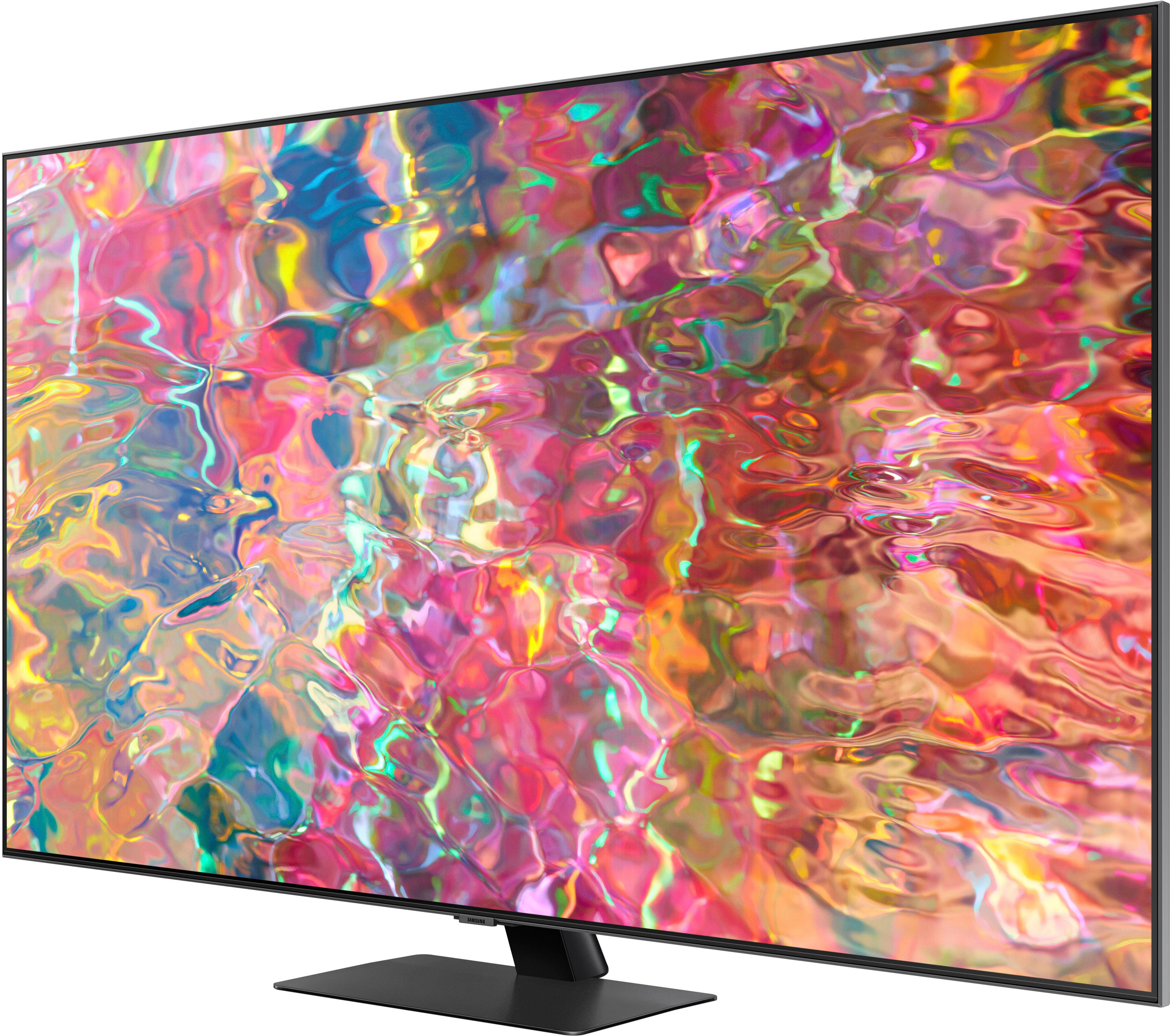
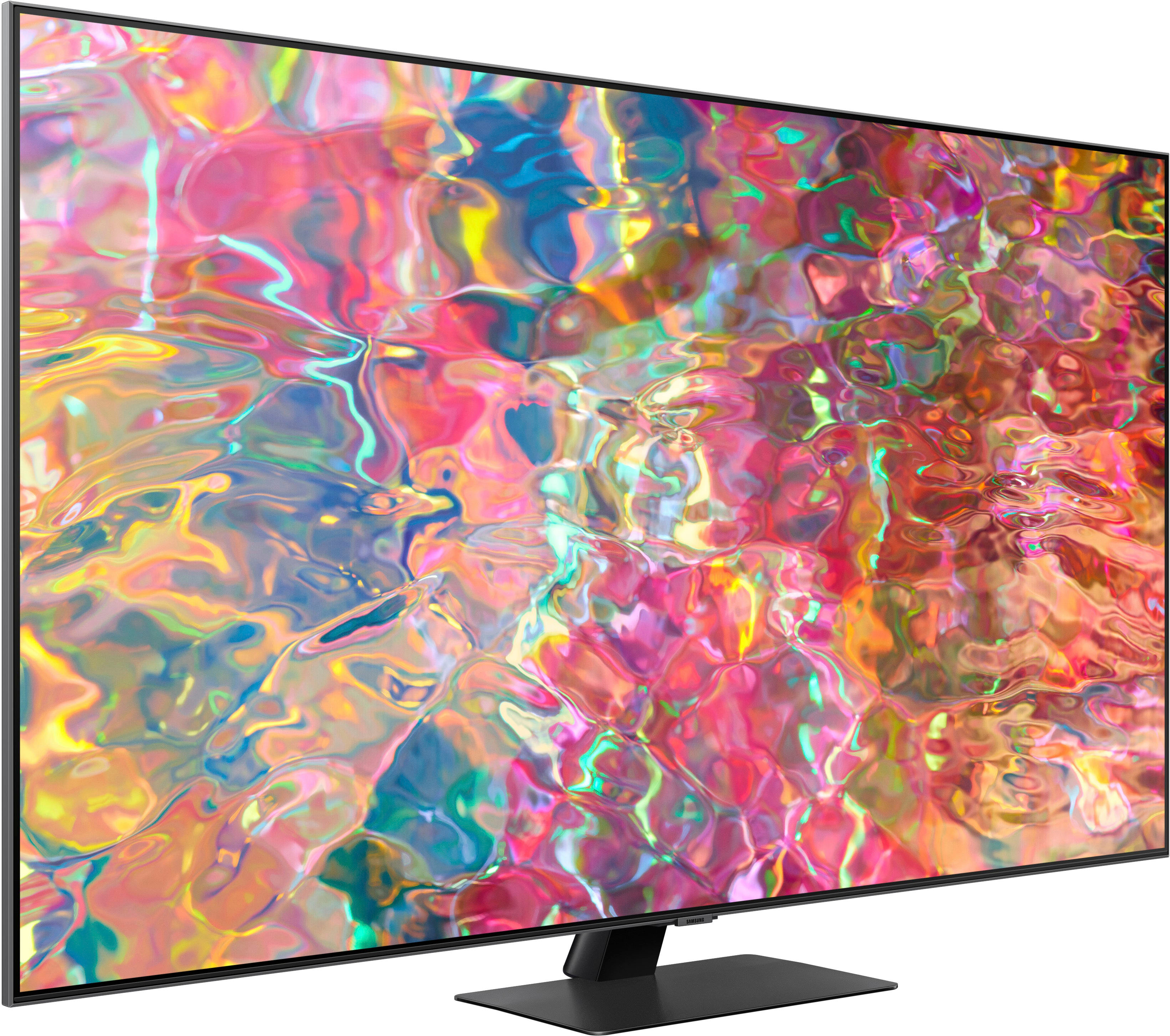
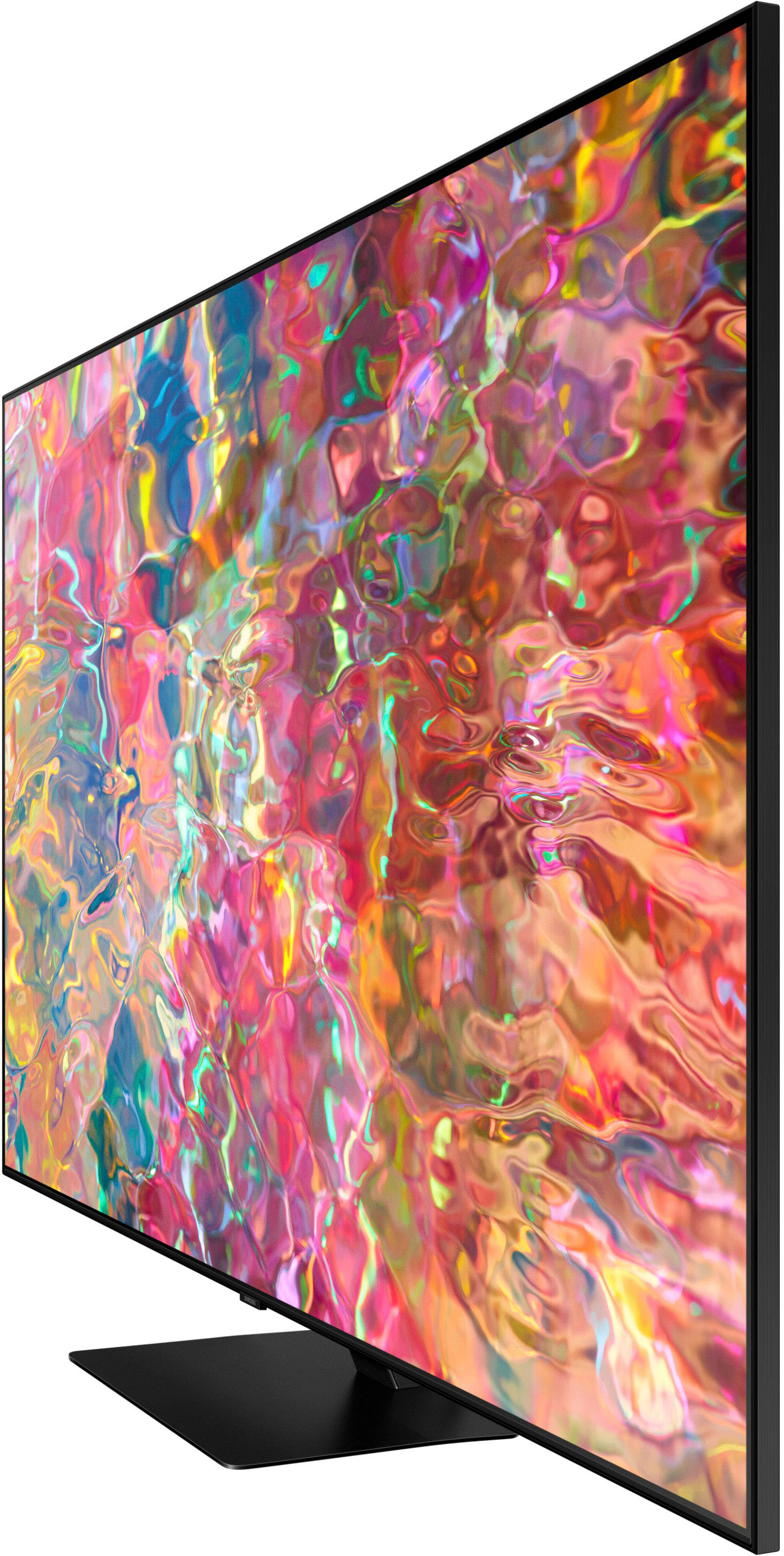
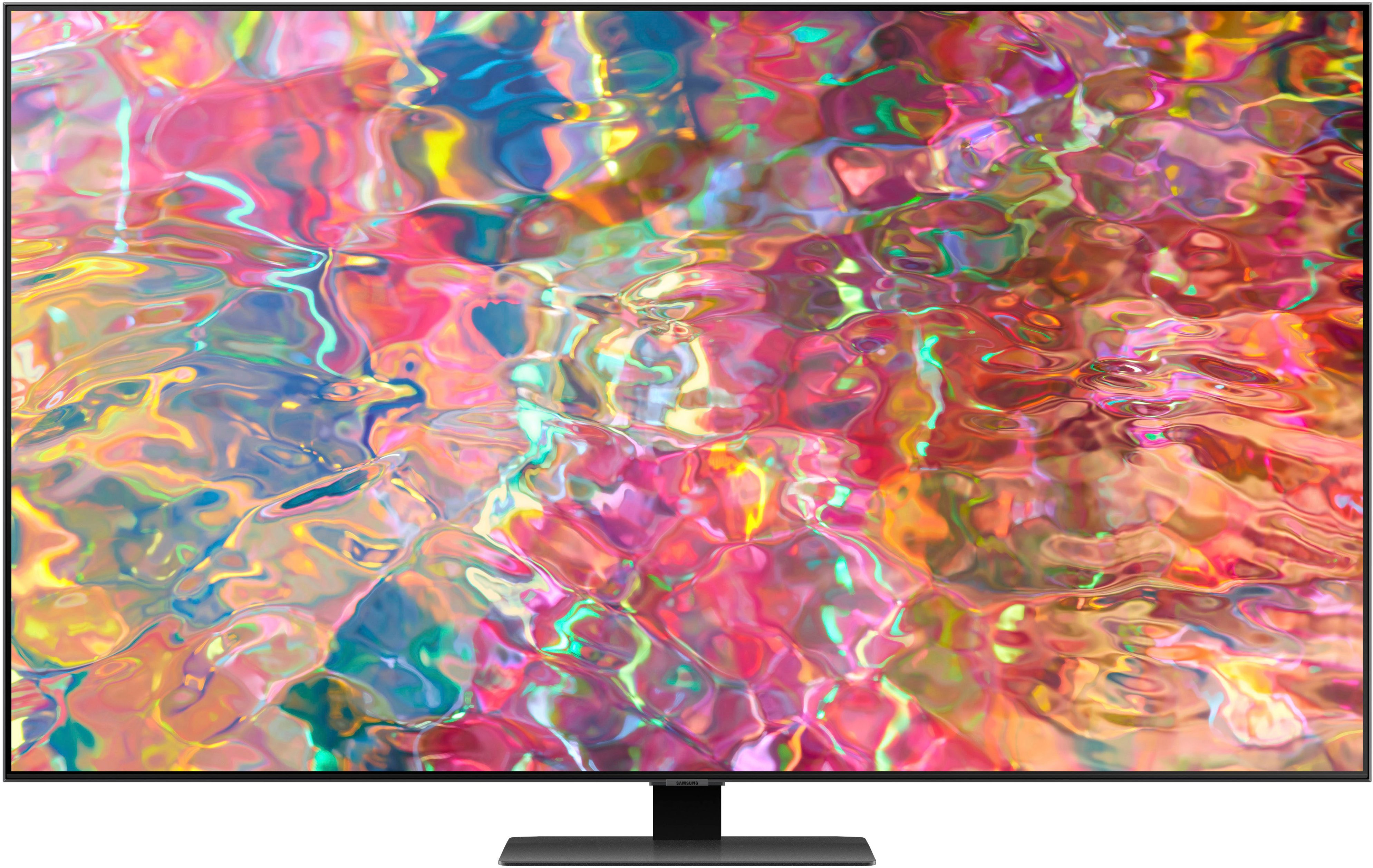
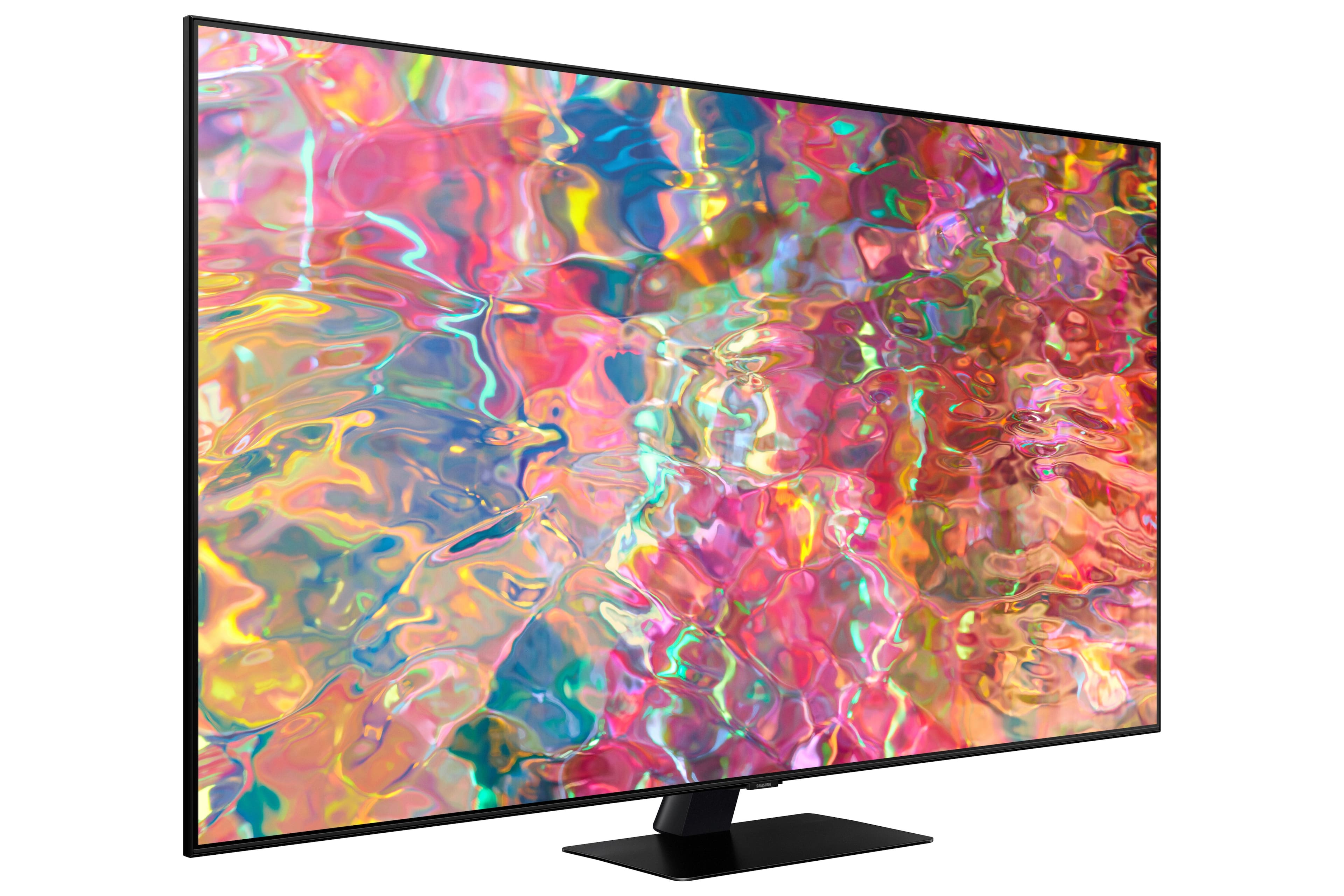
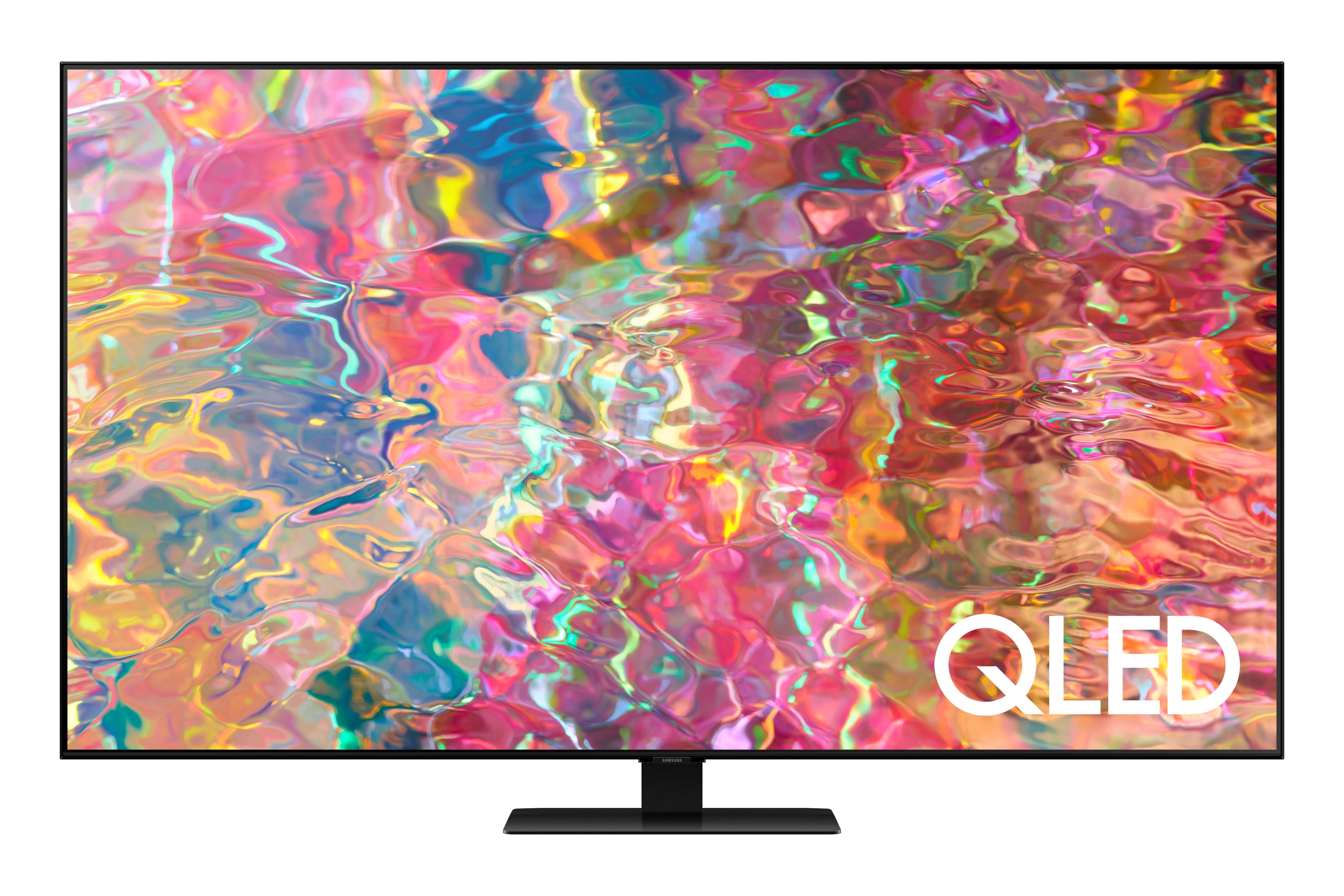
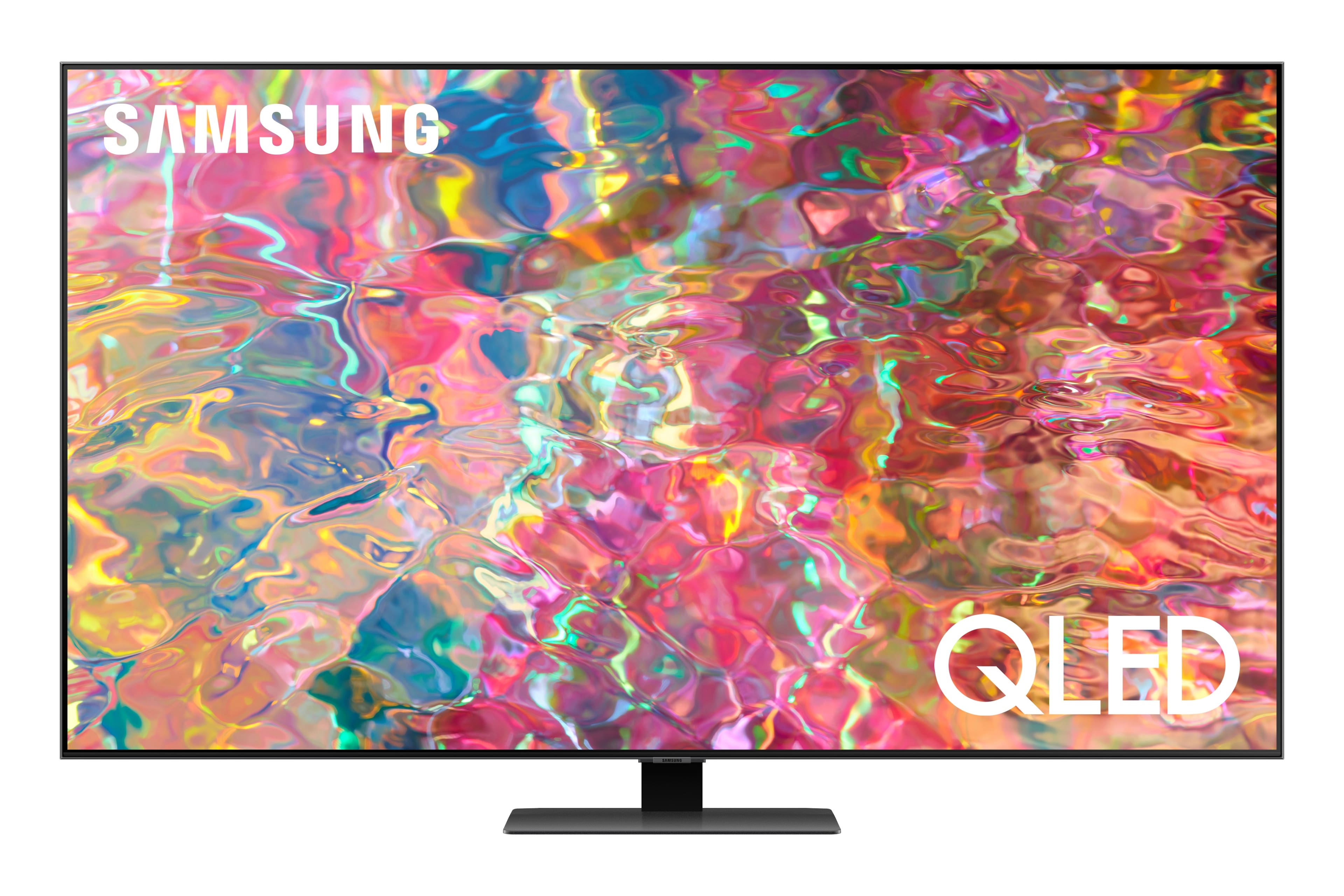
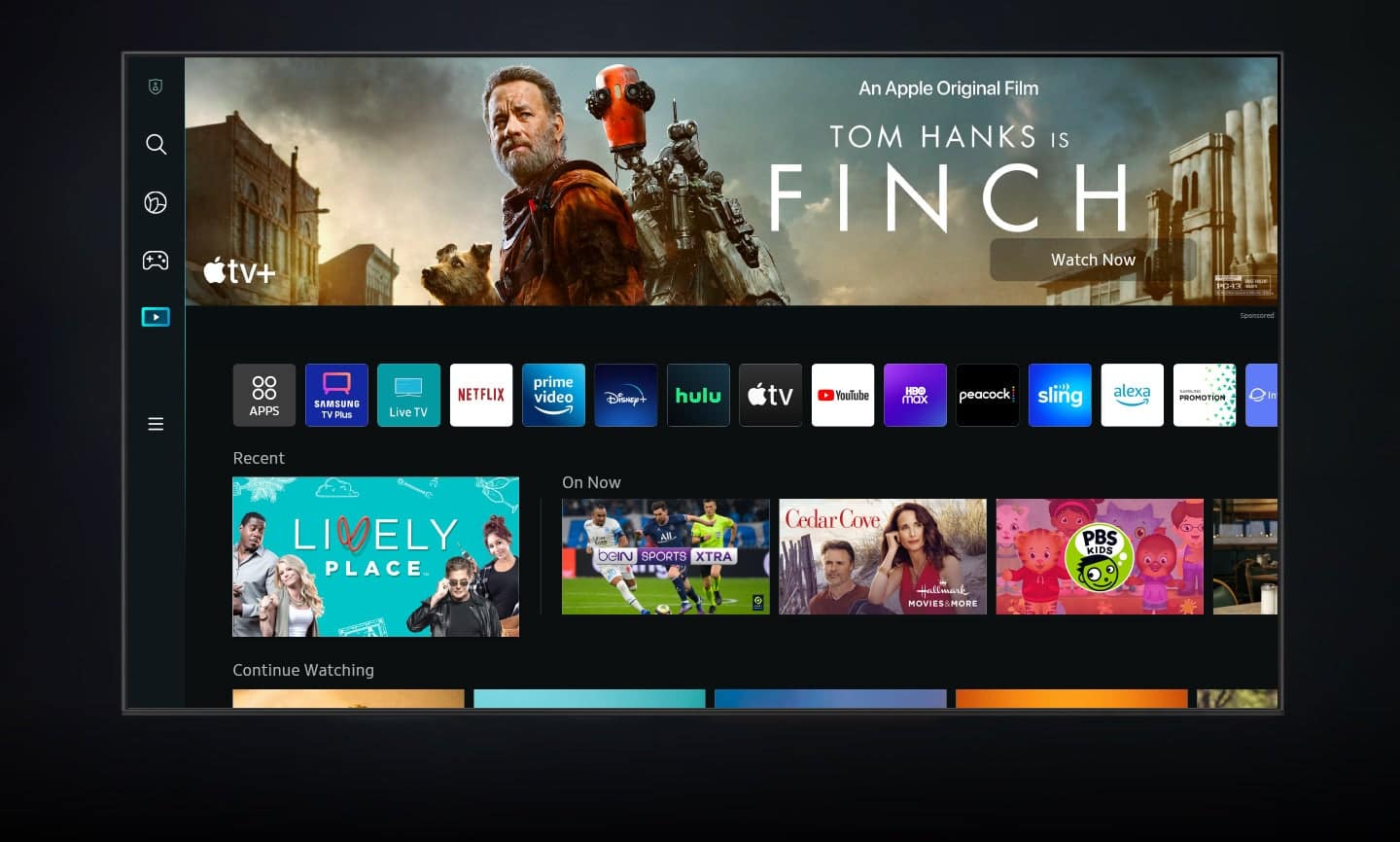
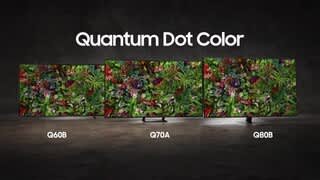
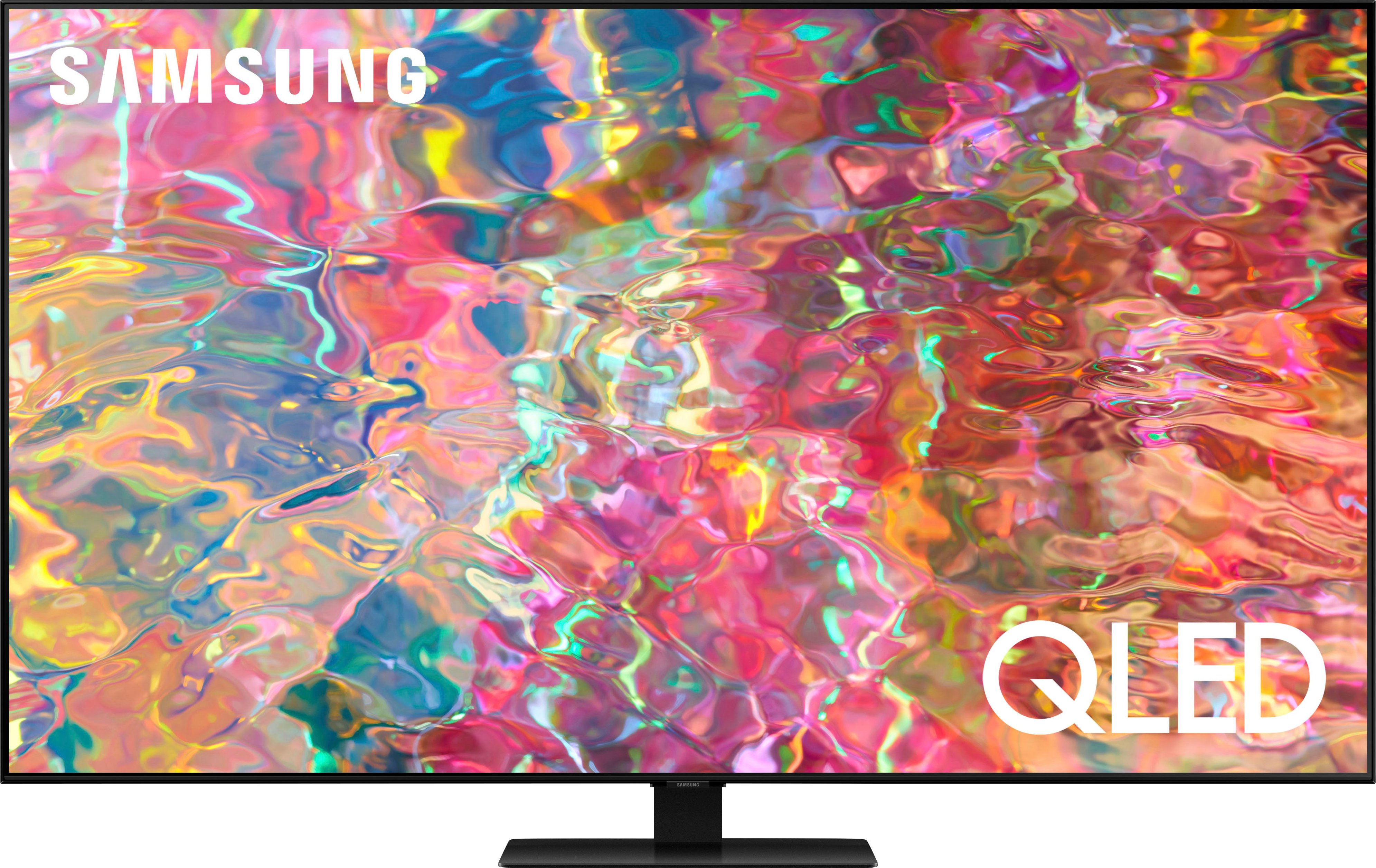
A:AnswerBecca - You do not need to connect an external streaming device, as the Q80B TV features a built-in App Store which allows you to choose from and download hundreds of apps such as discovery+, HBO Max, Disney+ and many more. We are continuously adding more premium content and new services to our Smart TV platform.
~ Samsung Specialist
A:AnswerI stream from my iPhone using the screen mirror. On my 14 pro you swipe down from the upper right of the screen to get the menu for screen mirror
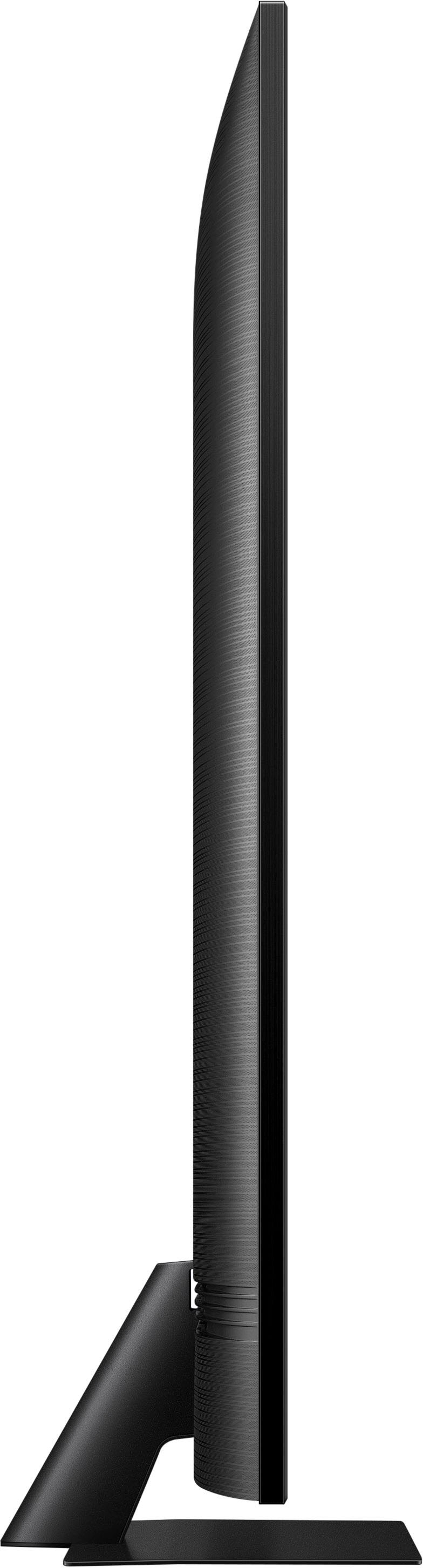
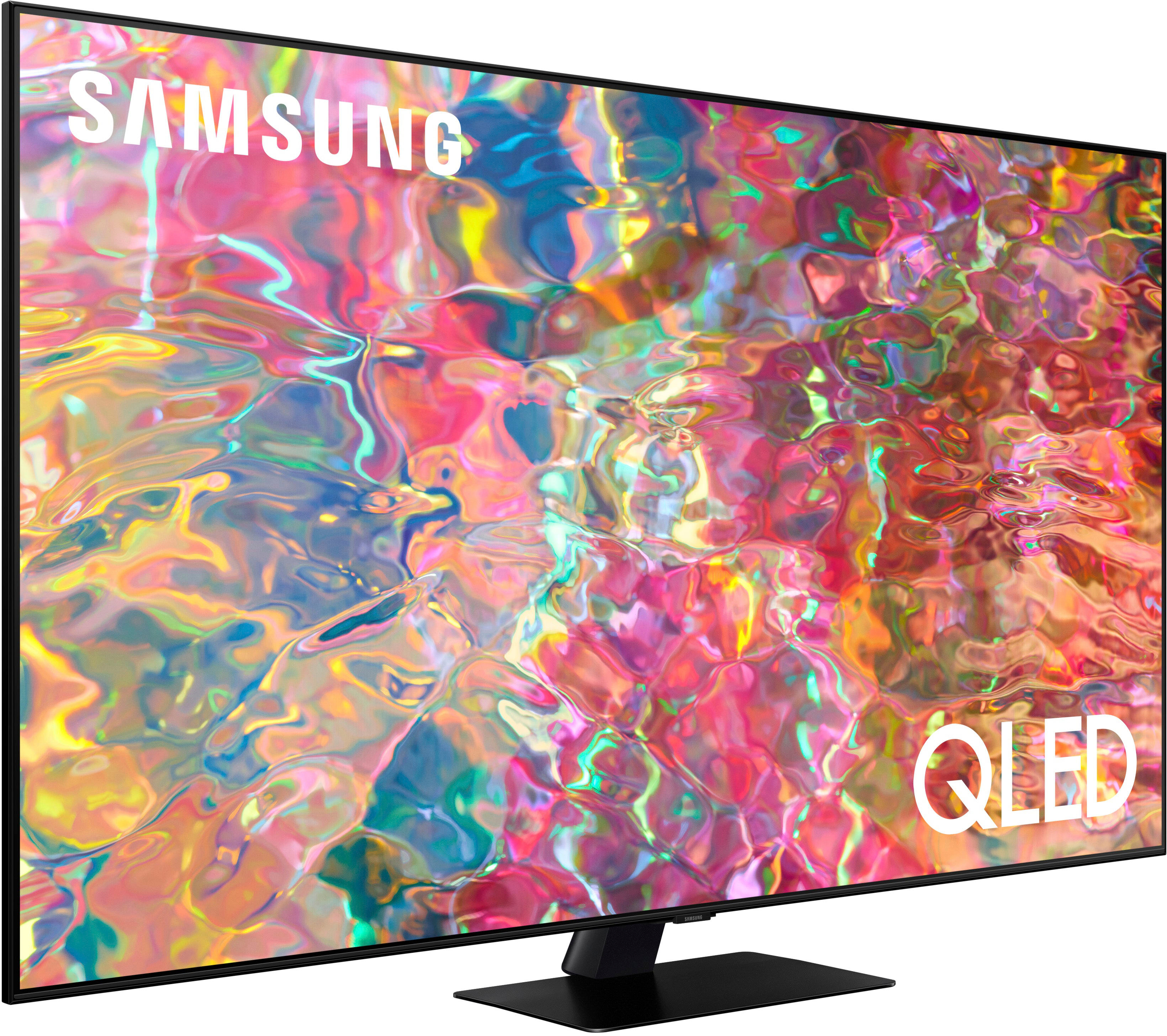
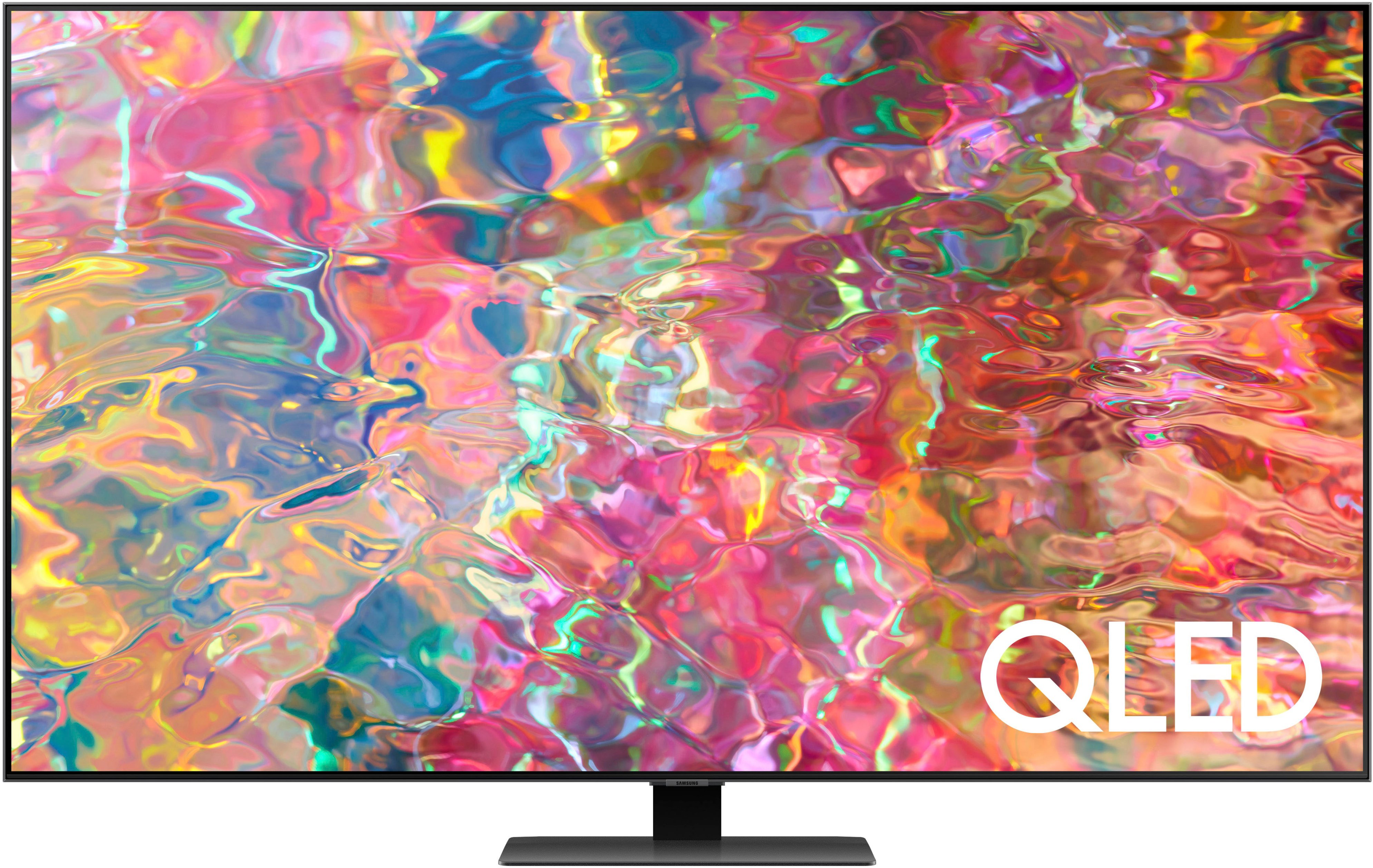
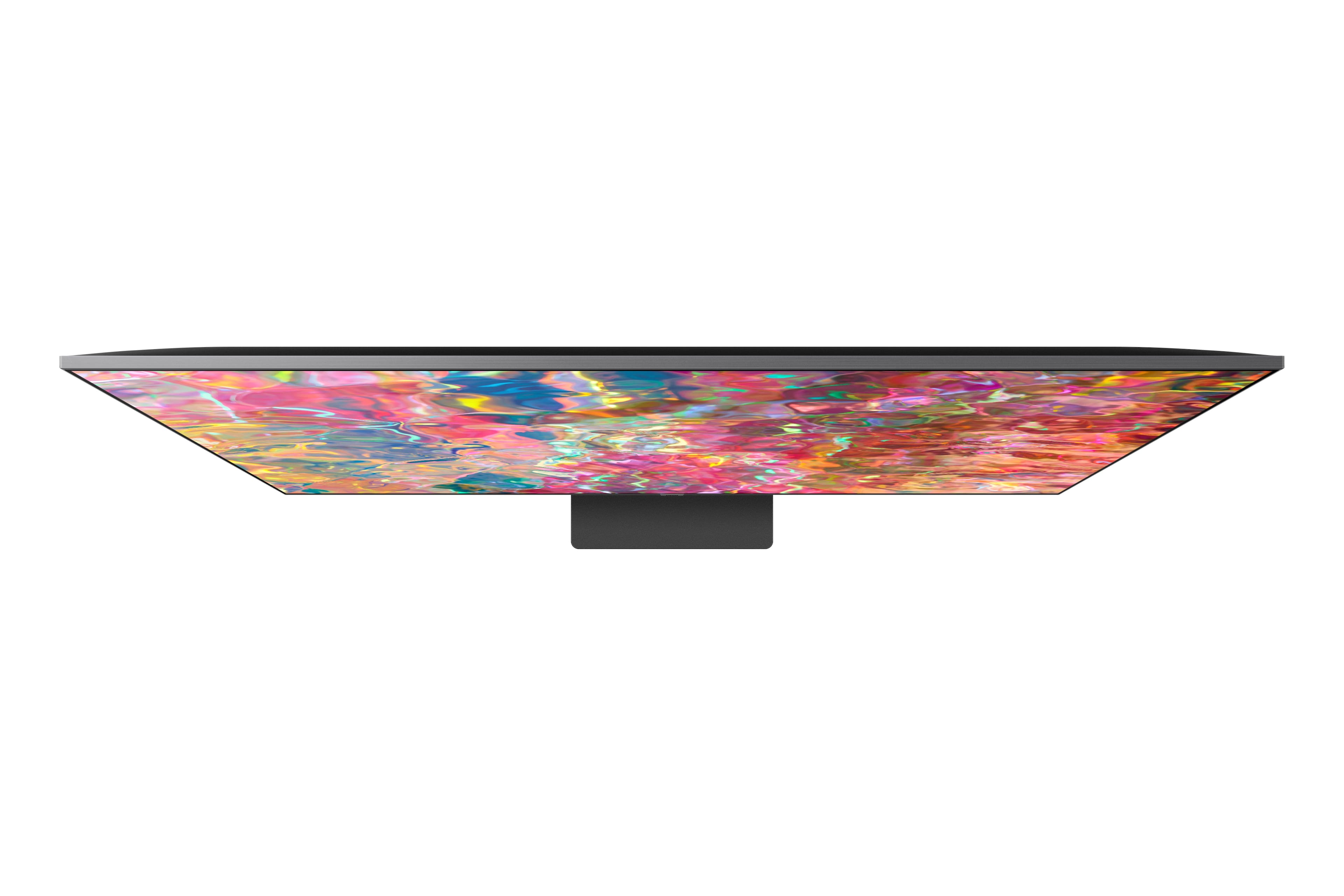
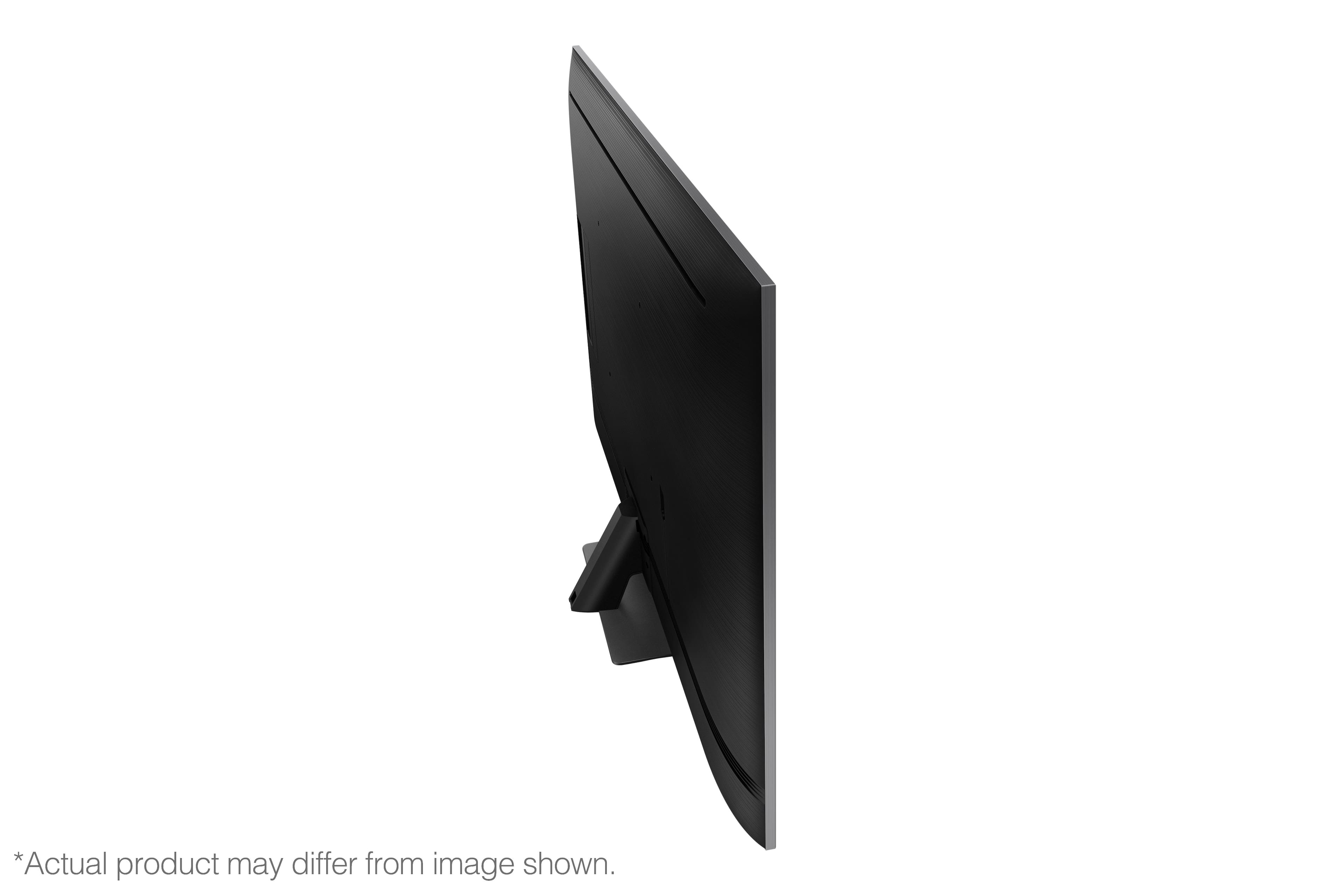
A:AnswerAll of that is listed in the specs. Needless to say, it is about as tight a setup size wise as you can expect, depth is not that deep, screen is basically edge to edge.
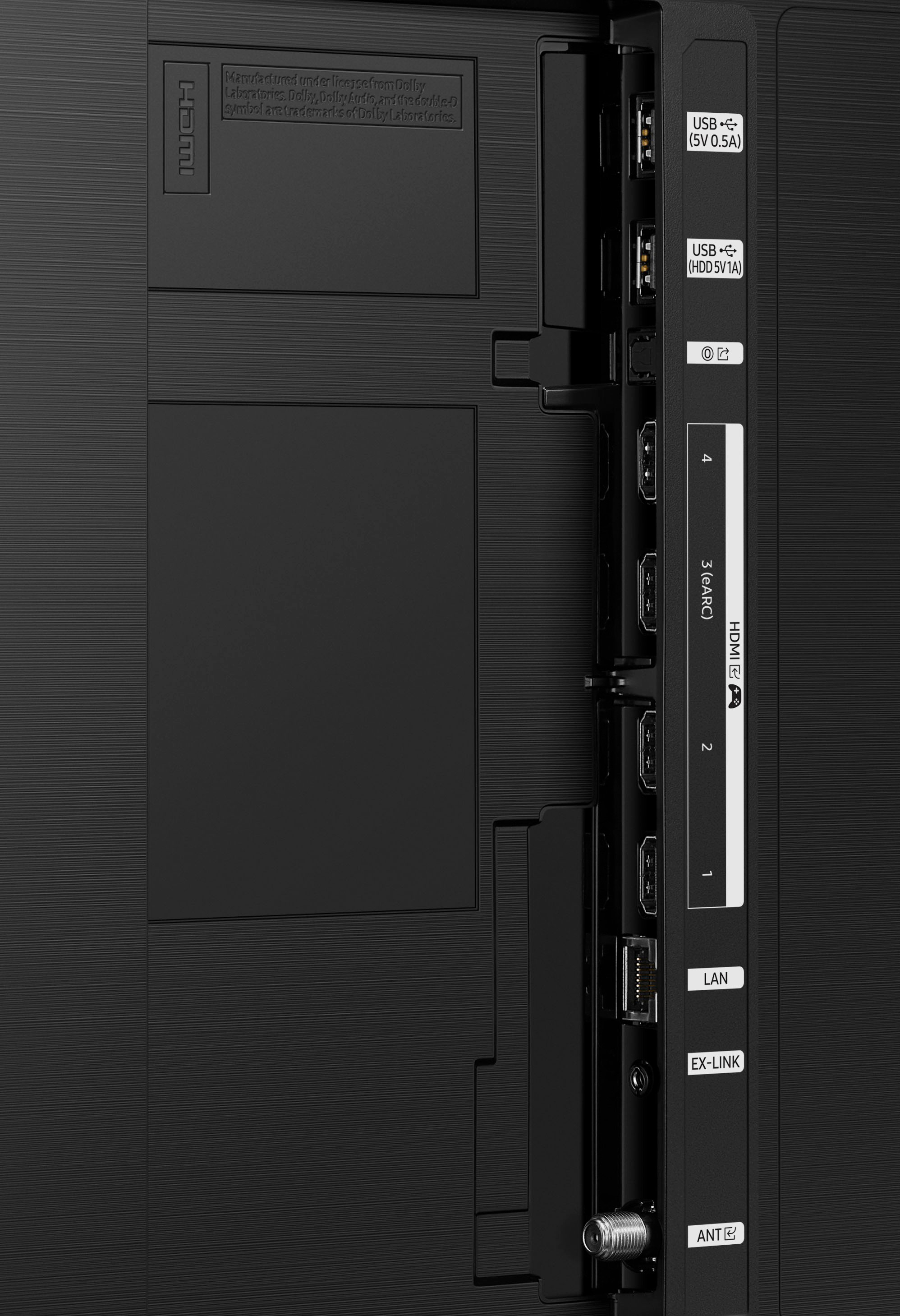
A:AnswerJeffW - You can use both TV and Bluetooth device audio simultaneously using the Multi-output Audio feature. When this function is active, you can set the volume of the Bluetooth headphones higher than the volume of the TV speaker. First, make sure your Bluetooth headphones are paired. Using your TV remote, go to: Home > Menu > Settings > All Settings > General & Privacy > Accessibility > Multi-output Audio and find the device you'd like to pair.
~ Samsung Specialist
A:AnswerJon - Bluetooth device settings will not be remembered, as these devices are used on demand. When the TV turns off, the Bluetooth device will disconnect, and the TV won’t reconnect automatically unless you choose to pair the device again.

~ Samsung Specialist