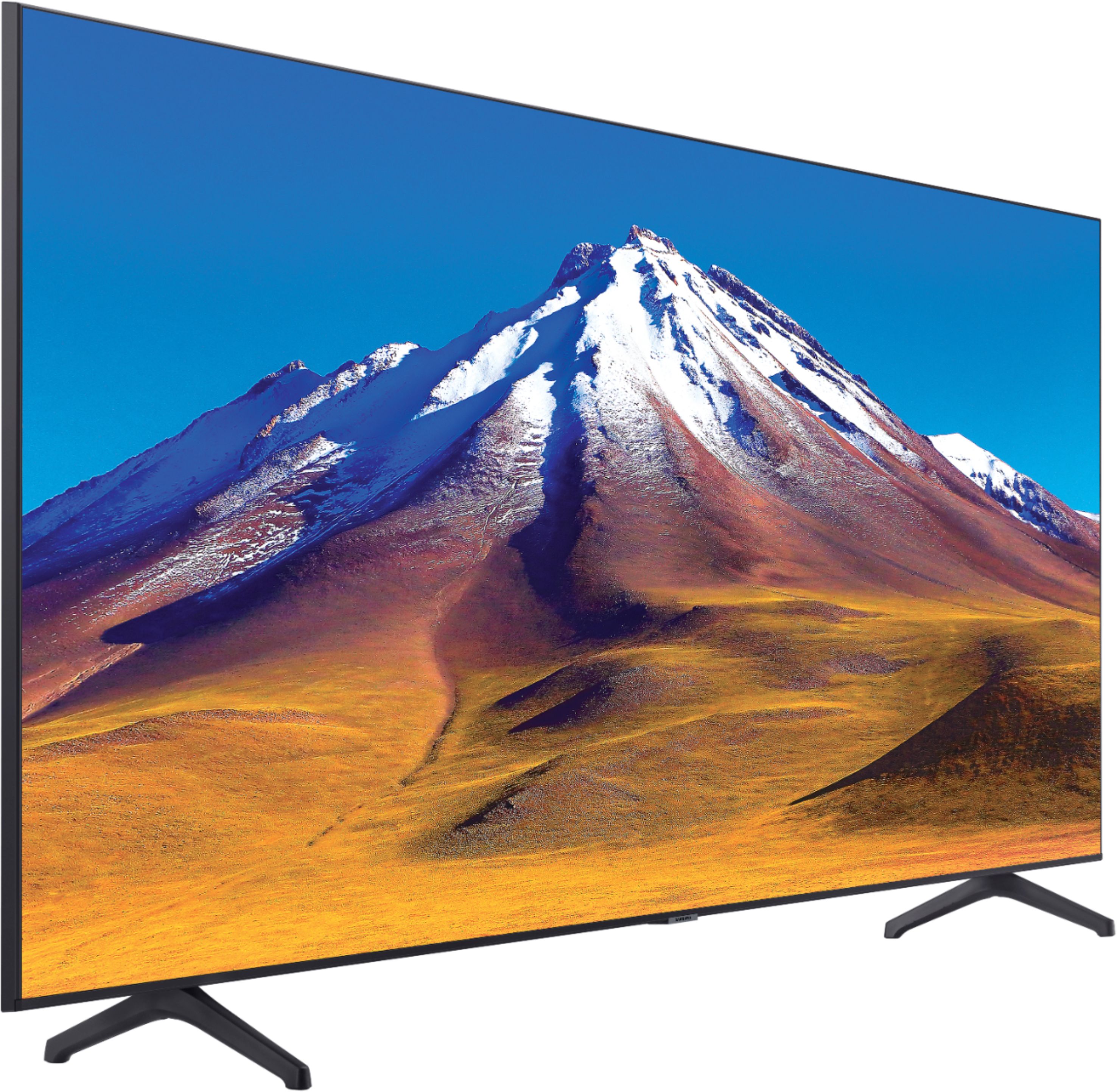
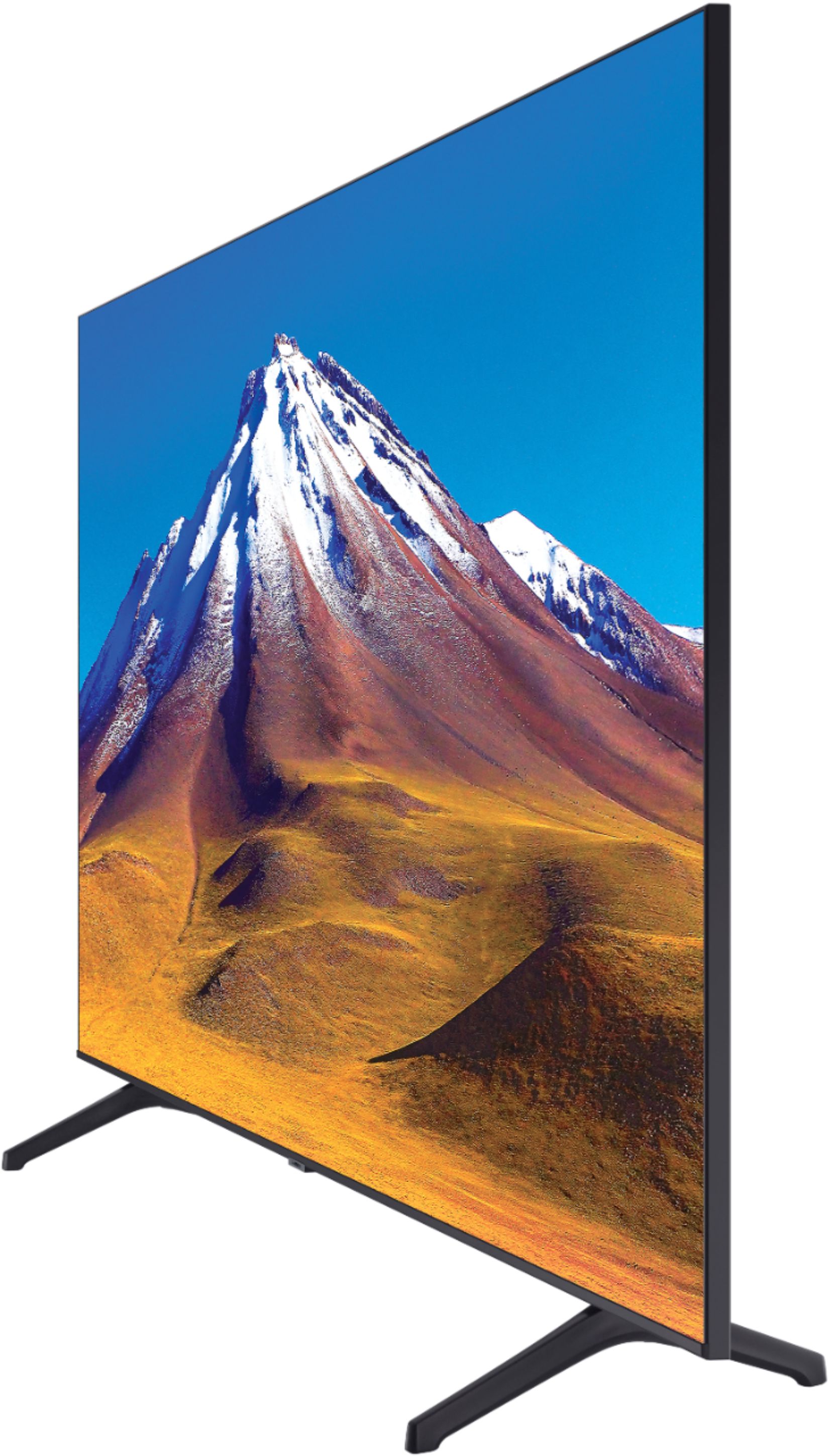
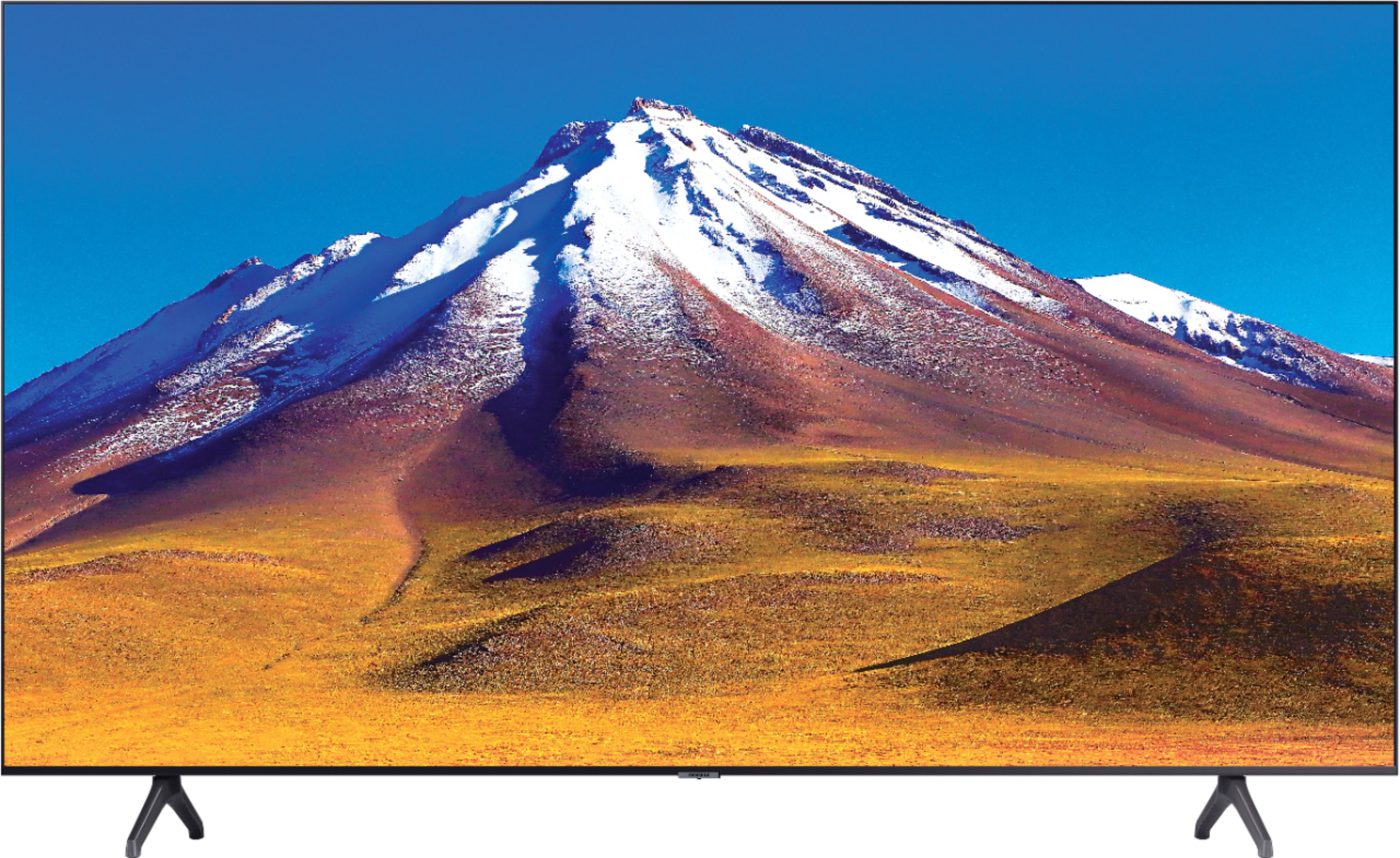
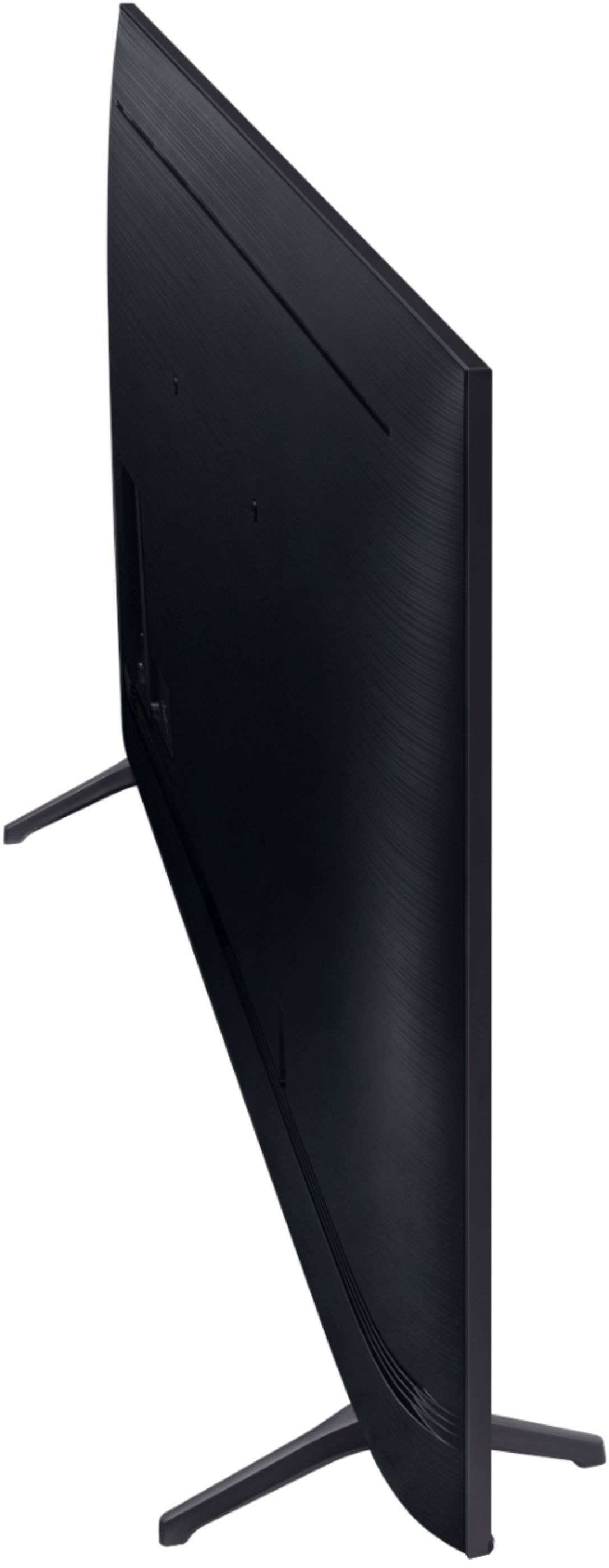
A:AnswerHi Lo, the TU6980 Works With Amazon Alexa and Google Assistant. You will need to have a standalone Alexa or Google Assistant device to perform commands such as changing channels, swapping input selections and launching partner apps. When stepping up to the TU8000, you will gain built-in voice assistants (Amazon Alexa, Bixby, Google Assistant) and a dedicated voice assistant button on your remote for a much wider list of commands such as weather, music, and getting questions answered with your voice. Check out the TU8000 at Best Buy: https://www.bestbuy.com/site/samsung-65-class-8-series-4k-uhd-tv-smart-led-with-hdr/6401718.p?skuId=6401718 ^Gina
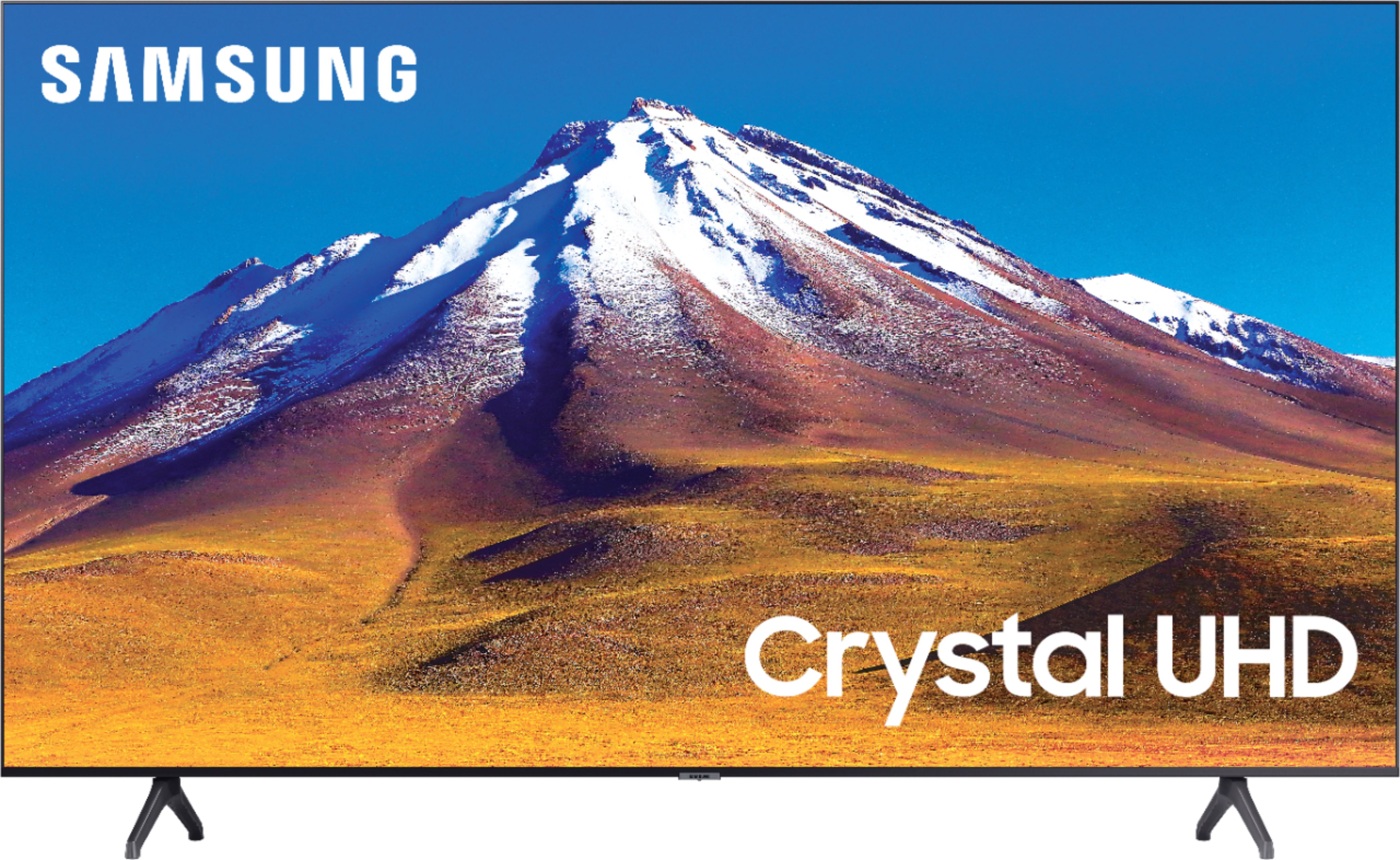
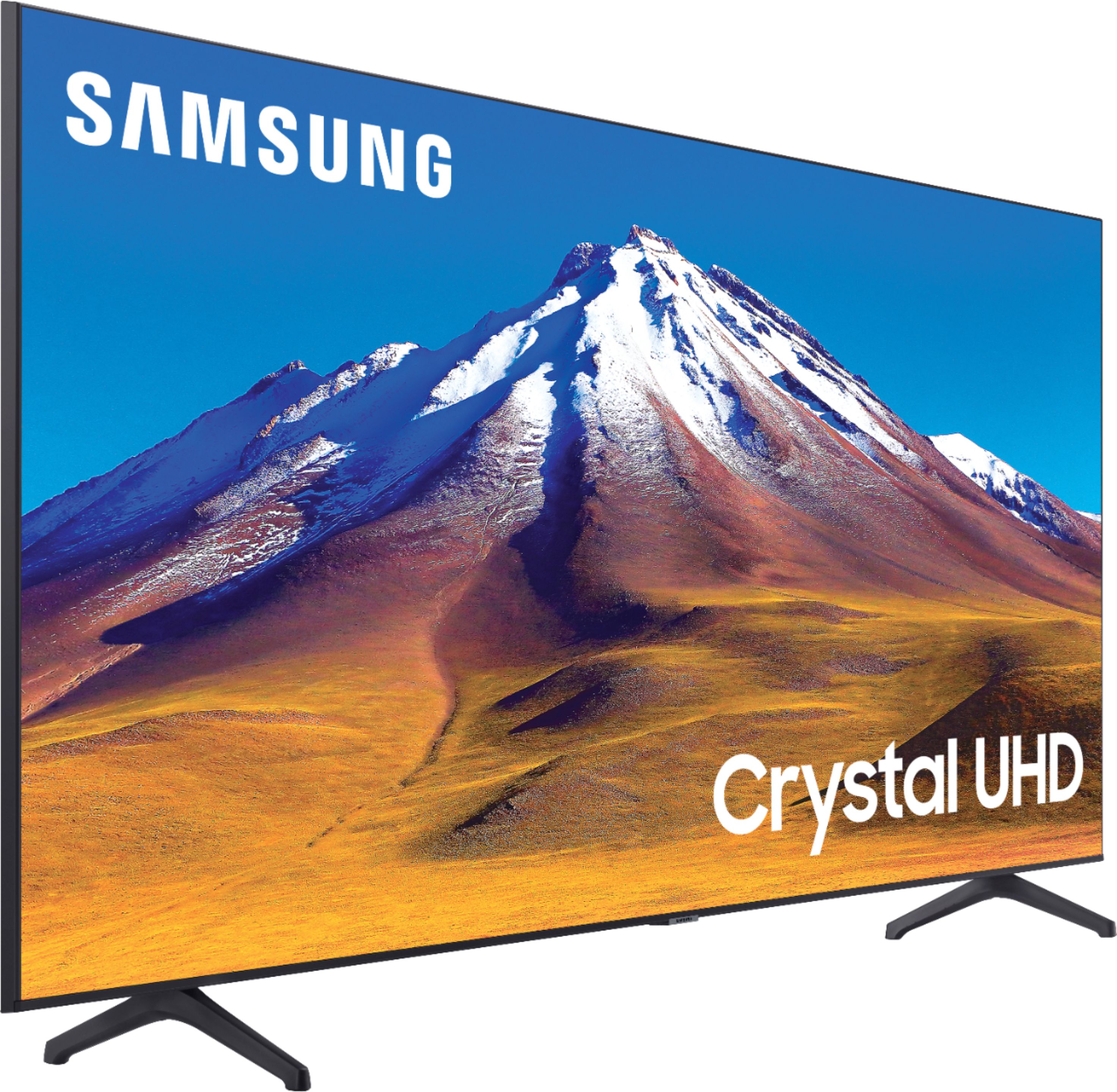
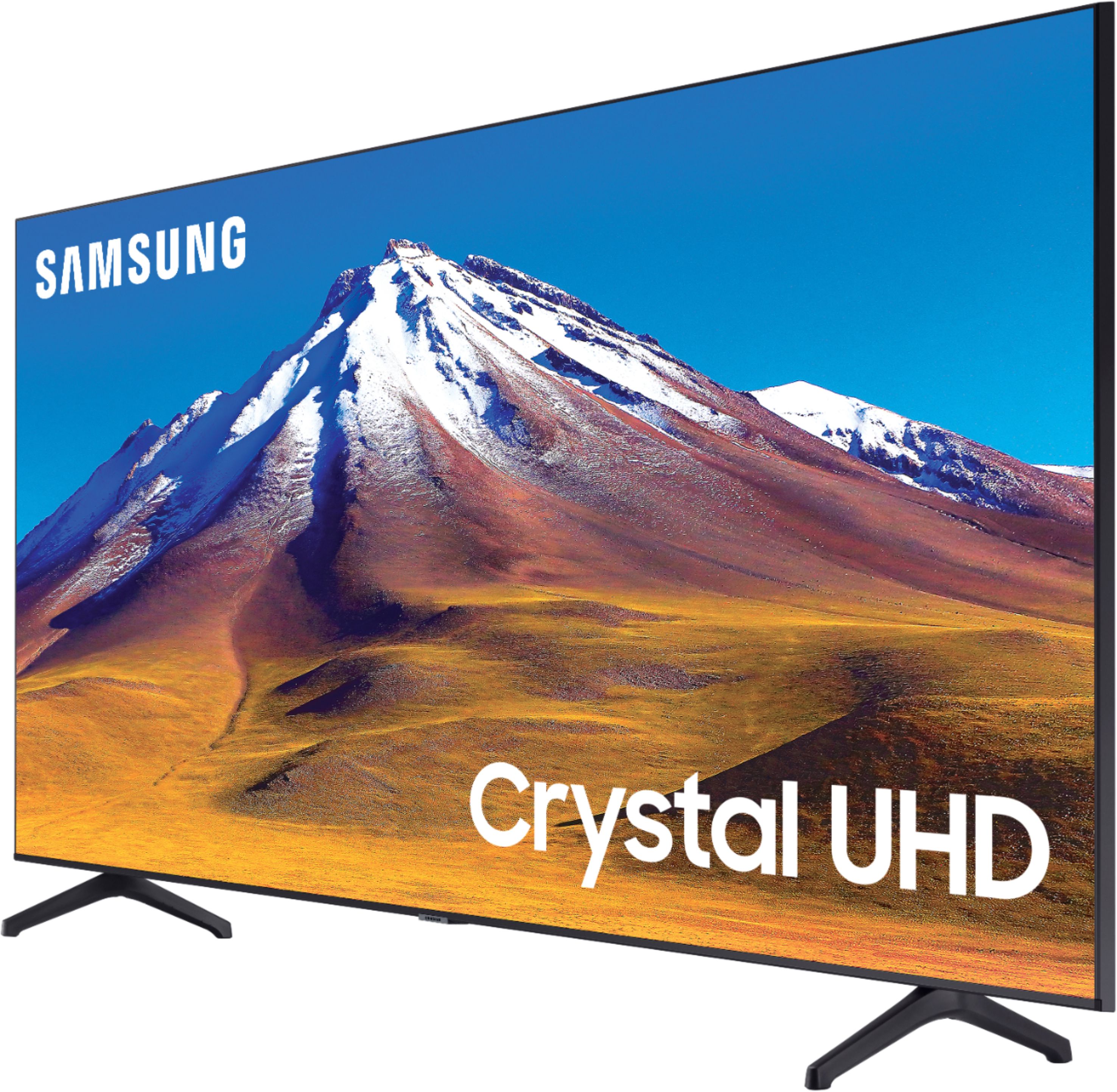
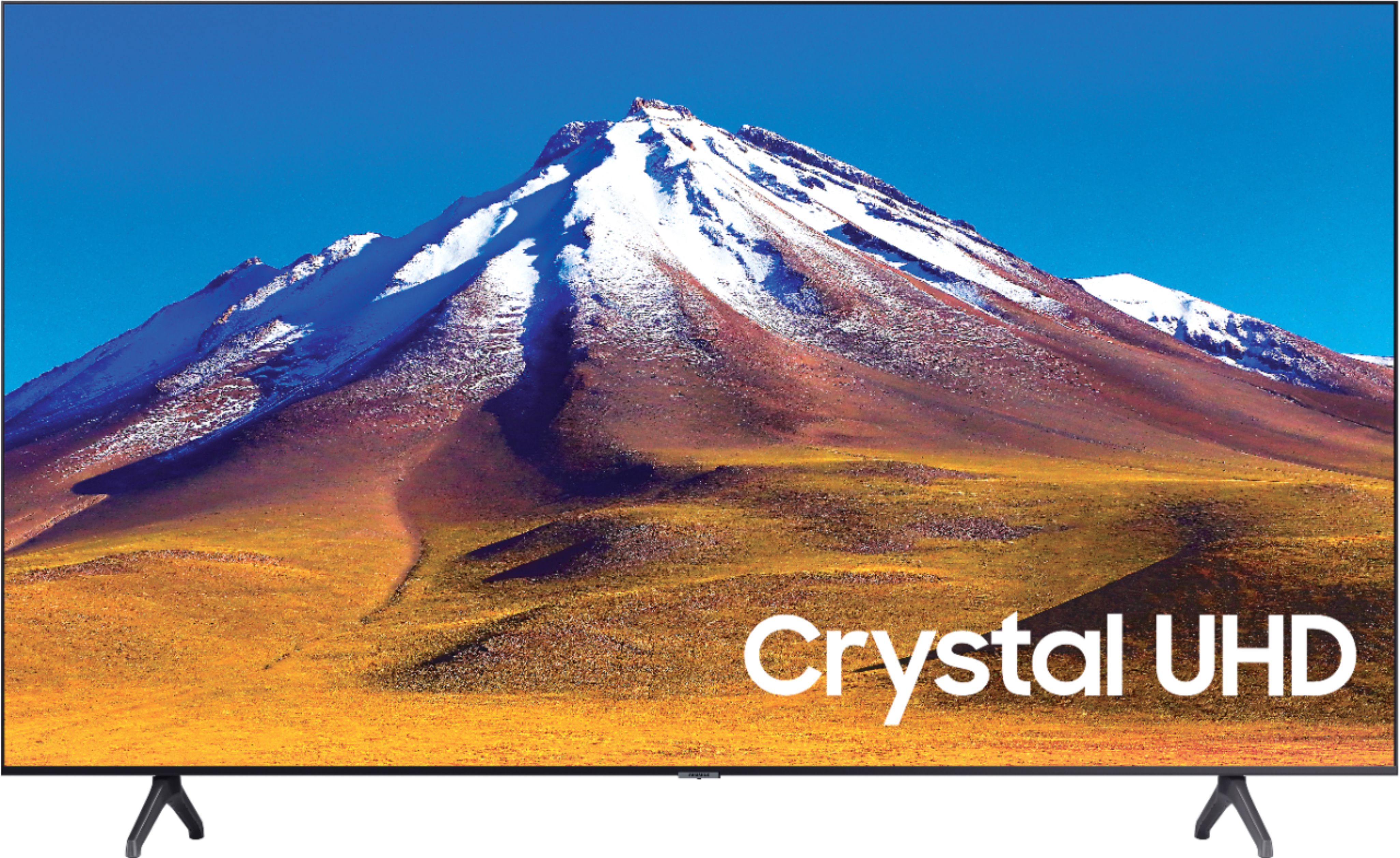
A:AnswerHi Vine! There is a button located beneath the Samsung logo on the bottom of your TV. This button will serve as a power button and will also allow you to change channels, volume or sources. ^Gina
A:AnswerHi Bandit! For questions regarding Geek Squad Protection coverage, please contact your local Best Buy or visit https://www.bestbuy.com/site/tv-home-theater-protection-plans/tv-protection/pcmcat1594152111966.c?id=pcmcat1594152111966 ^Gina
A:AnswerHi Jbug! You can utilize an external device such as a FireTV Stick to stream Hulu Live, or you can take advantage of the Smart features the TU6980 has such as the App Store, where you can choose and download from hundreds of apps! Hulu comes preinstalled in your TV's App Launcher upon setup - you can access Hulu Live from your TV's built-in Hulu App, no external streaming device necessary. ^Gina

A:AnswerHi Chip47! You sure can use both TV and Bluetooth device audio simultaneously on the TU6980. When this function is active, you can set the volume of the Bluetooth headphones higher than the volume of the TV speaker. First, make sure your Bluetooth headphones are paired. Press HOME on your TU6980 remote. Then go to Settings > General > Accessibility > Multi-output Audio. Find the device you'd like to pair. ^Gina
A:AnswerHi Michigander36! There may be a setting on your Bluetooth device to adjust the delay you are experiencing. So that we can better troubleshoot towards a solution, please reach out to Samsung Support at:
― Phone: 1-800-SAMSUNG / Available 8AM - 12AM EST, 7 days a week
― LiveChat or Email: https://www.samsung.com/us/support/#contact_us_for_support
We look forward to hearing from you. ^Gina
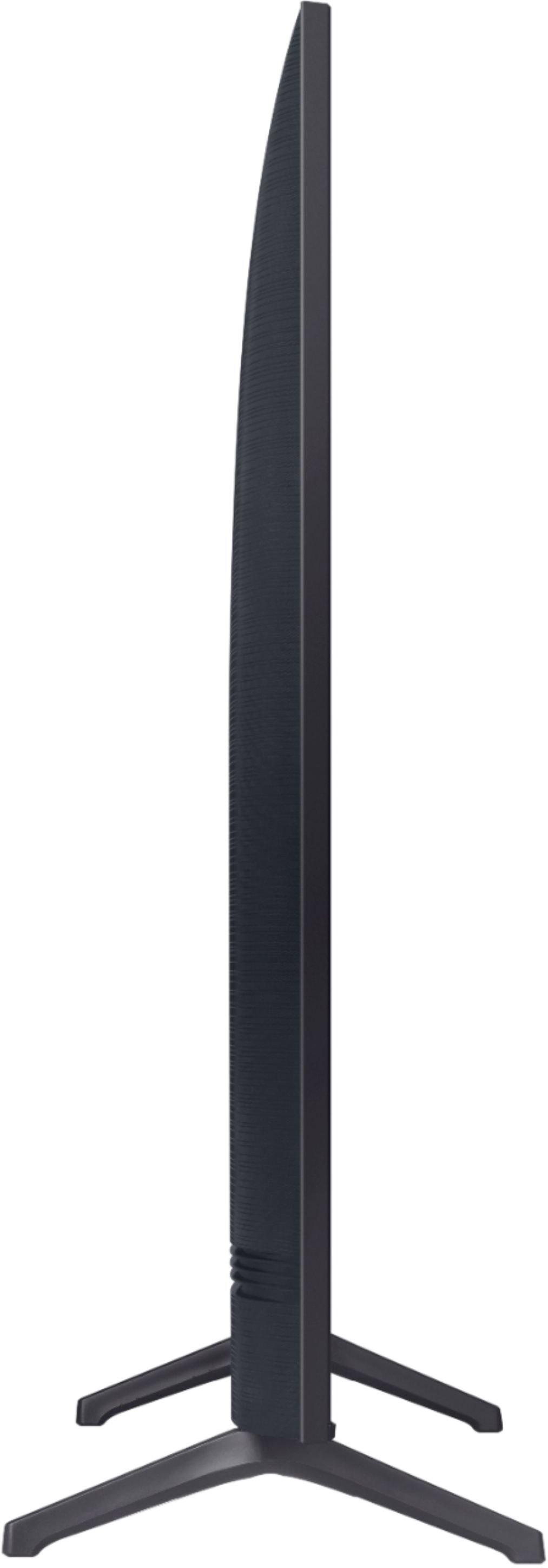
A:AnswerHi Clyde! Here are the dimensions for the 70TU6980: (INCHES W x H x D): TV WITHOUT STAND: 61.9 x 34.4 x 2.4 TV WITH STAND: 61.9 x 37.8 x 13.4 ^Tim
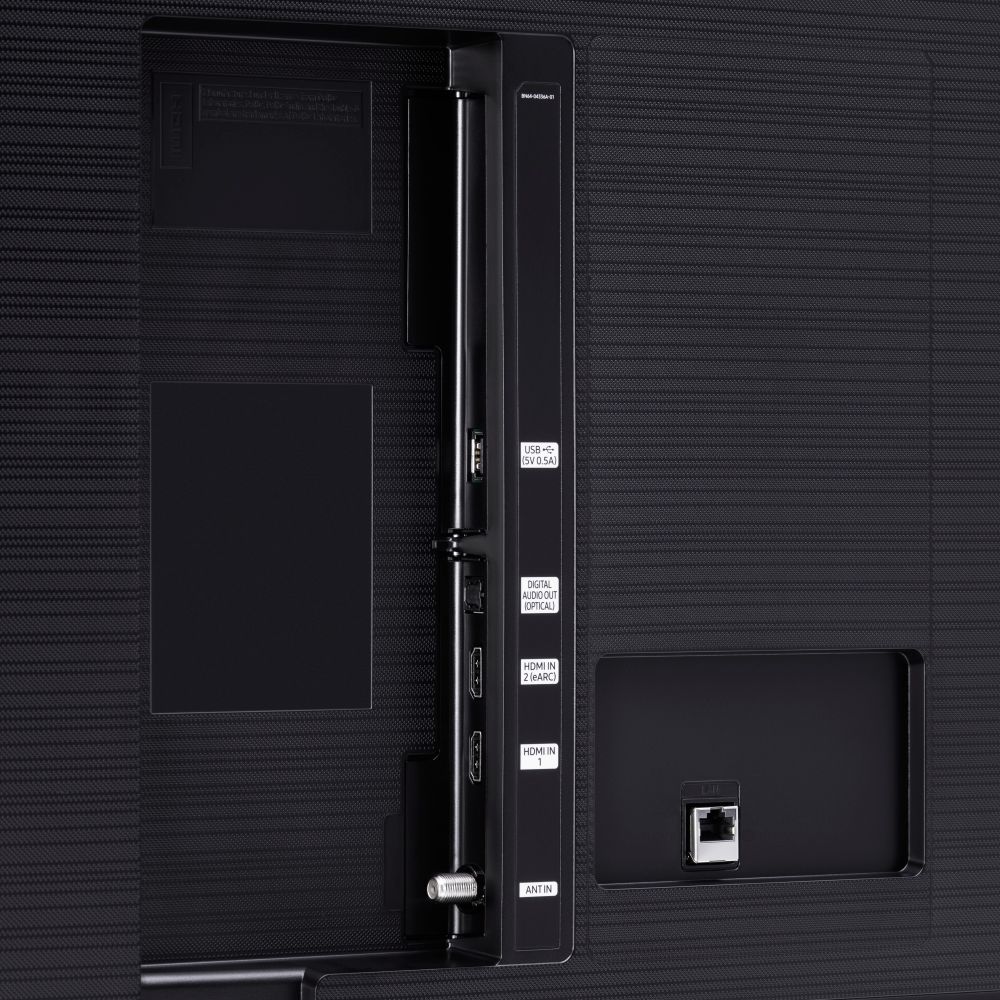
A:AnswerHi allnavy! The TU6980 supports HDMI ARC, digital optical audio, and Bluetooth audio technology. If your audio equipment supports one of these three connection types you will be able to use it with the TU6980. ^Tim
A:AnswerHi MsVee! The TU6980 does not feature the Bravo application at this time and there is not a way to add your own apps other than what is available in the app store. For content not supported through the built in app store you can take advantage of the built in screen mirror and cast functionality from Android or Apple mobile devices. This allows you to put the content on your phone on the big screen for everyone to watch. ^Tim