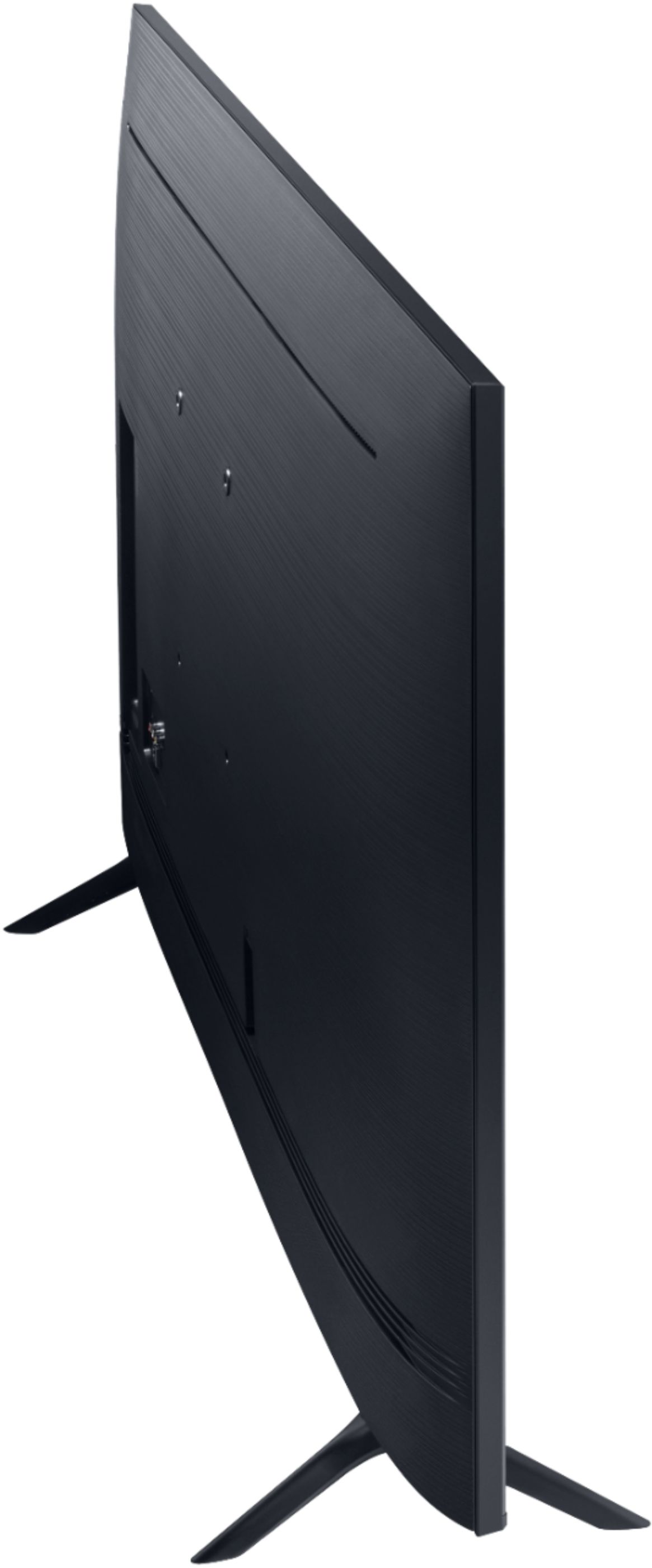
A:AnswerCedrickharris1, you can utilize any wall mount with a VESA Standard of 600mm x 400mm. Check out some compatible wall mounts at Best Buy: https://www.bestbuy.com/site/searchpage.jsp?_dyncharset=UTF-8&id=pcat17071&iht=y&keys=keys&ks=960&list=n&qp=tvmountsize_facet%3DTV%20Size%20Compatibility~65%22%20or%20More&sc=Global&st=wall%20mounts&type=page&usc=All%20Categories ^Gina
A:AnswerHi Tony, you can connect headphones as long as they are Bluetooth enabled. Refer to your headphone's user manual for how to pair. Once paired to the TV, press HOME on the TU8000 remote. Then go to Settings > Sound > Sound Output > Bluetooth Speaker List. Choose the headphones you wish to use for sound output. ^Gina
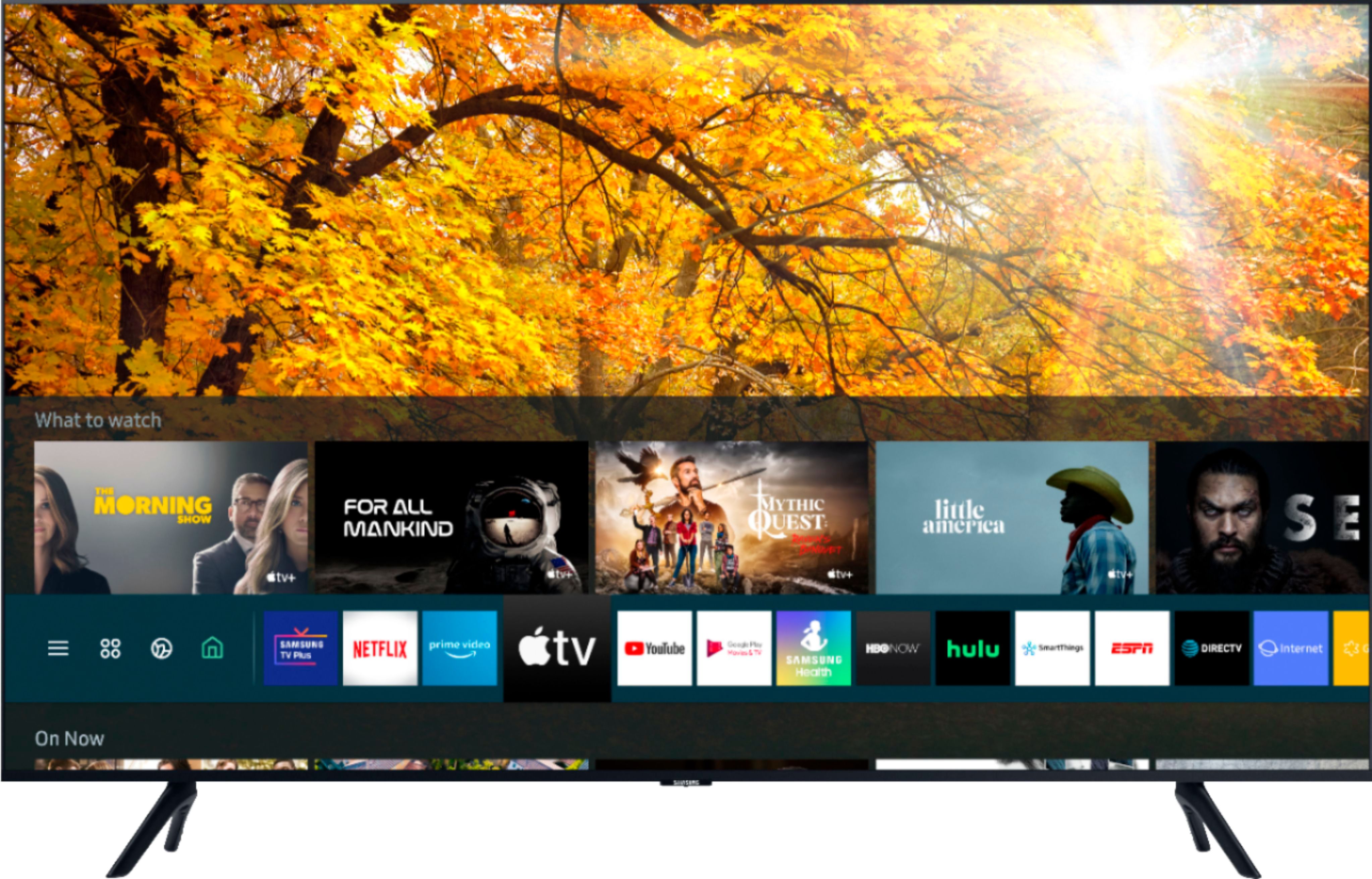
A:AnswerThere are a couple different options in the Picture Settings you can tweak to help your viewing experiences in both dark and bright conditions. Also the Samsung Apps store has hundreds of apps such as Apple TV+, Disney+, Google Play Movies & TV, HBO GO, Hulu, Netflix, Prime Video, SHOWTIME, Sling TV, YouTube and Vudu. ^Jason
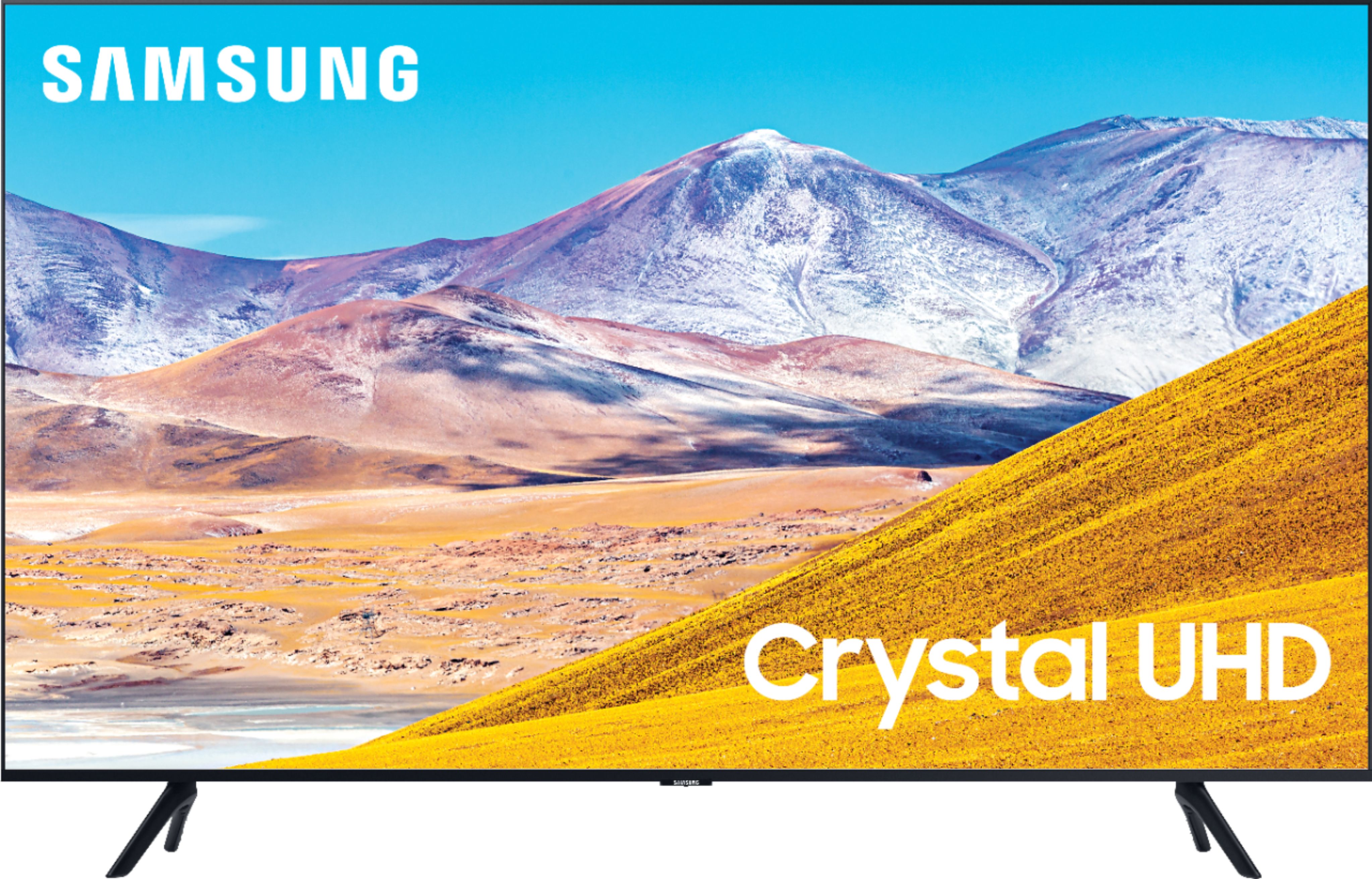
A:AnswerScott, the TU8000 utilizes a matte finish to diminish some unwanted glare; however, when stepping up to our Q60T you will gain Dual LED Technology which will give you better temperature control, and better contrast and off angle viewing. Stepping up to our Q80T, you will gain Ultra Viewing Angle, which gives you a consistent picture at all angles, and Anti Reflection Technology, which reduces ambient light reflections on the TV screen to let you enjoy richer contrast and more colorful images without distracting glare. ^Gina
A:AnswerHi Hamilton! The TU8000 utilizes a matte finish to diminish unwanted glare. There are 4 different picture modes you can also choose from to give you the best picture quality for your viewing needs: Home > Settings > Picture > Picture Mode: • Dynamic makes the picture brighter and clearer in bright viewing environments. • Standard is the default mode suitable for general viewing environments. • Natural reduces eye strain for a comfortable viewing experience. • Movie is suitable for watching TV or movies in a dark room. ^Gina
A:AnswerHey Curiouslikeacat - The 85TU8000 does not come with a wall mount . You can use any mount with VESA 600mm x 400mm available on BestBuy.com https://www.bestbuy.com/site/searchpage.jsp?st=tv+wall+mounts&_dyncharset=UTF-8&_dynSessConf=&id=pcat17071&type=page&sc=Global&cp=1&nrp=&sp=&qp=&list=n&af=true&iht=y&usc=All+Categories&ks=960&keys=keys . ^Jason
A:AnswerHi there, you can cast your computer screen a couple different ways: If you have an Apple computer, you can cast with AirPlay. If you have a Windows Bluetooth compatible computer, you can go under Display Settings under Multiple displays and detect your computer. You can also connect your computer via HDMI. ^Gina
A:AnswerDoug, the TU8000 does not have Picture in Picture, but instead Mobile View, which allows you to easily send smartphone content to your TV to simultaneously display live and casted content, share photos or visualize music. ^Gina
A:AnswerNatemarcum - You may want to utilize our Auto Volume. Auto Volume is a feature on Samsung Smart TVs that helps to avoid volume fluctuation when changing between channels or sources on the TV. It's designed to prevent a dramatic increase or decrease of audio from the TV Speakers. Turning on Auto Volume to Normal will keep make sure all content sources from apps, channels or external devices will play sound at the same level of volume. Home - Settings - Sound - Expert Settings - Auto Volume (turn on). ^Gina

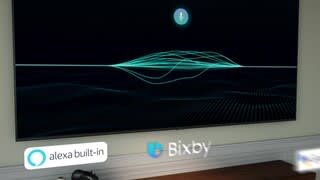
A:AnswerHomer - for starters, the TU8000 comes in 85" whereas last year's only went up to 75". In 2020, we have added new features to the TU8000 including the new Crystal Processor 4K, Game Enhancer, LED Clear Motion, Ambient Mode, and new Voice Assistants (Amazon Alexa, Google Assistant). For further comparison, please visit https://www.bestbuy.com/site/compare?skus=6331776,6401715 ^Gina