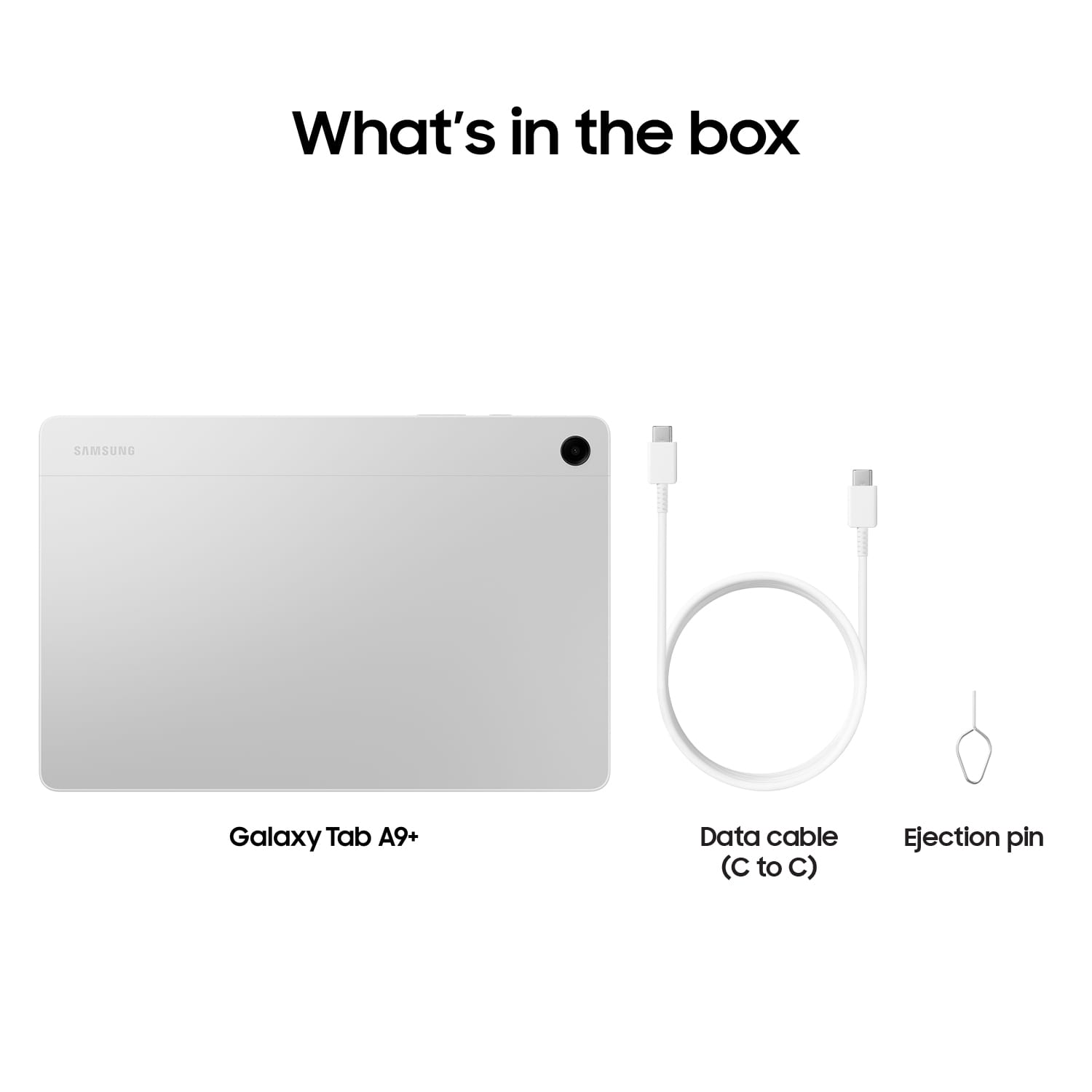
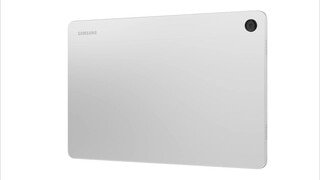
A:AnswerThe USB-C port on this tablet is USB Type-C 2.0. It supports charging at up to 15W and data transfer, but it doesn't include faster standards like USB 3.x for quicker file transfers or video output.
A:AnswerIf your tablet isn't turning on (e.g., black screen or no response), here are some step-by-step troubleshooting tips based on common fixes for this model:
1. Charge the tablet: Plug it into the original charger (or a compatible 15W USB-C charger) and a working outlet. Let it charge for at least 15-30 minutes, even if there's no charging indicator initially—the battery might be completely drained. Try a different cable, charger, or outlet if possible to rule out issues there.
2. Perform a force restart: While plugged in (or not), press and hold the Power button (on the side) and the Volume Down button simultaneously for 10-30 seconds. Release when the Samsung logo appears or the device vibrates. This can resolve software glitches or frozen states without losing data.
3. Inspect for damage: Check the tablet, charger, and cable for any physical damage, cracks, or signs of liquid exposure (e.g., via the Liquid Damage Indicator inside the charging port or SIM tray—it's usually white if undamaged, pink/red if exposed to moisture).
If these don't work after trying a few times, the issue could be hardware-related (like a faulty battery or power button). In that case, contact Samsung support for warranty service, or use tools like Samsung Smart Switch on a PC to check if the device is detected.
Avoid opening the device yourself, as it could void the warranty. If it's still under warranty (typically 1 year), they may repair or replace it.
A:AnswerYes — for the Samsung Galaxy Tab A9+ model SM-X210, it normally does have a microSD card slot for expandable storage (up to about 1 TB) according to the official specs. 
If your tablet doesn’t seem to have a visible card slot, a few possibilities are:
• It may be hard to spot — the microSD slot is a tiny tray on the side of the tablet, not a big open slot like on some older devices. 
• The tray might feel tight or tricky — some owners report that inserting the microSD card into the tray can take a bit of effort to seat it correctly. 
• Region or variant differences — sometimes Samsung ships versions that look almost the same but have slightly different slots or trays depending on what country they’re sold in.
But in general, the SM-X210 version does support microSD expansion, so what Samsung Support told you matches the official specs — you just need to find and use the tiny tray correctly.
A:AnswerHi Text, thank you for asking us your question about the Samsung Galaxy Tab A9+. Yes, you can talk to text on your Galaxy Tab A9+ and have it read back to you. Check out, "Use Spoken assistance on your Galaxy phone or tablet" to learn more. If you have additional questions for us, please feel free to reach out to Support. Thanks for being a valued Samsung customer. - Debra