A:AnswerHi MT. Please know that the soundbar will remember the last setting before it was turned off. Thus, if you wish the soundbar to turn on to detect HDMI, make sure that the HDMI is the used source when you turn it off. ~ Samsung Solutions
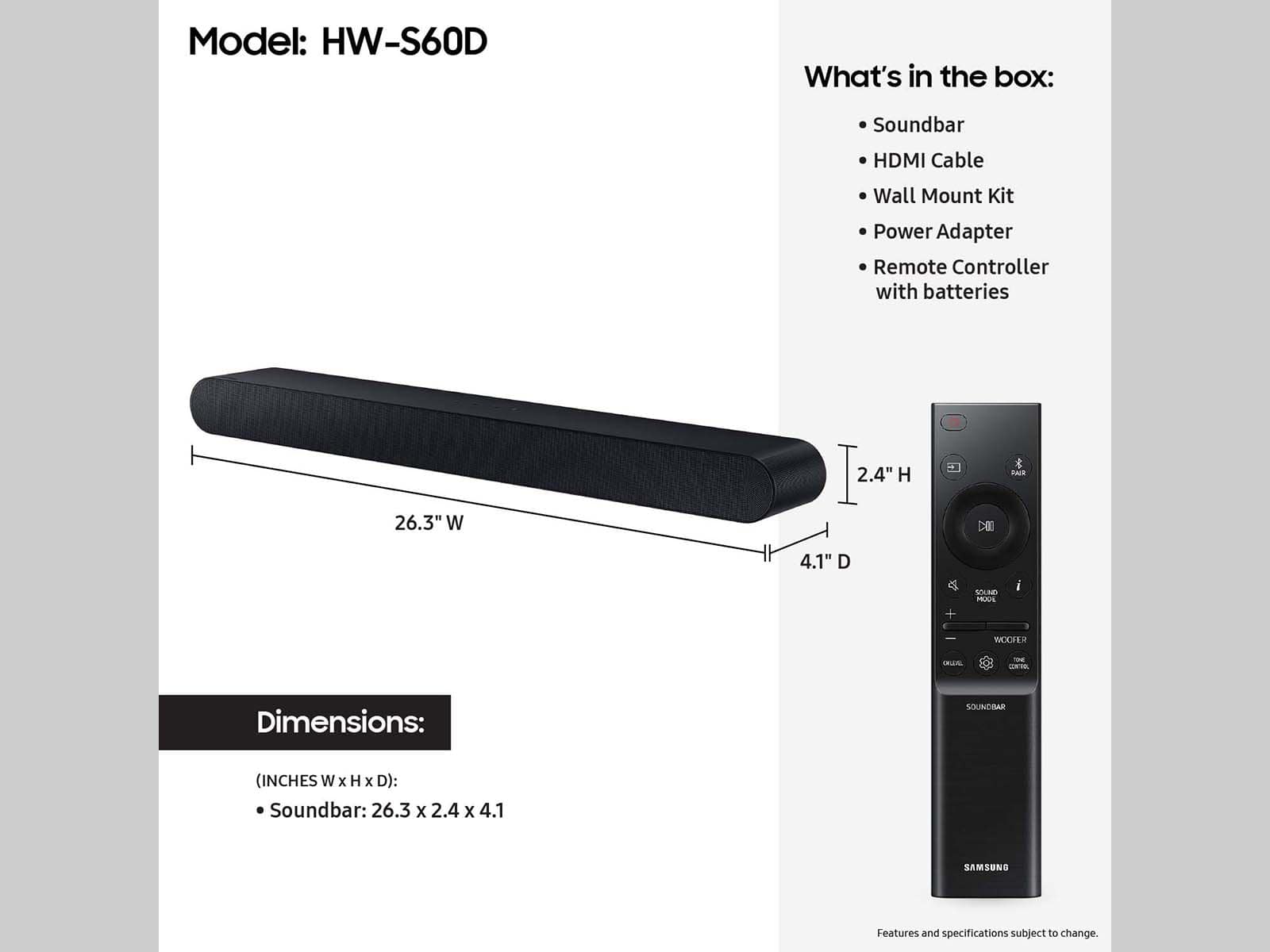
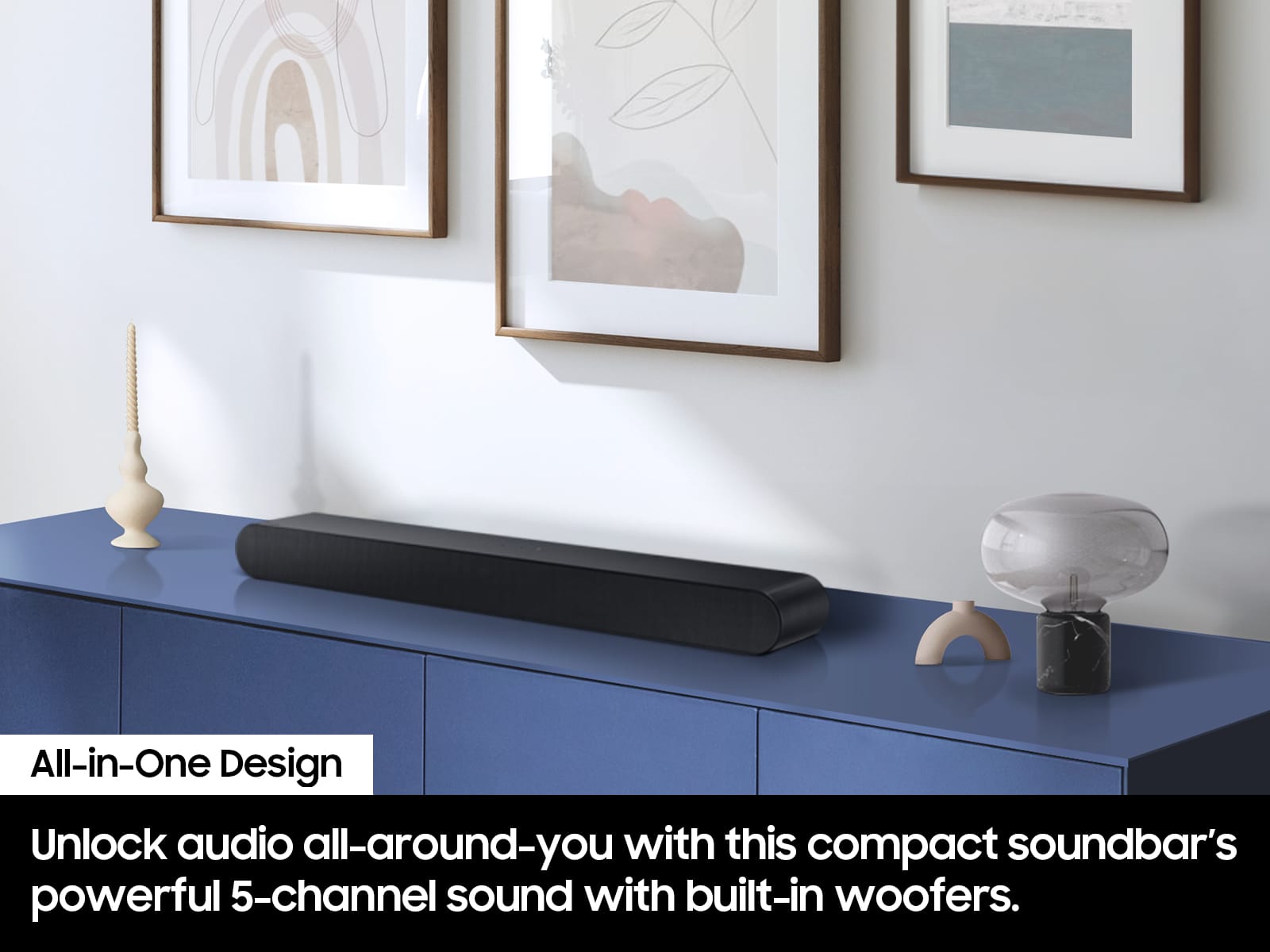
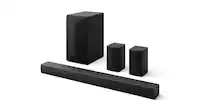
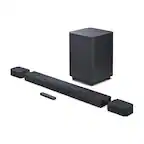
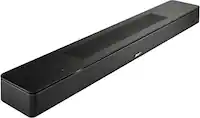
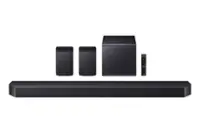
A:AnswerHello Husker. The HW-S60D Soundbar is a 5-channel system with built-in woofers. If you are looking for additional bass, beyond what the HW-S60D can provide, consider adding the compatible SWA-W510 Wireless Subwoofer from Samsung to take your audio experience to the next level. ~ Samsung Solutions
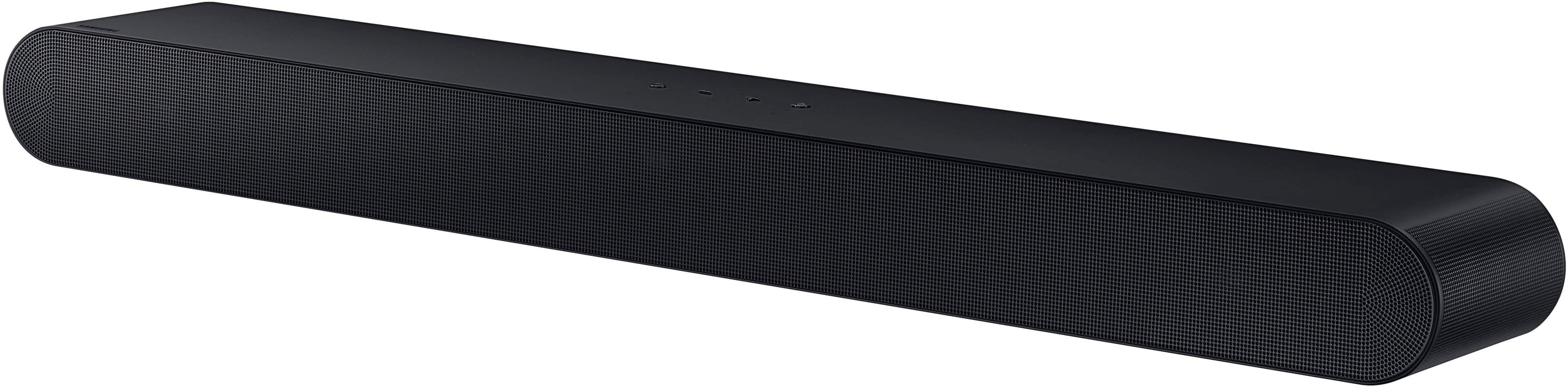
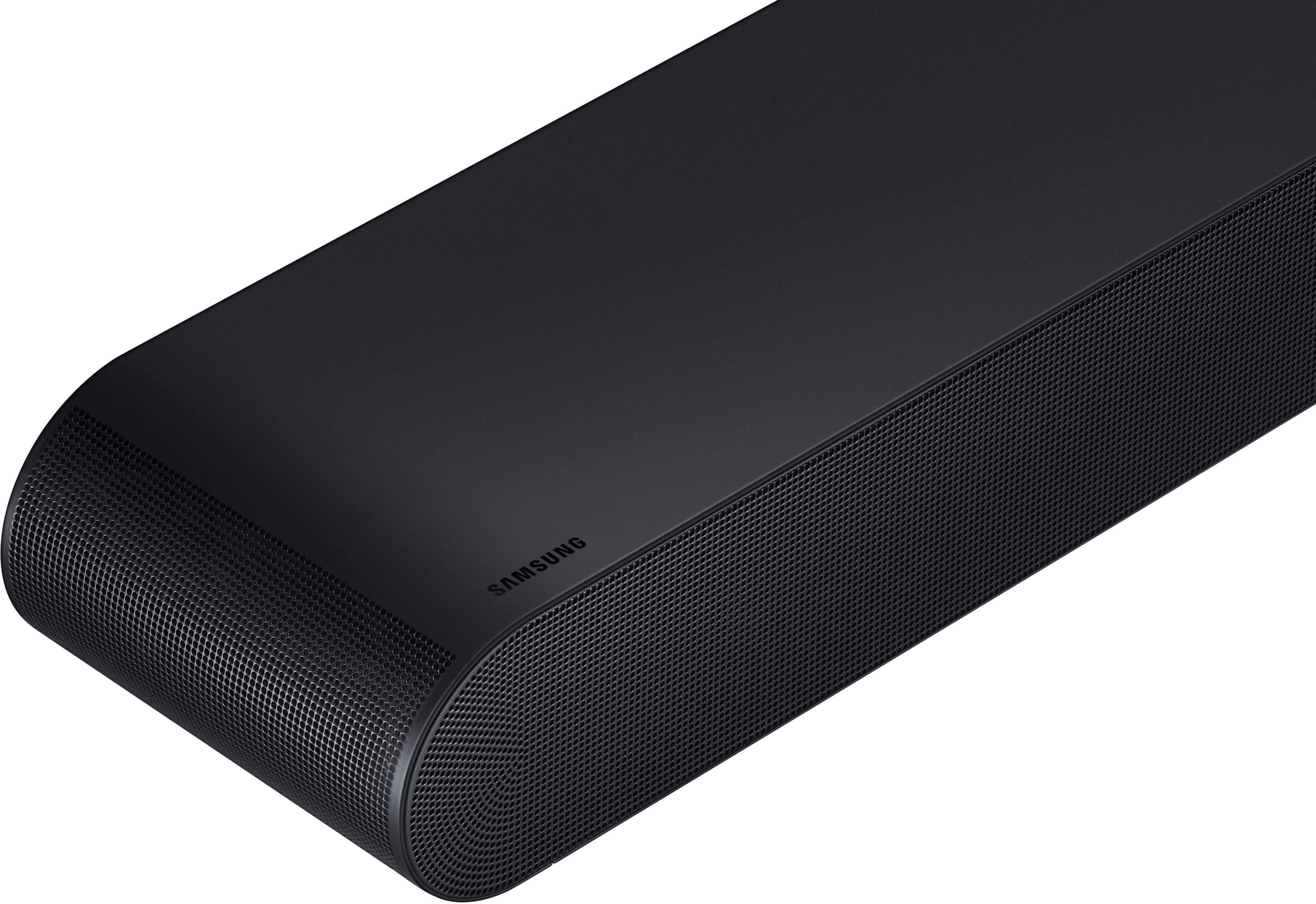
A:AnswerHi there Meowmix! The HW-S60D has 3 front firing spears along with 2 side firing speakers which are designed to deliver a more immersive surround sound experience. ~ Samsung Solutions
A:AnswerHi there Kevo! The HW-S60D Soundbar is compatible with the Samsung SWA-9200S Wireless Rear Speaker Kit. While utilizing a Samsung TV you can also pair it with the Samsung Music Frame. ~ Samsung Solutions
A:AnswerHi WakeboardGirl! Yes, as long as your Sony TV has an HDMI ARC/eARC port you should have no issues connecting it to your TV. ~ Samsung Solutions
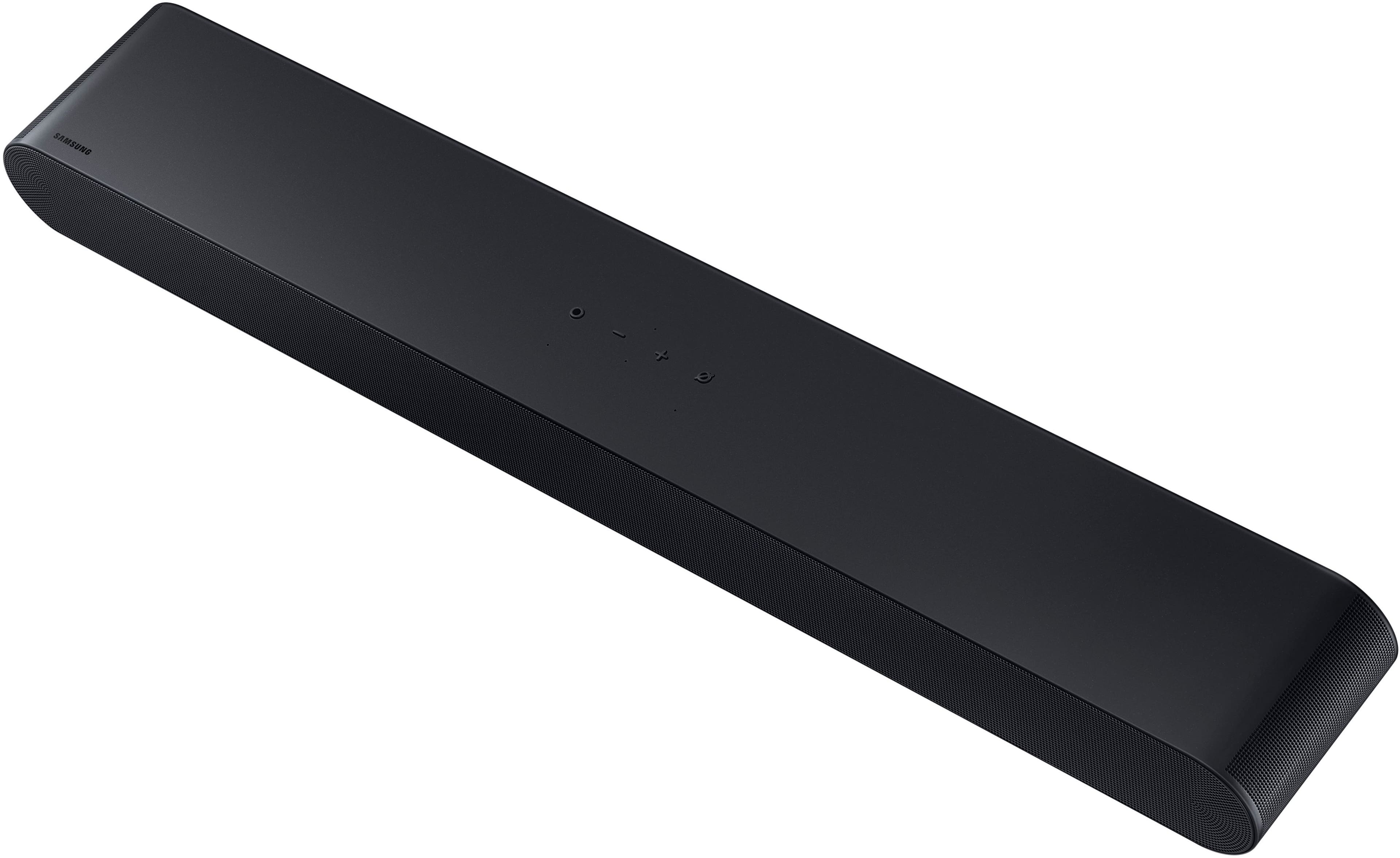
A:AnswerHello Hi50pilot! You can mute the HW-S60D Soundbars microphone by pressing the Ø next to the + symbol on top of the soundbar. ~ Samsung Solutions
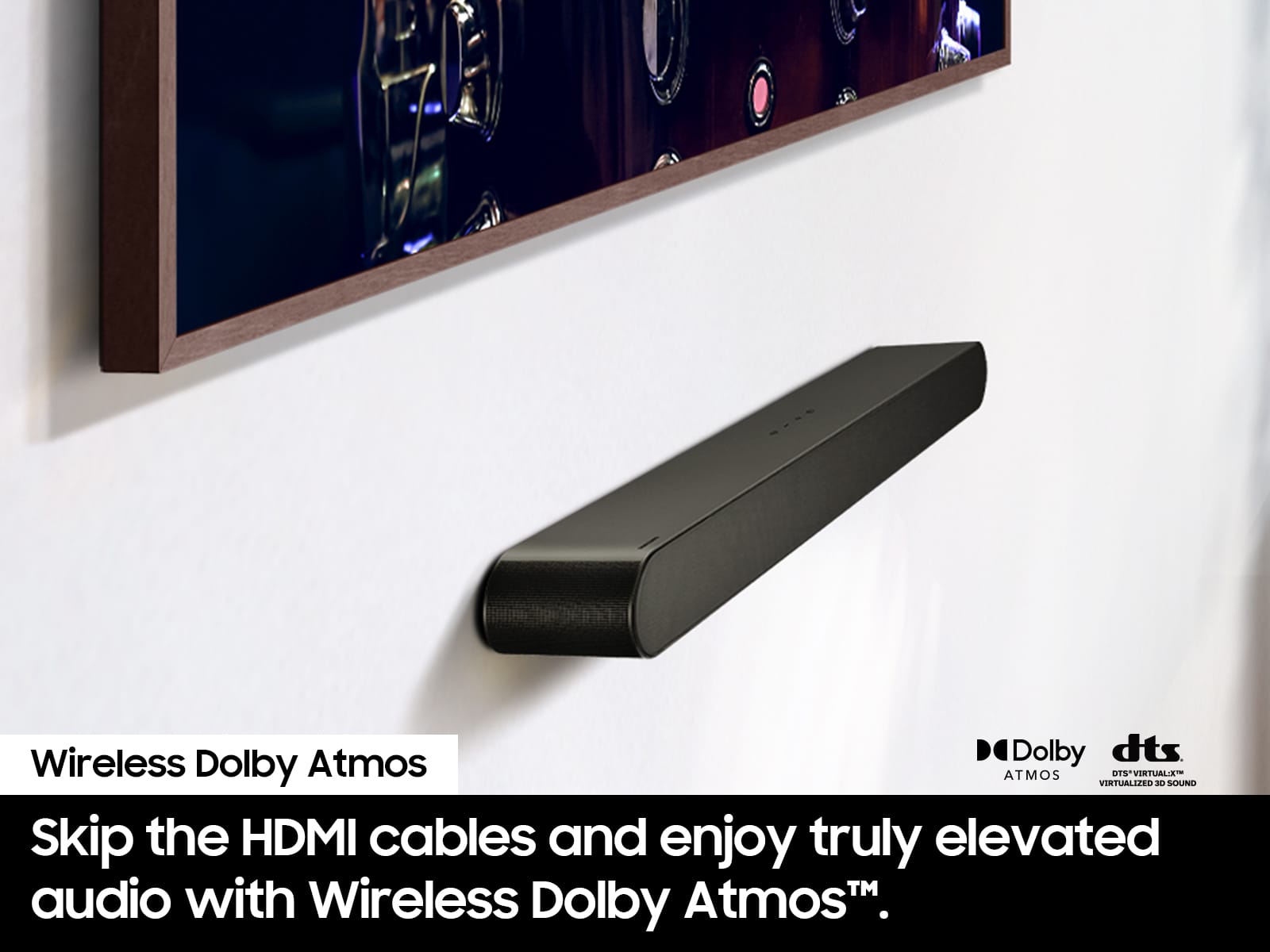
A:AnswerHi RecessedWall! Recessing the soundbar into the wall can affect sound quality if it’s enclosed too tightly. The HW-S60D uses side acoustics to help create a wider soundstage, so I recommend leaving a few inches of open space on the sides and keeping the front of the speaker flush with the finished wall surface rather than set deep into the recess.
With proper spacing and ventilation, you can still achieve a clean built-in look without significantly impacting performance.
~ Samsung Solutions
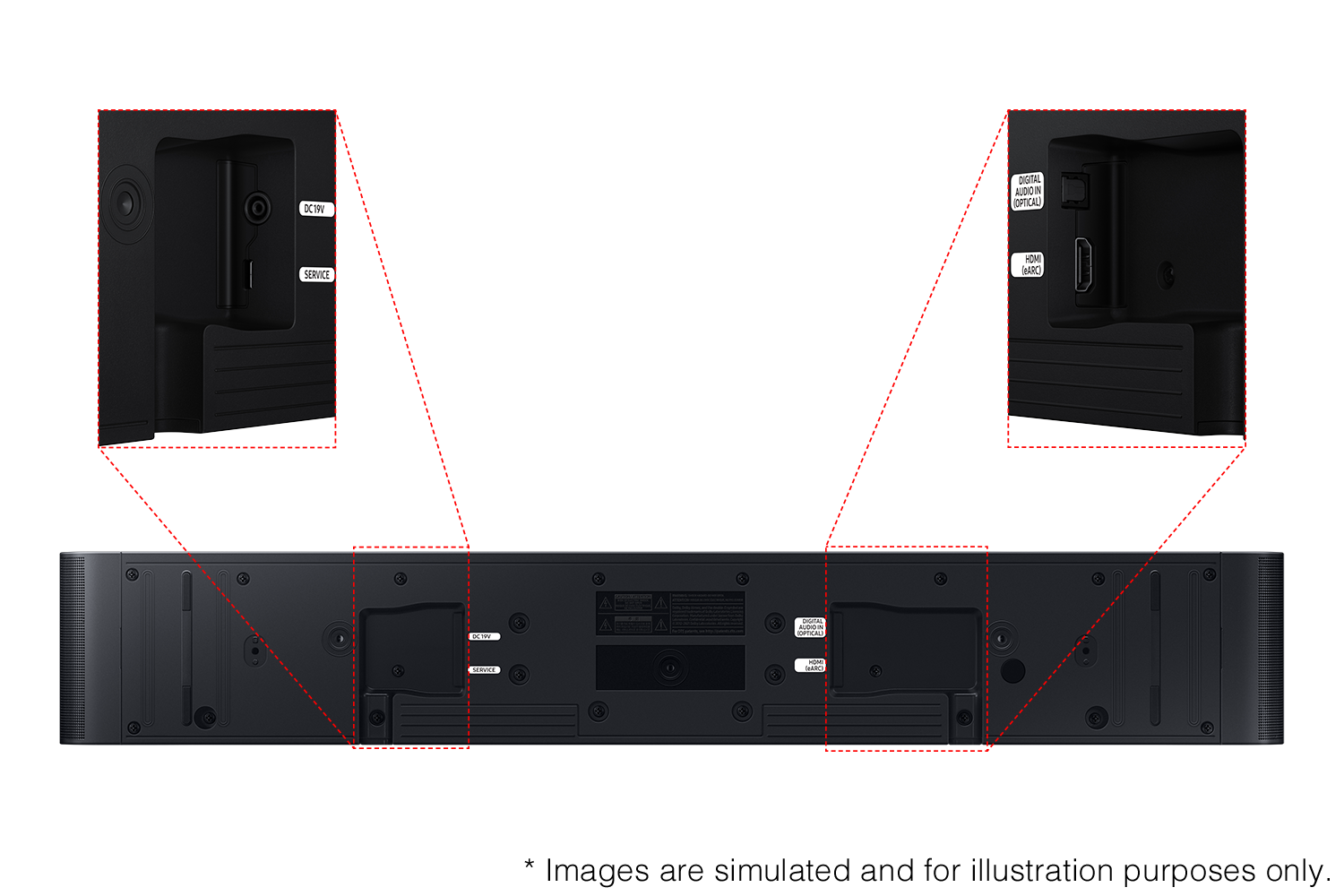
A:AnswerHello JLS! The HW-S60D features four ways to connect to an external device: Wi-Fi (with compatible Samsung TV), HDMI (eARC), digital optical audio, and Bluetooth wireless audio technology. If your TV is compatible with one of these four audio connections, you should have no issue connecting the soundbar to your TV. ~Samsung Solutions
A:AnswerHello Sound! Yes, the HW-S60D Soundbar can be used with the QN80H TV with either of the following connections: Wi-Fi, HDMI (eARC), digital optical audio, and Bluetooth wireless audio technology.
~ Samsung Solutions
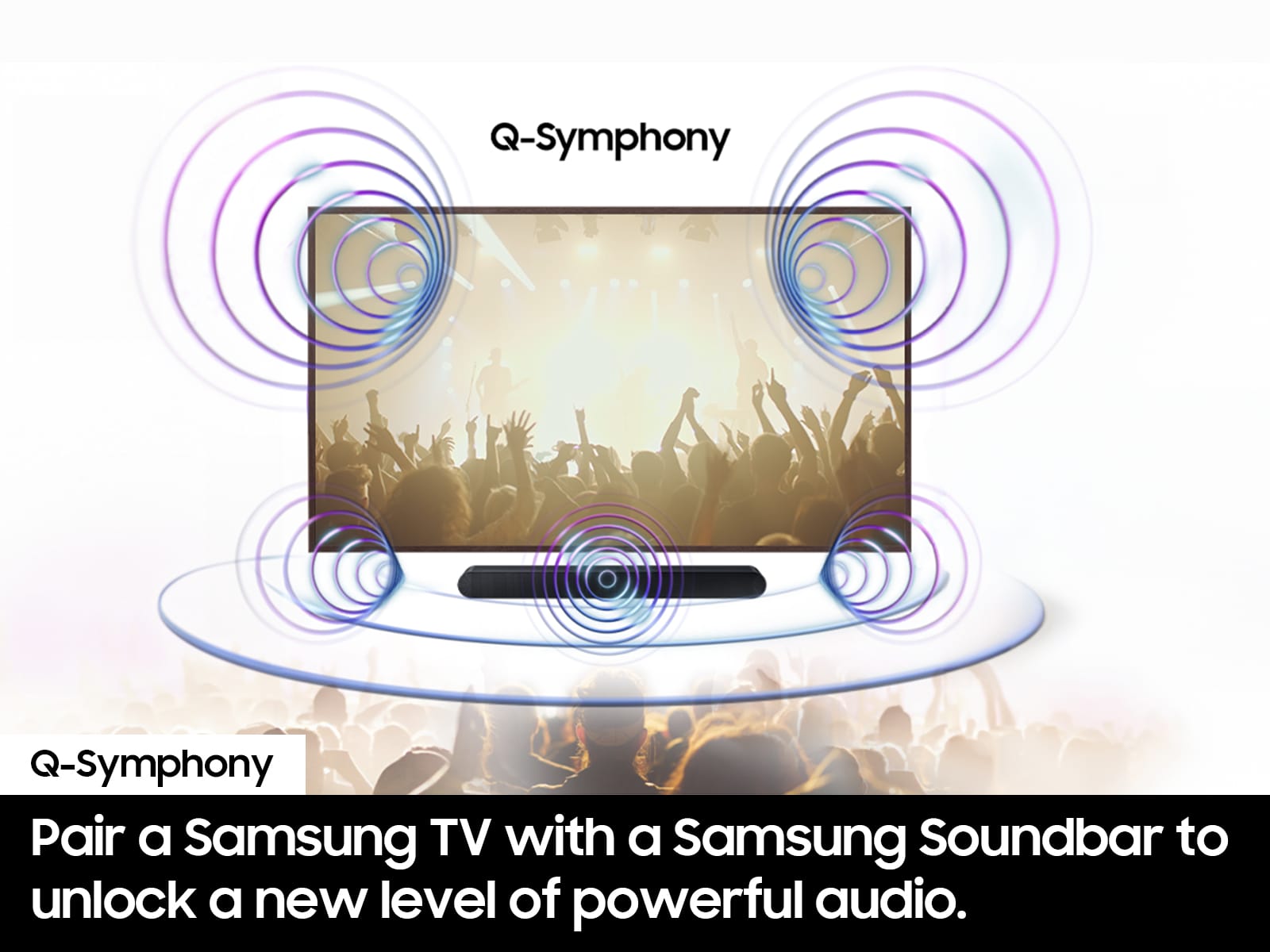
A:AnswerHello Simon! If you’re using a compatible Samsung TV, it may work with the soundbar through Q-Symphony, depending on the TV model. It can also be connected via SmartThings for multi-room or grouped playback, allowing both devices to play audio in sync and be controlled together on the same network. ~ Samsung Solutions
A:AnswerHi Joe! You can turn on Active Voice Amplifier (AVA) for your Samsung HW-S60D soundbar directly through the SmartThings app.
First, open the SmartThings app on your phone and select your HW-S60D soundbar from your list of devices. Tap on Sound Mode / Sound Settings, then look for Active Voice Amplifier (AVA) and toggle it ON.
Please note that AVA requires the soundbar’s microphone to be turned on.
~ Samsung Solutions
A:AnswerHi doctom! Yes, the HW-S60D is compatible with the QN50Q80B, you can connect this soundbar to it using either Wi-Fi, HDMI (eARC), digital optical audio, and Bluetooth wireless audio technology. ~Samsung Solutions
A:AnswerHi doctom! The HW-S60D features four ways to connect to your QN50Q80B: Wi-Fi, HDMI (eARC), digital optical audio, and Bluetooth wireless audio technology. You should have no issue connecting the soundbar to your TV. ~Samsung Solutions
A:AnswerHi Joey, Yes, you will simply need to change the source on your soundbar. If your soundbar is currently connected to the TV via HDMI eARC/ARC, just switch the source to Bluetooth on the soundbar to connect wirelessly. ~ Samsung Solutions
A:AnswerHi GregH! What you’re hearing is a built-in voice prompt from your Samsung HW-S60D Soundbar letting you know it has lost its Wi-Fi connection. This typically happens if the soundbar was previously set up on Wi-Fi (via SmartThings) and is now having trouble reconnecting.
To stop the message, you can either reconnect the soundbar to your current Wi-Fi network through the SmartThings app, or remove it from SmartThings entirely if you’re not using Wi-Fi features. This will prevent it from continuing to search for a network and announcing the disconnection.
~ Samsung Solutions