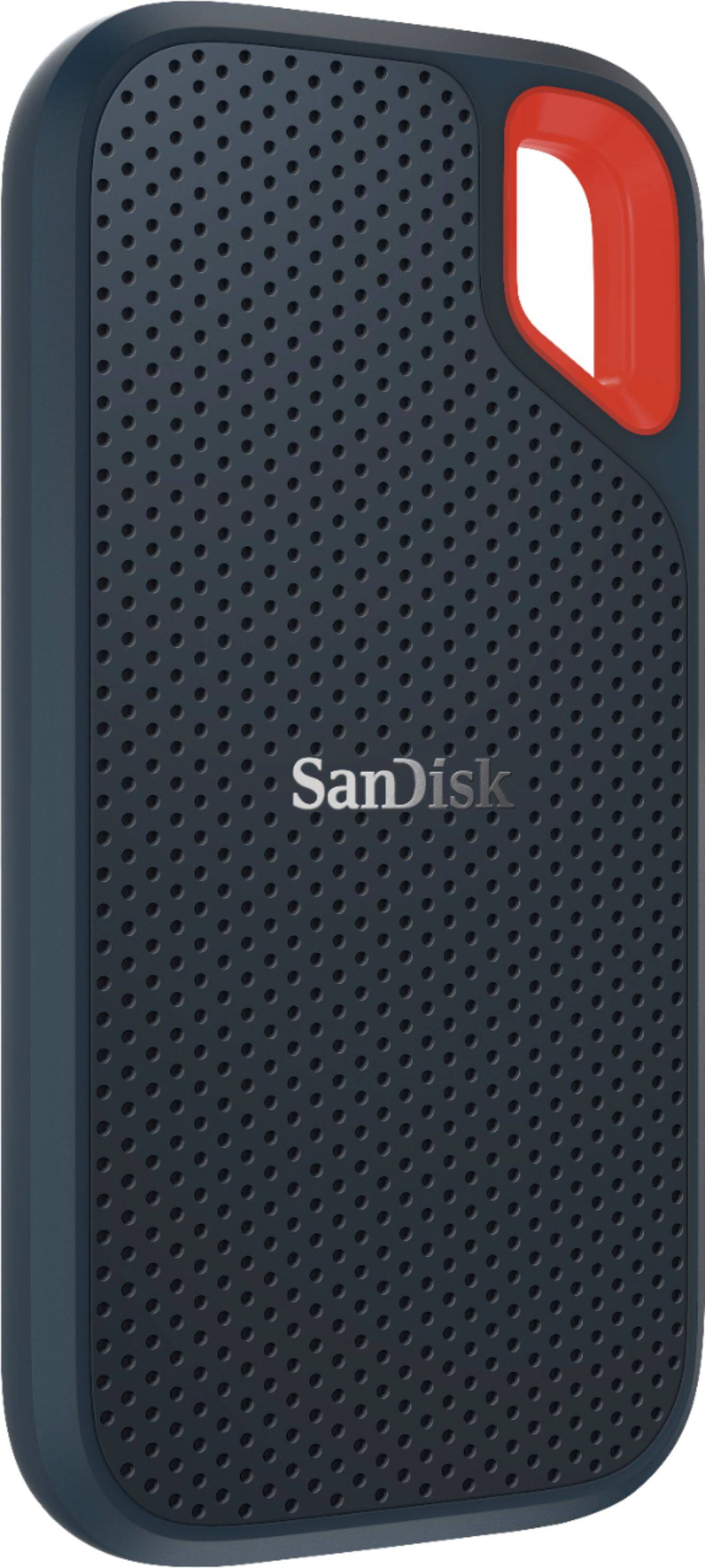
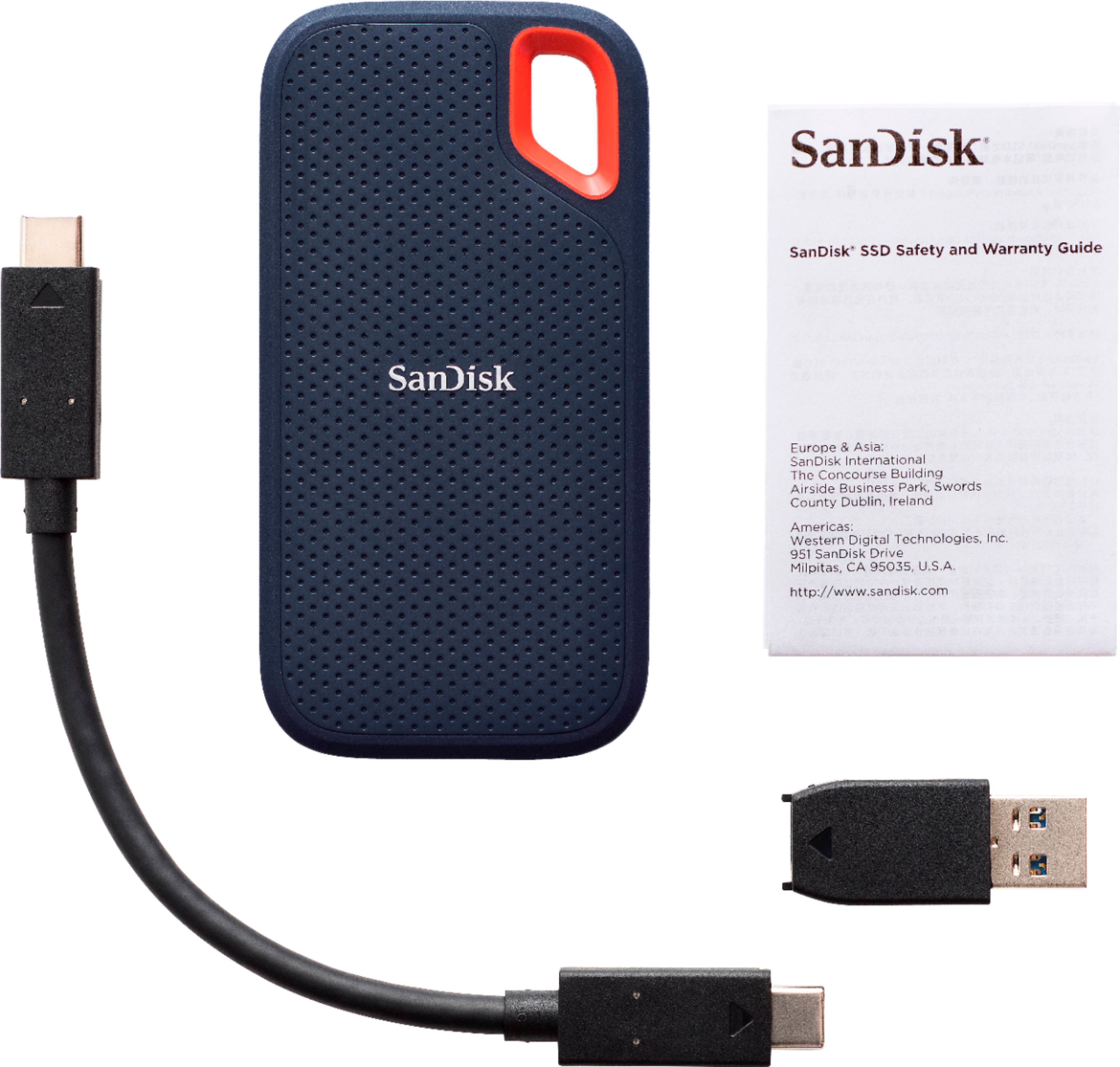
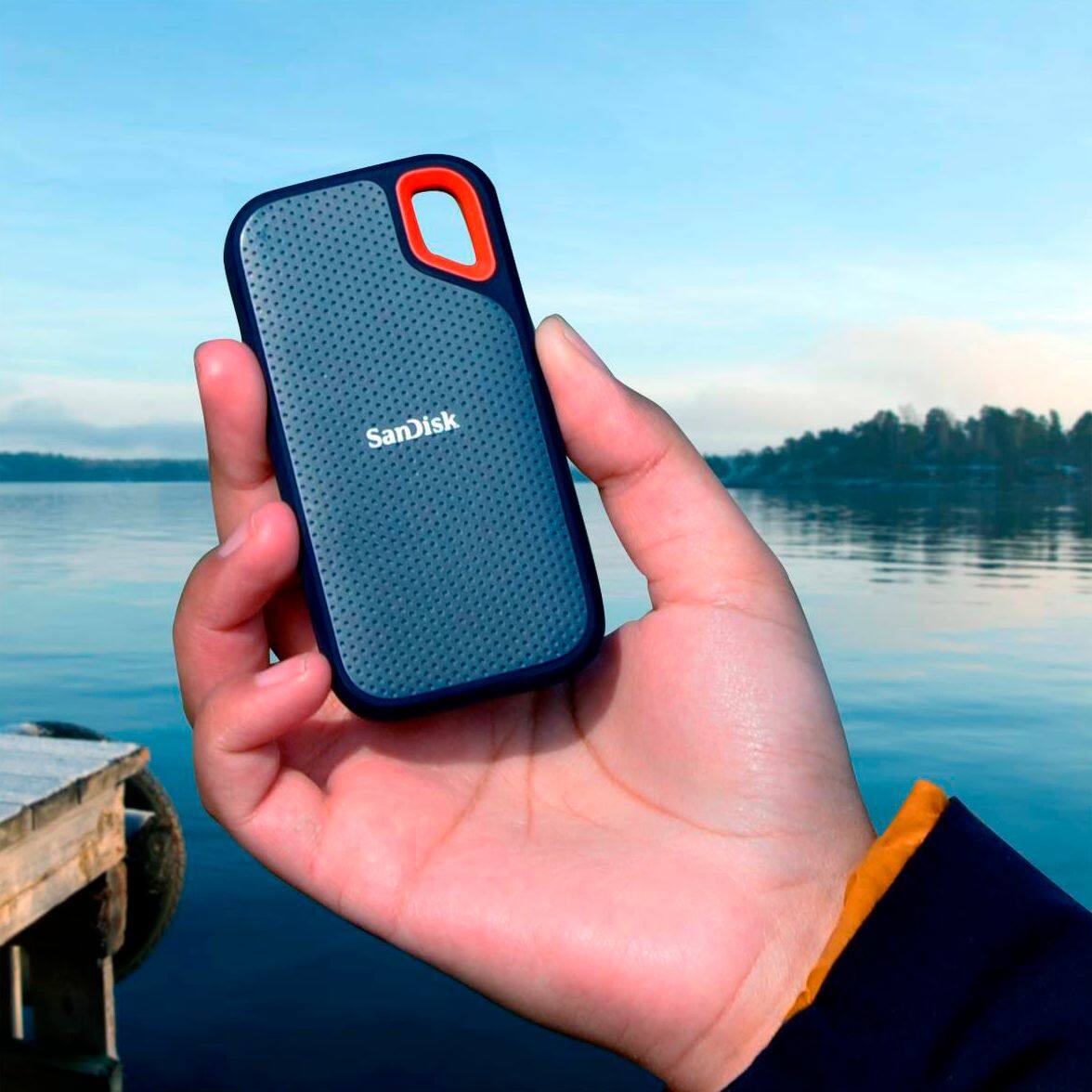
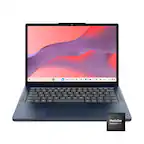
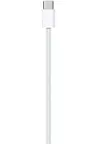
A:AnswerHi, please be informed that the SanDisk Extreme Portable 500GB SSD Drive includes a USB-C to USB-C cable and a USB-C to USB-A Adapter in the retail box. You may use the cable and the adapter to connect this SSD Drive to the USB-A of your Apple MacBook Air 2017. However, please be informed that you might not get the optimized transfer speeds when connected to a USB-A port.
A:AnswerHi, please be informed that the SanDisk® External SSD Drives are simple plug and play storage devices and can be used by directly plugging in to a MAC computer. However, in order to know to know the detailed steps to store/ access data in the External SSD Drive, we would suggest you to contact the Apple Customer Support.
A:AnswerHi, please be informed that in order to how to use/ connect the SanDisk Extreme Portable SSD Drives with your iPad Air, we would suggest you to contact Apple Customer Support.
A:AnswerHi, please be informed that the SanDisk® External SSD Drives are simple plug and play storage devices and not a voice recorder. These can be used by directly plugging in to a Windows/ MAC computer.
A:AnswerHi, please be informed that the SanDisk® External SSD Drives are simple plug and play storage devices and can be used by directly plugging in to a Windows/ MAC computer. In order to know how to store/ access data in the External SSD Drive, we would suggest you to contact the manufacturer of your Windows/ MAC computer.
A:AnswerDid you ever end up doing this. I am on the fence between that plan, or just running it through a usb 3.0 . Thunderbolt 2 (which I have) would be preferable, but was not sure if it would work.
A:AnswerHi Ron, please be informed that all our storage devices including the SSD Drives are simple plug and play storage devices and you can connect it with your MacBook Pro using the USB Type-C port.
A:AnswerHi Brian, please be informed that you can connect this SSD Drive to your Samsung S10 mobile phone using the USB Type-C port of your phone. However, in order to know how to access the contents of this SSD Drive using your mobile phone, it would be best to contact Samsung Support.
A:AnswerHi Ron, please be informed that you can connect this SSD Drive to your iPad if it has a USB Type-C connector. However, in order to know how to access the contents of this SSD Drive using your iPad, it would be best to contact Apple Support. Also, since the iPhone does not have a Type-C port, you might need an accessory to connect the SSD Drive to your iPhone for which we would suggest you to contact Apple Support in order to know if an SSD Drive could be connected using an accessory.
A:AnswerUse this drive the same way you would use any other USB drive. No special steps are necessary. You can transfer your photos to your computer and transfer those you desire to keep to this drive.