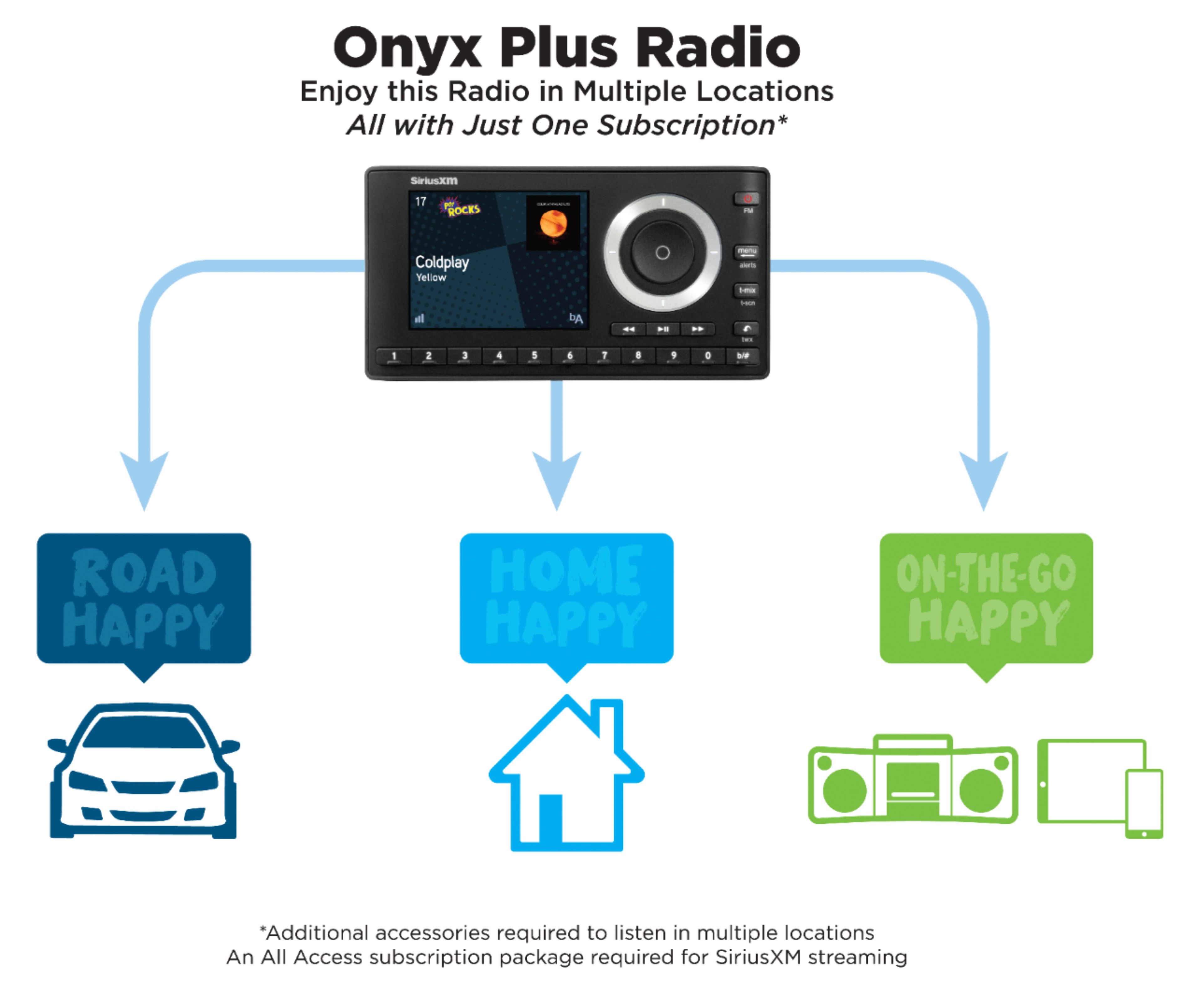
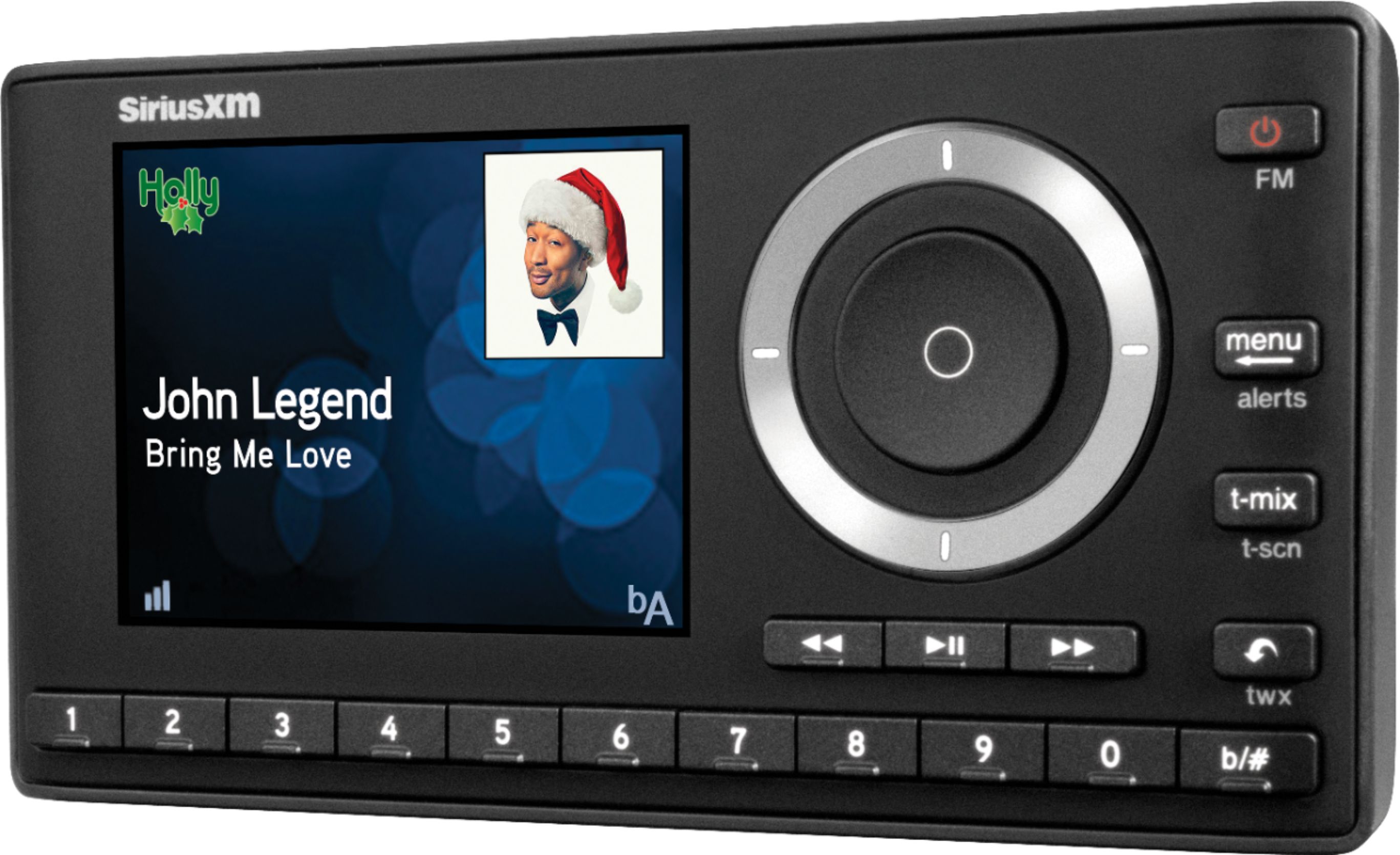
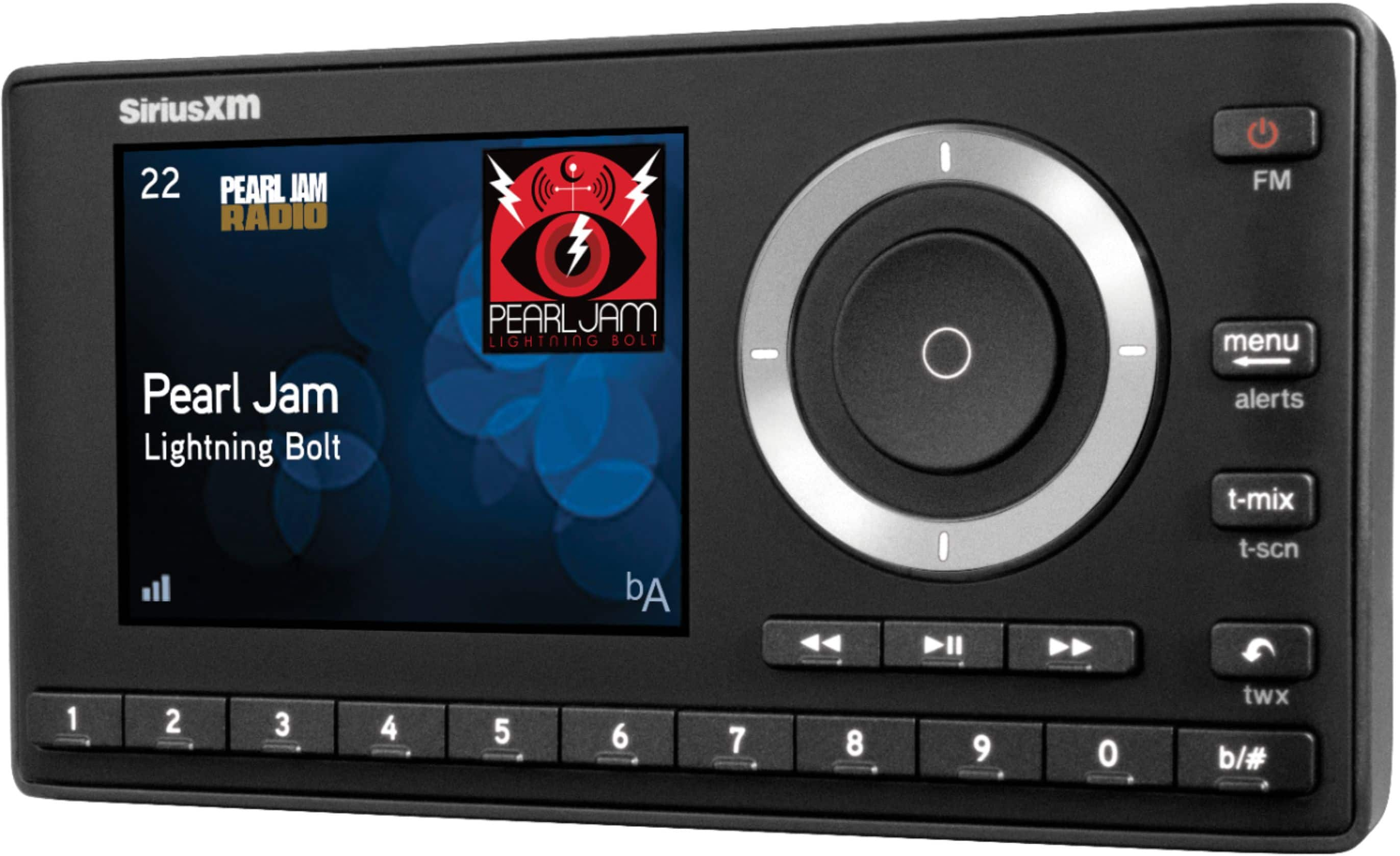
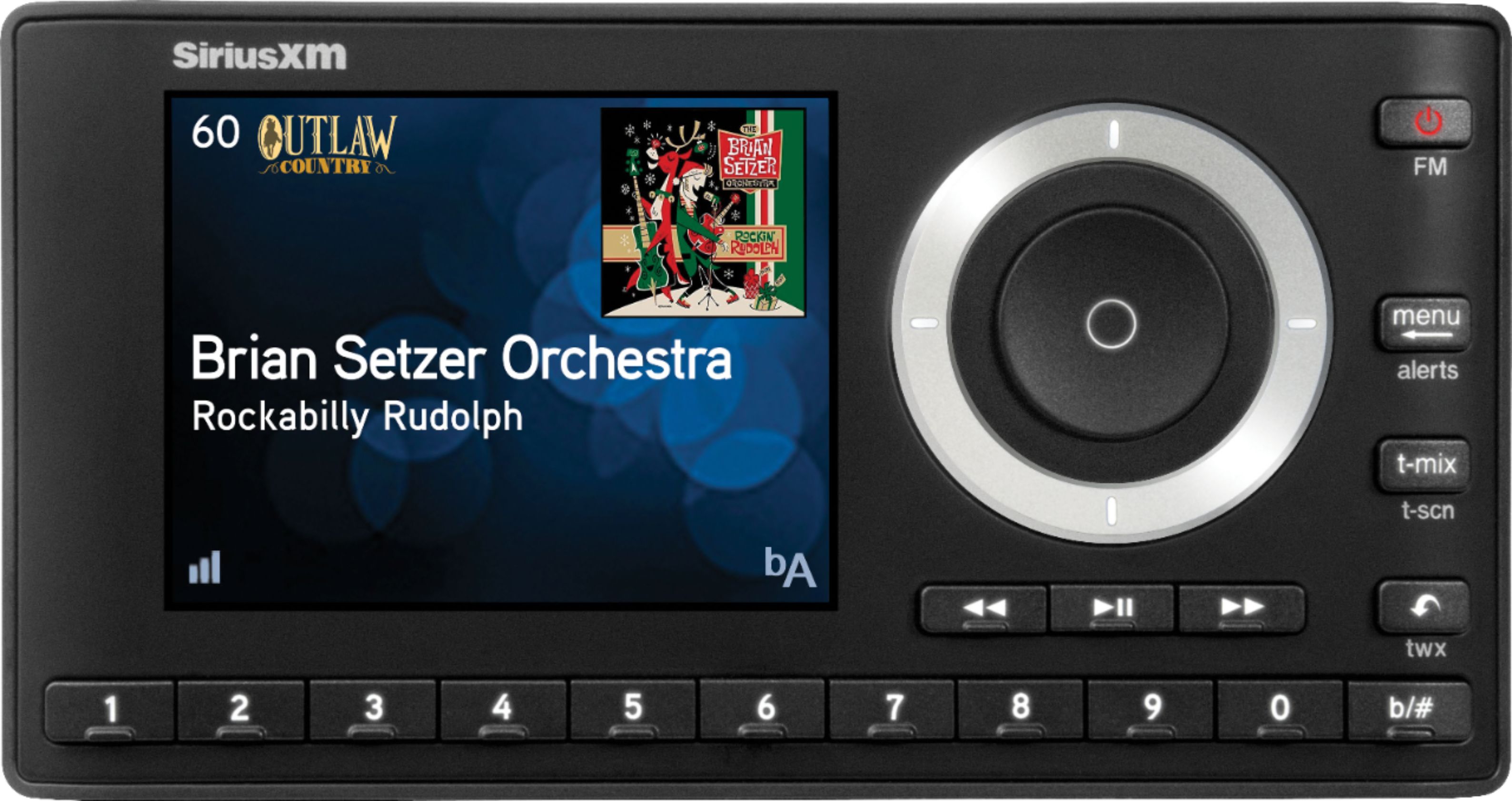
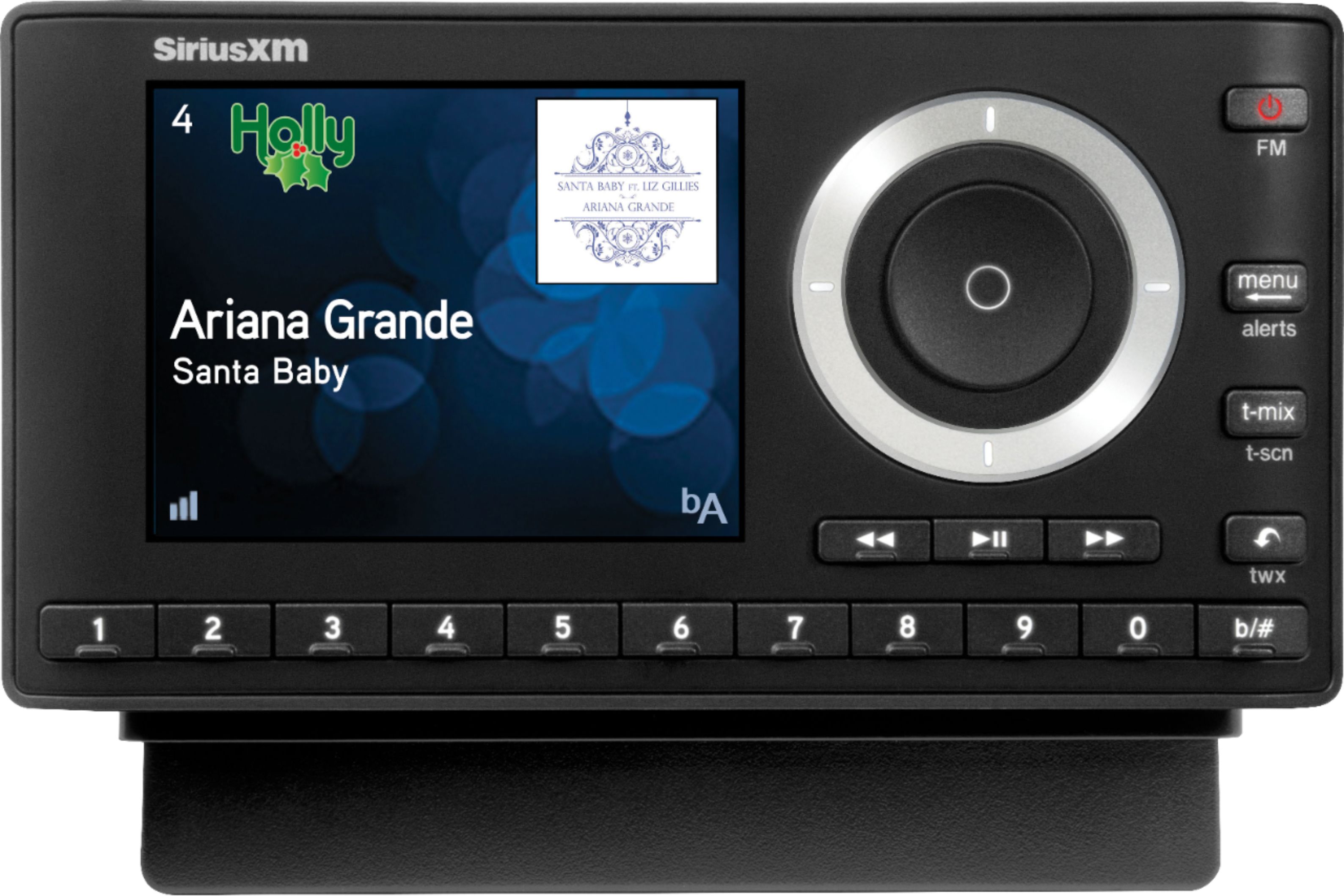
A:AnswerYou will need to setup a family account with SiriusXM. This will allow you to have your GM account and then add another subscription, at a discounted rate, for the Onyx Plus radio. If you login to your online account, you can easily add a second subscription under your current account.
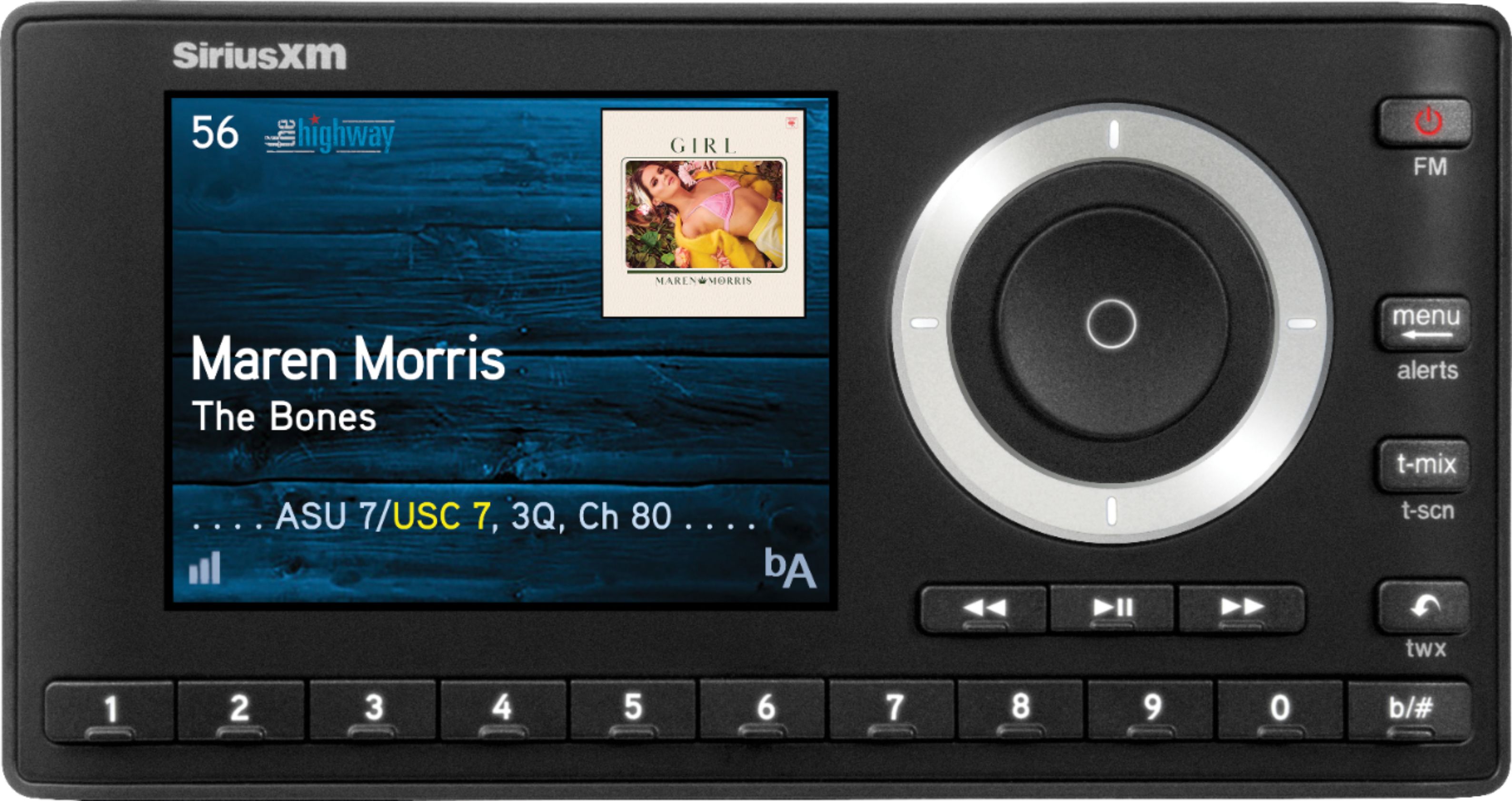
A:AnswerThe radio comes with installation instructions in the box or you can visit https://shop.siriusxm.com/installation/ for further instruction. For the best results and a full integrated look, we recommend that you have a Best Buy Geek Squad agent do the installation.
A:AnswerThe number of channels available are based on the subscription plan that you purchase. With the highest subscription plan you should get all the satellite radio channels available on this radio.
A:AnswerThe Onyx Plus kit could work with your Jensen Marine radio by connecting the audio to the AUX input or the FM antenna using the optional SiriusXM FMDA25.
A:AnswerThe Onyx Plus is not rated for marine environments of moisture, salt and vibration in a boat and is not recommended for small watercraft unless you install it in waterproof housing.
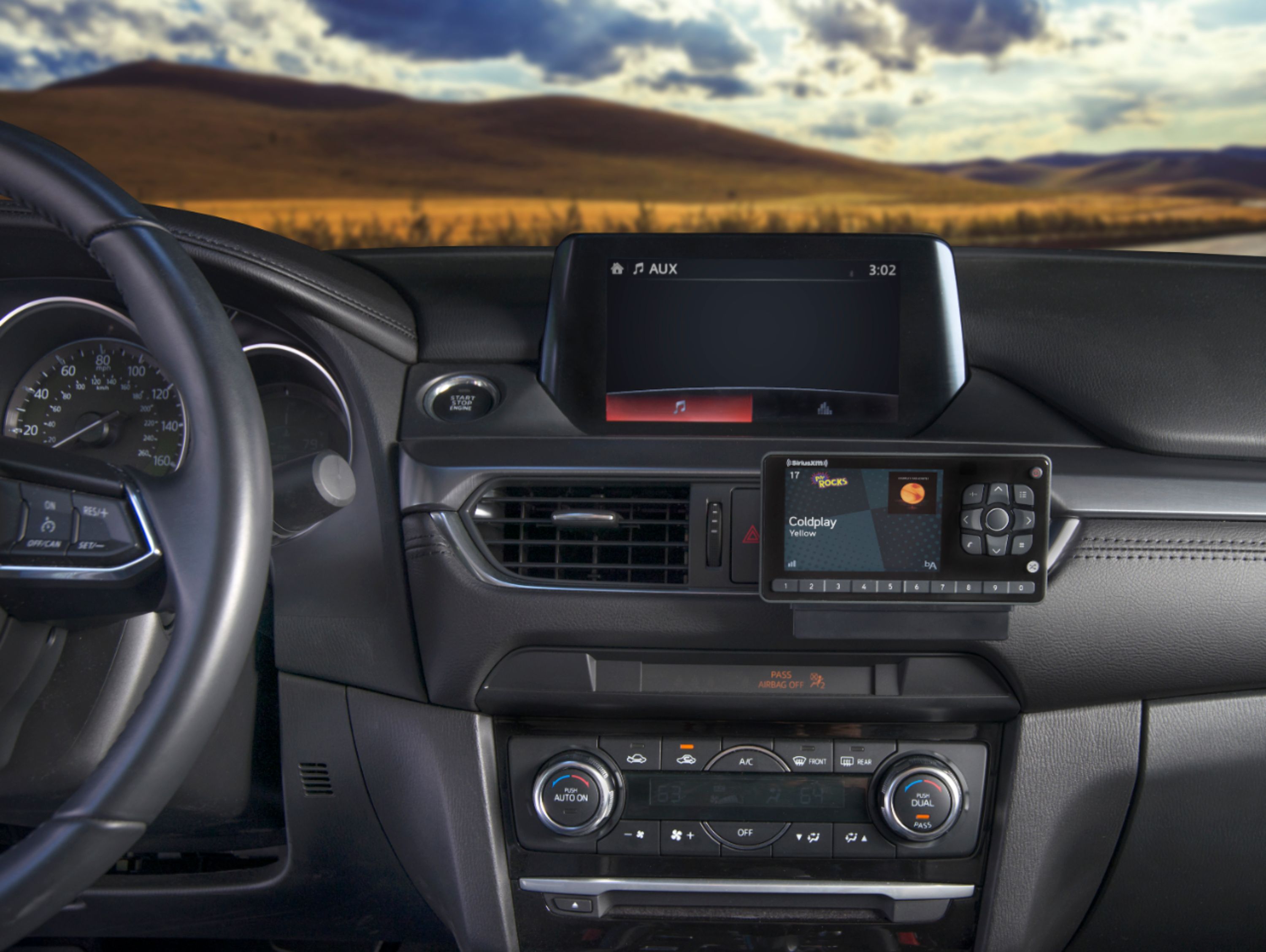
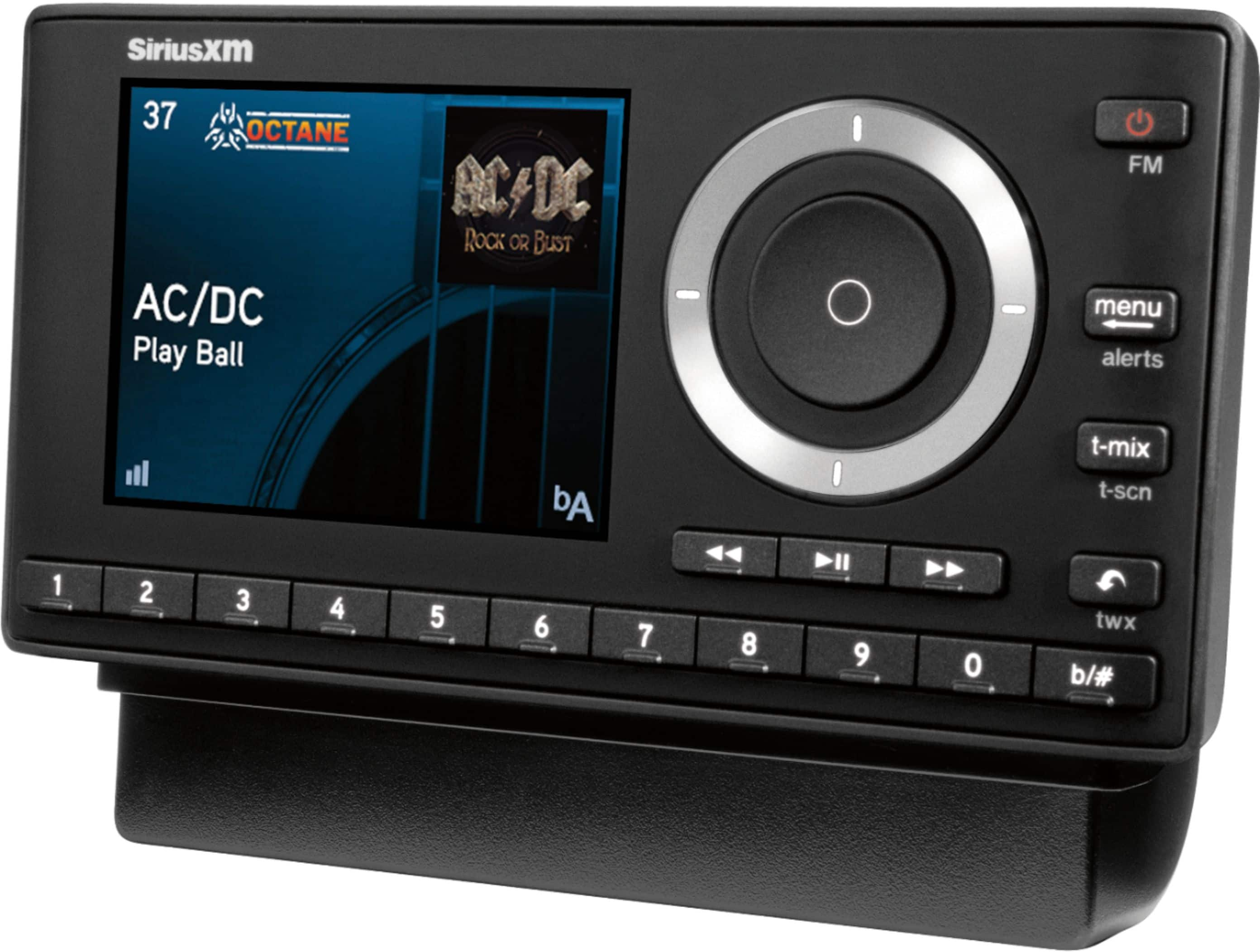
A:AnswerThis comes with a suction cup thing for your Window1 or to clip on your vent. you can buy an attachment to screw it to your dash but you have to screw it down. Another option if you want it flat against your dash would be to get some really good sticky velcro. It does come with an antenna and the hookups to attach it to your aux on your car. I have one of these for my husband's 18 wheeler.

A:AnswerYou can plug an aux cable into the "earphone" jack on the SXSD2 and run that aux cable to external amplified speakers. The earphone jack is only suitable for earphones so it can't drive speakers directly so you will need an amplifier.
A:AnswerYou need to check in the specs of the radio that is says SiriusXM tuner built in. If not then if the radio has auxiliary port then have to buy one of the SiriusXM radios for car with vehicle kit
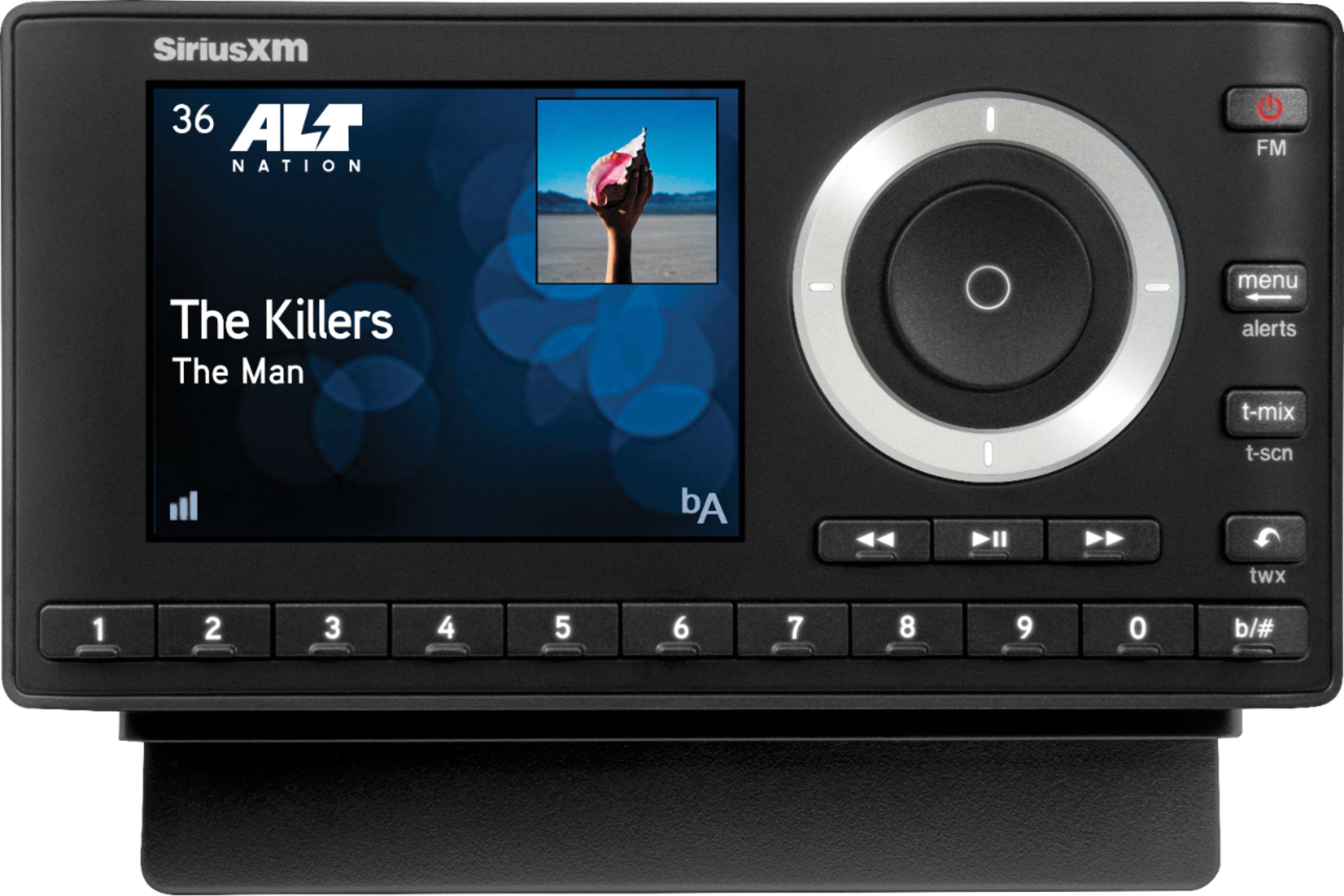
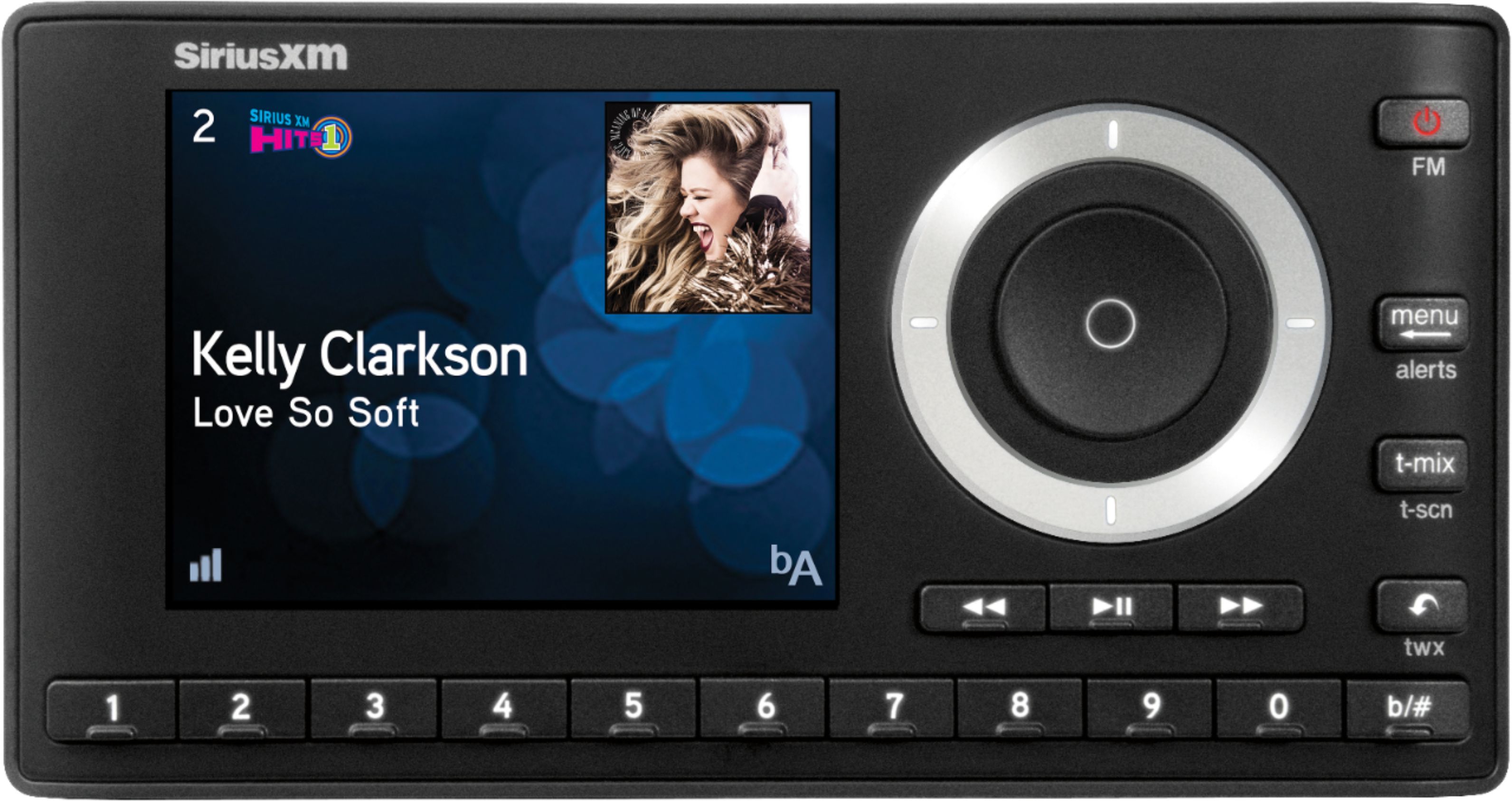
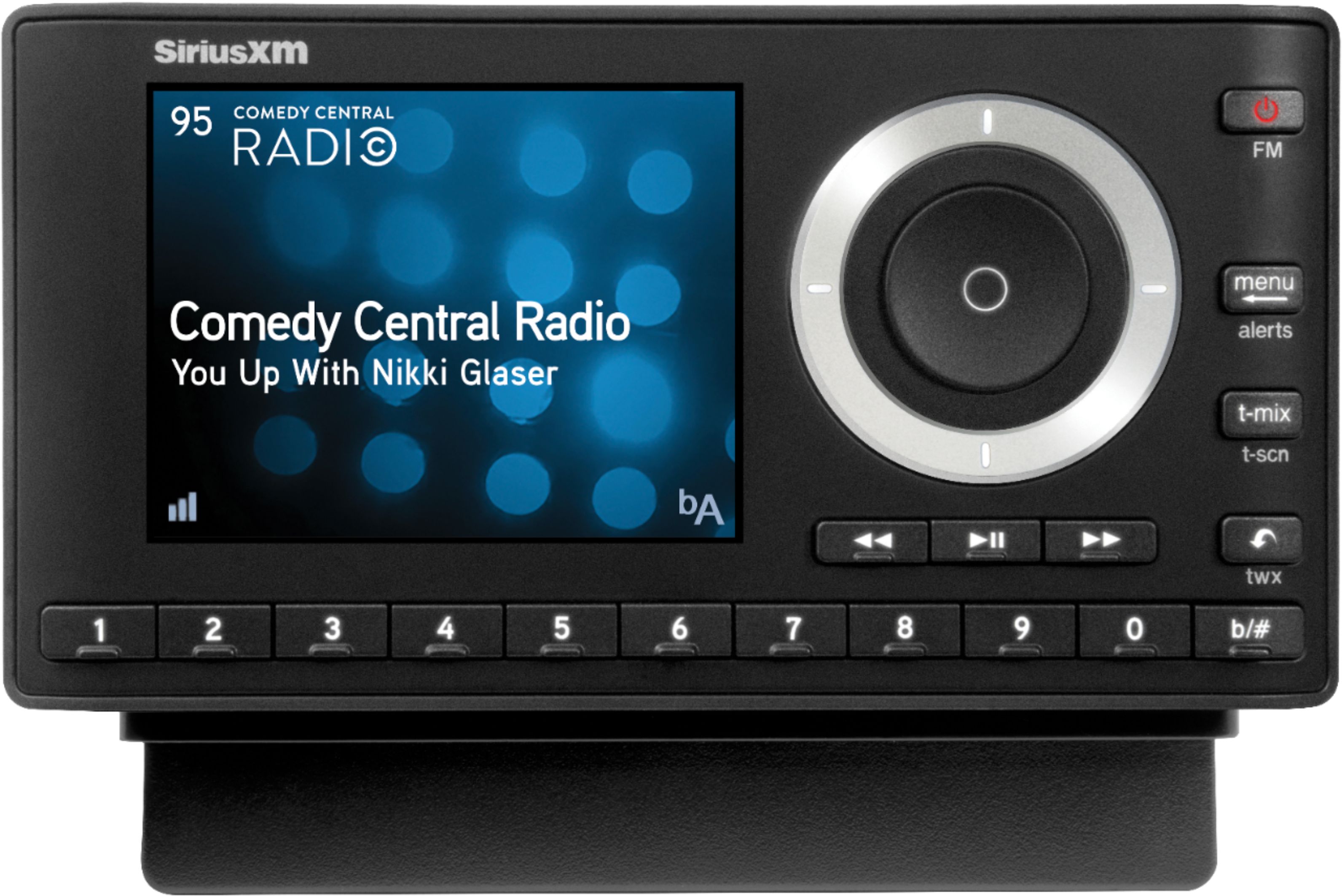
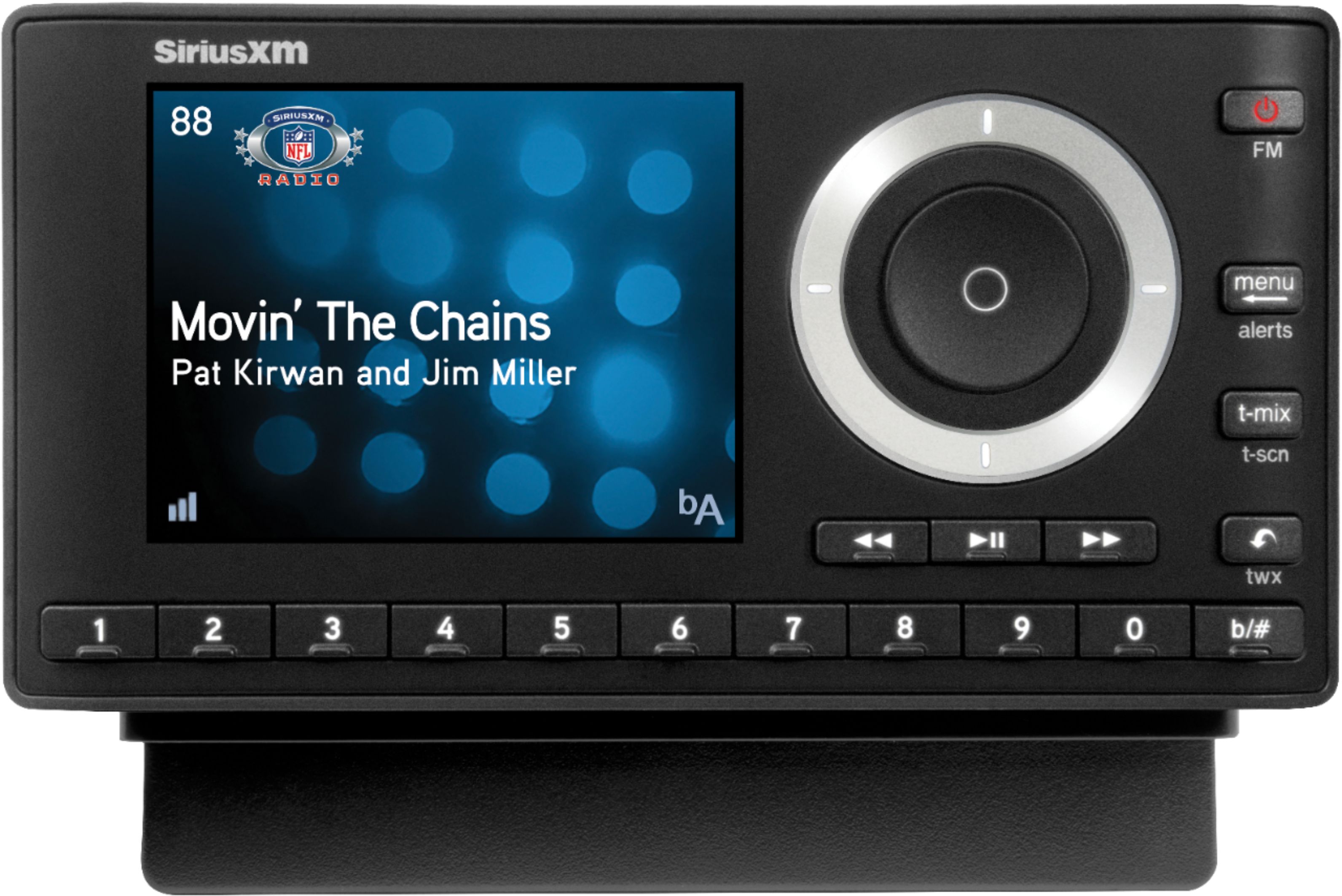
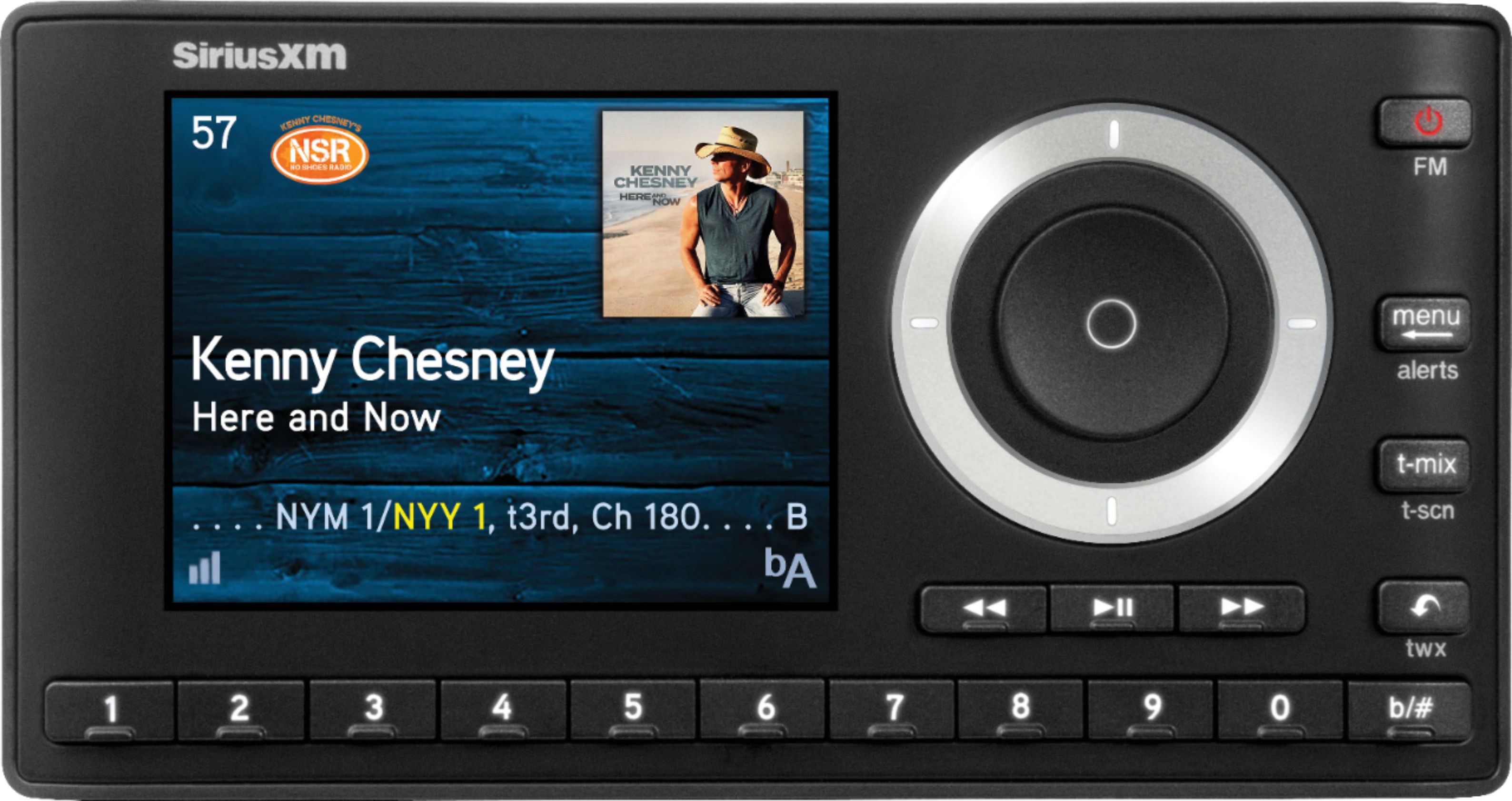
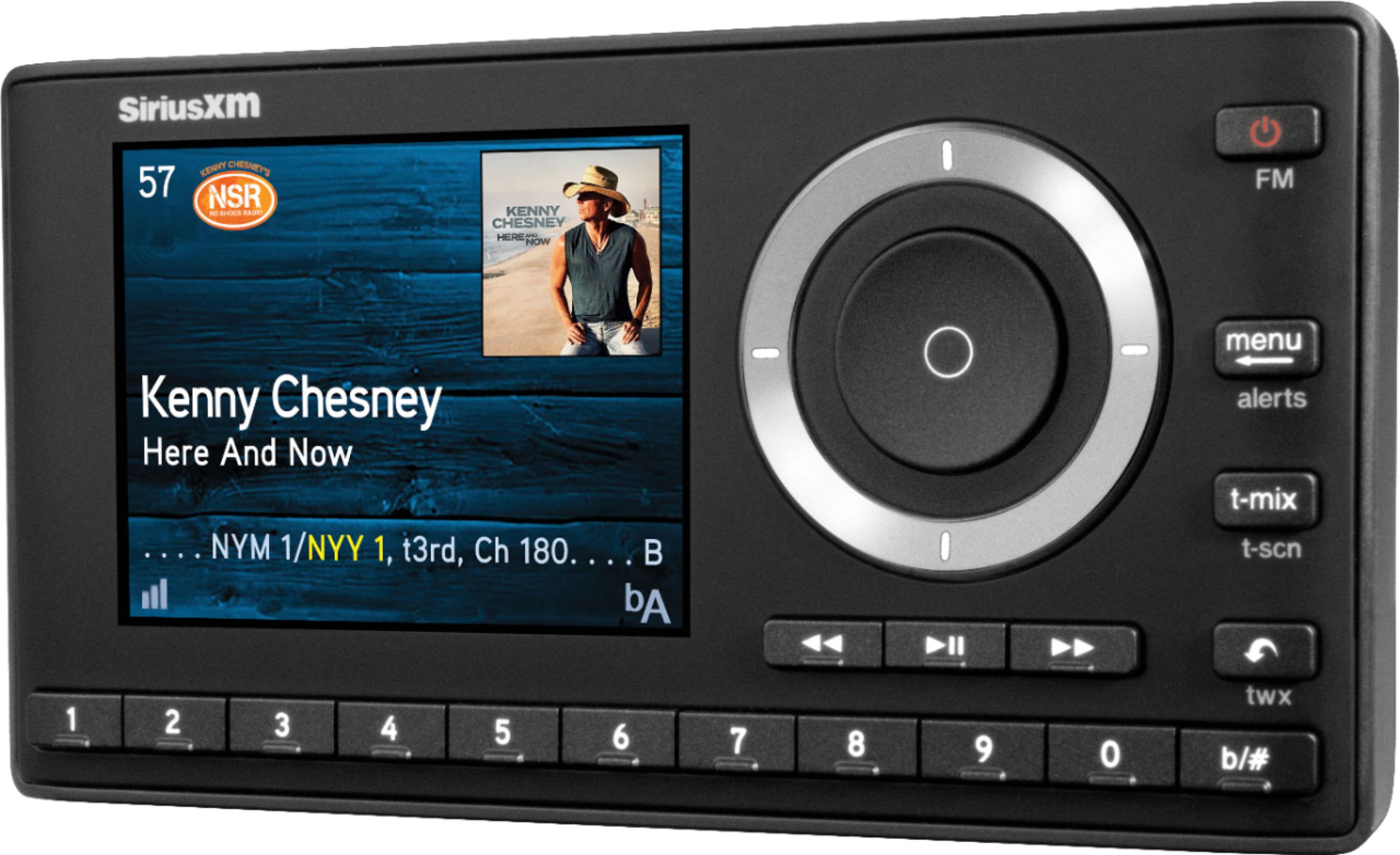
A:AnswerYes, Channels stored in buttons 1 - 9 in banks A & B favorites. You can access and program the "B bank" using the b/# button on the bottom far right of the radio. Here are the specific instructions:
To assign a favorite channel to a number button:
1. Tune to the desired channel.
2. Select the bank in which you want to save the favorite channel by pressing b/#.
3. Press and hold a number button between 0-9 that you want to assign to that favorite channel. An advisory with the channel number and name will be displayed on the screen confirming that
the channel has been assigned.
To listen to a favorite channel:
1. Select the bank by pressing b/#.
2. Press the number button between 0-9 that was assigned to the desired favorite channel. Onyx Plus will tune to that channel.
TIP! When you are at the main display screen, press left to see your list of favorite channels. Scroll to highlight a favorite and press the Select button to listen to that channel.
A:AnswerAssuming that all 3 subscriptions are car radio subscriptions and not plug and play radios (Like Onyx plus), an alternative is if your subscription is either Select or All access now which includes streaming, you can purchase the internet radio below and use for home and there would be no additional subscription charge.
https://www.bestbuy.com/site/siriusxm-wi-fi-sound-station-black/6454202.p?skuId=6454202