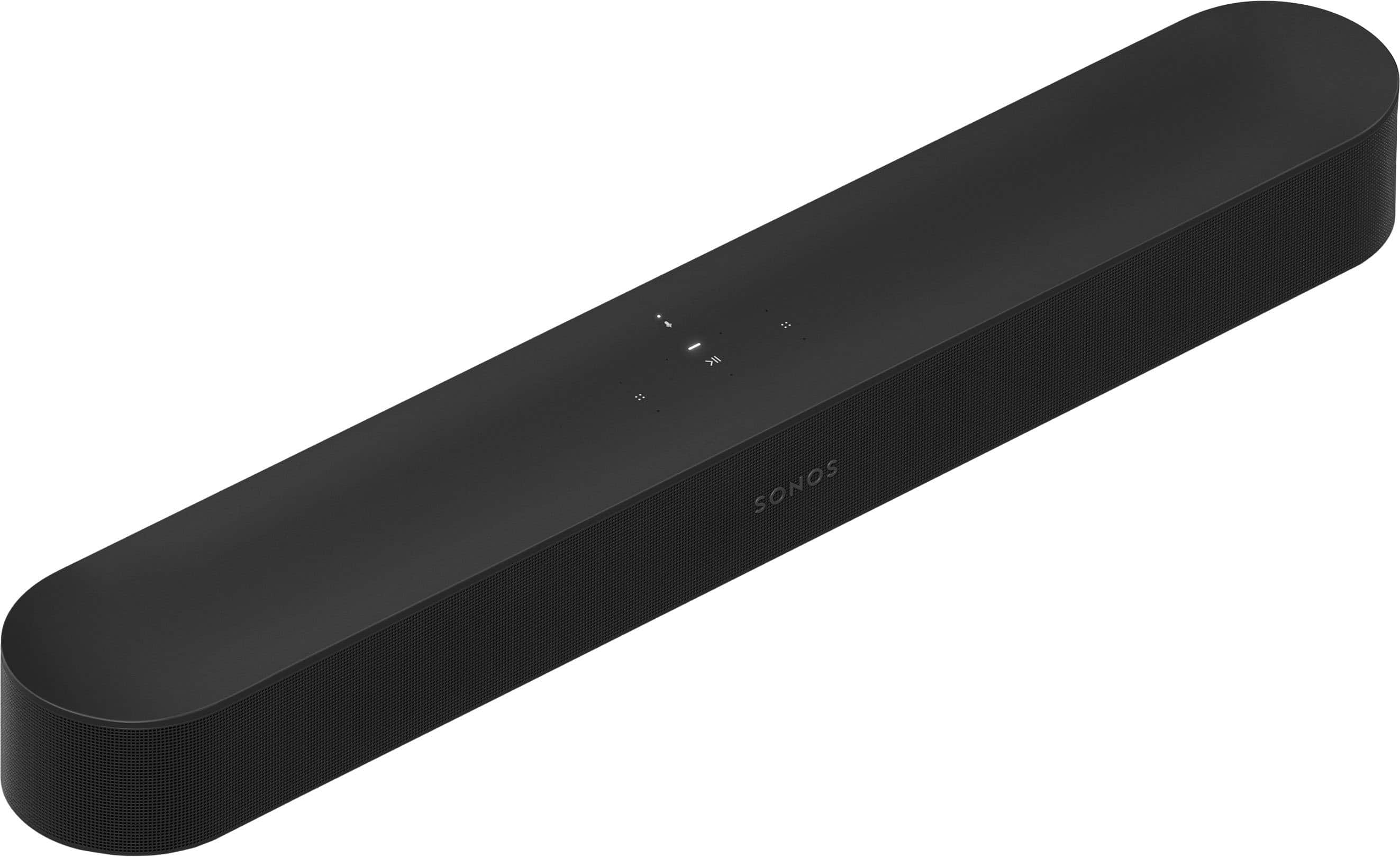
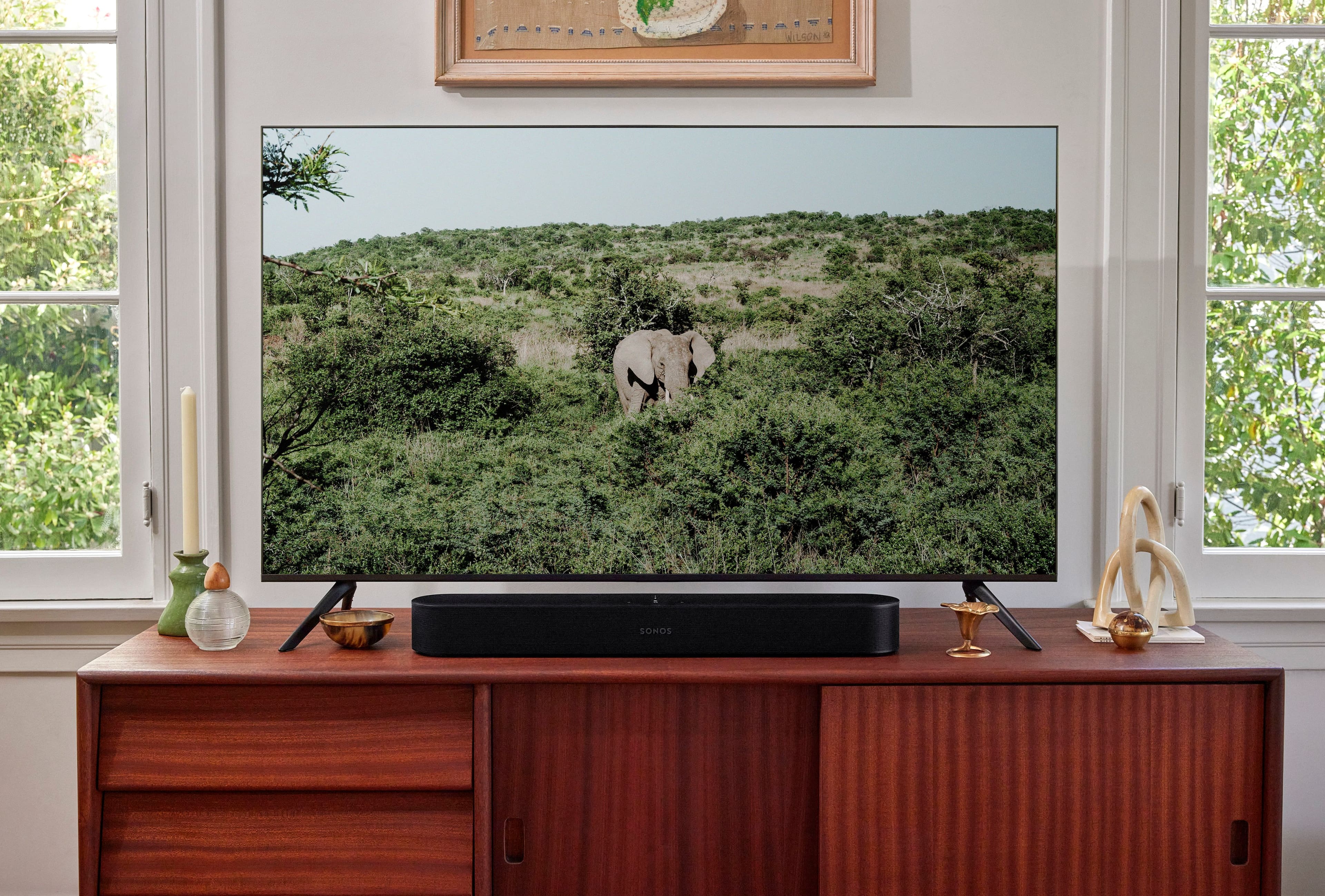
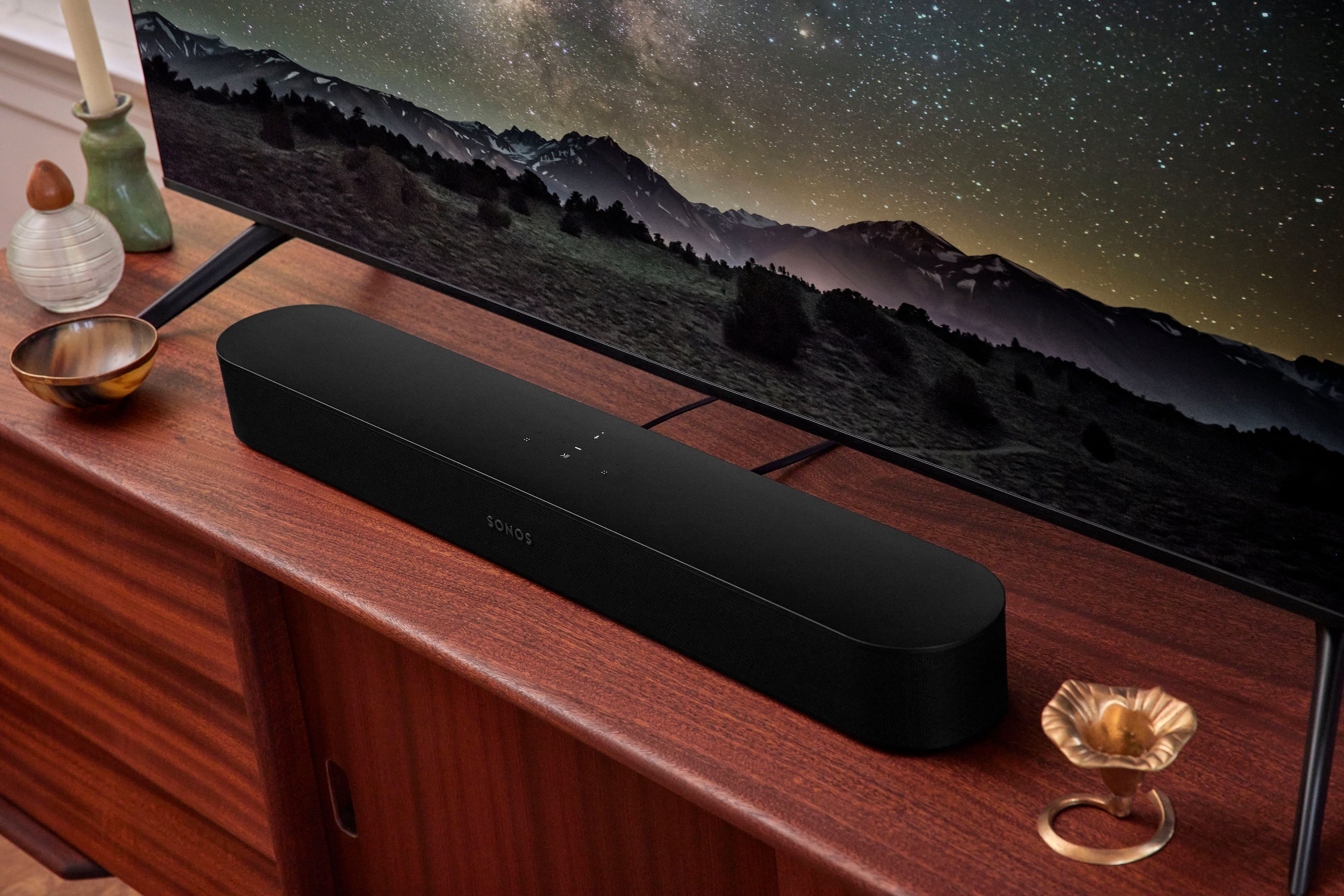
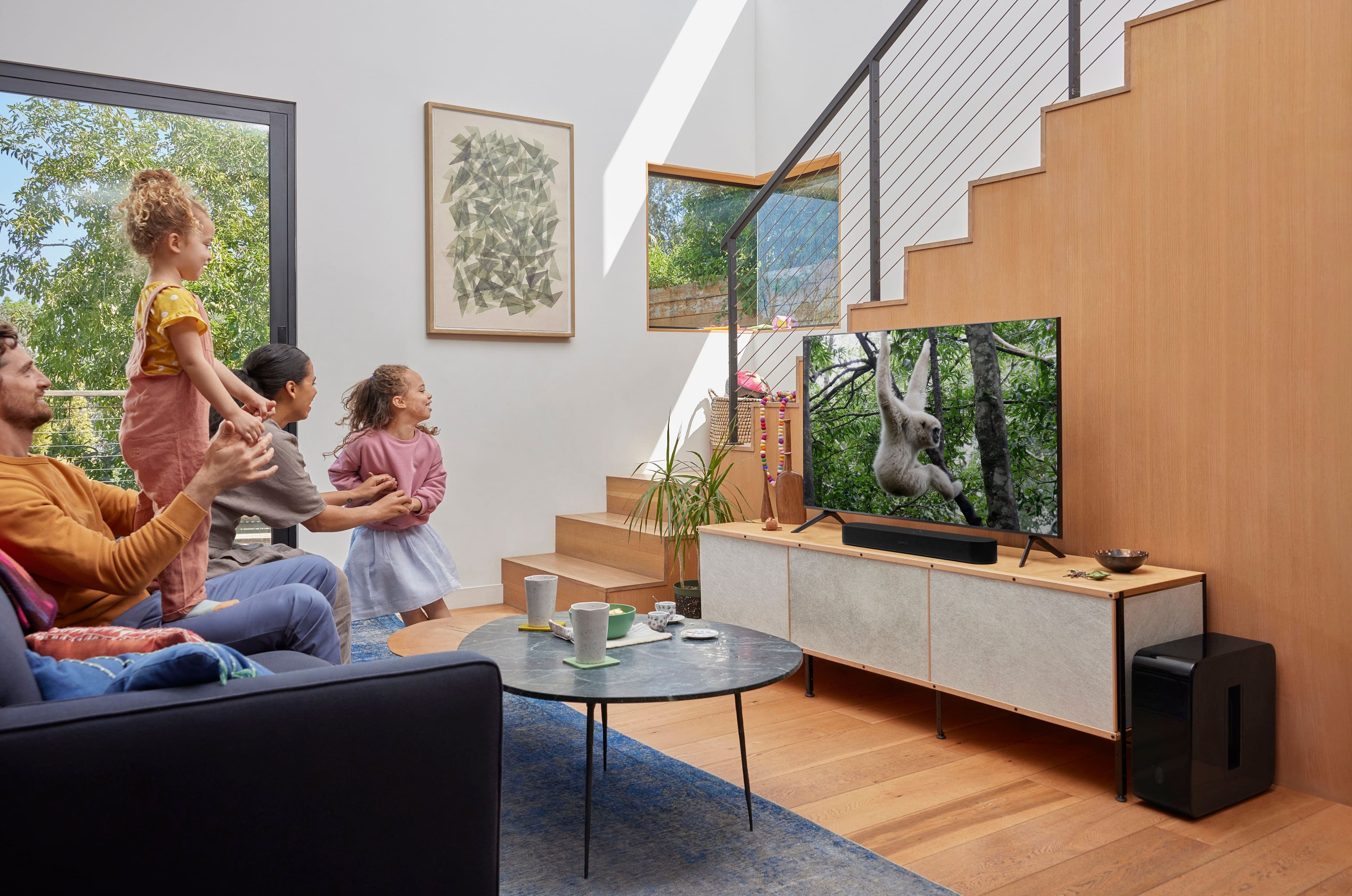
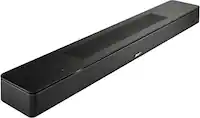
A:AnswerIt depends how you have your TV mounted to the wall. Look at the plate to see if you can connect to the center or at the sides. My TV mount has a single arm from the center of the plate so I needed a soundbar mount for the sides.
I used a Mounti-it! Sound bar mounting systems for the Beam.
A:AnswerYou can use nearly ANY remote to adjust the volume on the Beam. Once your input device (TV) is powered off, your Beam will turn off as well. You can also say "hey Sonos, power off/on." You can adjust the volume by saying saying "hey Sonos, volume up/down" or pick a specific volume level from 0-100.
A:AnswerIf your Sonos Beam (Gen 2) experiences intermittent sound interruptions and displays the Dolby Atmos indicator on your TV screen, there are a few troubleshooting steps you can try to resolve the issue:
Troubleshooting Steps
Check HDMI Connection:
Cable Quality: Ensure you’re using a high-speed HDMI cable that supports Dolby Atmos and is in good condition. Faulty cables can cause interruptions.
HDMI Ports: Make sure the HDMI cable is securely connected to both the Sonos Beam (Gen 2) and the TV's HDMI ARC or eARC port.
Update Firmware:
Sonos App: Ensure that your Sonos Beam (Gen 2) is running the latest firmware. Updates can fix bugs and improve performance. Open the Sonos app and check for any available updates.
Check TV Settings:
Audio Format: Go to your TV’s audio settings and ensure that the audio output is set to Dolby Atmos or bitstream rather than PCM.
HDMI CEC: Enable HDMI CEC (Consumer Electronics Control) on your TV, which can help manage the soundbar’s communication with the TV.
Roku Settings:
Audio Settings: Ensure that the Roku’s audio settings are set to pass-through Dolby Atmos. Go to Roku’s settings and set the audio mode to “Auto” or “Dolby Digital Plus” if available.
Sonos Beam Settings:
Trueplay Tuning: If you haven't already, run Trueplay tuning through the Sonos app to optimize the Beam’s sound performance for your room.
Check for Interference:
Other Devices: Ensure there are no other devices or apps causing interference with the Sonos Beam’s performance.
Restart Devices:
Reboot: Restart your Sonos Beam, TV, and Roku to reset their connections and clear temporary glitches.
Reconfigure HDMI ARC/eARC:
HDMI Settings: Double-check the TV’s HDMI ARC or eARC settings. Sometimes reconfiguring or resetting these settings can resolve audio issues.
Test with Other Content:
Different Source: Try playing different content to see if the issue persists across various sources or if it’s isolated to specific content or apps.
If these steps don’t resolve the issue, consider reaching out to Sonos customer support for further assistance
A:AnswerNo. Your Sonos Beam and your earbuds are both output devices with different intent. The Beam is designed for room filling external sound, while your earbuds are designed for personal listening only.
A:AnswerThe soundbar does not have an on/off switch that I know. But you don’t need it. If you’re watching tv, when turned off, the sound will go off.
And for just music, I play from Spotify or any app and connect to the bar through wifi. And I use my phone for that.
I think that that only works with an iPhone. But for Android, you can do that through the Sonos App.
A:AnswerI have 4 beams and 14 Sonos gen 2 in my house. I thought that they were going out. However, someone recommended me to go on eBay and buy a Sonos Bridge. Now there’s no buffering or delays. I would definitely try getting a bridge.