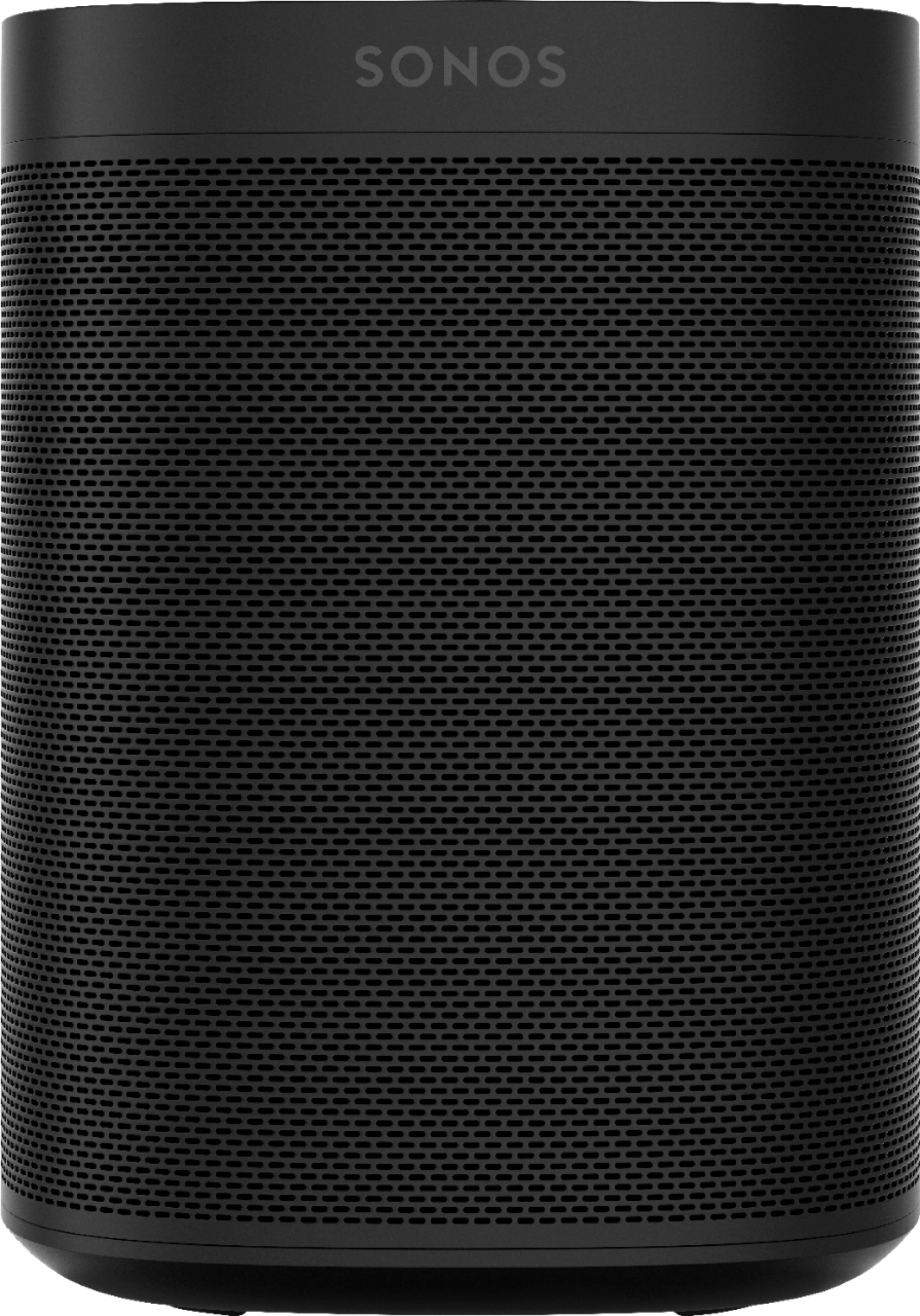
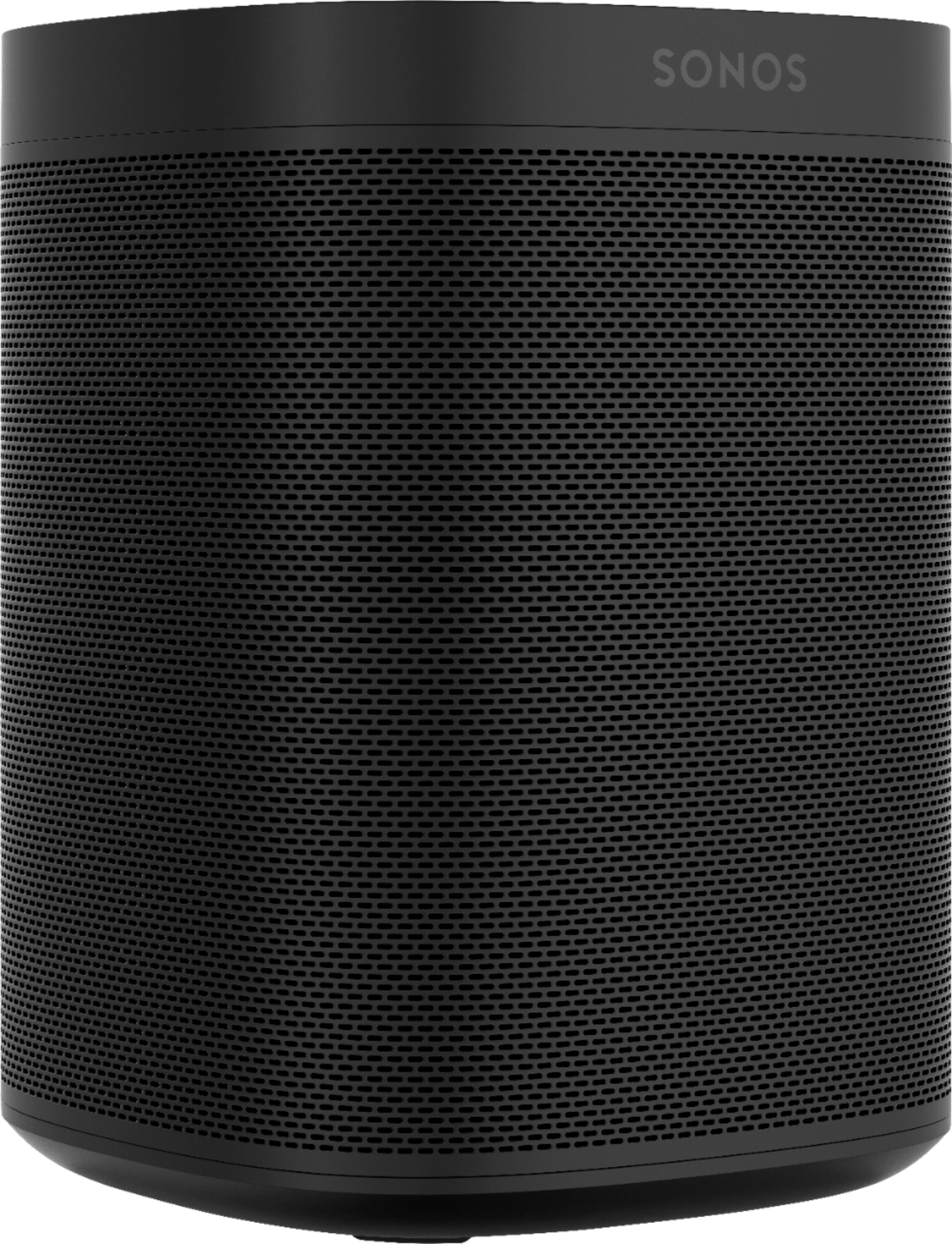
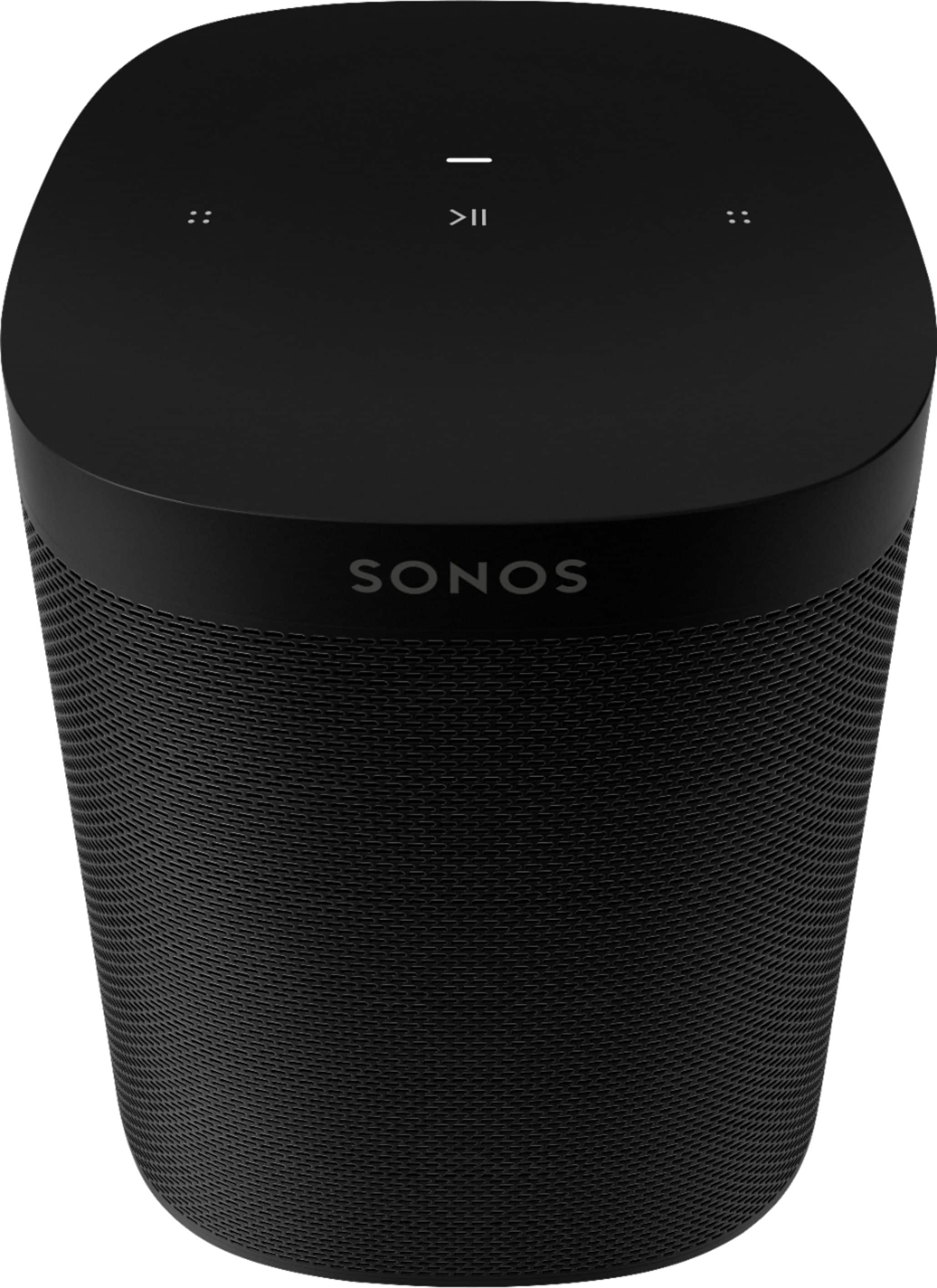
A:AnswerYou'll need a microphone that is compatible with Line-In or a preamplifier for the microphone that will interface between the microphone and Line-In. Inexpensive microphones designed for home use have the best chance of working. Professional microphones will need the preamp
A:AnswerThe Era 100 has a 25% larger woofer and two tweeters compared to the One SL’s single tweeter. So the Era 100s should have a wider soundstage and more bass than the One SLs. Also a redesign and slight quality of life changes make the Era 100s the better choice if looking to purchase between the two.
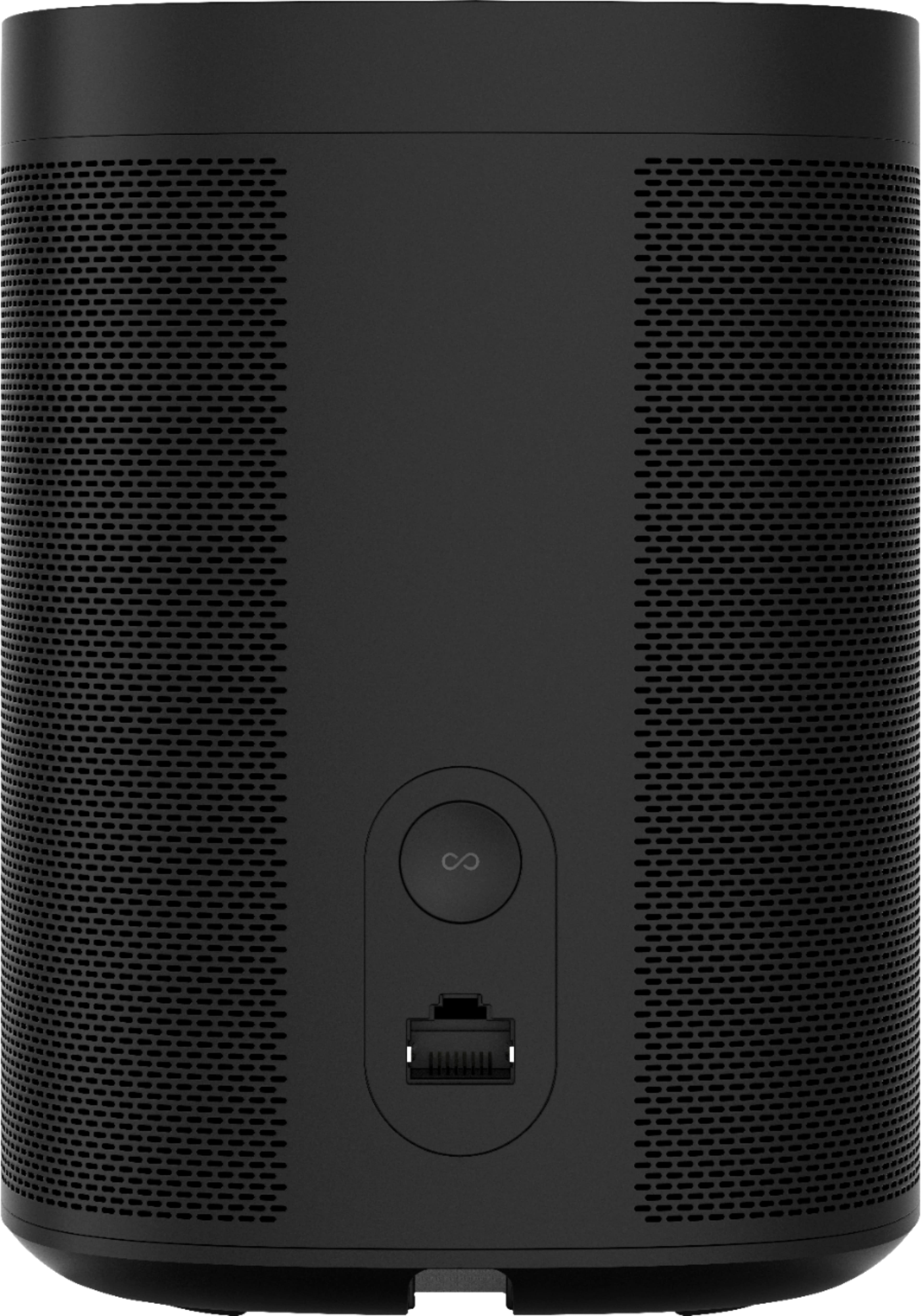
A:AnswerThese speakers do not have any wired connections other than ethernet. In order to set up to your home theater system you will need a soundbar first in order to connect these as surrounds to your home theater system.
A:AnswerYes, as long as its on the same network it does work like that. It can play independent audio or be grouped to play the same thing as another Sonos in your house.
A:AnswerYes they plug into the wall. I run mine through a wireless connection to my Sonos ARC so when I play music from my phone, it goes to that entire system. Honestly haven’t tried just one speaker.
A:AnswerThe Sonos One SL is a Wi-Fi speaker designed primarily for use within the Sonos ecosystem, and it does not have Bluetooth capability. Therefore, it cannot directly connect to your Sony Bluetooth record player via Bluetooth.
However, there are alternative methods to connect your Sony Bluetooth record player to a Sonos system, including using a Sonos Port or a Sonos Amp. These devices can be connected to your record player and integrated into your Sonos system, allowing you to stream audio from your record player to your Sonos speakers.
Here's how you can set it up:
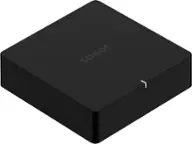
Using Sonos Port: The Sonos Port is a device that allows you to connect your existing audio equipment, such as a record player, to your Sonos system. You can connect your Sony Bluetooth record player to the Sonos Port using audio cables (such as RCA cables) and then connect the Sonos Port to your Sonos network. Once connected, you can stream audio from your record player to any Sonos speakers in your system.
Using Sonos Amp: The Sonos Amp is a versatile amplifier that can be used to power passive speakers or integrate existing audio equipment into your Sonos system. You can connect your Sony Bluetooth record player to the Sonos Amp using audio cables and then connect the Sonos Amp to your Sonos network. Similar to the Sonos Port, you can stream audio from your record player to any Sonos speakers in your system.
By using either the Sonos Port or Sonos Amp, you can integrate your Sony Bluetooth record player into your Sonos system and enjoy your vinyl records through your Sonos speakers.
If you have any further questions or need assistance with integrating your Sony Bluetooth record player with your Sonos system, please don't hesitate to ask!
A:AnswerUnfortunately, it's not possible to directly combine a single Sonos One SL with your LG TV's built-in speakers and control their volume independently. Here's why and what your options are:
Why It Won't Work:
Different Systems: Sonos speakers operate on their own wireless network and are controlled through the Sonos app, while your TV speakers work independently.
No Direct Pairing: There's no way to pair a single Sonos One SL as a standard wireless speaker to your TV.
Possible Solutions:
Sonos Soundbar: Invest in a Sonos soundbar like the Beam, Ray, or Arc. These soundbars connect directly to your TV via HDMI ARC/eARC and can replace your TV's speakers while offering superior sound quality and Sonos integration.
A:AnswerUnfortunately, it's not possible to directly combine a single Sonos One SL with your LG TV's built-in speakers and control their volume independently. Here's why and what your options are:
Why It Won't Work:
Different Systems: Sonos speakers operate on their own wireless network and are controlled through the Sonos app, while your TV speakers work independently.
No Direct Pairing: There's no way to pair a single Sonos One SL as a standard wireless speaker to your TV.
Possible Solutions:
Sonos Soundbar: Invest in a Sonos soundbar like the Beam, Ray, or Arc. These soundbars connect directly to your TV via HDMI ARC/eARC and can replace your TV's speakers while offering superior sound quality and Sonos integration.
A:AnswerUnfortunately, a single Sonos One SL speaker won't directly work as a wireless speaker for your projector. Here's why, along with some potential solutions:
The Issue:
Input Limitations: The Sonos One SL only has Wi-Fi for connectivity. It cannot receive audio signals directly from your projector.
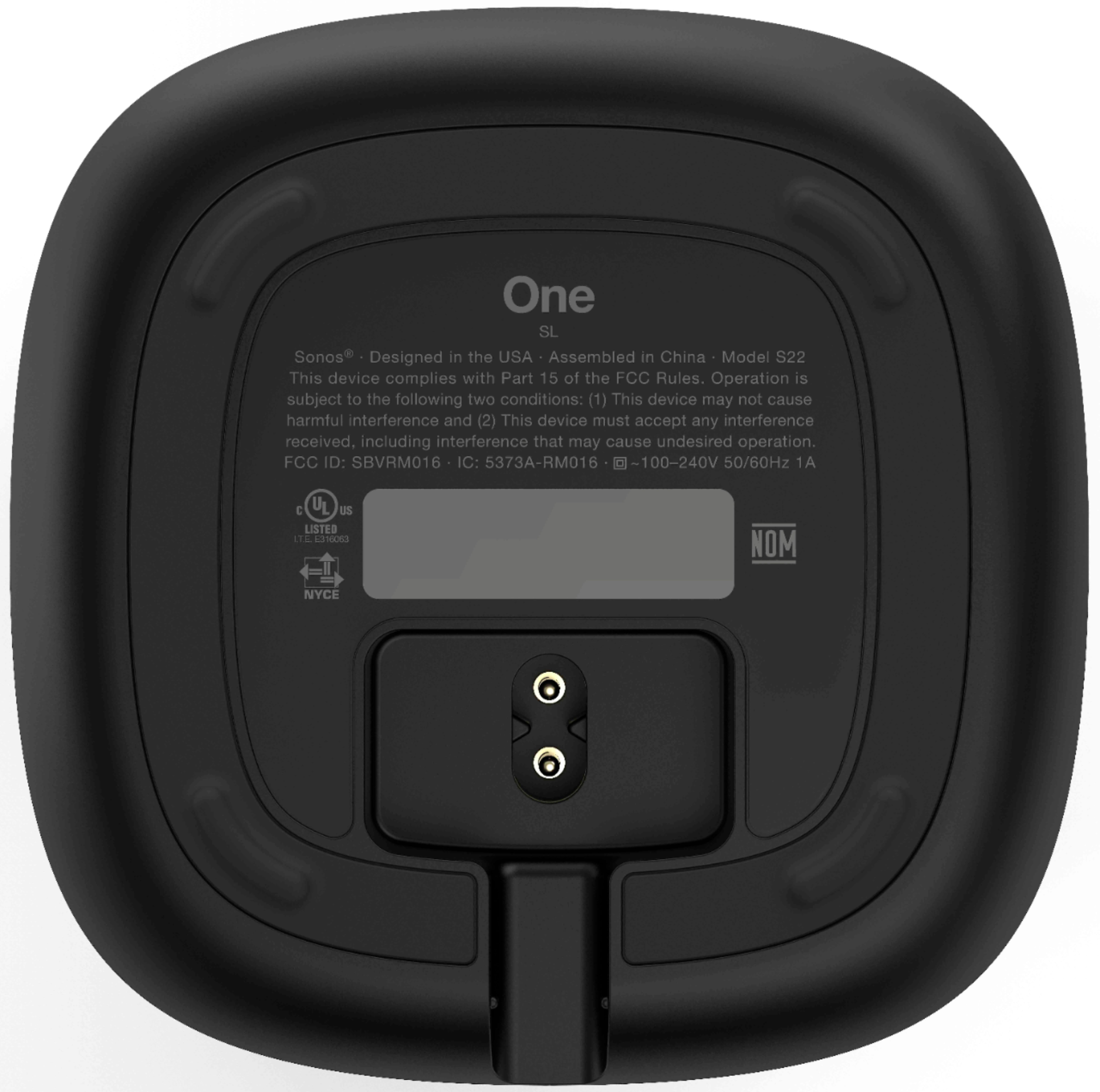
A:AnswerThe standard power cable for the Sonos One is 6 ft (2 m) long. Sonos also offers short power cables that are 19.7 in (.5 m) and long power cables that are 11.5 ft (3.5 m). I hope this helps!
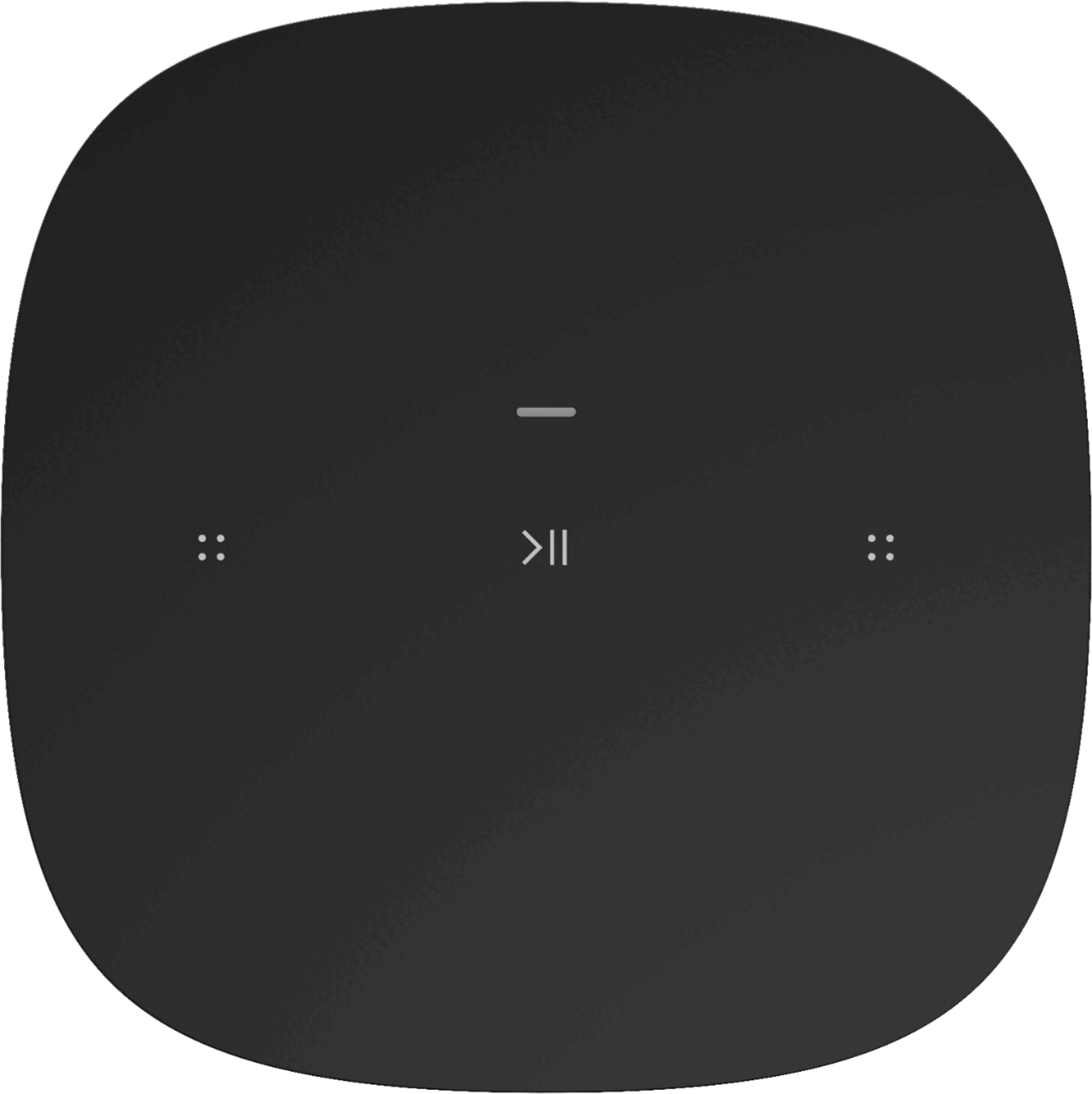
A:AnswerNope. It doesn’t have Bluetooth or an aux input. The only option for these would be a Mac using AirPlay. You could use the computer with the Sonos app to play music through them but that is all.
A:AnswerYes, the Yamaha RX-A870 receiver is compatible with MusicCast. This means that you can use it to play the same music tracks throughout multiple rooms. To do this, you will need to connect your Yamaha RX-A870 receiver to your network and then download the MusicCast app. Once you have done this, you can add your speakers to the MusicCast app and then start playing music.
Here are the steps on how to connect your Yamaha RX-A870 receiver to MusicCast:
Connect your Yamaha RX-A870 receiver to your network using an Ethernet cable or a wireless connection.
Download the MusicCast app from the App Store or Google Play.
Open the MusicCast app and sign in with your Yamaha account.
Tap the "+" button and select "Add Device."
Select your Yamaha RX-A870 receiver from the list of devices.
Follow the on-screen instructions to complete the setup process.
Once your Yamaha RX-A870 receiver is connected to MusicCast, you can add your speakers to the app and start playing music. Here are the steps on how to add your speakers to MusicCast:
Open the MusicCast app and tap the "Speakers" tab.
Tap the "+" button and select "Add Speaker."
Select your speaker from the list of available devices.
Follow the on-screen instructions to complete the setup process.
Once your speakers are added to MusicCast, you can play music from your favorite streaming services, such as Spotify, Pandora, and Tidal. You can also play music from your computer or mobile device.