A:AnswerHi Spahn,
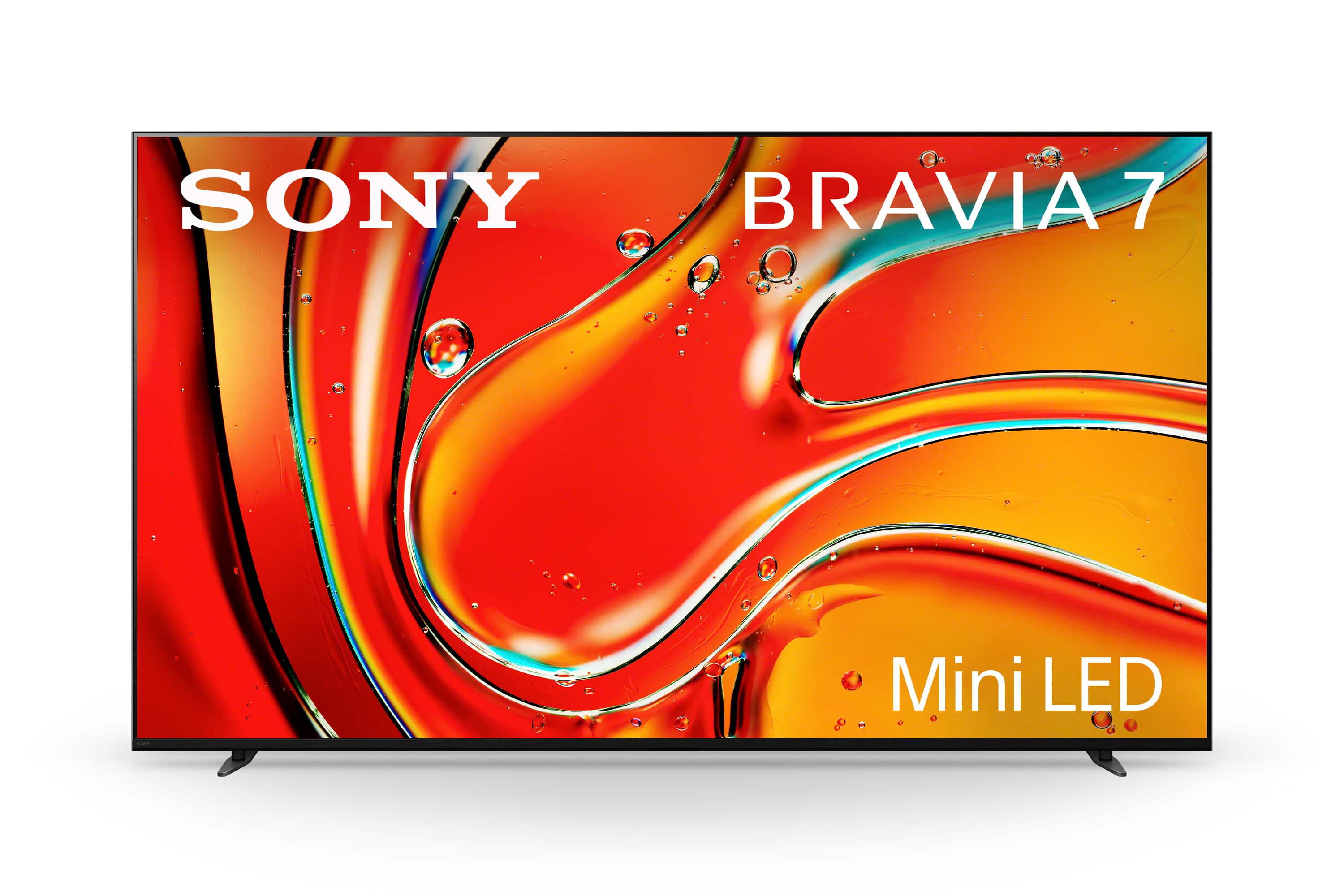
We are so sorry to hear you’re experiencing this with your new BRAVIA 7. We know how exciting a new TV setup is, and it’s certainly frustrating when one channel doesn't cooperate.
Since your other channels are working fine, it’s likely a minor software or signal glitch. Please try these steps to resolve the issue:
1. Power Cycle the TV: Unplug the power cord from the wall outlet, wait about 2 minutes, and plug it back in. This performs a soft reset of the internal processors.
2. Update the Software: Ensure your TV has the latest version by going to: Settings > System > About > System Software Update > Update your TV software.
3. Isolate the Source: Check if the issue persists when using built-in streaming apps (like YouTube or Netflix). If the apps work perfectly, the issue might be specific to your cable/satellite box or the signal for that particular channel.
However, if the issue also appears in different sources please contact our technical support team directly so we can provide more dedicated troubleshooting: https://us.esupport.sony.com/support/s/support-contact?language=en_US&category=tv
Thank you for choosing Sony!
Regards,
Dominick
A:AnswerHi Griz! Thanks for sending your question and making Sony part of your purchasing consideration!
The power cord length for the K-65XR70 is 1.6 m (5.2 ft).
For a full breakdown of the BRAVIA 7 specs, check out this link: https://www.sony.com/electronics/support/televisions-projectors-lcd-tvs-android-/k-65xr70/specifications
Best regards and happy 2026!
Estefany
A:AnswerHi Susie,
Thanks for reaching out! We can certainly assist you with that.
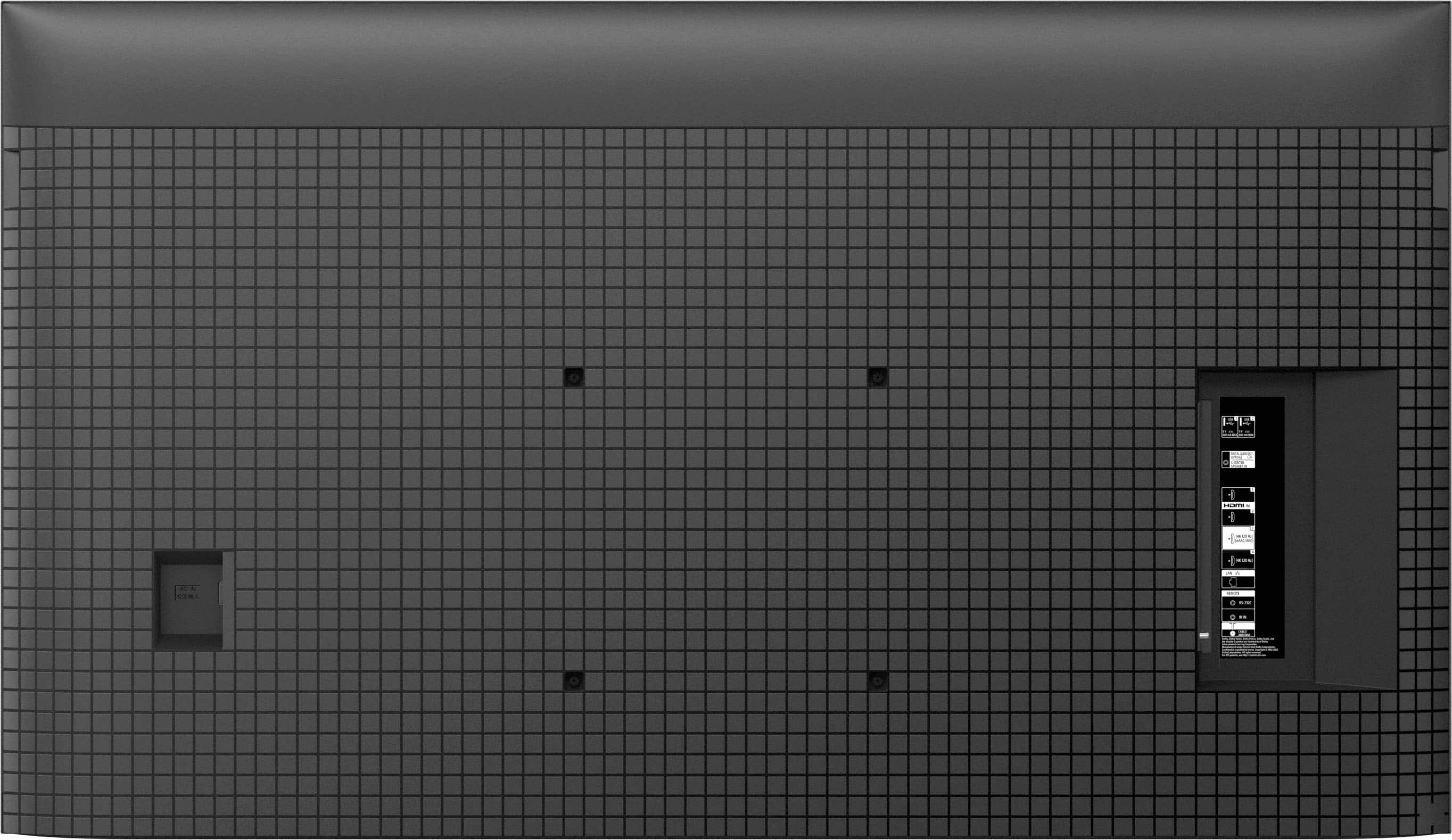
For the Sony K-65XR70 TV, you’ll need M8 size screws to mount it on the wall.
Make sure the wall mount you use is strong enough for your TV and if possible, have a professional help with the installation to keep everything safe.
To explore this topic further, kindly use the link provided below.
https://www.sony.com/electronics/support/articles/00124300
Thanks for considering Sony products!
Best regards,
Estefany
A:AnswerHi Rocket,
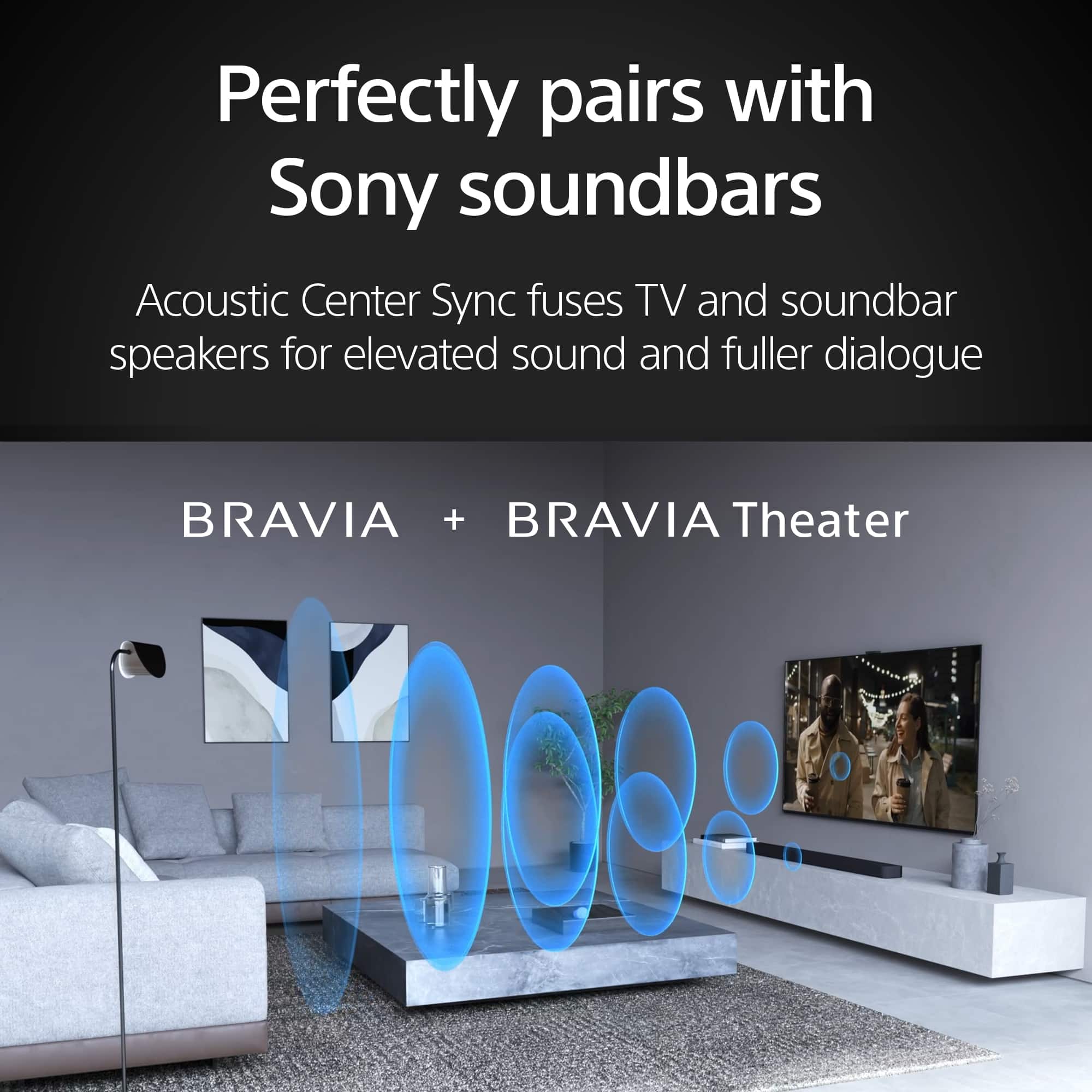
The Sony BRAVIA 7 is equipped with two powerful side-mounted speakers designed to deliver clear, precise audio that feels like it's coming directly from the screen. Thanks to our Acoustic Multi-Audio technology, you don't hear sound from beneath the TV—instead, audio is projected so that what you see and what you hear are perfectly aligned, creating a more immersive viewing experience.
Additionally, with 3D Surround Upscaling, the BRAVIA 7 can generate a virtual surround sound field from above and the sides using only the TV's built-in speakers. This allows you to enjoy a more cinematic, spacious sound without needing external audio equipment.
We hope you find this information helpful, and thanks for considering Sony!
Regards,
Dominick
A:AnswerThank you for contacting Sony, Casey.
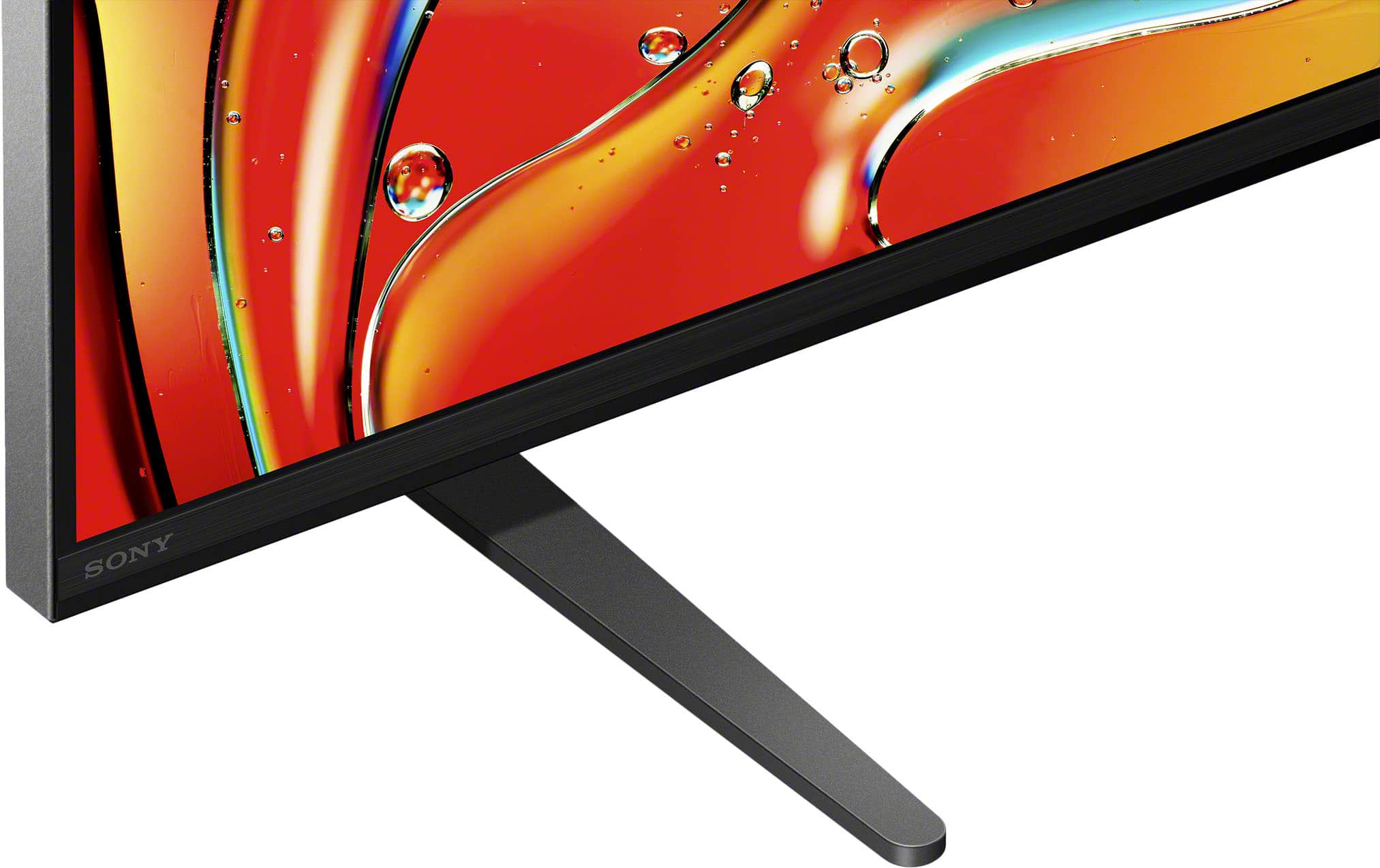
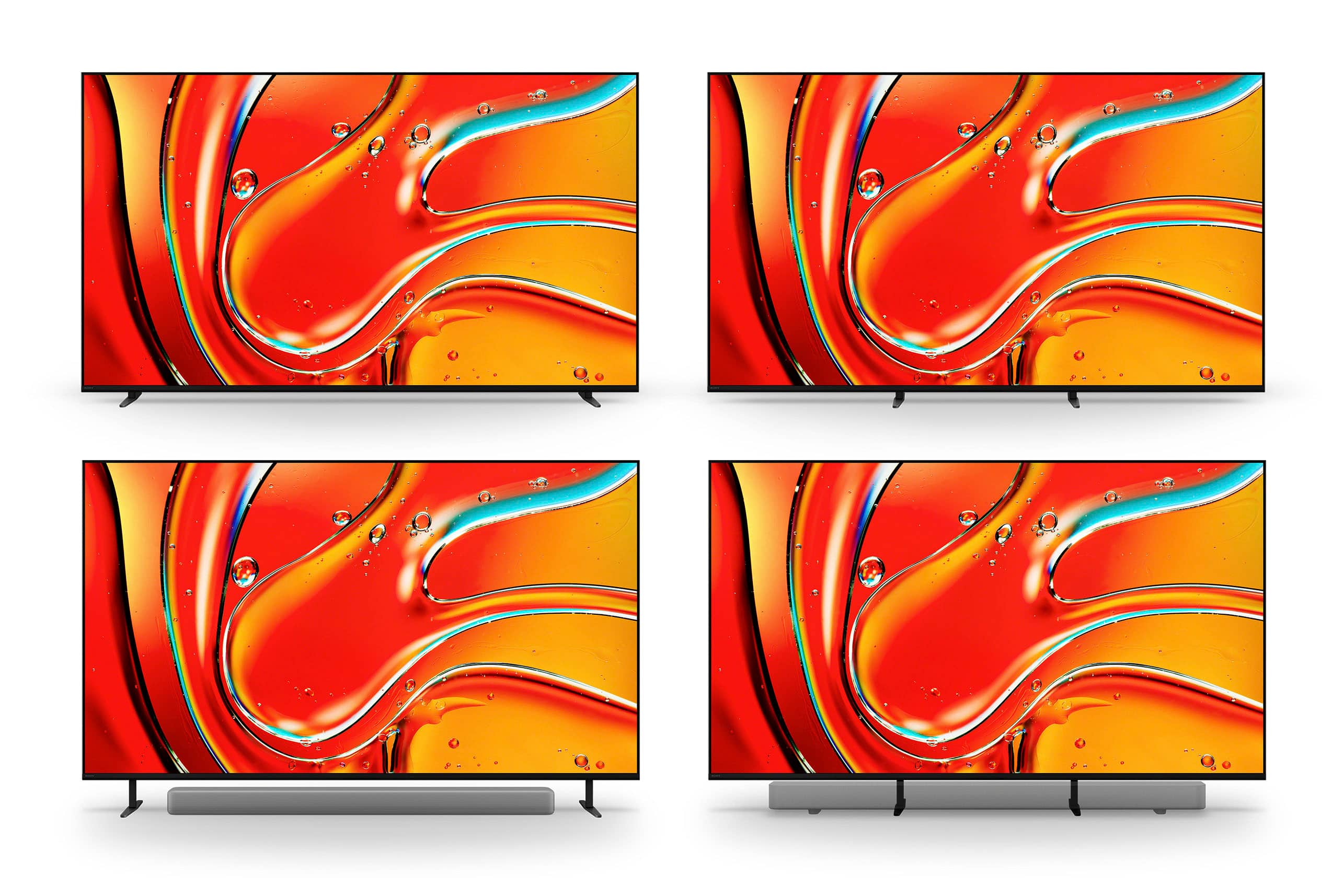
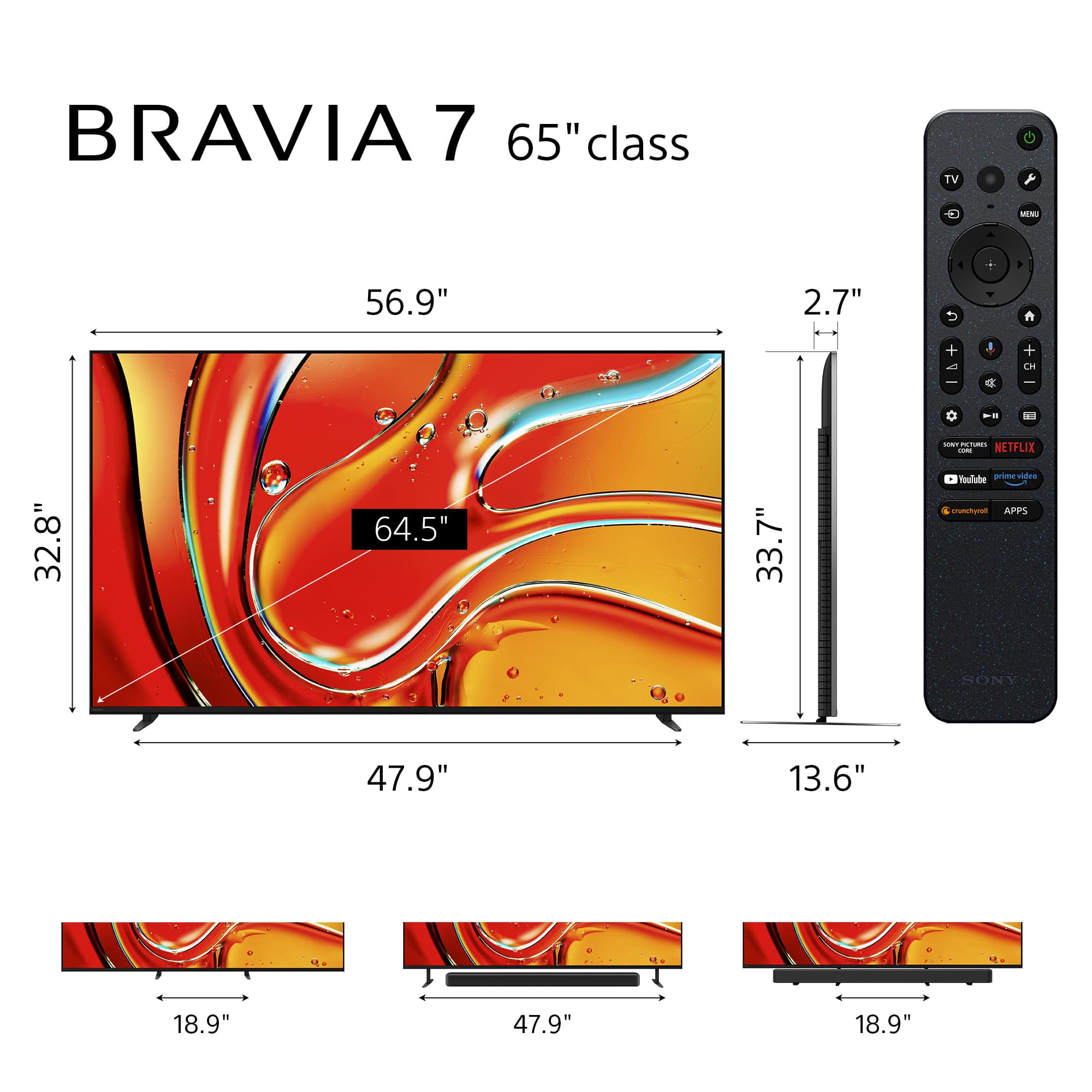
The height measurement for the 65" BRAVIA 7 when the adjustable stand is set to its highest position is 35 7/8 inches. This raised height is specifically designed to provide clear space underneath the screen for a soundbar without obstructing the picture.
We appreciate your interest in Sony products. Should you require any further assistance, please don't hesitate to reach out for support here:
https://us.esupport.sony.com/support/s/support-contact?language=en_US&category=tv
Best regards,
Gus, Sony North America Customer Support
A:AnswerHi Frasier,
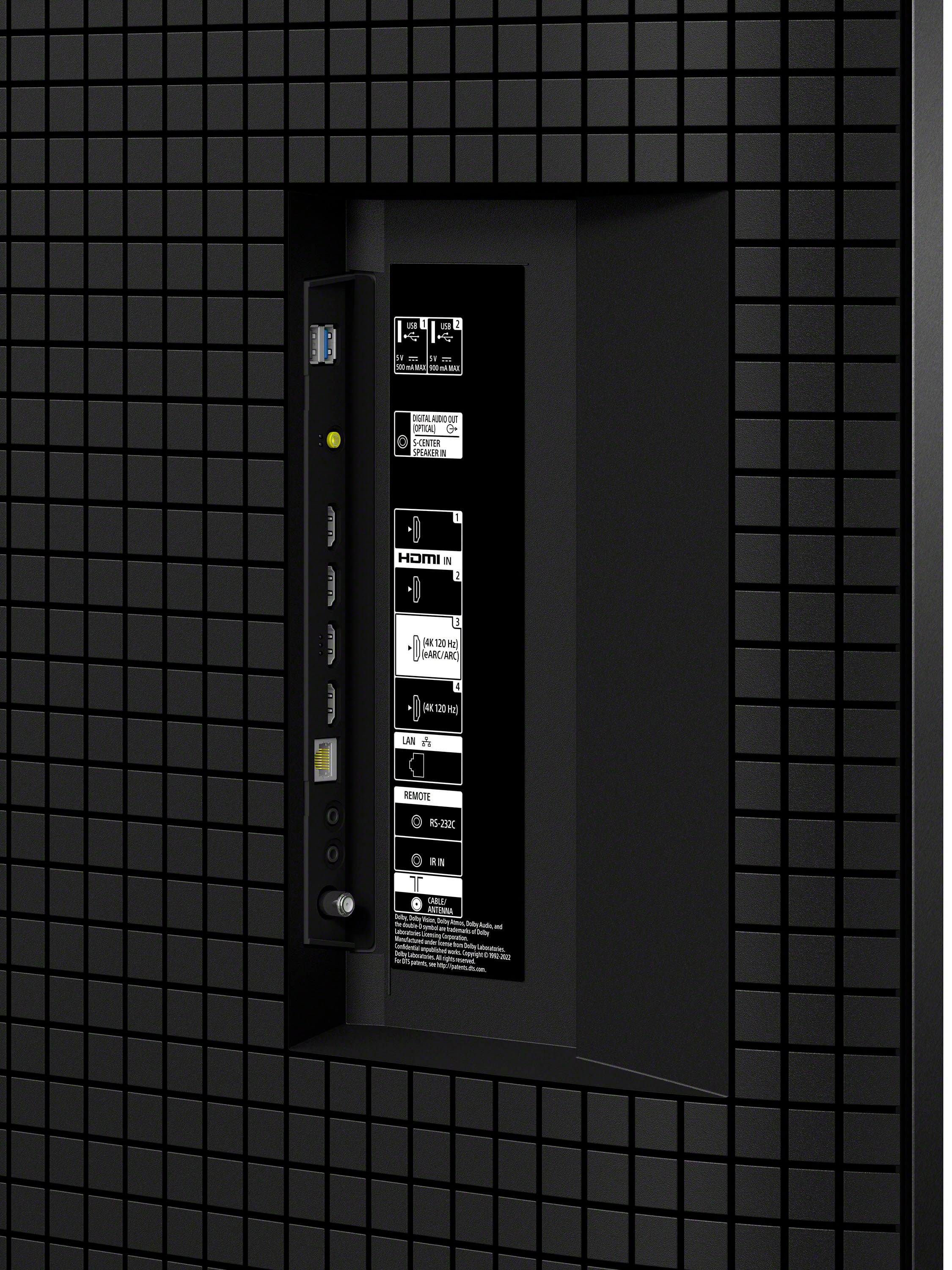
Thank you for your question! The Sony - BRAVIA 7 does not have a traditional optical output on the back panel. Instead, it requires a special adapter that's included with your TV. This adapter connects to the S-Center Speaker In port, allowing you to connect an optical cable. For a visual guide on where this port is located and how the adapter looks like, please check the link below:
https://www.sony.com/electronics/support/res/manuals/5057/be8adc7cf9a46dfeb878210e99e89373/50578571M.pdf
Thank you for choosing Sony!
Best regards,
Dominick
A:AnswerHi SonyBravia, we're really sorry to hear that you're experiencing issues with your Sony - BRAVIA 7 after the recent update, we understand how frustrating that can be. For the best picture quality and app performance issues you're seeing, we'd recommend trying the following steps:
1- Restart your TV - Sometimes a simple reboot can help clear out temporary glitches. You can restart the TV by pressing the power button on the Sony remote control for 10 seconds and then select "restart". Or if you prefer, you can also unplug the TV from the electrical outlet for 2 minutes and then plug it back in.
2- Clear the cache and data for the affected apps - Go to settings > apps > see all apps, select the affected app, then choose clear cache and clear data.
3- Reset picture settings - Navigate to Settings > Display and sound > picture > reset picture settings to bring everything back to default.
4- Ensure all apps are updated - Open the Google Play Store on your TV for any pending app updates.
If the issue persists, you can contact our technical support team through the link below: https://us.esupport.sony.com/support/s/support-contact?language=en_US&category=tv
Thank you for considering Sony products!
Best regards,
Dominick
A:AnswerHello,
Thank you for your interest in the BRAVIA 7 65"!
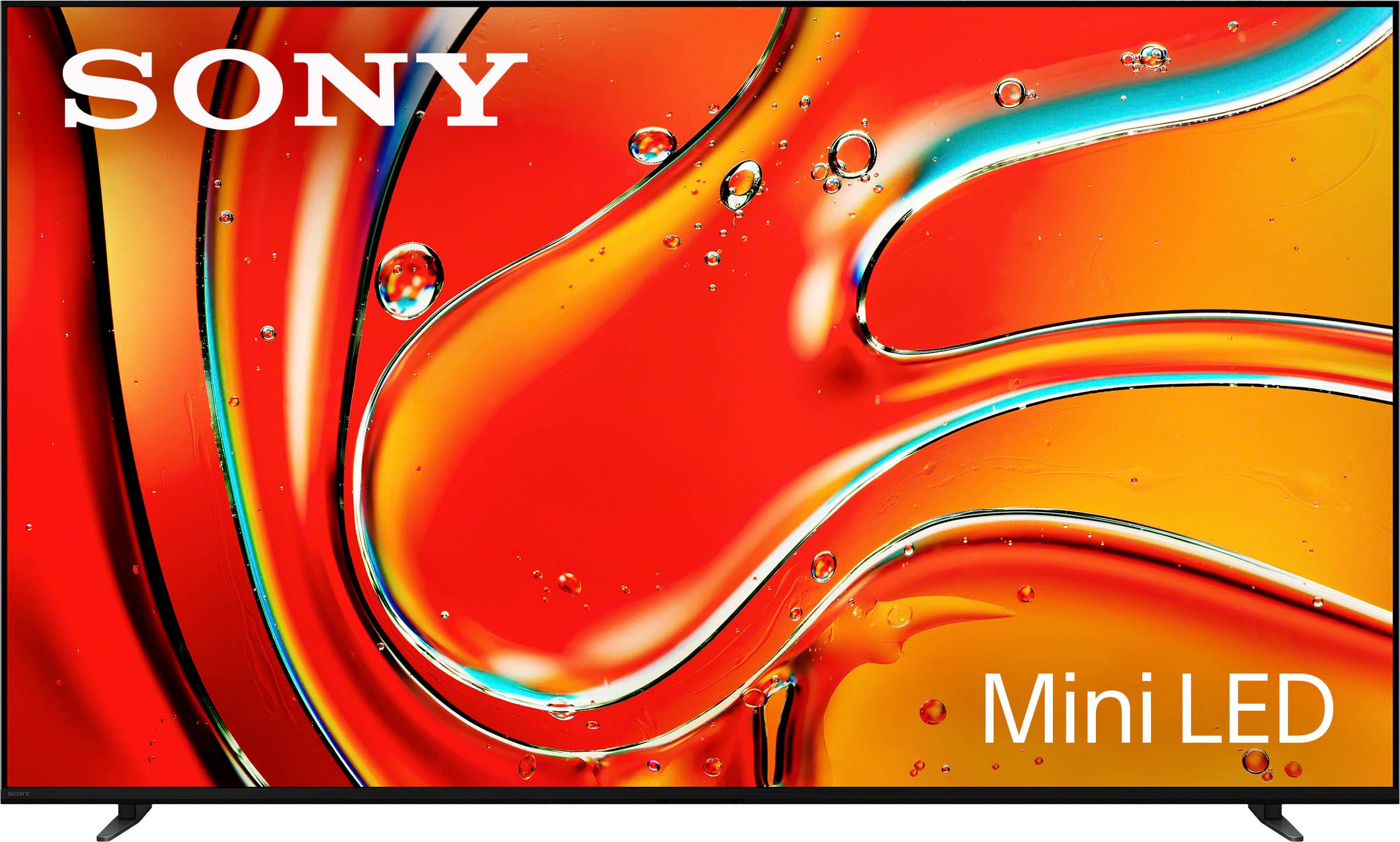
Regrettably, this model does not include an anti-glare feature. For a comprehensive list of specifications, please visit:
https://www.sony.com/electronics/support/televisions-projectors-lcd-tvs-android-/k-65xr70/specifications
If having anti-glare technology is a priority for you, we recommend considering the BRAVIA 9 65", which does offer this feature. You can find its specifications here:
https://www.sony.com/electronics/support/televisions-projectors-lcd-tvs-android-/k-65xr90/specifications
Thank you for exploring our BRAVIA lineup. We hope this information proves helpful!
Best regards,
Gus
A:AnswerHello,
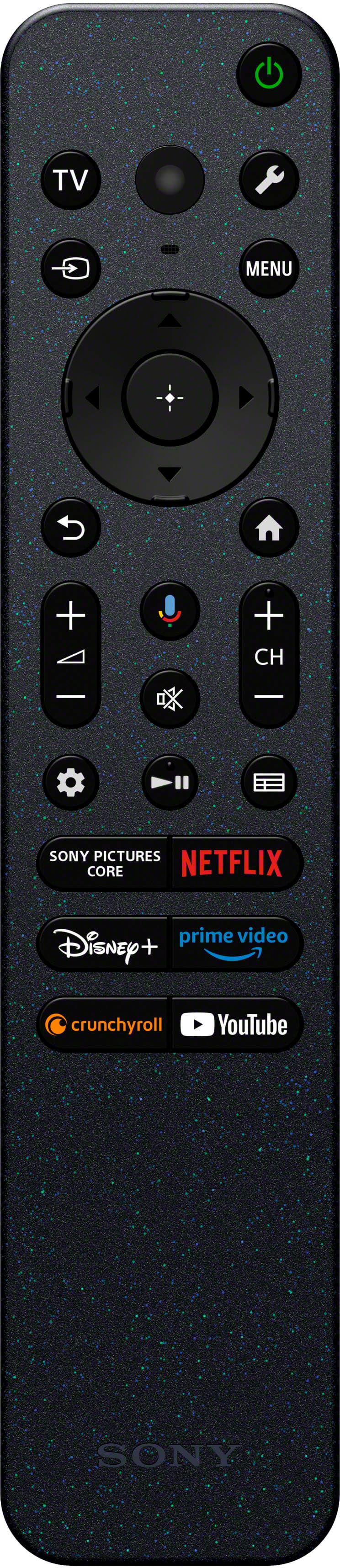
Thank you for reaching out to us with your concern. If you're trying to access the manual for the remote control of your Sony BRAVIA K65XR70 (BRAVIA 7) TV, follow these steps:
1. Using the TV Remote:
- Press the HOME button on your remote control.
- Select Apps.
- Select Help under the Your apps section.
2. Accessing BRAVIA Help:
- On the Help screen, you can find a section titled Manual (Help Guide).
- This section contains several chapters on the settings and options of your TV, including information on using your remote control.
3. Using the HELP Button:
- Alternatively, if your remote has a HELP button, press it to directly access the BRAVIA Help screen.
These steps should help you locate the necessary manual and information about operating your K65XR70 remote. If you continue to have trouble, please refer to the support page for more detailed instructions and troubleshooting tips.
If the steps provided do not resolve your issue, please reach out to us by following the instructions below so we can assist you more effectively.
Due to our current phishing protection protocol at Best Buy, we are unable to provide a direct email address or phone number for customer support at this time. However, you can find the support information for Sony Electronics by visiting our support website. Once there, click on "Support," scroll down to "Contact Support," select "Television," and you will discover various ways to get in touch with us.
We apologize if you have already shared some of this information in your review or with customer service; we simply want to ensure we have your accurate details for effective communication.
Please provide the following information:
- Name:
- Best Buy Username:
- Sony TV Model Number:
- Question/Concern:
- Telephone Number:
We hope this information is helpful, and we appreciate your choice of Sony!
Best regards,
Romeo