A:AnswerAs I stated in my original review. Sony seems to have chosen, to consider absolutely nothing else, except for the fact that their wireless "Gold" headphones, will function exclusively with their PS4. Without considering any other utilitarian uses, whatsoever. Why is it so hard to make Sony's headphones work with my PC, or smart TV (via USB) ??
I do not believe, that these headphones are currently compatible with Direct TV (satellite cable, right?). The only success that I have personally had, is when connecting them via PS4. This is where they ultimately shine, and earn their keep. When connecting via headphone jack, I have noticed a sharp reduction in sound quality. Plus, using the provided jack, makes one wonder why they even bothered making them wireless, at all.
What I find most distressing is that this is by no means "cutting edge technology". So what's the problem??
Your 2nd query is too vague. More detail is necessary to formulate a logical answer. I use my pair exclusively with my PS4. Which allows me to watch DVD's, stream movies & music, and while playing games.
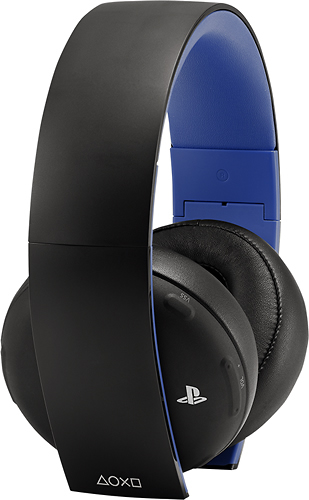
A:AnswerThis will work with a laptop or a desktop pc not with a tv because tv usb are usually only for reading files movies,music,photos. It worked flawlessly with a windows 10 pc.
A:AnswerNope, the USB wireless adapter only works with ps3-4 but it does have an option to connect via 3.5mm audio cables, where if you purchase a long one you could plug into your audio equipment or tv set
A:AnswerYes, the mic works great. I use it on my computer for skype calls too. If you wear the headset backwards, the mic wont work as good. Just make sure all the controls for the headset is on your left ear and you'll know you are wearing the headset correctly.
A:AnswerYes, because it's a wired connection to the VR headset. You just use the included audio cable and connect your Gold Wireless Headset to the VR's 4-button remote attached near the top of it's own cable.
A:AnswerYes, there is an audio cable included with this one that can be plugged into the controller and the headset. No virtual surround sound available via that way though.
A:AnswerYes, users have successfully used this headset on their PC. You can google the question as well.
http://community.us.playstation.com/t5/PlayStation-Peripherals-Support/Using-the-gold-wireless-headset-for-the-pc/td-p/42942125
Here are some steps for you to get it working as well as enhance it.
1- Plug in the USB device to your computer
2- Right click your Volume menu from your Task Bar (Little area in the bottom right of your screen)
3- Select Playback Devices
4- Locate the Playback device labled Speakers (Wireless Stereo Headset) This should be on the bottom of the list.
5- Click Speakers (Wireless Stereo Headest) to highlight it
6- Click Set Default
Now your Gold Headset should be recieving the sound.
If you ever need to go back to your speakers just follow the same steps but instead select your previous speaker and select Set Default again
There are a few extra steps you can take to enjoy the headset a little better.
From Playback device
First go through steps 1-5 again to have your speakers highlighted in the Playback Devices menu
1- Right click the headset for a drop down menu
2- Select Configure Speakers
3- Select Stereo in the first option then click next
4- Select Full range speakers (Front and left) then click next
5- Click Finish
You also should do this
1- Right click the headset for a drop down menu
2- Select Properties
(Optional) - Rename the headset from "Speakers" to "Playstation Gold Headset" so it is easier to spot in your Playback Devices
3- Select Enhancements Tab
4- Check Bass Mode
5- Check Virtual Surround
5- Click apply then OK
You should be all set after that. You will control the volume of your headset through the buttons on the headset itself.
Hopefully this helps you out.