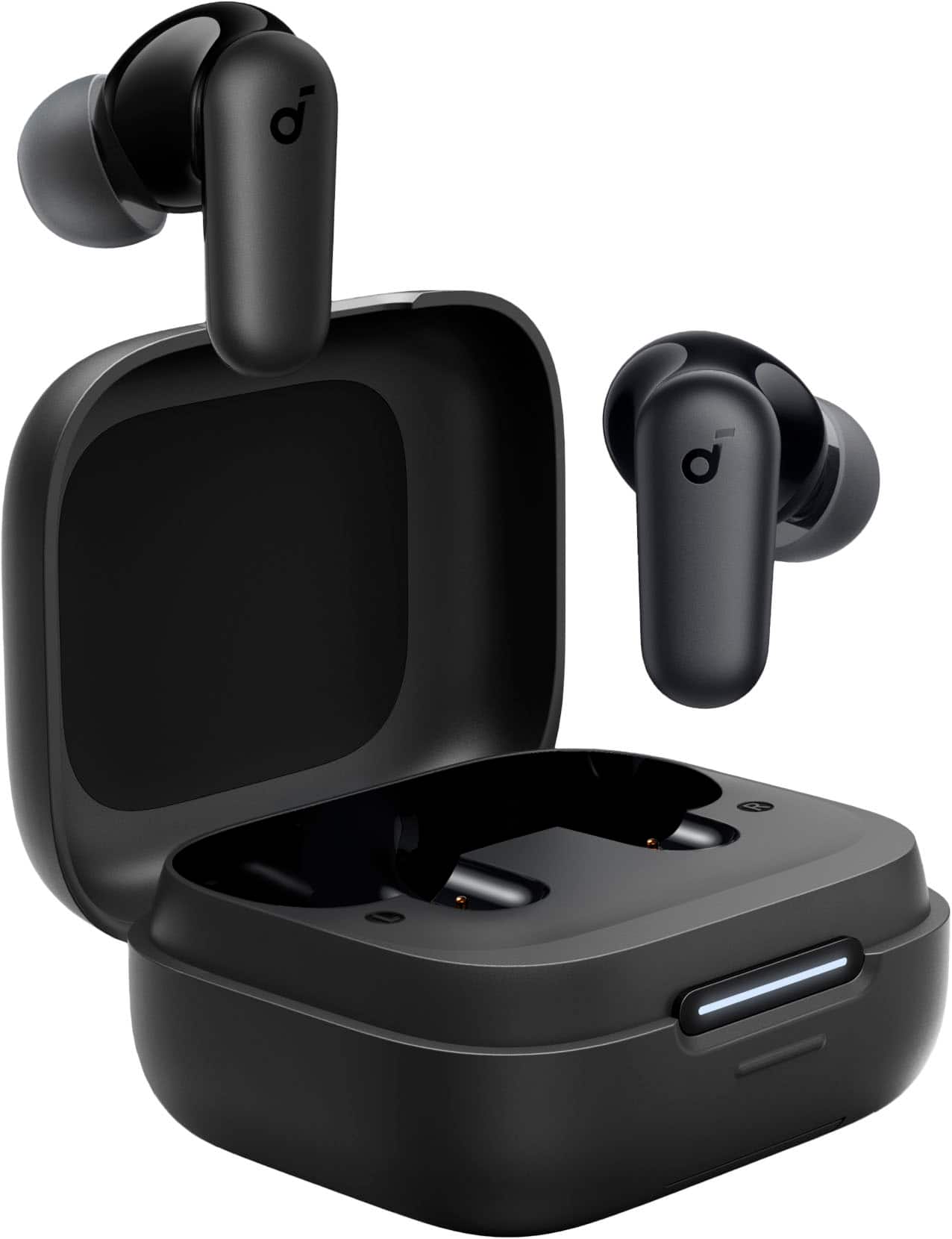
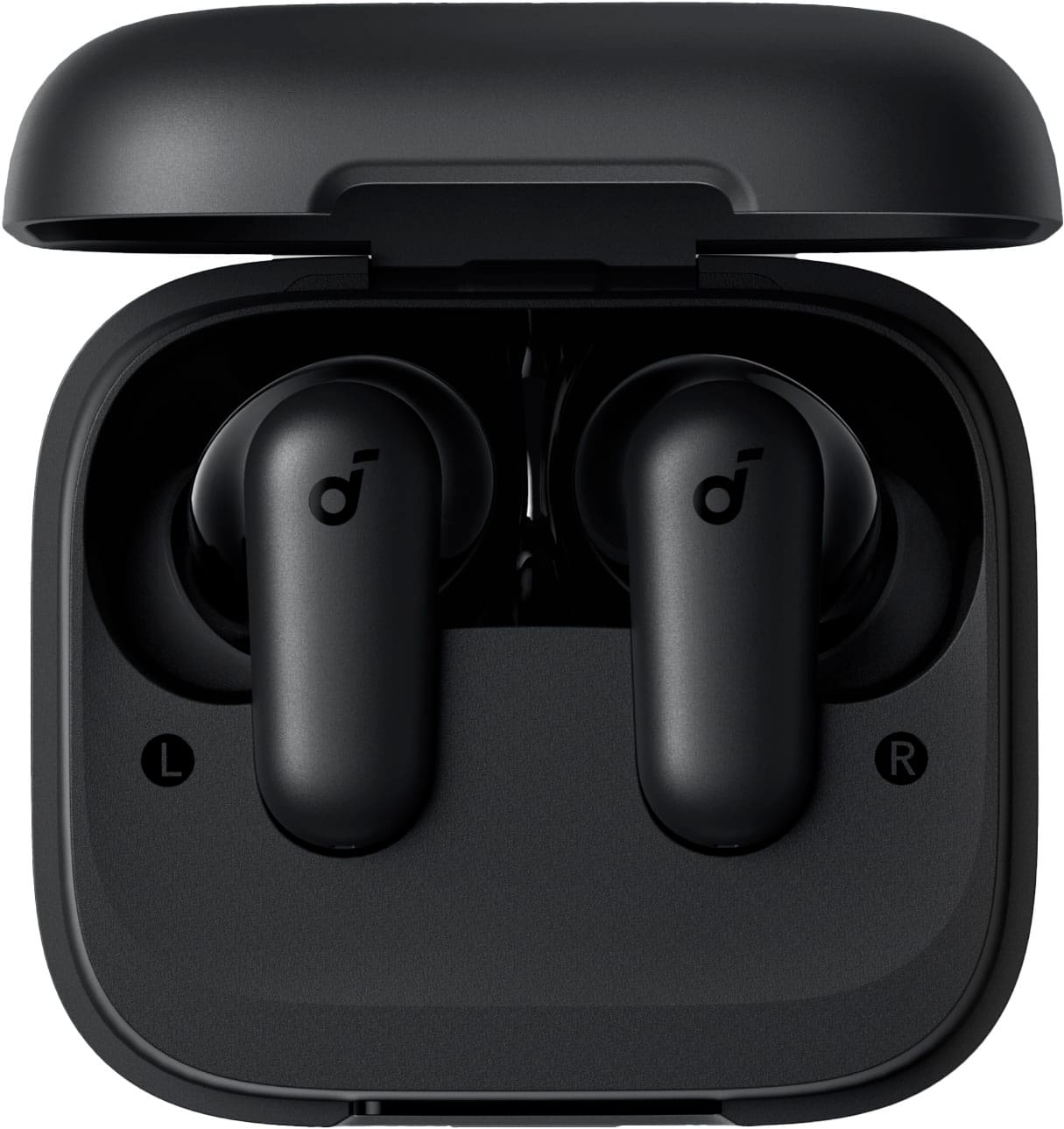
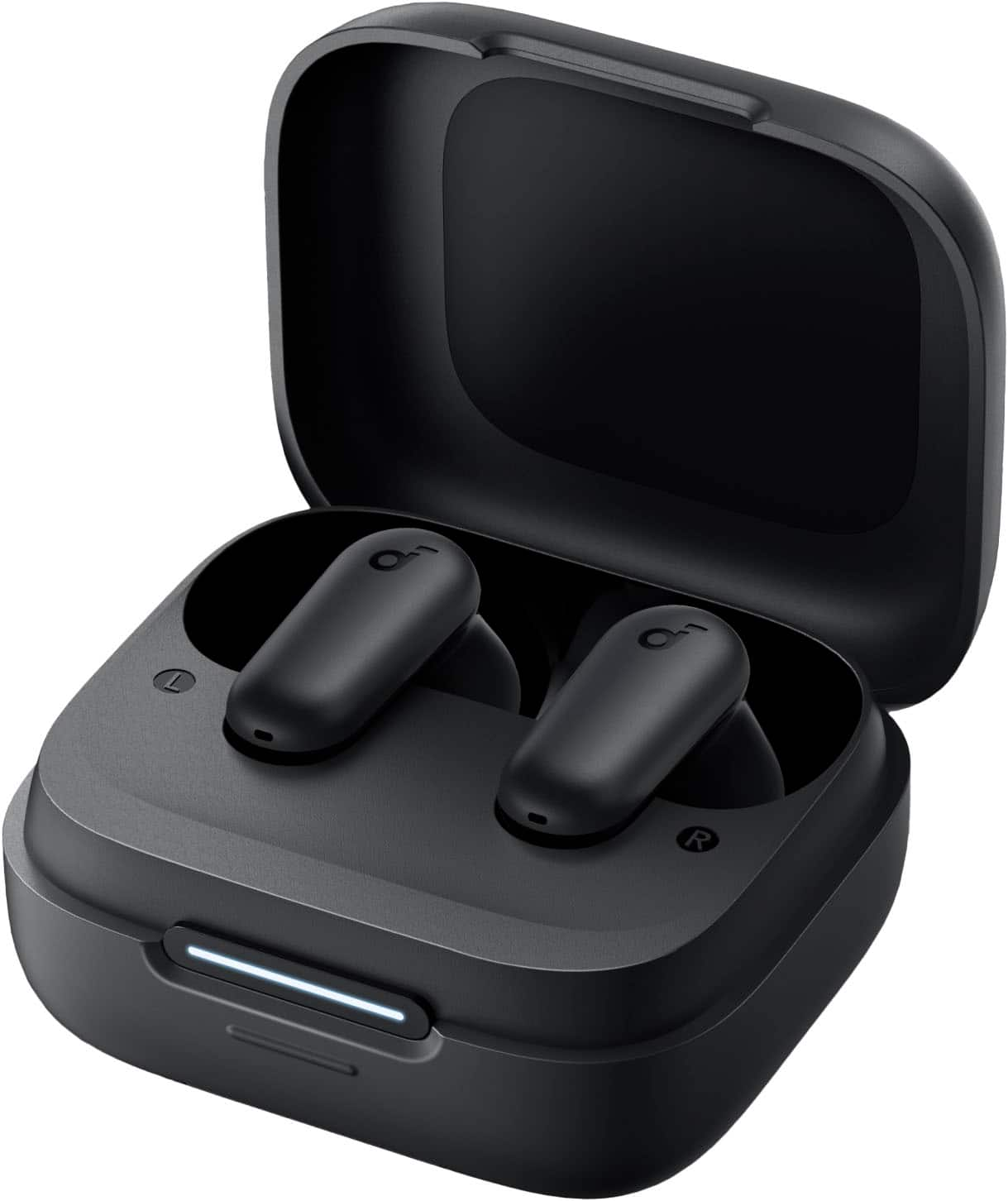
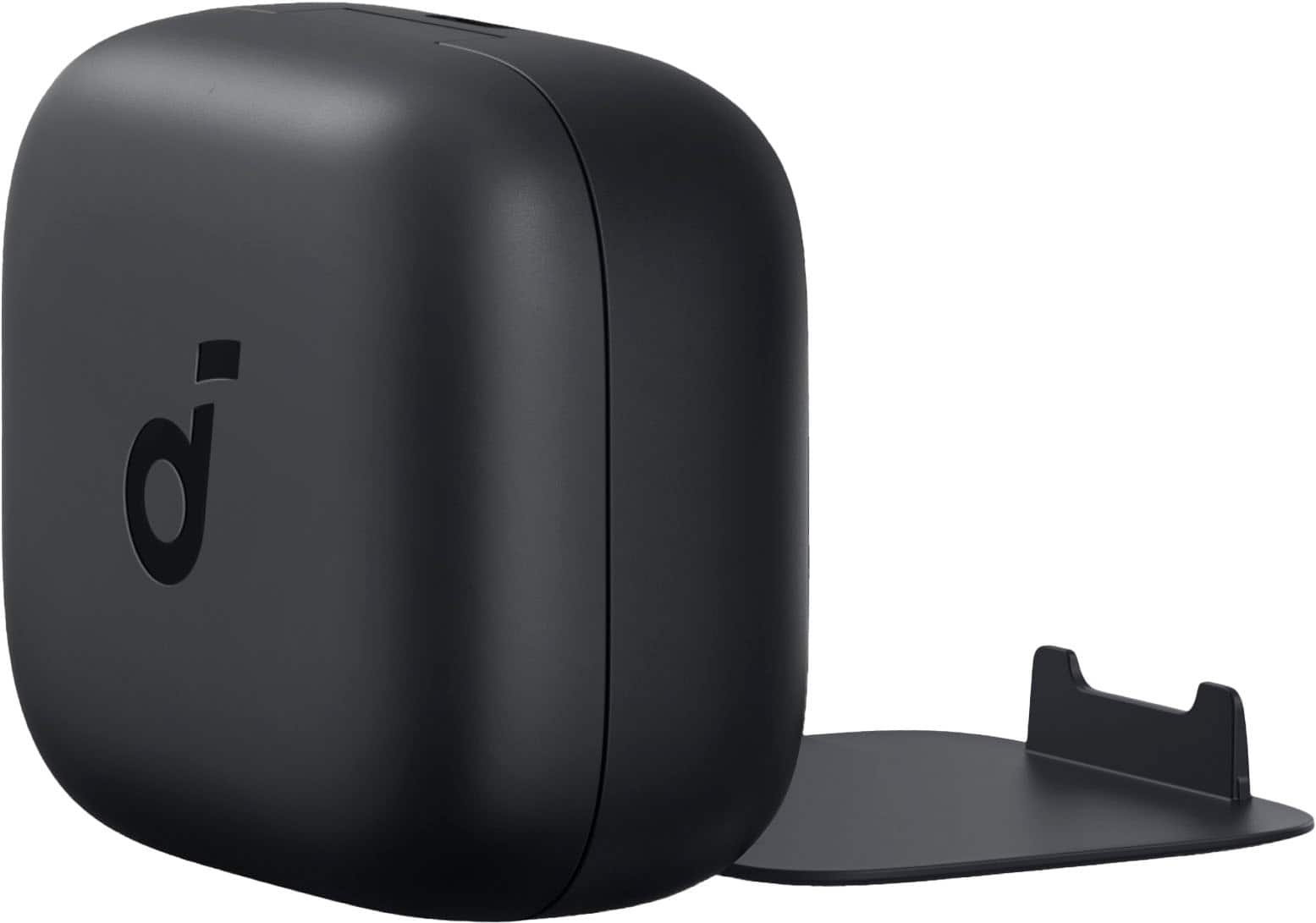

A:AnswerBy default, the volume of the Soundcore P30i earbuds can only be adjusted via your phone. However, you can use the Soundcore app to customize the touch controls on the earbuds for volume adjustment. To enable this option:
Open the Soundcore app and go to the "Controls" section in the earbuds' settings.
Enable the "Single Tap" function and customize the settings:
Set the left earbud for "Volume-" and the right earbud for "Volume+".
This will allow you to adjust the volume by tapping the earbuds.
A:AnswerYes, there are touch controls on the earbuds. For example, you can pause and resume playback by interacting with the earbuds via touch gestures. Double-tapping the right earbud allows you to resume Bluetooth music, while clicking either side of the earbuds twice can hang up a call.
A:AnswerThose are likely promotional offers for music services (like Amazon Music Unlimited or Spotify Premium) bundled with your Soundcore P30i purchase.
How to sign up:
Check your product box – Look for a redemption card with a unique code or a link.
Check your order email – Sometimes the promotion is emailed after purchase.
Open the Soundcore app – Go to the settings or "Rewards" section to see if the trial offers are available there.
May you sign up? Yes, if you just purchased the P30i and the offers are still active. Simply follow the instructions provided on the card or in the app to activate the trial. You will likely need to provide a payment method, but you can cancel before the trial ends to avoid charges.
A:AnswerAI-Enhanced Call features in earbuds like the Soundcore P30i use advanced algorithms to improve call quality. These features are designed to enhance voice clarity by reducing background noise, canceling echo, and amplifying your voice to ensure the person on the other end of the call hears you clearly.
This technology doesn't make the call itself but ensures the call's audio quality is superior. It works by processing the audio in real time, isolating your voice, and filtering out ambient noises like wind, traffic, or chatter in a crowded environment.
Steps to ensure the best call quality with your Soundcore P30i earbuds include:
Wear the earbuds correctly: Ensure the earbuds fit snugly and are in the proper position to create a tight seal in your ears. Improper wear may lead to reduced call performance.
Adjust settings: Make sure "Soundcore P30i/R50i NC" is selected as the audio output device on your connected device and adjust the volume accordingly.
Try alternatives: If you are experiencing issues while using a specific app for calls, try making a call directly from your phone to verify if the issue persists.
Test setup: Use your earbuds with a different Bluetooth device or in a different environment to check for changes in call quality.
A:AnswerThe Soundcore Sport X20 earbuds do not provide a specific option to read messages and notifications directly from an iPhone. However, you can connect the earbuds to the Soundcore app and your iPhone to enjoy other features, such as controlling the earbuds, using voice assistants, and customizing settings via the app. Ensure your earbuds are correctly paired with your device to utilize their features optimally. You can also invoke your iPhone's voice assistant (e.g., Siri) via a long press on the earbuds and potentially use it for notifications if Siri is set up for such tasks.
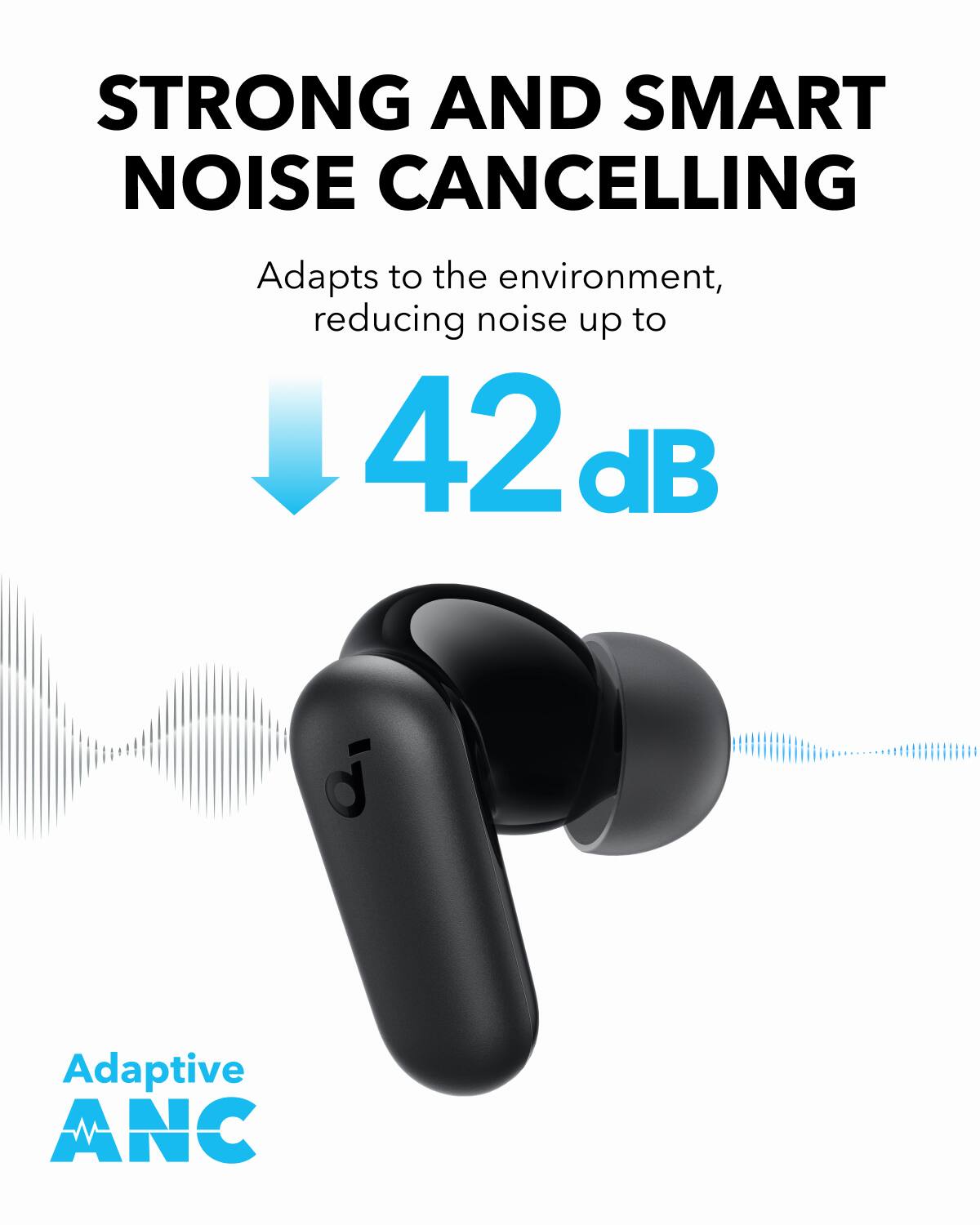
A:AnswerThe Soundcore P30i True Wireless Noise Cancelling Earbuds can have their active noise cancellation (ANC) functionality turned on independently, but the status of ANC is managed through the Soundcore app, which typically requires a Bluetooth connection to the phone. Without the Bluetooth connection, there is no way to adjust or confirm the ANC status unless it has been preset beforehand.