A:AnswerYou can program the TV to turn on to a specific input by going to Home>Settings>System>Power>Power On>HDMI 1. Hope this helps! Thank you, TCL Customer Support
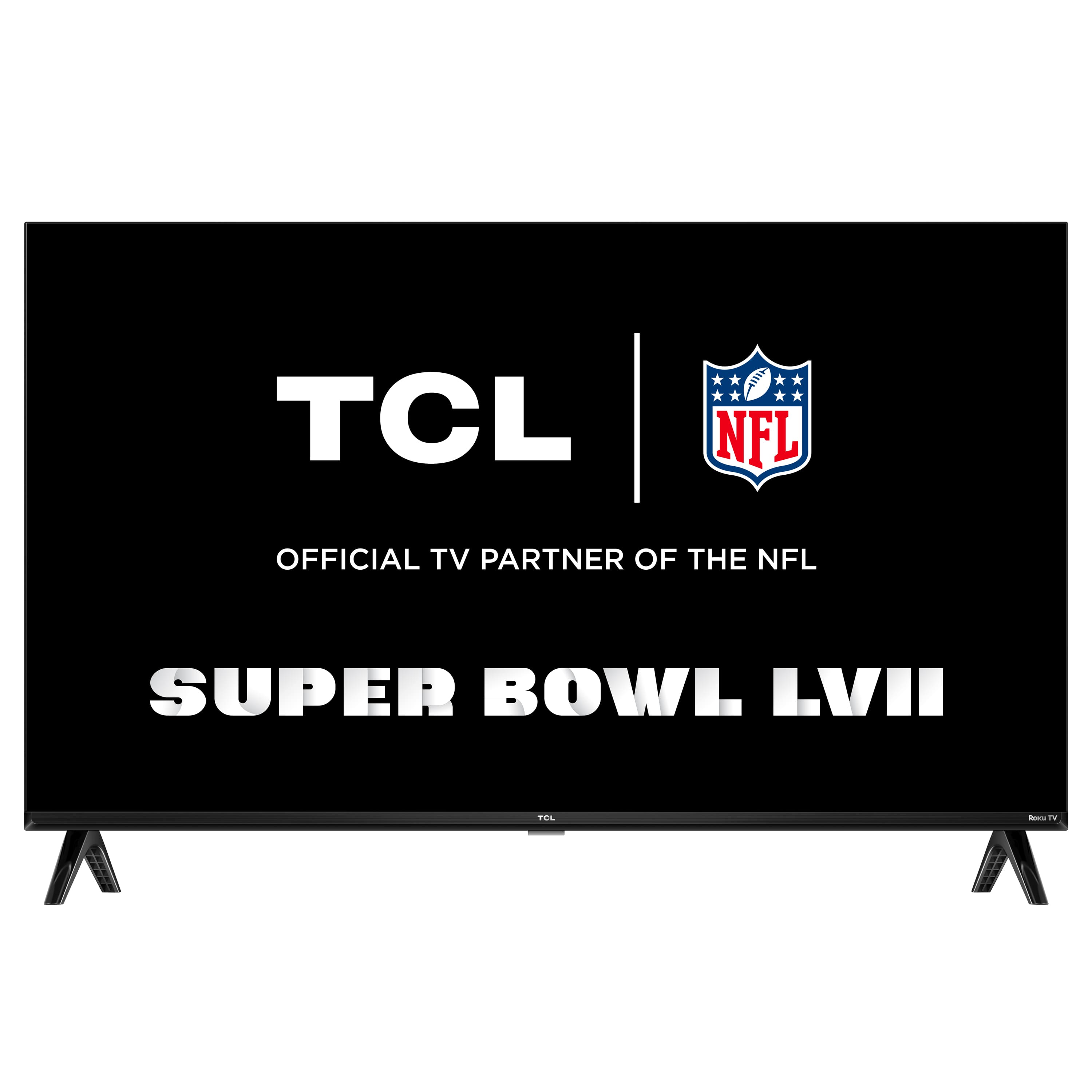
A:AnswerYou can use the VESA mounting pattern with things like "Earthquake straps" to help secure the TV. Hope this helps! Thank you, TCL Customer Support
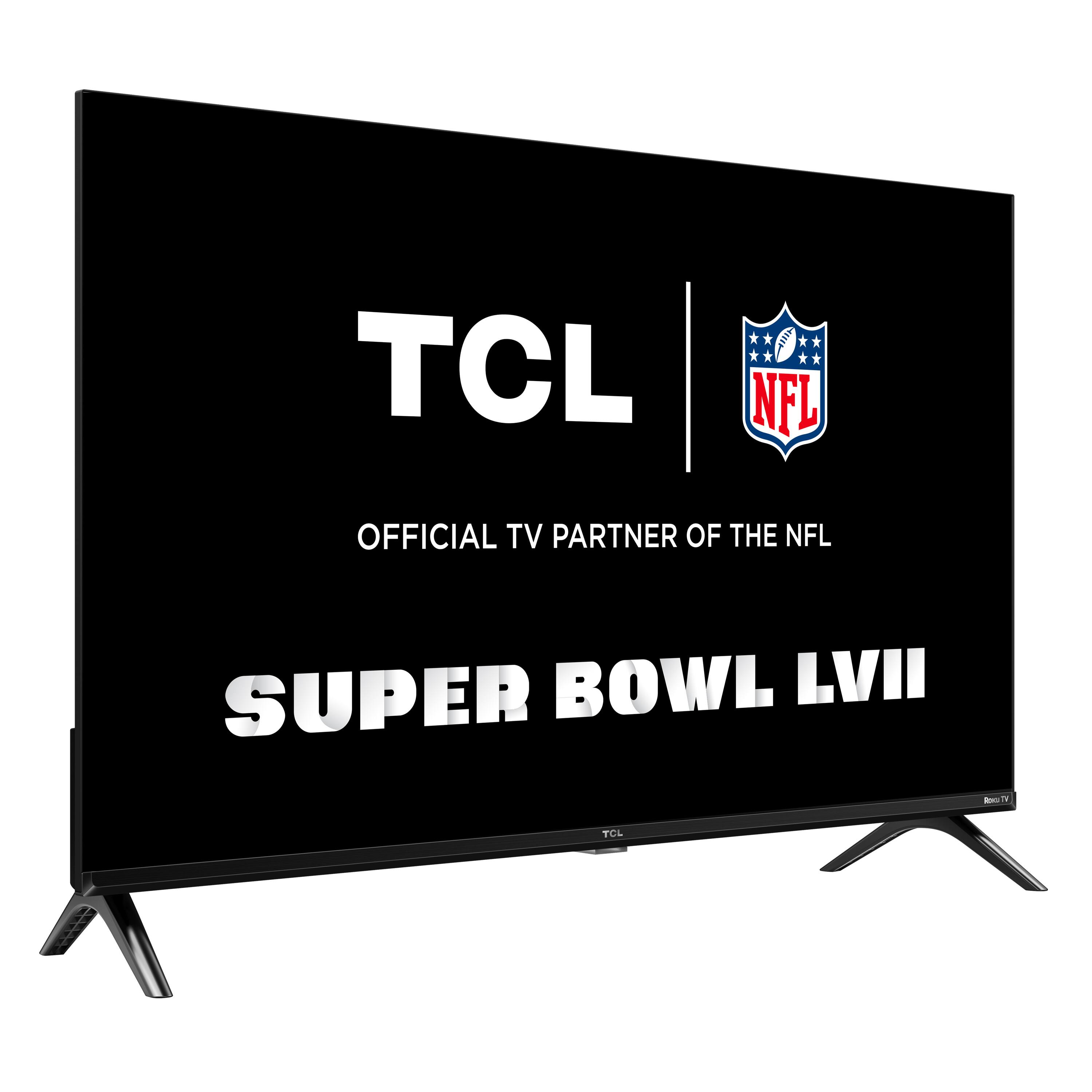
A:AnswerIf headphones are connected to the 3.5mm headphone jack of the TV, the internal TV speakers will automatically be disabled. Hope this helps! Thank you, TCL Customer Support
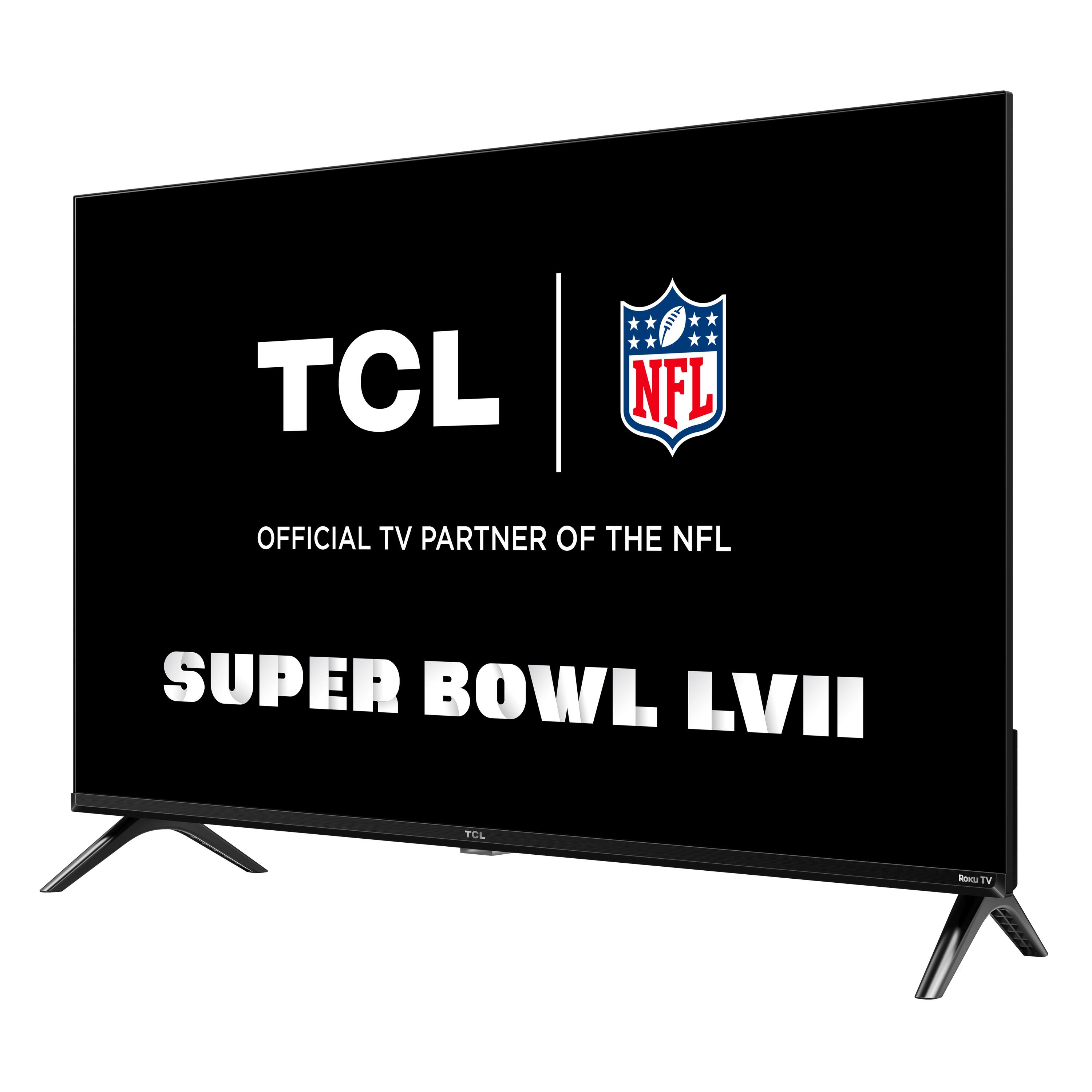
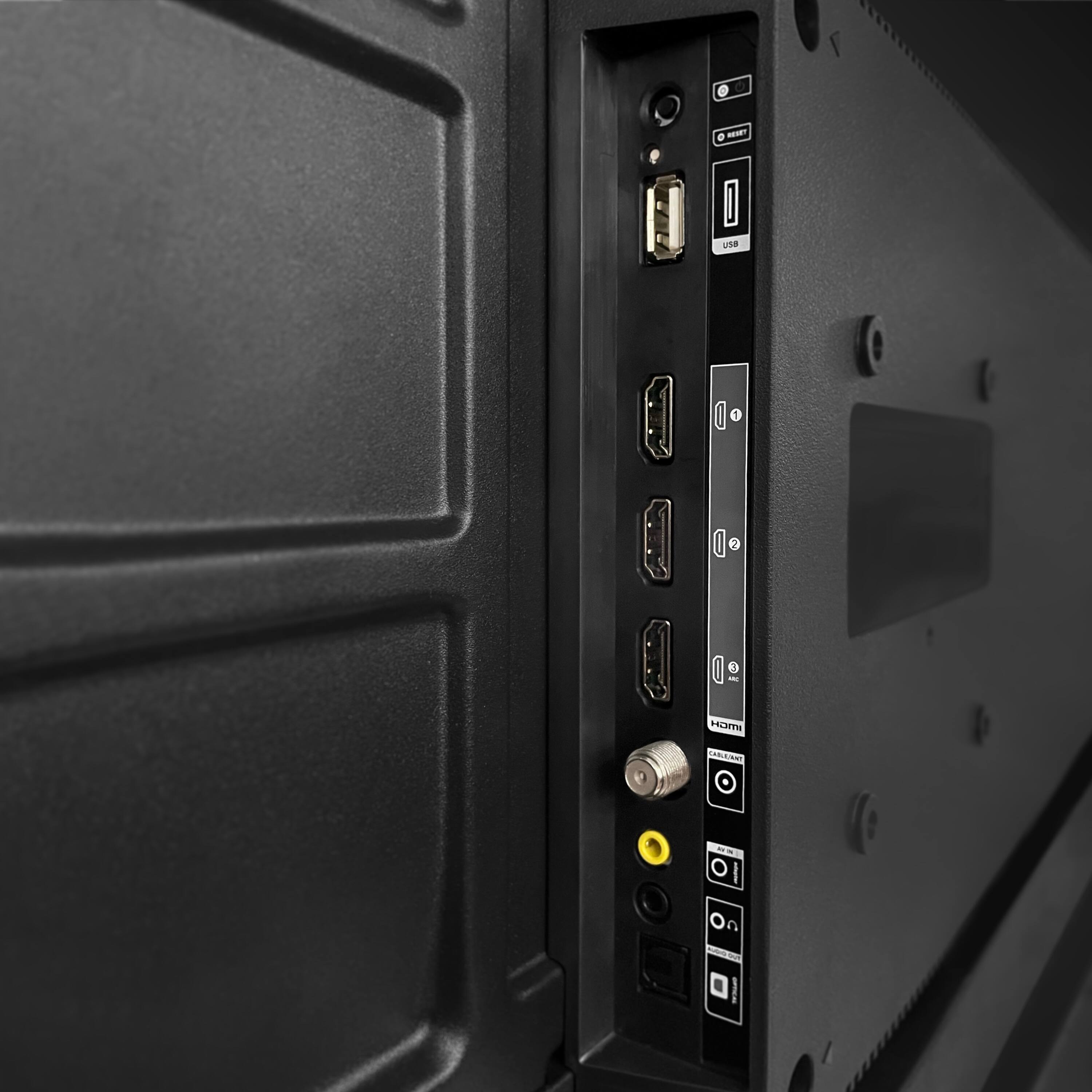
A:AnswerThis TCL TV features various inputs that can be used to connect external devices like game consoles. Hope this helps! Thank you, TCL Customer Support
A:AnswerThis TCL Roku TV is designed and engineered to be used within the US. As such, it supports 120V. Hope this helps! Thank you, TCL Customer Support
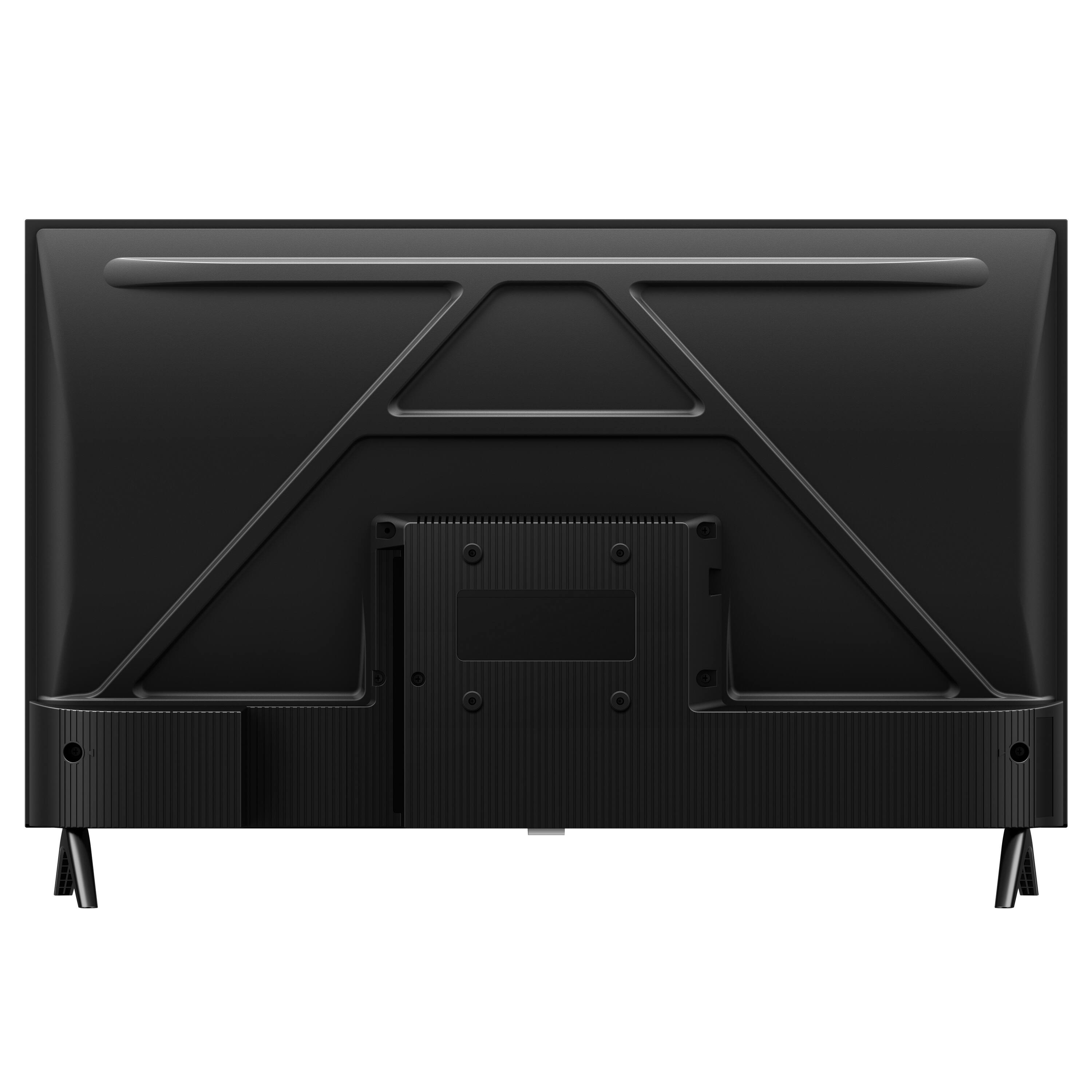
A:AnswerThis TCL Roku TV has the ability to connect to the Internet via WiFi. It does not feature an Ethernet port. An ethernet adapter would not be recommended nor guaranteed to work. Hope this helps! Thank you, TCL Customer Support
A:AnswerYou can loop images via the USB port. Once your USB is connected either launch it or go to the Roku Media Player app. Go to Video and select the USB. You need to put all videos you want to loop into one folder, then highlight the folder, then hit the “circle back” button (to the left of the asterisk “*” button). It will then loop all the videos in the folder(but you can’t mix pictures/videos together). Hope this helps! Thank you, TCL Customer Support
A:AnswerThis TCL Roku TV has the ability to connect to the Internet via WiFi. It does not feature an Ethernet port. Hope this helps! Thank you, TCL Customer Support
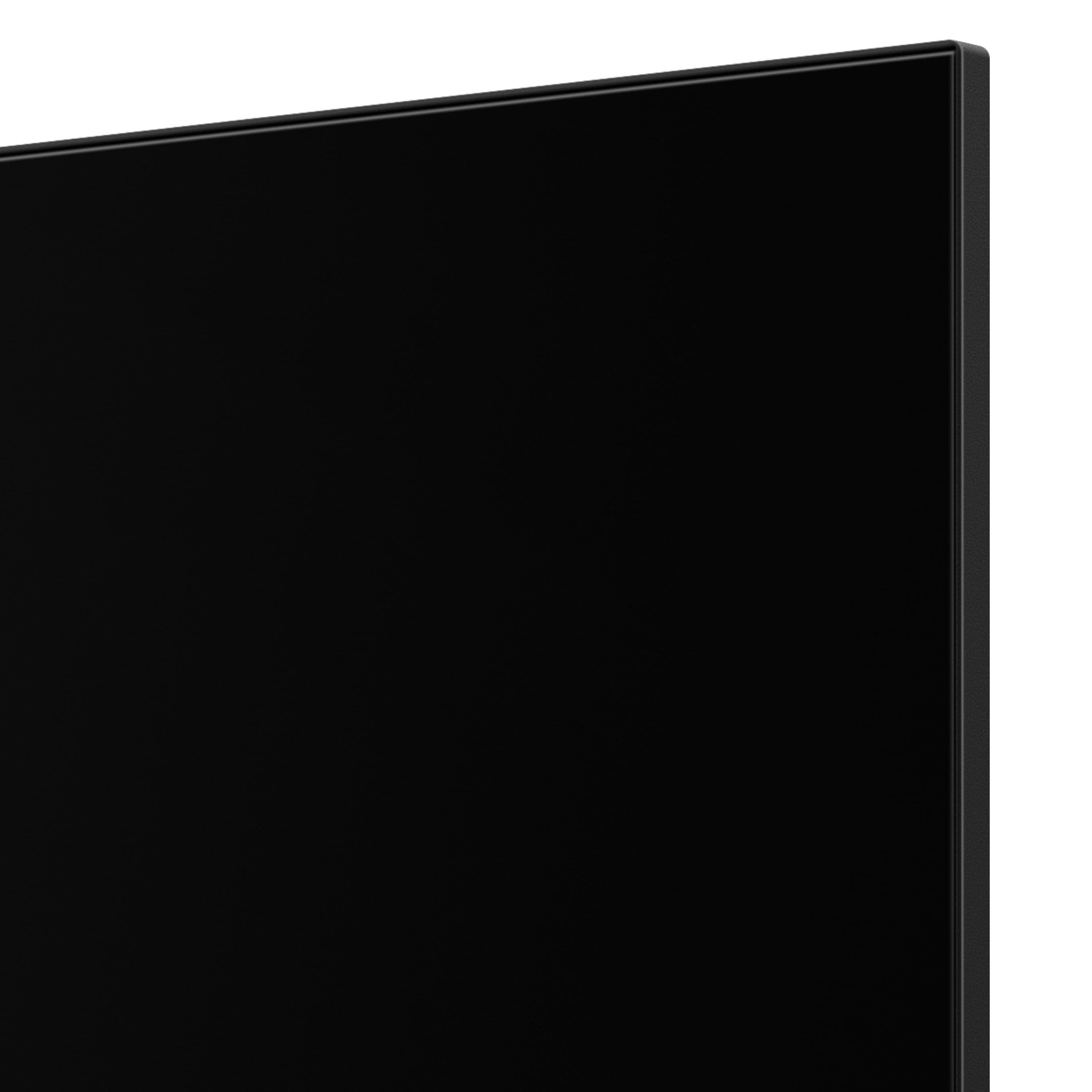
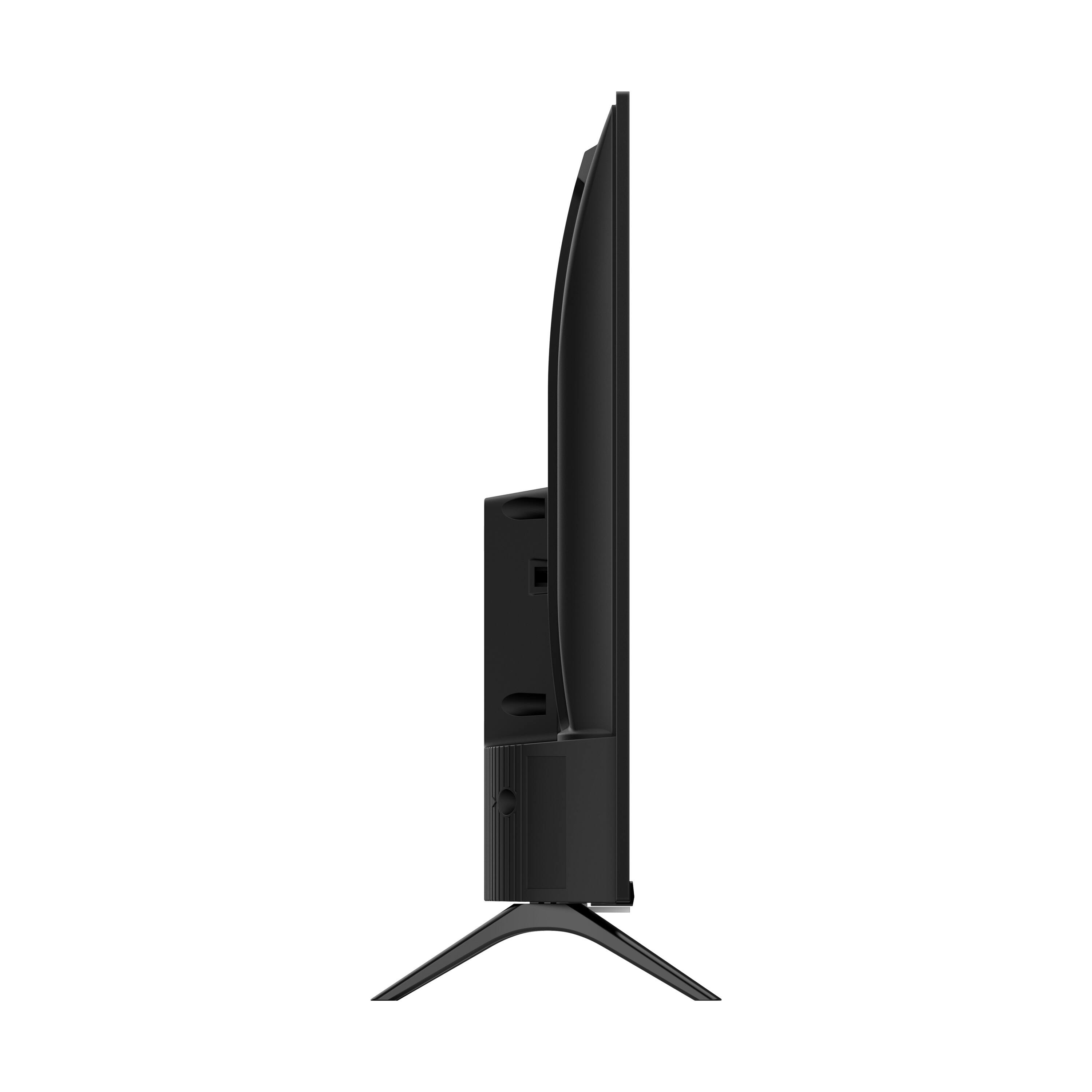
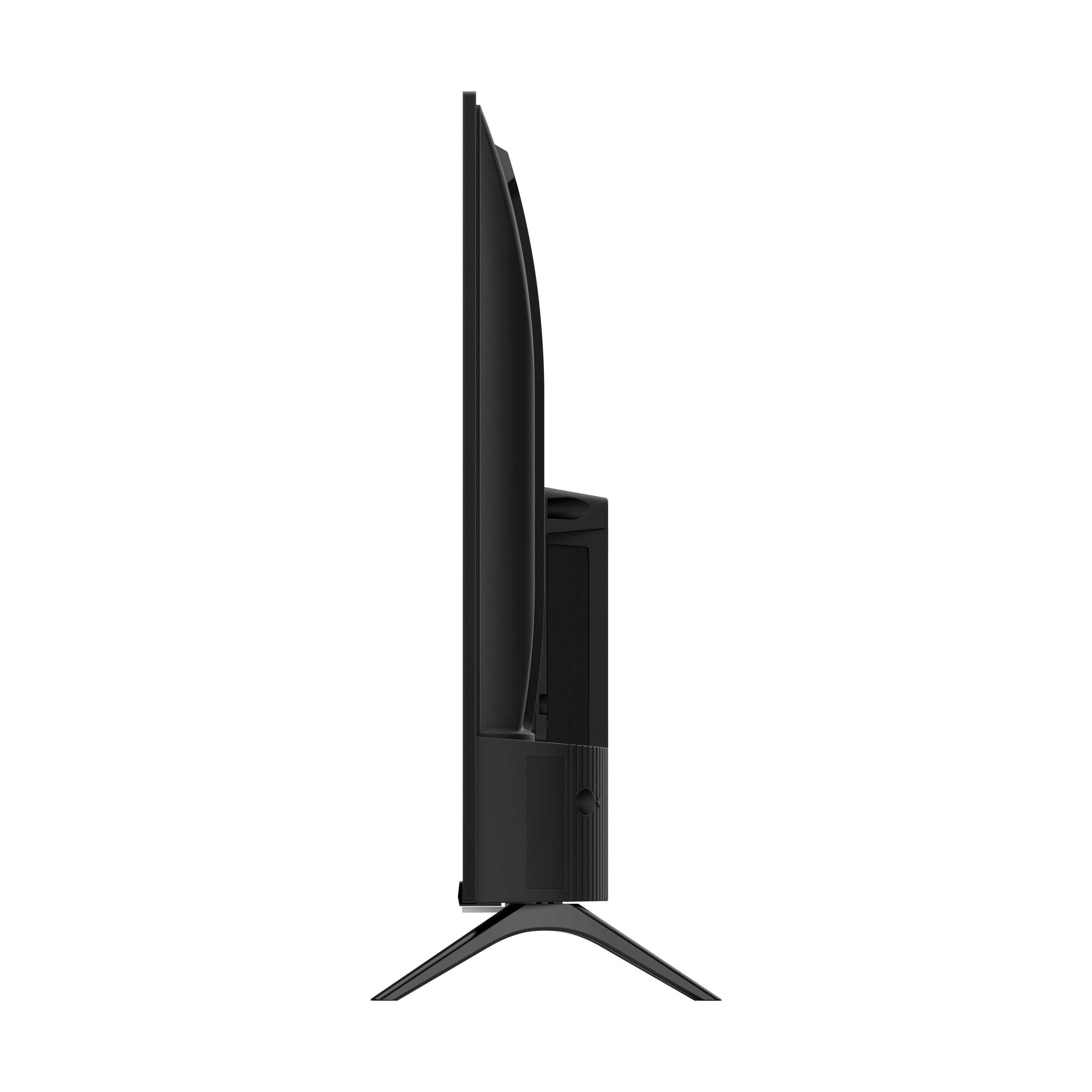
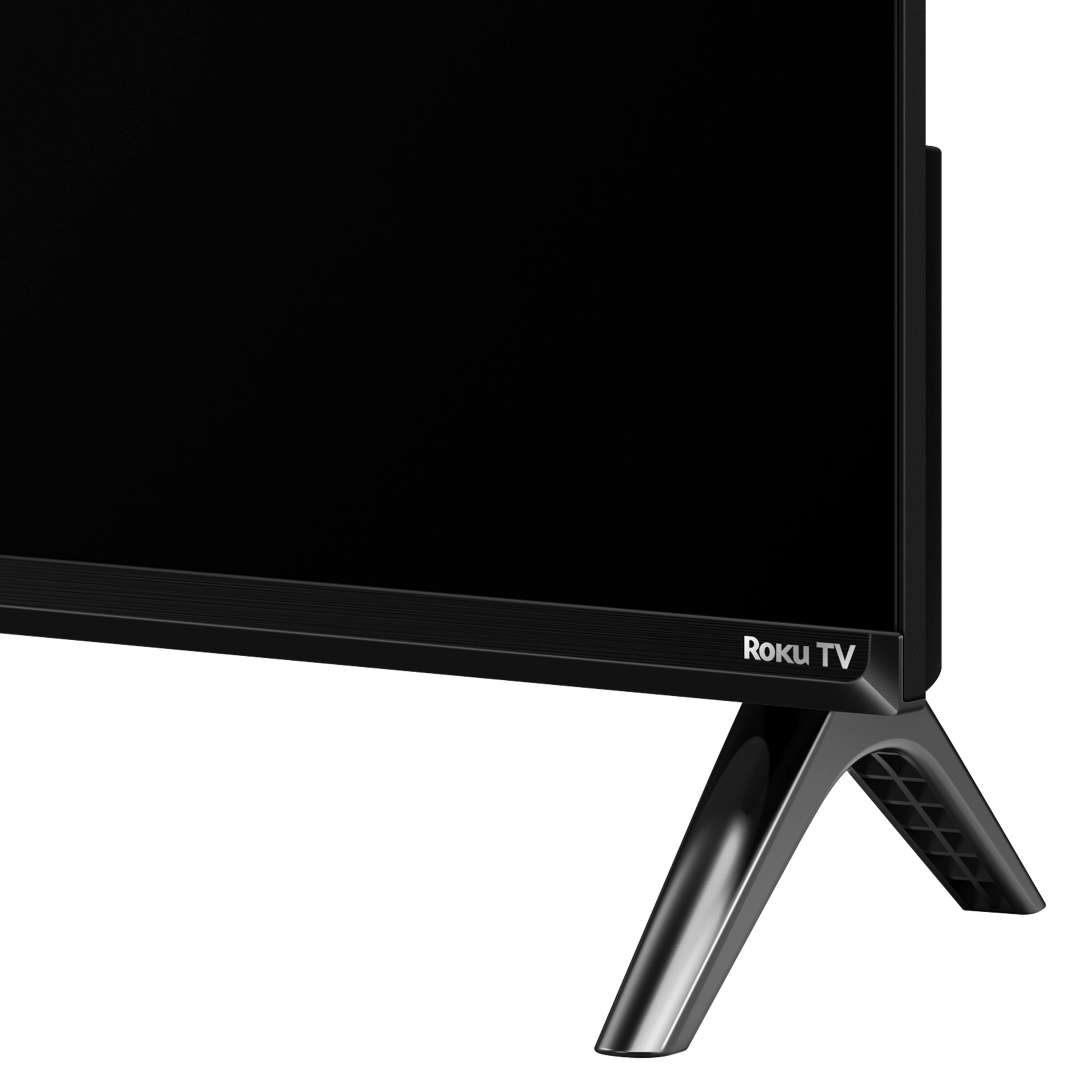
A:AnswerFor this 32 inch TCL Roku TV, the feet spacing to fit on a stand 26.9 inches wide and 7.1 inches deep. Hope this helps! Thank you, TCL Customer Support
A:AnswerUsually there’s a code which comes with the packaging. Try googling the brand of remote and they should have the codes there for you. It’s usually the first or second code
A:AnswerCurrently, our Roku based TVs do not support Bluetooth. If you are trying to connect a sound bar or speakers you can use the Optical port, or the HDMI ARC port. For Headphones, there is a Headphone jack on the back of the TV, or you can download the Free Roku app for private listening. Hope this helps! Thank you, TCL Customer Support