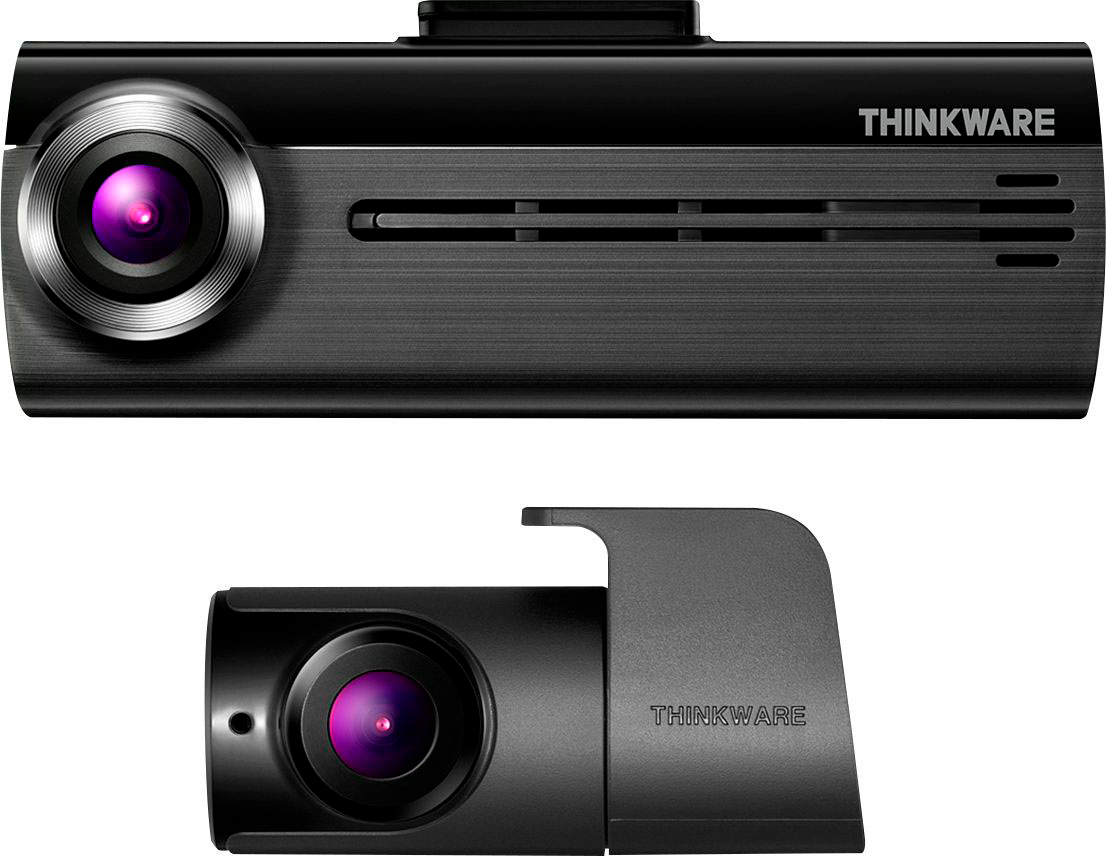
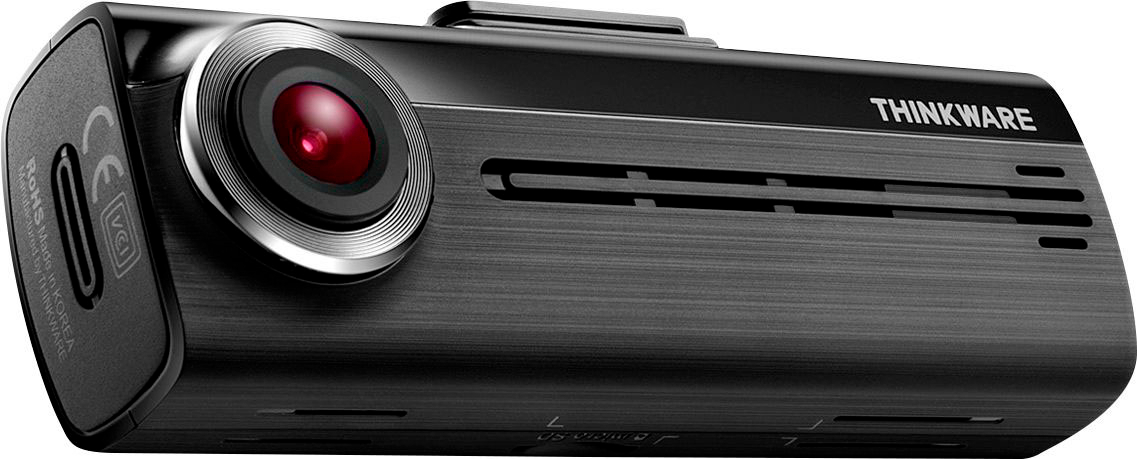
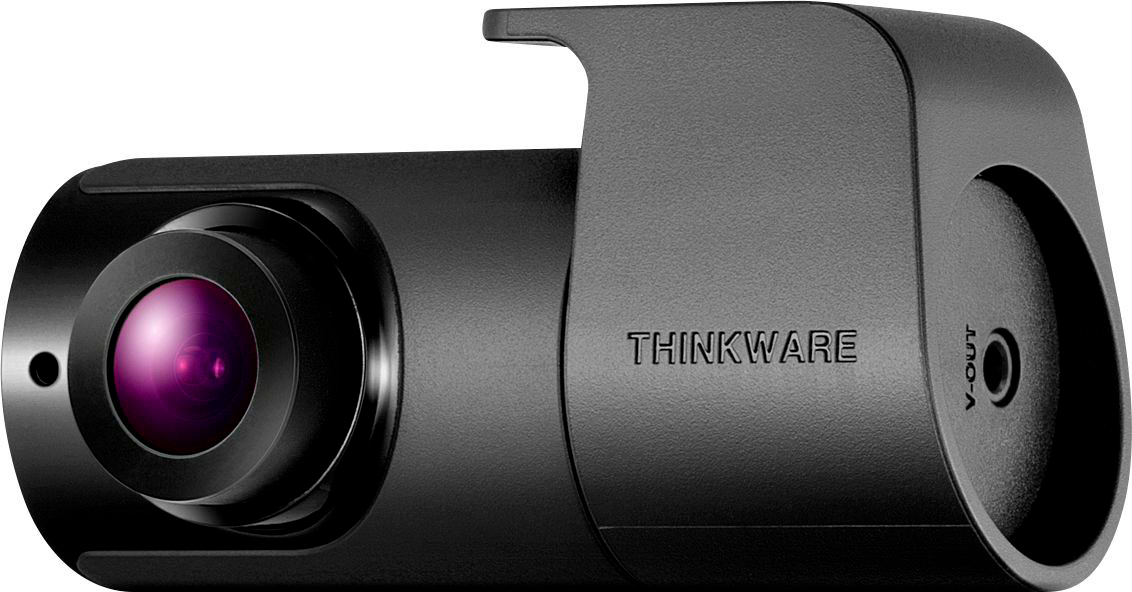
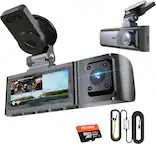
A:AnswerHello There, you can definitely install the Dash Cam on your Camaro, however, being convertible, you might not be able to install the Rear Cam. For installation, you will need to contact the Best Buy branch directly.
A:AnswerHi There, when using the Live View feature, click at the letter R at the top right corner to switch to the Rear Cam. Unfortunately, you're unable to connect it to the car console.
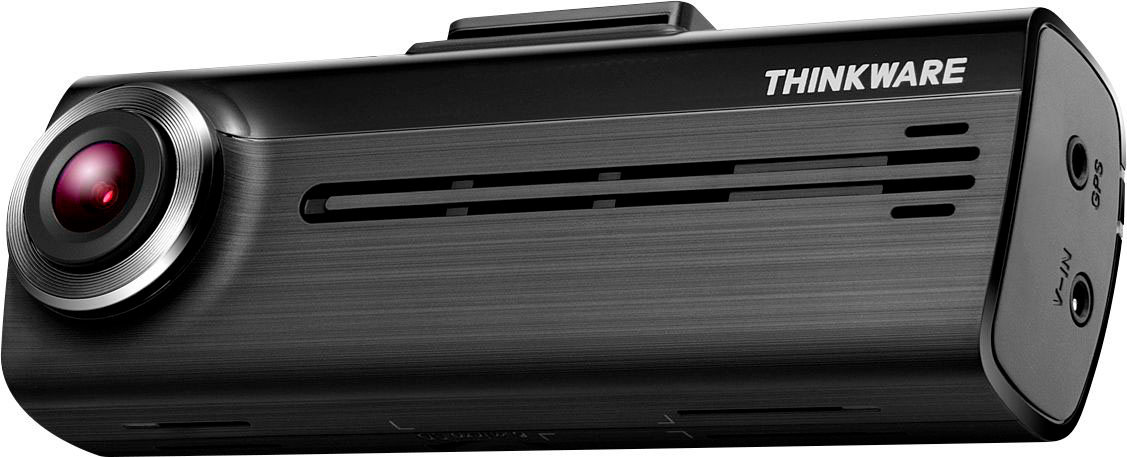
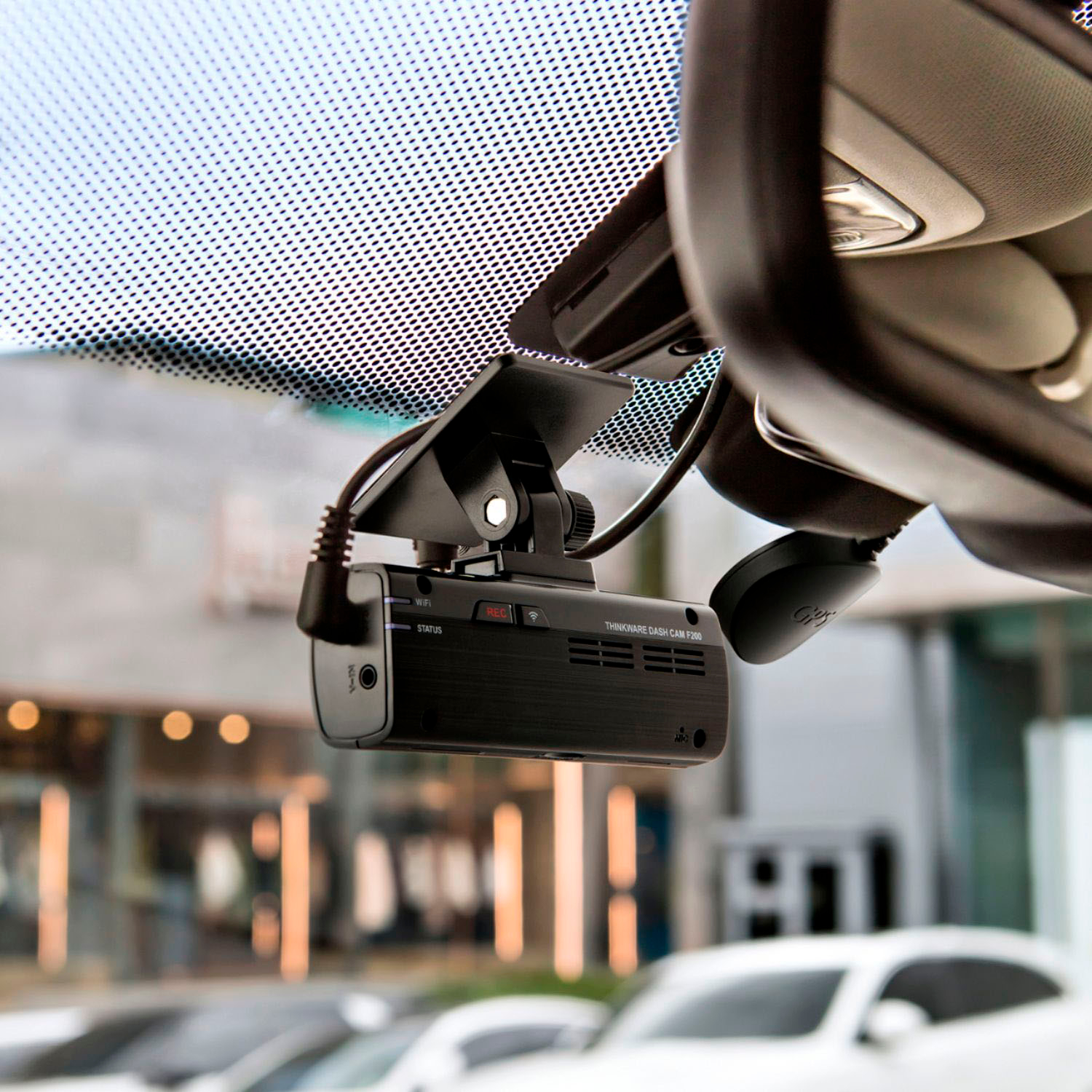
A:AnswerYes they are separate, but you can't really LIVE monitor unless you are in the settings mode and viewing through your phone. The front cam has a headphone jack which is where the rear plugs in, the rear has a 20 foot cord I think.
A:AnswerHello There, take a look at our Tutorial video on Youtube on How to Install the Rear Cam! The Front Cam will work just fine without the Rear Cam installed!
A:AnswerHello There! We do recommend professional installation (Geek Squad is a good suggestion!) for the best setup for your vehicle make and model. We do offer tutorial videos on our Youtube channel if you are comfortable installing it yourself!
A:AnswerYes it’ll record while parked, and you can chose different parked settings too. Also has battery protection setting so it will shut down camera when sensing battery voltage dropping to low.
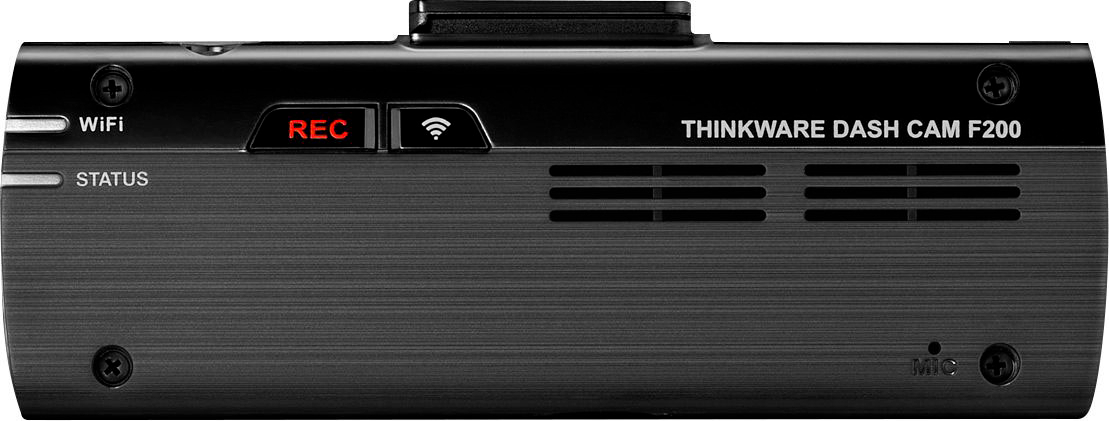
A:AnswerTurn off data and turn on WiFi on your phone. Then click the WiFi button on the dash camera. The dash cameras WiFi will appear. Enter the password on the manual. Then open the Thinkware app.
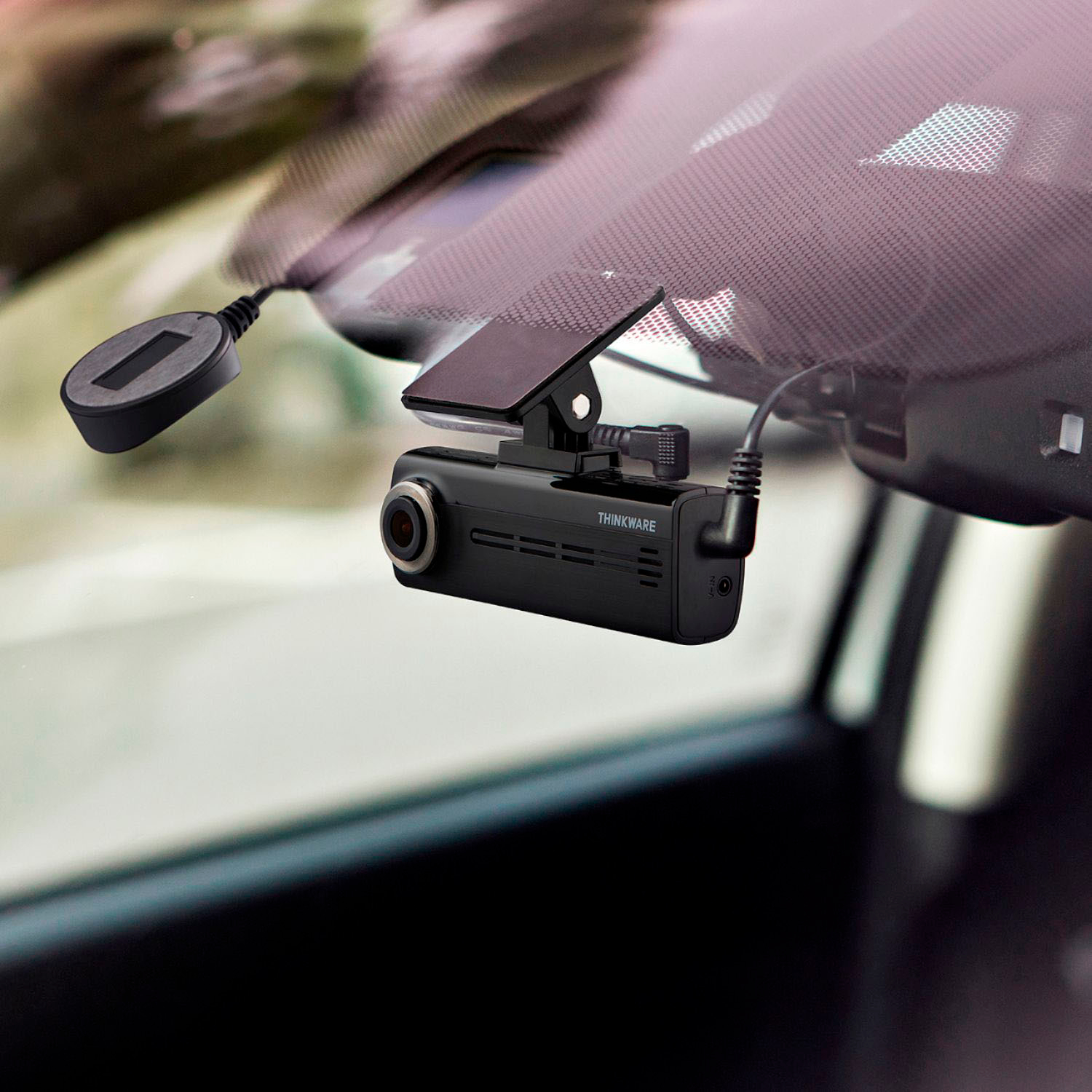
A:AnswerMy windows are tinted a tad darker than usual because the sunlight bothers my light colored eyes and the dash cam performs wonderfully even with the tinted windows.
A:AnswerHello There, The "D" stands for Dual Channel which includes both the Front and Rear Cameras. The F200 package comes with the Front F200 Dash Cam only.